

Troubleshoot & Debug Make.com Scenarios: Fix Common Module & Connection Errors for Automation Builders
If your Make.com scenario fails, you can troubleshoot and debug it faster by following a repeatable workflow: find the first failing module in Scenario History, validate the input/output data, classify the error type, apply the right fix, and rerun to confirm stability.
Next, you’ll learn what “debugging” actually means in Make.com terms, how errors differ from warnings, and how to read module logs so you stop guessing and start diagnosing.
Then, you’ll get a practical library of fixes for the most common failure modes—connection/auth issues, mapping problems, configuration mistakes, and rate limits—so your scenarios keep running reliably instead of breaking at random.
Introduce a new idea: once you can fix today’s run, you’ll want to prevent tomorrow’s failures by adding resilience patterns like validation, controlled retries, and error-handling routes.
MAIN CONTENT
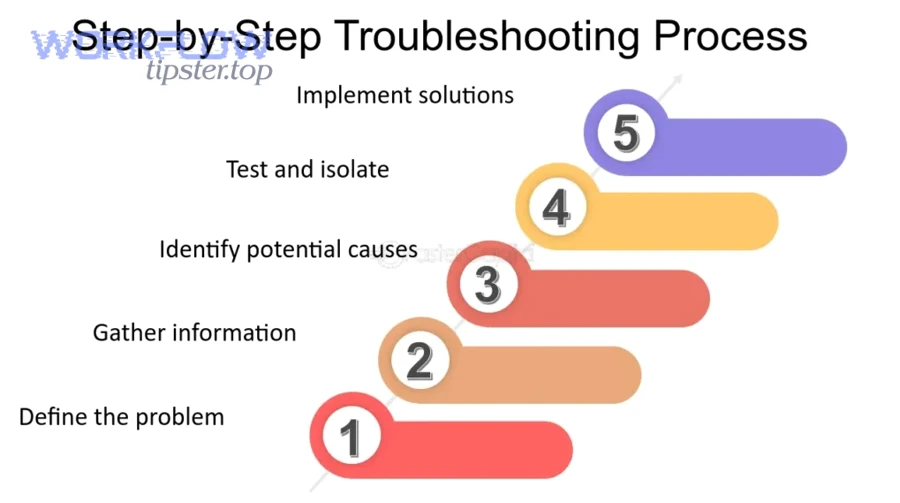
What does it mean to “troubleshoot and debug” a Make.com scenario?
troubleshooting and debugging a Make.com scenario is a structured diagnostic process that traces a failed run back to the first broken module, verifies the data passed between modules, and applies a targeted fix so the scenario runs successfully and predictably again.
To better understand why scenarios fail , you need a clear mental model of what a scenario is and how Make.com signals “errors” versus “warnings.”

What is a Make.com scenario, and what are modules and connections inside it?
A Make.com scenario is an automation workflow that executes step-by-step through modules (actions/triggers) using connections (authorized access to external apps) while moving data bundles from one module to the next.
Specifically, this structure matters because most failures are not “mysterious platform issues”—they come from one of four scenario parts:
- A module misconfiguration (wrong ID, wrong option, wrong filter, wrong search criteria)
- A connection problem (expired token, revoked access, missing permission/scope, wrong account)
- A mapping/data-shape mismatch (missing required field, wrong type, empty bundle, malformed JSON)
- A platform or app limitation (rate limit, timeout, external app downtime)
In practice, “debugging” in Make.com means you inspect the exact input and output of the failing module inside a specific run, then adjust either the module’s configuration, the mapping, or the connection so the module can process valid data and the scenario can continue.
Are “errors” and “warnings” the same thing in Make.com?
Errors stop (and can eventually disable) your scenario runs, while warnings signal a problem that may not halt the run—so errors demand immediate fixing, but warnings demand investigation and prevention.
More specifically, Make.com treats an error as an unexpected event that the scenario did not handle; the run stops and Make may disable scheduling after repeated errors, while warnings indicate an issue occurred but is less severe or was handled through error handling.
That difference changes your priorities:
- If you see error status: focus on the first failing module, because everything after it is unreliable.
- If you see warning status: the run may have continued, but you still need to find the warning-producing module and decide whether it’s a data-quality risk, a performance risk, or a reliability risk.
When you internalize this distinction, you stop “fixing the last thing you saw” and start fixing the first true cause.
Can you identify the failing step quickly from Scenario History and module logs?
Yes—Make.com scenario troubleshooting becomes fast and consistent when you (1) start from Scenario History to locate the first failed module, (2) read the exact error text tied to that run, and (3) compare module input/output to confirm whether the break is config, connection, or data.
Then, once you’ve found the failing step, you can move from “where did it break?” to “why did it break?” using a short, repeatable checklist.
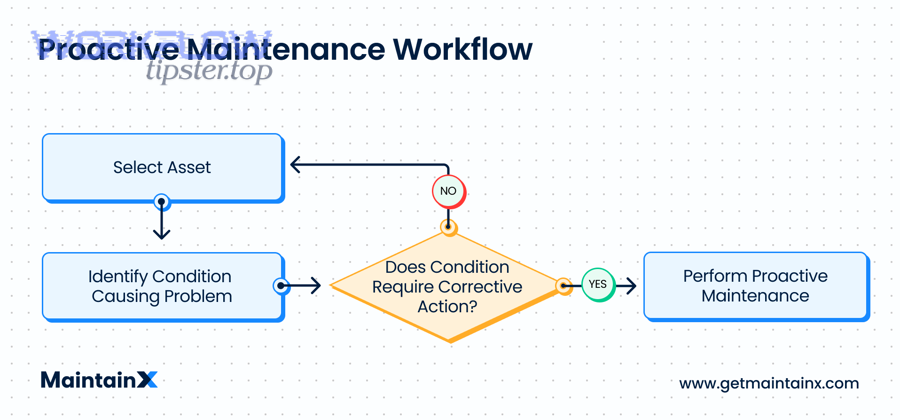
What should you check first in Scenario History to locate the root cause?
There are 6 main checks to locate the root cause in Scenario History: (A) run status, (B) first failed module, (C) error message, (D) previous module output, (E) timestamps/volume, and (F) whether the scenario retried or rolled back.
Specifically, here’s how to execute the checklist in under two minutes:
- Open the latest failed run and confirm whether it’s an error or warning.
- Click the first red/failed module (not the last module you were working on).
- Read the full error text and capture the key noun phrases (e.g., “missing required field,” “unauthorized,” “rate limit,” “invalid JSON”).
- Inspect the previous module output to see what data was passed forward.
- Check run timing and volume: spikes often indicate pagination issues, unexpected loops, or too many bundles.
- Notice rollback/disable behavior: repeated unhandled errors can disable scheduling, which changes what “fix” must include.
This checklist is powerful because it keeps your investigation anchored to evidence (the run) rather than assumptions (what you think the scenario did).
How do you use “Input/Output” to validate mapping and data shape?
Input/Output inspection is a data validation method that compares what the module received (input) and produced (output) against what the next module expects, revealing missing fields, empty bundles, wrong types, or malformed structures.
For example, if a downstream module says “Missing required field: email,” you should not start by editing that module. Instead:
- Open the failing module’s Input and look for the email field in mapped values.
- If the email is mapped, check whether it’s empty, null, or a different field name than expected.
- Open the upstream module’s Output and confirm whether an email exists in the data source at all.
- If the email exists upstream but disappears, you likely have a mapping expression, filter, or iterator/aggregator shaping the bundles incorrectly.
Once you can “read” bundles like this, your fixes become deterministic: you change the exact module/mapping that produces the bad data shape.
What are the most common Make.com scenario error categories you should troubleshoot first?
There are 5 main types of Make.com scenario errors—connection/auth, module configuration, data/mapping, rate limits/timeouts, and external app/API issues—based on where the failure originates and what kind of fix resolves it.

Moreover, troubleshooting gets easier when you group errors by “most likely” and “fastest to verify,” because you can eliminate entire categories in minutes.
Which connection and authorization errors happen most often (and why)?
There are 4 common connection/auth errors: expired credentials, revoked permissions, wrong account context, and missing scope/role access—because connections are dynamic and can change outside Make.com.
To illustrate how they show up during troubleshooting:
- Expired token / API key: a previously working scenario suddenly fails after a period of inactivity or after the external app rotates credentials.
- Revoked access: someone removed the user/app integration in the external platform, so Make.com is no longer authorized.
- Wrong account/workspace: the connection points to Account A, but the scenario expects objects that only exist in Account B.
- Permissions/scope mismatch: the connection exists, but it can’t read/write the specific resource type (e.g., a restricted folder, a private list, or a protected endpoint).
Your fix is rarely “rebuild the whole scenario.” Most of the time, you reauthorize or recreate the connection with the correct account and permissions, then rerun the scenario to confirm.
Which configuration errors come from module settings rather than the app connection?
Module configuration wins as the most likely cause when the connection tests fine but the module fails on logic/parameters, while connection issues are most likely when multiple modules fail similarly or the error mentions authentication/authorization.
However, you can separate them using a practical comparison:
- Configuration error signals
- The error mentions invalid parameters, missing IDs, wrong option, or “resource not found.”
- Only one module fails, while other modules using the same connection work.
- The module fails consistently regardless of data variation.
- Connection error signals
- The error mentions “unauthorized,” “forbidden,” “invalid credentials,” or “token expired.”
- Multiple modules using the same connection fail within the same run.
- The scenario used to work and stopped after an account/security change.
This comparison matters because configuration fixes are usually inside the module, while connection fixes are usually inside the connection settings.
Which data/mapping errors typically break scenarios mid-run?
There are 6 common data/mapping errors: missing required fields, type mismatch, empty bundles, malformed JSON, unexpected arrays/objects, and iterator/aggregator shape errors—based on how the data structure differs from what the module expects.
Specifically, these are the patterns you’ll see repeatedly in troubleshooting:
- Missing required field: you mapped a field that is sometimes empty (like “phone” or “email”), and the destination module rejects it.
- Type mismatch: a date arrives as text, a number arrives as a string, or a boolean arrives as “yes/no,” causing validation errors.
- Empty bundle: the upstream module found no results, but downstream modules still attempt to run.
- Malformed JSON: a text field contains invalid JSON syntax, but a downstream parser expects valid JSON.
- Unexpected arrays/objects: a module expects a single object but receives a list (or vice versa).
- Iterator/aggregator mismatch: an iterator expects an array, but it receives an object; an aggregator expects grouped bundles but receives scattered ones.
Once you name the category correctly, the fix becomes obvious: add validation, transform types, guard against empties, or restructure bundles.
How do you fix module and mapping issues without breaking downstream steps?
You fix module and mapping issues safely by changing one failure point at a time, validating the new output shape with a controlled test run, and confirming that downstream modules still receive the same (or better) structured data.
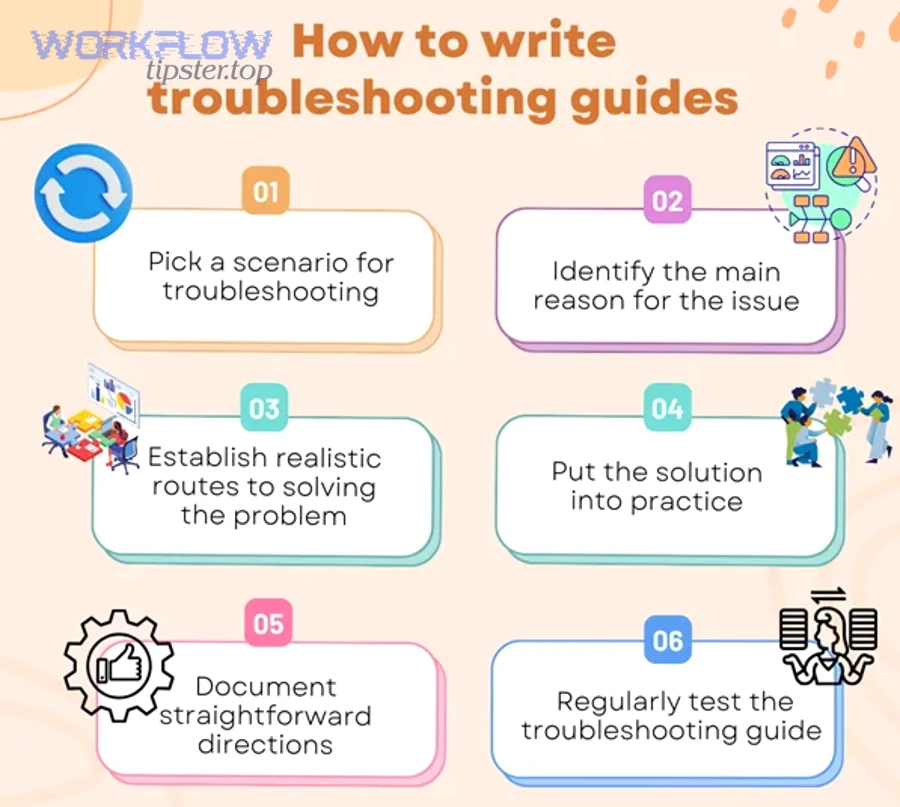
Next, the key is to choose the smallest change that corrects the data while preserving scenario behavior.
Should you use filters, routers, or data tools to handle missing/optional fields?
Yes—filters, routers, and data tools improve troubleshooting outcomes because they (1) prevent empty bundles from reaching strict modules, (2) normalize optional fields into safe defaults, and (3) route edge cases to a fallback path instead of crashing the main flow.
Specifically, here’s when to use each tool:
- Filters (best when the record should not proceed)
- Example: Only continue if
emailis not empty. - Benefit: prevents “missing required field” failures downstream.
- Example: Only continue if
- Data tools / transformations (best when you can repair or standardize values)
- Example: convert text numbers into numeric values; parse dates into ISO format; trim whitespace.
- Benefit: prevents type mismatches while preserving processing.
- Routers (best when you want multiple outcomes)
- Example: Route records missing email to a “data cleanup” branch; route valid records to the main branch.
- Benefit: keeps the scenario running while still handling exceptions.
This is how you stop patching symptoms and start building a scenario that can survive messy data.
What is the best way to troubleshoot iterator/aggregator problems?
Iterator issues are best solved by validating the incoming array structure, aggregator issues are best solved by validating grouping logic and expected output format, and a redesign is optimal when your data needs both reshaping and batching for performance.
However, the fastest comparison method during troubleshooting is:
- Iterator troubleshooting
- Confirm the upstream output contains an array, not an object.
- Inspect one bundle and verify each element has the fields you map downstream.
- If the array is nested, extract the correct array level before iterating.
- Aggregator troubleshooting
- Confirm the aggregator is receiving the right number of bundles.
- Check the aggregation key/grouping criteria (e.g., group by customer ID).
- Validate the final aggregated output matches what the next module expects (often one bundle containing a list or combined text).
If you treat iterators and aggregators as “shape tools,” you’ll troubleshoot them like a data engineer: verify shape in, verify shape out, then adjust.
How do you troubleshoot connection problems and app-side failures in Make.com?
You troubleshoot connection and app-side failures by validating authorization first, confirming the correct account/workspace context, and then isolating whether the failure is caused by Make.com configuration or the external app’s API availability and permissions.
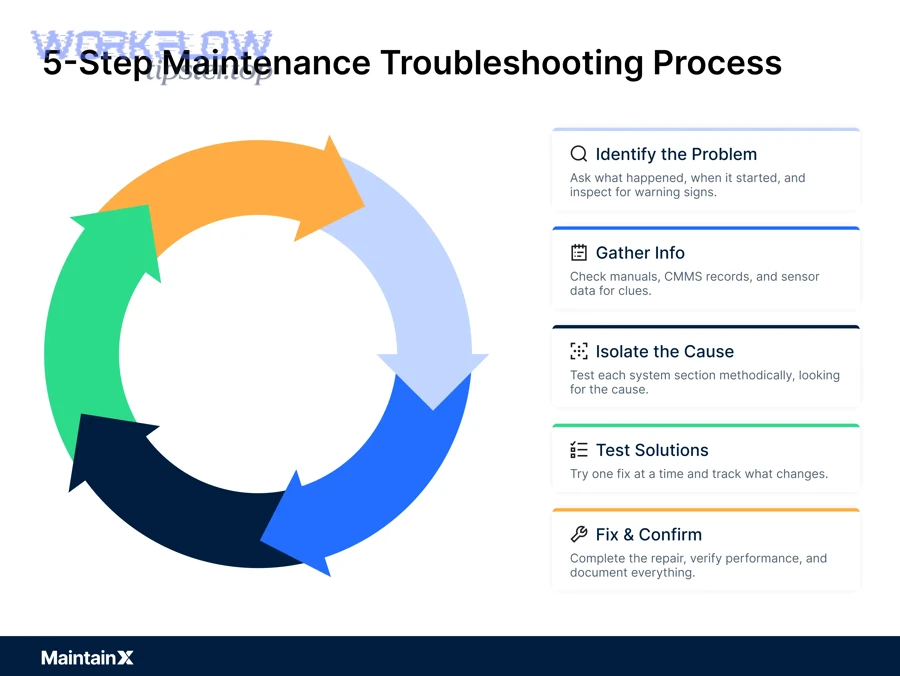
Besides, this is where many automation builders lose time—because “it worked yesterday” feels like a mystery, but it’s usually a predictable change in access or context.
How do you reauthorize a connection correctly, and when should you create a new connection?
Reauthorizing wins when credentials expired but account context remains correct, creating a new connection is best when the original connection is tied to the wrong account or missing required permissions, and rebuilding credentials is optimal when the external app rotated keys or revoked integration access.
To illustrate a practical decision rule:
- Reauthorize when
- The connection exists, used to work, and now returns token/credential errors.
- You are confident the scenario should use the same account/workspace.
- Create a new connection when
- The scenario is pointing at the wrong user/account/workspace.
- The new account needs different scopes/roles than the original connection has.
- Rebuild credentials when
- The external app requires new API keys, new OAuth consent, or updated security policies.
- Admin policies changed (like IP restrictions or “approved apps” lists).
This comparison reduces troubleshooting time because you stop repeating the wrong fix on the same broken authorization path.
Is the error coming from Make.com or the external app API?
Yes—you can reliably tell whether the error comes from Make.com or the external app because (1) Make.com highlights the failing module and its run context, (2) API-style errors often include HTTP-like status patterns and external app messages, and (3) external outages or permission changes affect multiple runs consistently.
More importantly, Make.com documentation notes that errors often occur when authentication/authorization changes, the external app is unavailable, or resources are exhausted—signals that point outside your scenario logic.
- If the message looks like authorization/permission (“unauthorized,” “forbidden,” “invalid token”) → treat it as connection/app-side first.
- If the message looks like data validation (“missing required field,” “invalid format,” “cannot parse”) → treat it as mapping/config first.
- If the message looks like volume/limits (“too many requests,” “rate limit,” “timeout”) → treat it as throughput and resilience next.
That’s the difference between blind trial-and-error and real troubleshooting.
How do you handle rate limits, timeouts, and “too many requests” errors in Make.com?
You handle rate limits and timeouts by pacing requests, batching work into smaller chunks, and applying controlled retries with backoff so the scenario reduces pressure on the external app and completes reliably under load.
Then, once you understand the limits, you can choose the best fix based on whether your automation fails under bursts, under large payloads, or under continuous volume.
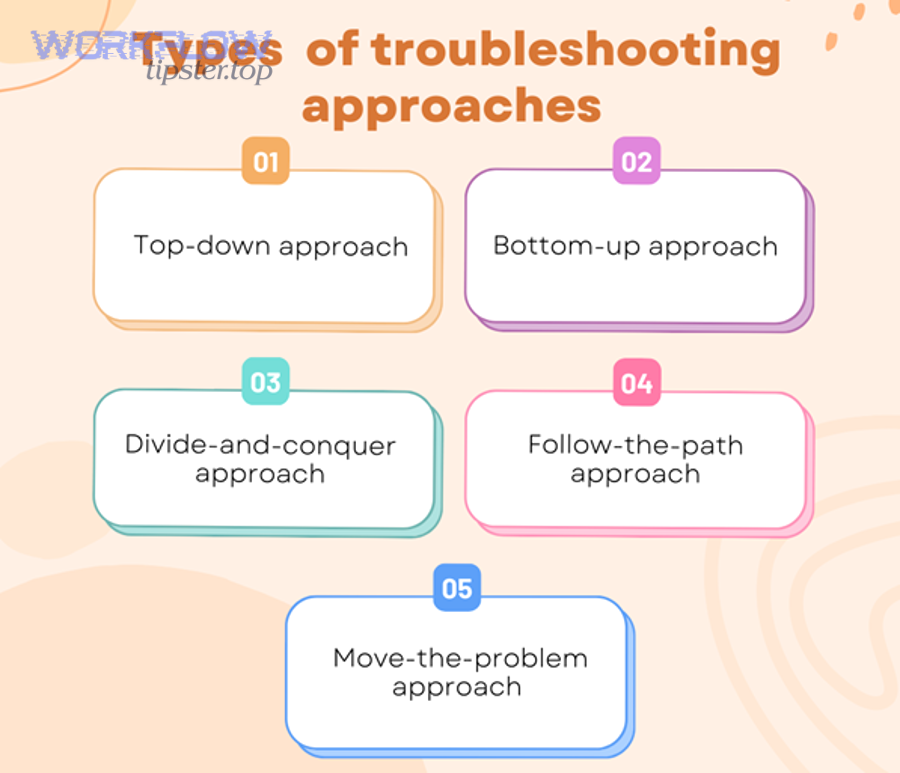
What fixes work best for rate limits: slower scheduling, batching, or retries?
Slower scheduling wins for predictable steady volume, batching is best for high-volume processing efficiency, and retries with exponential backoff are optimal for transient throttling where requests fail temporarily but succeed after waiting.
To better understand why backoff matters, many API guidelines recommend retrying with exponential backoff to reduce repeated collisions with rate limiting and improve resilience.
- Slower scheduling
- Best when your scenario pulls data on a schedule and repeatedly hits limits at the same time each run.
- Action: reduce frequency or stagger scenarios.
- Batching
- Best when your scenario processes a large dataset (e.g., many records) and each record triggers an API call.
- Action: group records, reduce calls, or use “search/list” modules with pagination carefully.
- Retries with backoff
- Best when failures are intermittent throttles (especially during bursts).
- Action: implement retry logic, delays, or error-handling routes that wait and retry rather than fail hard.
This comparison keeps your fixes aligned with the failure pattern instead of applying the same “delay” to every scenario.
How can you reduce timeout risk when processing large files or big payloads?
There are 5 main ways to reduce timeout risk: chunking, pagination, selective fields, staged processing, and minimizing heavy transformations—based on lowering execution time and payload complexity per run.
- Chunking
- Split large jobs into smaller batches (e.g., process 100 records per run).
- Pagination
- Fetch data page-by-page and persist the “next page” cursor if needed.
- Selective fields
- Pull only the fields you need; big payloads slow everything down.
- Staged processing
- Use a two-phase pattern: collect IDs first, fetch details later.
- Minimize heavy transformations
- Avoid building massive strings, huge JSON merges, or large in-memory lists in a single run.
If you treat timeouts as a throughput design problem, you’ll naturally build scenarios that are both faster and more stable.
Should you add error handling (routers, fallback routes) instead of repeatedly “patching” runs?
Yes—adding error handling is better than patching because it (1) keeps scenarios enabled by catching failures instead of letting them disable scheduling, (2) creates controlled fallback actions like alerts or retries, and (3) turns unpredictable errors into predictable paths you can monitor and improve over time.
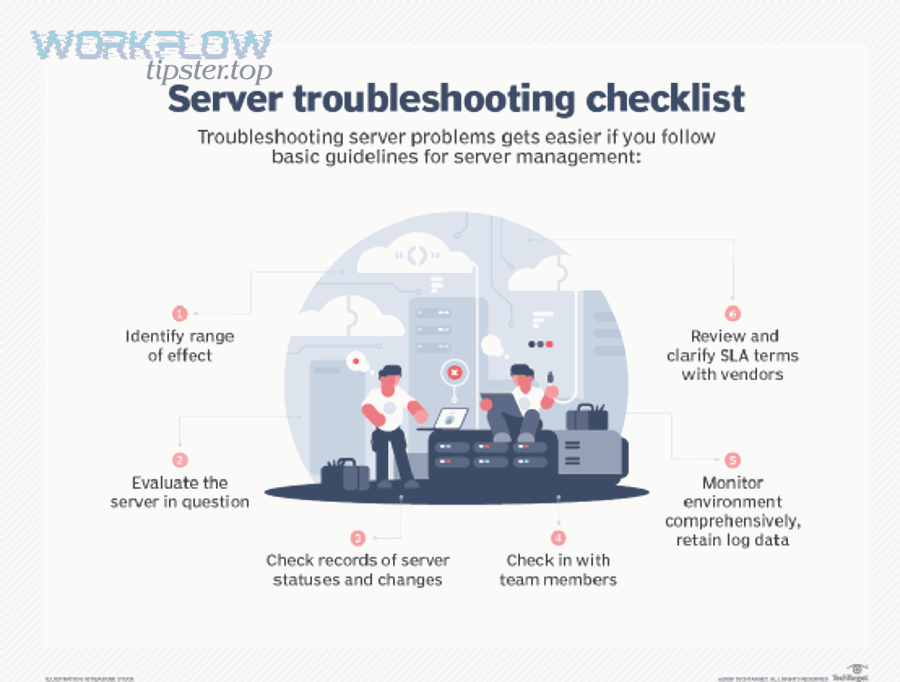
Next, once you accept that errors will happen (tokens expire, APIs throttle, data changes), error handling becomes the difference between “automation you babysit” and “automation you trust.”
What is error handling in Make.com, and how does it change scenario behavior?
Error handling in Make.com is a scenario design capability that attaches an alternate route to a module so that when the module errors, the error route runs specific recovery steps (retry, log, notify, ignore, resume) instead of stopping the scenario.
More specifically, Make.com describes error handlers as a way to deal with module errors so the scenario can keep scheduling runs rather than being disabled by repeated unhandled failures.
- Without error handling: one unexpected failure can stop the run and eventually disable the scenario.
- With error handling: the scenario can capture the error context, execute a recovery action, and continue scheduling future runs.
That shift is not just technical—it changes your operational workload.
What is the difference between a quick fix and a resilient fix in scenario design?
A quick fix wins for speed when a single configuration mistake caused the failure, a resilient fix is best for reliability when data and APIs are variable, and a redesign is optimal when the scenario’s architecture creates repeated load, complexity, or fragile dependencies.
- Quick fix
- Change one field, one setting, or one connection.
- Goal: get the scenario running again immediately.
- Resilient fix
- Add validation, routing, retries, and alerts.
- Goal: reduce future failures even when data/APIs change.
- Redesign
- Change the scenario pattern (batching, staging, pagination, event-driven triggers).
- Goal: make high-volume or mission-critical automation stable long-term.
This comparison helps you choose the right investment level for the scenario’s business importance.
How do you confirm the fix and prevent the same Make.com error from returning?
You confirm a fix by rerunning with controlled test cases, validating module outputs at each critical step, and adding monitoring or guardrails so the same category of failure cannot silently reappear in production.
Then, once a scenario runs again, prevention becomes a discipline: you move from “it works now” to “it stays working.”
What test cases should you run after changing a scenario?
There are 4 main test cases you should run after a change—happy path, empty/edge data, high-volume stress, and failure simulation—based on proving both correctness and resilience.
- Happy path
- Use a known-good record and confirm end-to-end success.
- Empty/edge data
- Test missing optional fields, empty search results, and null values.
- High-volume stress
- Run with a larger dataset or multiple bundles to reveal rate-limit and timeout risks.
- Failure simulation
- Temporarily remove a permission, use an invalid input, or force an API error path to confirm error handling works.
If you only test the happy path, you confirm today’s run—but you don’t prevent tomorrow’s failure.
Should you monitor every scenario run, or only failures?
Full monitoring wins for mission-critical automations, failure-only monitoring is best for low-risk workflows with stable inputs, and hybrid monitoring is optimal for most builders because it tracks failures plus a few key health indicators (volume, duration, warning rate).
To illustrate why monitoring matters, an ACM Queue article notes that developers can spend a substantial share of time validating and debugging systems, making prevention and observability valuable operational strategies.
- Alert on errors immediately.
- Track warning rate weekly to catch degradation.
- Watch run duration and operation count for sudden spikes that predict timeouts or rate limits.
- Log key identifiers (run IDs, record IDs, customer IDs) so future debugging is faster and less ambiguous.
This closes the loop: diagnose → fix → verify → monitor.
SUPPLEMENTARY CONTENT
How can you prevent (not just troubleshoot) Make.com scenario errors long-term?
Preventing Make.com scenario errors long-term is a resilience strategy that adds validation, safe defaults, controlled retries, and documented recovery paths so the scenario withstands messy data and unstable APIs—shifting from troubleshooting after failure to preventing failure by design.
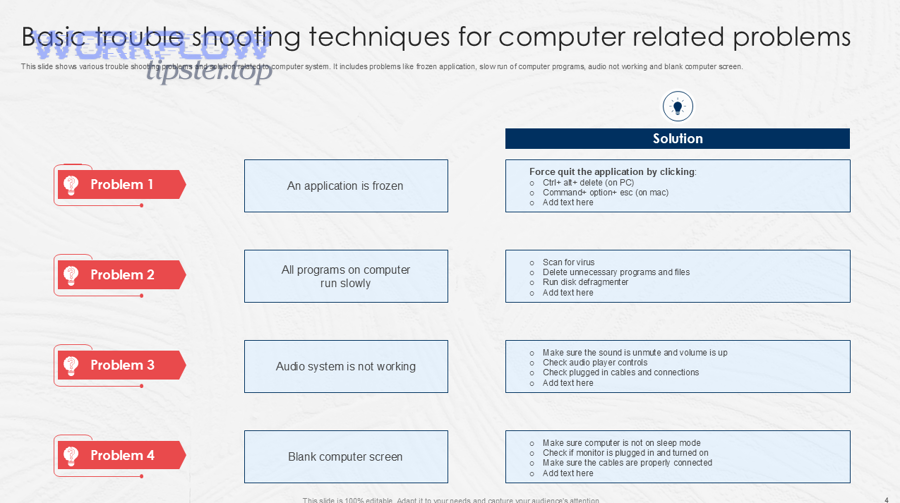
Next, the micro-level goal is to make your scenario robust under edge cases you don’t control: payload changes, token refresh quirks, throttling bursts, and intermittent app downtime.
What proactive checks reduce failures: validation rules, guardrails, and “fail-fast” design?
There are 6 proactive checks that prevent recurring failures: input validation, null-safe mapping, schema consistency checks, early filtering, controlled branching, and logging identifiers—based on stopping bad data before it reaches strict modules.
- Input validation
- Validate required fields (email, IDs, dates) before calling write actions.
- Null-safe mapping
- Provide defaults for optional fields so modules don’t receive empty required values.
- Schema consistency checks
- Standardize field naming and data types (dates, numbers, booleans).
- Early filtering
- Filter out records that cannot be processed rather than failing later.
- Controlled branching
- Route edge cases into cleanup or notification paths instead of crashing the main path.
- Logging identifiers
- Store record IDs and run IDs so future troubleshooting is faster and less ambiguous.
This is the antonym shift that makes your automations feel “professional”: troubleshoot when needed, prevent whenever possible.
Which rare Make.com edge cases cause intermittent failures (OAuth refresh, webhook drift, data type coercion)?
There are 5 rare edge cases that cause intermittent failures: token refresh edge behavior, scope changes, webhook payload drift, timezone parsing surprises, and silent type coercion—based on issues that appear only under specific accounts, payloads, or timing.
- OAuth refresh edge behavior
- A scenario fails only after long inactivity or only under one connection that refreshes differently.
- Scope changes
- An admin changes roles or scopes; existing connections remain but lose access to certain resources.
- Webhook payload drift
- The external app changes webhook fields or nesting; your mappings break unexpectedly.
- Timezone/date parsing surprises
- Dates appear valid but fail due to locale/timezone format shifts.
- Silent type coercion
- A field sometimes arrives as number, sometimes as string; downstream modules reject the inconsistent type.
These are “rare” because they’re not everyday mistakes—but they’re exactly why resilient design beats endless patching.
How do Make API error codes and HTTP status patterns help you troubleshoot complex integrations?
HTTP-style error patterns help you troubleshoot complex integrations by categorizing failures into authentication, authorization, validation, and throttling, which tells you whether to reauthorize, change permissions, fix request data, or retry with backoff.
A simple mapping you can use during troubleshooting:
- 401 / unauthorized → reauthorize connection or regenerate credentials
- 403 / forbidden → permissions/scope/role issue (often admin-controlled)
- 400 / bad request → invalid parameters or invalid data format
- 404 / not found → wrong IDs, wrong workspace, or missing resource
- 429 / too many requests → throttle; implement retries with backoff and pacing
When you can name the category instantly, you stop wasting hours on the wrong fix.
What is the best long-term strategy: monitoring-only vs error-handling routes vs redesigning the scenario?
Monitoring-only wins for simple low-risk scenarios, error-handling routes are best for production workflows that must survive transient failures, and redesigning the scenario is optimal for high-volume or mission-critical automations where batching, staging, and performance patterns determine reliability.
- Choose monitoring-only when your inputs are stable, volume is low, and a manual rerun is acceptable.
- Choose error-handling routes when you need graceful failure (notify, retry, store for later) without stopping scheduling.
- Choose redesign when the same failure category repeats (rate limits, timeouts, complex iterators) and you need structural changes like chunking or staged processing.
Finally, if you want a compact checklist version of this guide for your team, you can document your “fast diagnosis workflow” and keep it alongside scenario ownership notes on WorkflowTipster.top—so troubleshooting is repeatable even when different people maintain the automation.


