Fix Google Chat Troubleshooting for Users: Resolve Loading, Messages & Notification Issues (Chat in Gmail)
To fix Google Chat when it isn’t working, first identify whether the problem is loading, messaging, or notifications—then apply the fastest, least-invasive fix (refresh, sign out/in, switch surface, and clear the right cache) to restore Chat quickly and safely.
Next, if Google Chat won’t load or feels “stuck,” focus on your device, browser/app state, and network path (Wi-Fi, VPN, firewall), because most “blank screen” or endless syncing problems come from session, cache, or connectivity issues.
Then, if you can’t send or receive messages or you can’t chat with a specific person, isolate whether it’s a single conversation/space issue or an account/admin restriction, because policy blocks and permissions often look like “bugs” but require different actions.
Introduce a new idea: once Chat works again, you can prevent repeat failures and troubleshoot edge cases (like enterprise networks, multi-account conflicts, or integration errors) faster by using a simple checklist and collecting the right evidence before you escalate.
What does “Google Chat not working” mean, and how do you confirm the exact symptom?
“Google Chat not working” is a user-facing service problem where Chat can’t load, can’t sync, can’t send/receive messages, or fails to alert you—usually caused by a mismatch between your surface (Gmail vs app), session state, or network path.
To better understand the issue you’re seeing, start by naming the symptom precisely, because each symptom points to a different fix path and prevents random “try everything” troubleshooting.
Is Google Chat down for everyone or only broken on your device/account?
No—most of the time Google Chat is not “down for everyone”; it’s usually broken only on a specific device/account because (1) your session is stale, (2) your browser/app state is corrupted, or (3) your network route is blocking real-time sync.
Next, confirm scope in under 2 minutes so you don’t waste time on the wrong layer:
- Check another surface: open Chat in Gmail, then try chat.google.com, then try the mobile app (or a different device). If one works, you’ve isolated the failure to a surface or device.
- Check another network: switch Wi-Fi to mobile hotspot (or vice versa). If it starts working, your Wi-Fi/VPN/firewall path is the likely cause.
- Check another account/profile: if you use multiple Google accounts, test Chat using a separate browser profile to avoid account mixing.
Then, write down one sentence that describes the symptom in a reproducible way, such as: “Chat loads but messages won’t send,” or “I receive messages but notifications never fire.” That single sentence becomes your troubleshooting anchor.
Which surface are you using—Chat in Gmail, chat.google.com, Android, or iOS—and why does it matter?
Chat in Gmail wins for quick access and unified settings, chat.google.com is best for isolating Gmail-specific conflicts, and the Android/iOS apps are optimal for testing whether the issue is web-only—because each surface uses different caching, permissions, and notification pipelines.
However, many users troubleshoot the wrong surface first, which hides the root cause. Use this quick comparison to choose the fastest diagnostic path:
This table contains a surface-by-surface checklist so you can match your symptom to the most likely fix layer (Gmail settings, browser permissions, or mobile app state).
| Surface | Best for | Common failure pattern | First fix to try |
|---|---|---|---|
| Chat in Gmail | Daily use, quick checks | Chat panel missing, notifications inconsistent | Confirm Gmail Chat toggle + refresh + sign out/in |
| chat.google.com | Isolation from Gmail | Loads blank or stuck syncing | Disable extensions + clear site data for Chat |
| Android app | Mobile delivery & notifications | Notifications blocked by OS/app settings | Check OS notifications + battery optimization |
| iOS app | Focus modes & permission checks | No alerts due to Focus / notification permissions | Check Focus + Notifications for Chat |
In short, your surface choice is not cosmetic—it’s the quickest way to separate “Gmail configuration” from “Chat service/session” from “device notification policy.”
What are the fastest fixes when Google Chat won’t load or is stuck syncing?
There are 6 main types of fast fixes for Google Chat loading issues—refresh/reset, session re-auth, surface switching, cache/site-data cleanup, extension isolation, and network path correction—based on which layer is blocking Chat’s real-time connection.
Next, apply them in the order below so you restore Chat without breaking other settings you rely on.
Can you fix loading issues by restarting the session (refresh, sign out/in, switch profiles)?
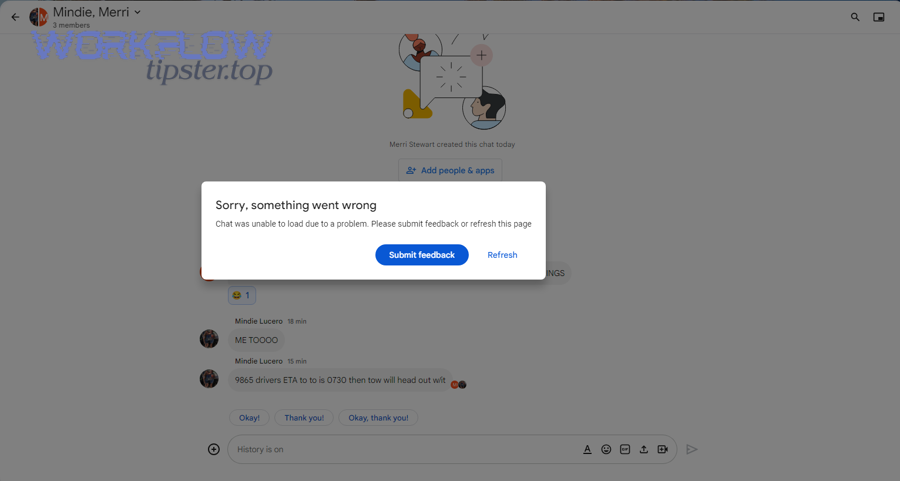
Yes—session restart fixes Google Chat loading problems because (1) it refreshes expired session tokens, (2) it clears “stuck” sync state, and (3) it forces a clean reconnection to real-time services without changing deeper settings.
Then, do the minimum restart sequence first:
- Hard refresh (web): reload the page and close/reopen the tab.
- Sign out/in: sign out of your Google account and sign back in to rebuild the session.
- Switch browser profile: use a separate Chrome profile (no extensions) to rule out cross-account conflicts.
Specifically, if Chat loads in a private window but not in your main profile, your primary profile likely has an extension conflict, corrupted site data, or multi-account confusion.
Which client reset works best—clear cache/cookies vs reinstall the mobile app?
Clearing site data wins when web Chat is stuck because it resets Chat-specific storage quickly, while reinstalling the mobile app is best when the app’s local database or notification registration is corrupted—because mobile app state can persist across updates.
However, don’t “nuke everything” by default. Use the lighter reset that matches your symptom:
- Choose clear cache/cookies if Chat won’t load in a browser, keeps spinning, or fails only on web.
- Choose reinstall if the mobile app crashes, won’t sync despite good network, or notifications never register even after permissions are enabled.
More importantly, clear data in a targeted way: remove site data for Chat/Gmail rather than wiping all cookies—this avoids logging out of unrelated services.
What browser or extension problems commonly block Chat from loading?
There are 5 common browser blockers for Google Chat loading: ad/privacy extensions, antivirus web shields, strict cookie settings, enterprise-managed policies, and outdated browsers—based on how they interfere with scripts, storage, or real-time connections.
Then, isolate the culprit without guessing:
- Disable extensions temporarily (especially ad blockers, tracking protection, script blockers).
- Try a clean profile (no extensions) to confirm it’s extension-driven.
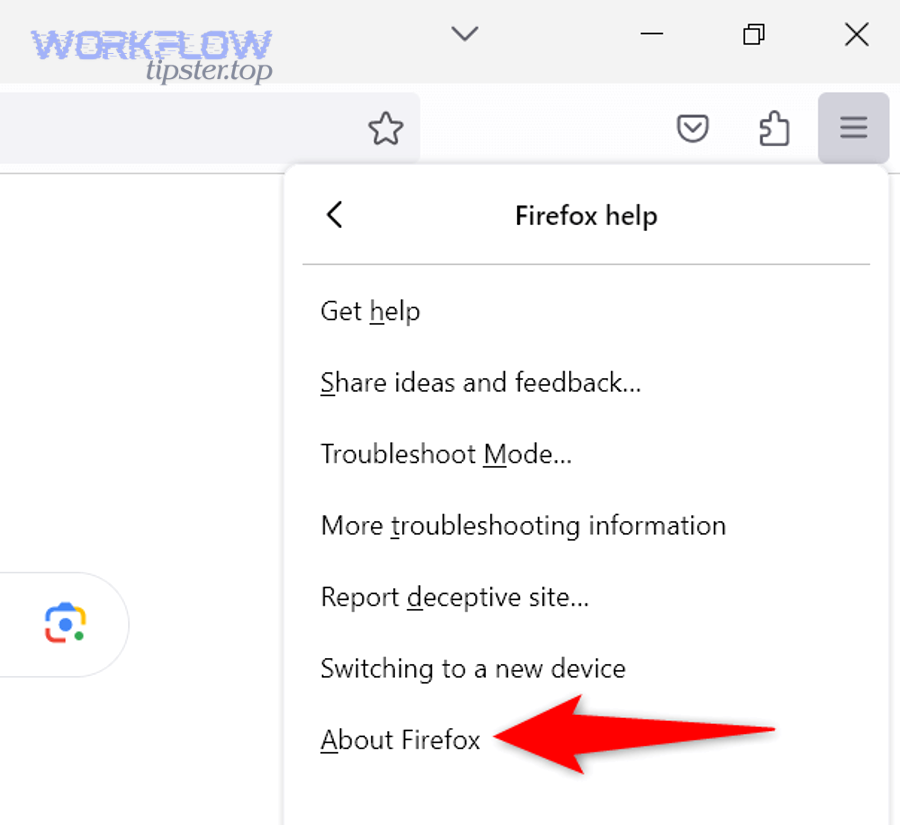
- Update the browser and restart the device to apply changes cleanly.
- Check site permissions (popups, notifications, third-party cookies if your org requires them).
- Test another browser to confirm whether it’s a browser policy issue.
If you’re dealing with an automation or integration layer and you see “google chat timeouts and slow runs,” treat it like a performance symptom: reduce simultaneous tabs, remove heavy extensions, and confirm your network is stable before blaming Chat itself.
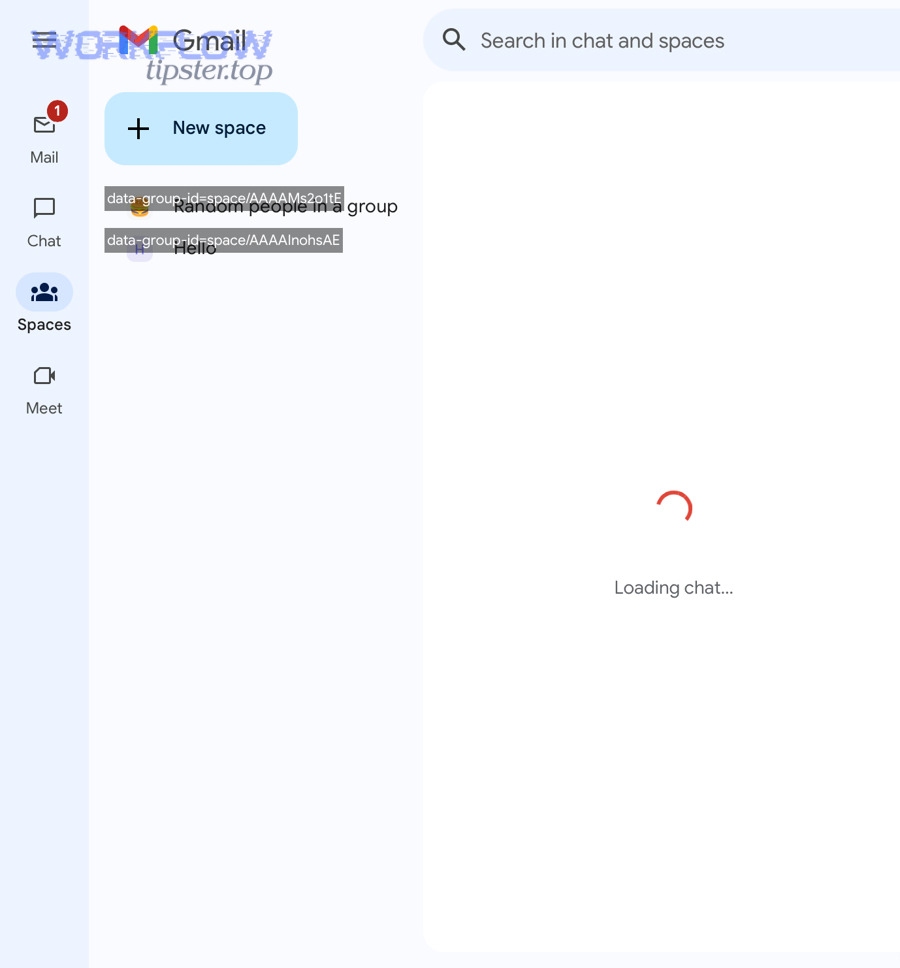
Why can’t you send or receive messages in Google Chat, and how do you fix it?
Message failures in Google Chat are typically caused by a conversation-level constraint, a client sync issue, or an account/policy block—so the fix depends on whether the problem affects one chat/space or your entire account across surfaces.
Next, separate “message transport” from “conversation permissions,” because they look identical when you’re stressed but require different solutions.
Is the issue happening in one conversation/space or across all chats?
Yes—this is the single most important split, because (1) one-chat failures usually mean permissions or membership, (2) all-chat failures usually mean session or network problems, and (3) cross-surface failures often indicate account or policy restrictions.
Then, run this quick test:
- Send a message in a different DM and in a space you know is active.
- Try the same action on another surface (Chat in Gmail vs chat.google.com vs mobile).
- Check whether attachments fail while text sends—this points to a different layer.
If only one space fails, confirm you’re still a member, your invitation is valid, and you’re not muted/blocked by the space rules. If all spaces fail, move up to session/network troubleshooting.
What are the most common causes of message failures (network, permissions, account limits)?
There are 7 common causes of Google Chat message failures: unstable connectivity, stale session, cache corruption, restricted permissions, attachment/Drive constraints, rate limiting from automation, and formatting/payload issues—based on where the message breaks in the delivery chain.
Specifically, match the symptom to the cause:
- Text won’t send anywhere: treat as session/network; sign out/in and test another network.
- Messages send but never appear on other devices: treat as sync/cache; clear site data or reinstall the app.
- You see permission errors: look for policy signs such as google chat permission denied and contact an admin if it’s a Workspace account.
- Attachments fail but text works: investigate google chat attachments missing upload failed, Drive permissions, or storage limits.
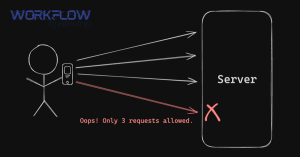
- Automations posting to Chat fail intermittently: watch for google chat api limit exceeded or google chat webhook 429 rate limit and slow the send rate.
- Messages appear duplicated: this can happen when retries fire—document as google chat duplicate records created and add idempotency in the integration layer.
More importantly, if you rely on bots or connectors, message failures can originate from payload errors rather than Chat UI. In that case, errors like google chat invalid json payload, google chat missing fields empty payload, google chat data formatting errors, or google chat field mapping failed indicate the integration needs adjustment, not your browser.
Is “Chat in Gmail” more reliable than chat.google.com for messaging issues—or vice versa?
Chat in Gmail wins when the issue is Gmail-side configuration or unified sign-in, while chat.google.com is better for isolating Gmail UI conflicts and testing a cleaner Chat-only surface—so neither is “more reliable” in all cases.
However, the reliability difference is useful diagnostically:
- If Chat works in chat.google.com but fails in Gmail: check Gmail settings (Chat enabled), browser permissions on mail.google.com, and extension conflicts affecting Gmail.
- If Chat fails in both web surfaces but works on mobile: suspect web-only blockers (extensions, enterprise browser policy, or cookie/storage restrictions).
- If Chat fails everywhere: suspect account policy, network firewall, or a wider service issue.
To illustrate, if your integration posts to a space but you “don’t see it,” confirm whether you’re using the same Google account across surfaces—multi-account mixing can make messages appear “missing” when you’re simply in the wrong identity.
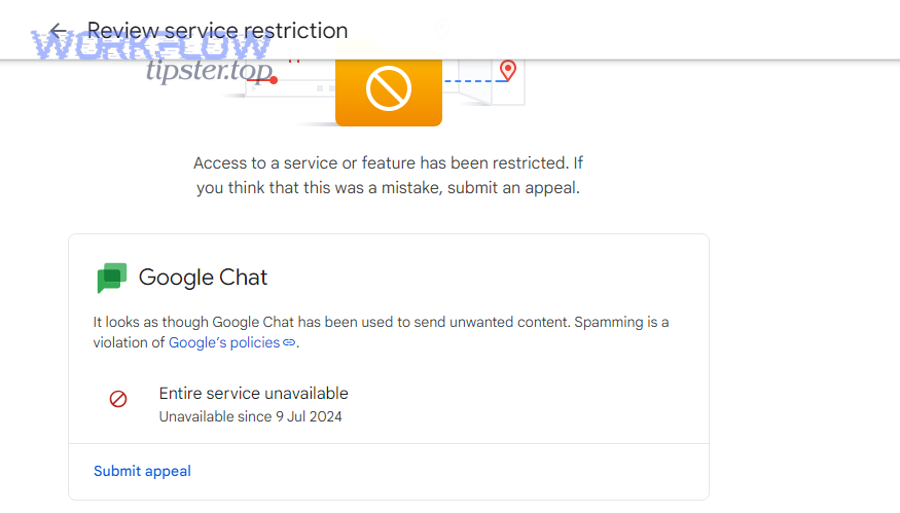
How do you fix Google Chat notifications not showing on desktop or mobile?
There are 4 main layers to fix Google Chat notification problems—device OS, browser/app permissions, Google Chat settings, and focus/schedule controls—based on where the alert is being blocked before it reaches you.
Then, troubleshoot from the top down, because a blocked OS permission will override perfect in-app settings every time.
Are notifications disabled at the device level (Do Not Disturb/Focus/Notification permissions)?
Yes—device-level controls commonly disable Google Chat notifications because (1) Do Not Disturb/Focus suppresses alerts, (2) OS notification permissions can be off, and (3) battery optimization can delay background delivery.
Next, check these device-level items first:
- Windows/macOS: confirm notifications are allowed for the browser (or the Gmail/Chat app, if used) and that Focus/Do Not Disturb is not suppressing banners.
- Android: ensure Chat notifications are allowed, and review battery optimization so the app can deliver background alerts.
- iOS: verify Notifications are enabled for Chat and confirm Focus modes aren’t blocking Chat during certain hours.
Especially on mobile, battery savers can create the illusion of “Chat is broken” when the only problem is delayed background processing.
Which notification setting is the real “master switch”: OS, browser permissions, or Chat settings?
The OS is the true master switch, browser/app permissions are the gateway, and Chat settings are the preference layer—because Chat cannot override a blocked OS permission, and a blocked site permission prevents the browser from surfacing alerts.
However, you can fix this quickly by following the dependency order:
- Step 1 (OS): allow notifications for the app/browser and disable Focus/Do Not Disturb for testing.
- Step 2 (Browser/App): allow notifications for the Chat/Gmail site or the mobile app.
- Step 3 (Chat): set notification preferences (all messages vs mentions, per space settings).
If you’re troubleshooting notifications in a workflow system that depends on Chat messages arriving “on time,” document it as google chat tasks delayed queue backlog when alerts come late—then confirm whether the delay is OS-level throttling, network latency, or integration rate limiting.
What notification problems are specific to Chat in Gmail (tabs, sidebar, Gmail settings)?
There are 3 Gmail-specific notification problems: Chat is disabled in Gmail settings, the Chat panel is hidden by layout, or browser permissions are granted to the wrong domain/profile—based on how Gmail embeds Chat as a component.
Then, fix them in this order:
- Confirm Chat is enabled inside Gmail (settings that show/hide the Chat panel).
- Check the active browser profile so the correct Google account receives notifications.
- Grant notifications to the correct site (mail.google.com) and test with a message/mention.
In addition, if you use multiple tabs or keep Gmail pinned for days, a stale tab can stop receiving real-time updates; a refresh often restores notification delivery instantly.
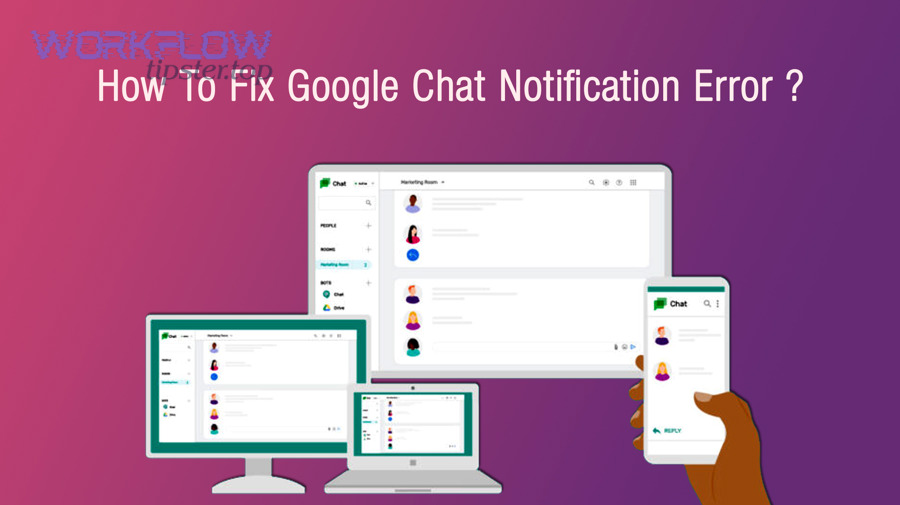
Can account, admin, or privacy restrictions stop Google Chat from working?
Yes—account, admin, and privacy restrictions can stop Google Chat because Workspace policies may disable Chat, block external messaging, restrict history, or limit who you can contact, and these policy blocks can look like random errors to end users.
Next, treat “policy-like” symptoms differently from normal troubleshooting, because no amount of cache clearing will override an administrative restriction.
Is external messaging blocked (you can’t chat with people outside your organization)?
Yes—external messaging is often blocked because (1) your organization restricts external chats, (2) the other person’s organization blocks inbound chats, or (3) your account type doesn’t allow the requested interaction.
Then, confirm whether the block is consistent:
- If all external chats fail: this strongly suggests an admin policy.
- If only one domain/user fails: it may be the other side’s restrictions or a contact-level block.
- If internal chats work but external chats don’t: treat it as “policy first,” not “bug first.”
If you see explicit access errors or consistent “not allowed” messaging, record it and escalate to your Workspace admin with the exact domains involved.
What Google Workspace settings commonly break Chat access or messaging?
There are 6 common Workspace settings that break Google Chat: the Chat service is disabled, external chat is restricted, user access is limited, history/retention rules block certain conversations, security policies block real-time connections, or app access scopes fail for integrations.
More specifically, these show up as patterns like:
- Chat missing entirely: service disabled or Gmail/Chat features restricted.
- Can’t chat with specific users: directory/permission settings, restricted contacts, or external chat policy.
- History/space behavior is odd: retention settings or conversation history constraints.
- Integration posts fail: authentication or endpoint errors such as google chat webhook 401 unauthorized or google chat oauth token expired.
- Requests blocked: access control errors like google chat webhook 403 forbidden when a webhook is not permitted.
To illustrate, if an integration suddenly stops posting after working for weeks, the fastest assumption is a token/permission change rather than a UI problem—especially if logs mention authorization issues.
What’s the difference between a “bug” and a policy restriction, and how can users tell quickly?
A bug is inconsistent and device/surface-dependent, while a policy restriction is consistent and rule-based; users can tell quickly because policy blocks usually affect specific categories (like external chats) and remain identical across devices and browsers.
However, users often confuse them. Use these quick indicators:
- Bug-like: Chat works on mobile but not web, works in private window but not main profile, or changes after refresh.
- Policy-like: external chat never works, a specific feature is missing for all users in your org, or errors consistently mention access/permission.
Meanwhile, integration issues can mimic both. For example, if a bot fails with google chat webhook 404 not found, the endpoint URL is wrong; if it fails with google chat webhook 400 bad request, the payload format is invalid; and if it fails with google chat webhook 500 server error, the remote side may be having transient failures that require retries and backoff.
When should you escalate, and what information should you collect before contacting IT/Google support?
There are 5 clear times to escalate Google Chat issues—when failures persist across devices, appear policy-based, affect multiple users, involve security/network controls, or break business-critical integrations—based on how likely the fix requires admin or provider action.
Then, collect the right evidence once, because a well-prepared report can cut resolution time dramatically.
Have you tried the minimum reproducible steps and confirmed it’s not device-specific?
No—you should not escalate before minimum reproducible testing because (1) it prevents false alarms, (2) it identifies whether the issue is local vs account-wide, and (3) it gives support a clean reproduction path that speeds fixes.
Next, complete this minimum set before escalating:
- Test on another device (or another browser profile).
- Test on another network (hotspot vs Wi-Fi).
- Test on another surface (Gmail vs chat.google.com vs mobile).
- Note whether the issue is one conversation or all conversations.
If a problem disappears in a clean profile or another network, you can usually resolve it locally without waiting for IT.
What should you send to an admin to speed up resolution (logs, screenshots, exact URLs)?
You should send 8 key items: exact timestamp, affected account, surface used, network type, exact URL, screenshots of the error, what changed recently, and a list of steps already tried—because these details let IT verify policy, networking, and service health quickly.
More specifically, include the following in your escalation message:
- Account identity: the Google Workspace domain (if applicable) and whether the issue affects one or multiple users.
- Surface details: “Chat in Gmail” vs chat.google.com vs Android/iOS, plus browser/app version.
- Exact URL and scope: whether the problem happens on mail.google.com or chat.google.com, and whether it affects DMs, spaces, or both.
- Network path: Wi-Fi vs VPN vs office network; note proxies/firewalls if known.
- Evidence screenshot: include visible error text.
If your issue involves automations, include the error class in plain language so the right team picks it up quickly. Examples you can paste:
- google chat webhook 429 rate limit (too many requests too fast; needs backoff)
- google chat api limit exceeded (quota exceeded; needs quota review or batching)
- google chat pagination missing records (pagination logic misses items; needs cursor/offset fix)
- google chat timezone mismatch (timestamps interpreted in wrong zone; needs standardized UTC handling)
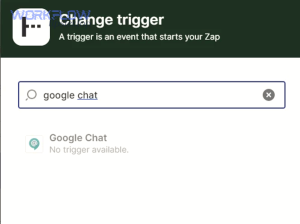
In addition, if you use triggers and a workflow suddenly stops, note it as google chat trigger not firing and include the last time it worked, because that single detail helps support correlate policy or token changes.
Contextual border: At this point, you’ve covered the full “get Chat working again” path (loading, messaging, notifications, restrictions, and escalation). Next, the article expands into prevention and rare edge cases so you can troubleshoot faster and avoid recurring failures.
How can you prevent Google Chat issues and troubleshoot rare edge cases faster next time?
There are 4 main prevention and edge-case tracks—surface contrast testing, enterprise network checks, account/profile hygiene, and attachment/integration stability—based on the rare but recurring conditions that cause Google Chat to fail unpredictably.
Then, turn your troubleshooting into a repeatable system so you spend minutes, not hours, the next time something breaks.
What should you check if Google Chat works on mobile but not on desktop (or the opposite)?
Mobile wins when desktop is blocked by browser extensions or enterprise policies, while desktop wins when mobile is throttled by OS battery controls; the “works here but not there” pattern is your fastest clue for isolating the failing layer.
However, you still need a systematic check:
- If mobile works but desktop fails: disable extensions, try a clean browser profile, and verify site permissions.
- If desktop works but mobile fails: review Focus/Do Not Disturb, notification permissions, and battery optimization.
- If both fail on office Wi-Fi but work on hotspot: prioritize network/proxy/firewall diagnosis.
This contrast approach is powerful because it uses the antonym-like behavior (“works vs doesn’t work”) to pinpoint the layer without guessing.
How do VPNs, firewalls, and enterprise proxies break Google Chat, and what can you ask IT to allowlist?
Enterprise networks break Google Chat by filtering real-time traffic, blocking required domains, or inspecting encrypted connections in ways that disrupt persistent sessions, so you should ask IT to verify allowlists and proxy behavior for Chat/Gmail traffic.
Next, communicate in outcomes, not jargon. Tell IT what you observed (works on hotspot, fails on office network), then ask for a targeted review:
- Confirm whether VPN/proxy inspection is interfering with persistent connections used for real-time updates.
- Verify that required Google Workspace services are not blocked at the firewall level.
- Check whether enterprise browser policies or security tools inject scripts that break Chat pages.
If IT asks for examples, share timestamps and the exact surface (mail.google.com vs chat.google.com) so they can correlate logs to your report.
Can multiple Google accounts and Chrome profiles cause Chat sync conflicts, and how do you fix it?
Yes—multiple accounts and mixed browser profiles cause Chat sync conflicts because (1) the wrong default account receives messages, (2) cookies mix identities across tabs, and (3) notifications attach to a different signed-in profile than the one you’re reading.
Then, fix it with clean separation:
- Use one Chrome profile per account (personal vs work) to prevent cookie crossover.
- Label profiles clearly and pin the correct one for work Chat.
- Sign out of unused accounts in the profile you use for work Chat.
Especially if messages look “missing,” verify the account avatar in the top-right corner before assuming the conversation disappeared.
Why do attachments fail in Google Chat, and how is it related to Drive permissions/storage?
Attachment failures happen when Chat can’t upload or reference a file due to Drive permissions, storage limits, blocked file types, or integration payload issues, so the right fix depends on whether text messages still work.
Then, diagnose the failure mode:
- Text works but files fail: treat it as google chat attachments missing upload failed and check Drive access, sharing permissions, and storage.
- Files fail only in a specific space: confirm the space’s sharing rules and whether members have the necessary permissions.
- Bot/webhook attachments fail: validate the payload structure; errors like google chat webhook 400 bad request often indicate malformed attachment/card content.
If you use automated posting, also guard against retry storms that create duplicates. When you see google chat duplicate records created, implement idempotency keys or “already posted” checks before retrying.
Finally, if your organization relies on integrations, keep a small “error translation” list so non-developers can route issues correctly: google chat webhook 404 not found usually means a wrong URL, google chat webhook 403 forbidden points to access control, and google chat oauth token expired indicates authentication needs renewal—none of which are fixed by reinstalling the Chat app.