Fix & Prevent Smartsheet Issues: A Troubleshooting Guide for Project Teams (Loading, Saving, Sync Errors)
Smartsheet issues feel urgent because they block the same thing teams rely on most: shared visibility. This guide shows a practical troubleshooting workflow to diagnose and fix the most common problems—loading loops, slow sheets, save failures, and sync errors—without guessing or making risky changes.
Next, you’ll learn a fast triage method to separate “Smartsheet is down” from “it’s my browser/network” and from “it’s a permissions or sheet-level issue,” so you can stop chasing the wrong cause and restore work faster.
In addition, you’ll get a clear way to interpret formula and reference failures, including how to isolate error messages, confirm which inputs broke, and decide when you should rewrite a formula versus restructure a sheet.
Introduce a new idea: once you can fix incidents reliably, you can also prevent repeats—by tightening sheet design, improving workflow hygiene, and handling advanced connector/API edge cases that cause timeouts, backlogs, or webhooks to fail.
What does “Smartsheet troubleshooting” mean for project teams?
Smartsheet troubleshooting is a structured, evidence-based way to restore normal work in Smartsheet by identifying whether a problem is platform-wide, account/permission-based, sheet-specific, or caused by your local environment (browser, extensions, network), then applying the smallest safe fix.
To better understand why this matters, start by treating every issue like a “scope problem”: who is affected, where, and when. When you identify scope early, you shorten the path from symptom → cause → fix. In practice, most team incidents fall into four buckets:
- Platform scope: many users see the same outage pattern at the same time.
- Account/permission scope: some users cannot do actions others can.
- Sheet scope: one sheet is slow, errors, or behaves differently than others.
- Device/environment scope: the same user sees different behavior across browsers, profiles, networks, or devices.
What are the most common symptoms (loading, saving, sync errors) and what do they usually indicate?
There are 4 main types of Smartsheet issues—loading/performance, saving/editing, access/permissions, and sync/integration errors—based on which layer fails first (platform, account, sheet, or environment).
Specifically, you can map symptoms to likely causes without overthinking:
- Loading loop / blank screen / UI not responding
- Often points to browser version, extensions, corrupted cache, or network interference.
- If multiple users see it at once, suspect platform scope first.
- Slow load / slow save on a specific sheet
- Often points to sheet complexity (heavy formulas, cross-sheet references, dependencies) or approaching limits.
- Sometimes points to concurrency (many editors) plus heavy calculations.
- Edits not saving / actions fail
- Often points to permission level (view-only), session timeout, or unstable connectivity.
- Sync errors / automations not behaving
- Often points to mapping/field changes, permission mismatch between systems, or connector run failures.
Use this as your default: symptom tells you where to test first, not the final cause.
When is an issue likely local (browser/network) vs. account-level (permissions) vs. platform-level (service incident)?
Local issues usually vary by device/browser/network; account issues vary by user role/sharing; platform incidents are consistent across users and regions.
More specifically, use a quick comparison checklist:
- Local (browser/network) wins when:
- Incognito works but normal browser fails.
- Another browser/device works immediately.
- The issue disappears on a different network (e.g., mobile hotspot).
- Account/permission wins when:
- You can view but can’t edit, save, or create workflows.
- Your teammate can do the same action in the same sheet.
- The UI shows role limits (viewer/commenter) or row/column locks.
- Platform incident wins when:
- Many teammates report the same symptom at the same time.
- You see known incidents and degraded services on the status page.
- The problem affects multiple unrelated sheets/workspaces.
According to a study by University of California, Irvine from the Department of Informatics, in 2008, people completed interrupted tasks in less time with no difference in quality—but reported more stress, higher frustration, time pressure, and effort, which is why fast, structured incident diagnosis matters for teams. (ics.uci.edu)
Is Smartsheet down right now, or is it just you?
No—you should not assume Smartsheet is down until you confirm scope, because most “down-like” symptoms are caused by browser extensions, cached sessions, network policies, or sheet-level complexity rather than a platform incident.
Then, to reconnect the issue to your real goal (getting the team unblocked), your first move is always verification before modification. You want the fastest answer with the least risk.
Can you confirm a service incident in under 2 minutes without changing anything?
Yes—you can confirm it in under 2 minutes because you only need three checks: the status page, a second environment, and a second person.
Next, run this 2-minute sequence:
- Check the status page for active incidents affecting your region/services. (status.smartsheet.com)
- Try a second environment (mobile device or different browser profile).
- Ask one teammate in a different network/location to attempt the same action.
If all three point the same way, you have enough confidence to label the problem “platform scope” and pause local experiments.
Should you pause troubleshooting and wait when there’s an incident, or continue local fixes?
Platform incidents are best handled by waiting/monitoring, while local/environment problems are best handled by active fixes—so the right move depends on whether scope is confirmed.
To illustrate the decision:
- Pause and monitor if:
- The status page shows degraded performance for the feature you’re using.
- Multiple users fail in different environments.
- You can reproduce the issue across many sheets quickly.
- Continue local fixes if:
- Incognito works (strong sign of extension/cache conflict).
- Only one browser profile fails.
- Only one user is affected.
A subtle trap: during real incidents, you might “fix” nothing but still see temporary improvement, which makes teams lose time repeating non-causes. Your scope checks protect you from that.
What should you check first to troubleshoot Smartsheet quickly and safely?
There are 5 first checks—status, scope, browser mode, permissions, and sheet specificity—based on minimizing risk while maximizing signal.
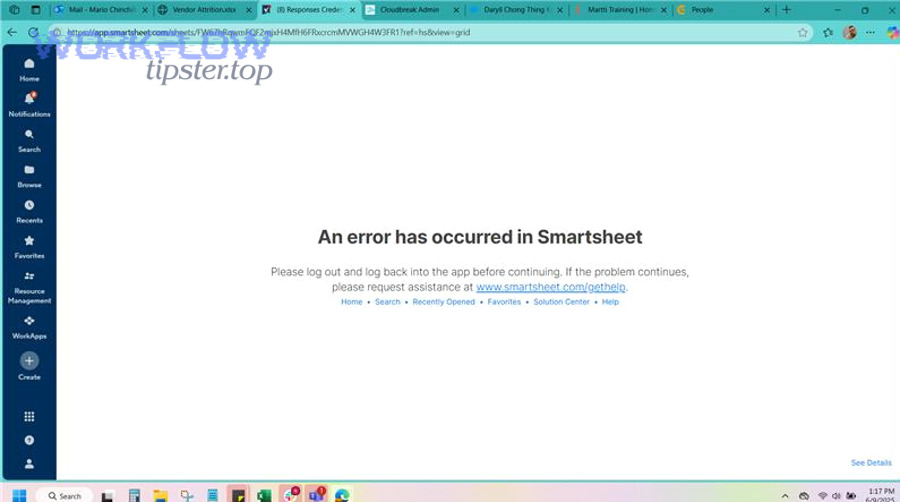
Below, the goal is to avoid destructive steps (like major sheet refactors) until you know the layer that’s failing. In order:
- Status & incident confirmation
- Scope check (one sheet vs many)
- Incognito/private mode test
- Permission/role check
- Sheet complexity check
Then, once you have evidence, you move from “diagnose” to “fix.”
Should you troubleshoot the browser first or the network first?
Browser wins first when the symptoms involve UI behavior, loading loops, or weird display issues; network wins first when symptoms involve timeouts, intermittent saves, or corporate security layers.
More specifically:
- Start with browser if:
- The page loads partially, UI stalls, or clicking does nothing.
- Incognito/private mode is available (high-signal test).
- Start with network if:
- You see repeated timeouts or save failures across sites/tools.
- You’re on VPN/proxy or a restricted corporate network.
This order works because the incognito test often eliminates extensions and cached sessions in one step, which is the quickest “environment reset” you can do.
What non-destructive steps usually resolve performance issues (cache, extensions, incognito, device switch)?
There are 6 non-destructive steps—incognito test, disable extensions, clear cache, update browser, switch device, and switch network—based on reducing interference without changing your sheet.
Next, apply them in this safe sequence:
- Open Smartsheet in incognito/private mode and try the same action.
- If incognito works, disable extensions in your main profile one by one.
- Clear site data/cache for Smartsheet and re-authenticate.
- Update the browser to the latest supported version.
- Try a different device (or a fresh browser profile).
- Try a different network (mobile hotspot as a controlled test).
Smartsheet’s own troubleshooting guidance highlights browser compatibility and extensions as common causes when the app is not loading or not responding, which is why incognito is an effective early test. (help.smartsheet.com)
How do you fix Smartsheet loading, freezing, or slow performance issues?
You fix loading/freezing/slow performance by following a 4-step method—confirm scope, isolate environment, isolate sheet complexity, and reduce workload—so you restore responsiveness without breaking your process.
Then, because “slow” can hide multiple causes, you want to separate two realities: (1) the app can’t run cleanly in your environment vs (2) the sheet is legitimately heavy.
Is the problem tied to one sheet or all sheets/workspaces?
Yes—this is the fastest fork in the road, because one-sheet problems usually point to sheet complexity or structure, while all-sheet problems usually point to environment or platform scope.
Next, test quickly:
- Open a lightweight sheet (or create a blank test sheet).
- Open the problematic sheet.
- Compare: load time, scroll performance, save time, and automation responsiveness.
If the lightweight sheet is fine, you’re in “sheet scope,” and you should treat the problematic sheet like a performance workload to optimize.
Smartsheet notes that slow load/save can occur when a sheet is processing significant data and is commonly associated with approaching limits or using advanced capabilities like complex formulas and dependencies. (help.smartsheet.com)
What should you do if Smartsheet loads but actions don’t respond (clicks, editing, switching views)?
There are 3 main causes—extension interference, session/cookie issues, and constrained network policies—based on what blocks UI events after the page renders.
Specifically, fix it in this order:
- Extension interference
- Disable ad blockers, script blockers, password managers, and “security” plugins temporarily.
- Retest after each change so you learn which plugin causes the conflict.
- Session/cookie corruption
- Clear Smartsheet site data.
- Sign out/in to refresh tokens and session state.
- Network constraints
- Temporarily bypass VPN/proxy for a test.
- Try a different DNS/network path (hotspot).
If the issue is reproducible only on one machine, treat it as local until proven otherwise.
Why can’t you save changes, edit rows, or upload/download files in Smartsheet?
Save/edit/upload/download failures are usually caused by permissions, session problems, or browser/network blocks, and you fix them by confirming your role first, then stabilizing your session, then isolating file-transfer constraints.
Next, tie each failure to the action layer:
- Edit/save relies on permission + session + connectivity.
- Upload/download/export relies on browser policies + network/proxy + file constraints.
Is it a permission issue (view-only) or a connection issue (edits not persisting)?
Permission wins when the UI clearly restricts editing; connection/session wins when edits appear to work but then roll back, fail silently, or throw intermittent errors.
More specifically, compare indicators:
- Permission issue signs
- You can’t edit locked rows/columns.
- You can’t create automations or modify formulas.
- Your role is viewer/commenter, or the sheet is shared read-only.
- Connection/session issue signs
- You can type, but changes don’t persist after refresh.
- Save actions fail during periods of unstable network.
- Re-authentication suddenly “fixes” it.
In day-to-day ops language, this is often experienced as smartsheet permission denied troubleshooting when the real fix is adjusting sharing roles, ownership, or locked structures—not changing the sheet content.
What are the most common fixes for download/export and attachment issues?
There are 4 main fixes—allow pop-ups/downloads, disable blockers, bypass restrictive networks, and reattempt after session refresh—based on what interrupts file transfer.
Next, apply them safely:
- Allow pop-ups and automatic downloads for the Smartsheet site.
- Disable blocking extensions that inspect or rewrite traffic.
- Test outside VPN/proxy if your organization uses SSL inspection.
- Re-authenticate and retry the upload/download with a fresh session.
If you see recurring failures, document the file size/type and your network path so admins can reproduce it. This is also where teams often encounter smartsheet attachments missing upload failed troubleshooting, especially when security tools interrupt the upload stream.
What do Smartsheet formula errors mean, and how do you fix them?
Smartsheet formula errors are structured messages that appear when the formula engine expects one type of input or reference but receives another, and you fix them by isolating the failing input, validating references, and simplifying the expression until the error disappears.
Then, once you interpret errors correctly, you stop “randomly rewriting formulas” and start repairing the exact break point.
Which formula error types are most common, and what is the fastest way to isolate the cause?
There are 4 common formula error types—blocked errors, type mismatch errors, parsing errors, and calculation delays—based on what the engine can’t resolve.
Next, use the fastest isolation technique: replace complexity with certainty.
- Confirm the error category
- Errors like #BLOCKED often mean a referenced cell already has an error; fix the upstream error first. (help.smartsheet.com)
- Validate each reference
- Check that ranges exist, columns are correct, and cross-sheet references still point to live sheets.
- Reduce the formula
- Temporarily remove nested functions until a smaller expression works.
- Rebuild incrementally
- Add one function at a time and retest.
This approach is the difference between “guessing” and real troubleshooting: you’re turning a complex expression into a sequence of verified truths.
Should you rewrite a formula or restructure the sheet (helper columns) to reduce recurring errors?
Formulas win for compactness, helper columns win for stability and maintainability, and restructuring wins for performance—so the best option depends on whether you’re optimizing for readability, debugging speed, or load time.
Next, use this comparison frame:
- Rewrite the formula when:
- The logic is correct but the syntax is fragile.
- You can reduce nesting and avoid mixed data types.
- Add helper columns when:
- Multiple teams maintain the sheet.
- You need intermediate checkpoints to debug quickly.
- The same calculations are reused in many places.
- Restructure the sheet when:
- Cross-sheet formulas and dependencies create heavy recalculation.
- Performance slows under normal use.
This is also where teams often discover “data quality” as the hidden cause—dates stored as text, inconsistent formats, or values that violate the expected type.
How do you troubleshoot sync errors from automations and integrations?
You troubleshoot sync errors by using a 3-part method—classify the failure type, verify permissions and mappings, and confirm runtime health—so you can fix the root cause instead of rerunning broken workflows.
Then, because integrations fail in patterns, you can speed diagnosis by learning the language of failures: mapping failures, auth failures, payload failures, and rate-limit failures.
Is the error caused by mapping/permissions, data changes, or connector run failures?
There are 3 main causes—mapping/field alignment, permission/auth alignment, and runtime execution failures—based on where the integration pipeline breaks.
Next, here’s how to classify quickly:
- Mapping/field alignment failures
- Happen after schema changes, column renames, or required fields appear.
- Show up as “missing field” or “cannot map value” style errors.
- This is where smartsheet field mapping failed troubleshooting becomes a repeatable workflow: compare source fields → required target fields → data types → default values.
- Permission/auth alignment failures
- Happen when accounts lose access, roles change, or tokens expire.
- Often present as explicit unauthorized/forbidden messages.
- Teams commonly label this smartsheet oauth token expired troubleshooting when the fix is re-authentication or updating the integration account’s access.
- Runtime execution failures
- Happen when queues back up, requests time out, or the remote system is degraded.
- Often correlate with workload spikes and delayed processing.
- This is exactly what people mean by smartsheet tasks delayed queue backlog troubleshooting and smartsheet timeouts and slow runs troubleshooting—the pipeline is healthy “in theory” but constrained “in runtime.”
To keep this actionable, capture the timestamp, the exact failing step, and whether the failure is consistent or intermittent.
Should you fix the data (field formats) or change the integration setup (mapping/rules)?
Data fixes are best when inputs violate expected formats, setup changes are best when the mapping or trigger logic is wrong, and runtime changes are best when execution health is the issue—so you choose the fix based on the failure class.
Next, use a simple decision rule:
- Fix the data when:
- Values don’t match field types (dates, numbers, booleans).
- The payload is incomplete or fields are blank.
- You’re dealing with smartsheet missing fields empty payload troubleshooting or smartsheet data formatting errors troubleshooting.
- Change the setup when:
- Fields were renamed/moved and mappings are stale.
- The automation trigger logic no longer matches real workflow.
- You’re dealing with smartsheet trigger not firing troubleshooting.
- Adjust execution/retry behavior when:
- Requests fail due to throttling or intermittent server errors.
- You see rate limit patterns or transient failures that recover.
- You’re dealing with smartsheet api limit exceeded troubleshooting or smartsheet pagination missing records troubleshooting when the true fix is batching, pagination handling, or respecting limits.
Here’s a small, practical table that helps teams connect error strings to the right class of fix (so you don’t treat all failures like “reconnect and retry”):
| Error pattern you see | What it usually means | Best first move |
|---|---|---|
| smartsheet invalid json payload troubleshooting | Payload is malformed or serialized incorrectly | Validate JSON structure and required fields before send |
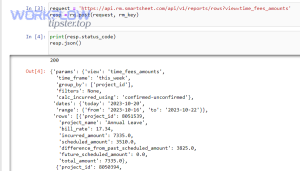
| smartsheet webhook 400 bad request troubleshooting | Request is syntactically invalid | Log payload + headers; compare to expected schema |
| smartsheet webhook 401 unauthorized troubleshooting | Auth is missing/invalid | Refresh auth, verify token/account permissions |
| smartsheet webhook 403 forbidden troubleshooting | Auth is valid but lacks permission | Grant access, adjust scopes/roles |
| smartsheet webhook 404 not found troubleshooting | Endpoint/resource not found | Verify URL, resource IDs, environment |
| smartsheet webhook 429 rate limit troubleshooting | Too many requests | Backoff + retry policy; reduce call frequency |
| smartsheet webhook 500 server error troubleshooting | Server-side failure | Retry with jitter; check incident status |
| smartsheet timezone mismatch troubleshooting | Date/time interpreted differently across systems | Standardize timezone (UTC), normalize timestamps |
| smartsheet duplicate records created troubleshooting | Retries or idempotency missing | Add dedupe keys/idempotency strategy |
If your team wants more real-world integration patterns, WorkflowTipster.top often frames these failures as “mapping vs auth vs runtime,” which is exactly the mental model that keeps troubleshooting fast.
When should you escalate to admins or support, and what information speeds up resolution?
You should escalate when the issue affects multiple users, involves account security/SSO/policies, or persists after safe environment isolation—and the fastest resolutions happen when you provide precise scope, timestamps, error text, and reproduction steps.
Then, escalation becomes a continuation of troubleshooting, not a handoff that resets progress. Your job is to deliver clean evidence.
Can your admin resolve this with permission changes or security settings?
Yes—admins can often resolve it because role-based access, sharing permissions, and security policies directly control what users can do, which is why permission and security checks are first-class troubleshooting steps.
Next, escalate to admins when you see:
- SSO login loops or forced re-authentication.
- Inability to access a workspace/sheet that others can.
- Automation permissions failing despite correct setup.
In operational language, this includes cases your team may describe as smartsheet permission denied troubleshooting—where the real fix is a role change, ownership transfer, or policy adjustment.
What screenshots/log details should you capture to avoid back-and-forth?
There are 7 pieces of evidence—error text, timestamp, scope, reproduction steps, environment details, affected assets, and what you already tried—based on reducing diagnostic uncertainty.
Next, capture this set:
- Exact error message (copy/paste if possible)
- Timestamp (including timezone)
- Who is affected (one user vs many)
- Where it happens (sheet/workspace + action)
- How to reproduce (steps 1–5)
- Environment (browser version, extensions, VPN/proxy)
- Attempted fixes (incognito, device switch, cache cleared)
If the issue includes file actions, include file size/type and whether it relates to attachments—especially in smartsheet attachments missing upload failed troubleshooting scenarios where security tooling may intervene.
Contextual border: Up to this point, you’ve focused on macro troubleshooting—restore service fast by narrowing scope and applying safe fixes. Next, you’ll shift into micro semantics: prevention habits and advanced edge cases (SSO, connectors, API/webhooks, throttling) that create repeat incidents.
How can teams prevent recurring Smartsheet issues and handle advanced edge cases?
Preventing recurring issues means designing for stability—standardizing environments, simplifying heavy sheets, hardening automations, and adding safeguards (monitoring, retries, idempotency) for advanced integrations—so you stop solving the same incident every week.
Next, think of prevention as the antonym partner to fixing: you fix today’s failure, then you remove tomorrow’s trigger.
What prevention habits reduce repeated loading and saving issues (browser hygiene, workspace practices, sheet design)?
There are 4 prevention pillars—browser hygiene, sheet design hygiene, workflow hygiene, and change management—based on removing the most common repeat triggers.
Specifically:
- Browser hygiene
- Keep a supported browser version updated.
- Limit extension sprawl on work profiles.
- Use separate browser profiles for work tools to reduce conflicts.
- Sheet design hygiene
- Reduce cross-sheet formula sprawl where possible.
- Break large projects into subprojects and use reports for consolidation when performance degrades. (help.smartsheet.com)
- Avoid “one sheet does everything” patterns when dependencies explode recalculation.
- Workflow hygiene
- Keep triggers and conditions simple and testable.
- Document intended automation behavior in the sheet itself so changes don’t silently break logic.
- Change management
- Treat column renames, type changes, and required-field changes as “integration breaking changes.”
- Update mappings immediately after schema changes to avoid hidden pipeline failures.
How do SSO/SAML and strict security settings create login loops or access errors—and how do you diagnose them?
SSO/SAML and strict security settings can cause login loops or access failures when cookies/sessions are blocked, tokens expire, or identity provider policies conflict with app session expectations, and you diagnose them by comparing behavior across networks/devices and documenting the exact failure point.
Then, you want to isolate whether the loop is browser-policy-driven or identity-policy-driven:
- If the problem disappears in a clean browser profile, suspect cookies/extensions.
- If it follows the user across devices, suspect identity policy or account configuration.
- If it follows the network (corporate vs hotspot), suspect proxy/inspection policies.
This is also the mindset behind smartsheet oauth token expired troubleshooting: a token expiration can be “normal,” but repeated expirations can point to security controls that invalidate sessions prematurely.
What connector-specific troubleshooting patterns help with recurring sync failures (run history, mappings, data constraints)?
There are 3 connector patterns—run visibility, mapping stability, and constraint handling—based on what repeatedly breaks at scale.
Next, implement these patterns:
- Run visibility
- Maintain a simple “integration health” log (last success time, last failure time, last error class).
- Watch for workload spikes that coincide with delayed runs.
- Mapping stability
- Freeze key field names/types where possible.
- Introduce “compatibility fields” (helper columns) so you can change sheet structure without breaking connectors.
- Constraint handling
- Normalize formats (dates, enums) before sync.
- Add validation rules to catch bad inputs early—so you avoid downstream failures that look like connector bugs.
This is how you eliminate the recurring “it worked yesterday” class of incidents and reduce the support burden.
How do API/webhook or rate-limit issues differ from UI problems, and how should technical teams respond?
API/webhook issues are best handled with logging, retries, backoff, and idempotency, while UI problems are best handled with environment and sheet optimization—so technical teams should respond by instrumenting requests and controlling traffic rather than repeatedly changing the sheet.
Next, anchor your response strategy to the failure mode:
- Webhook failures focus on request/response integrity and permissions:
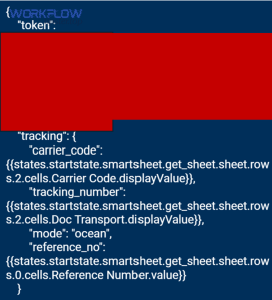
- Validate payload format to prevent smartsheet webhook 400 bad request troubleshooting.
- Refresh credentials for smartsheet webhook 401 unauthorized troubleshooting.
- Fix access scopes for smartsheet webhook 403 forbidden troubleshooting.
- Verify endpoints/resources for smartsheet webhook 404 not found troubleshooting.
- Add backoff/retry for smartsheet webhook 429 rate limit troubleshooting.
- Implement resilient retry policies for smartsheet webhook 500 server error troubleshooting.
- API behavior issues focus on throughput and correctness:
- Control request rate to avoid smartsheet api limit exceeded troubleshooting.
- Implement strict pagination to avoid smartsheet pagination missing records troubleshooting.
- Add deduplication/idempotency to prevent smartsheet duplicate records created troubleshooting.
- Trigger and runtime health issues focus on system behavior over time:
- Validate trigger conditions and state transitions for smartsheet trigger not firing troubleshooting.
- Monitor execution time and queue depth for smartsheet tasks delayed queue backlog troubleshooting and smartsheet timeouts and slow runs troubleshooting.
If you want a visual walkthrough of building and validating automations (a common source of sync confusion), here’s a single practical video you can use for team alignment:
According to a study by University of California, Irvine from the Department of Informatics, in 2008, people compensated for interruptions by working faster but experienced more stress and time pressure, which reinforces why resilient automations (retries, dedupe, validation) matter more than heroic manual firefighting. (ics.uci.edu)