Troubleshoot Airtable Issues: Step-by-Step Fix Order for Teams (Airtable Troubleshooting Guide)
If you’re searching for “Airtable troubleshooting,” you’re usually trying to get a broken base back to reliable operation fast—without guessing, breaking automations, or losing data. The most effective approach is a repeatable triage workflow: identify the failure surface (data, permissions, automation, API), isolate the smallest reproducible case, apply the safest fix, then verify with a controlled test record.
Next, most Airtable problems come from a small set of high-impact changes—field type edits, renamed fields, view filter updates, permission shifts, or integration token changes. The fastest wins come from quick checks that confirm what changed, who is affected, and what the system actually received and returned.
Then, once you know where the failure lives, you can troubleshoot each layer with a purpose-built playbook: automate runs and triggers, integration authentication and requests, pagination and payload formatting, and base performance bottlenems like heavy views, formulas, and linked record structures.
Introduce a new idea: below is a complete, structured troubleshooting guide that starts with the “check-first” fundamentals and ends with a safe fix order and advanced edge cases—so you can restore stability and prevent the same issue from recurring.
What does “Airtable troubleshooting” mean in practice—and what should you check first?
Airtable troubleshooting is a structured process for diagnosing why a base, automation, or integration isn’t behaving as expected by checking data rules, permissions, trigger conditions, and request/response evidence before changing your schema.
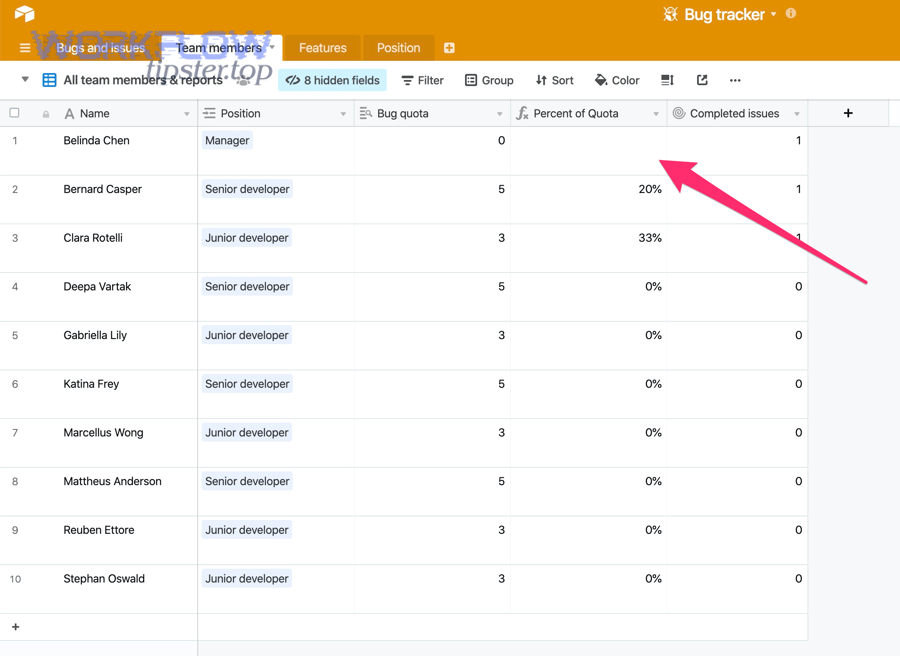
To keep fixes safe and fast, start by locating the exact failure boundary—what you expected to happen, what actually happened, and the first place the behavior diverged.
What are the most common Airtable problem categories: automations, API/integrations, data/fields, permissions, or performance?
There are 5 main categories of Airtable issues—automations, API/integrations, data/fields, permissions, and performance—based on where the failure originates and which layer “owns” the rules that were violated.
Specifically, you’ll move faster when you name the category first, because each category has a different “first proof” to collect and a different safest fix path.
- Data/fields: records look wrong, calculations don’t match, select options break, or imports don’t align to field types.
- Permissions: users can’t see fields, can’t create/update records, or actions fail only for certain roles.
- Automations: a trigger doesn’t fire, an action fails, or the automation runs but produces wrong outputs.
- API/integrations: requests fail with status codes, auth expires, payloads are rejected, or only partial results arrive.
- Performance: views load slowly, edits lag, automations back up, or interfaces feel delayed.
In practice, most “mystery” failures are one of two root causes: a field changed (type/name/options) or access changed (role/permission/scope). Once you confirm which, you can stop random changes and begin targeted troubleshooting.
Can you reproduce the issue consistently—and does it happen for all users or only one role/account?
Yes—you should try to reproduce the issue because (1) it confirms the failure is real and current, (2) it reveals whether the cause is data-driven or permission-driven, and (3) it gives you a controlled test case to verify the fix without risking production records.
However, reproduction must be precise: use the same view, same record type, same user role, and the same integration connection, because small differences change outcomes.
- All users affected: suspect schema changes, view filters, automation logic, or API changes.
- Only one user/role affected: suspect permissions, interface restrictions, private views, or connection ownership.
- Only integrations affected: suspect auth, mapping, pagination, rate limiting, or payload formatting.
When you can reproduce the issue with a single “test record,” you unlock faster isolation: you can run controlled edits (one field change at a time) and see exactly when the behavior flips from “works” to “breaks.”
Which quick checks fix most Airtable issues in under 10 minutes?
There are 3 quick checks that fix most Airtable issues in under 10 minutes: verify what changed, verify permissions and access scope, and capture the exact error evidence (message, timestamps, IDs) before you edit anything.
To begin, these checks work because they target the most common hidden causes—silent field edits, role-based constraints, and missing diagnostic context that forces guesswork.
Did something change recently (field type, view filters, renamed fields, deleted options) that could break automations or integrations?
Yes—recent changes are the top cause because (1) renamed fields break mappings, (2) field type changes invalidate tokens and formatting, and (3) filter changes alter which records qualify for triggers and views.
Next, scan your base for “schema drift” signals that quietly break workflows.
- Renamed fields: integrations still look for the old name; tokens in automations can point to missing references.
- Changed field types: a text → single select change can reject values; a date field change can shift timezone interpretation.
- Deleted select options: incoming updates can fail or fall back to blank depending on the tool’s behavior.
- Updated view filters/sorts: “record enters view” triggers can stop firing—or fire unexpectedly—if the view logic changed.
A strong habit is to treat any change to fields, views, or select options as a “deployment.” Even in small teams, a tiny edit can cascade into automation failures and integration mismatches.
How do permissions and sharing settings cause failures (can’t create/update records, can’t see fields, interface restrictions)?
Permissions and sharing settings cause failures by blocking (1) read access to required fields, (2) write access needed for updates, and (3) UI-level access through interfaces that hide fields or restrict actions—even when the base itself looks fine.
More specifically, permission failures often appear as “it works for me” scenarios, because owners and creators have broader capability than editors or read-only collaborators.
- Field visibility restrictions: a user can’t map or update a field they can’t see.
- Interface-only workflows: interfaces can hide fields, limit edits, and make records appear “missing.”
- Connection ownership: an automation or integration may run under the credentials of the person who set it up; if their access changes, runs fail.
When troubleshooting permission problems, always test with the affected role—not your admin account—so you see the same restrictions and can fix the right layer.
What evidence should you collect before fixing (error message, run ID, request ID, timestamps, sample record IDs)?
There are 3 evidence groups you should collect before fixing: (A) what failed (message/status), (B) when and where it failed (timestamps, run IDs), and (C) which data triggered it (record IDs and sample payload).
Then, once you have evidence, you can troubleshoot quickly without repeating the error or accidentally “fixing” the wrong thing.
- Error message: copy the exact text (not a paraphrase) and note where it appeared (automation run, integration log, API response).
- Run context: capture automation run time, trigger type, and the test record used.
- Request/response context: capture endpoint, status code, request body (sanitized), and response body.
- Record anchors: record ID(s), table name, view name, and any filter criteria used.
This discipline prevents “shotgun troubleshooting.” Instead of trying five fixes and forgetting which worked, you make one change, retest the same case, and verify the outcome with proof.
How do you troubleshoot Airtable Automations when a trigger or action fails?
Use a three-pass method—retest the trigger, retest each action step, and validate the same test record end-to-end—to troubleshoot Airtable Automations in a way that isolates the exact failure point and confirms a safe fix.
Below, you’ll use the same pattern every time: identify whether the failure is a trigger, an action, or the data output, then fix only the smallest necessary rule.
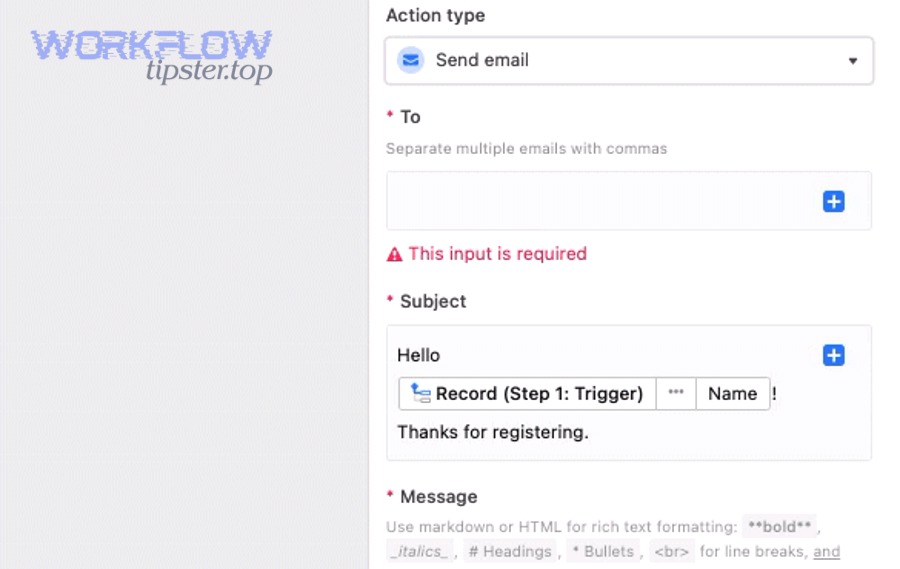
What are the most common automation failure points (trigger not firing, conditional logic, field mapping, permissions, record not found)?
There are 5 common automation failure points—trigger qualification, conditional logic, field mapping, permissions, and record targeting—based on which rule prevents the run from starting or completing.
Specifically, you can narrow failures quickly by asking: “Did the automation start?” and “Which step first shows an error?”
- Trigger qualification: the event happened, but it didn’t meet the trigger’s exact conditions (often a change-of-state requirement).
- Conditional logic: the trigger fires, but branching logic sends the run down a path you didn’t expect.
- Field mapping: tokens map to the wrong fields, missing fields, or incompatible types.
- Permissions: the automation can’t write to a table/field, or can’t access records in the chosen view.
- Record not found: filters or lookups return nothing, so downstream actions can’t locate the intended record.
In real-world troubleshooting, the most frequent hidden culprit is a schema change: a renamed field breaks token references, a changed select option rejects updates, or a modified view filter stops the trigger from seeing qualifying records.
How do you distinguish “trigger not firing” vs “action failing” vs “action succeeds but data is wrong”?
Trigger not firing means the run never starts, action failing means the run starts but stops on an error step, and action succeeds but data is wrong means the run completes but writes incorrect or incomplete values due to mapping, formatting, or logic.
Meanwhile, each outcome has a different “first diagnostic” that saves time.
- Trigger not firing: verify the trigger’s qualification logic with a controlled test record and confirm the record actually crosses the condition boundary.
- Action failing: locate the first failing action, read the exact error, and confirm access to the target table/field.
- Data wrong: verify tokens and field types, check conditional branches, and confirm transformations (dates, selects, attachments) match expectations.
A practical tip: label your automation runs by adding a “Debug” field in the base that records what branch ran, what time it ran, and which record ID was processed. That turns invisible logic into visible evidence.
Is your automation creating loops or double-firing due to record updates made by the automation itself?
Yes—automation loops and double-fires happen because (1) an automation updates a field that re-qualifies the trigger, (2) multiple triggers watch the same change and both fire, and (3) retries or delayed runs process the same record twice.
However, you can detect and stop loops with a small set of guardrails.
- Add an idempotency flag: write a “Processed” checkbox or a “Processed at” timestamp and require it to be empty before running.
- Separate trigger fields from action fields: avoid updating the same field your trigger is watching.
- Use change-of-state logic carefully: ensure the trigger requires a transition (previously false → now true) rather than a steady true state.
- De-duplicate downstream: when creating records, use a unique key (email/order ID) and “find then update” instead of “always create.”
These safeguards matter even more when teams report repeated notifications or airtable duplicate records created after a change, because the real root cause is often a loop or multiple automations racing on the same record event.
According to Airtable Support documentation, an automation “run” is counted whenever a trigger is invoked, regardless of whether the actions succeed—so loops can burn run limits quickly if you don’t add guardrails.
How do you troubleshoot Airtable API and integration errors (401/403/404/429/5xx)?
Troubleshoot Airtable API and integration errors by mapping the status code to the layer that owns the fix (auth, permissions, endpoint, rate limit, or server), then validating the request details—base/table IDs, headers, payload shape, and pagination.

To better understand failures, treat each request like a contract: authentication proves identity, permissions define capability, payload defines format, and rate limits define throughput.
What does each common HTTP error mean in Airtable context—and what’s the first fix to try?
There are 6 common HTTP error families in Airtable integrations—400, 401, 403, 404, 429, and 5xx—based on whether the request is malformed, unauthenticated, unauthorized, pointing to the wrong resource, exceeding limits, or failing server-side.
Next, the table below contains a practical “first fix” checklist that maps each code to the fastest verification step, so you can troubleshoot without guessing.
This table contains the most common Airtable integration errors, what they usually mean, and the first corrective action to try before changing your base design.
| Symptom / Phrase | What it usually means | First fix to try |
|---|---|---|
| airtable webhook 400 bad request / airtable invalid json payload | The request body is malformed, fields don’t match expected types, or your integration sent invalid JSON. | Validate JSON, confirm field names/types, and send a minimal payload with one field to isolate the bad mapping. |
| airtable webhook 401 unauthorized / airtable oauth token expired | Authentication failed or the token is invalid/expired for that workspace/base scope. | Reconnect the account, regenerate the token, and confirm the integration points to the correct workspace/base. |
| airtable webhook 403 forbidden / airtable permission denied | The credentials are valid, but they don’t have permission to read/write that base, table, or field. | Check role permissions, base access, and whether the connector user lost access or moved workspaces. |
| airtable webhook 404 not found | The endpoint, base ID, table name, or record ID is wrong—or the resource was renamed/deleted. | Verify base ID, table name, and record IDs; reselect the table in your tool to refresh references. |
| airtable webhook 429 rate limit / airtable api limit exceeded | You’re sending too many requests too quickly or you’ve hit a plan quota/limit in your usage context. | Add retries with backoff, batch requests, cache reads, and reduce per-record calls. |
| airtable webhook 500 server error / airtable timeouts and slow runs | The server failed, the request took too long, or your integration timed out waiting for a response. | Retry safely, reduce payload size, split large operations into smaller batches, and monitor status incidents. |
| airtable pagination missing records | You fetched only the first page and didn’t follow the offset/next-page cursor. | Implement pagination correctly and loop until no offset remains. |
| airtable missing fields empty payload | Your request did not include the expected fields, or your mapping references fields that aren’t present/visible. | Confirm field names, check field-level permissions, and log the final payload your tool sends. |
| airtable attachments missing upload failed | Attachment URLs are invalid/blocked, file size/type is unsupported by the tool, or the upload step failed. | Test with a public HTTPS file URL, verify file accessibility, and retry with a smaller file first. |
According to Airtable’s Web API documentation, the API is limited to 5 requests per second per base and returns a 429 status code when that rate limit is exceeded—so high-frequency integrations should batch requests and use backoff retries.
When should you fix the issue in Airtable (fields/permissions) vs in the integration tool (mapping/auth/retry/pagination)?
Fix the issue in Airtable when the failure is caused by schema, field types, or permissions; fix it in the integration tool when the failure is caused by authentication, mapping configuration, retries, pagination handling, or request formatting.
On the other hand, many “integration errors” are really mismatches between the two layers, so you’ll often do a small fix on each side.
- Fix in Airtable: wrong field type, missing select option, changed field name, view filter excludes records, role can’t write.
- Fix in the integration tool: expired connection, wrong base/table selection, incorrect field mapping, missing pagination loop, insufficient retries.
A simple rule: if the same operation works manually inside Airtable but fails via the connector, suspect the integration tool first. If it fails both manually and via the connector, suspect Airtable configuration (field types, permissions, view logic) first.
Are you handling pagination correctly (offset/next page), or is it only pulling a partial dataset?
Yes—pagination handling matters because (1) Airtable returns records in pages, (2) many tools default to a single page, and (3) partial reads create silent data gaps that look like “missing records” instead of obvious errors.
In addition, pagination issues often appear only when the dataset grows, which is why systems “work fine” early and fail later.
- Symptom: reports show fewer records than expected, or downstream systems never see older rows.
- Cause: the integration doesn’t loop through all pages using the offset/next page cursor.
- Fix: implement pagination until no cursor remains, and log total fetched count per run.
If you want a quick sanity check, compare counts: number of records in Airtable vs number of records processed in your logs. If they diverge consistently at a round number, pagination is the likely culprit.
How do you troubleshoot slow Airtable bases and performance lag?
Troubleshoot slow Airtable bases by identifying the primary bottleneck (view complexity, formulas, linked record expansions, automations, or API traffic), then reducing the highest-cost operations first to restore responsiveness.
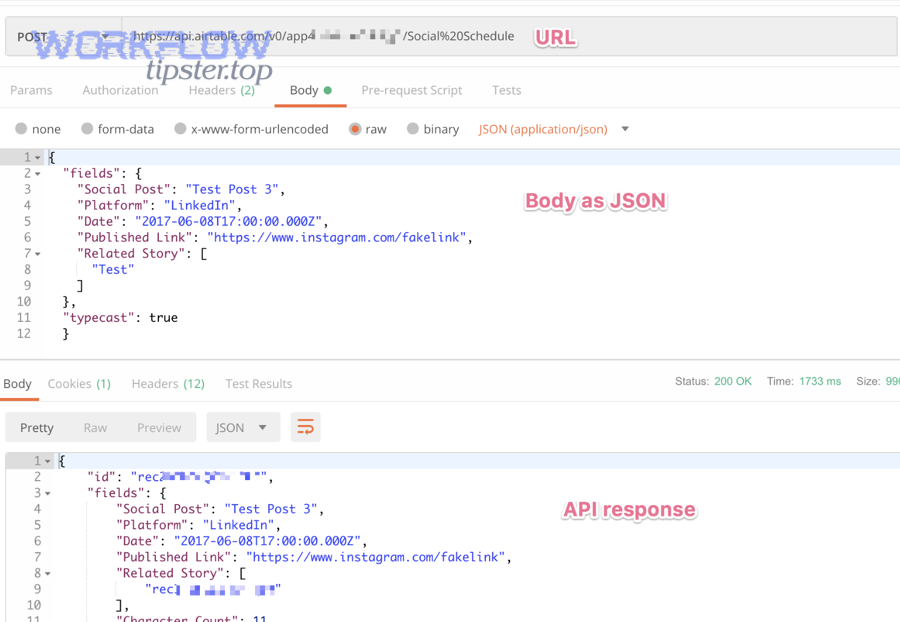
Especially in mature bases, performance issues often come from “invisible work”—views that compute too much, formulas that recalc too often, or automations that create backlogs.
What are the most common causes of slow bases (views, formulas, linked records, automations, API traffic)?
There are 5 common causes of slow Airtable performance—heavy views, expensive formulas, linked record fan-out, automation load, and API traffic—based on what forces Airtable to compute or load the most data per interaction.
Specifically, you’ll see lag when the base must repeatedly calculate, filter, or render large amounts of data in real time.
- Heavy views: too many records, too many visible fields, complex sorts and filters, and grouping across many rows.
- Expensive formulas: deep nested logic, string parsing, repeated lookups, and wide computed fields.
- Linked records fan-out: many-to-many relationships that expand into large rollups and lookups.
- Automation load: many runs per hour, repeated triggers, or multiple automations watching the same event.
- API traffic: frequent polling, per-record updates, or integrations that re-read the entire base repeatedly.
When teams complain about “lag,” separate editing lag (typing/clicking delay) from sync lag (automations and integrations updating later). They have different causes and different fixes.
What’s the difference between optimizing Airtable design (schema/views) vs reducing workload (automations/integrations/API)?
Optimizing design improves how efficiently Airtable stores and computes data (schema, views, formulas), while reducing workload decreases how often Airtable must do work (automation frequency, API volume, integration patterns).
However, the best results usually come from doing both, because a well-designed base can still be slow if it’s hammered by high-frequency integrations.
- Optimize design: simplify formulas, reduce rollups, limit fields in heavy views, and use summary tables where needed.
- Reduce workload: batch API operations, add throttling and backoff, reduce polling, and trigger only on meaningful state changes.
This is also where operational symptoms show up: if your automations start stacking, you may see airtable tasks delayed queue backlog patterns—runs happen later than expected, downstream steps feel “late,” and data arrives out of order.
Is the slowdown isolated to a single view/interface, or does it affect the whole base?
Yes—you should isolate the slowdown because (1) view-specific lag points to filters, sorting, grouping, or field count, (2) interface-specific lag points to layout and permissions layers, and (3) base-wide lag points to schema, formulas, linked-record fan-out, or heavy automation/API traffic.
To better understand where the load lives, run a simple isolation test.
- Test 1: open a minimalist grid view with few fields and no grouping—if it’s fast, your heavy view is the bottleneck.
- Test 2: test in a different browser/incognito—if it improves, caching or extension interference may be involved.
- Test 3: pause non-critical automations briefly—if it improves, automation churn is contributing.
Performance troubleshooting is about reducing the “cost per interaction.” Once you find the expensive surface, you can slim it down without redesigning everything.
What step-by-step “fix order” should you follow to resolve Airtable issues without breaking your base?
Follow a 5-step fix order—triage, isolate, fix, verify, and prevent—to resolve Airtable issues safely, because it minimizes risky edits, ensures each change is measurable, and reduces the chance of cascading failures across automations and integrations.
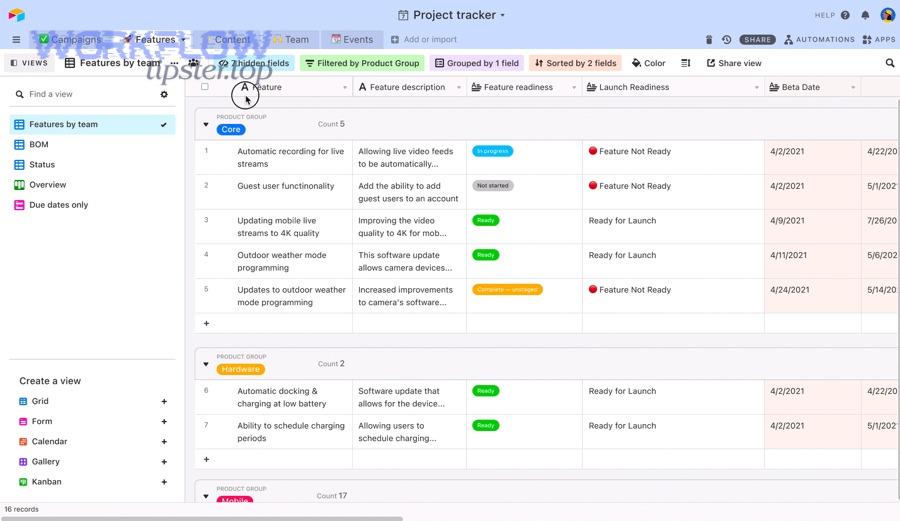
Let’s explore a practical workflow you can reuse whenever you’re troubleshooting under pressure.
What is the safest troubleshooting workflow (triage → isolate → fix → verify → prevent)?
There are 5 stages in the safest troubleshooting workflow—triage, isolate, fix, verify, prevent—based on reducing uncertainty before making changes and proving each change worked before moving on.
Specifically, each stage has one primary goal and one primary output.
- Triage: define impact and category (data, permissions, automation, API, performance) and pick the fastest evidence source.
- Isolate: reproduce with a test record and identify the first failing step (trigger, action, request, view, permission).
- Fix: apply the smallest change that addresses the cause (rename mapping, adjust view filter, correct field type, reconnect auth).
- Verify: rerun the exact test case and confirm downstream outputs are correct (data values, created records, notifications sent).
- Prevent: add guardrails (idempotency flags, naming conventions, documentation, monitoring, change discipline).
A key prevention insight: many data issues are “silent.” The system doesn’t always throw an error; it just writes an empty value or skips a field. That’s why verification should include checking the final record state, not just seeing “run successful.”
According to a study by Raymond R. Panko at the University of Hawaii in 1998, 35% of spreadsheet models produced by 152 students were incorrect—highlighting why structured validation and controlled testing matter whenever your system behaves like a spreadsheet-database hybrid.
Should you duplicate the base or test in a copy before changing fields, automations, or integration mappings?
Yes—you should test in a copy because (1) field changes can break multiple automations at once, (2) mapping changes can corrupt data at scale, and (3) controlled tests are safer when you can roll back without impacting production users.
More importantly, a copy-based test makes troubleshooting measurable: you can change one variable at a time and confirm cause-and-effect.
- Duplicate when: you’re changing field types, select options, linked record structure, or any automation that writes to core tables.
- Test in-place when: the fix is isolated (reconnect auth, adjust a single mapping, correct a view filter) and you can verify with a single test record safely.
- Always: communicate changes and record what you changed so the team can trace future issues.
This is also how you avoid common pitfalls like airtable field mapping failed after a field rename: you test the rename and the connector mapping refresh in a controlled copy before rolling it into production.
Contextual Border: Up to this point, you’ve learned how to fix Airtable problems reliably. Next, we’ll expand into advanced edge cases and prevention tactics that improve long-term resilience and reduce repeat incidents.
What advanced Airtable troubleshooting edge cases and prevention tactics should power users know?
There are 4 advanced areas power users should master—proactive prevention, circular dependency detection, integration “gotchas,” and escalation thresholds—because these reduce repeat failures, prevent silent data corruption, and guide when a redesign is safer than another patch.
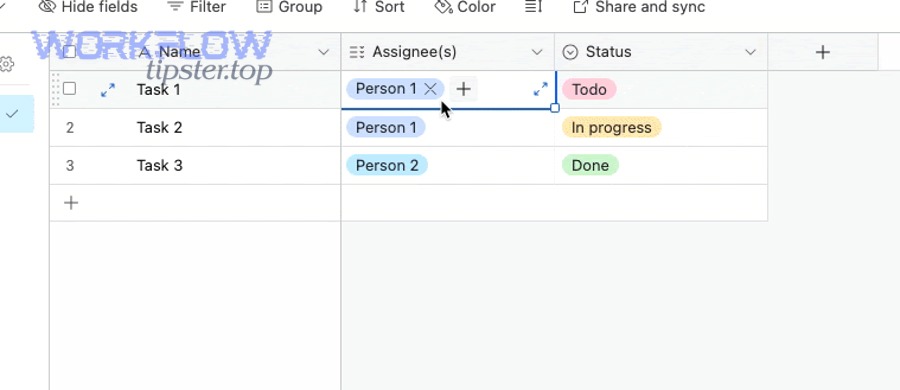
Below, you’ll go beyond reactive troubleshooting and build a base that stays stable as it scales.
How do you prevent automation failures proactively vs reacting after they break?
Proactive prevention wins by reducing the chance of failure (guardrails, monitoring, disciplined changes), while reactive troubleshooting focuses on restoring function after a break (triage, isolate, fix).
In short, the difference is whether you design for predictable change or wait for failures to reveal weak points.
- Proactive: add idempotency flags, log key values to debug fields, document trigger conditions, and limit “wide” edits to scheduled change windows.
- Reactive: review run history, retest trigger/action, capture the failing record ID, and apply the smallest fix.
Proactive practices also reduce noisy incidents like airtable trigger not firing confusion—because teams define exact trigger transitions and include a visible “qualifies for automation” field to make state changes explicit.
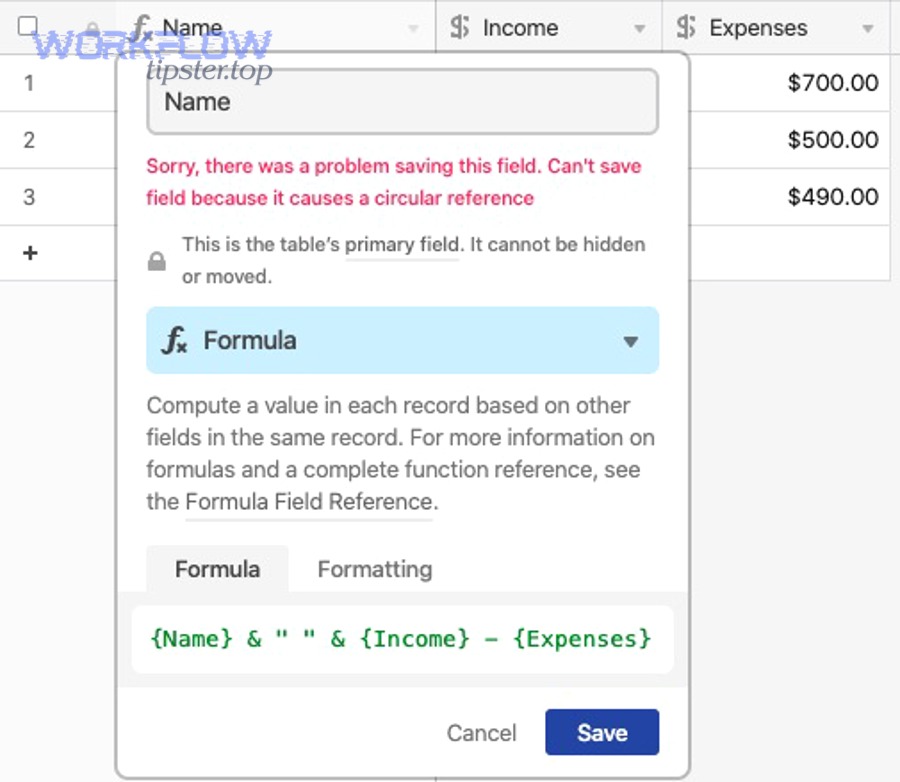
What are circular dependencies in linked records/lookups/rollups—and how do they cause hidden breakages?
Circular dependencies are loops where linked records, lookups, or rollups depend on each other directly or indirectly, creating unstable calculations, unpredictable recalculation cascades, or logic that breaks when one side changes.
For example, a rollup in Table A depends on a lookup from Table B, while Table B’s computed field depends on a rollup back from Table A. The system may still “work,” but changes can create lag, blank outputs, or mismatched results that look like random errors.
- Symptoms: rollups flicker, fields turn blank temporarily, recalculation spikes, and performance degrades as record counts grow.
- Fix: break the loop by introducing a stable “summary” table, replacing one computed field with a manual or scripted update, or simplifying the chain of dependencies.
This is a common root cause behind “ghost problems” that appear as performance lag rather than a clear error message.
What integration “gotchas” cause silent data issues (timezone parsing, select option mismatches, attachment handling)?
There are 3 common integration gotchas that cause silent data issues—timezone parsing, select option mismatches, and attachment handling—because the integration can “succeed” while writing wrong values or skipping fields without a fatal error.
Especially, these gotchas tend to scale into major issues when you process hundreds or thousands of records.
- Timezone parsing: the same timestamp can shift by hours if the integration assumes UTC while your team uses local time, creating airtable timezone mismatch in date fields and scheduling logic.
- Select option mismatches: incoming values must match existing options (case/spacing) or they may fail or write blanks—often experienced as airtable data formatting errors without a clear message.
- Attachment handling: attachments often require publicly accessible URLs; otherwise you see airtable attachments missing upload failed or a “successful run” with no attachment saved.
A power-user habit: log the “final normalized value” you intend to write (e.g., normalized select option text, ISO datetime string) into a debug field before writing to the destination field. That turns silent corruption into visible evidence.
When is it time to escalate to Airtable Support or switch architecture (split bases, reduce complexity, redesign schema)?
Yes—it’s time to escalate or redesign when (1) errors persist across clean test cases, (2) the same failures recur after fixes, and (3) the complexity cost exceeds the benefit of keeping the current design.
More importantly, escalation is not failure—it’s a decision to protect data integrity and operational reliability.
- Escalate to Support when: you see consistent platform-level failures, repeated 5xx errors, or run history indicates failures you can’t reproduce locally.
- Redesign when: you rely on heavy rollups/linked fan-out, automations are constantly backlogged, or integrations require too many per-record calls.
- Split bases when: one base has become a “monolith” with unrelated workflows that compete for automation and performance resources.
Finally, if your integration logs show recurring request failures combined with partial writes—like airtable missing fields empty payload in some runs and airtable timeouts and slow runs in others—treat that as an architectural signal. A simpler schema, clearer ownership boundaries, and fewer “do-everything” automations will usually outperform endless patching.
If you want to publish this on WorkflowTipster, the safest editorial angle is simple: “don’t guess—prove.” Start with evidence, isolate the layer, apply the smallest fix, and validate with the same test record end-to-end.