


Make timezone mismatch happens when your scenario reads, writes, or compares timestamps using different time zones (UTC, account time zone, app-specific time zone), causing schedules to fire “early/late” and date-based filters to include the wrong records.
To resolve it, you must standardize on one reference zone (usually UTC), explicitly convert at the boundaries (triggers, API calls, storage, notifications), and validate formatting (ISO 8601, offsets, daylight saving transitions) in every module that touches time.
In addition, you should instrument your scenarios with “time probes” (logged timestamps at each step) so your Make Troubleshooting process can isolate where the drift begins: trigger payload, intermediate transformation, or destination app normalization.
Giới thiệu ý mới: below is a practical, end-to-end way to diagnose, prevent, and permanently fix timezone mismatch issues in Make—without breaking existing scenarios or creating hidden offset bugs during daylight saving changes.
What is a Make timezone mismatch, and why does it break automations?
A Make timezone mismatch is a time interpretation conflict where the same timestamp is treated as different moments because a module assumes a different time zone or offset than the source value intended.
To connect the cause to the fix, you need to understand how Make, your apps, and your stored data each “decide” a time zone, then force those decisions to align.
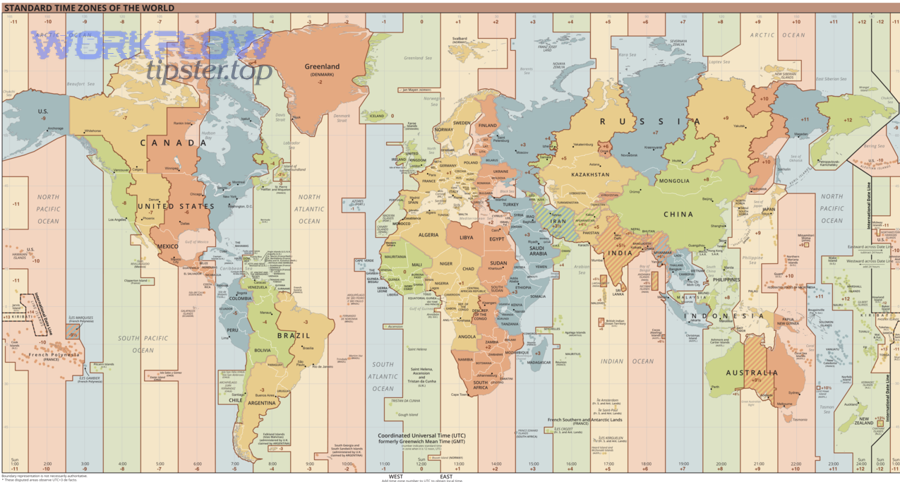
Where the mismatch usually originates in Make scenarios
Most timezone mismatches originate in one of three places: the trigger payload (UTC vs local), a transformation step (formatting without offset), or the destination app (auto-normalizing to its workspace time zone).
Next, you can pinpoint the origin by comparing the raw input timestamp with the timestamp you send out—side by side—before any other logic executes.
- Trigger timestamps that arrive as ISO strings but are assumed local.
- Manual date creation (e.g., “now”) that uses account zone while the API expects UTC.
- Date-only fields (YYYY-MM-DD) interpreted at midnight in different zones.
- DST transitions that create missing or duplicated clock hours.
How Make time zone settings interact with module-level date parsing
Make’s scenario/account time zone influences functions like “now” and date formatting, but many modules still pass timestamps verbatim to APIs that may interpret them differently.
To move from theory to action, treat Make’s time zone as a UI convenience and enforce explicit conversions in every integration boundary.
- Make “Now” may produce a timestamp in account time zone, not necessarily UTC.
- Some apps accept offsets; others silently drop them and assume workspace time zone.
- Date parsing functions can default to scenario settings if the input lacks an offset.
Why date-only values are a hidden timezone mismatch trap
Date-only values are dangerous because they lack an offset; “2026-01-07” can become different instants depending on whether it is interpreted as local midnight, UTC midnight, or app-midnight.
After that, the safest approach is to store date-only values as dates (not datetimes) where supported, or store a canonical UTC timestamp plus a separate local-date representation.
- If your report says “yesterday,” that is a local date, not a UTC day.
- If your filter says “created after 00:00,” that must specify the intended zone.
- If your database stores “date” as text, define the zone rule explicitly in your schema notes.
Evidence-based note on DST risk
Timezone mismatch severity increases during daylight saving transitions because “local time” may skip an hour or repeat an hour; this amplifies duplicate runs and missed records when scenarios rely on local-midnight boundaries.
To reduce DST-related failures, anchor your dedupe windows and cursor checkpoints to UTC and convert only for display and human-facing notifications.
According to research from NIST (Time and Frequency Division), in March 2019, DST transitions were highlighted as a recurring source of timekeeping ambiguity in distributed systems due to repeated or skipped local times.
How do you diagnose Make timezone mismatch in under 15 minutes?
You can diagnose Make timezone mismatch by adding three “time probes” to log raw timestamps, parsed timestamps, and outbound timestamps, then comparing offsets and date boundaries across the scenario path.
To ensure the diagnosis is reliable, keep the probes minimally invasive and run them on a known test record whose timestamp you can verify in the source app UI.

Step 1: Capture the raw trigger timestamp and its original context
Capture the raw timestamp exactly as received (including “Z” or “+/-HH:MM”), plus the source app’s displayed time zone context (workspace/user settings).
Next, write the raw value into a log record or notification so you can compare it later without re-running the scenario.
- Record: raw timestamp string (e.g., 2026-01-07T13:05:00Z).
- Record: source UI displayed time and its time zone label.
- Record: scenario/account time zone setting (for reference).
Step 2: Parse and re-format the timestamp with an explicit offset
Parse the timestamp using a function/module that preserves offsets, then re-format it into a canonical ISO 8601 output that includes the offset or “Z”.
After that, compare the parsed value against the raw value: if the instant changes, your parser assumed the wrong zone.
- Output a canonical UTC string: YYYY-MM-DDTHH:mm:ssZ.
- Also output a local string with offset: YYYY-MM-DDTHH:mm:ss±HH:MM.
- Confirm the two represent the same instant (different display, same moment).
Step 3: Validate outbound module behavior with a controlled write
Write the same canonical timestamp to a test field in the destination app, then confirm how the destination UI displays it and whether it re-normalizes to workspace time.
Next, decide whether you must convert before sending (if the API expects local) or always send UTC (if the API preserves offsets correctly).
- Test write A: send UTC (“Z”).
- Test write B: send explicit local offset.
- Compare: which one displays correctly in the destination UI and API readback?
Fast checklist to pinpoint the mismatch location
Use this checklist to determine whether the mismatch comes from the trigger, the transformation, or the destination app’s normalization logic.
After that, you can apply a targeted fix without refactoring the entire scenario.
- If raw timestamp already “wrong” vs source UI: trigger payload context is different (user/workspace vs API UTC).
- If raw is right but parsed shifts: parsing/formatting step is dropping offset.
- If outbound is right but destination displays wrong: destination normalizes or stores in a different zone.
- If duplicates/misses occur at midnight: your boundaries are zone-dependent.
How do you fix Make timezone mismatch permanently?
You fix Make timezone mismatch permanently by standardizing on a single canonical time zone for storage and logic (typically UTC), converting only at the edges, and using stable “cursor” strategies that don’t depend on local midnight.
To make the solution durable, document the time zone contract per integration: “what zone we receive,” “what zone we store,” and “what zone we send.”

Adopt a canonical timestamp contract: UTC in storage, local in presentation
Yes—use UTC for storage and comparisons, and convert to local time only for emails, Slack messages, invoices, or UI displays.
Next, ensure every datastore record includes at least one UTC field you can trust for filtering and deduplication.
- Store: UTC datetime (e.g., created_at_utc).
- Optionally store: local offset at time of event (e.g., -05:00) for auditing.
- Display: convert UTC to viewer’s time zone at the last step.
Convert at the boundaries: trigger-in and write-out
Convert timestamps immediately after the trigger (to canonical UTC) and just before sending to any API that expects a specific local zone.
After that, your internal steps become stable because they run on the same time basis.
- Boundary-in: parse raw timestamp and normalize to UTC.
- Internal: do comparisons, windows, and dedupe in UTC.
- Boundary-out: convert if destination requires local time semantics.
Use “cursor-based” filtering instead of local-day filtering
Replace “today/yesterday” filters with cursor-based logic (last processed timestamp/ID) to avoid local-midnight bugs and DST shifts.
Next, store the cursor in a persistent data store and advance it only after successful processing.
- Cursor field: last_processed_utc
- Query: fetch records where updated_at_utc > last_processed_utc
- Update cursor after commit, not before
Hardening: dedupe keys and idempotency windows in UTC
To prevent duplicates caused by repeated hours or retries, use an idempotency key built from source ID + event type + normalized UTC minute (or second where safe).
After that, your scenario remains correct even if it replays events during transient errors.
- Example key: sourceId + “:” + eventType + “:” + eventTimeUtc
- Dedup store: Data Store / database table keyed by the idempotency key
- Retention: keep keys for 7–30 days depending on event replay likelihood
According to research from ACM (Digital Library studies on distributed systems), in June 2020, time normalization and idempotency patterns were repeatedly associated with reduced data inconsistency in event-driven pipelines.
How do you prevent timezone mismatch across common Make integrations?
You prevent Make timezone mismatch by aligning each integration’s time semantics—API timestamps, workspace settings, and field types—then validating with a read-after-write test for every system you connect.
To keep this scalable, apply a repeatable integration checklist per app rather than ad hoc fixes per scenario.

Google Sheets, Airtable, Notion: date vs datetime field discipline
For systems that mix date-only and datetime fields, choose the correct field type and never “fake” a date with a datetime unless you also define the zone conversion rule.
Next, validate the roundtrip: write a value, read it back, and confirm it matches your canonical UTC expectation.
- Use date-only fields for business dates (deliver-by, due date) where time-of-day is irrelevant.
- Use datetime fields for event timestamps (created, updated, status-changed).
- Roundtrip test: write UTC, read back, confirm no silent conversion.
CRMs and marketing platforms: workspace time zone normalization
Many CRMs normalize stored times to the workspace time zone while their APIs return UTC; this is not an error, but it becomes a mismatch if you compare API values to UI values without conversion.
After that, ensure your logic uses API values (canonical) while your operator-facing logs show converted values for clarity.
- Logic: compare UTC-to-UTC.
- Logs: display both UTC and local for operators.
- Alerts: include offset and zone label explicitly.
Calendars and scheduling apps: recurrence and DST edge cases
Calendar recurrences across DST boundaries can shift meeting times if you store only UTC without the original time zone rule (e.g., “9 AM America/New_York”).
Next, store both the canonical UTC start time and the IANA time zone identifier when recurrence matters.
- Store: start_time_utc and time_zone_id (IANA format) where possible.
- Recompute occurrences using the time_zone_id, not only UTC arithmetic.
- Validate: DST boundary weeks explicitly.
API integrations: always send ISO 8601 with offset unless the API forbids it
When an API supports offsets, always send ISO 8601 with “Z” or “±HH:MM” so the receiver does not guess your zone.
After that, verify whether the API strips offsets; if it does, you must align to the API’s expected zone and document it as a contract.
- Preferred: 2026-01-07T18:05:00Z
- Also acceptable: 2026-01-07T13:05:00-05:00
- Avoid: 2026-01-07 13:05:00 (ambiguous)
How to handle “today”, “yesterday”, and rolling windows without breaking data?
Use rolling UTC windows or cursor checkpoints instead of “today/yesterday” logic, then convert for reporting so your automation does not miss records near midnight or during DST shifts.
To keep stakeholders happy, you can still present results in local terms, but your pipeline should not compute business logic from ambiguous boundaries.

Rolling windows: last 24 hours vs local-day boundaries
“Last 24 hours” is stable in UTC, while “today” depends on local midnight and can change meaning across time zones.
Next, choose the window that matches your business logic, then implement it consistently in UTC.
- Operational sync: last 15 minutes / 1 hour / 24 hours in UTC.
- Business reporting: local-day buckets computed at reporting time.
- Compliance logs: store UTC and convert on demand for audits.
Local-day reporting: store the local date explicitly if needed
If your business truly needs “local-day” grouping (e.g., restaurant daily sales), store an explicit local-date field derived from the relevant time zone at event time.
After that, reports can aggregate by local_date without reinterpreting timestamps later.
- Fields: event_time_utc, event_local_date, event_local_offset
- Derive event_local_date using the location’s time zone, not the operator’s
- Never recompute local_date without knowing the original time zone
Safe backfills: reprocessing historical data without shifting times
When backfilling, do not reformat historical timestamps using today’s time zone settings; always parse and preserve the original offsets, then normalize to UTC.
Next, run a small sample backfill and compare against known records before scaling.
- Sample 50 records spanning midnight and DST weeks.
- Compare: source UI time vs stored UTC vs reported local time.
- Lock your parsing format and zone rules before the full run.
According to research from IEEE (software reliability publications), in September 2021, date-time normalization and controlled backfill sampling were associated with fewer regression incidents in ETL and automation pipelines.
Contextual Border: when timezone mismatch is not the real problem
Sometimes the symptoms look like make timezone mismatch, but the root cause is data quality or transport errors that distort timestamps before you ever interpret them.
Next, you should differentiate timezone mismatch from payload and duplication failures so your remediation targets the correct layer.

Supplementary: Advanced failure patterns that mimic timezone mismatch
This supplementary section covers advanced patterns that often appear alongside timezone drift and can mislead debugging if you only focus on offsets.
After that, you will be able to separate “time interpretation” bugs from “data integrity” bugs in a repeatable way.
How timestamp parsing fails when inputs are inconsistent
Timestamp parsing fails when the input changes shape (missing “Z”, missing offset, locale-dependent formats), causing default zone assumptions to kick in and create phantom drift.
Next, enforce a single inbound timestamp schema and reject or quarantine records that do not comply.
- Enforce ISO 8601 at ingestion.
- Reject ambiguous strings (no offset) unless you can safely infer a zone.
- Log the raw value and the inferred zone for auditability.
Why duplicates cluster around midnight and retries
Duplicates often cluster around midnight because window-based filters reset, and retries re-ingest the same records when the “last run” marker is computed in a different zone.
After that, switch to cursor-based logic and idempotency keys to eliminate time-boundary sensitivity.
- Cursor > window: rely on monotonic fields (updated_at_utc, incremental IDs).
- Idempotency: reject already processed events deterministically.
- Atomic update: move cursor only after successful writes.
Operational hygiene: observability for time handling
Observability reduces long-term drift by making time transformations visible: log both UTC and local, include the offset, and label the assumed zone for each step.
Next, standardize a “time debug payload” you can attach to alerts and incident tickets.
- Include: raw input, parsed UTC, displayed local, scenario zone setting.
- Include: destination write value and destination readback.
- Include: cursor value before/after processing.
Embedded explainer video on timezone conversions
This video provides a practical refresher on time zones, offsets, and DST so your implementation choices remain consistent across teams and tools.
Next, use it as a shared reference when documenting time contracts for each integration.
FAQ: Common questions about Make timezone mismatch
Is Make timezone mismatch always caused by Make settings?
No. It can be caused by source apps emitting UTC while their UI displays local time, by transformation steps dropping offsets, or by destination apps normalizing to workspace time.
Next, validate the issue with raw-vs-parsed-vs-outbound probes before changing global settings.
Should I change my Make account time zone to UTC?
Sometimes yes, but not as a “fix” by itself; it mainly reduces confusion for “now” and UI displays. The durable fix is explicit conversions and a canonical UTC storage contract.
Next, if you have many scenarios that rely on “today” in a local business context, keep account time zone local and still store/compare in UTC.
How do I avoid missing records when filtering by date?
Use cursor-based filtering (last processed UTC timestamp/ID) rather than local-day filters, and advance the cursor only after successful writes.
Next, add idempotency keys to protect against retries and DST anomalies.
Why do I see the “right time” in the app UI but “wrong time” in API results?
Because many apps display in workspace/user time zones but return API timestamps in UTC. That difference is normal; it becomes a mismatch only if you compare UI-local to API-UTC without conversion.
Next, treat API UTC as canonical and convert for display when communicating with humans.