Fix Google Sheets Problems: Troubleshooting Guide for Users (Errors, Loading, Formulas)
If Google Sheets won’t load, feels painfully slow, or refuses to let you edit, you can fix it faster by isolating the cause first (service, browser, file, or permissions) and then applying the safest, highest-impact actions in the right order.
If your biggest blocker is formulas that suddenly return errors, the quickest path is to identify the error type, confirm your separators and references, and then simplify or validate inputs so your sheet computes correctly again.
If you can open a spreadsheet but can’t edit it, the solution usually sits in sharing roles, protected ranges, ownership, or offline state—not in the grid itself—so you need to confirm what access you actually have and what is being blocked.
Finally, if your spreadsheets are “working” but feel unstable at scale, you’ll want a repeatable workflow that preserves data, reduces risk, and prevents the same failure from returning. Introduce a new idea: you can treat each issue like a system diagnosis—scope first, then environment, then file logic.
Is Google Sheets down, or is the problem on your side?
No—Google Sheets is not always down; most “Google Sheets problems” are local to your browser, account session, network, or a specific file, and you can confirm that quickly by testing in a clean environment, checking whether the issue affects all files, and comparing results across devices.
To reconnect the issue to this heading, start by proving whether you’re facing a global outage or an isolated environment failure, because that single decision determines whether you should wait or fix something you control.

When people say “Sheets is broken,” they often mean one of these realities:
- Service-level problem: many users are affected at the same time; your file fails across devices and networks.
- Environment problem: your browser profile, extensions, cookies, or device memory breaks loading or editing.
- Account/session problem: multiple Google accounts, stale login sessions, or security prompts block edits.
- File-level problem: one spreadsheet is heavy, corrupted, or has expensive formulas that stall calculation.
Your goal is to avoid guessing. Instead, run two fast tests that reduce uncertainty to near zero.
Can you reproduce the issue in Incognito or a different browser?
Yes—if the problem disappears in Incognito or a different browser, the root cause is almost always your browser profile (extensions, cached site data, cookies, or settings), which means you should disable add-ons, clear site data for Sheets/Drive, and restart the browser before changing the spreadsheet itself.
To better understand what this test proves, remember that Incognito disables most extensions and uses a fresh storage context, so it isolates your “environment layer” without touching the file.
Use this mini-checklist in order:
- Open Incognito/Private window and sign in with the same account.
- Open the same spreadsheet and attempt the same action (load, edit a cell, run a filter, copy/paste).
- Disable extensions in your normal browser (especially script blockers, privacy tools, grammar overlays, and “productivity” add-ons that inject UI).
- Clear site data for Google Sheets/Drive (cookies + cache) and relaunch the browser.
- Update the browser and restart the device to free memory.
If Incognito still fails, your environment is less likely to be the cause, so you move up the chain: network, account, and file logic.
Does the problem happen with every spreadsheet or only one file?
Yes—this is the fastest way to tell whether you’re dealing with a file-level overload; if only one spreadsheet fails, the fix usually involves reducing formula cost, removing heavy imports, splitting data, or repairing permissions and protections specific to that file.
Next, anchor your diagnosis to scope: “all files” points to environment or account; “one file” points to data, formulas, or file configuration.
Run a simple scope test:
- Open a new blank spreadsheet and type a value in a cell.
- Open a different known-good spreadsheet (ideally smaller) and try the same action.
- Return to the problematic file and repeat the action.
If only one file fails, treat that file like a system with bottlenecks: large ranges, volatile functions, repeated imports, complex conditional formatting, and add-on integrations can all cause the “one file is cursed” effect.
What does “Google Sheets not loading / freezing / slow” usually mean?
Google Sheets “not loading / freezing / slow” is usually a performance or connectivity bottleneck where the browser can’t render the grid fast enough or the sheet can’t calculate or fetch data within time, commonly triggered by heavy formulas, large ranges, unstable networks, or conflicting browser extensions.
Specifically, you want to translate symptoms into causes, because “slow” is not one problem—it’s several distinct failure modes that require different fixes.

Think of Sheets performance as three layers working together:
- Network layer: requests to open files, fetch resources, load add-ons, pull imported data.
- Rendering layer: the browser draws the grid, menus, and cell updates.
- Calculation layer: formulas recalculate, imports refresh, conditional formatting re-evaluates.
If any layer stalls, you feel it as loading delays, input lag, or “frozen” behavior.
Which symptoms point to performance vs connectivity (spinning loader, blank grid, delayed typing)?
There are 3 main symptom groups—connectivity, rendering, and calculation—based on what fails first: if you see repeated loading spinners or blank grids it’s often connectivity, if scrolling lags it’s often rendering, and if typing delays appear after edits it’s often calculation load.
However, symptoms can overlap, so you should confirm with a quick observation test before applying heavy changes.
Use this grouping guide:
- Connectivity symptoms: endless spinner, “Trying to connect…”, frequent reload prompts, file list loads slowly, imports fail inconsistently.
- Rendering symptoms: scroll stutter, slow selection highlight, menus open late, browser CPU spikes even when not editing formulas.
- Calculation symptoms: typing lags after edits, formulas update in waves, “Calculating…” appears often, sheet becomes slow only when you change certain ranges.
Once you categorize, you can target the right lever: network stability, browser health, or formula and range optimization.
What quick fixes restore loading and speed without changing the file?
The fastest method is a 7-step reset that cleans the environment, stabilizes the connection, and reduces browser load, usually restoring normal speed within minutes without editing the spreadsheet itself.
Then, if the issue returns, you’ll know it’s a persistent file bottleneck rather than a temporary environment stall.
Try these quick fixes in order (stop when performance returns):
- Refresh the tab and close unused Sheets/Drive tabs.
- Restart the browser to clear memory and stuck processes.
- Disable extensions (especially overlays and blockers).
- Clear site data for Sheets/Drive (cache/cookies for Google domains only).
- Switch networks (Wi-Fi to hotspot) to confirm connectivity stability.
- Restart the device if CPU/RAM usage is high.
- Open the file in a different browser to isolate rendering differences.
If you still see persistent lag, you should assume calculation load or file structure is the bottleneck and move to the formula and file-level sections.
How do you fix “can’t edit” and other editing errors in Google Sheets?
To fix “can’t edit” in Google Sheets, first confirm you are an Editor, then check whether the sheet or range is protected, and finally verify offline state and ownership because these are the three most common blockers that prevent edits even when the file appears open.
In addition, the key is to avoid “forcing” changes that risk data loss; instead, you validate permissions and protections before you duplicate or restructure anything.
“Can’t edit” is not one error. It is often one of these situations:
- You’re not an editor: you have view-only or comment-only access.
- The area is protected: the sheet, range, or specific cells block changes.
- The file is locked by policy: organization rules, ownership restrictions, or external sharing limits.
- You’re offline or in a conflict state: the browser/app can’t sync edits reliably.
Once you identify which category you’re in, the fix becomes straightforward.
Are you actually an Editor (not Viewer/Commenter) for this file?
No—if you are a Viewer or Commenter, you cannot edit by design, and the correct fix is to request Editor access from the owner or to work on a copy you own, because changing browsers won’t override permission roles.
Next, tie the problem to access control: editing is a permission, not a feature toggle.
Practical checks you can do immediately:
- Look for “View only” or “Comment only” indicators in the UI.
- Try to type in a cell and watch for permission warnings rather than calculation messages.
- Open the file from Drive and confirm whether the owner is your account or someone else’s.
If you need a safe workaround while waiting:
- Make a copy (if allowed) so you become the owner and can edit freely.
- Export to XLSX/CSV for offline work if the content is mostly static.
In integration contexts, “can’t edit” can appear as google sheets permission denied, especially when a service account or automation lacks the right file access. The fix is still the same: grant the correct role to the correct identity.
Is the cell or sheet protected, making edits look “blocked”?
Yes—protected sheets and protected ranges can block edits even for editors, and you fix it by removing protection (if you have permission), requesting unlock from the protector, or copying the data into an unprotected sheet when protection is intentional.
Then, connect back to the issue: protection is a deliberate rule, so you must decide whether you’re allowed to change it or you need an approved path.
Common signals of protection:
- You can edit some areas but not others.
- The same cell rejects edits for multiple editors.
- Paste operations fail silently or revert.
Safe steps:
- Identify the protected area (is it the whole sheet or specific cells?).
- Check who set protection (often the owner or a manager).
- Request targeted access (unlock only the required range).
If you’re building automations, protection can also cause “write” actions to fail and lead to confusing outcomes like google sheets missing fields empty payload (because the write never applies) or google sheets field mapping failed (because the target range can’t be updated).
Which Google Sheets formula errors matter most, and what do they mean?
There are 7 high-impact Google Sheets formula error types—parse errors, #VALUE!, #NAME?, #REF!, #DIV/0!, #N/A, and #ERROR!—and each one points to a different failure category (syntax, data type, naming, references, division, lookup availability, or unknown evaluation issues).
More importantly, when you treat errors as signals instead of “bad cells,” you can fix the root cause once and prevent the same pattern from spreading across your sheet.
Use this simple mental model:
- Syntax errors mean the formula text cannot be parsed.
- Type errors mean inputs are the wrong kind (text vs number, date vs text).
- Reference errors mean the formula points to something missing or invalid.
- Availability errors mean the lookup/import cannot find or access data.
This model keeps your fixes consistent across different functions.
What is a “formula parse error,” and how do you fix it?
A formula parse error is a syntax failure where Google Sheets cannot interpret the formula string, usually caused by missing parentheses, mismatched quotes, incorrect separators, or locale-based punctuation differences, and you fix it by repairing syntax first before changing any data.
Specifically, you should treat parse errors like broken grammar: you correct structure, then you validate meaning.
Fast parse-error checklist:
- Parentheses: confirm every opening “(” has a closing “)”.
- Quotes: confirm text strings use matching quotes.
- Separators: confirm whether your locale expects commas or semicolons between arguments.
- Operators: confirm you didn’t paste a hidden character or use the wrong symbol.
- Function names: confirm spelling and correct function signature.
When your sheet is shared across regions, separators and decimal symbols can silently break copied formulas. That issue often looks like “random errors,” but it is actually consistent once you check locale settings.
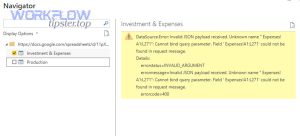
In automation pipelines, a similar “syntax” failure appears as google sheets invalid json payload or google sheets data formatting errors because the receiving system can’t parse the payload you send—so the same principle applies: validate structure first, then validate content.
How do you troubleshoot #VALUE!, #NAME?, #REF!, and #DIV/0! quickly?
There are 4 fast paths: #VALUE! means wrong data type, #NAME? means unknown function/name, #REF! means broken reference, and #DIV/0! means division by zero; you fix them quickest by checking inputs, names, references, and denominators in that exact order.
However, to maintain speed, you should fix the first failing input rather than rewriting the whole formula.
Use this quick map:
- #VALUE!: inputs are text when numbers are expected, dates are text, or arrays are mismatched in size. Fix by converting types and cleaning inputs.
- #NAME?: function name is misspelled, a named range doesn’t exist, or a locale uses different function naming conventions. Fix by correcting the function name or defining the missing named range.
- #REF!: referenced cells were deleted, the range is outside the sheet, or a dynamic range collapses. Fix by restoring references and protecting critical ranges.
- #DIV/0!: denominator is zero or blank. Fix by guarding with conditional logic (for example, only divide when denominator is nonzero).
In data sync tools, reference and naming issues can appear as google sheets pagination missing records (because the “next page” pointer is wrong) or google sheets duplicate records created (because the unique key reference is missing or unstable). The fix is still reference hygiene: stable IDs, stable ranges, and consistent keys.
How do you troubleshoot data issues like missing values, wrong imports, or broken links?
To troubleshoot data issues in Google Sheets, first confirm whether the data is hidden by filters or formatting, then verify whether imports and links still have access and stable structure, because most “missing data” problems come from visibility rules or broken connections rather than deletion.
Besides, a clean diagnosis prevents you from “repairing” a sheet that isn’t actually broken—only hidden.
Data issues often fall into three categories:
- Visibility issues: data exists but you can’t see it.
- Structure issues: ranges changed, headers moved, or types changed.
- Access issues: imports cannot read the source due to permissions or authentication changes.
Start with visibility, because it is the fastest to confirm and the safest to fix.
Is the data actually missing, or is it hidden by filters, formatting, or frozen panes?
No—data is often not missing at all; it is hidden by filters, hidden rows/columns, filter views, conditional formatting, or number/date formats, and you fix it by clearing filters, un-hiding ranges, and resetting display formats before you modify the underlying dataset.
Next, reconnect the issue to what you see: the UI can hide truth, so you must confirm visibility rules first.
Visibility checklist:
- Clear filters: remove active filters and filter views to confirm rows aren’t excluded.
- Unhide rows/columns: check for hidden sections around headers and totals.
- Check formatting: verify number/date formats; text that “looks blank” can be zero-width content or whitespace.
- Check frozen areas: frozen panes can make you think the dataset ends early.
If visibility fixes reveal the data, stop there. If not, you move to imports and links.
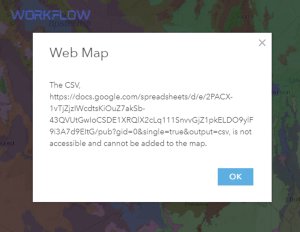
Are imports (IMPORTRANGE/IMPORTXML/CSV/XLSX) failing because of access or structure changes?
Yes—imports often fail because the source file permissions changed, the source layout moved (headers and columns shift), or an authentication step is required again, and you fix it by re-authorizing access, locking stable source ranges, and validating the import output before dependent formulas run.
Meanwhile, imports are “live dependencies,” so even a small source change can cascade into many downstream errors.
Fix strategy that prevents repeat failures:
- Reconfirm access: open the source file with the same account and ensure you can view it.
- Stabilize the source range: avoid referencing entire columns when the dataset is huge; target only the needed range.
- Validate structure: ensure headers haven’t changed names or order; adjust downstream references accordingly.
- Stage imports: import into a raw tab, then transform in a separate tab so debugging stays clean.
In webhook-based pipelines, “imports and links” failures often look like google sheets webhook 404 not found (wrong endpoint), google sheets webhook 401 unauthorized (missing/invalid auth), or google sheets webhook 400 bad request (payload invalid). The common principle is dependency validation: confirm the external link, confirm access, then confirm structure.
What’s the fastest step-by-step troubleshooting workflow for any Google Sheets problem?
The fastest workflow is a 6-step method: define scope, protect data, isolate environment, validate permissions, diagnose formulas and data dependencies, and then optimize performance—so you fix the root cause with minimal risk and avoid creating new problems while you repair the sheet.
Then, you repeat the same workflow each time, which turns “random” failures into predictable, solvable patterns.
Here is the workflow you can apply to almost any issue:
- Step 1: Define scope (one file or all files, one account or all accounts).
- Step 2: Protect data (copy, version history, export if needed).
- Step 3: Isolate environment (Incognito, other browser, other device).
- Step 4: Validate permissions (editor role, protected ranges, ownership).
- Step 5: Diagnose formulas and dependencies (imports, references, types).
- Step 6: Optimize performance (reduce range size, simplify formulas, split sheets).
This sequence keeps your “hook chain” tight: you start broad, then move deeper only when the earlier layer is proven healthy.
Which “safe actions” should you try first to avoid data loss?
There are 4 safest actions—make a copy, use version history, export a backup, and test changes in a duplicate—because they preserve the original state, allow rollback, and reduce the chance that a rushed fix permanently damages formulas or data relationships.
More specifically, safe actions are your insurance policy; they let you be bold in diagnosis without being reckless with data.
Safe actions checklist (do these before major edits):
- Make a copy: test repairs in the copy so the original remains intact.
- Use version history: confirm you can restore a prior state if a fix goes wrong.
- Export a backup: download XLSX/CSV if you need an external snapshot.
- Stage changes: introduce a “raw data” tab and a “processed” tab to keep transformations controlled.
These safety habits also reduce the risk of pipeline side effects like google sheets tasks delayed queue backlog (when systems retry after failures) or google sheets timeouts and slow runs (when repeated attempts stack up), because you can test without triggering repeated automation calls.
When should you escalate (Workspace admin, file owner, or Google support/community)?
Workspace admin wins for policy and security restrictions, the file owner is best for permissions and protections, and support/community is optimal for persistent product behavior—so you should escalate when the issue is role-based, policy-based, or consistently reproducible across devices and networks.
On the other hand, if your tests show a single-file performance bottleneck, you’ll usually solve it faster by optimizing the file rather than escalating.
Escalate to the file owner when:
- You need Editor access or ownership transfer.
- Protected ranges/sheets must be unlocked.
- Link sharing settings must change.
Escalate to the Workspace admin when:
- External sharing is restricted by organization policy.
- Apps, add-ons, or OAuth permissions are blocked by admin settings.
- Security alerts or account compliance issues prevent access.
Escalate to support/community when:
- The issue reproduces in multiple browsers and devices with the same steps.
- Multiple users report the same behavior on different networks.
- Error messages persist after environment reset and permission verification.
If you operate automations, escalation can also be necessary when you see systematic HTTP-style failures such as google sheets webhook 500 server error or google sheets webhook 403 forbidden, because these often involve upstream services, credentials, or admin policies beyond the spreadsheet UI.
Contextual border: Up to this point, you’ve fixed the most common end-user issues (loading, editing, formulas, and visible data). Next, the content shifts into advanced scenarios—APIs, scripts, add-ons, and webhook integrations—so power users can debug specialized failures without confusing the core workflow.
How do you troubleshoot advanced Google Sheets issues like API, Apps Script, and integrations?
To troubleshoot advanced Google Sheets issues, use a 5-part method: confirm identity and authorization, validate endpoint and payload structure, check quotas and rate limits, verify triggers and execution context, and test with a minimal request—so you isolate whether the failure is authentication, formatting, limits, or logic.
Especially in integrated systems, a spreadsheet can look normal while the automation pipeline fails, so you must debug the “outside-in” path that writes to or reads from Sheets.
Advanced failures tend to cluster around four realities:
- Auth problems: wrong account, revoked permissions, expired tokens.
- Request problems: wrong endpoint, wrong payload, missing required fields.
- Limits problems: quotas, concurrency, rate limiting, timeouts.
- Logic problems: mapping errors, duplicate writes, pagination mistakes.
Once you label the cluster, you can apply the correct fix instead of trial-and-error.
Are API errors caused by quota limits, invalid requests, or missing permissions/scopes?
API failures split into three dominant causes: quotas and throttling cause limit errors, invalid requests cause payload/format errors, and missing permissions/scopes cause authorization errors—so you should first classify the error, then apply the matching fix rather than rewriting your integration.
However, classification only works if you preserve the raw error details, because the message often tells you exactly which category you’re in.
Use these quick interpretations:
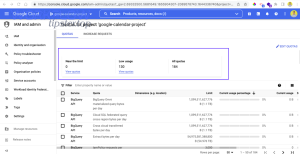
- Limits category: errors like google sheets api limit exceeded or google sheets webhook 429 rate limit usually mean you are sending too many requests too quickly or exceeding quota. Fix by batching writes, reducing frequency, adding backoff, and minimizing “chatty” operations.
- Request category: google sheets webhook 400 bad request or google sheets invalid json payload usually means the structure is wrong. Fix by validating JSON, ensuring required fields exist, and confirming data types match expectations.
- Permission category: google sheets webhook 401 unauthorized, google sheets webhook 403 forbidden, or google sheets permission denied usually means auth is missing, invalid, or insufficient. Fix by re-authorizing, checking scopes, and granting file access to the integration identity.
Practical best practices that prevent repeat failures:
- Batch updates: write multiple rows/cells in one request when possible.
- Stabilize schemas: keep column headers consistent; treat headers as your contract.
- Validate payloads: run payload checks before sending to avoid malformed requests.
Is Apps Script failing because of triggers, authorization, or execution limits?
Yes—Apps Script failures are most commonly triggered by missing authorization, misconfigured triggers, or execution limits, and you fix them by re-authorizing the script, validating trigger ownership and context, and simplifying runtime-heavy operations that exceed limits.
To begin, treat Apps Script like a controlled execution environment: what runs, who runs it, and how long it runs determines success or failure.
Common patterns and fixes:
- Authorization prompts not completed: scripts fail until the owner authorizes. This can look like google sheets oauth token expired when tokens are stale or revoked. Fix by re-running the authorization flow under the correct account.
- Trigger misfires: time-based or on-edit triggers can be disabled, owned by the wrong account, or blocked by policy, leading to google sheets trigger not firing. Fix by re-creating triggers under the correct owner and verifying Workspace policies.
- Runtime load: expensive operations (looping per row, repeated reads/writes) can stall, causing google sheets timeouts and slow runs. Fix by reading ranges in bulk, writing in bulk, and minimizing per-cell operations.
If the pipeline retries after failures, you may see compounding symptoms such as google sheets tasks delayed queue backlog because the system keeps re-queueing work. The correct fix is to reduce runtime per job and to prevent retry storms with backoff and idempotent logic.
Do add-ons and third-party connectors fail because tokens expire or accounts mismatch?
Yes—add-ons and connectors frequently fail when the connected account changes, tokens expire, or permissions are revoked, and you fix it by re-authenticating, ensuring the correct Google account is active, and verifying the connector identity has access to the target spreadsheet.
Next, connect this to what you see: a connector error is often an identity mismatch, not a spreadsheet failure.
Connector failure signals and targeted fixes:
- Re-auth required: reconnect the integration when you see google sheets oauth token expired or repeated auth prompts.
- Account mismatch: sign out of extra Google accounts, then sign into only the intended account in the browser session used for the connector.
- Endpoint errors: verify routes if you see google sheets webhook 404 not found, and verify upstream service health when you see google sheets webhook 500 server error.
- Attachments errors: if a workflow sends files, failures like google sheets attachments missing upload failed often mean the file upload step failed before the sheet write step. Fix by verifying storage permissions and file size/type limits in the upstream tool.
When connectors write to Sheets, mapping mistakes can produce google sheets missing fields empty payload (fields weren’t provided) or google sheets field mapping failed (fields didn’t match destination headers). The prevention strategy is consistent headers, stable column schemas, and explicit mapping validation before execution.
Can locale and recalculation edge cases explain “random” formula failures in large sheets?
Yes—locale separators, time zone settings, and heavy recalculation patterns can make failures appear random, and you fix them by standardizing locale expectations, reducing volatile recalculation, and segmenting heavy computations into smaller ranges so Sheets can compute predictably under load.
In short, “random” usually means “unstable inputs” or “unstable compute cost,” so you stabilize both.
Key edge cases and what to do:
- Locale separators: arguments may require commas or semicolons depending on locale, which can trigger parse-like failures when formulas are copied across regions.
- Time zone issues: scheduled automations and date logic can misalign if your workflow or spreadsheet uses different time assumptions, showing up as google sheets timezone mismatch. Fix by explicitly setting the spreadsheet time zone and aligning automation time settings.
- Recalculation load: volatile functions and large dynamic ranges can force frequent recalculation, producing lag and intermittent failures (including google sheets timeouts and slow runs). Fix by limiting range size, reducing volatile dependencies, and using staging tabs.
- Duplicate writes: retries + non-idempotent logic can produce google sheets duplicate records created. Fix by introducing unique keys, upsert logic, and de-duplication checks.
If you are paging through datasets via APIs or connectors, mistakes in cursors and offsets can cause google sheets pagination missing records. The durable fix is to use a stable pagination token strategy and to verify record counts during test runs before you trust production sync.