Fix Microsoft Teams Issues: Step-by-Step Troubleshooting Guide for Users & IT Admins (Sign-In, Meetings, Performance)
Microsoft Teams issues are usually fixable when you follow a repeatable workflow: confirm whether it’s a service incident, isolate the problem category, and then apply the smallest safe change that restores calls, chat, or meetings.
Next, you’ll learn how to quickly separate a global outage from a local device/network problem, so you don’t waste time reinstalling apps when the real issue is upstream.
Then, you’ll see what a practical “Teams fix workflow” looks like—what to check first, what evidence to capture, and how to avoid breaking settings that were already working.
Introduce a new idea: once you’ve got the workflow, the rest of the guide maps it to the biggest issue areas—sign-in, app performance, and meeting audio/video—so you can fix the root cause instead of chasing symptoms.
Is Microsoft Teams down right now?
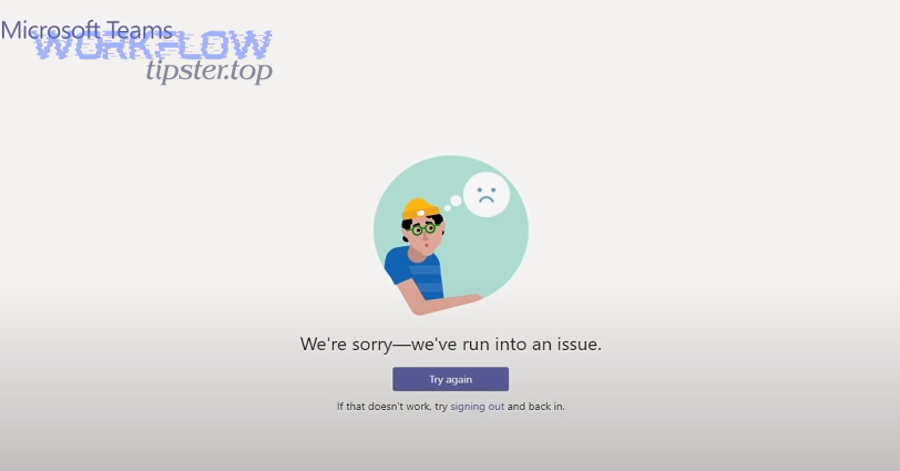
Yes, Microsoft Teams can be “down” sometimes—but most of the time it only looks down because of (1) an account/authentication problem, (2) a local network/DNS/VPN issue, or (3) a stuck client cache or outdated app build. Then, to avoid guessing, start with a fast “outage vs local” triage that takes 2–3 minutes.
How do you check Microsoft 365 Service health and Teams status?
The fastest reliable outage check (for admins) is the Microsoft 365 admin center Service health view, because it shows active incidents and advisories per workload. Microsoft documents where to find Service health (Health → Service health) and how it summarizes each cloud service’s state.
- Open the Microsoft 365 admin center (admin account required).
- Go to Health → Service health and look specifically for Microsoft Teams advisories/incidents.
- If there’s an incident, read the scope: region, tenant impact, affected features (meetings vs chat vs calling).
- Communicate the status internally and stop local “fix attempts” that could create new variables.
If you’re not an admin, a useful secondary signal is to ask one colleague on a different network (home mobile hotspot vs office Wi-Fi) whether they can sign in and start a meeting. If multiple unrelated networks fail, outage likelihood increases.
What quick local checks confirm it’s not an outage?
Even when Service health looks green, local issues can mimic downtime. Quickly validate these three “local blockers”:
- Network path changes: VPN on/off, proxy changes, captive portal (hotel/guest Wi-Fi), or DNS filtering.
- Client session stuck: Teams opens but can’t load chat/meetings, or spins forever on sign-in.
- Device time mismatch: incorrect clock can break modern authentication tokens (especially after sleep/hibernation).
A fast proof-based approach:
- Try Teams web in an incognito/private window (same account). If web works but desktop doesn’t, the issue is likely client-side.
- Try mobile Teams on cellular. If cellular works but Wi-Fi doesn’t, the issue is network-side.
What does “Microsoft Teams troubleshooting” mean in practice?
Microsoft Teams troubleshooting is a structured process for narrowing a symptom (sign-in, app performance, meeting media) into a specific cause (account, device, client cache, network quality, or service incident) using small, reversible tests. Specifically, the goal is to reduce uncertainty with each step so you don’t “random-walk” through reinstallations.

What are the most common Teams problem categories?
Most Teams problems fall into predictable buckets:
- Authentication & access
- Can’t sign in, stuck on loading, MFA loops, guest access fails, “We couldn’t connect” errors.
- Client stability & performance
- App won’t open, freezes, white/blank screen, high CPU, slow channel switching.
- Meetings & media (audio/video/screenshare)
- No mic, no speaker output, camera blocked, echo, robotic audio, video lag, screen share black.
- Network quality & pathing
- Packet loss, jitter, high latency, Wi-Fi roaming, VPN hairpin, proxy interference.
- Tenant policy / admin controls
- Meeting policies, calling policies, conditional access, device compliance, firewall/proxy allowlists.
What information should you capture before you change anything?
Before you fix, capture a baseline. This is what makes the workflow repeatable and auditable (especially for IT).
Here’s a simple checklist table (use it like a snapshot before you make changes):
| What to capture | Example | Why it matters |
|---|---|---|
| Symptom + timestamp | “Audio drops at 10:12 AM” | Correlates with incidents, Wi-Fi roaming, updates |
| Client type | Desktop / Web / Mobile | Helps isolate client vs server |
| Network type | Office LAN / home Wi-Fi / cellular / VPN | Identifies path issues |
| Error code/message | Sign-in code, meeting error | Drives targeted fixes |
| Repro steps | “Join meeting → enable camera → freezes” | Confirms whether a fix worked |
A practical rule: if you can’t describe the exact failure path in one sentence, you’re not ready to change settings yet.
How do you troubleshoot Teams sign-in and account access issues?
The most reliable way to troubleshoot Teams sign-in is to use a 3-lane approach—(1) confirm account/licensing, (2) eliminate token/cache problems, and (3) test guest/federated scenarios—so you can restore access without breaking device security. Moreover, Microsoft’s sign-in guidance emphasizes checking the error code and following targeted steps rather than reinstalling immediately.
How do you rule out account and licensing problems?
Start with “Is the account allowed to use Teams right now?”
Checks that often reveal the root cause:
- Try Teams on the web: If web sign-in fails too, it’s likely account/policy rather than local client.
- Confirm the correct identity: work/school vs personal Microsoft account confusion can cause endless loops.
- Admin-side validation (if you’re IT): verify the user has the right license and Teams service enabled.
If the sign-in screen shows an error code, treat that as your primary clue.
How do you fix cached credentials, tokens, and MFA prompts?
If web works but desktop fails, cached tokens are a top suspect.
Method: refresh the session without nuking everything
- Quit Teams completely (don’t just close the window).
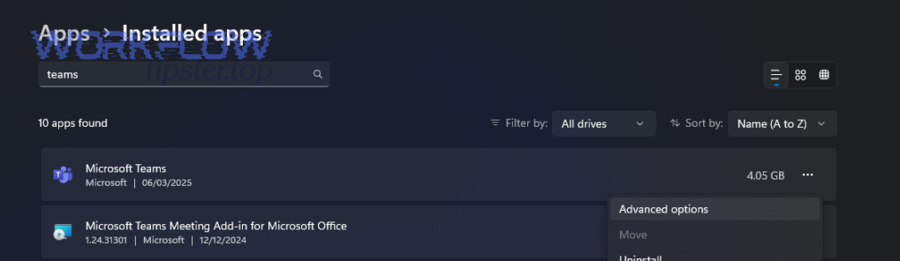
- Clear client cache (this is a safe, common fix when the UI or authentication state is stuck).
- Reopen Teams and sign in again.
Why this works: Teams stores local state (cookies, service worker-like assets, configuration blobs). When those become inconsistent after updates, sleep/wake, or network changes, sign-in can fail even when the account is fine.
How do you troubleshoot guest access and federated sign-ins?
Guest/federated sign-in adds extra moving parts (tenant boundaries + policies).
Fast isolation tests:
- Sign in as the same user to Teams web: if the guest tenant switch fails there too, it’s likely policy.
- Try a different device: if the guest works on another device, the first device’s token state is suspect.
- If you’re an admin, check whether conditional access policies block guest flows or require compliant devices.
In environments with strict security, guest issues often trace to:
- Conditional access requiring device compliance
- MFA requirements not satisfied (or blocked by network)
- Cross-tenant access settings
How do you fix Teams not opening, freezing, or running slow?
You fix Teams performance issues fastest by (1) updating the client, (2) restarting the session cleanly, and (3) clearing corrupted cache—because most freezes come from stale local state, broken updates, or resource contention. Especially when users “sleep” laptops for days, Teams can accumulate background state that breaks after an update.

How do you update Teams and reboot the right way?
A correct restart is not “close the window.”
Do this sequence:
- Quit Teams (ensure it’s not running in the tray/menu bar).
- Restart the device if the system has been asleep for long periods.
- Reopen Teams and let it finish any pending update process.
Why it matters: Teams performance bugs often disappear after a clean launch because it rebuilds runtime caches and reinitializes media components.
How do you clear Teams cache safely?
Clearing cache is one of the highest-ROI fixes for:
- white screens / blank UI
- channels not loading
- repeated sign-in prompts
- slow startup after an update
What to expect after clearing cache: first launch may take longer because Teams rebuilds cache files.
How do you handle add-ins, GPU, and system resource bottlenecks?
If cache clearing didn’t fix it, treat it like a system performance problem:
- CPU spikes: too many apps, large meetings + screen share, antivirus scanning Teams directories.
- GPU/driver issues: hardware acceleration conflicts can cause freezes or black screens during video/share.
- Disk pressure: low disk space can slow cache rebuild and app startup.
A practical IT tip (and something I’d label in a WorkflowTipster playbook): measure before you change—open Task Manager/Activity Monitor and note CPU, memory, and network while reproducing the freeze. If Teams spikes to the top instantly, you’re diagnosing a resource contention problem, not “a Teams bug.”
How do you troubleshoot meeting audio and video problems?
To troubleshoot Teams meeting audio/video, start in Teams device settings, then verify OS permissions and drivers, and finally validate network quality (latency, jitter, packet loss), because media failures are usually caused by the wrong device, blocked permissions, or unstable network conditions. Moreover, the fastest wins typically come from ensuring Teams is using the intended mic/camera and that the OS allows it.

How do you fix microphone, speaker, and device selection issues?
Most “no sound” incidents are configuration mismatches:
- Output device in Teams ≠ output device in OS
- Bluetooth headset connected but not selected
- Exclusive-mode conflicts (Windows) or permissions issues (macOS)
Fix workflow:
- In a Teams meeting, open Device settings and explicitly select the correct mic and speaker.
- Run a test call (if available) to validate playback and capture.
- If using Bluetooth, disconnect/reconnect and reselect the device (Bluetooth profiles can switch between high-quality and hands-free modes).
How do you resolve camera, permissions, and driver problems?
Camera failures usually trace to one of three causes:
- OS privacy permissions blocking the camera (macOS/Windows privacy settings).
- Another app already using the camera (Zoom, browser tab, OBS).
- Driver/firmware issues (especially on older webcams or after OS updates).
A quick proof test: if the camera works in the OS camera app but not Teams, suspect Teams permissions or Teams client state; if it fails everywhere, suspect device/driver.

How do you diagnose network quality (jitter, packet loss, latency)?
If devices are correct but audio is robotic or video stutters, treat the network as guilty until proven innocent.
What to look for:
- Latency: delay that makes people talk over each other
- Jitter: variable delay that creates “choppy” audio
- Packet loss: missing packets that cause dropouts and frozen video frames
Evidence matters here because perception can be subjective. According to a study by Worcester Polytechnic Institute from the Interactive Qualifying Project program, in 2020, controlled tests using 2% and 20% packet loss and up to 200 ms latency showed measurable quality degradation in online meeting experiences.
Practical steps:
- Try a wired connection (Ethernet) for one meeting to see if the issue disappears.
- Turn off VPN for the meeting (if policy allows) to avoid hairpin routing.
- Move closer to the router or switch to 5 GHz Wi-Fi.
How do you isolate whether the issue is client-side or server-side?
Client-side issues usually reproduce on one device/app, while server-side or service incidents reproduce across multiple clients and networks; the quickest way to isolate is to compare desktop vs web vs mobile, then compare networks, then compare accounts. However, you need to run the comparisons in a clean order so the results actually mean something.
Teams desktop vs web vs mobile—what does each test prove?
Use this as your logic:
- Web works, desktop fails → desktop cache/app build/local OS integration issue (client-side).
- Desktop works, web fails → browser policy/extensions/cookies issue (client-side but browser-specific).
- All clients fail on same account → account/policy/service-side (or identity provider issues).
- Mobile works on cellular, desktop fails on Wi-Fi → network path problem (local).
This is why “try Teams on the web” is such a powerful first test: it removes local app state from the equation.
Same network vs different network—what does that prove?
Changing networks answers a single question: “Is my current network path degrading or blocking Teams traffic?”
- If Teams works on a mobile hotspot but fails on office Wi-Fi, suspect: proxy, firewall, DNS filtering, TLS inspection, or Wi-Fi roaming.
- If Teams fails on every network, suspect: account policy or service incident.
According to a study by Princeton University from the Department of Computer Science, in 2020, measurements of real-time video traffic over wireless observed one-way delay variations that could reach roughly 150 ms, a level that can contribute to stalls and degraded interactivity.
Same account vs different account—what does that prove?
Account-switch tests isolate identity/policy problems:
- Different user on same device works → the device is fine; suspect your account, license, policy, or authentication state.
- Same user fails on multiple devices → account/policy or service issue.
- Same user works in another tenant but not yours → tenant configuration/policy issue.
This is the fastest way for IT to avoid unnecessary reimaging/reinstallations.
What advanced Microsoft Teams troubleshooting applies to admins and specialized environments?
Admins troubleshoot Teams faster by using (1) service health + Teams client health insights, (2) environment-specific playbooks (Teams Rooms, VDI), and (3) network policy validation (firewall/proxy/DNS), because enterprise issues often originate outside the user’s device. More importantly, advanced troubleshooting means collecting the right evidence so escalation is efficient.

What admin tools (Teams Admin Center, client health, call quality dashboards) speed up root cause analysis?
Two admin-level views are especially high leverage:
- Microsoft 365 Service health to confirm incidents/advisories (prevents wasted local changes).
- Teams client health dashboard (Teams admin center) to proactively identify patterns and troubleshoot with better telemetry rather than relying only on user descriptions.
If you have multiple users reporting “the same” issue, look for clustering:
- Same OS version?
- Same office/Wi-Fi AP?
- Same update wave?
- Same policy group?
That’s how you distinguish “random user problems” from “one real systemic cause.”
How do you troubleshoot Teams Rooms, VDI, and thin-client scenarios?
Specialized endpoints fail differently:
- Teams Rooms: sign-in issues can involve Exchange + Teams sign-in signals.
- VDI/thin clients: media offload, redirection, and peripheral pass-through become the top suspects (camera/mic inconsistencies are common).
- Shared devices: stale tokens and profile corruption are common—cache clearing and profile hygiene matter more.
A key rule: in VDI, don’t assume “it’s Teams.” Often it’s a redirection component, device mapping, or policy that blocks real-time traffic prioritization.
What network and firewall/DNS/proxy checks matter for enterprises?
When the same symptom hits many users, validate the network path:
- Proxy/TLS inspection: can interfere with real-time traffic patterns.
- DNS filtering: may break endpoint resolution.
- VPN routing: can add latency/jitter due to hairpinning.
Use the earlier comparison tests (different network, different client) at scale:
- If Teams works off-network (hotspot) but fails on corporate LAN, you have a corporate network issue until proven otherwise.
When should you open a Microsoft support case, and what evidence should you include?
Escalate when:
- The issue reproduces across multiple users and networks and aligns with no local misconfiguration.
- Admin dashboards show patterns you can’t remediate (policy looks correct; endpoints healthy).
- You have a business-impacting incident (calls/meetings failing org-wide).
Include evidence that shortens time-to-resolution:
- Exact timestamps + time zone
- Affected users/locations
- Client types and versions (desktop/web/mobile)
- Network context (VPN/proxy, ISP, office site)
- Any relevant Service health advisory IDs (if present)