Aland Johnson
Founder & Editor-in-Chief
Company / Organization
Workflow Tipster
Experience / Skills
Workflow automation patterns, integration design, webhook/API troubleshooting, data mapping and normalization, document generation and e-sign flows, operational checklists and playbooks for popular software.
About Aland Johnson
Aland Johnson is an Automation & RevOps Consultant and Technical Writer, and he serves as the Founder & Editor-in-Chief of Workflow Tipster (workflowtipster.top)—a resource for bite-sized workflow tips, tool guidance, and troubleshooting solutions for popular software used by modern teams. From 2008 to 2012, Aland developed his foundation in information systems and workplace productivity tools, focusing on how businesses operationalize data across CRM, project management, customer support, and marketing platforms. During this period, he began documenting repeatable processes, building simple integrations, and learning the practical constraints that shape automation outcomes—such as inconsistent field formats, user permissions, and data quality issues. In 2013, Aland moved into hands-on operational support roles where reliability and speed mattered daily. He supported teams working across cloud-based tools, addressing recurring problems like login failures, permission mismatches, missing required fields, and data sync inconsistencies. Between 2014 and 2016, he expanded into cross-application workflow design, connecting systems through APIs and webhooks and establishing a structured troubleshooting method: reproduce the failure, isolate the failing hop, validate credentials and scopes, inspect payload shape, confirm rate-limit behavior, and implement safe retries with logging. From 2017 to 2019, Aland specialized further in RevOps enablement—helping organizations map business requirements into automation-ready schemas and governance. This phase emphasized durable system design: clear ownership of fields and objects, consistent naming conventions, deduplication strategies, and measurable KPIs. In 2019, he earned the Salesforce Certified Administrator credential, reinforcing his expertise in CRM configuration, permissioning, reporting, and operational controls that keep automations stable as teams and pipelines evolve. In 2020, Aland broadened his marketing operations skill set by completing the HubSpot Marketing Software Certification, deepening his work in lifecycle stages, attribution, segmentation, and automated communications—areas where subtle property mapping and timing rules often cause downstream failures. Between 2021 and 2022, he concentrated on integration resilience at scale: reducing duplicates, adding idempotency safeguards, standardizing payload validation, and creating runbooks for incident response when webhooks fail or third-party APIs degrade. In 2023, Aland earned the Zapier Certified Expert credential and continued refining advanced automation patterns across multi-step workflows, conditional routing, and cross-tool data normalization. That same year, he formalized his editorial approach: every guide must be reproducible, version-aware, and supported by verification steps so readers can confirm success rather than “guess and hope.” Since 2024, Aland has been building Workflow Tipster as a practical knowledge base for operators, founders, and teams who need quick, reliable answers. His content emphasizes clarity and measurability—short, actionable tips when speed matters, and deeper troubleshooting playbooks when reliability is the priority. Aland’s guiding standard remains consistent: state the goal, show the exact steps, surface common failure modes, and include a prevention checklist so the workflow stays healthy after the fix.
Related topics
Latest posts by Aland Johnson


Sync & Automate: How to Connect Google Sheets to ActiveCampaign for Marketers (No-Code + Native Options)
You can connect Google Sheets to ActiveCampaign by choosing a no-code or native integration method, mapping your spreadsheet columns to ActiveCampaign fields, and then running a controlled sync that creates or updates contacts reliably—so your marketing data stays usable without constant manual copy-paste. Next, you’ll get clear definitions for what “connecting,” “syncing,” and “automating” really mean in this workflow, plus what data you can move, how fast it moves, and what you should plan before you flip the switch.
Aland Johnson February 1, 2026 at 11:04 AM
Connect Google Forms to Zoho CRM: No-Code vs Custom-Code Lead Sync Guide for Sales Teams
If your goal is to turn every Google Forms submission into a Zoho CRM lead automatically, the fastest path is a webhook-style flow: the form submits → data is posted to an endpoint → Zoho CRM creates (or updates) a record. Zoho itself even recommends this webhook approach because Google Forms doesn’t expose a direct public API for typical integrations.
Aland Johnson February 1, 2026 at 10:56 AM
Automate Google Forms to Zendesk Tickets: Step-by-Step Integration Guide for Support Teams (No-Code vs API)
If you’re using Google Forms to collect support requests, the fastest way to reduce manual data entry is to turn every form submission into a Zendesk ticket automatically—so your team can respond faster, track status, and report on outcomes without copying and pasting. ( zapier.
Aland Johnson February 1, 2026 at 10:46 AM
Connect (Integrate) Google Forms to Trello: Automatically Create Cards from Form Responses for Project Teams
If your team uses Google Forms to collect requests but still copies answers into Trello by hand, you can connect Google Forms to Trello so each new form response automatically creates a Trello card —with clean formatting, correct list placement, and predictable ownership. Next, you’ll also want to choose the best integration method for your workflow—because a fast “basic connector” is very different from an automation builder that supports filters, branching logic, and multi-step actions across teams.
Aland Johnson February 1, 2026 at 10:36 AM
Automate Google Forms to Smartsheet Sync for Project Teams (No Manual Copy-Paste Guide)
If your goal is to send Google Forms responses into Smartsheet automatically, the most direct approach is to connect the form to a sheet so every submission becomes a new row—without manual exporting, reformatting, or re-importing. The right setup reduces data-entry errors, keeps tasks visible, and helps teams act on requests the moment they arrive.
Aland Johnson February 1, 2026 at 10:28 AM
Automate Form Response Alerts: Connect Google Forms to Slack Channels for Teams (No-Code vs Manual)
If you want instant visibility into every submission, you can connect Google Forms to Slack so each new form response automatically posts an alert to the right channel or DM—without copying, pasting, or checking spreadsheets all day. Next, you’ll also want to choose the right setup style: a no-code connection for speed and simplicity, or a manual build for maximum control and customization when your workflow is unique.
Aland Johnson February 1, 2026 at 10:16 AM
Stop Manual Data Entry: Automate Google Forms to Salesforce Lead & Contact Capture for Sales Ops Teams
If you want faster follow-up and cleaner CRM data, the most reliable path is to automate Google Forms submissions into Salesforce so each response creates (or updates) the right Lead or Contact without anyone copying and pasting. You’ll also need to decide how you’re implementing the automation—whether a no-code connector is enough, or whether a custom workflow is a better long-term fit for your team’s security, flexibility, and ownership requirements.
Aland Johnson February 1, 2026 at 10:05 AM
Automate Google Forms to Pipedrive CRM Integration (Stop Manual Data Entry) for Sales Teams
STEP 1 — Title & outline analysis (Contextual Flow Content) - Main keyword (focus): google forms to pipedrive - Predicate (main action): Automate / Stop - Relations Lexical used: Antonym (“Automate” vs “Manual Data Entry”) - Search intent type (dominant): How-to - Primary intent: Set up an automated Google Forms → Pipedrive workflow so submissions create CRM records (without manual entry). - Secondary intent 1: Choose the best connection method/tool for a sales team (simplicity vs flexibility vs governance).
Aland Johnson February 1, 2026 at 9:56 AM
Automate Google Forms to Outlook Email Notifications for Teams: Setup Guide (Not Manual Forwarding)
Google Forms to Outlook automation is the fastest way to turn every new form submission into a timely Outlook email—without copying, pasting, or checking spreadsheets all day. You connect the form response to a trigger, map key fields into an email template, and let the workflow deliver consistent notifications to the right people.
Aland Johnson February 1, 2026 at 9:47 AM
Sync (Integrate) Google Forms Responses to Notion Database for Teams: No-Code Automation Guide
Syncing Google Forms responses to a Notion database is a practical way to turn raw submissions into structured, searchable team data—automatically—so your team can triage requests, track status, and move work forward without manual copy-paste. Next, the best setup depends on your constraints: some teams want the fastest “plug-and-play” connection, while others need more control over mapping, routing, and multi-step logic—so the method you choose matters as much as the steps you follow.
Aland Johnson February 1, 2026 at 9:37 AM
Automate Google Forms Responses in monday.com for Project Teams: Step-by-Step Setup (Automated vs Manual Entry)
Manually copying Google Forms submissions into monday.com is slow, inconsistent, and easy to break when your form changes.
Aland Johnson February 1, 2026 at 9:28 AM
Automate Google Forms to Microsoft Teams Notifications (Stop Manual Updates) — Step-by-Step Guide for Teams & Admins
If you want Google Forms responses to reach your team instantly, the most reliable path is to automate the handoff into Microsoft Teams so every submission becomes a structured channel message that people can act on—without someone copy-pasting updates all day. Next, you’ll see what it actually means to integrate Google Forms with Teams, including the practical problems it solves and the exact form fields you can pass through to your channel message.
Aland Johnson February 1, 2026 at 9:19 AM
Automate Google Forms to Linear: Create Linear Issues From Form Responses for Product Teams
Automating Google Forms to Linear is one of the fastest ways to turn raw user input into a clean, prioritized backlog—because every submission can become a structured Linear issue with consistent fields, labels, and routing. Next, you’ll see what an “ideal” workflow looks like (trigger → parsing → enrichment → issue creation), so you can pick a setup that fits your team size, tool stack, and tolerance for maintenance.
Aland Johnson February 1, 2026 at 9:09 AM
Automate Google Forms to Jira: Step-by-Step Guide to Create Jira Issues (Tickets) for Agile Teams
If your team collects requests, bug reports, or intake data in Google Forms, you can automate Google Forms to Jira so every submission becomes a Jira issue (ticket) without copy-pasting. This workflow turns raw form answers into standardized Jira work items that your agile team can triage, prioritize, and track immediately.
Aland Johnson February 1, 2026 at 8:59 AM
Automate Form Submissions: Connect Google Forms to Intercom for Support Teams (No-Code, Not Manual Copy-Paste)
If you want every new form submission to land in Intercom automatically, the most reliable path is a Google Forms → Intercom automation workflow that captures responses, maps fields correctly, and routes each request to the right inbox—without anyone copying and pasting. Next, once the connection works, the real win comes from choosing the right workflow pattern for support teams: a simple “pass-through” setup for speed, or a multi-step setup that tags, assigns, and enriches conversations so agents can resolve faster.
Aland Johnson February 1, 2026 at 8:48 AM
Automate Google Forms to HubSpot Lead Capture (Not Manual): No-Code Setup for Marketing & Sales Teams
Capturing leads from Google Forms in HubSpot without manual copy-paste or CSV imports is absolutely doable: you connect a form submission trigger to HubSpot contact creation (or updating), then let the system route, notify, and follow up automatically—so every response becomes a usable CRM record. ( zapier.
Aland Johnson February 1, 2026 at 8:37 AM
Automate Support Intake: Connect Google Forms to Help Scout for Customer Support Teams (Sync, Not Manual)
If you want every customer request captured the moment it’s submitted, the simplest path is to automate a Google Forms → Help Scout intake workflow so each new form response becomes a trackable conversation your team can triage and answer quickly. ( zapier.
Aland Johnson February 1, 2026 at 8:26 AM
Sync Google Forms to Google Sheets Without Copy-Paste: A Step-by-Step Guide for Teams
Connecting Google Forms to Google Sheets means every submission becomes a new row in a spreadsheet automatically—so you can collect clean data at scale, keep one source of truth, and stop doing manual exports. Most people searching google forms to google sheets want a practical “how-to” that covers both options: linking to a new response spreadsheet and linking to an existing spreadsheet, plus what to do when syncing breaks.
Aland Johnson February 1, 2026 at 8:17 AM
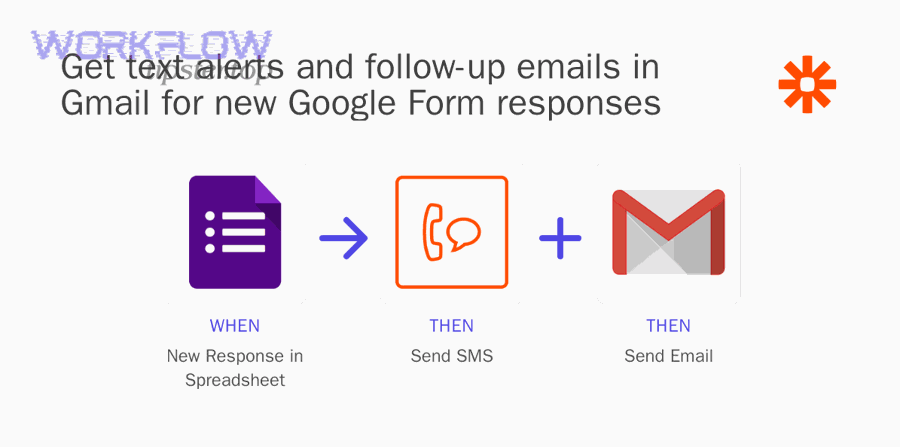
Automate Google Forms to Gmail Notifications for Teams: Manual vs Automated Workflows
Getting Google Forms responses into Gmail quickly means you stop “checking the Responses tab” and start acting on submissions the moment they arrive. The most reliable approach is to choose a notification method that matches your volume, your routing needs, and how much control you want over the email content.
Aland Johnson February 1, 2026 at 8:07 AM
Automate Google Forms to Freshdesk: Create Tickets Faster for Support Teams (No Manual Copy-Paste)
When you connect Google Forms to Freshdesk, you can automatically turn every new form submission into a properly structured support ticket—complete with the right subject, description, priority, and routing rules—so agents spend time solving issues instead of retyping requests. Then, you’ll want to choose the right automation method (a no-code connector vs.
Aland Johnson February 1, 2026 at 7:57 AM
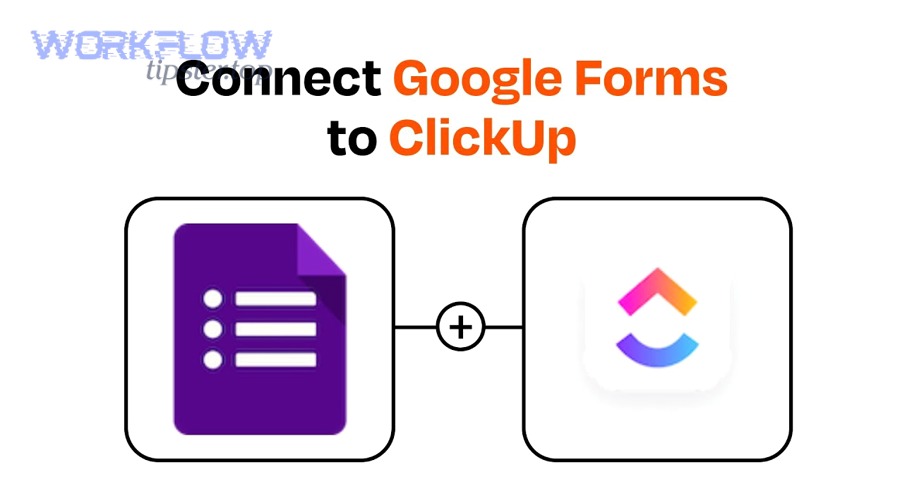
Automate Google Forms to ClickUp Integration for Teams: Turn Form Responses Into ClickUp Tasks (No-Code Workflow)
Connecting Google Forms to ClickUp means you can automatically convert each new form submission into a structured ClickUp task, so requests move from “data collected” to “work assigned” without manual copying. If your goal is faster intake, the most common approach is using a no-code automation tool to watch for new Google Forms responses and then create (or update) tasks in the right ClickUp Space/List with mapped fields.
Aland Johnson February 1, 2026 at 7:45 AM
Connect and Automate Google Forms to Basecamp Integration for Project Teams (No-Code Guide)
If your team collects requests, briefs, or onboarding details in Google Forms, you can connect those submissions to Basecamp by turning each response into actionable work—like a to-do, a message, or a new project—without manually copying and pasting information. Next, you’ll learn what a “Google Forms to Basecamp integration” actually means in day-to-day operations, including the common patterns teams use to route form data into the right Basecamp place at the right time.
Aland Johnson February 1, 2026 at 7:33 AM
Automate Google Forms to Asana for Teams: Create Tasks from Responses (Not Manual Entry) With Reliable Field Mapping
If you want every Google Forms submission to become an actionable Asana task, the fastest path is to use a trigger-based automation that turns responses into standardized work items—complete with titles, descriptions, due dates, and ownership—so nothing gets lost in inboxes. To make that automation dependable, you also need a clear setup foundation: the right form questions, the right Asana project structure, and a consistent naming/mapping strategy that keeps every submission readable and searchable once it lands in your task list.
Aland Johnson February 1, 2026 at 7:22 AM
Automate Google Forms to Airtable Sync for Teams: No Copy-Paste Submission-to-Record Workflow
If you want every Google Forms submission to appear in Airtable as a clean, usable record, the core answer is to automate the handoff : capture a form response, map fields to columns, then create (or update) a record instantly—no spreadsheets-as-a-middleman required. Next, it helps to understand what “sync” really means in this context: you’re not magically merging two apps into one—you’re defining a reliable workflow that transfers data, standardizes formats, and keeps your base consistent as responses grow.
Aland Johnson February 1, 2026 at 7:12 AM
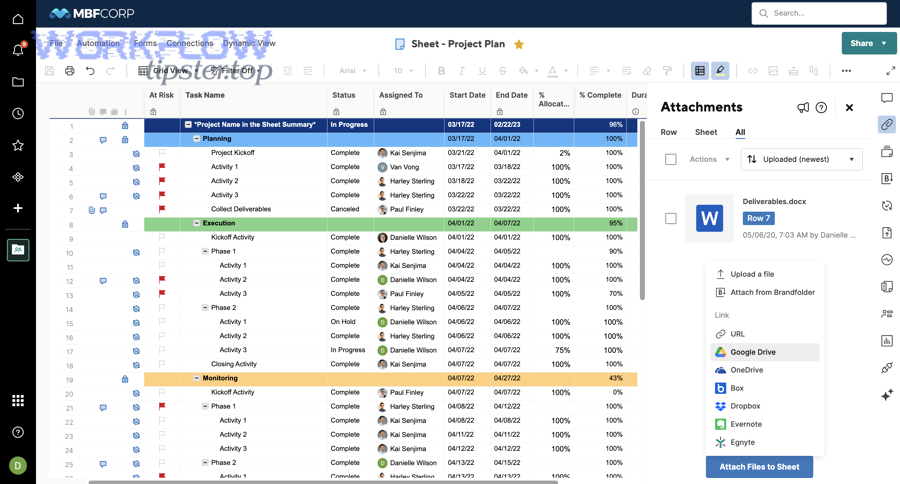
Connect Google Drive to Smartsheet: Link (Not Upload) Files for Project Teams
Connecting Google Drive to Smartsheet means you keep files in Drive as the single source of truth while linking them inside Smartsheet rows and sheets, so project teams can find the right document in context without creating duplicate copies. When you do it well, “link—not upload” becomes a lightweight operating system: every task row points to the exact spec, deck, image, or worksheet the team should use.
Aland Johnson February 1, 2026 at 7:02 AM
Connect & Integrate Google Drive to Slack for Teams: Setup, File Sharing, and Notification Automation
Connecting Google Drive to Slack is a practical way to share Drive files inside conversations, keep file context visible with previews, and reduce “Where’s the doc?” back-and-forth—so your team can move from file hunting to decisions faster.
Aland Johnson February 1, 2026 at 6:51 AM
Automate (Not Manual): Connect & Sync Google Drive to Notion for Teams — Embed Files, Import Docs, and Streamline Workflows
If you want a cleaner team workspace, you can connect Google Drive to Notion so your files show up where work happens—then use a “sync-like” system to reduce manual copy-pasting, lost links, and scattered document hubs. Next, you’ll see what “connect” really means in practice: embedding Drive files as previews, importing Google Docs into Notion pages, and understanding where native capabilities stop and automation begins.
Aland Johnson February 1, 2026 at 6:40 AMConvert Google Drive to Microsoft Word (DOCX) for Teams: Download & Export Without Formatting Surprises
Moving a document from Google Drive into Microsoft Word is simple when you know what’s actually being converted—and where formatting usually breaks. This guide shows the cleanest ways to export Google Docs to a .
Aland Johnson February 1, 2026 at 6:29 AMConnect Google Drive to Microsoft Teams: Link (Connect) Files for Remote Teams Without Email Attachments
Connecting Google Drive to Microsoft Teams means your team can access Drive-stored files from inside Teams, share clean links in chats/channels, and keep one “source of truth” instead of passing attachments around. Microsoft supports adding third-party cloud storage—Google Drive included—through apps you add to Teams.
Aland Johnson February 1, 2026 at 6:18 AM
Export Google Drive to Microsoft Excel (XLSX) for Teams: Download, Convert, and Automate Spreadsheets
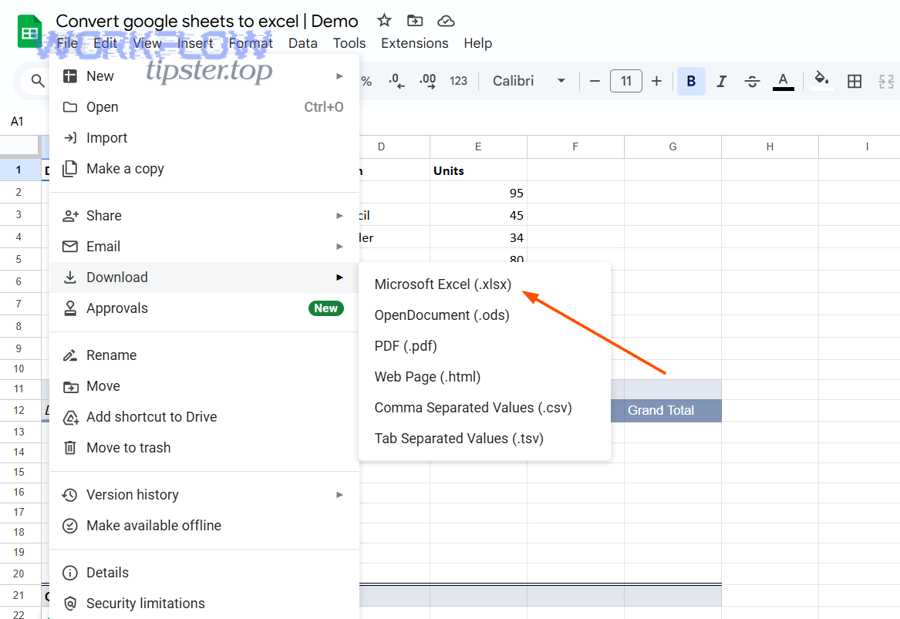
If you want to export Google Drive to Excel (XLSX), the fastest reliable path is to download an .xlsx copy from Google Sheets (File → Download → Microsoft Excel) so you can open, share, and edit the workbook in Excel when stakeholders require that format.
Aland Johnson February 1, 2026 at 6:08 AM
Convert Google Drive Files to Google Slides: Open, Import & Save (PPT, PDF, Video) for Google Workspace Users
If your files already live in Google Drive, you can convert them into Google Slides fast by using Open with Google Slides , Import slides , and Insert from Drive —so you end up with a shareable, editable presentation that’s ready for collaboration. Next, you’ll also want to understand the difference between converting a file (like PPT → Slides), importing content (adding slides into an existing deck), and embedding Drive assets (videos/images/audio that stay hosted in Drive).
Aland Johnson February 1, 2026 at 5:56 AM
Automate a Folder-to-Sheet Sync: Export Google Drive Files to Google Sheets for Teams (Without Manual Copying)
If your team keeps files in Google Drive and then “tracks” them in a spreadsheet by hand, you can automate the folder-to-sheet flow so Google Sheets becomes a live index of file names, links, owners, dates, and statuses. The result is faster reporting, fewer missed documents, and a single place to manage work without manual copying.
Aland Johnson February 1, 2026 at 5:44 AM
Convert and Transform Google Drive Files into Google Docs: A Step-by-Step Guide for Beginners and Teams
If your goal is “google drive to google docs,” the practical answer is this: you’re either opening a file stored in Drive with Google Docs or converting it into a native Google Docs document so it’s easier to edit, collaborate on, and version-control. Next, you’ll want to know which file types can be converted cleanly—because a DOCX usually converts smoothly, while PDFs and images rely on OCR and may lose complex layout, tables, or columns.
Aland Johnson February 1, 2026 at 5:34 AM
Automate Google Drive to Airtable Sync for Teams: Import Files & Metadata Without Manual Uploads
If your team stores assets in Google Drive but tracks projects in Airtable, Google Drive to Airtable sync is the fastest way to turn “files in folders” into searchable, filterable Airtable records —so you can import file metadata, keep links organized, and stop retyping names, dates, and owners. Next, once you understand what “sync” really means in this workflow, the real win is choosing the right approach— Airtable’s native Sync when you want a clean, centralized file index, or an automation tool when you need triggers, multi-step logic, and team-ready routing.
Aland Johnson February 1, 2026 at 5:24 AM
How to Share Google Docs in Zoom: A Step-by-Step Guide
Sharing a Google Doc in Zoom is straightforward: open the Doc, start (or join) your Zoom meeting, share either the Doc window or the link, and confirm permissions so the right people can view, comment, or edit. Next, it helps to understand what “sharing” actually means in Zoom—whether you’re presenting a read-only view, inviting people to co-edit in their own browser, or simply dropping a safe link in chat.
Aland Johnson February 1, 2026 at 5:12 AM
Automate Google Docs to Zoho CRM Data Sync for Sales Teams: From Manual Entry to No-Code Workflows
If your team is copying details from a proposal, discovery notes, or a meeting recap in Google Docs into Zoho CRM, you can automate the flow so the CRM gets updated consistently and on time—without turning every document into a data-entry task. The most practical path is to pick the right automation “bridge” (native Zoho tools, a no-code platform, or light API work), then standardize what your Docs contain so the data is extractable instead of messy.
Aland Johnson February 1, 2026 at 5:00 AM
Automate Support Tickets: Connect Google Docs to Zendesk Without Coding for Customer Support Teams
Yes—you can connect Google Docs to Zendesk without coding by using a no-code automation tool that watches for changes in specific Docs and then creates or updates Zendesk tickets with the right subject, description, requester, and tags. Next, the most important thing is understanding what an end-to-end Google Docs–Zendesk automation workflow actually does for a support team: it turns “documentation work” into “ticket work” without copy-paste, while keeping context in one place.
Aland Johnson February 1, 2026 at 4:50 AM
Automate Invoicing: Connect Google Docs to Xero for Small Businesses (Docs-to-Ledger Workflow)
If you want faster invoicing with fewer copy-paste mistakes, connecting Google Docs to Xero is one of the most practical “Docs-to-Ledger” workflows you can build: you draft a quote, proposal, or invoice in a document and automatically turn the approved details into a draft invoice (or repeating invoice) inside Xero. Next, you’ll need to decide what “connection” actually means for your business—whether you’re simply generating a document from Xero data, pushing structured line items from Docs into Xero, or doing both in a two-way loop that stays audit-friendly.
Aland Johnson February 1, 2026 at 4:37 AM
Publish (Export) Google Docs to WordPress Without Broken Formatting: Step-by-Step for Bloggers & Content Teams
Publishing a Google Doc to WordPress without broken formatting means you move the content into a WordPress post or page while keeping the same readable structure—clean headings, intact lists, stable paragraph spacing, working links, and properly uploaded images—so the page looks publish-ready the moment you preview it. Next, you also need to choose a method that matches your content and workflow: simple blog posts often succeed with a disciplined copy/paste approach, while complex documents (tables, lots of images, strict styling, approvals) may require exporters, add-ons, or a more structured editorial process.
Aland Johnson February 1, 2026 at 4:25 AM
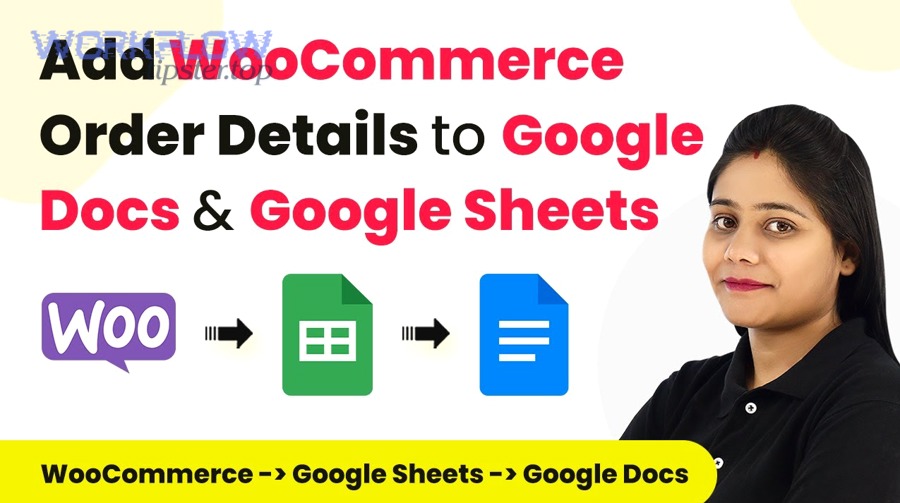
Automate & Sync Google Docs to WooCommerce for Store Owners, Without Manual Copy-Paste
Running a store means you constantly move text from planning documents into product pages—descriptions, specs, FAQs, shipping notes, and seasonal landing pages. The fastest way to reduce mistakes and speed up updates is to treat “Google Docs → WooCommerce” as a repeatable automation workflow, not a one-off copy-and-paste task.
Aland Johnson February 1, 2026 at 4:15 AM
Automate (Not Copy-Paste) Google Docs to Webflow CMS for Content Teams: Import, Convert, Publish
If you want to publish Google Docs content into Webflow CMS without wrecking headings, spacing, links, and on-page SEO, the most reliable path is to standardize your Docs structure, convert it predictably, map it into CMS fields, and publish with a controlled workflow —instead of relying on one-off copy-paste cleanups. Next, you also need to understand what “automation” actually covers in this context: not just moving text, but triggering a workflow, transforming formatting into clean HTML, enforcing field rules (slug/meta/featured image), and preventing accidental publishing .
Aland Johnson February 1, 2026 at 4:04 AM
Convert Google Docs to Typeform Forms for Teams: Import Questions & Choices (No-Code)
If you want to convert Google Docs to Typeform, you can do it fastest by writing your questions and choices in a clean Doc format, then importing that structure into Typeform and polishing it in the form builder. Next, you’ll learn what “conversion” really means so your team avoids rework and gets a publish-ready form quickly.
Aland Johnson February 1, 2026 at 3:52 AM
Connect & Automate Google Docs with Trello Power-Ups and No-Code Workflows (Setup Guide for Teams)
If your team lives in Google Docs but runs projects in Trello, the fastest way to reduce copy-paste work is to connect the two so every document has an obvious “home” inside the right card, list, and workflow—without losing Drive permissions or version history. Next, this guide helps you choose the right integration approach—native Trello Power-Ups when you mainly need simple file linking and creation, or no-code automation when you need multi-step workflows like “new doc → new card → assign reviewer → move list.
Aland Johnson February 1, 2026 at 3:40 AM
Track Time in Google Docs with Toggl Track : A Setup Guide for Teams & Freelancers
Tracking time in Google Docs with Toggl Track is a practical way to turn “writing time” into clean, billable (or reportable) data—so you can invoice accurately, forecast capacity, and spot where your focus really goes. To do it well, you need a simple foundation: a Toggl workspace structure (clients/projects/tags), a consistent naming rule for Docs work, and one “capture method” you’ll actually use daily (timer, manual entry, or automation platform).
Aland Johnson February 1, 2026 at 3:29 AM
Automate Task Capture: Connect Google Docs to Todoist for Busy Professionals (Manual → Automated Workflow)
If you’re managing projects in Google Docs and tracking execution in Todoist, the fastest way to reduce “copy-paste busywork” is to connect the two so key document moments (or action items) automatically become structured tasks—complete with due dates, labels, and a link back to the source doc. Next, you’ll learn what “automated task capture” actually means in plain terms, including how triggers and actions work, what can be mapped into a Todoist task, and what to expect from different integration styles so you don’t overpromise automation that can’t read your document content.
Aland Johnson February 1, 2026 at 3:18 AM
Connect & Automate Google Docs to SurveyMonkey Workflows (No-Code, Not Manual) for Teams
Connecting Google Docs to SurveyMonkey without code is absolutely doable when you treat it as a workflow problem—not a “copy answers into a document” chore—so you can generate consistent, shareable docs from every response with far less manual effort. Next, you’ll see the practical options teams typically use to connect the two tools, including when you can stay close to native Google/SurveyMonkey features and when an automation layer makes the workflow more reliable and scalable.
Aland Johnson February 1, 2026 at 3:07 AM
Automate Payments & Docs: Connect Google Docs to Stripe for No-Code Teams (Sync, Not Manual)
Connecting Google Docs to Stripe is the simplest way for a no-code team to turn payment events into consistent, shareable documentation—so your receipts, payment logs, and internal summaries update automatically instead of being typed in by hand. This is “sync, not manual” in practice: Stripe becomes the source of truth, and Google Docs becomes the living record your team can read, share, and act on.
Aland Johnson February 1, 2026 at 2:55 AM
Integrate Google Docs with Smartsheet to Automate Document Workflows for Teams (Sync & Merge Templates)
Integrating Google Docs with Smartsheet means you use Smartsheet as the “source of truth” for structured data (rows, columns, statuses) and Google Docs as the “presentation layer” for polished documents—so your team can generate consistent docs, PDFs, and client-ready outputs with less manual copying. ( help.
Aland Johnson February 1, 2026 at 2:43 AM
Automate Google Docs to Slack Sharing & Notifications (Without Manual Copy-Paste) for Busy Teams
Automating Google Docs to Slack means you can turn document activity into reliable team updates—so sharing and notifications happen automatically, not through manual copy-paste. That’s the fastest way for busy teams to keep work visible while protecting focus time.
Aland Johnson February 1, 2026 at 2:31 AM