Fix Zapier Zaps Fast: Troubleshoot Task History Errors & “Zap Turned Off” Issues for Automation Builders
If your Zapier automations are failing, the fastest path to a fix is to diagnose the exact step that broke, confirm whether the Zap is actually running, and apply a repeatable repair workflow based on what Task History reveals. This guide walks you through that process so you can go from “something’s wrong” to a clear root cause and a reliable fix.
Then, we’ll focus on the most common “nothing happens” situations—when a Zap is on but the trigger never fires, or the Zap runs but stops early—so you can quickly isolate whether the issue is your trigger, your logic (filters/paths), or the downstream action steps.
Next, you’ll learn a practical way to classify Zap failures into a handful of fixable buckets—data and mapping mistakes, permissions and account connection issues, webhook and HTTP errors, rate limits, and slow runs—so you don’t waste time trying random changes.
Introduce a new idea: once you can consistently restore broken Zaps, the real win is building workflows that stay stable under real-world conditions—unexpected data, retries, delays, and high-volume bursts—so troubleshooting becomes the exception instead of the routine.

What is Zapier troubleshooting and what does “Task History” actually show?
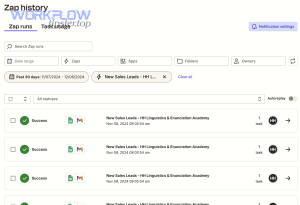
Zapier troubleshooting is the structured process of locating where a Zap run failed, why it failed, and what data and settings caused the failure—using Task History/Zap History run details as the primary evidence trail. Then, you fix the failing step and confirm a clean rerun.
To begin, the key is understanding what Task History is and what it is not: it’s a log of what your automation attempted, when it attempted it, and how each step behaved—success, filtered, delayed, held, stopped, or waiting—so you can debug with proof rather than guesses.
In practice, Task History gives you four high-value signals:
- Where the run broke: the specific step that errored or halted.
- What data flowed through: input fields mapped into the step and the output returned.
- What status the run ended with: stopped (errored), held, waiting, delayed, filtered, or success.
- What version/settings were used: which Zap version ran, and whether logic steps affected execution.
That’s why “troubleshooting” in Zapier is less about intuition and more about reading the run timeline like a receipt: it tells you what happened, in order, with step-level context. In addition, Zap history can only guarantee a limited window of run data, so experienced builders export or log critical runs elsewhere when they need long-term forensics.
What information in Task History helps you pinpoint the failing step fastest?
The fastest way to pinpoint the failing step is to identify the first step with a stopped/errored status, then inspect its input/output payload and error message to confirm whether the failure is data, permissions, connectivity, or platform limits. Specifically, you should read runs from left to right: trigger → logic → actions.
Here’s a “90-second scan” you can apply to almost any broken Zap:
- Step status: Which step shows an error or a halt? That is your first suspect.
- Error message text: Look for keywords like “required field,” “unauthorized,” “forbidden,” “not found,” “rate limit,” “timeout,” or “invalid JSON.”
- Input mapping: Confirm every required field is mapped and not empty. If a required field is blank, you’re in zapier missing fields empty payload troubleshooting.
- Data shape: If the app expects an ID but you pass a name (or vice versa), you’ll see zapier field mapping failed troubleshooting or zapier data formatting errors troubleshooting.
- Account context: Confirm the step is using the correct app account and that it still has permissions. If not, it becomes zapier permission denied troubleshooting or zapier oauth token expired troubleshooting.
When you build this habit, you stop “changing things” and start confirming hypotheses. More importantly, you reduce the blast radius: you fix one step at a time, rerun or replay safely, and keep the rest of the Zap stable.

According to a study by University of California, Berkeley from the Department of Electrical Engineering and Computer Sciences, in 2021, researchers summarized prior work suggesting testing should account for 25–40% of spreadsheet development time—highlighting how systematic verification reduces error-driven rework.
Is a “successful task” the same as a successful outcome in the destination app?
No, a “successful task” in Zapier is not always the same as a successful outcome in the destination app, because Zapier can complete a step without guaranteeing the business outcome you intended—especially when the destination app applies validation, deduplication, or delayed processing after it accepts the request. However, success usually means Zapier sent the request without seeing an error response.
Next, here’s how to think about the difference:
- Zapier success = the step executed and received a success-like response (or no error response) from the app.
- Business success = the object you intended (a record, ticket, row, file, message) exists and is correct in the destination system.
This gap shows up most often in three situations:
- Validation after acceptance: The API accepts the call but later rejects/rolls back because of a rule in the app (permissions, required fields, workflow rules).
- Asynchronous processing: The app queues work; Zapier finishes quickly, but the app takes time to finalize. This can resemble zapier tasks delayed queue backlog troubleshooting when the downstream system is slow or rate-limited.
- Deduplication and idempotency: The app prevents duplicates; Zapier sends the request, but the app discards it. That can look like a “missing action,” even though Zapier succeeded.
So your workflow should include a verification habit: spot-check destination results (or add a “Find” step before a “Create” step) if data integrity matters.
Why is my Zap not running or not triggering at all?
A Zap typically isn’t running because it’s turned off, it can’t publish due to a broken step or connection, the trigger isn’t detecting new events, or logic steps (filters/paths) prevent the run from continuing—so the fix is to validate Zap status, then validate trigger detection, then validate gating logic.
Then, instead of treating “not running” as one problem, treat it as a three-layer diagnostic: (1) is the Zap allowed to run, (2) is the trigger producing events, and (3) is the Zap allowed to proceed past logic steps.

Is your Zap turned on, published, and connected to the correct app account?
Yes—your Zap must be turned on, published without errors, and connected to the correct app account for it to run reliably, because an off/unpublished Zap can’t execute, a broken connection blocks trigger polling or instant delivery, and the wrong account often has missing permissions or different data. In other words, status, publish state, and identity are your three non-negotiables.
Below is a quick decision tree you can apply in under two minutes:
- Zap is OFF: Turn it ON, then immediately check Task History to confirm new runs appear.
- Zap won’t turn ON: One step is failing configuration—often permissions, required fields, or a disconnected account.
- Zap turns ON but still no runs: Your trigger likely isn’t firing (polling window, sample mismatch, or the app isn’t producing events).
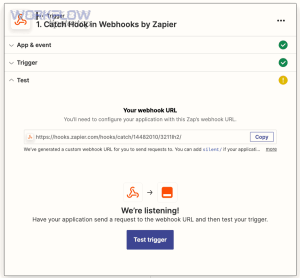
This is where zapier trigger not firing troubleshooting becomes its own category. A “trigger not firing” issue is usually not about the action step; it’s about event detection—filters at the trigger, polling frequency, or the app not exposing the event the way you expect.
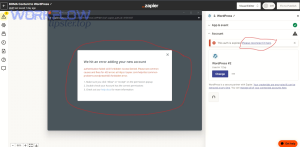
Also watch for authentication drift. Many apps rotate credentials or revoke scopes, which can surface as zapier oauth token expired troubleshooting in your connection screen or as “reconnect your account” prompts inside the step. When this happens, reconnecting the correct account is often the single highest leverage fix.
According to a study by Microsoft Research from the Department of Human-Centric Computing (VL/HCC), in 2023, a user-study evaluation of a debugging system found participants felt more efficient and capable when the interface provided step-by-step execution context—supporting the idea that verifying each layer (status → trigger → logic) reduces blind trial-and-error.
Are Filters, Paths, or Conditions preventing the Zap from continuing?
Yes, Filters, Paths, and conditional logic can prevent your Zap from continuing even when the trigger fires, because they are designed to stop runs that don’t match criteria, route runs away from certain actions, or halt when required data is missing. Specifically, they create “silent stops” that look like missing actions.
In addition, these logic steps often create the most confusing troubleshooting moments because they don’t always produce an “error”—they produce a “not eligible” outcome. Here’s how to debug them without getting lost:
- Confirm the trigger output: If the trigger output doesn’t contain the fields your Filter expects, the Filter can fail logically.
- Check the exact condition values: Are you comparing a date to text? A number to an empty string? That’s common in zapier data formatting errors troubleshooting.
- Validate time-based conditions: If you compare timestamps across systems, you can hit zapier timezone mismatch troubleshooting and filter out valid events.
- Paths require clear branches: If no path matches, the run stops progressing. Make one “catch-all” path during debugging.
A practical approach is to temporarily relax your Filter/Path logic while debugging. You can add a “debug mode” switch that forces a run to pass, so you can validate downstream steps first.
What are the most common Task History errors and how do you fix them?
There are five main types of Task History errors—data/mapping errors, authentication/permission errors, webhook/HTTP request errors, rate-limit/usage-limit errors, and timeout/slow-run errors—and the quickest fix is to classify the error type first, then apply the matching repair pattern.
Specifically, once you categorize the error correctly, the solution usually becomes obvious: mapping errors need data shaping, auth errors need reconnection or permissions, HTTP errors need endpoint/payload fixes, limit errors need throttling/queues, and slow runs need performance or retry strategy.
To make this concrete, the table below maps error categories to the most likely root cause and the first fix to try.
| Error category (what you see) | Most likely root cause | First fix to try |
|---|---|---|
| Missing/invalid field, invalid format | Bad mapping, empty payload, wrong data type | Re-map required fields, add Formatter, verify sample data |
| Unauthorized/Forbidden/Permission denied | Expired token, wrong account, missing scopes/role | Reconnect account, confirm permissions, reselect connection |
| 400/404/500 webhook or API request errors | Bad URL, bad payload, endpoint not found, server-side error | Verify endpoint, validate JSON, test request, check app logs |
| Rate limit / API limit exceeded | Too many requests, burst traffic, plan limits | Queue with Delay, reduce frequency, batch, backoff |
| Timeouts / slow runs / delayed backlog | Slow API, large payload, long-running step, queue congestion | Simplify step, split Zap, add delay/queue, optimize payload |

According to a study by University of California, Berkeley from the Department of Electrical Engineering and Computer Sciences, in 2021, researchers discussed how error-reduction techniques focus on debugging after the fact and improving interactions for prevention—supporting a two-part strategy: classify failures quickly, then harden the workflow to prevent repeats.
Which errors are caused by data/field mapping problems (missing required fields, invalid formats)?
There are three main types of data and mapping errors: missing required fields, wrong data types/formats, and mismatched identifiers (ID vs name), and you fix them by verifying required fields, reshaping data, and mapping the correct identifier based on what the destination app expects.
More specifically, this bucket includes issues like:
- Empty or missing payload: A field you assume exists is actually blank. This is classic zapier missing fields empty payload troubleshooting.
- Invalid date, number, or boolean: A date field receives text (“January”) or an invalid timestamp—often zapier data formatting errors troubleshooting.
- Dropdowns and IDs: The destination expects an internal ID, but you pass a label. This is a common cause of zapier field mapping failed troubleshooting.
- Timezone drift: You pass a timestamp without timezone context, causing off-by-hours scheduling, failed comparisons, or wrong date grouping—zapier timezone mismatch troubleshooting.
Here’s the repair pattern that works across most apps:
- Step 1: Re-test the trigger and inspect sample output fields.
- Step 2: Remap required fields using dynamic data (not static text) where appropriate.
- Step 3: Add Formatter steps to convert dates, numbers, text casing, and JSON structure.
- Step 4: If the destination expects an ID, add a “Find” step first to retrieve the correct ID, then pass it to “Create/Update.”
When you do this systematically, you stop fixing one-off symptoms and instead build a data pipeline that stays correct as inputs change.
Which errors are caused by authentication or permissions (expired tokens, revoked access)?
There are three main types of auth and permission errors: expired credentials, insufficient privileges, and wrong-account context, and you fix them by reconnecting the right account, validating required scopes/roles, and confirming the Zap step is using that same connection.
This is where builders often lose hours because the Zap looks “configured,” but the account behind the step no longer has access. Common manifestations include:
- 401 responses: Usually zapier webhook 401 unauthorized troubleshooting—the request lacks valid authentication (expired token, missing header, wrong credential).
- 403 responses: Often zapier webhook 403 forbidden troubleshooting—the identity is known but not allowed (wrong role, missing scope, blocked IP rules).
- Permission denied inside app actions: This becomes zapier permission denied troubleshooting even when you’re not using Webhooks.
- Token lifecycle problems: zapier oauth token expired troubleshooting is especially common after password changes, security resets, or admin policy changes.
The fix pattern is consistent:
- Reconnect the app connection in Zapier (or reauthorize) and ensure it completes successfully.
- Re-select the correct connection inside each affected step (Zapier can retain a stale selection).
- Validate permissions in the source/destination app: admin role, API access enabled, correct workspace/project access.
In short, if you see 401/403/permission errors, don’t tweak mapping first—fix identity and access first.
Why does Zapier turn a Zap off, and how do you restore it safely?
Zapier turns a Zap off when it repeatedly errors, hits account or plan constraints, or requires intervention to prevent runaway failures—so the safest restoration is to fix the root cause first, then turn the Zap back on, and only then replay runs if replay won’t create duplicates.
Moreover, “Zap turned off” is not a single failure mode; it’s a protective outcome. Your goal is to stop the error loop that triggered the shutdown, otherwise the Zap will simply turn off again after you restart it.

Does Zapier turn off Zaps automatically after repeated errors?
Yes, Zapier can turn off Zaps automatically after repeated errors for at least three reasons: it prevents continuous failing runs from wasting tasks, it protects downstream apps from repeated bad requests, and it signals that the workflow needs intervention before it can run reliably. Next, you should confirm whether the shutdown was triggered by a high error ratio versus a usage or plan limit.
Practically, you’ll often see a pattern like this in Task History:
- Many runs show “stopped/errored” with the same error signature.
- The error points to one broken step (often a disconnected account or invalid mapping).
- The Zap eventually flips to OFF or enters a state where actions are held.
If the underlying problem is a high-volume burst or throttling, you may also see zapier api limit exceeded troubleshooting or zapier webhook 429 rate limit troubleshooting patterns—lots of similar failures clustered in a short window.
According to a study by University of California, Berkeley from the Department of Electrical Engineering and Computer Sciences, in 2021, researchers highlighted testing as a significant portion of development effort in error-prone end-user programming contexts—reinforcing that repeated errors are best addressed by verification and stabilization, not repeated restarts.
Is it better to replay failed tasks or fix the Zap first and wait for new triggers?
Replay wins when you need to recover missed outcomes and your downstream actions are replay-safe, while waiting for new triggers is best when replay could create duplicates or side effects; in other words, replay is optimal for recoverability, and forward-only is safest for data integrity.
Then, use these criteria to decide:
- Replay if: the destination action is idempotent (creates/updates by unique ID), you can dedupe, and the missed events matter.
- Wait if: the destination creates irreversible side effects (sending emails, charging cards, creating tickets without dedupe) and you can’t guarantee uniqueness.
This is also where zapier duplicate records created troubleshooting appears: replaying a “Create” step without a uniqueness check is the fastest way to generate duplicates. A safer pattern is “Find or Create,” or “Find → Update,” so replays correct state rather than duplicating it.
Finally, if you suspect slow processing rather than errors, address zapier timeouts and slow runs troubleshooting first: a replay strategy won’t help if the system is congested or the request is too heavy.
How do you troubleshoot “duplicate actions” vs “missing actions” in the same Zap?
Duplicate actions usually come from repeated triggers, retries, or replays, while missing actions usually come from filters/paths, throttling, timeouts, or app-side validation—so the fastest fix is to identify whether the run happened multiple times or didn’t progress past a specific step.
However, the reason this is tricky is that duplicates and missing actions can share the same surface symptom: “my data doesn’t match what I expected.” That’s why you troubleshoot them with different questions and different proof.

Are duplicates caused by trigger behavior, retries, or replaying tasks?
There are three main sources of duplicates—trigger behavior, retries/autoreplay, and manual replay—and you fix them by enforcing uniqueness, limiting trigger scope, and designing steps so re-runs update rather than create. Specifically, you should treat duplicates as an “idempotency” problem.
Here’s what to check in Task History when duplicates appear:
- Multiple runs with the same trigger payload: The trigger fired more than once (common with polling triggers or “updated” events).
- Runs show retry behavior: A step timed out or failed transiently, then retried and succeeded later.
- Manual replay: A user replayed runs without a uniqueness guard—often the cause of zapier duplicate records created troubleshooting.
Fix patterns that work across apps:
- Find-before-create: Add a search step to locate existing records by a unique key (email, external ID, order number).
- Upsert/update pattern: Update if found, create if not found.
- Dedupe storage: Store a dedupe key and block repeats for a time window.
If your duplicates relate to file uploads, a common edge case is zapier attachments missing upload failed troubleshooting: partial failures can lead you to replay runs, creating multiple attempts. In those cases, add a “file already exists?” check before upload, or write to a unique folder path per run.
Are “missing actions” caused by throttling, timeouts, or app-side validation failures?
There are three main causes of missing actions—logic gating (filtered/paths), throttling and limits, and app-side validation—and you fix them by confirming where the run stopped, reducing request volume, and validating the destination requirements. More importantly, you must distinguish “didn’t run” from “ran but didn’t stick.”
Start with proof from run statuses:
- Filtered/Stopped before the action: logic prevented the action from running.
- Held/Delayed: often indicates backlog or plan/usage constraints—this aligns with zapier tasks delayed queue backlog troubleshooting.
- Timeout-like behavior: slow steps can lead to zapier timeouts and slow runs troubleshooting, where the Zap run doesn’t finish in time or the downstream app takes too long.
If the missing action relates to API requests, check for these common “silent killers”:
- Pagination gaps: If you’re pulling lists, you may be in zapier pagination missing records troubleshooting—you fetch only the first page of results and assume you got everything.
- Rate limits: Bursty triggers can cause zapier api limit exceeded troubleshooting or zapier webhook 429 rate limit troubleshooting where events are rejected or delayed.
- Bad requests: If your payload is malformed, you’ll see zapier webhook 400 bad request troubleshooting or zapier invalid json payload troubleshooting.
Finally, when “missing actions” are actually app-side rejections, they often pair with permission issues (zapier permission denied troubleshooting) or forbidden responses (zapier webhook 403 forbidden troubleshooting). In those cases, your mapping can be perfect and you’ll still get blocked—because access, not data, is the constraint.
When should you escalate (Zapier status, app outages, support), and what evidence should you collect?
You should escalate when the issue is reproducible, not explained by your run data, and likely caused by platform behavior (outage, degraded performance) or a persistent bug—so you should first validate the pattern in Task History, then check service status, and finally collect run-level evidence that helps support reproduce the problem.
Besides, escalation isn’t “giving up.” It’s the professional move when further guessing will waste time or create risk (duplicates, data corruption, unnecessary replays).

Is the problem likely on Zapier’s side or the connected app’s side?
Zapier is more likely the cause when multiple unrelated Zaps fail in the same way at the same time, while the connected app is more likely the cause when only one integration fails with app-specific HTTP errors; meanwhile, your configuration is the cause when failures correlate with a single step’s mapping, permissions, or logic. In short: scope and consistency tell you where to look.
Use these signals to decide quickly:
- Likely Zapier/platform: widespread delays, many Zaps showing similar waiting/holding behavior, or multiple apps failing simultaneously.
- Likely connected app: you see 5XX errors (server errors) like zapier webhook 500 server error troubleshooting, or app-specific “service unavailable” patterns.
- Likely your setup: consistent 400/401/403/404 errors tied to your endpoint, auth, or mapping—such as zapier webhook 404 not found troubleshooting (wrong URL) or zapier webhook 401 unauthorized troubleshooting (bad auth).
If you’re using Webhooks by Zapier, treat HTTP codes as directional hints:
- 400: request malformed (payload/headers) → validate JSON and fields.
- 401: auth invalid/missing → fix credentials.
- 403: auth ok but forbidden → fix permissions/scope.
- 404: endpoint wrong → verify URL and route.
- 429: rate limit → throttle and queue.
- 500: server error → app-side investigation or retry/backoff strategy.
What troubleshooting details should you include in a support ticket to get faster resolution?
To get faster resolution, include at least three things: the exact Zap run or task that failed, the step-level error message with timestamp, and the input/output payload (redacted) that reproduces the failure; then add context about frequency, scope, and what changed. Next, you should summarize the suspected category (mapping vs auth vs webhook vs limits).
Here’s a high-impact support checklist you can copy into a ticket:
- Zap name + folder/workspace (so support can locate it).
- Run timestamp and status (including time zone).
- Step number and app where it fails.
- Error message exactly as shown.
- Redacted input/output data (remove personal/sensitive fields).
- Frequency (every run? only in bursts? started after a change?).
- Changes (new fields, new account, new endpoint, new filter/path logic).
When the case involves records not being pulled correctly, explicitly mention zapier pagination missing records troubleshooting and describe what you expected versus what you received, including counts. If the case involves files, mention zapier attachments missing upload failed troubleshooting and include file size/type details.
According to a study by Microsoft Research from the Department of Human-Centric Computing (VL/HCC), in 2023, evaluation findings emphasized that the right amount of contextual run information reduced reliance on external searching and improved perceived debugging efficiency—mirroring why detailed run evidence accelerates support resolution.
How can you make Zapier workflows more reliable (and less “breakable”) over time?
You can make Zapier workflows more reliable by hardening them with four practices—pre-flight validation, controlled throughput (queues/backoff), idempotent design to prevent duplicates, and observability through run reviews—so failures become predictable, contained, and easier to recover from.
Especially after you’ve fixed a few broken Zaps, you’ll notice a pattern: most “urgent troubleshooting” is caused by the same few preventable fragilities. So reliability is just troubleshooting applied in advance.

What is the difference between “fixing” a Zap and “preventing” future failures?
Fixing wins at restoring a broken Zap quickly, while preventing wins at reducing how often the Zap breaks in the first place; meanwhile, the best builders do both by turning each fix into a small design improvement—validation, dedupe, throttling, or clearer mapping. In short, fix is reactive, prevent is proactive.
Here’s how that looks in real workflows:
- Fixing: You resolve zapier webhook 400 bad request troubleshooting by correcting the JSON payload.
- Preventing: You add a JSON validation step and default values so the payload can’t be malformed again, reducing future zapier invalid json payload troubleshooting.
- Fixing: You reconnect an app account to resolve zapier oauth token expired troubleshooting.
- Preventing: You add monitoring and a scheduled “health check” Zap that alerts you when a connection fails, reducing surprise outages.
A simple habit that creates big reliability gains is to maintain a “post-fix checklist”:
- Can this failure create duplicates if replayed?
- Can this failure be detected earlier with validation?
- Is throughput controlled so bursts won’t break it?
- Is the Zap’s logic (filters/paths) explicit and testable?
Which multi-step Zap features (Filters, Paths, Looping, Code, Formatter) most often cause hidden failures?
There are four common “hidden failure” zones in multi-step Zaps: Filters/Paths that silently block runs, Formatter steps that mis-shape data, Code steps that fail on edge cases, and Looping steps that amplify volume—so you should test each zone with representative data and add guardrails around missing fields and formats.
More specifically, watch for these patterns:
- Filters/Paths: A small data change causes runs to be filtered out. This often masquerades as zapier trigger not firing troubleshooting, even though the trigger worked.
- Formatter: A conversion step turns “empty” into “null” or produces an invalid date. This fuels zapier data formatting errors troubleshooting.
- Looping: A loop turns one trigger into hundreds of actions—then you hit zapier api limit exceeded troubleshooting or zapier webhook 429 rate limit troubleshooting.
- Code steps: Edge-case inputs (missing keys, unexpected arrays) break logic unless you validate inputs up front.
The simplest stabilization move is to add a “data contract” step early: confirm required fields exist, normalize formats, and set defaults. If the contract fails, route the run to a safe alert action rather than letting it break midstream.
How do Webhooks and API rate limits change your troubleshooting approach?
Webhooks and rate limits change troubleshooting because you must validate endpoints, authentication, and payload shape (HTTP correctness) while also controlling throughput to avoid bursts—so your approach should combine request-level debugging with queueing and backoff strategies.
To illustrate, Webhooks by Zapier tends to surface failures as HTTP status codes, which are incredibly useful if you treat them as a map:
- Endpoint errors: zapier webhook 404 not found troubleshooting usually means the route is wrong or you’re hitting the wrong environment.
- Auth errors: zapier webhook 401 unauthorized troubleshooting and zapier webhook 403 forbidden troubleshooting typically require fixing headers, tokens, and permissions.
- Payload errors: zapier webhook 400 bad request troubleshooting and zapier invalid json payload troubleshooting require validating JSON structure and content types.
- Server errors: zapier webhook 500 server error troubleshooting often indicates the destination service is failing or misconfigured, so retries and app-side logs matter.
Now add rate limits and volume bursts:
- Rate-limited inbound triggers: If too many events hit your Zap quickly, you’ll see zapier webhook 429 rate limit troubleshooting.
- Outbound API limits: If your action step calls an API too frequently, you’ll see zapier api limit exceeded troubleshooting.
- Queue congestion: When runs are held or delayed, you’re effectively doing zapier tasks delayed queue backlog troubleshooting—you need queues, batching, or reduced frequency.
That’s why advanced builders rely on “Delay After Queue” style patterns, batching, and idempotent actions. You don’t just fix the request—you shape the traffic.
How do you prevent duplicates safely using idempotency and dedupe keys?
Idempotency prevents duplicates by making repeated runs produce the same final state, and you implement it with dedupe keys, find-before-create steps, and update-or-create logic—so retries, replays, and bursty triggers won’t create extra records. In other words, you design the Zap so “running twice” is safe.
Here are practical idempotency patterns you can use immediately:
- Find → Update: Use a unique key (email, order ID, ticket ID) to find the record, then update it.
- Find → Create if not found: Only create when the search returns no match.
- Dedupe key storage: Store a fingerprint (e.g., source record ID + action type). If it exists, stop the run.
- External IDs: When the destination supports external IDs, map the source ID so duplicates collapse into updates.
These patterns directly reduce zapier duplicate records created troubleshooting, and they also make replay decisions easier: you can replay missed runs without fearing double creation.
Finally, if you’re building or maintaining many Zaps and want deeper troubleshooting playbooks, you can centralize internal SOPs (and curated checklists for specific HTTP and data problems) on a hub like WorkflowTipster.top, so the team uses the same diagnostic language and avoids re-learning the same fixes.