Aland Johnson
Founder & Editor-in-Chief
Company / Organization
Workflow Tipster
Experience / Skills
Workflow automation patterns, integration design, webhook/API troubleshooting, data mapping and normalization, document generation and e-sign flows, operational checklists and playbooks for popular software.
About Aland Johnson
Aland Johnson is an Automation & RevOps Consultant and Technical Writer, and he serves as the Founder & Editor-in-Chief of Workflow Tipster (workflowtipster.top)—a resource for bite-sized workflow tips, tool guidance, and troubleshooting solutions for popular software used by modern teams. From 2008 to 2012, Aland developed his foundation in information systems and workplace productivity tools, focusing on how businesses operationalize data across CRM, project management, customer support, and marketing platforms. During this period, he began documenting repeatable processes, building simple integrations, and learning the practical constraints that shape automation outcomes—such as inconsistent field formats, user permissions, and data quality issues. In 2013, Aland moved into hands-on operational support roles where reliability and speed mattered daily. He supported teams working across cloud-based tools, addressing recurring problems like login failures, permission mismatches, missing required fields, and data sync inconsistencies. Between 2014 and 2016, he expanded into cross-application workflow design, connecting systems through APIs and webhooks and establishing a structured troubleshooting method: reproduce the failure, isolate the failing hop, validate credentials and scopes, inspect payload shape, confirm rate-limit behavior, and implement safe retries with logging. From 2017 to 2019, Aland specialized further in RevOps enablement—helping organizations map business requirements into automation-ready schemas and governance. This phase emphasized durable system design: clear ownership of fields and objects, consistent naming conventions, deduplication strategies, and measurable KPIs. In 2019, he earned the Salesforce Certified Administrator credential, reinforcing his expertise in CRM configuration, permissioning, reporting, and operational controls that keep automations stable as teams and pipelines evolve. In 2020, Aland broadened his marketing operations skill set by completing the HubSpot Marketing Software Certification, deepening his work in lifecycle stages, attribution, segmentation, and automated communications—areas where subtle property mapping and timing rules often cause downstream failures. Between 2021 and 2022, he concentrated on integration resilience at scale: reducing duplicates, adding idempotency safeguards, standardizing payload validation, and creating runbooks for incident response when webhooks fail or third-party APIs degrade. In 2023, Aland earned the Zapier Certified Expert credential and continued refining advanced automation patterns across multi-step workflows, conditional routing, and cross-tool data normalization. That same year, he formalized his editorial approach: every guide must be reproducible, version-aware, and supported by verification steps so readers can confirm success rather than “guess and hope.” Since 2024, Aland has been building Workflow Tipster as a practical knowledge base for operators, founders, and teams who need quick, reliable answers. His content emphasizes clarity and measurability—short, actionable tips when speed matters, and deeper troubleshooting playbooks when reliability is the priority. Aland’s guiding standard remains consistent: state the goal, show the exact steps, surface common failure modes, and include a prevention checklist so the workflow stays healthy after the fix.
Related topics
Latest posts by Aland Johnson


Fix Smartsheet Webhook HTTP 500 Internal Server Error: Troubleshooting Steps for Admins & Developers
When you see a Smartsheet webhook HTTP 500 Internal Server Error , you can fix it by quickly isolating whether the failure is coming from Smartsheet , your callback endpoint , or the infrastructure in between—then stabilizing delivery with safe retries, fast acknowledgements, and clear logging. Next, you’ll need a reliable way to tell platform-side issues from endpoint-side failures , because the fastest “fix” is often a routing, TLS, or application exception change on your side—not a webhook rebuild.

Aland Johnson February 2, 2026 at 6:24 AM
Fix Smartsheet Webhook 429 Rate Limit (Too Many Requests): Troubleshooting & Prevention for Developers
If your Smartsheet webhook flow keeps failing with HTTP 429 (Too Many Requests) , you can fix it by confirming it’s rate limiting , then adding controlled retries (backoff + jitter) and traffic shaping (lower concurrency, queue spikes, reduce bursty calls) so the integration stays stable under load. ( developers.
Aland Johnson February 2, 2026 at 6:14 AM
Fix Smartsheet Webhook 404 Not Found: Troubleshooting Guide for Developers & IT Teams (Not Found vs Found Endpoints)
A Smartsheet webhook 404 Not Found almost always means Smartsheet reached a server , but the specific callback resource you configured (host + path + routing) did not resolve to a real handler—so the endpoint is effectively “Not Found” when it needs to be “Found” and routable. Most teams fix it faster when they separate two questions early: (1) Did Smartsheet reach my edge (DNS/TLS/proxy)?
Aland Johnson February 2, 2026 at 6:03 AM
Fix 403 Forbidden (Access Denied) in Smartsheet Webhooks for Developers: OAuth Scopes, Sheet Permissions & Callback URL Verification
A Smartsheet webhook 403 Forbidden happens when a request is understood but explicitly denied , and the fastest fix is to identify which side is denying access —the Smartsheet API when you enable/manage the webhook, or your callback endpoint when Smartsheet verifies and delivers events. ( developers.
Aland Johnson February 2, 2026 at 5:51 AM
Fix Smartsheet Webhook 401 Unauthorized: Step-by-Step Troubleshooting for Developers (Authorized vs Unauthorized)
A Smartsheet webhook 401 Unauthorized almost always means your receiving endpoint is rejecting Smartsheet’s request due to missing or invalid authentication, not that Smartsheet “can’t send” the webhook. The fastest fix is to confirm what your endpoint expects, then align headers, token lifecycle, and environment so Smartsheet is treated as authorized instead of unauthorized .
Aland Johnson February 2, 2026 at 5:39 AM
Fix Smartsheet Webhook 400 Bad Request for Developers (Bad Request → Valid Request)
If you’re hitting a Smartsheet webhook 400 Bad Request , you can fix it by treating the error as a request validity problem: capture the exact request, validate JSON, confirm required fields and types, and reduce to a minimal “known-good” payload before adding complexity back. A 400 is only useful if you can interpret it precisely , so this guide also shows how to translate Smartsheet error messages (missing header, missing attribute, invalid value, attribute not allowed) into the correct corrective action.
Aland Johnson February 2, 2026 at 5:26 AM
Fix Smartsheet Triggers Not Firing: Get Workflows Firing Again (Troubleshooting Guide for Sheet Owners & Admins)
When a Smartsheet workflow trigger isn’t firing, you can usually fix it by confirming three things in order: the trigger matches the real change , the conditions don’t filter the row out , and the action can actually execute and deliver under your current permissions and settings. Next, you’ll learn what “not firing” truly means (trigger never ran vs.
Aland Johnson February 2, 2026 at 5:14 AM
Fix Smartsheet Time Zone Mismatch: Troubleshooting Guide for Teams & Admins (Restore Time Zone Alignment)
A Smartsheet time zone mismatch happens when the same date/time-related data appears to shift—by hours or even a day—depending on where you view it (sheet grid, system columns, formulas, automations, or the API). You can troubleshoot it reliably by identifying which layer is controlling time (viewer, sheet owner, or UTC back end) and then aligning settings, columns, and workflow design to that layer.
Aland Johnson February 2, 2026 at 5:01 AM
Smartsheet Timeouts & Slow Runs Troubleshooting for Admins: Fix Slow Sheets (Without Breaking Workflows)
Smartsheet timeouts and slow runs are usually fixable when you treat them as a performance system problem: browser + network + sheet design + automation load . The fastest path is to isolate where the delay is happening, then reduce the amount of work Smartsheet and your browser must do per interaction.
Aland Johnson February 2, 2026 at 4:47 AM
Fix & Speed Up Smartsheet Task Delays: Queue Backlog Troubleshooting for Admins (Automation Lag → Near Real-Time)
When Smartsheet tasks feel “stuck” and workflows fire late, you can usually fix it by separating normal processing lag from a true queue backlog and then removing the bottleneck (trigger scope, heavy actions, sheet load, or workflow cascades). This guide shows you how to diagnose the delay pattern and apply the fastest fixes so your automations return to near real-time behavior.
Aland Johnson February 2, 2026 at 4:35 AM
Fix “Permission Denied” (Access Granted) in Smartsheet: Step-by-Step Troubleshooting for Sheet Owners & Admins
If you’re seeing “Permission Denied” or “Access Denied” in Smartsheet, you can usually fix it by validating three things in the right order: the account you’re signed into, the permission level you actually have, and where that access is being controlled (sheet vs workspace vs ownership) . This guide walks you through a practical, step-by-step path so you can regain access quickly and stop the error from looping.
Aland Johnson February 2, 2026 at 4:22 AM
Fix Smartsheet API Pagination Missing Records: Troubleshooting “Missing vs Complete” Results for Developers & Integrators
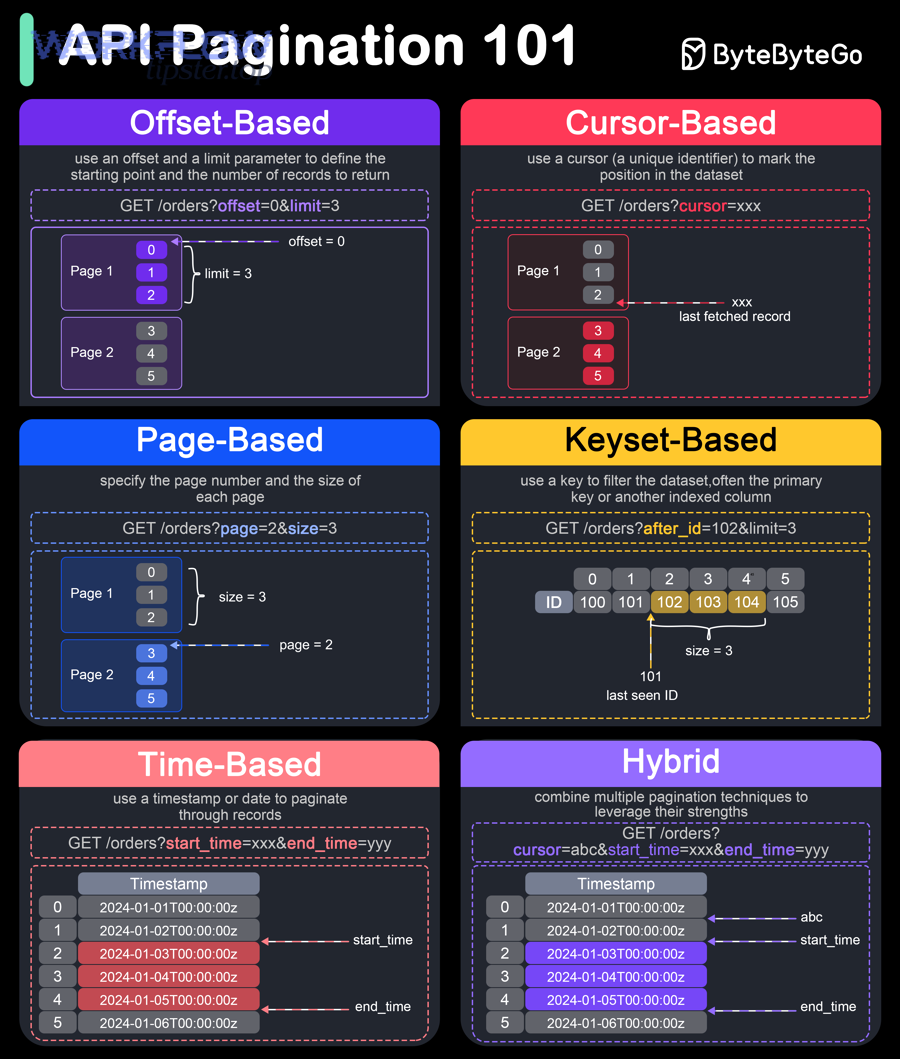
When Smartsheet data looks “missing” during an API pull, you can usually fix it by (1) confirming pagination is truly the cause, (2) implementing the correct paging loop (page-based or token-based), and (3) validating completeness with ID-level reconciliation—so “Missing vs Complete” becomes measurable, not a guess. ( developers.
Aland Johnson February 2, 2026 at 4:10 AM
Fix Smartsheet OAuth Token Expired Errors: Troubleshoot Active vs Expired Tokens for Developers & Admins
Your keyword focus is “smartsheet oauth token expired troubleshooting” , and the main predicate is fix : you want a reliable way to get from “token expired” to a stable, working authentication state. The lexical relation here is an antonym pair — active vs expired —because the core job is proving which state your token is actually in, then correcting the flow that keeps flipping it to “expired.
Aland Johnson February 2, 2026 at 3:57 AM
Fix Smartsheet Missing Fields & Empty Payload in Make: Troubleshooting Guide for Scenario Builders (Blank vs Mapped Data)
Smartsheet “missing fields” and “empty payload” issues in Make usually happen when the data is hidden, the schema isn’t what Make expects, or the API call returns a valid response that contains less data than your mapping assumes. Next, you’ll learn how to interpret the exact symptom you’re seeing (missing mappable fields vs a truly blank bundle), so you can choose the fastest diagnostic path instead of guessing.
Aland Johnson February 2, 2026 at 3:44 AM
Fix Invalid JSON Payload (Parse Error) in Smartsheet API/Bridge: Troubleshooting Checklist for Developers & Automation Builders
If you’re seeing “Invalid JSON payload” or “Unable to parse request” from Smartsheet, you can fix it by validating JSON syntax, matching Smartsheet’s expected schema for the endpoint, and ensuring every value type matches what the API can actually deserialize. Beyond the quick fix, you also need to understand what the error is really telling you: sometimes Smartsheet can’t parse the body because it’s not valid JSON, but other times the JSON is valid and the structure or field types don’t match the endpoint’s request model.
Aland Johnson February 2, 2026 at 3:31 AM
Fix Smartsheet Field Mapping Failed: Troubleshoot Data Shuttle & Connector Mapping Errors for Admins (Failed → Fixed)
When “field mapping failed” appears in a Smartsheet workflow, the fastest fix is to treat it as a broken relationship between source fields and destination columns , then repair that relationship by re-validating column identity, data types, and access so the run completes successfully with correct data placement. Most mapping failures trace back to a small set of causes—deleted or re-created columns, renamed headers, data-type conflicts, or permission and authentication drift—so you can diagnose quickly if you know what evidence to collect and what each symptom implies.
Aland Johnson February 2, 2026 at 3:18 AMFix Duplicate (Redundant) Records Created in Smartsheet: Troubleshooting Guide for Sheet Owners & Admins
Duplicate (redundant) records in Smartsheet are usually fixable once you identify where the second “write” is coming from —a Copy Row workflow firing twice, a form being submitted twice, or an integration retrying the same payload. This guide helps you isolate the trigger, confirm the duplication mechanism, and stop it at the source.
Aland Johnson February 2, 2026 at 3:06 AM
Fix Smartsheet Data Formatting Errors: Troubleshoot Date, Number & Currency Issues for Sheet Admins (Debug Guide)
Data formatting errors in Smartsheet usually come from a mismatch between what the value is (its type) and how it’s displayed or parsed (its format), so the fastest way to fix them is to diagnose the source (sheet settings, imports, forms, formulas, or reports) and apply a targeted correction. Once you know whether you’re dealing with data type vs display formatting , you can stop “random tweaking” and follow a repeatable admin workflow that pinpoints the cause—especially for the most common pain points: dates flipping (MM/DD vs DD/MM), numbers stored as text, and currency separators changing with regional preferences.
Aland Johnson February 2, 2026 at 2:53 AM
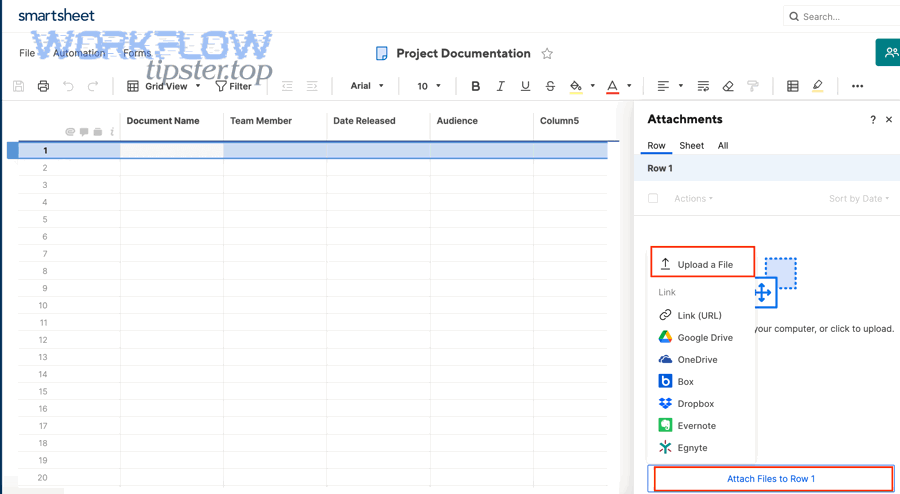
Fix Smartsheet Attachments Missing or Upload Failed: Troubleshooting for Teams (Missing vs Available Files)
When Smartsheet attachments are missing or you see “upload failed,” the fastest path to a fix is to treat it like a pipeline problem: file rules (size/type), browser behavior (extensions/cache), permissions/admin settings, and network/security controls all affect whether a file becomes available in the Attachments pane. If you’re a sheet owner, admin, or editor , start by confirming whether the issue is file-specific (one attachment fails) or environment-specific (every upload fails on a device/browser).
Aland Johnson February 2, 2026 at 2:41 AM
Fix Smartsheet API “Limit Exceeded” (429 Too Many Requests / 4003): Troubleshooting Guide for Developers & Integrators
If you’re seeing “limit exceeded” in a Smartsheet integration, you can fix it by treating it as a rate-limit event: pause the burst, read the rate-limit reset signal, and resume with controlled pacing instead of repeated retries. You’ll also want to understand what the error is actually telling you—Smartsheet uses HTTP 429 Too Many Requests for throttling, and you’ll often see an associated error payload that includes errorCode 4003 (“Rate limit exceeded”).
Aland Johnson February 2, 2026 at 2:29 AM
Connect & Sync Airtable to Xero for Finance Teams — No-Code Integration Guide to Automate Invoices & Contacts
You can connect and sync Airtable to Xero without code by using a no-code automation layer that maps Airtable records to Xero objects, then creates or updates contacts and invoices with consistent rules. This approach reduces manual re-keying, keeps finance data consistent, and turns your Airtable base into a controlled intake system instead of a risky spreadsheet workflow.
Aland Johnson January 28, 2026 at 10:12 PM
Sync Airtable to WordPress Content for Site Owners — Posts, Pages & Custom Post Types (Plugin Integration Guide)
Syncing Airtable to WordPress content is the fastest way to turn structured records into real posts, pages, and custom post types—then keep them updated automatically, without re-copying text or re-uploading images every time something changes. Next, you’ll learn how to prepare your Airtable base so it behaves like a publishing system (with “ready” views, required fields, and clean relationships) and how to map those Airtable fields into WordPress fields, taxonomies, and custom fields without breaking your templates.
Aland Johnson January 28, 2026 at 9:57 PM
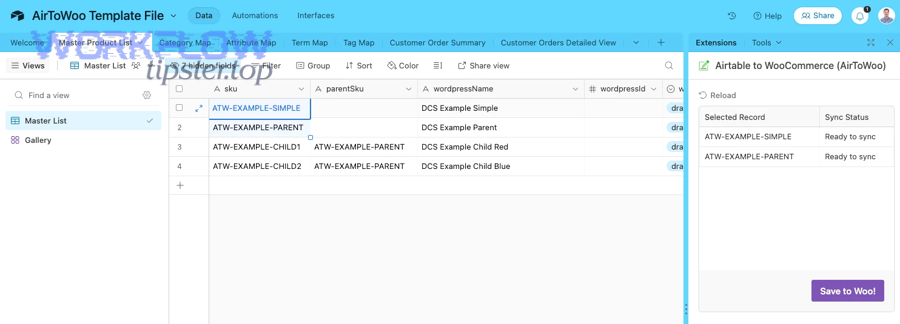
Integrate Airtable with WooCommerce to Sync Products, Orders & Inventory for Store Owners (Automation Guide)
Integrating Airtable with WooCommerce lets you sync products, orders, and inventory by connecting your store’s operational data to a structured Airtable base, so you can automate updates, reduce manual work, and keep records consistent across systems. Next, you’ll learn how to choose the right integration method—whether that’s a WooCommerce plugin, a no-code automation platform, or a purpose-built connector—based on reliability, cost, and how much control you need.
Aland Johnson January 28, 2026 at 9:37 PM
Sync Airtable to Webflow CMS for No-Code Teams: Step-by-Step Integration Guide (One-Way vs Two-Way)
If your goal is to sync Airtable to Webflow CMS , the most reliable approach is to map Airtable fields to Webflow Collection fields, choose a sync direction (one-way or two-way), then run an automation tool that creates/updates CMS items consistently—without breaking slugs, references, or publishing rules. Next, it helps to clarify what “sync” actually means in Webflow terms—because Webflow CMS has draft/published states, API limits, and Collection rules that affect how “real-time” your sync can be.
Aland Johnson January 28, 2026 at 9:20 PM
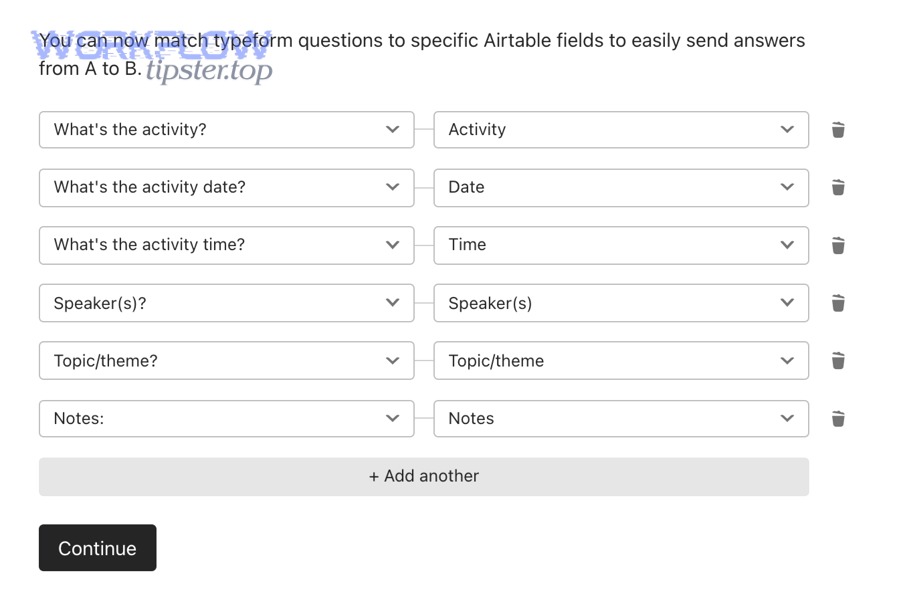
Connect Airtable to Typeform for Teams: Step-by-Step Integration Guide (Native vs Zapier/Make)
Connecting Airtable to Typeform is the fastest way to turn form submissions into structured, searchable records—so your team can route leads, triage requests, and run workflows without copy-pasting. In SEO terms, the main keyword is airtable to typeform , the predicate is connect , and the lexical relation used here is Comparison ( Native vs Zapier/Make ).
Aland Johnson January 28, 2026 at 9:05 PM
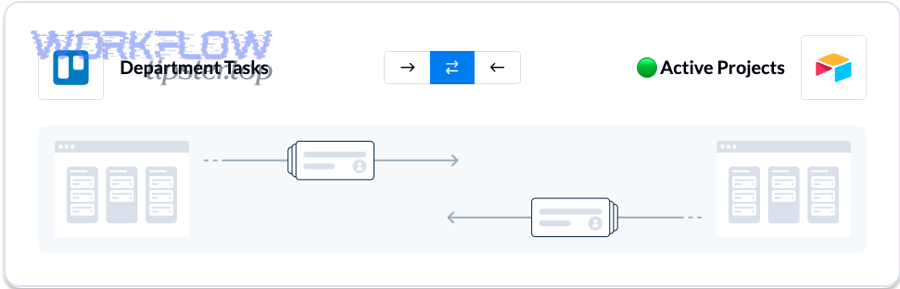
Sync (Connect) Airtable to Trello for Teams: How to Automate Card Creation + Two-Way Updates
If you want Airtable and Trello to work as one system, the simplest approach is to connect Airtable records to Trello cards with a clear field map and a single “source of truth” rule , so new work items are created automatically and updates stay consistent across your team. Next, you’ll want to decide whether you need true two-way updates (changes in either tool update the other) or a safer one-way automation (Airtable creates cards, but only Airtable edits key fields), because that choice determines how you prevent conflicts and “ping-pong” updates.
Aland Johnson January 28, 2026 at 8:50 PM
Sync Airtable to Toggl Track for Teams: Automate Time-Entry Tracking (One-Way vs Two-Way)
Syncing Airtable to Toggl Track is the fastest way to turn “work details” (tasks, tickets, deliverables, clients) into consistent time entries without relying on manual copy-paste. When done correctly, the sync keeps your team’s time tracking accurate, reportable, and easy to audit—while reducing the daily friction that makes people skip time logs.
Aland Johnson January 28, 2026 at 8:34 PM
Integrate (Automate) Airtable to Todoist for Teams: Create Tasks from New Airtable Records (No-Code)
Integrating Airtable to Todoist means you automatically turn structured Airtable records into actionable Todoist tasks—so your team stops “remembering to remember” and starts executing the next step as soon as data appears. Next, you’ll see whether you truly need a no-code automation tool (and which kind fits your workflow best), because the tool choice determines how reliably your Airtable-to-Todoist integration runs as your team scales.
Aland Johnson January 28, 2026 at 11:44 AM
Automate Airtable to SurveyMonkey Integration for Teams: Survey Response Sync vs Manual Export
If your goal is to get SurveyMonkey responses into Airtable automatically, the most reliable approach is to use an automation connector that triggers on “New Response” and creates (or updates) an Airtable record—so your survey data stays fresh without manual exporting. Next, you’ll want to choose the “right” integration method based on your workflow: basic response capture, deduplication, notifications, and routing to downstream tools (like tasks and follow-ups) all change how you should structure your base and mappings.
Aland Johnson January 28, 2026 at 11:31 AM
Connect (Integrate) Airtable to Stripe for No-Code Teams: Automate Payments, Customers & Subscriptions
Connecting Airtable to Stripe is the fastest way for no-code teams to turn payment events into reliable operations—so every successful charge, paid invoice, or active subscription automatically updates the right Airtable record without manual copy-paste. You’ll also need a clean plan for what “Stripe data in Airtable” actually means—what objects you track (customers, payments, invoices, subscriptions), what fields you map, and which IDs become your single source of truth so your base stays consistent as volume grows.
Aland Johnson January 28, 2026 at 11:21 AM
Sync Airtable to Smartsheet: No-Code Integration Guide for Operations & Project Teams (Sync vs Integrate)
To sync Airtable to Smartsheet effectively, you need three things: a clear source of truth, a stable record identifier, and a no-code method (automation, two-way sync, or scheduled ETL) that matches how your team actually works day to day. If you’re choosing between tools, the fastest path is usually an automation connector (Zap-style) for event-driven updates, while two-way sync tools are better when both Airtable and Smartsheet users must edit the same workflow without losing control.
Aland Johnson January 28, 2026 at 11:11 AM
Automate Airtable to Slack for Teams: Send Message & Actionable Message Alerts (Integration Guide)
If your goal is to turn Airtable updates into timely Slack alerts, the fastest path is to build an Airtable automation that triggers on the right record change and posts a clear, clickable message into the channel your team actually watches. To make that work reliably, you also need to understand the “native” options inside Airtable Automations—especially the difference between Send Message and Send an Actionable Message —so you choose the right Slack action for your workflow instead of rebuilding later.
Aland Johnson January 28, 2026 at 10:59 AM
Sync & Integrate Airtable to Shopify for Store Owners: Two-Way Product, Inventory, and Order Updates
To integrate Airtable to Shopify the right way, you should start by defining what “sync” must achieve (products, inventory, orders, or all three), then pick an integration method that can keep IDs consistent, prevent overwrites, and recover safely from errors—so your store stays accurate while your team works faster. A big part of that success is understanding two-way sync: what it really means in practice, when it’s necessary, and how to decide which system (Airtable or Shopify) should be the source of truth for each record and field.
Aland Johnson January 28, 2026 at 10:47 AM
Connect Airtable to ServiceNow for Automated ITSM Workflows: No-Code Integration (Sync) Guide for ServiceNow Admins
Connecting Airtable to ServiceNow for automated ITSM workflows is a practical way to turn structured intake data into real tickets, assignments, and status updates—without building a custom app—so your ServiceNow instance stays the system of record while Airtable stays a flexible front-end for collecting and organizing work. Next, you’ll learn what “integration” and “sync” mean in this context, how they differ in practice, and how to choose a reliable approach that matches how ITSM teams actually work (incidents, requests, tasks, SLAs, and assignment rules) rather than treating your data like generic rows.
Aland Johnson January 28, 2026 at 10:32 AM
Integrate Airtable to Sentry for DevOps Teams: Connect & Sync Error Tracking (Integration vs Manual Logging)
You can integrate Airtable to Sentry by capturing Sentry issue activity (new issues, state changes, assignments, regressions) and writing the structured data into an Airtable base that acts as your incident registry—so your team can triage, assign ownership, track status, and report trends without manual copy-paste. To do that well, you need to understand what “Airtable to Sentry” really means in practice: which Sentry objects matter (issues vs events), which Airtable tables/fields become your system of record, and which direction the data should flow based on your workflow.
Aland Johnson January 28, 2026 at 10:20 AM
Integrate (Connect) Airtable to SendGrid: Step-by-Step Email Automation Guide for Marketers & Ops Teams
To integrate Airtable to SendGrid, you map Airtable records (contacts, events, or pipeline stages) to SendGrid lists and templates, then automate sends via the SendGrid API so the right email reaches the right person at the right time. Next, the fastest way to understand the workflow is to treat Airtable as the “source of truth” and SendGrid as the “delivery engine,” then decide what triggers an email: a new record, a status change, or a scheduled reminder.
Aland Johnson January 28, 2026 at 10:05 AM
Sync Airtable to Salesforce CRM for Sales Ops Teams: Step-by-Step Integration Guide (Airtable-to-CRM)
To integrate Airtable to Salesforce, you typically connect a specific Airtable base/table to Salesforce objects (like Leads, Contacts, Accounts, Opportunities) so data can move automatically in one direction (push) or both directions (sync) with consistent field mapping. Next, you’ll decide which integration method fits your workflow—native tools (when available), no-code automation platforms, or custom API-based syncing—based on volume, reliability needs, and governance requirements.
Aland Johnson January 28, 2026 at 9:53 AM
Sync Airtable to QuickBooks Online for Bookkeepers: No-Code Setup to Automate Invoices & Customers
Syncing Airtable to QuickBooks Online is the fastest way for bookkeepers to turn structured Airtable records into accurate QuickBooks customers and invoices—without retyping data—so your workflow stays consistent, auditable, and easier to reconcile. Next, you’ll see what “sync” really means in day-to-day bookkeeping (and what it does not mean), so you can choose the right data flow and avoid the most common setup mistakes that create duplicates.
Aland Johnson January 28, 2026 at 9:42 AM
Sync Airtable to Pipedrive: No-Code CRM Integration Guide for Sales Teams (Integrate = Sync)
Connecting Airtable to Pipedrive works best when you treat Airtable as your flexible operating database and Pipedrive as your deal-focused CRM, then sync only the fields that move revenue forward. Most teams start by defining what “done” looks like—new leads created automatically, deals updated without manual copying, and activities (follow-ups) consistently logged in the right pipeline stage.
Aland Johnson January 28, 2026 at 9:31 AM
Connect Airtable to PayPal for Small Businesses: Sync Payments via Webhooks (vs Manual Tracking)
Yes—you can connect Airtable to PayPal so payments, invoices, and statuses move automatically, but the “best” setup depends on whether you need real-time sync, approvals, and audit-ready tracking. Most readers want the fastest way to automate: choose a no-code workflow if your payment logic is simple, or a hybrid workflow if you need human approval before money moves.
Aland Johnson January 28, 2026 at 9:18 AM
Automate Proposal Workflows: Integrate (Sync) Airtable to PandaDoc for Sales Teams
Yes—you can integrate Airtable to PandaDoc to automate proposal workflows, because it centralizes deal data in Airtable, generates documents in PandaDoc with consistent variables, and speeds approvals with a clean send–sign–status loop. Next, you’ll need to choose an automation approach (native tools, Zapier, Make, or webhooks) based on volume, complexity, and how much control you want over mapping and error handling.
Aland Johnson January 28, 2026 at 9:06 AM
Connect & Automate Airtable to PagerDuty for On-Call Teams (Triggers & Actions Guide)
You can connect Airtable to PagerDuty by using an automation tool to turn key Airtable record changes into PagerDuty events/incidents—so the right on-call responder gets paged with clear, actionable context instead of noisy notifications. To make that connection reliable, you need to choose stable Airtable triggers, define strong conditions, and map fields so every PagerDuty alert includes the “who/what/where/impact” your team needs to respond fast.
Aland Johnson January 28, 2026 at 8:52 AM
Sync Airtable to Outlook (Microsoft 365) Calendar for Teams: iCal Export, Native Sync & Automation Workflows
To sync Airtable to Outlook (Microsoft 365) Calendar for teams, you typically choose one of three reliable paths: an iCal subscription from an Airtable calendar view, a one-way Outlook->Airtable sync table, or Airtable Automations that create and update Outlook events—each designed for a different “source of truth.” Next, if your goal is Airtable->Outlook visibility with minimal maintenance, the iCal method is the fastest to ship because Outlook subscribes to a feed and pulls updates on its own schedule, which is ideal for shared team calendars and read-only publishing.
Aland Johnson January 28, 2026 at 8:41 AM
Connect Airtable to Outlook for Operations Teams: Sync vs Automation vs API (Integration Guide)
Airtable to Outlook integration usually means you connect your Airtable base (where operations data lives) with Outlook (where calendars and email execution happens) so work moves automatically from “tracked” to “scheduled” to “communicated” without manual copy-paste. Next, you’ll see the practical no-code paths—Airtable Sync and Airtable Automations—plus when third-party connectors (like Power Automate, Zapier, or Make) are the better fit for real-world Ops constraints like approvals, multi-step routing, and shared calendars.
Aland Johnson January 28, 2026 at 8:25 AM
Sync (Connect) Airtable to OneDrive for No-Code Teams: Integration Setup Guide
To sync Airtable to OneDrive successfully, you must first decide what “sync” means for your team—linking files, copying files, exporting data, or running a true bidirectional workflow—then build the simplest automation that produces a reliable outcome. Next, you’ll choose the right integration method (native connector, no-code automation platform, or scheduled export) based on your workflow direction, the file/record volume you handle, and how much transformation logic you need.
Aland Johnson January 28, 2026 at 8:14 AM
Sync (Integrate) Airtable to Notion for Teams: No-Code & API Setup Guide (1-Way vs 2-Way)
If you want Airtable to Notion syncing that actually holds up in a team environment, the most reliable approach is to decide your sync direction first (1-way or 2-way), pick the right integration method (no-code automation, true sync, or custom API), and then lock down mapping + deduplication so updates stay consistent. Most teams start by asking what “sync” really means in practice—whether it’s simply copying records into a Notion database, or keeping both systems aligned over time with updates, conflict rules, and predictable ownership of fields.
Aland Johnson January 28, 2026 at 8:03 AM
Connect (Sync) Airtable to monday.com: No-Code Integration Guide for Teams
Connecting Airtable to monday.com means you can move and keep data aligned between Airtable records and monday items —most often by creating items from new records, updating columns when records change, and keeping teams working from the same “source of truth” across both tools with fewer manual steps.
Aland Johnson January 28, 2026 at 7:50 AM
Sync (Integrate) Airtable to Miro for Teams: Step-by-Step Setup Guide
Connecting Airtable to Miro is the fastest way to turn messy brainstorm output into structured, assignable work—without manually retyping sticky notes into a database. The most reliable approach is to use Airtable’s native Miro Sync or the official Airtable↔Miro integration so ideas on a board become records you can track, prioritize, and ship.
Aland Johnson January 28, 2026 at 7:41 AM
Automate DOCX (Microsoft Word) Document Generation from Airtable Records: Template Workflow Guide for No-Code Teams
You can automate DOCX document generation from Airtable records by combining three building blocks: a clean Airtable record structure, a DOCX template with placeholders, and an automation layer that maps fields and outputs a finished Word file to the right destination. Then, you choose the best automation approach for your team—an Airtable Marketplace app, a no-code automation platform, or a dedicated document-generation tool—based on how complex your templates are, how often you generate documents, and where files must be stored.
Aland Johnson January 28, 2026 at 7:30 AM