


Syncing Airtable to QuickBooks Online is the fastest way for bookkeepers to turn structured Airtable records into accurate QuickBooks customers and invoices—without retyping data—so your workflow stays consistent, auditable, and easier to reconcile.
Next, you’ll see what “sync” really means in day-to-day bookkeeping (and what it does not mean), so you can choose the right data flow and avoid the most common setup mistakes that create duplicates.
Then, you’ll get a step-by-step no-code setup blueprint—table design, field mapping, testing, and go-live—so you can automate invoices and customer creation while keeping control over posting and approvals.
Introduce a new idea: once your automation works, the real win is keeping it reliable at scale—choosing the right tool, preventing duplicates, and handling errors and edge cases without breaking your books.
What does it mean to sync Airtable to QuickBooks Online for invoices and customers?
Syncing Airtable to QuickBooks Online means you automate the creation or update of QBO Customers and Invoices from Airtable records using triggers, field mapping, and validation—so invoices and customer data move consistently from a tracked workflow into your accounting system.
Then, to better understand what you’re building, it helps to separate the concept of syncing (a controlled data pipeline) from the tools that execute it (Zapier, Make, and others).
Is Airtable to QuickBooks Online a native integration?
No—Airtable to QuickBooks Online is not a native integration, and that matters because (1) you must use a connector tool or custom API, (2) you must design field mapping and IDs, and (3) you must monitor errors to prevent silent bookkeeping drift.
However, “not native” does not mean “not reliable.” In practice, many teams use connector platforms that are designed for no-code automations. For example, Zapier positions Airtable + QuickBooks Online as a no-code integration that connects a trigger in Airtable to an action in QBO.
To keep the hook chain tight: you are not buying “a sync button,” you are building a repeatable process with rules. That process typically looks like this:
- Trigger: A record becomes ready (e.g., invoice status changes to “Approved” in Airtable).
- Lookup & validation: Confirm the customer exists (or can be created safely).
Action: Create or update a QBO Customer, then create a QBO Invoice (often with line items). - Write-back: Store the resulting QBO IDs in Airtable for future updates and audit traceability.
That last step—writing back IDs—becomes the foundation for preventing duplicates and making updates deterministic later in the workflow.
Which QuickBooks objects should bookkeepers sync first: Customers, Invoices, or Items?
There are 3 main objects bookkeepers should sync first—Customers, Products/Services (Items), and Invoices—based on dependency: invoices depend on customers and often reference items, so customers typically come first, then items (if needed), then invoices.
Specifically, the order matters because it prevents downstream failures and reduces “mystery invoices” that can’t post cleanly:
- Customers (most common first sync):
If QBO can’t match a customer reliably, you’ll create duplicates or mis-apply payments. A clean Customer pipeline creates stable “who” records. - Items / Products & Services (sometimes optional):
If your invoices use standardized services (e.g., “Monthly Retainer,” “Consulting Hour”), syncing or standardizing items avoids messy mapping later. If you only use a small set of services, you can manage items directly in QBO first and reference them. - Invoices (best after customer logic is stable):
Invoices are “money documents.” You want them to be the result of a verified workflow, not the first object you automate.
A practical bookkeeping principle: automate the master data before the financial documents. When your customer logic is stable, invoice automation becomes predictable.
How do you set up a no-code Airtable → QuickBooks Online sync step-by-step?
A no-code Airtable → QuickBooks Online sync works in 7 steps—define your invoice workflow, structure Airtable tables, connect QBO, build trigger/action automation, map fields, test with sample records, then go live with monitoring—so invoices and customers flow reliably with minimal rework.
Next, let’s explore the two make-or-break parts: (1) Airtable base design and (2) field mapping that respects accounting rules.
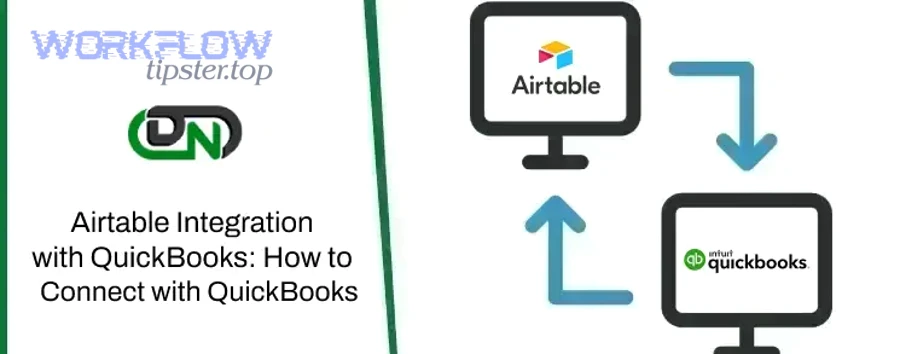
What Airtable table and field structure makes invoicing automation reliable?
There are 3 main Airtable table patterns that make invoicing automation reliable—Customers, Invoices, and Invoice Line Items—based on normalization: separating “who pays” from “what you bill” prevents broken totals and makes line items scalable.
Then, once the structure is clear, your automation becomes straightforward because each step pulls data from the right place instead of packing everything into one mega-table.
Recommended base structure (bookkeeping-friendly):
- Customers table (master data)
- Customer Name (single line text)
- Email (email field)
- Phone (phone field)
- Billing Address fields (street/city/state/zip)
- Tax status or notes (optional)
- QBO Customer ID (single line text; write-back field)
- Status (Active/Inactive; optional)
- Invoices table (document header)
- Invoice Number (optional if you let QBO assign)
- Invoice Date / Due Date
- Linked Customer (link to Customers table)
- Invoice Status (Draft → Approved → Sent/Posted)
- Memo / Message to customer (optional)
- QBO Invoice ID (write-back field)
- Totals (rollups from line items)
- Invoice Line Items table (details)
- Linked Invoice (link to Invoices)
- Service/Item Name (text or linked to Items table)
- Quantity
- Rate
- Line Amount (formula)
- Class/Location (optional, advanced)
- Tax code (optional, advanced)
Why this structure wins (macro semantics → operational clarity):
- It mirrors how accounting documents work: header + lines.
- It reduces manual fixes because line items can be added without reconfiguring the automation.
- It enables stronger controls: approvals can happen at invoice level, while line edits remain flexible.
A simple workflow rule that prevents accidental posting:
- Only records in an Airtable Approved view are eligible for automation.
- The trigger listens to “record enters view” or “status becomes Approved.”
- Anything not approved remains a draft inside Airtable.
This is where many bookkeepers gain control: Airtable becomes the workflow layer; QBO remains the system of record for accounting.
How do you map Airtable fields to QBO Customer and Invoice fields without breaking accounting rules?
Mapping Airtable fields to QBO fields means translating Airtable’s table data into QBO’s required Customer and Invoice properties—starting with required identity fields, then addresses, then line items—so every automated record posts cleanly and reconciles without surprises.
Next, to keep this mapping practical, it helps to standardize a minimum set of fields that you always send, and a second set you send only when needed.
Here is a mapping table that contains common Airtable → QuickBooks Online fields for Customers and Invoices, so you can build a consistent checklist before you touch any automation tool:
| Airtable Field | QBO Object | QBO Field (concept) | Notes for bookkeepers |
|---|---|---|---|
| Customer Name | Customer | DisplayName | Prefer a standardized naming rule (e.g., “Company – Contact”). |
| Customer | PrimaryEmailAddr | Use one canonical email to avoid duplicate matching issues. | |
| Phone | Customer | PrimaryPhone | Optional but helpful for collections. |
| Billing Street/City/State/Zip | Customer | BillAddr | Keep components separate for cleaner mapping. |
| QBO Customer ID | Customer | Id (write-back) | Store after creation to support updates later. |
| Invoice Date | Invoice | TxnDate | Use ISO-style dates when possible (tool-dependent). |
| Due Date | Invoice | DueDate | Set based on terms logic or explicit field. |
| Memo/Message | Invoice | CustomerMemo / PrivateNote | Decide what should be client-visible vs internal. |
| Line Item Name | Invoice Line | SalesItemLineDetail ItemRef | Typically references a QBO Product/Service. |
| Quantity / Rate | Invoice Line | Qty / UnitPrice | Required for structured service billing. |
| Class/Location | Invoice Line | ClassRef / (Location fields) | Advanced: only if you use these features. |
| QBO Invoice ID | Invoice | Id (write-back) | Store after creation for updates/voids later. |
Accounting rule alignment (micro semantics that prevents rework):
- Customers should be uniquely identified by a stable key (email or external ID).
- Invoices should only post when the workflow says they’re ready.
- Line items should reference consistent Products/Services in QBO when you want reporting clarity.
Also note: Zapier explicitly describes common trigger/action patterns (e.g., create QBO customers from Airtable records, create Airtable records for new QBO invoices), which reinforces that your mapping must match the chosen direction of automation.
How do you test the workflow safely before you sync real accounting data?
You test Airtable → QuickBooks Online safely by using 3 layers—sample Airtable records, a controlled QBO environment, and a go-live checklist—so you catch mapping errors, duplicates, and line item failures before any invoice hits production.
Then, once testing is done, you transition from “works once” to “works every time” by locking in your rules.
A practical test plan (bookkeeper-friendly):
- Build “Test Customers” and “Test Invoices” in Airtable
- Use obvious prefixes: TEST – Acme Co
- Create a few invoice variations:
- One line item vs multiple line items
- With and without tax
- With a discount line (if applicable)
- Choose your QBO testing approach
- If you have access to a sandbox/test company, use it.
- If not, use a production company but keep:
- Clearly labeled test customers
- Invoices left in draft (if your setup allows)
- A plan to void/delete test invoices after validation
- Validate the full lifecycle
- Customer created once (no duplicates)
- Invoice created with correct totals and due date
- Line items match intended services/items
- Write-back fields populate: QBO IDs saved to Airtable
- Errors trigger alerts (email/Slack) so failures aren’t silent
- Create a “Go-Live” view
- Only invoices that are approved and validated appear here
- Your automation trigger listens only to this view
This testing discipline is what separates a fragile automation from a reliable bookkeeping system.
Which no-code tool is best for syncing Airtable to QuickBooks Online: Zapier vs Make vs other options?
Zapier wins in speed-to-launch, Make is best for complex mapping and line items, and other options fit specialized needs (two-way sync or developer workflows)—so the best tool depends on your invoice complexity, data volume, and how much transformation logic you need.
Meanwhile, the easiest way to choose is to compare tools against the same bookkeeping criteria: invoice line item handling, dedup logic, monitoring, and scalability.

Here is a comparison table that contains decision criteria bookkeepers actually care about, so you can pick the tool that matches your workflow—not just the one with the nicest marketing:
| Criterion | Zapier | Make | Other options (examples) |
|---|---|---|---|
| Setup speed | Very fast (templates, guided steps) | Moderate (visual builder, more knobs) | Varies (could be complex) |
| Best for | Straightforward Customer + Invoice creation | Complex line items, branching, transformations | Two-way sync platforms, enterprise automation, or developer tools |
| Line item complexity | Can be limiting depending on structure | Stronger control over arrays/routers | Depends on product/approach |
| Monitoring | Simple task history and alerts | More granular scenario execution and routing | Varies |
| Long-term maintainability | Great if workflow stays simple | Great when logic grows | Depends on team capability |
Grounding from the ecosystem: Zapier highlights how Airtable triggers connect to QuickBooks Online actions (and explicitly lists supported triggers/actions and ready-made use cases).
Make similarly positions Airtable + QuickBooks as a visual workflow integration that can be designed and automated in a modular way.
Do you need simple one-way automation or a true two-way sync?
Yes—you should decide this upfront because (1) one-way Airtable→QBO reduces conflicts, (2) two-way sync increases complexity and risk of data overwrites, and (3) sync direction changes how you store IDs and handle updates.
However, “two-way” is often over-requested. For many bookkeeping teams, one-way Airtable → QBO is the safest: Airtable is your workflow and staging database; QBO is the accounting source of truth.
Choose one-way Airtable → QBO when:
- Airtable is where approvals happen.
- You don’t want QBO edits overwriting workflow fields.
- You need predictable posting rules.
Consider two-way only when:
- You truly need updates made in QBO to appear back in Airtable (e.g., payment status, invoice numbers).
- You can define which side “wins” in conflicts.
- You have strict field-level ownership rules.
This is also where “Automation Integrations” become a strategy, not just a tool choice: you’re designing ownership rules for your financial data across systems.
What should you choose for invoice line items and complex mapping: Zapier or Make?
Make wins for complex invoice line items and transformations, Zapier is best for fast, reliable basics—so if your invoices have multiple lines, conditional discounts, or branching rules, Make usually fits better; if your workflow is linear, Zapier is often enough.
Then, once you choose, you can standardize your workflow into patterns:
If you choose Zapier (common bookkeeping pattern):
- Trigger: invoice approved in Airtable view
- Action 1: find/create customer in QBO
- Action 2: create invoice in QBO
- Action 3: write back QBO IDs to Airtable
If you choose Make (common “complex invoice” pattern):
- Watch Airtable records
- Validate customer identity and dedup keys
- Build line item array with routers/functions
- Create invoice with precise line details
- Error routes (alerts + retry queue)
- Write-back IDs
As you expand, you can also connect adjacent workflows—like airtable to monday for project handoffs, airtable to paypal for payment tracking workflows, or airtable to intercom for customer messaging—without mixing those operational systems into the accounting layer.
How do you prevent duplicates and keep records consistent between Airtable and QuickBooks Online?
You prevent duplicates by using 3 controls—stable matching rules, write-back IDs, and “update vs create” logic—so each Airtable customer and invoice maps to exactly one QBO record, even when fields change over time.
Next, let’s explore the two foundations: (1) storing QBO IDs in Airtable and (2) matching rules that work in the real world.
Should you store the QuickBooks Customer ID and Invoice ID inside Airtable?
Yes—you should store the QuickBooks Customer ID and Invoice ID inside Airtable because (1) it enables deterministic updates instead of accidental duplicates, (2) it creates an audit trail from workflow to accounting record, and (3) it lets you build safe re-runs when automations fail.
However, the key is where and when you store IDs:
- Store QBO Customer ID in the Customers table immediately after creation.
- Store QBO Invoice ID in the Invoices table immediately after invoice creation.
- Lock these fields (or limit edits) so a manual change doesn’t corrupt your sync.
Why this is a bookkeeping control, not just a technical trick:
If you can always answer “which Airtable record created this QBO invoice,” you reduce reconciliation time and improve accountability when issues arise.
Also, remember that QBO itself enforces API usage limits, so a design that avoids repeated “create” calls (and instead updates by ID) reduces unnecessary API traffic and failure rates. Intuit documents core limits like 500 requests per minute per realm ID and concurrency constraints, which becomes relevant as you scale.
What matching rules stop duplicate customers (email, display name, external ID)?
There are 3 main matching rules to stop duplicate customers—external ID, email, and normalized display name—based on stability: external IDs remain stable across edits, email is usually unique but not always, and names are the least reliable.
Then, you apply the rules in a strict hierarchy so the automation always chooses the same match path:
- External ID (best)
- Create your own “Customer External ID” in Airtable (e.g., CUST-000123)
- Store it in QBO if your integration supports it, or store the resulting QBO ID as the durable link
- Use this as the primary key whenever possible
- Email (good, but with edge cases)
- Use for small businesses with one unique payer email
- Watch out for:
- Shared inboxes (billing@company.com)
- Owners using personal emails across multiple businesses
- Display name (last resort)
- Only use when you normalize it (trim spaces, standardize capitalization)
- Still risky for duplicates (“Acme Inc” vs “ACME, Inc.”)
Practical dedup technique bookkeepers love:
Add a field in Airtable called “Sync Key” and make it formula-driven:
- Prefer External ID
- Else use LOWER(email)
- Else use LOWER(name) (with extra caution)
When you do this, your automation can “Find customer by Sync Key → if found update → else create.”
What are the most common Airtable → QuickBooks Online sync errors and how do you fix them?
The most common Airtable → QuickBooks Online sync errors fall into 3 categories—authentication/permissions, missing required fields or invalid references, and line item/tax mapping issues—and you fix them by tightening validation, improving matching, and adding monitoring so failures surface immediately.
Next, let’s diagnose errors like a bookkeeper: identify the failure class, confirm the record state, then apply a repeatable fix so it doesn’t happen again.
Is the sync failing because of permissions, missing required fields, or invalid line items?
Yes—most sync failures come from permissions, required fields, or invalid line items because (1) QBO rejects incomplete payloads, (2) invoice lines often require valid item references, and (3) expired connections silently break automations until you check task history.
However, the fastest way to fix issues is to run a short diagnostic flow:
1) Permissions / auth failures
- Symptoms:
- “Unauthorized,” “Token expired,” “Connection needs re-auth”
- Fix:
- Reconnect QBO in your automation platform
- Use a dedicated service account if your org supports it
- Document who owns the integration login
2) Required field failures
- Symptoms:
- Customer creation fails (missing display name/email requirements depending on setup)
- Invoice fails (missing customer reference, missing dates, missing line totals)
- Fix:
- Add Airtable validation fields:
Is Ready for Synccheckbox formula- Required field completeness formula
- Only allow “Approved” status when validation passes
- Add Airtable validation fields:
3) Invalid line item references
- Symptoms:
- Invoice created without lines
- Invoice fails because item/service doesn’t exist
- Fix:
- Standardize your service catalog:
- Maintain “Items” table in Airtable
- Map to QBO Products/Services
- Add a “Find item” step (if tool supports) before invoice creation
- Standardize your service catalog:
Scaling note (why this matters later):
When your automation grows, repeated failed runs can increase API calls and slow execution. Intuit’s QBO API limits and throttling behavior are relevant when you have many invoices or heavy retries, so prevention is cheaper than repeated failures.
What monitoring and alerting should bookkeepers set up after go-live?
There are 4 essential monitoring practices bookkeepers should set up—failed-run alerts, a daily exception review, write-back verification, and periodic reconciliation—because they (1) catch silent failures, (2) prevent duplicate records, and (3) keep the Airtable workflow aligned with QBO reality.
Then, once monitoring is in place, you can trust the automation without constantly babysitting it.
1) Failed-run alerts (immediate)
- Email or Slack alert when a scenario/zap fails
- Include record links (Airtable record URL + QBO record URL where possible)
2) Daily exception queue (10 minutes/day)
Create a view in Airtable called “Sync Exceptions”:
- Missing required fields
- Has “Approved” status but no QBO Invoice ID after X minutes
- Error message present
3) Write-back verification (proof of sync)
- Require that:
- Approved invoice must have QBO Invoice ID
- Synced customer must have QBO Customer ID
- If missing, the record stays “Needs Review,” not “Completed”
4) Periodic reconciliation (weekly/monthly)
- Pick a sample:
- 10 invoices synced last week
- Check amounts, dates, customer match
- If mismatches exist, fix mapping rules—don’t patch one-off records.
Evidence (why monitoring + automation saves time):
According to a case study by the University of Pittsburgh from Pitt Digital (supporting the Office of Sponsored Projects Accounting), published in August 2024, automation helped each accountant save about 16 hours per month while standardizing records and reducing manual invoicing work.
To make this section actionable, here is a short monitoring checklist you can paste into your SOP:
- [ ] Alerts enabled for failures
- [ ] “Sync Exceptions” Airtable view created
- [ ] QBO IDs write back correctly
- [ ] Weekly sample reconciliation scheduled
- [ ] Change log policy: who can edit synced fields
Contextual Border: Now that your Airtable-to-QuickBooks workflow is live and stable, the next section covers advanced scenarios that change design decisions—useful when you scale, add taxes, or introduce stricter controls.
What advanced scenarios can change your Airtable → QuickBooks Online sync design?
Advanced scenarios change your sync design when requirements shift from “create invoices” to “govern invoices,” especially across 4 areas—real-time vs batch timing, tax/multi-currency complexity, approvals and audit controls, and the point where no-code should become custom—so your automation stays accurate as complexity grows.
Next, let’s explore those scenarios in the same bookkeeper-first way: what changes, why it changes, and what to do about it.
How does “real-time sync” compare to scheduled batch sync for bookkeeping accuracy?
Real-time sync wins for speed, scheduled batch sync is best for control, and hybrid sync is optimal for scale—because real-time reduces latency, batch reduces posting mistakes, and hybrid lets you approve in batches while still updating customer data promptly.
However, in bookkeeping, “faster” is not always “better.” The question is: when do you want invoices to become official?
Real-time sync (when it fits):
- Pros:
- Faster invoice creation
- Less backlog
- Cons:
- Easier to post something accidentally
- Harder to enforce approvals
- Best for:
- Simple service businesses with predictable billing and low risk
Batch sync (bookkeeper-friendly default):
- Pros:
- Strong approval gates
- Cleaner month-end control
- Fewer accidental invoices
- Cons:
- Slight delay between approval and posting
- Best for:
- Teams with review steps, complex invoicing, or multiple preparers
Hybrid sync (scaling pattern):
- Customers sync in near real-time (master data stays fresh)
- Invoices sync in batches after approvals
This also pairs well with connecting other operational systems. For example, you might keep project or support updates flowing via airtable to monday or airtable to intercom, while keeping the accounting sync gated and controlled so QBO remains clean.
What changes when you need multi-currency, taxes, or discounts on invoices?
Multi-currency, taxes, and discounts change your sync design because they introduce specialized fields and validation rules—so you must standardize tax codes, ensure currency consistency, and build line item logic that matches QBO’s expectations for totals and item references.
Then, the safest approach is to treat these as “advanced invoice templates” rather than ad-hoc fields.
What typically changes in your Airtable model:
- Add a Currency field on invoices (if applicable)
- Add a Tax Code field per line item (or a rule-based assignment)
- Add Discount handling:
- As a separate negative line item, or
- As a field that maps to the correct QBO structure (tool-dependent)
What changes in your automation logic:
- Validate the “invoice template type” before sync:
- Standard invoice
- Taxable invoice
- Multi-currency invoice
- Route the automation:
- If taxable → apply tax code logic
- If multi-currency → confirm customer and invoice currency compatibility
Most common failure point:
Discount and tax logic often fails when line items aren’t constructed exactly as QBO expects. This is where Make-style transformations can outperform simpler linear workflows.
How do you build auditability and approvals (the opposite of fully automated posting)?
Auditability and approvals require you to add 3 controls—workflow gates, change logs, and role-based ownership—because they (1) prevent unauthorized posting, (2) preserve evidence for decisions, and (3) make month-end troubleshooting faster.
However, approvals do not need to be heavy. A clean approach is to make “posting” a deliberate action:
Approval gate pattern (high-control, low friction):
- Airtable status flow:
- Draft → Ready for Review → Approved → Synced → Reconciled
- Automation trigger:
- Only when status becomes Approved
- Write-back:
- Store who approved (Airtable collaborator field)
- Store timestamp (created time or automation time)
Change log discipline (simple but powerful):
- Create fields:
Last Edited ByLast Modified TimeSync Locked(checkbox)
- Rule:
- Once synced, edits to money fields require returning to “Needs Review”
This is the semantic antonym of “fully automated posting”: you still automate execution, but humans own authorization.
When should you switch from no-code to a custom API integration?
You should switch from no-code to custom API integration when (1) volume pushes rate limits, (2) your invoice logic requires complex, dynamic line item construction, or (3) security and audit requirements demand stronger controls than connector platforms can comfortably provide.
Then, instead of jumping too early, evaluate a clear threshold:
No-code is still ideal when:
- Your monthly invoice volume is modest
- Data transformations are simple
- One-way sync fits your process
Custom integration becomes rational when:
- You need advanced retries, queuing, and idempotency across many records
- You must meet strict internal controls or compliance requirements
- You hit rate limiting or concurrency bottlenecks at scale
Intuit documents QBO API usage constraints (including per-minute request limits and concurrency expectations) and has announced changes to certain endpoints over time, which is exactly why “scale” can become a technical design requirement—not just a workflow preference.
Practical bridge option:
Before going fully custom, many teams improve reliability by tightening validation, batching invoices, and reducing “create” calls through ID-based updates—often extending the life of no-code workflows significantly.
If you want to continue building topical authority from here: the next logical companion articles are “Airtable invoice approval workflows,” “How to design item catalogs for QBO reporting,” and “Payment updates back to Airtable (e.g., airtable to paypal) without creating two-way sync conflicts.”