


You can integrate Airtable to Sentry by capturing Sentry issue activity (new issues, state changes, assignments, regressions) and writing the structured data into an Airtable base that acts as your incident registry—so your team can triage, assign ownership, track status, and report trends without manual copy-paste.
To do that well, you need to understand what “Airtable to Sentry” really means in practice: which Sentry objects matter (issues vs events), which Airtable tables/fields become your system of record, and which direction the data should flow based on your workflow.
Next, you’ll choose an implementation path—either a no-code/low-code connector (fastest) or webhooks + APIs (most flexible)—and design a mapping that keeps records deduplicated, secure, and easy to act on.
Introduce a new idea: once the basics work, the real leverage comes from picking the right workflow patterns and tool stack so you reduce manual logging, cut context-switching, and keep incident data trustworthy over time.


What does “Airtable to Sentry” integration mean?
An Airtable to Sentry integration is a structured workflow that routes Sentry issue signals into Airtable (and optionally back), so incident data becomes searchable records—complete with owners, statuses, timestamps, and links to investigation context—instead of scattered messages and manual notes.
To better understand this integration, start by separating two layers: Sentry’s detection layer (issues/events, alert rules, notifications) and Airtable’s coordination layer (tables, views, automations, and reporting).
In Sentry, an event is a single occurrence, while an issue is the grouped, ongoing problem you typically manage (status changes, assignments, regressions, resolved/unresolved). For incident tracking in Airtable, you almost always want to store the issue as the primary record, and then optionally store high-signal events (first seen, last seen, spike samples) as secondary rows linked to that issue.
In Airtable, you’ll usually model this with:
- Incidents (Issues): one row per Sentry issue (the “single source of truth” for coordination).
- Events (optional): linked records for a small set of representative events (for evidence, debugging, or sampling).
- Owners / Services: linked tables that normalize team ownership and service metadata.
- Actions / Tasks: follow-ups and remediation items linked to incidents.
According to a study by the University of California, Irvine from the Department of Informatics, in 2023, researchers reported (via 14 interview-based sessions) that constant interruptions and fragmented work are common pressures for software engineers—making structured, low-friction workflows especially valuable for operational teams.
What data should you send from Sentry to Airtable?
You should send issue-level fields from Sentry to Airtable because issue changes are what your team coordinates around: status, assignment, frequency trends, severity, and links to investigation context.
Then, map these fields into Airtable columns that match how humans actually triage:
- Identifiers: Issue ID, Issue short ID, Project/Organization, Environment.
- State: Unresolved/Resolved/Ignored, regression flag, “first seen” and “last seen”.
- Impact: event count, user count (if available), release version tags.
- Routing: team/service, owner, escalation level, SLA clock start.
- Links: direct Sentry URL, related pull requests, runbooks.
- Context: exception type/value, culprit/function, stacktrace summary, tags.
Practical rule: store only what you will query, filter, or report in Airtable. If a field is only useful when debugging, store a link back to Sentry instead of duplicating heavy payloads.

What data should you send from Airtable to Sentry?
You should send data from Airtable to Sentry only when Airtable is acting as a coordination console—for example, when a change in Airtable (owner, priority, status) should trigger an action in the incident workflow.
Common “Airtable → Sentry” signals include:
- Ownership updates: writing an owner/team field that also updates a downstream routing step.
- Escalation decisions: marking an incident as “Escalate” to page on-call via your alerting tool (not necessarily Sentry itself).
- Remediation milestones: recording a fix release and writing that back into your release notes process.
In most teams, Sentry remains the system of record for issue detection and grouping, while Airtable becomes the system of record for work management. That division is what keeps the integration simple and durable.
Should you connect Airtable to Sentry for incident tracking?
Yes, Airtable to Sentry integration is worth it for most DevOps teams because it centralizes incident metadata, speeds handoffs with structured ownership fields, and reduces repetitive context-switching during triage.
Next, it helps to evaluate this decision with three practical lenses: signal quality, handoff speed, and reporting accuracy.
Signal quality improves because Airtable can enforce a consistent triage checklist (owner set, severity set, status set, next action logged) even when alerts arrive from multiple systems. Handoff speed improves because the “who owns this and what’s next” state becomes visible in one place. Reporting accuracy improves because you can compute metrics (time to acknowledge, time to resolve, recurrence) on structured fields rather than stitching together chat logs.
According to a study by Aalborg University from the Department of Electronic Systems, in 2024, researchers showed that filtering repetitive noise can dramatically reduce the alert volume analysts must review—reporting their method could filter more than 40% of alerts under specific frequency thresholds, and more than 90% for some alert categories.
Does it reduce alert fatigue and handoff time?
Yes, it can reduce alert fatigue and handoff time because Airtable lets you convert raw alert signals into actionable, deduplicated work items with explicit ownership, priority, and next steps.
Specifically, the integration reduces fatigue when you implement three behaviors:
- Deduplicate by Issue ID so one Sentry problem becomes one Airtable incident record.
- Gate by severity/environment so only the alerts that matter create or update records.
- Separate “signal” from “noise” by recording high-level changes (status/regression) rather than every single event.
If you skip these behaviors, the integration can create its own “Airtable fatigue,” where the base becomes a second noisy inbox. Your goal is to make Airtable a curated operations ledger, not another firehose.
Is it worth it for small teams?
Yes, it is still worth it for small teams if you keep the integration minimal: one incident table, a small set of required fields, and a single automation that creates/updates incident records.
Then, small teams should bias toward a lightweight approach:
- Use one “Incidents” table with a few views (New, Needs Owner, In Progress, Done).
- Use one owner field (a single-select or linked user) and one status field.
- Use one notification path (email/Slack/Teams) only when ownership is missing or severity is high.
The moment a small team adds multiple sync directions, complex transformations, and multi-table dependencies, the integration becomes maintenance overhead instead of leverage.
How do you integrate Airtable to Sentry with no-code Automation Integrations?
The simplest no-code Airtable to Sentry setup uses an integration platform in 5 steps: catch a Sentry issue event, filter severity, map fields, create/update an Airtable record, and notify the owner.
To begin, pick a connector that can listen for Sentry changes and write to Airtable reliably, then treat your workflow as a repeatable template rather than a one-off automation.
No-code platforms work well here because they already solve common integration problems: authentication, retries, pagination, and simple transformations. Zapier, for example, provides Airtable connectivity through its app ecosystem, which is helpful when your incident workflow also touches chat, docs, or task tools.
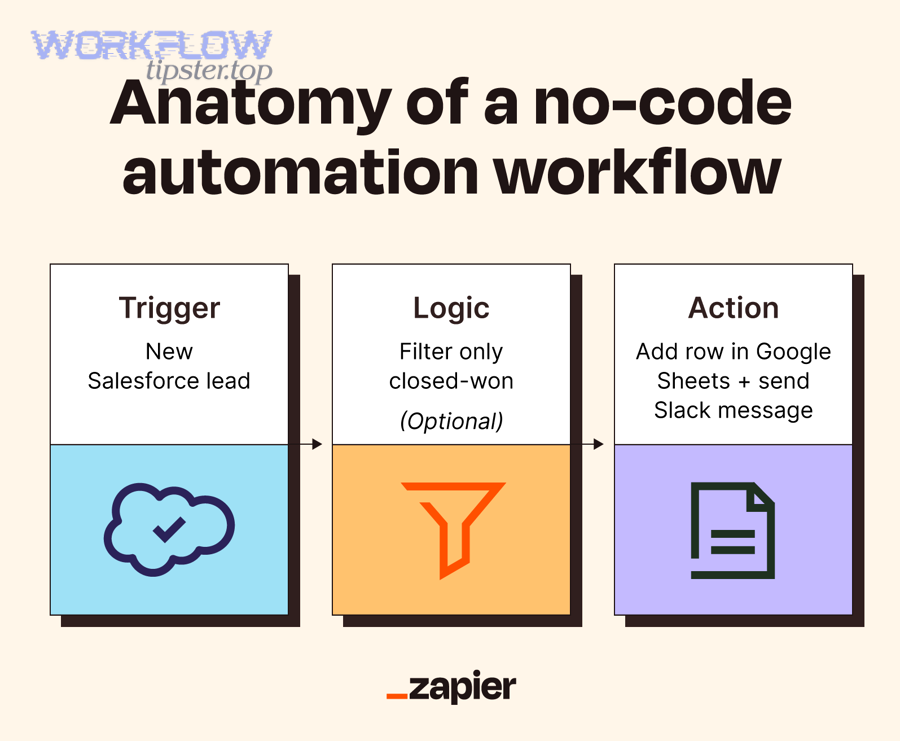
Here is the standard no-code blueprint you’ll reuse across tools:
- Trigger: “Sentry issue updated” (or “webhook received”).
- Filter: environment = production, level = error, or tags match service.
- Lookup: search Airtable for Issue ID.
- Upsert: if found, update; if not found, create.
- Notify: only if status changes to “Needs Owner” or severity is “High.”
According to a study by Aarhus University from the Department of Electrical and Computer Engineering, in 2024, researchers emphasized that repetitive alert floods can desensitize teams and obscure real incidents—supporting workflows that reduce noise through filtering and prioritization rather than forwarding everything.
How to build it with Zapier
You can build Airtable to Sentry in Zapier by using a webhook-based trigger (or Sentry trigger if available), then adding Airtable “Find Record” + “Create/Update Record” steps to implement a reliable upsert.
Next, structure your Zap like a production workflow:
- Step 1: Catch Hook (Zapier Webhooks) receiving Sentry payload, or a Sentry trigger if your plan supports it.
- Step 2: Filter by environment/severity so you don’t create noise incidents.
- Step 3: Find Record in Airtable where Issue ID = payload.issue.id.
- Step 4: Create Record if not found; otherwise Update Record.
- Step 5: Notify the owner in chat/email only when a human must act.
Zapier is especially strong when the same incident record should also create tasks or docs across your stack; that’s why many teams treat it as a central integration bus for operational workflows.
How to build it with Make
You can build Airtable to Sentry in Make by receiving a webhook, transforming the JSON payload into clean fields, then performing an Airtable search + conditional create/update to maintain a single incident row per Sentry issue.
Then, use Make’s routing to handle different outcomes cleanly:
- Route A (New issue): create incident row + post “New incident” message to the on-call channel.
- Route B (Status change): update incident row + only notify when status becomes “Regressed” or “Escalated.”
- Route C (Resolved): update status + record resolved timestamp + optionally create a postmortem task.
Make is a good fit when you need multi-step transformations (e.g., parsing tags, normalizing service names, building a human-readable summary) before data lands in Airtable.
How to build it with n8n
You can build Airtable to Sentry in n8n by self-hosting (or using cloud), receiving a webhook node from Sentry, applying an IF node for filtering, and then using Airtable nodes to search and upsert records in your base.
More specifically, n8n becomes compelling when you want:
- Self-hosted control over data flow and logs.
- Custom code nodes for precise transformations and validation.
- Versioned workflows you can manage like infrastructure.
n8n explicitly supports both Airtable and Sentry as integration endpoints, which makes it straightforward to assemble a reliable “issue-to-record” pipeline with filters and retries.
How do you integrate Airtable to Sentry with webhooks and APIs?
The most flexible Airtable to Sentry integration uses webhooks + APIs in 6 steps: subscribe to Sentry issue changes, receive webhook payloads, validate signatures, transform and deduplicate, call Airtable’s API to upsert, and log outcomes for observability.
Then, treat the integration like a small production service: clear contracts, strict validation, and predictable retry behavior.
A key detail is that Sentry’s “issue webhooks” are designed to send notifications when issues change, and they are not tied to alert rule evaluation in the same way Sentry alert rules are—so you should understand exactly which events you’re listening for and why.
On the Airtable side, you’ll authenticate with a token and call endpoints to search and write records; Airtable’s guidance on creating and using personal access tokens is essential to set up API access safely.
According to a study by Aalborg University from the Department of Electronic Systems, in 2024, researchers found that noise alerts can overwhelm review capacity and contribute to alert fatigue—supporting designs that validate, filter, and reduce repetitive signals before they hit downstream systems.
How to set up a Sentry webhook trigger
You set up a Sentry webhook trigger by creating an integration endpoint (your HTTPS URL), subscribing it to issue-change webhooks, and ensuring your receiver returns fast, reliable 2xx responses so Sentry doesn’t repeatedly retry or drop updates.
Next, make your receiver resilient:
- Respond quickly (acknowledge receipt, then process asynchronously if needed).
- Store a raw copy of payloads for debugging and replay.
- Use idempotency keys (Issue ID + updated timestamp) to avoid duplicates.
If your workflow needs to reflect “regressed” vs “resolved” states, prioritize issue-change payloads over raw event spam to keep Airtable clean and operationally useful.
How to write to Airtable via API
You write to Airtable via API by authenticating with a token, selecting the correct base/table, then performing an upsert pattern: search for the Sentry Issue ID field, update if found, otherwise create a new record.
Specifically, the operationally safe pattern is:
- Step 1: Query for records where Issue ID equals the incoming issue identifier.
- Step 2: If one record is found, update it; if none are found, create; if many are found, flag a data-integrity error.
- Step 3: Write only normalized fields (status, owner, timestamps, links, and summary).
Airtable’s token-based API access model (including personal access tokens) is central to implementing this securely and predictably in a webhook service.
How to secure and validate requests
You secure and validate requests by verifying webhook authenticity, enforcing HTTPS, restricting tokens and permissions, and logging only what you need to troubleshoot without leaking sensitive data.
More importantly, implement security as defaults:
- Validation: verify signature or shared secret, and reject unknown senders.
- Least privilege: Airtable token only accesses the specific base and tables required.
- PII control: avoid storing raw stack traces or user identifiers in Airtable unless necessary.
- Audit trail: log the upsert decision (created vs updated), the Issue ID, and the timestamp.
When teams treat integrations like “quick scripts,” they often skip validation and later struggle with silent corruption—duplicate incidents, wrong owners, and unreliable reporting. Security and validation prevent that drift.
What are the best Airtable-to-Sentry workflow patterns?
There are 4 main Airtable-to-Sentry workflow patterns: an incident registry, a triage queue, an SLA reporting layer, and a postmortem tracker, grouped by how teams move from detection to resolution and learning.
Next, choose the pattern that matches your operational maturity; the best pattern is the one your team will actually keep current.
Before patterns, define your minimum viable incident schema:
- Key: Sentry Issue ID (unique), Sentry URL, project/service, environment.
- State: severity, status, first seen, last seen, last updated.
- Ownership: owner/team, escalation level, next action.
- Outcome: resolution timestamp, root cause category, fix release, follow-up link.
According to a study by Aalborg University from the Department of Electronic Systems, in 2024, researchers demonstrated that reducing repetitive noise can materially shrink review workload—reinforcing the idea that your Airtable incident table should represent curated “work items,” not every incoming alert.
How to create an incident registry base in Airtable
You create an incident registry base by building one “Incidents” table keyed by Sentry Issue ID, then adding views that reflect each stage of incident handling: new, triage, investigating, mitigated, resolved, and follow-ups.
Then, make the registry operationally useful:
- Views: “Needs Owner,” “High Severity,” “Regressed,” “Stale > 7 days.”
- Required fields: severity, owner, status, last updated (enforced by process or automation).
- Links: runbook, service page, postmortem doc, on-call rotation reference.
When the base becomes your shared ops memory, it stops being “extra paperwork” and becomes the tool that prevents repeated mistakes and duplicated effort.
How to automate triage, ownership, and status updates
You automate triage and ownership by assigning incidents using rules (service tags → owning team), enforcing a default triage state, and notifying humans only when a decision is required.
More specifically, build a simple triage pipeline:
- Auto-classify by Sentry tags (service, endpoint, release) into a “Service” field.
- Auto-assign owner by service mapping (service → team → on-call person).
- Auto-update status when Sentry issue status changes (resolved/regressed).
- Auto-escalate when high severity stays unassigned past a threshold.
This is where “Automation Integrations” becomes a real operational advantage: it enforces the minimum set of actions needed to keep incident data actionable without demanding manual updates every time something changes.
How to report trends and SLA metrics
You report trends and SLA metrics by computing time-to-acknowledge, time-to-resolve, recurrence rate, and top offending services from structured incident fields—then reviewing those metrics regularly to drive engineering changes.
To illustrate what “good reporting” looks like, the table below contains common incident metrics teams track, what they measure, and how to calculate them from Airtable fields.
| Metric | What it measures | How to calculate in Airtable |
|---|---|---|
| Time to Acknowledge (TTA) | How quickly a human takes ownership | Acknowledged At – Created At |
| Time to Resolve (TTR) | How long the incident stays open | Resolved At – Created At |
| Recurrence | Whether issues return after resolution | Count of regressed incidents per service per period |
| Top Services by Impact | Which services create the most pain | Group by Service; sum Event Count/User Count |
| Noise Ratio | How much “non-actionable” work you generate | Incidents closed as “ignore” / total incidents |
In short, incident reporting only works when the underlying incident records are clean and deduplicated—otherwise metrics measure your automation bugs instead of your reliability reality.
Airtable Automations vs Zapier vs Make vs n8n for Sentry: which should you choose?
Airtable Automations wins for simple in-base updates, Zapier is best for quick SaaS-to-SaaS setup, Make excels at complex branching and data shaping, and n8n is optimal for self-hosting and deep customization.
However, the best choice depends on three criteria: speed to implement, complexity you can sustain, and where you need control (data, security, and observability).
Use this decision rule:
- If you only need Airtable to react to changes inside Airtable, choose Airtable Automations.
- If you need a fast, common integration and minimal logic, choose Zapier.
- If you need multi-step transformations and branching, choose Make.
- If you need self-hosting, deep control, and custom code, choose n8n.
According to a study by Aalborg University from the Department of Electronic Systems, in 2024, researchers showed that high-volume alert streams can overwhelm analysts, which supports picking tooling that makes filtering and deduplication easy to implement and maintain—not “just forwarding everything.”
Which is fastest to launch?
Zapier is typically the fastest to launch because its setup favors straightforward triggers and actions, so you can create a working “Sentry → Airtable upsert” flow in one session without building custom infrastructure.
Then, you can extend it gradually—like adding a Slack notification, a ticket creation step, or documentation updates—without rewriting the integration each time. For example, many teams already run workflows like calendly to slack or clickup to google slides, so adding “Sentry to Airtable” often fits the same operational pattern of lightweight automation.
Which is best for advanced routing and cost control?
Make is often best for advanced routing and cost control because its scenario design encourages branching, transformation, and selective execution—so you can keep the workflow efficient by processing only high-value incidents.
More specifically, Make tends to shine when you want:
- Multiple routes (new issue vs status change vs regression) with different actions.
- JSON shaping to build a clean incident summary and normalized fields.
- Selective notifications so only certain states page humans.
Which is best for compliance and self-hosting?
n8n is usually best for compliance and self-hosting because you can control where data is processed and logged, which matters when incident payloads include sensitive operational details.
Next, when you self-host, treat the workflow as a small internal service:
- Version control your workflows and document the mapping.
- Monitor failures with error queues and alerts on workflow errors.
- Limit data stored in Airtable to what you truly need for coordination.
How do you troubleshoot and optimize an Airtable to Sentry integration?
Troubleshooting an Airtable to Sentry integration follows 4 steps: validate the incoming payload, confirm idempotency, check rate limits and retries, and add observability logs so failures are visible before data drifts.
Below, each troubleshooting area ties back to one core goal: keep one Sentry issue mapped to one Airtable incident record, and keep updates reliable over time.
According to a study by Aalborg University from the Department of Electronic Systems, in 2024, researchers reported that repetitive alerts can flood systems and desensitize analysts, and their experiments showed filtering can remove more than 40% of alerts at certain thresholds—reinforcing why integration pipelines must actively reduce noise rather than amplify it.
How to handle duplicates, retries, and rate limits
You handle duplicates, retries, and rate limits by implementing a strict upsert key (Sentry Issue ID), storing a “last processed” marker, and treating webhook retries as normal behavior rather than exceptions.
Specifically, apply these safeguards:
- Idempotency key: Issue ID + last update timestamp (or event ID if provided).
- Dedup window: ignore repeated payloads that match the same key within a short period.
- Backoff retries: when Airtable responds with transient errors, retry with exponential backoff.
- Queueing: if you process bursts, queue requests to avoid sudden spikes.
If duplicates already exist, create a “Data Integrity” view that groups records by Issue ID so you can quickly identify and merge or remove duplicates.
How to map Sentry issue vs event payloads correctly
You map Sentry issue vs event payloads correctly by treating the issue as the canonical record, using events only as optional evidence, and avoiding storing large raw payloads in Airtable unless they directly support your workflow.
Then, enforce clarity in your schema:
- Incidents table: one row per issue, always keyed by Issue ID.
- Events table: only store “first seen” sample events, “regression” samples, or a limited set of exemplars.
- Link fields: always include Sentry URLs so responders can jump straight to source truth.
When teams confuse events with issues, they accidentally create multiple “incidents” for the same underlying problem, which makes metrics and ownership unreliable.
How to test end-to-end safely
You test end-to-end safely by using a staging environment, generating controlled Sentry issues, sending payloads to a test webhook endpoint, and writing into a separate Airtable base so you can validate mappings without polluting production incident data.
More specifically, use a test checklist:
- Trigger test: confirm your receiver gets payloads and returns 2xx quickly.
- Filter test: confirm low severity/environment events do not create incidents.
- Upsert test: confirm second payload updates the same record (no duplicates).
- Status test: confirm resolved/regressed changes update fields correctly.
- Notification test: confirm only action-required changes notify humans.
Testing is where most integrations quietly fail—because the first version “works once,” but doesn’t prove it stays correct under retries, replays, and weird edge cases.
How to extend to clickup to google slides and calendly to slack workflows
You extend the integration by treating “Sentry → Airtable” as the incident core, then branching into adjacent workflows only when the incident lifecycle genuinely requires it—so additional automations add value rather than creating noise.
For example:
- Postmortem reporting: when an incident is resolved, automatically create a summary doc, then generate a weekly slide using clickup to google slides for leadership reporting.
- Stakeholder updates: when severity is high, automatically post an update to a channel, similar to how teams wire calendly to slack for real-time coordination.
- Work tracking: when the incident enters “Needs Fix,” create a task with a link back to the Airtable record.
The optimization principle is simple: every added branch must either reduce human work or improve incident outcomes; otherwise, it becomes another stream of operational clutter.