


Connecting Airtable to monday.com means you can move and keep data aligned between Airtable records and monday items—most often by creating items from new records, updating columns when records change, and keeping teams working from the same “source of truth” across both tools with fewer manual steps.
Next, you’ll also want to choose the right integration method for your workflow—because “connect” and “sync” are close synonyms, but they can imply very different outcomes: one-way automation, true two-way sync, or simple visibility through embedding.
Then, this guide will walk you through practical setup steps (trigger selection, field mapping, testing, and duplicate prevention) so your Airtable-to-monday pipeline runs reliably rather than becoming another brittle process that breaks silently.
Introduce a new idea: once the basics are working, you can push beyond “it runs” and design for scale, conflict handling, and governance, which is where teams usually win or lose time.
What does it mean to connect (sync) Airtable to monday.com?
Connecting (syncing) Airtable to monday.com is a no-code data workflow that links Airtable records to monday.com items so teams can create, update, or reference the same operational information across both systems with fewer manual steps.
To better understand what “connect” really includes, it helps to map the two products to each other in plain language: Airtable stores structured data in bases/tables/records, while monday.com executes work in boards/items/columns.
In practice, “connect” can mean three common outcomes:
- One-way automation: Airtable triggers an action in monday.com (e.g., “new record” → “create item”).
- Two-way sync: updates in either Airtable or monday.com can update the other side (with rules).
- Embed/visibility: you display Airtable inside monday.com without actually syncing data.
From a terminology standpoint, teams often use “connect” and “sync” interchangeably , but you should treat them as different “levels” of integration until you confirm whether updates flow one-way or both ways.
According to a study by McKinsey from its research on automation and productivity, in 2023, combining automation technologies could add 0.5 to 3.4 percentage points annually to productivity growth, which is why reducing manual data handoffs matters at the workflow level.
Can you sync Airtable to monday.com without code?
Yes, you can sync Airtable to monday.com without code because (1) no-code automation platforms support triggers/actions, (2) sync-focused tools can keep records and items aligned, and (3) embedding options can provide shared visibility when you don’t need data movement.
Below, the key is to match the approach to your real need rather than the label “sync.”
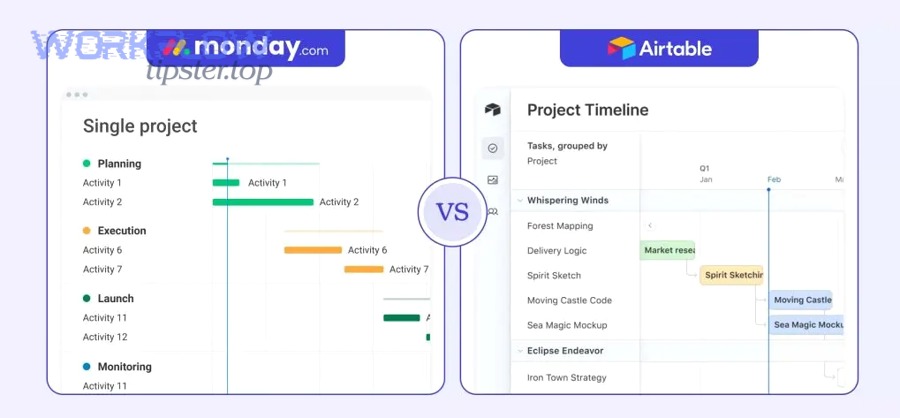
Here are the three reasons in more practical terms:
- No-code automations are built for common flows: “When a record is created or updated, do X in monday.com.” This covers most operational use cases.
- Sync tools add structure: when both systems must update each other, sync products often provide conflict rules, identity mapping, and resync controls.
- Embedding avoids complexity: if your team only needs to view Airtable inside monday.com, embedding is a lighter “connect” that reduces risk.
More importantly, no-code is no longer a niche choice: it’s becoming normal for teams to build workflows without writing software.
According to a Forrester analysis of the low-code and digital process automation market, in 2023 the combined market reached $13.2B, reflecting how widely these approaches are being institutionalized.
Which integration method should teams use to connect Airtable and monday.com?
There are 3 main types of Airtable ↔ monday.com connections—one-way automation, two-way sync, and embed-only visibility—based on the criterion of how data changes flow between systems.
However, teams don’t fail because they pick “the wrong tool name”; they fail because they pick the wrong data direction and then blame the platform when duplicates, conflicts, or missing updates show up.

To make the decision easier, this table contains the three methods and what each method is best at, so you can match intent to implementation.
| Method | Best for | Typical outcome | Risk to watch |
|---|---|---|---|
| One-way automation | Operational handoffs | Create/update items from records | Duplicates if identity is unclear |
| Two-way sync | Shared ownership | Updates flow both directions | Conflicts without rules |
| Embed/visibility | Shared reference | View Airtable inside monday | Not real syncing |
You can also use this section as part of a larger set of Automation Integrations decisions—similar to how teams evaluate workflows like gmail to pipedrive for sales handoffs, or convertkit to hubspot for marketing-to-CRM alignment, or even basecamp to bitbucket when projects must connect to engineering delivery.
Which option is best for one-way automation (Airtable → monday.com)?
One-way automation wins for speed, simplicity, and controlled scope because Airtable becomes the single trigger source and monday.com becomes the execution surface where items and updates are created consistently.
Specifically, you should choose one-way Airtable → monday when:
- Airtable is your “intake” or database of record (forms, requests, approvals, inventories).
- monday.com is your execution layer (tasks, owners, statuses, due dates).
- You can define a clear identity key (record ID, request number, email, ticket ID).
A strong pattern is: “Airtable view = what should sync.” You filter the view to only approved records, then trigger item creation from that view. This single decision reduces noise and prevents unintended items.
Which option is best for two-way sync (Airtable ↔ monday.com)?
Two-way sync is best for shared editing across teams because both systems can reflect updates, but only if you define ownership rules and a conflict strategy upfront.
For example, two-way sync is justified when:
- Operations updates status and dates in monday.com.
- Analysts or admins manage the canonical dataset in Airtable.
- Leadership reporting must stay consistent across both.
The hidden requirement is discipline: you must decide which fields are editable on which side. Two-way syncing without rules doesn’t create alignment; it creates confusion faster.
Which option is best if you only need visibility (embed Airtable in monday.com)?
Embed-only visibility is optimal when the goal is shared context, not shared data—because you can show Airtable views inside monday.com without transforming, duplicating, or synchronizing records.
Meanwhile, embedding is ideal when:
- You want a reference table (pricing, policy, SKUs, knowledge base) visible near work items.
- You don’t want to manage mapping, conflict rules, or update timing.
- Accuracy is achieved by “look at the source,” not “copy the source.”
Embedding is not a “worse sync”; it is the antonym of sync in intent: visualize instead of transfer.
How do you set up Airtable → monday.com automation step by step?
Airtable → monday.com automation works best in 6 steps—define the view, choose the trigger, connect accounts, map fields, test with a controlled batch, and then activate monitoring—so new Airtable records reliably become monday.com items without duplicates.
Then, the fastest way to succeed is to build the smallest workflow that proves your mapping, and only afterward expand it to include “update” logic and extra columns.
Here is a practical step sequence you can follow regardless of platform:
- Step 1: Create a dedicated Airtable View called “To Sync.” Filter it intentionally.
- Step 2: Select a trigger: “New record in view” is usually safer than “new record anywhere.”
- Step 3: Choose the action: “Create item” (board + group) in monday.com.
- Step 4: Map fields to columns (name, status, owner, date, link back).
- Step 5: Test with 3–10 sample records, confirm formatting and required columns.
- Step 6: Turn it on, add alerts/monitoring, and define your duplicate-prevention rule.
What trigger should you use in Airtable (new record, updated record, filtered view)?
You should use a filtered view trigger first because it gives you control over what “counts” as sync-eligible, which reduces accidental item creation and makes debugging predictable.
More specifically, choose among these triggers based on intent:
- New record in a view: best for intake pipelines (requests, form submissions).
- Updated record in a view: best when Airtable is the governance layer and changes should push to monday.
- Scheduled export/run: best when your team prefers batching over real-time noise.
A reliable pattern is to require a boolean field like “Approved = Yes” so only approved records appear in the “To Sync” view.
How do you map Airtable fields to monday.com columns correctly?
You map Airtable fields to monday.com columns correctly by aligning field type → column type, enforcing a consistent formatting rule, and setting defaults for missing values so the created item is usable the moment it appears.
For example, this mapping style is usually stable:
- Airtable single line text → monday text column
- Airtable single select → monday status column (ensure labels match)
- Airtable date → monday date column (confirm timezone behavior)
- Airtable collaborator/user → monday people column (if supported by your tool)
To keep the hook-chain tight, always include a “Backlink” field: store the Airtable record URL in a monday link/text column so anyone can trace the item to its origin.
How do you prevent duplicates when creating monday.com items?
You prevent duplicates by using one unique key (and treating it as the identity of the workflow), then using that key to decide “update vs create” rather than always creating new items.
Besides choosing a unique key, apply one of these practical approaches:
- Store monday Item ID back in Airtable: after item creation, write the created item ID into a field like “monday_item_id.” Future runs update that item instead of creating a new one.
- Use an “idempotency” rule: only create an item if “monday_item_id is empty.”
- Use a dedicated “Sync Status” field: (Pending → Created → Updated) so the workflow state is explicit.
According to a Zapier survey report on automation benefits, a majority of digital marketers who use automation say it saves time, showing why duplicate prevention matters: time saved disappears when teams spend hours cleaning up mis-created work.
How do you set up monday.com → Airtable automation (the reverse direction)?
monday.com → Airtable automation works best when you treat monday.com as the operational “event source” and push structured outcomes to Airtable in 5 steps: choose the board event, select create/update behavior, map columns to fields, test with edge cases, and enforce a record identity rule.
Next, the core decision is whether monday creates new Airtable records (for net-new work) or updates existing records (for ongoing work).
A common reverse-flow example is: “When an item moves to Done, update the Airtable record for reporting.”
Which monday.com events should trigger updates to Airtable?
You should trigger updates to Airtable from monday.com events that represent meaningful state changes, such as status transitions, date changes, or ownership changes, rather than every minor edit.
For example, these triggers are usually high-signal:
- Item created: creates a new Airtable record for tracking or reporting.
- Status changed: updates lifecycle stage in Airtable (New → In Progress → Done).
- Date changed: updates due date or delivery date for reporting accuracy.
- Item moved to group: reflects pipeline stage changes (Backlog → Active → Shipped).
The guiding principle is “events, not edits.” If the trigger fires too often, your team will distrust the dataset.
How do you map People/Status/Date columns into Airtable fields?
You map People/Status/Date columns into Airtable fields by standardizing labels, normalizing formats, and deciding what happens when a value is blank or unknown.
More specifically:
- People → collaborator/email: if direct collaborator mapping is unreliable, store an email string and maintain a lookup table in Airtable.
- Status → single select: align labels exactly; if monday has “Stuck,” Airtable must also contain “Stuck” (or you must translate it).
- Date → date field: define timezone expectations; treat dates as dates (not text) whenever possible.
If your pipeline depends on clean reporting, add validation rules in Airtable (required fields, controlled selects) so the incoming data stays consistent.
What should you compare before choosing one-way vs two-way sync?
One-way sync wins in simplicity and governance, two-way sync is best for shared editing across teams, and embed-only visibility is optimal for read-only context—so the “best” choice depends on ownership, conflict risk, and operational speed.
To sum up this decision correctly, compare these criteria before you commit to a tool setup that’s hard to unwind.
Key criteria worth comparing:
- Ownership: who is allowed to edit which fields?
- Conflict tolerance: what happens when both sides change the same value?
- Auditability: can you trace an item back to its originating record?
- Scale: how many records/items per day will flow through?
- Operational latency: do you need real-time or “every 15 minutes” is fine?
Which system should be the source of truth: Airtable or monday.com?
Airtable should be the source of truth when you need structured, relational data governance, while monday.com should be the source of truth when you need execution clarity and accountability—and hybrid setups require field-level ownership to avoid chaos.
For example:
- Airtable as source of truth: inventories, master customer lists, canonical request intake, structured reporting.
- monday.com as source of truth: task status, assignees, daily execution notes, workflow stages.
A practical compromise is to set ownership by field:
- Airtable owns IDs, structured attributes, and validated categories.
- monday owns status, owner, due dates, and execution notes.
This field-level rule is what makes two-way sync survivable.
How often should the sync run (real-time vs scheduled)?
Real-time sync is best for fast-moving operational workflows, while scheduled sync is best for reporting stability and reduced noise—and the right choice depends on how quickly decisions must reflect changes.
For example:
- Real-time or near real-time: support queues, high-volume intake, time-sensitive handoffs.
- Scheduled (every 15–60 minutes): dashboards, analytics refresh, low-urgency updates.
According to a Gartner press release on software engineering trends, organizations are increasingly relying on automation and assistant tools to shift human effort toward higher-value work, which makes it important to pick a sync frequency that supports the workflow rather than distracting it.
What are the most common problems when syncing Airtable to monday.com—and how do you fix them?
There are 3 most common Airtable-to-monday sync problems—field/column mismatch, slow or missing updates, and duplicate items—based on the criterion of where workflows typically break: schema, timing, and identity.
Moreover, nearly every “my sync is broken” case becomes easier when you debug in this order: confirm the trigger scope, confirm mapping, then confirm identity rules.
Why are some Airtable fields not syncing into monday columns?
Some Airtable fields don’t sync because the field type cannot be mapped, the value is empty or invalid, or the monday column configuration expects a different format.
Specifically, fix this by:
- Confirm field types: multi-selects, long text, attachments, and linked records may need special handling.
- Normalize values: ensure status labels match; avoid trailing spaces and inconsistent casing.
- Set defaults: if a required monday column has no value, the item may still create but appear “broken.”
If a field is important but tricky (like linked records), replace it with a “reference link” or a “flattened text summary” that preserves meaning without breaking mapping.
Why are updates not reflecting (or reflecting too slowly)?
Updates don’t reflect because the automation uses the wrong trigger (watching the wrong view), the sync frequency is scheduled rather than near real-time, or the workflow is failing silently due to permissions or rate limits.
In addition, fix this with a tight checklist:
- Check the trigger scope: if you rely on a view, the record must enter that view to trigger.
- Confirm polling intervals: scheduled sync means “later,” not “now.”
- Check permissions: the connected account must access the base/board and edit the required fields.
- Add monitoring: alerts on failures prevent long periods of unseen drift.
To keep trust high, publish a simple internal rule: “If it’s urgent, check the source of truth first.”
Why are duplicates happening in monday.com?
Duplicates happen because the workflow can’t recognize it already created an item, the trigger reprocesses records, or the automation always “creates” instead of switching to “update.”
More importantly, solve duplicates by enforcing identity:
- Use a unique key: request ID, ticket ID, or record ID that never changes.
- Store the monday Item ID in Airtable: once stored, future updates target the same item.
- Prevent re-entry into the trigger view: move synced records out of the “To Sync” view by setting a Sync Status field.
According to a Forrester blog on low-code and process automation market growth, the institutionalization of low-code is driven by repeatable, governed patterns—duplicate prevention is exactly the kind of governance that turns “automation” into a reliable system.
Contextual border: Up to this point, you’ve learned how to connect Airtable to monday.com in a way that matches search intent—setup, mapping, direction, and troubleshooting. Next, we expand into micro-level optimization: conflicts, attachments, limits, and scaling rules.
How do you optimize an Airtable ↔ monday.com sync for complex workflows?
You optimize an Airtable ↔ monday.com sync by applying 4 advanced practices—conflict rules, attachment strategy, reliability controls, and “embed vs sync” governance—so the integration stays stable under growth and doesn’t degrade into silent data drift.
Below, these micro-level decisions are what separate a workflow that “works today” from one that still works after six months of team changes.
How do you handle conflicts when both sides can edit the same data?
You handle conflicts by declaring a source-of-truth rule per field and enforcing it consistently so simultaneous edits don’t create unpredictable outcomes.
Specifically, use one of these conflict models:
- Field ownership model: Airtable owns structured fields; monday owns execution fields. Changes outside ownership are overwritten.
- Last-write-wins model: fastest to implement, risky for critical data (use only for low-stakes fields).
- Approval gate model: monday edits are staged until an Airtable owner approves and writes back.
A practical “starter” rule set that teams understand quickly:
- Airtable edits: IDs, categories, pricing, canonical attributes.
- monday edits: status, owner, due date, execution notes.
When conflicts still happen, don’t guess—log the last changed time and the editor identity, then resolve based on policy.
How do you sync attachments and rich fields without breaking the workflow?
You sync attachments and rich fields by choosing a link-based strategy (store URLs) or a selective sync strategy (sync only essential files), because attachments are the most common reason integrations slow down or fail at scale.
More specifically, these approaches stay robust:
- Store a file URL instead of the file: keep the canonical file in one place, sync the link to the other system.
- Sync only “final” artifacts: e.g., only attach signed PDFs, not every draft.
- Use a rich-text summary field: flatten complex linked data into a readable summary for execution context.
This strategy also improves governance: teams stop duplicating sensitive documents across tools.
How do you reduce rate-limit errors and improve reliability (retries/batching)?
You reduce rate-limit errors by batching updates, limiting trigger scope, and designing retries that are safe (idempotent), so automation does not create cascades of duplicates when it retries under load.
To illustrate, reliability improves when you:
- Batch when possible: schedule bulk updates for reporting fields.
- Reduce trigger noise: trigger only from a filtered view or meaningful status changes.
- Implement retry safety: retries must “update if exists” rather than “create again.”
- Monitor failures: alert on error spikes so drift doesn’t accumulate.
According to a McKinsey report on automation and productivity, automation can materially lift productivity growth—yet the benefits depend on operationalizing automation reliably, which is why monitoring and governance are part of optimization, not “nice-to-have.”
When should you use “embed Airtable” as an antonym of “syncing data”?
You should use embedding as the antonym of syncing when you need shared reference without data transfer—for example, when the risk of mismatch is high, but the value of visibility is immediate.
For example, embedding is the better choice when:
- Teams must see a canonical table (policies, SKUs, pricing tiers) without editing it in monday.
- Sync rules would be complex (many linked tables, heavy attachments, frequent minor edits).
- Compliance or governance prefers a single data location.
In short, syncing is about moving and updating data; embedding is about keeping attention aligned on the same source—two opposite intents that both qualify as “connecting,” depending on what the team truly needs.