


If your goal is to get SurveyMonkey responses into Airtable automatically, the most reliable approach is to use an automation connector that triggers on “New Response” and creates (or updates) an Airtable record—so your survey data stays fresh without manual exporting.
Next, you’ll want to choose the “right” integration method based on your workflow: basic response capture, deduplication, notifications, and routing to downstream tools (like tasks and follow-ups) all change how you should structure your base and mappings.
Then, you’ll avoid the most common failures by planning for field types, missing answers, and duplicates before you turn anything on—because survey data almost always includes optional fields, repeated submissions, and inconsistent formats.
Introduce a new idea: below is a complete, step-by-step framework to connect SurveyMonkey to Airtable, compare automation vs manual export, and extend the system into a durable operations workflow.
Can you integrate SurveyMonkey with Airtable?
Yes—you can integrate SurveyMonkey with Airtable, and it works best when you (1) use a supported trigger like “New Response,” (2) map answers into stable Airtable fields, and (3) prevent duplicates with a unique key such as Response ID or Email + Timestamp.
To begin, that “yes” becomes practical only when you decide how you’ll connect the two apps, so let’s break down what is native vs what requires a connector.


Is there a native Airtable–SurveyMonkey integration?
No—Airtable and SurveyMonkey typically do not offer a universal “native” two-click direct integration for response syncing, so most teams rely on external connectors that provide triggers and actions for both apps.
In practice, this means your integration “engine” sits in the middle (for example, a connector that listens for new SurveyMonkey responses and then writes records into Airtable).
Do you need a third-party Automation Integrations tool?
Yes—if you want continuous syncing (not occasional CSV imports), you generally need an Automation Integrations platform that can run a trigger → action workflow (e.g., “New Response Notification With Answers” → “Create Record”).
More specifically, this middle layer matters because it handles authentication, polling/webhooks (depending on the tool), field mapping, retries, and logs—features you don’t get with a one-off export.
What permissions and plans are required?
Yes—permissions matter, and plan limits can matter, because your connector must be allowed to read SurveyMonkey responses and create/update Airtable records; some triggers can also be restricted by SurveyMonkey plan level depending on the specific trigger you choose.
In addition, you should treat permissions as part of your data governance: only connect the minimum scopes needed, and keep access within the smallest admin group that maintains the workflow.
What does “Airtable to SurveyMonkey” integration mean?
“Airtable to SurveyMonkey” integration is a workflow that moves structured survey responses (SurveyMonkey) into a relational-style table or database (Airtable) so teams can track, segment, assign, and report on feedback in one operational system rather than a static export.
Next, once you see it as a data pipeline, you can design it like one—starting with what data moves and how triggers actually behave.
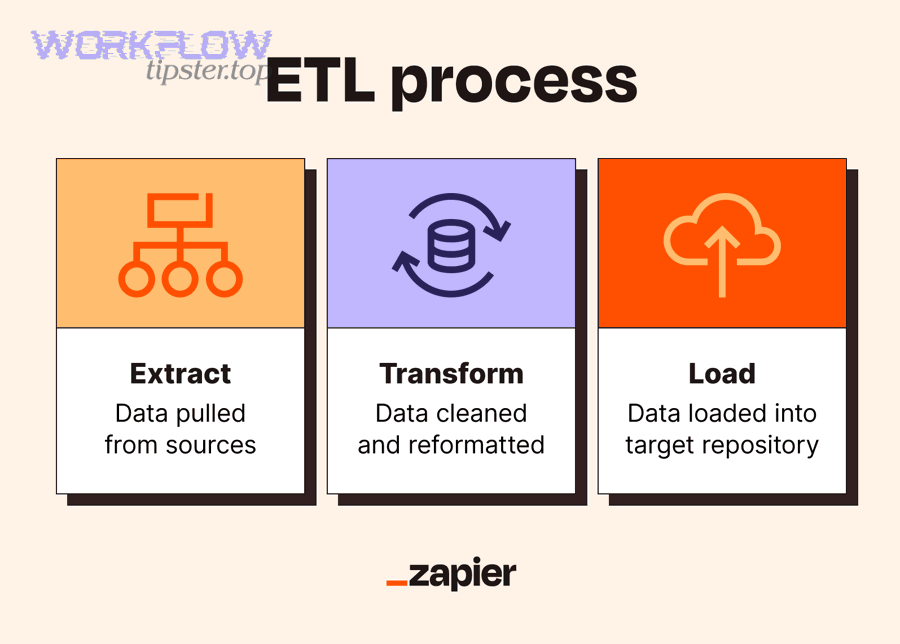
What data moves between SurveyMonkey and Airtable?
Survey data typically moves as: respondent metadata (timestamps, collector info, response ID) + question answers (single choice, multiple choice, text, NPS-style rating, etc.) + custom variables (if you use them), and then becomes Airtable fields you can sort, filter, link, and aggregate.
To illustrate, you’ll get better long-term reporting if you map answers into consistent field types:
- Single-select answers → single select fields
- Multi-select answers → multiple select fields
- Ratings → number fields (with bounds)
- Open text → long text fields
- Email/phone → single line text (or dedicated validation pattern)
How does the trigger–action model work?
A trigger–action model works like this: when SurveyMonkey detects a qualifying event (e.g., a new response), the connector pulls that response payload, then performs an Airtable action (e.g., create a record, or find-and-update an existing one).
More importantly, this model is why field mapping is everything: the workflow is only as “accurate” as the logic that translates SurveyMonkey answers into Airtable schema.
What are the main ways to connect SurveyMonkey and Airtable?
There are 4 main ways to connect SurveyMonkey and Airtable: (1) no-code connectors, (2) scenario builders, (3) custom API/webhooks, and (4) manual CSV export/import—chosen based on speed, maintainability, and governance needs.
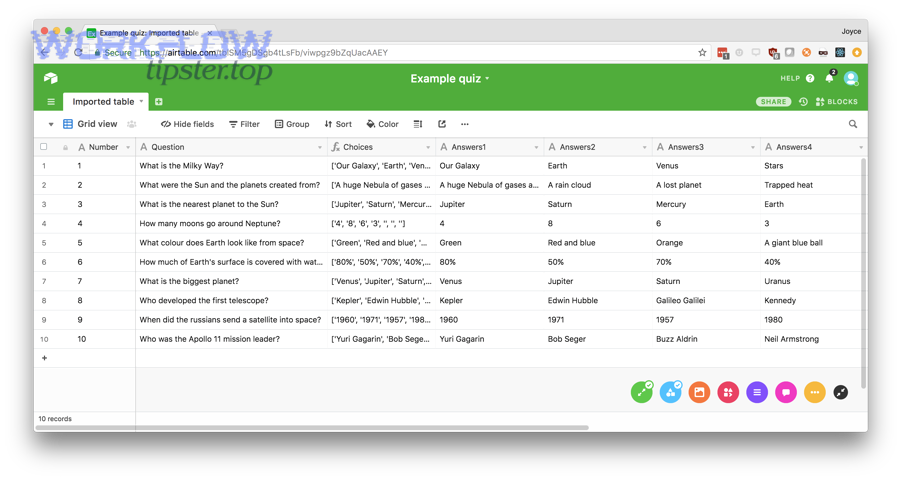
Then, choose the method that fits your team’s capabilities and the reliability you need.
No-code connector (Zapier)
This is the fastest path for most teams: set a SurveyMonkey trigger (new response) and an Airtable action (create record), then map answers into fields; Zapier explicitly supports Airtable + SurveyMonkey workflows of this type.
Key advantage: quick setup and stable “template-like” workflows.
Key risk: you must design dedupe logic (otherwise repeated submissions can create repeated records).
Make.com scenario with modules
Scenario builders are useful when you need more branching, transformations, or multi-step routing (e.g., score response → route to team → notify channel → write record → update summary table).
Practically, this becomes valuable when your SurveyMonkey payload needs cleaning (normalizing options, splitting multi-select strings, enriching with lookups) before Airtable storage.
Custom API + webhooks
This is best when you require full control, custom validation, or enterprise-grade logging: you receive survey events (polling or webhook-like patterns depending on capability), validate payload, then write to Airtable via API.
However, it increases engineering cost and ongoing maintenance compared to a connector.
CSV export/import workflow
This is the simplest, but it’s not “integration”—it’s a periodic transfer. It can work for monthly analysis, but it fails for operational workflows that require speed, alerts, and assignment.
In short, if your team needs near-real-time action on feedback, CSV is usually the wrong tool.
How do you set up SurveyMonkey → Airtable response sync step by step?
A practical SurveyMonkey → Airtable sync is: (1) design an Airtable table schema, (2) connect SurveyMonkey as the trigger, (3) map answers to fields, and (4) test + add deduplication + turn on monitoring so every new response becomes a usable Airtable record.

Below, I’ll walk you through a connector-based build because it’s the highest-success route for most teams.
Prepare your Airtable base and fields
Start by building a dedicated table like Survey Responses with these root fields:
- Response ID (single line text) — primary dedupe key if available
- Submitted At (date/time)
- Email (single line text)
- Overall Score / NPS (number)
- Primary Topic (single select)
- Comments (long text)
- Source / Collector (single select or text)
Then add operational fields (these turn raw survey data into action):
- Status (New / In Review / Closed)
- Owner (collaborator)
- Priority (Low/Med/High)
- Next Step (single select)
- Follow-up Due (date)
Specifically, set field types early. If you map a number into a text field now, you’ll pay later when reporting gets messy.
Connect SurveyMonkey trigger and map answers
In your connector:
- Choose SurveyMonkey as the trigger app.
- Select the trigger event that includes new responses (often “New Response Notification With Answers” or similar naming).
- Connect your SurveyMonkey account and select the survey.
- Choose Airtable as the action app.
- Pick “Create Record” (or “Update Record” if you’re doing find-and-update).
- Map each SurveyMonkey answer to its matching Airtable field.
To illustrate a clean mapping pattern:
- SurveyMonkey “Email” → Airtable Email
- SurveyMonkey “Q1: Topic” → Airtable Primary Topic
- SurveyMonkey “Q2: Score” → Airtable Overall Score
- SurveyMonkey “Open text” → Airtable Comments
- SurveyMonkey metadata “Date/Time” → Airtable Submitted At
Test, handle duplicates, and turn on
Testing isn’t optional—because a successful “first run” can still hide problems like blank optionals or multi-select formatting.
Use this dedupe pattern:
- Preferred: store SurveyMonkey Response ID in Airtable and prevent duplicates by “find record by Response ID” before create.
- Fallback: dedupe by Email + Submitted At (or Email + Survey Name + Date) when Response ID isn’t accessible.
Then turn on:
- Retries / error handling (if your tool supports it)
- Logging (keep at least 14–30 days of run history)
- Alerts for failed runs
Add alerts (gmail to slack) and routing (airtable to asana)
Once responses land in Airtable, you can operationalize them:
- If score ≤ threshold → send an internal alert .
- If topic = “Bug” → create a task workflow (similar to airtable to asana patterns) and assign it to the owner.
- If topic = “Request” → tag product area and set follow-up due dates.
This is where your integration stops being “data movement” and becomes a true operations loop.
Airtable sync vs manual export: which is better for reporting and data quality?
Airtable sync wins in speed and operational reporting, while manual export can be acceptable for occasional analysis; the deciding factors are freshness, error risk, and scalability—because automation reduces repeated manual handling but requires upfront schema and monitoring.
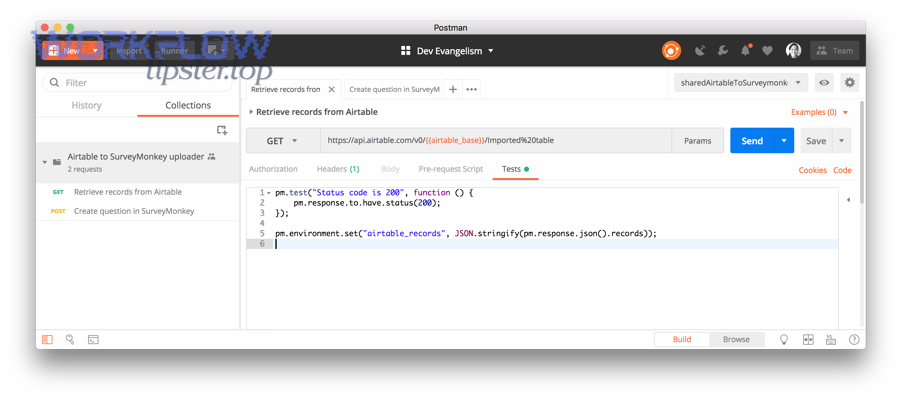
However, the real comparison becomes clearer when you evaluate outcomes that teams actually feel day-to-day.
Speed and freshness
Automation gives you near-immediate availability of responses in Airtable (triggered workflows), while manual export is always delayed by human schedule.
That difference matters when surveys drive actions: customer recovery, onboarding fixes, lead routing, or internal QA.
Accuracy and error risk
Manual steps add opportunities for mistakes: wrong file, wrong version, wrong mapping, missed rows, or overwriting.
According to a study by the University of Aarhus from the Research Unit for General Practice, in 1998, automated forms processing was evaluated against manual data entry with measurable differences in error rates depending on field type (choice fields performed very well; numeric recognition varied), showing why automated capture plus validation rules is critical for accuracy.
Cost and scalability
Manual export scales linearly with survey volume: more responses means more time, more checking, more cleaning.
Automation scales better—but only if you build:
- consistent field schema
- dedupe rules
- error alerts
- permission controls
To sum up, automation is usually the better long-term bet for teams, while manual export is only “cheaper” when your workflow is small and non-operational.
How do you troubleshoot common issues in Airtable–SurveyMonkey automations?
You troubleshoot Airtable–SurveyMonkey automations by (1) verifying payload-to-field mapping, (2) adding validations for optional answers, and (3) controlling duplicates and retries—because most failures come from missing fields, inconsistent formats, and repeated submissions.
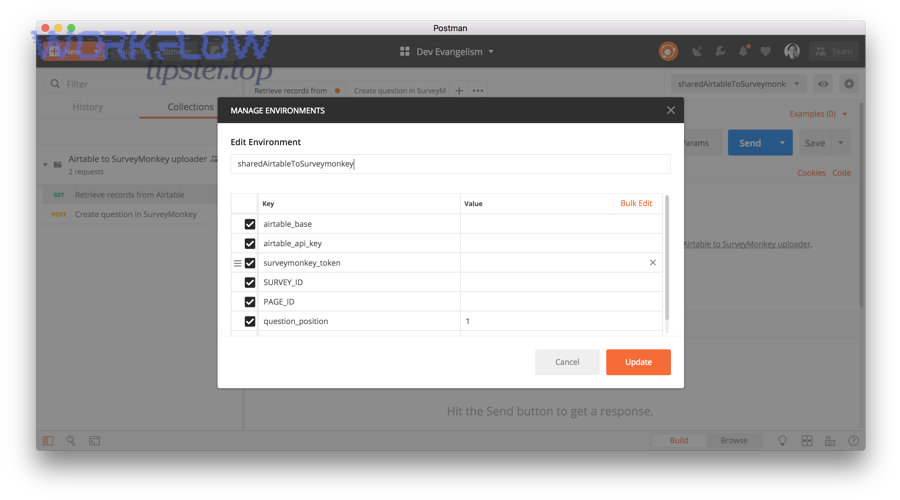
Next, use this issue-by-issue checklist to fix the root cause quickly.
Missing answers / blank fields
Cause: Survey questions are optional, hidden by logic, or not answered—so the connector sends blanks.
Fix:
- Map optional answers into fields that tolerate blanks (text, single select with empty allowed).
- Add conditional logic: “only write field if value exists.”
- Use default values in Airtable for operational fields (Status = New).
Duplicate records
Cause: multiple collectors, retakes, multiple submissions, or your workflow always “creates” instead of “find-and-update.”
Fix:
- Use Response ID as a unique key when available.
- If not, create a compound unique key field (Email + Survey + Date).
- Change action from “Create record” to “Find record” → “Update record” when appropriate.
According to a study by Purdue University from the Department of Computer Science, in 2007, duplicate record detection is defined as identifying multiple records that refer to one unique real-world entity and is typically preceded by data preparation/standardization (ETL-style steps), which is exactly why dedupe keys and normalization belong in your integration design.
Rate limits and failed runs
Cause: API limits, temporary outages, expired tokens, or too many responses arriving at once.
Fix:
- Enable connector retries where available.
- Add batching (process every X minutes) if real-time is not required.
- Monitor run history and set failure alerts.
Consent and sensitive data
Cause: collecting personal data (email/phone/free-text) without clear governance.
Fix:
- Minimize what you store in Airtable (store only what you use).
- Restrict base access and use view-level sharing carefully.
- Separate “PII table” from “analysis table” if you need broader visibility.
Contextual Border: The sections above fully answer the core intent—how to integrate SurveyMonkey responses into Airtable and choose automation vs manual export. The next section expands into advanced workflows and semantic extensions beyond the basic setup.
What advanced workflows can you build after the basic integration?
After the basic integration, you can build advanced workflows that (1) create dashboards and rollups, (2) trigger follow-ups and documents, and (3) enforce governance with standardized fields—turning raw survey responses into a repeatable operating system.
Next, use these extensions to deepen automation value without rebuilding your foundation.
Create dashboards and weekly summaries
Build a Metrics table and link responses to it, then:
- roll up averages by week
- group by topic, product line, or region
- trend NPS / satisfaction over time
This makes Airtable your “single pane” for survey operations, not just storage.
Generate docs (google docs to airtable) and follow-up emails
If certain response types require a standardized report:
- generate a response summary document and store the link in Airtable (a common pattern similar to google docs to airtable workflows)
- send follow-up templates based on topic and severity
The key is to keep your integration modular: response capture → enrichment → actions.
Two-way enrichment and tagging
You can enrich incoming survey responses by:
- matching email to an existing customer record
- tagging account tier
- assigning owner/team based on region
- linking to prior tickets or projects
This converts “survey answers” into “customer context.”
Governance: field standardization, audit trails, and permissions
To keep the system stable over time:
- freeze critical field names used in mappings
- use a change process for schema updates
- keep an “Integration Logs” table for run outcomes and exceptions
- audit who can edit automations vs who can edit data
In addition, if you manage multiple workflows, document them as a small library of Automation Integrations so future team members can maintain them confidently.