Aland Johnson
Founder & Editor-in-Chief
Company / Organization
Workflow Tipster
Experience / Skills
Workflow automation patterns, integration design, webhook/API troubleshooting, data mapping and normalization, document generation and e-sign flows, operational checklists and playbooks for popular software.
About Aland Johnson
Aland Johnson is an Automation & RevOps Consultant and Technical Writer, and he serves as the Founder & Editor-in-Chief of Workflow Tipster (workflowtipster.top)—a resource for bite-sized workflow tips, tool guidance, and troubleshooting solutions for popular software used by modern teams. From 2008 to 2012, Aland developed his foundation in information systems and workplace productivity tools, focusing on how businesses operationalize data across CRM, project management, customer support, and marketing platforms. During this period, he began documenting repeatable processes, building simple integrations, and learning the practical constraints that shape automation outcomes—such as inconsistent field formats, user permissions, and data quality issues. In 2013, Aland moved into hands-on operational support roles where reliability and speed mattered daily. He supported teams working across cloud-based tools, addressing recurring problems like login failures, permission mismatches, missing required fields, and data sync inconsistencies. Between 2014 and 2016, he expanded into cross-application workflow design, connecting systems through APIs and webhooks and establishing a structured troubleshooting method: reproduce the failure, isolate the failing hop, validate credentials and scopes, inspect payload shape, confirm rate-limit behavior, and implement safe retries with logging. From 2017 to 2019, Aland specialized further in RevOps enablement—helping organizations map business requirements into automation-ready schemas and governance. This phase emphasized durable system design: clear ownership of fields and objects, consistent naming conventions, deduplication strategies, and measurable KPIs. In 2019, he earned the Salesforce Certified Administrator credential, reinforcing his expertise in CRM configuration, permissioning, reporting, and operational controls that keep automations stable as teams and pipelines evolve. In 2020, Aland broadened his marketing operations skill set by completing the HubSpot Marketing Software Certification, deepening his work in lifecycle stages, attribution, segmentation, and automated communications—areas where subtle property mapping and timing rules often cause downstream failures. Between 2021 and 2022, he concentrated on integration resilience at scale: reducing duplicates, adding idempotency safeguards, standardizing payload validation, and creating runbooks for incident response when webhooks fail or third-party APIs degrade. In 2023, Aland earned the Zapier Certified Expert credential and continued refining advanced automation patterns across multi-step workflows, conditional routing, and cross-tool data normalization. That same year, he formalized his editorial approach: every guide must be reproducible, version-aware, and supported by verification steps so readers can confirm success rather than “guess and hope.” Since 2024, Aland has been building Workflow Tipster as a practical knowledge base for operators, founders, and teams who need quick, reliable answers. His content emphasizes clarity and measurability—short, actionable tips when speed matters, and deeper troubleshooting playbooks when reliability is the priority. Aland’s guiding standard remains consistent: state the goal, show the exact steps, surface common failure modes, and include a prevention checklist so the workflow stays healthy after the fix.
Related topics
Latest posts by Aland Johnson


Automate Airtable → Google Docs → Dropbox → PandaDoc Document Signing for Operations Teams: A Step-by-Step Workflow Guide (Manual vs Automated)
If you want faster approvals without losing control, the best move is to automate an Airtable → Google Docs → Dropbox → PandaDoc document signing workflow that turns clean data into a branded document, stores the final file in the right place, and sends it for signature with tracking from start to finish. Next, you’ll need to clarify what “good” looks like for this workflow: which Airtable fields are the source of truth, how Google Docs templates should be structured, and how Dropbox storage should be named so your team can find the latest signed version in seconds instead of minutes.
Aland Johnson February 3, 2026 at 3:01 AM
Automate Airtable to Google Docs to Dropbox to Dropbox Sign Document Signing (Automated vs Manual) for Ops Teams
Most teams can turn “Airtable to Google Docs to Dropbox to Dropbox Sign document signing” into a repeatable system by standardizing one template, one storage path, and one signing trigger. The goal is simple: create the right document from the right Airtable record, store it in the right Dropbox folder, and send it for signature with the right recipients—without rebuilding the workflow every time.
Aland Johnson February 3, 2026 at 2:48 AM
Automate eSignature Document Signing: Airtable → Google Docs → Dropbox → DocuSign Workflow Guide for Sales Ops & Admin Teams
An automated eSignature document signing workflow is the fastest way to turn a single Airtable record into a ready-to-sign agreement—generated in Google Docs, stored in Dropbox, sent through DocuSign, and tracked back to the same record without manual handoffs. Next, this guide shows what you must set up first (fields, permissions, templates, and storage rules) so your team can generate consistent documents that don’t break when a record changes or a signer replies late.
Aland Johnson February 3, 2026 at 2:34 AM
Automate No-Code Document Signing (Not Scripted): Airtable → Google Docs → Box → PandaDoc Workflow for Sales & Ops Teams
If you want a dependable, no-code document signing system, the fastest path is to treat Airtable as the source of truth , generate documents from approved templates in Google Docs , store and govern files in Box , and send them for legally binding signature in PandaDoc —then write the signing status back to Airtable so your pipeline stays accurate. Next, you’ll see how the four tools divide responsibilities so Sales and Ops don’t fight the system: Airtable controls data and statuses, Google Docs controls formatting and template logic, Box controls storage rules and versions, and PandaDoc controls recipients, signatures, and audit history.
Aland Johnson February 3, 2026 at 2:19 AM
Automate (Not Manual) eSignature Document Signing with Airtable → Google Docs → Box → Dropbox Sign for No-Code Ops Teams
If you want to automate (not manual) eSignature document signing with Airtable → Google Docs → Box → Dropbox Sign , you can build a dependable workflow that generates a contract from record data, stores the file in Box, sends it to the right signer in Dropbox Sign, and writes signing status back to Airtable—without writing code. The first priority is getting the minimum reliable setup right: the Airtable base must hold clean “source-of-truth” fields, the Google Docs template must be structured for mapping, Box must enforce consistent access, and Dropbox Sign must have a repeatable request pattern that never duplicates sends.
Aland Johnson February 3, 2026 at 2:06 AM
Automate vs Manual Document Signing: Airtable → Google Docs → Box → DocuSign Workflow Guide for Operations Teams
Automating document signing across Airtable → Google Docs → Box → DocuSign means you generate a clean agreement from structured data, route it for signature with a trackable audit trail, and store the signed copy in the correct Box folder—without hand-copying fields or chasing attachments. Next, you’ll learn whether this workflow is “worth it” for operations teams by comparing it to manual processes: fewer copy/paste errors, faster turnaround, and clearer status visibility across every record, envelope, and file.
Aland Johnson February 3, 2026 at 1:54 AM
Automate Contract eSignature Workflows: Airtable → DocSend → OneDrive → PandaDoc Document Signing Guide for Sales Ops Teams
You can automate contract eSignatures with an Airtable → DocSend → OneDrive → PandaDoc document signing workflow by standardizing your Airtable data, generating a consistent document package, controlling storage and permissions in OneDrive, and sending a mapped PandaDoc template to the right signers at the right time. Then, you’ll get better outcomes when you treat each tool as a specialist: Airtable as the system of record, DocSend as the controlled sharing and engagement layer, OneDrive as the file and permission backbone, and PandaDoc as the signature engine that turns templates into signed, trackable agreements.
Aland Johnson February 3, 2026 at 1:40 AM
Automate eSignature Document Signing: Airtable → DocSend → OneDrive → Dropbox Sign Workflow Guide for Operations Teams (Document Signing = eSignature)
An Airtable → DocSend → OneDrive → Dropbox Sign workflow is the fastest way for Operations teams to turn a “ready-to-send” record into a signed, archived agreement—by standardizing intake in Airtable, packaging the document experience in DocSend, controlling storage in OneDrive, and executing signatures in Dropbox Sign. Next, you’ll see what each tool contributes to the chain and why this sequence helps you reduce rework: Airtable organizes demand, DocSend structures the document experience, OneDrive governs the file lifecycle, and Dropbox Sign enforces the signing step with a verifiable audit trail.
Aland Johnson February 3, 2026 at 1:27 AM
Automate Secure DocSend-to-DocuSign Document Signing with Airtable → OneDrive (Manual vs Automated Guide for No-Code Ops Teams)
Automating Airtable → DocSend → OneDrive → DocuSign document signing means you turn one Airtable record into a controlled document lifecycle—generate the file, share it securely for review, store a canonical copy, send for signature, and write every status change back to Airtable so nothing gets lost. To make that automation work in real operations, you need a clear role for each tool in the chain: Airtable as the system of record, DocSend as the secure sharing and engagement layer, OneDrive as the canonical storage layer, and DocuSign as the signing and audit layer—each with a defined “input → action → output.
Aland Johnson February 3, 2026 at 1:13 AM
Automate (Not Manual) Airtable → DocSend → Google Drive → PandaDoc Document Signing Workflow for Sales Ops & RevOps
You can automate the entire Airtable → DocSend → Google Drive → PandaDoc document signing workflow by treating each step as a “handoff” that produces one reliable output (a file, a link, or an ID) and then writing status updates back to Airtable as the single source of truth. Next, the key to making this workflow dependable is understanding what each layer is responsible for—Airtable as your system of record, DocSend as controlled sharing and engagement tracking, Google Drive as storage and permissions, and PandaDoc as the signing engine and finalization layer.
Aland Johnson February 3, 2026 at 12:59 AM
Automate (Not Manual) Airtable → DocSend → Google Drive → Dropbox Sign Document Signing for Ops Teams
If you’re handling proposals, NDAs, onboarding packets, or internal approvals, an automated Airtable → DocSend → Google Drive → Dropbox Sign chain can turn a messy “email-and-chase” process into a predictable signing pipeline. You’ll collect clean data in Airtable, distribute the right document through DocSend, store the source-of-truth file in Google Drive, and send signature requests through Dropbox Sign—without re-copying details into five different tools.
Aland Johnson February 3, 2026 at 12:46 AM
Automate & Streamline Document Signing Workflows: Airtable → DocSend → Google Drive → DocuSign for Sales Ops Teams
If you want a repeatable way to move from “deal data in Airtable” to “signed contract stored correctly and logged back to the record,” this workflow is the practical blueprint: capture the right fields once, generate or select the right file, control sharing, send for signature, and sync status back automatically. Then, you’ll need to choose the implementation method that fits Sales Ops reality—fast to deploy, easy to maintain, and resilient when approvals, routing order, and permissions inevitably get messy.
Aland Johnson February 3, 2026 at 12:32 AM
Build an Airtable → DocSend → Dropbox → PandaDoc Document Signing Workflow for Ops Teams (Secure Automation Pipeline Guide)
An Airtable to DocSend to Dropbox to PandaDoc document signing workflow is a practical way to turn a messy “request → review → approve → sign” process into a trackable, secure automation pipeline that reduces manual follow-ups and keeps every file version tied to a single record. Next, you’ll learn what this four-tool pipeline actually does end-to-end, why teams choose it over “just emailing PDFs,” and how the handoffs (DocSend viewing → Dropbox storage → PandaDoc signing) connect back to Airtable as the system of record.
Aland Johnson February 2, 2026 at 6:35 PM
Automate Airtable → DocSend → Dropbox → Dropbox Sign Document Signing for Sales & RevOps Teams (Manual vs Automated)
If you want faster deal cycles, fewer handoffs, and cleaner compliance, you can automate an Airtable → DocSend → Dropbox → Dropbox Sign document signing flow by designing a stable Airtable data model, standardizing document versions in Dropbox, using DocSend for controlled sharing + engagement signals, and routing signatures through Dropbox Sign with write-backs to Airtable. Next, you’ll need to understand what each tool is responsible for in the chain—Airtable as the system of record, DocSend as the controlled delivery + analytics layer, Dropbox as the file source of truth, and Dropbox Sign as the legally-binding signing engine—so your automation doesn’t collapse when one link changes.
Aland Johnson February 2, 2026 at 6:21 PM
Automate an End-to-End Airtable → DocSend → Dropbox → DocuSign Document Signing Workflow (No Manual Steps) for Sales & Ops Teams
If you want a reliable, no-touch document signing pipeline, the most effective approach is to treat Airtable as your system of record, generate a clean “ready-to-sign” PDF, route it through DocSend and Dropbox with consistent naming/version rules, then send and track the DocuSign envelope back in Airtable. Next, the key to making this workflow actually usable for Sales & Ops is clarity: you need one agreed lifecycle (Draft → Generated → Shared → Sent → Completed) and one owner for each step, even if the step is automated.
Aland Johnson February 2, 2026 at 6:06 PM
Automate No-Code (Not Manual) Document Signing: Airtable → DocSend → Box → PandaDoc Workflow for Sales & RevOps Teams
You can automate a no-code (not manual) document signing workflow by using Airtable as your system of record, DocSend for controlled sharing and engagement tracking, Box for governed storage, and PandaDoc for templated eSignatures—so a single Airtable record can reliably become a sent, signed, and archived agreement. Next, you’ll also want a clear model for how each tool “hands off” to the next—what data you pass, what link you store, and what status you update—so Sales and RevOps teams can see exactly where every deal document sits without chasing people in Slack.
Aland Johnson February 2, 2026 at 5:51 PM
Automate Airtable → DocSend → Box → Dropbox Sign Document Signing (vs Manual) for Ops Teams
Title analysis (Step 1.1): - Main keyword (keyword focus): airtable to docsend to box to dropbox sign document signing - Predicate (main verb/action): Automate - Relations Lexical used: Antonym (Automated vs Manual), plus Meronymy (the workflow is made of parts: Airtable, DocSend, Box, Dropbox Sign) If your goal is to stop chasing files, links, and signatures, yes—you can automate Airtable → DocSend → Box → Dropbox Sign document signing end-to-end by letting one “source of truth” record (Airtable) generate a shareable document experience (DocSend), store the master file (Box), and trigger a legally-auditable eSignature request (Dropbox Sign).
Aland Johnson February 2, 2026 at 5:36 PM
Automate an Airtable → DocSend → Box → DocuSign eSignature Workflow for Faster Contract Signing (Ops & RevOps Teams)
If you want contracts to move faster without losing control, the most reliable path is to automate a single “source-of-truth” workflow where Airtable drives the process, DocSend manages controlled sharing, Box governs storage, and DocuSign executes signatures end-to-end. Next, you’ll learn what this workflow actually is in practice, what must exist before you build it, and how to choose an integration approach that won’t collapse the moment your team scales from 10 envelopes a week to 200.
Aland Johnson February 2, 2026 at 5:24 PM
Automate PandaDoc Document Signing from Airtable → Confluence → OneDrive (Manual vs Automated) for Ops Teams
An Airtable → Confluence → OneDrive → PandaDoc document signing workflow helps operations teams turn a structured request (Airtable) into a readable approval trail (Confluence), a controlled storage location (OneDrive), and a legally trackable signature event (PandaDoc)—without losing context between tools. Next, you’ll see how to automate the core handoffs (record → page → document → signed PDF) so your team spends less time chasing links, renaming files, and copying statuses, and more time moving agreements to “signed.
Aland Johnson February 2, 2026 at 5:08 PM
Build a No-Code (Not Custom-Code) Document Signing Automation: Airtable → Confluence → OneDrive → Dropbox Sign for Ops Teams
Airtable → Confluence → OneDrive → Dropbox Sign document signing is best built as a controlled, no-code pipeline where an Airtable record becomes the “source of truth,” OneDrive hosts the canonical file, Confluence provides the process context, and Dropbox Sign executes signatures with trackable status updates. Then, you keep the workflow reliable by using clear statuses, strict permissions, and a single signing trigger that prevents duplicates.
Aland Johnson February 2, 2026 at 4:55 PM
Automate (Not Manual) Airtable → Confluence → OneDrive → DocuSign eSignature Workflow for Ops Teams
If you want documents signed faster without chasing people, the most reliable approach is to automate a single “hook chain” workflow: capture structured inputs in Airtable, publish context in Confluence, store the canonical file in OneDrive, and send that file through DocuSign for eSignature—then sync status and links back to Airtable. Next, this guide shows whether Ops teams can run that Airtable → Confluence → OneDrive → DocuSign eSignature workflow without custom code, including the exact prerequisites and the common blockers that make teams fall back to manual steps.
Aland Johnson February 2, 2026 at 4:41 PM
Automate Paperless Document Signing: Airtable → Confluence → Google Drive → PandaDoc Workflow for Ops Teams
Airtable → Confluence → Google Drive → PandaDoc document signing is a practical way to turn a single record update into a fully tracked, “paperless” eSignature process—so your team moves from request to signed agreement without copy-pasting, chasing approvals, or emailing attachments back and forth. Next, you’ll learn what this multi-app workflow actually is (and where each tool fits), so you can decide whether the chain adds clarity or just complexity—especially when Confluence is used as the collaboration and approval layer.
Aland Johnson February 2, 2026 at 4:25 PM
Automate Document Signing: How to Build an Airtable → Confluence → Google Drive → Dropbox Sign Workflow for Ops & HR Teams (No-Code vs Manual)
You can build an Airtable → Confluence → Google Drive → Dropbox Sign document signing workflow by treating Airtable as the system of record, Confluence as the template-and-approval hub, Google Drive as the storage layer, and Dropbox Sign as the execution layer for eSignature requests—then connecting the stages with consistent IDs, links, and statuses. Next, if your goal is to eliminate bottlenecks, the most important design decision is where you place human approvals: inside Confluence as a policy gate, inside Airtable as a queue gate, or both—because that choice determines how “automated” the workflow can be without losing control.
Aland Johnson February 2, 2026 at 4:10 PM
Automate Paperless Contract Signing: Airtable → Confluence → Google Drive → DocuSign Workflow (vs Manual Paperwork)
If you want a reliable way to move from “request approved” to “contract signed” without chasing files and copy-pasting fields, the Airtable → Confluence → Google Drive → DocuSign document signing workflow is one of the cleanest automation patterns to implement. In this guide, you’ll learn what each app does in the chain, which system should own which data, and how to design the handoffs so you don’t lose context between stakeholders.
Aland Johnson February 2, 2026 at 3:57 PM
Automate Document Signing: Airtable → Confluence → Dropbox → PandaDoc Workflow for Operations Teams (No-Code vs Manual)
Airtable → Confluence → Dropbox → PandaDoc document signing is best built as a single, traceable workflow: Airtable captures the request and metadata, Confluence creates the “source-of-truth” page, Dropbox stores the controlled file, and PandaDoc handles sending, signing, and status tracking—so your team can move from request to signed PDF with fewer handoffs. Next, the key to making this workflow reliable is understanding the “handoff points” between each tool (record → page → file → signature) and standardizing what data and files move across those handoffs, so the signing chain stays consistent even when volume increases.
Aland Johnson February 2, 2026 at 3:44 PM
Automate a Paperless (Not Paper-Based) Airtable → Confluence → Dropbox → Dropbox Sign Document Signing Workflow for Ops Teams
STEP 1 — Title & outline analysis (for consistency) - Main keyword (keyword focus): airtable to confluence to dropbox to dropbox sign document signing - Predicate (main action): Automate - Relations Lexical used: Antonym → paperless vs paper-based - Search intent type detected from the outline: primarily How-to , supported by Definition , Boolean , Grouping , and Comparison . Airtable → Confluence → Dropbox → Dropbox Sign document signing is a paperless eSignature workflow that moves a request from a structured record to a contextual wiki page, then to file storage, then to a legally trackable signing event—without retyping the same information twice.
Aland Johnson February 2, 2026 at 3:28 PM
Automate Document Signing With Airtable to Atlassian Confluence to Dropbox to DocuSign for Operations Teams vs Manual Paper Signatures
Automating an Airtable → Confluence → Dropbox → DocuSign document signing workflow means you capture structured request data once, generate a consistent agreement packet, store a single source of truth, and route it for signature without chasing email threads or printing paperwork. Next, you’ll see how each system plays a specific role: Airtable acts as your intake and tracking database, Confluence becomes the living “spec + policy + decision log,” Dropbox stores the finalized document artifact, and DocuSign turns that artifact into a legally executed, trackable agreement.
Aland Johnson February 2, 2026 at 3:12 PM
Automate eSignature Approvals & Document Signing: Airtable → Confluence → Box → PandaDoc Workflow for Ops & Legal Teams (No Manual Copy-Paste)
Automating an Airtable → Confluence → Box → PandaDoc document flow means you can move from “request” to “signed and stored” with one controlled pipeline—so Ops and Legal stop chasing files, copy-pasting fields, and wondering which version is final. Then, once you understand the end-to-end workflow, you can decide whether you actually need an orchestration tool (like Zapier or an equivalent) and how to structure your automations so approvals and signatures happen in the right order, with the right permissions.
Aland Johnson February 2, 2026 at 2:59 PM
Automate Paperless Document Signing: Airtable → Confluence → Box with Dropbox Sign (Not Wet Ink) for Operations Teams
STEP 1: ANALYZE THE TITLE AND OUTLINE 1.1.
Aland Johnson February 2, 2026 at 2:46 PM
Automate an eSignature Workflow: Airtable → Confluence → Box → DocuSign Document Signing (For Ops & Legal Teams)
An Airtable → Confluence → Box → DocuSign workflow is the fastest way for Ops and Legal teams to turn structured intake data into a draft, route it to the right signers, and archive the signed agreement in a predictable folder—without losing traceability. More specifically, this article shows how to architect automation workflows so each Airtable record generates (or references) a controlled Confluence draft, produces a “send-ready” file in Box, then triggers a DocuSign envelope that returns the completed signed copy back into the correct Box location.
Aland Johnson February 2, 2026 at 2:32 PM
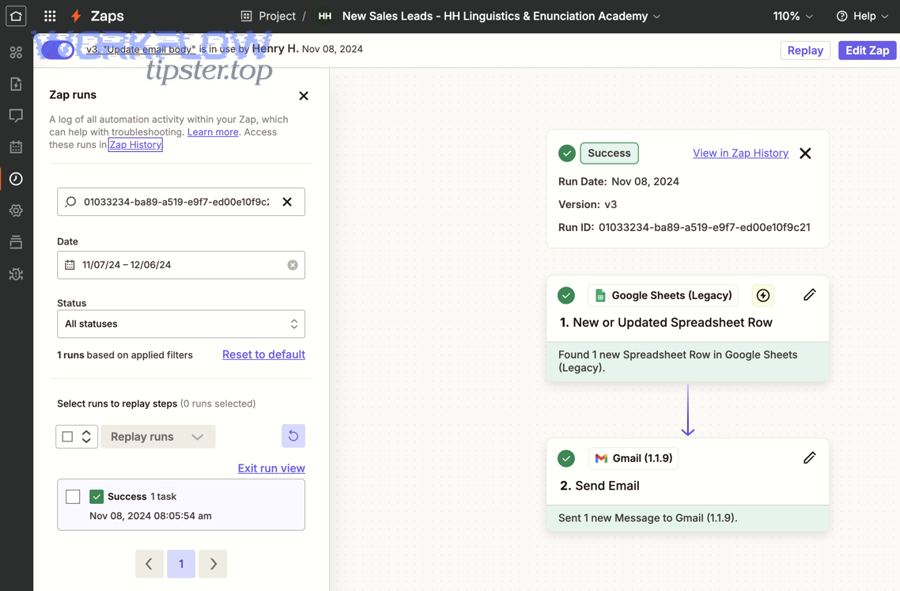
Fix Zapier Timeouts & Speed Up Slow Runs: Troubleshooting Guide for Automation Builders
Zapier timeouts and slow runs are usually fixable once you pinpoint where time is being spent—at the trigger, inside a specific step, or in the connected app’s response—so this guide will help you identify the bottleneck fast and apply the right fix to restore reliable completion. Next, you’ll learn how to read Zap run signals (errors, step duration, and run timing) to diagnose whether the issue is a true timeout , a slow-performing step , or simply an expected delay caused by how the Zap is designed to run.
Aland Johnson February 2, 2026 at 2:05 PM
Fix Stuck (Delayed) Zapier Tasks: Queue Backlog Troubleshooting for Automation Builders
If your Zap runs are piling up, the fastest way to fix “stuck” (delayed) Zapier tasks is to identify where the delay is happening—Delay After Queue, a standard Delay step, app-side throttling, or a configuration bottleneck—then apply the smallest safe change that restores normal processing without creating duplicates. Next, you’ll learn how to tell the difference between “expected delay” (your Zap is intentionally spacing runs) and a real queue backlog (runs are waiting longer than they should, or not progressing at all), so you don’t waste time “fixing” a design that’s working as intended.
Aland Johnson February 2, 2026 at 1:54 PM
Fix Zapier Permission Denied Errors: Troubleshoot Access Denied vs Granted for Workflow Builders
A “Permission Denied” error in Zapier usually means your Zap reached the connected app, but the account, role, scope, or policy refused the exact action you tried to run—so the fix is almost always about authorization , not “rebuilding the Zap.” Next, you’ll learn how to pinpoint where the denial happens (Zapier, the connected app, or a specific folder/record), because the fastest fix depends on whether the block is at the connection level, the endpoint level, or the resource level.
Aland Johnson February 2, 2026 at 1:41 PM
Fix Zapier Missing Fields & Empty Payloads: Troubleshoot Webhooks for Reliable Data Mapping (No-Code Builders)
If you’re dealing with zapier missing fields empty payload troubleshooting , the fastest path to a stable Zap is to treat your webhook data like a “payload contract”: the sender must consistently send the keys you rely on, and Zapier must consistently capture and parse those keys. In practice, you’ll troubleshoot this in two directions: upstream (is the sender actually sending the fields?
Aland Johnson February 2, 2026 at 1:31 PM
Troubleshoot Zapier Duplicate Records for Workflow Builders: Prevent vs Fix Repeat Creates
Duplicate records in Zapier usually happen when the same real-world event (one lead, one form submission, one checkout) gets processed more than once—so your Zap “creates” the same thing twice instead of once. The fastest path to a fix is to trace where the second run came from and then add a prevention pattern that makes your workflow idempotent (safe to retry without creating duplicates).
Aland Johnson February 2, 2026 at 1:20 PM
Fix Zapier Data Formatting Errors: Troubleshooting Guide for Zap Builders to Prevent Wrong Outputs
Zapier data formatting errors happen when the value you think you’re passing to the next step is not the value Zapier actually sends—so your Zap runs, but the outcome is wrong, blank, or inconsistent across steps. Next, you’ll learn how to recognize the most common “symptoms” (wrong dates, broken numbers, messy text, blank fields), then trace them back to the exact transformation, mapping, or payload issue causing the failure.
Aland Johnson February 2, 2026 at 1:08 PM
Fix Zapier “Attachments Missing / Upload Failed” Errors for Automation Builders (File Object vs URL)
When Zapier shows “attachments missing” or “upload failed,” it usually means the step received something that looks like a file (a link, a placeholder, or metadata) but couldn’t fetch a downloadable file object to upload or attach. The fastest fixes typically involve swapping a browser-only link for a direct-download URL , or remapping to a true file object coming from the trigger.
Aland Johnson February 2, 2026 at 12:56 PM
Fix 500 Internal Server Errors: Step-by-Step Zapier Webhook Troubleshooting for Automation Builders (500 vs Other 5xx)
When you hit a Zapier webhook 500 internal server error , it usually means the destination system (your webhook endpoint or an upstream dependency it relies on) threw an unhandled exception or returned a generic server-failure response, so Zapier couldn’t complete the delivery successfully. ( iana.
Aland Johnson February 2, 2026 at 12:45 PM
Fix Zapier Webhook 429 Rate Limit Errors (Stop Instant Retries) — Troubleshooting Guide for Automation Builders
A Zapier webhook 429 (Too Many Requests) rate limit error usually means your workflow is sending bursts that exceed Webhooks by Zapier limits or an app’s shared throttle, so Zapier temporarily rejects or holds requests until the traffic calms down. ( help.
Aland Johnson February 2, 2026 at 8:55 AM
Fix Zapier Webhook 404 Not Found (Missing Endpoint): Troubleshooting for No-Code Automators
If you’re seeing a Zapier webhook 404 Not Found , you can fix it by confirming the request is hitting the right hook URL , the Zap is active , and the endpoint path/method match what Zapier (or your app) expects—then validating the fix in Zap History and a fresh test trigger . ( help.
Aland Johnson February 2, 2026 at 8:43 AM
Fix 403 Forbidden in Zapier Webhooks — Turn “Forbidden” Into “Allowed” (Troubleshooting Guide for Automation Builders)
If your Zap fails with 403 Forbidden in a Zapier Webhooks / Webhooks by Zapier step, you can usually fix it by aligning three things: identity (auth) , authority (permissions/scopes) , and endpoint rules (security policies) —so the server stops refusing your request. Many 403 cases feel confusing because the request “looks correct,” yet the destination still denies it.
Aland Johnson February 2, 2026 at 8:32 AMFix 401 Unauthorized (Authentication Failed) — Troubleshooting Webhooks by Zapier for Developers & Automation Builders
STEP 1 — Title & outline analysis (what this article is built to answer) - Main keyword (keyword focus): zapier webhook 401 unauthorized troubleshooting - Predicate (main verb/action): Fix / Troubleshooting - Relations lexical used: Synonym → “Unauthorized” ≈ “Authentication Failed” (same problem framed with a clearer diagnostic label) Search intent type (from the outline): How-to + Definition + Grouping + Comparison - The outline starts by defining 401, then classifies causes, compares auth methods/status codes, and gives step-by-step fixes plus prevention. Primary intent (from the Title): Fix 401 Unauthorized in Webhooks by Zapier by correcting authentication and request setup.
Aland Johnson February 2, 2026 at 8:19 AM
Fix (Resolve) Zapier Webhook HTTP 400 Bad Request Errors for Zap Builders — Payload, Headers, and Field Mapping Checklist
Zapier Webhook HTTP 400 Bad Request errors happen when the receiving API rejects the request you sent—most often because the payload shape, required fields, or headers don’t match what that endpoint expects. To fix it fast, you need to inspect the exact request Zapier sent, compare it to the API’s schema, and correct the smallest mismatched detail.
Aland Johnson February 2, 2026 at 8:07 AM
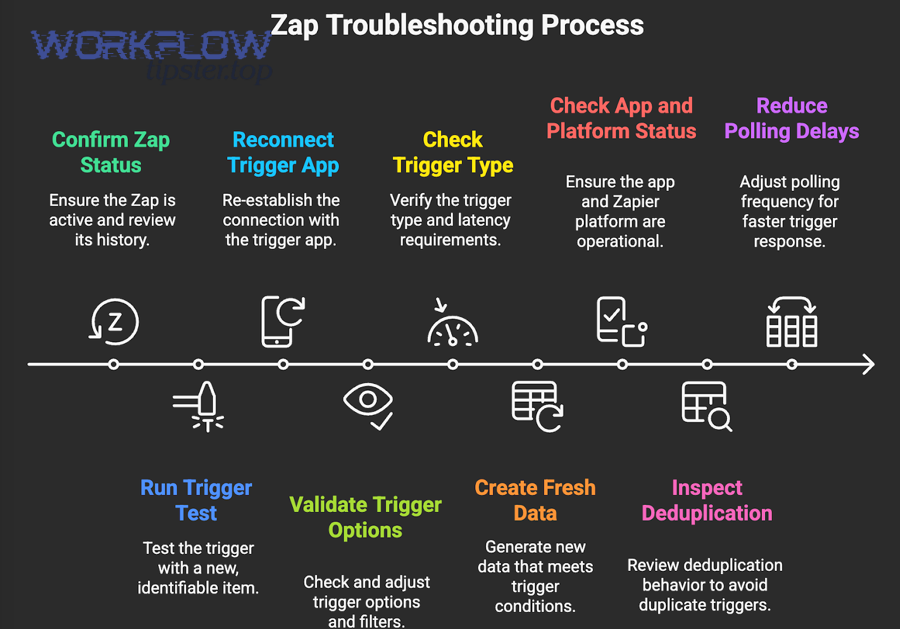
Fix Zapier Trigger Not Firing: Step-by-Step Troubleshooting to Get Your Zaps Triggering Again (for Automation Builders)
If your Zapier trigger isn’t firing, the fastest fix is to confirm the trigger is meant to fire on the exact event you’re generating, then validate the Zap is ON, connected, and receiving new qualifying data—because most “not firing” reports are actually “not eligible.” Next, you’ll use Zap History and run status to separate two very different problems: a trigger that never fires versus a trigger that fires but gets filtered, routed away by Paths, or stopped by an action error—so you don’t troubleshoot the wrong layer.
Aland Johnson February 2, 2026 at 7:55 AM
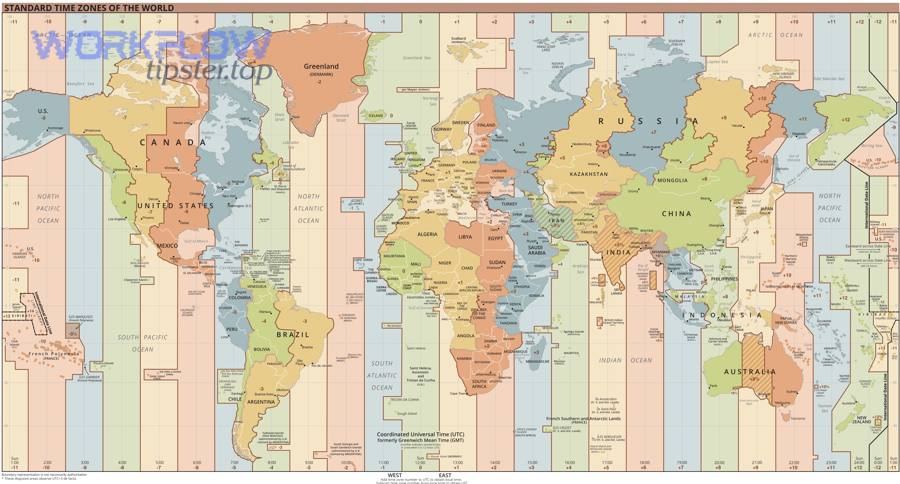
Fix Zapier Timezone Mismatch: Step-by-Step Troubleshooting for Zap Builders (Mismatch vs Match)
If your automations are firing “at the wrong time,” a Zapier timezone mismatch is often the real culprit—especially when timestamps shift by a consistent number of hours, dates roll over unexpectedly at midnight, or Daylight Saving Time creates sudden one-hour jumps. Next, you’ll learn what “timezone mismatch” actually means inside a Zap, so you can tell the difference between a true timezone problem and a downstream formatting issue that only looks like one.
Aland Johnson February 2, 2026 at 7:44 AM
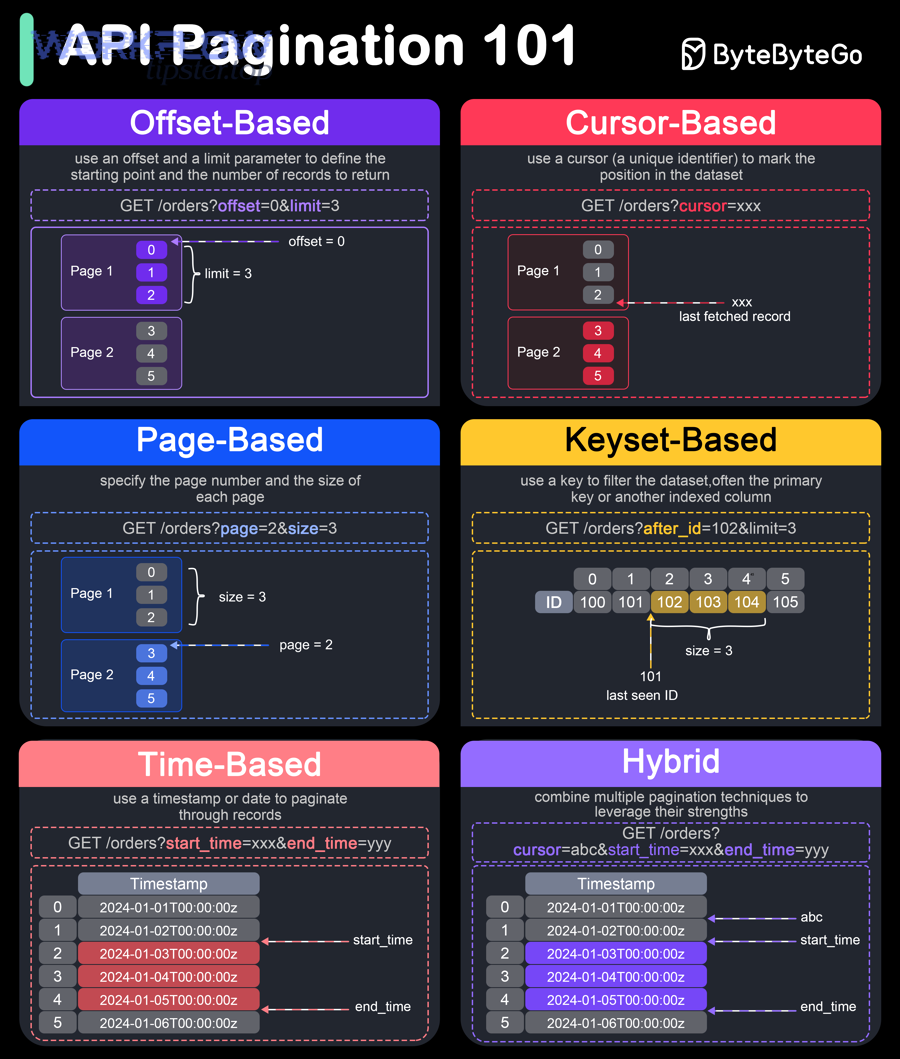
Fix Missing Records Fast: Zapier Pagination Troubleshooting to Pull All Pages (Not Just the First) for Automation Builders
When Zapier “misses records,” the problem is often simple: your workflow is only retrieving the first page of results, so anything beyond that page never even reaches your Zap. This guide shows you how to diagnose pagination quickly, then switch to a data-pull method that reliably collects all pages —not just the first.
Aland Johnson February 2, 2026 at 7:32 AM
Fix “OAuth Token Expired” in Zapier: Troubleshooting & Refresh-Token Setup for App Developers (Expired vs Active Access)
If you’re seeing Zap runs fail with an “OAuth token expired” message, you can fix it by identifying where the token lifecycle breaks (Zapier connection, your API’s token/refresh endpoints, or your API’s error signaling) and then applying the correct reconnect + refresh-token remediation. Most “token expired” incidents fall into two buckets: a real access-token expiry that should be solved by auto-refresh, or a refresh-flow failure that forces repeated reconnection.
Aland Johnson February 2, 2026 at 7:21 AM
Fix Invalid JSON Payload in Zapier Webhooks: Troubleshooting Guide for Builders (Valid vs Invalid JSON)
Invalid JSON payload errors usually happen because a webhook step receives malformed JSON —most often from unescaped quotes/newlines, trailing commas, wrong brackets, or a payload that isn’t JSON at all (like form-encoded data). The fix is to validate the raw body , correct the structure, and ensure your Zap sends/receives JSON in the right format.
Aland Johnson February 2, 2026 at 7:12 AM
Fix “Field Mapping Failed” in Zapier: Troubleshooting Steps for Zap Builders (From Broken to Working)
Field mapping failures in Zapier are usually fixable when you troubleshoot in the right order: confirm whether you’re facing an editor “fields won’t load” issue or a run-time “data is empty/invalid” issue, then restore reliable Data In → Data Out mappings step by step. The fastest wins come from diagnosing why the mapping dropdown is missing fields—stale samples, dynamic fields that depend on a parent object, connection permissions, or schema changes in the source/destination app—so you can bring the correct fields back into the editor.
Aland Johnson February 2, 2026 at 7:01 AM