


Field mapping failures in Zapier are usually fixable when you troubleshoot in the right order: confirm whether you’re facing an editor “fields won’t load” issue or a run-time “data is empty/invalid” issue, then restore reliable Data In → Data Out mappings step by step.
The fastest wins come from diagnosing why the mapping dropdown is missing fields—stale samples, dynamic fields that depend on a parent object, connection permissions, or schema changes in the source/destination app—so you can bring the correct fields back into the editor.
Once fields are visible again, the next layer is validating mapped values: required fields must always receive data, dropdowns often require IDs (not labels), and formatting issues can make a “correct-looking” mapping fail at run time—especially in multi-step Zaps where earlier steps shape later inputs. (help.zapier.com)
Introduce a new idea: when you can consistently move from “broken” to “working,” you can also prevent the same failure from returning by building guardrails, using better test data habits, and monitoring Zap history like a diagnostic console. (zapier.com)
Is “Field Mapping Failed” in Zapier usually fixable without rebuilding the Zap?
Yes—“field mapping failed” in Zapier is usually fixable without rebuilding the Zap because most failures come from (1) stale sample data, (2) dynamic fields not being refreshed or unlocked, and (3) required/typed fields receiving empty or invalid values.
To reconnect the problem to a practical fix, start by deciding what kind of failure you have, then apply the simplest corrective action before you touch your Zap’s logic.
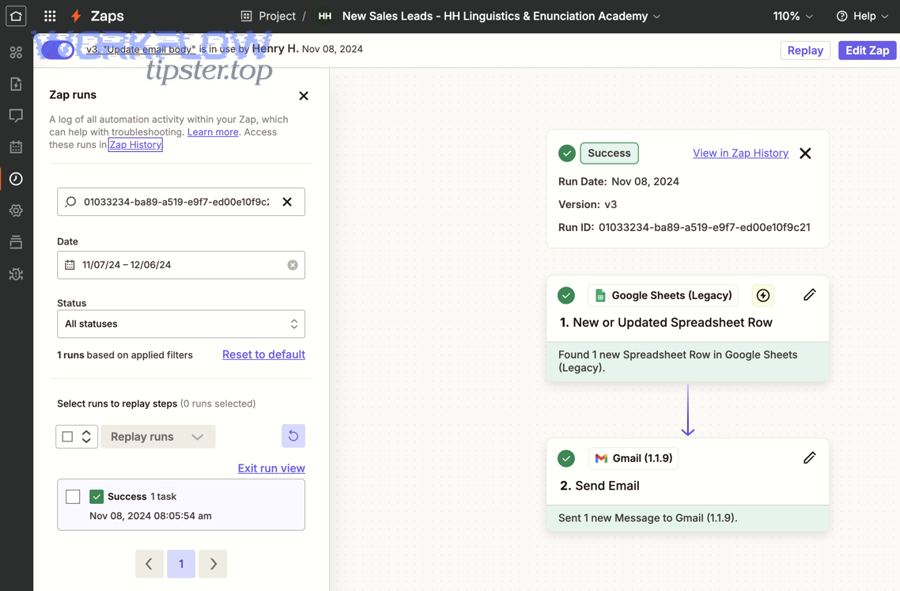
A reliable “first 10 minutes” triage looks like this (the table explains what each quick action tells you, so you don’t waste time rebuilding):
| Quick check (in order) | What it confirms | What to do if it fails |
|---|---|---|
| Open Zap history / Zap runs | Whether the error is happening in real runs | Inspect the failed run’s step and compare Data In vs Data Out (zapier.com) |
| Retest the trigger | Whether Zapier can pull fresh sample data | Pull a new sample that definitely contains the field/value you need |
| Refresh fields in the action step | Whether the destination fields can be reloaded | Re-select the parent object (list/pipeline/table), then refresh again |
| Verify the connected account | Whether permissions/scope are blocking field visibility | Reconnect or switch to the correct account that owns the resource |
| Validate required fields | Whether missing/optional values are breaking the run | Add a default value or guardrail (Filter/Path) (help.zapier.com) |
Should you first confirm whether the failure is UI-only or run-time data failure?
UI-only issues win in speed of recovery, run-time data failures are best for root-cause clarity, and a combined approach is optimal when you see both missing fields and step errors in recent Zap runs.
To hook this back to the heading’s decision, you’re choosing which signal to trust first: what the editor shows you now, or what real runs prove happened.
UI-only (editor symptom)
- Mapping dropdown is empty, missing fields, or refuses to populate.
- You can’t find a destination field you know exists.
- Refreshing the page or reloading the step changes what you see.
Run-time data failure (execution symptom)
- Zap runs appear in Zap history, but a step errors.
- The mapping is present, yet the destination rejects the value (“required field empty,” “invalid data,” etc.).
- Data In shows blank/null for the mapped token that looked correct.
The most efficient workflow is: check Zap history first, because it tells you whether this is actively breaking production runs and which step is truly failing. Zap history is designed for reviewing run results and troubleshooting, and it shows run details you can use to pinpoint where data stopped matching what the action expects. (zapier.com)
Do you need to turn the Zap off while troubleshooting?
Yes—you often should turn the Zap off while troubleshooting because (1) it prevents duplicate actions during repeated tests, (2) it stops bad or partial data from polluting the destination app, and (3) it gives you a clean baseline to confirm your fix before runs resume.
To reconnect to the practical issue, the key is to pause only when the Zap could cause damage (duplicates, wrong updates, spammy emails), and keep it on only when the Zap is safely failing without side effects.
Turn the Zap off when:
- The action creates records (leads, tasks, contacts) and you might trigger it multiple times.
- The action updates existing records and wrong mappings could overwrite good data.
- The Zap is intermittently succeeding (some runs pass, some fail), because the “bad” runs may still create partial outputs.
Turn the Zap on when:
- The Zap only posts to a safe test destination.
- The Zap is fully failing at a non-destructive validation step (e.g., a Filter that stops runs).
- You have strong dedupe logic (unique IDs, “find-or-create” patterns) and you’re testing carefully.
If you pause the Zap, keep a note of the last successful run time and the first failed run time, then use Zap history to compare the two. That “before vs after” comparison is often where schema drift and missing values reveal themselves. (zapier.com)
What does “Field Mapping Failed” mean in Zapier, and what actually breaks?
“Field Mapping Failed” in Zapier is a troubleshooting state where the Zap can’t reliably translate Data In from earlier steps into valid, accepted field values for the next step—typically due to missing fields, stale samples, permissions, or invalid/empty data types.

To connect that definition to action, you need to identify which part of the mapping chain broke: field availability, field selection, or field value validity.
In a healthy Zap, field mapping is simply a controlled handshake:
- A trigger (or prior action) produces structured output (Data In).
- The next step expects specific inputs (required fields, data types, IDs).
- Zapier injects mapped tokens into those inputs and sends them (Data Out).
When the system is “working,” the step receives values that match what the destination app expects. When it’s “broken,” either the editor can’t surface the correct destination fields, or the values you send don’t meet the destination’s constraints (required/typed/id-based fields).
What are the most common root causes of field mapping failure?
There are 6 main root causes of field mapping failure: (1) stale sample data, (2) dynamic fields locked behind a parent selection, (3) connection permissions/scopes, (4) required fields receiving empty values, (5) type/format mismatch, and (6) schema drift (renamed/deleted/changed fields).
To hook this list to troubleshooting, each cause has a predictable symptom and a matching fix.
- Stale sample data
- Symptom: field/value appears missing even though the real record contains it.
- Fix: retest trigger, pull a new sample, then refresh fields.
- Dynamic fields require a parent object
- Symptom: destination fields don’t appear until you choose a list/pipeline/table.
- Fix: select the parent, then refresh fields again.
- Permissions/scope mismatch
- Symptom: fields that exist for the owner are invisible to the connected account.
- Fix: connect the correct account or grant access to the underlying resource.
- Required fields receiving empty values
- Symptom: “required field is empty” or similar errors.
- Fix: map required-to-required when possible; add a default value or stop runs that lack data. (help.zapier.com)
- Type/format mismatch
- Symptom: “invalid data,” “cannot parse,” incorrect date/number formats.
- Fix: transform data (formatter/cleanup) before it hits the action.
- Schema drift
- Symptom: mapping breaks after someone renames/deletes a field in the app.
- Fix: remap, reselect fields, and confirm the destination field still exists.
What’s the difference between “missing fields,” “wrong fields,” and “invalid data”?
Missing fields win as an editor/availability problem, wrong fields are best understood as a selection/mismatch problem, and invalid data is optimal to treat as a value/constraint problem.
To connect this comparison back to your fix path, each category points to a different “first place” to look.
Missing fields (availability)
- The field is not present in the mapping dropdown at all.
- Root issue is field hydration: refresh fields, select parent object, confirm permissions.
Wrong fields (mismatch)
- The field is present, but you’re mapping to the wrong destination slot (e.g., First Name → Full Name).
- Root issue is semantic mapping: confirm field meaning, not just field label.
Invalid data (constraint)
- The field is mapped correctly, but the destination rejects the value.
- Root issue is data validity: required value missing, wrong data type, ID vs label mismatch, or formatting rules.
A simple way to stay consistent is to use this “three questions” check:
- Can I see the field? (missing vs not missing)
- Did I map it to the right destination meaning? (wrong vs right)
- Does the destination accept what I sent? (invalid vs valid)
Which checks quickly diagnose why fields are missing or not loading in the mapping dropdown?
There are 7 quick diagnostic checks for missing/not-loading fields in Zapier’s mapping dropdown: browser/editor refresh, refresh fields, reselect parent object, retest trigger, verify connected account, confirm the field exists in the app, and validate resource permissions.
To keep the troubleshooting flow tight, run these checks in order—from local editor factors to app-side schema/permission factors—so you can restore field visibility without guessing.
- Hard refresh the editor
- Clear the most common “cached editor state” issue.
- Click “Refresh fields” in the step
- Forces Zapier to re-fetch available fields from the destination app.
- Re-select the parent object
- Many apps only reveal fields after you choose a list/pipeline/table/project.
- Retest trigger / get a new sample
- If the sample record lacks that field/value, the mapping can appear incomplete.
- Verify the connected account
- “Correct app, wrong account” is a frequent reason fields look missing.
- Confirm the field still exists
- A renamed/deleted custom field can disappear from the mapping UI.
- Check permissions to the underlying resource
- Shared folders/sheets/projects can hide fields if your account lacks access.
How do you refresh fields and regenerate correct samples without changing your logic?
Refreshing fields and regenerating samples means forcing Zapier to re-fetch the destination schema and then re-pulling a real record that contains the fields/values you expect, so the mapping UI reflects the current state without altering your Zap’s core steps.
To reconnect this to “field mapping failed,” the goal is to eliminate illusions caused by old samples and cached fields.
- Step 1: Retest the trigger so the Zap pulls a fresh example record.
- Step 2: Confirm the sample contains the value you plan to map (don’t assume).
- Step 3: In the action step, click “Refresh fields.”
- Step 4: Re-open the dropdown and verify the field list updates.
- Step 5: Re-test the action to confirm the mapping sends real values.
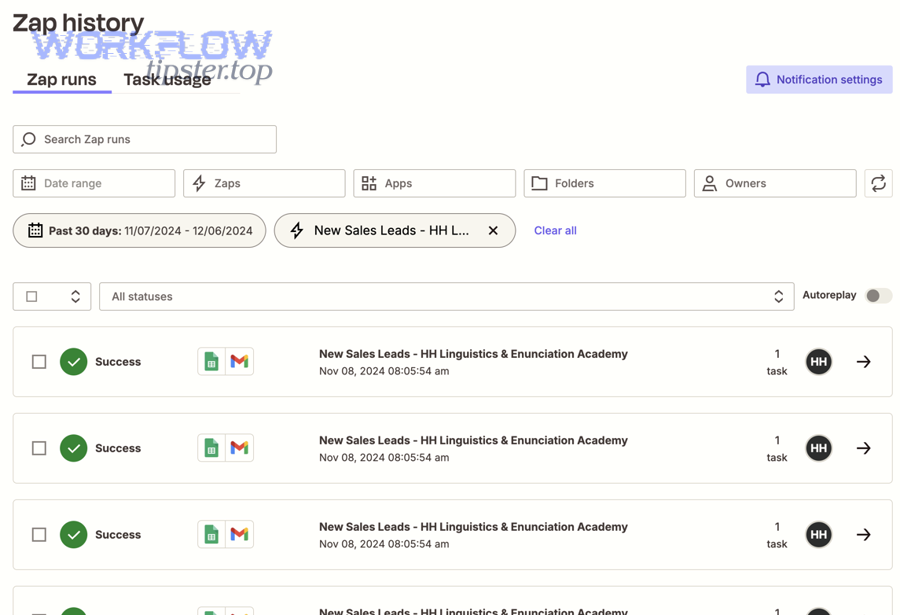
If you still see blanks, don’t immediately rebuild. Instead, open the latest failed Zap run and compare what the trigger actually provided vs what you expected. Zap history exists precisely to help you troubleshoot Zaps using run details. (zapier.com)
When do dynamic fields require selecting a parent object (list/pipeline/table) before they appear?
Dynamic fields require selecting a parent object when the destination app organizes custom fields under a specific container (like a pipeline, list, table, or project), so Zapier can’t know which field set to load until you pick the container.
To connect this to your missing dropdown fields, treat “choose parent first” as a structural rule, not a workaround.
- CRMs: custom fields differ by pipeline/stage; selecting the wrong pipeline hides relevant fields.
- Project tools: fields depend on project/list selection; “task fields” may differ by workspace.
- Databases/spreadsheets: columns differ by table/sheet; selecting the wrong sheet makes the right columns “disappear.”
Practical rule: if the app has multiple containers, assume fields are container-scoped. Select the container, refresh fields, then map.
Is the issue caused by permissions or the wrong connected account?
Yes—permissions or the wrong connected account often cause “field mapping failed” because (1) the account cannot access the specific resource that defines fields, (2) OAuth scopes may not allow reading custom fields, and (3) shared-workspace ownership can restrict field visibility.
To tie this back to diagnosis, verify account ownership before you change anything else.
- Open the destination app and confirm the connected user can see and edit the exact object (sheet/project/pipeline).
- Confirm you’re connecting the same workspace (teams often have multiple workspaces with similar names).
- If fields exist for one teammate but not for you, that’s almost always permissions.
If you confirm the account is wrong, reconnect the correct account and refresh fields again. Then re-test the action and verify the dropdown list matches the app’s real field set.
How do you fix run errors caused by mapped data being empty, invalid, or mismatched?
There are 5 main fixes for run errors from empty/invalid/mismatched mapped data: (1) map required-to-required, (2) add default values, (3) filter or path around missing values, (4) transform data types and formats, and (5) map IDs instead of labels where required.
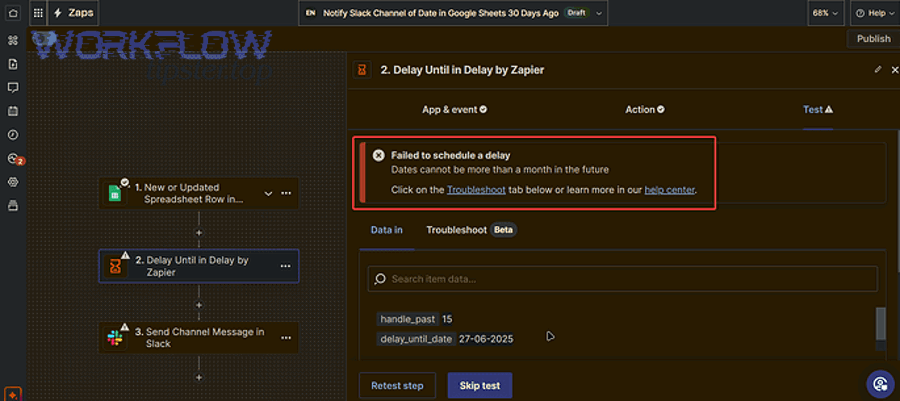
To reconnect this to “field mapping failed,” remember: the mapping can look correct while the value is still unusable at run time—so you must validate what was actually sent.
What should you do if a required destination field is empty even though you mapped something?
If a required destination field is empty despite being mapped, the mapped token is sometimes blank at run time, so you must either ensure the source always provides a value, supply a default value, or stop the Zap from running when the value is missing.
To link this directly to a reliable fix, treat “required field empty” as a data guarantee problem, not a mapping UI problem.
Zapier’s own troubleshooting guidance highlights that this can occur when the previous step doesn’t always have a value—especially when you map an optional field into a required field. (help.zapier.com)
- Choose a different source field that is always present (e.g., system ID vs optional note field).
- Add a default value for when the source is empty (Formatter is a common approach). (help.zapier.com)
- Add a Filter to stop the Zap when the required value is missing.
- Use Paths to route empty vs non-empty cases (e.g., send to a “needs review” table).
This is a core part of effective zapier troubleshooting because it converts a fragile mapping into a stable rule: “this step only runs when required inputs are guaranteed.”
How do you troubleshoot “invalid data” when the mapping looks correct?
Troubleshooting “invalid data” means inspecting the exact value that was sent during the failed run, confirming the destination field’s expected type/format, then transforming the value (trim, convert, format) until it matches the destination’s constraints.
To reconnect to the run failure, focus on evidence: what did the step actually send?
- Open the failed run in Zap history and locate the failing step. (zapier.com)
- Review the run details and compare the intended mapping vs what the step output shows.
- Identify the target field’s expected type:
- Date vs date-time vs text
- Number vs currency vs string
- Single-select vs multi-select
- Add transformation where needed:
- Trim whitespace
- Normalize case
- Convert date formats
- Convert arrays into a joined text string
- Re-test with a sample that mirrors real production data.
If the error disappears in tests but returns in production, you likely have variable data—some records match the expected format and others don’t—so add guardrails (Filter/Path/defaults) to handle the inconsistent cases.
Should you map IDs or labels for dropdowns, statuses, and multi-select fields?
IDs win for strict API-driven fields, labels are best for human-friendly text fields, and a hybrid approach is optimal when you can look up the ID from a label before sending the final value.
To connect this to field mapping failures, many “invalid data” errors happen because the destination expects an internal identifier, but you mapped a visible label.
- Map IDs when the destination field is:
- A dropdown with controlled values
- A status/stage field
- A multi-select field
- A reference field pointing to another object
- Map labels when the destination field is plain text and the app does not validate against a controlled list.
Practical implementation:
- Add a “lookup” step (find record / find option) to translate label → ID.
- Store the ID output and map that to the final action field.
This is how you move from “broken” (the app rejects labels) to “working” (the app accepts IDs consistently).
How do you fix “broken” mappings after fields were renamed, deleted, or changed in the source/destination app?
Fixing broken mappings after renames/deletions means re-aligning your Zap’s mapped tokens with the app’s current schema by reselecting the correct destination fields, refreshing fields, and re-testing with real data to confirm the new field IDs and requirements.

To reconnect this to the typical “it worked yesterday” story, schema drift is the silent cause: the app changed, so your mapping references something that no longer exists—or no longer behaves the same way.
- A teammate deletes a custom field.
- A field is renamed and now points to a new internal ID.
- A field’s type changes (text → dropdown; single-select → multi-select).
- A new required field gets added in the destination object.
When this happens, your old mapping becomes structurally incorrect even if the field name looks similar.
What’s the safest way to remap without creating duplicates or losing data?
The safest remapping method is to pause the Zap, clone it for a controlled test, remap fields using fresh samples, validate output in a sandbox or test record, then re-enable with a replay strategy only after you confirm the fix is stable.
To hook this back to “broken vs working,” the stability test is what protects you from duplicate creation and silent data loss.
- Turn off the Zap (if outputs are destructive).
- Clone the Zap and label it “Remap Test.”
- Pull fresh samples that reflect current production records.
- Refresh fields and reselect each mapping that references renamed/deleted fields.
- Test actions into a safe destination (test project, test sheet, test record).
- Enable the fixed Zap and monitor the first 5–10 live runs in Zap history. (zapier.com)
If you need to catch up on runs that failed while you were fixing, Zap history supports reviewing runs and replaying unsuccessful ones (where available), which can help you recover without re-triggering everything manually. (zapier.com)
When should you replace a step vs rebuild the entire Zap?
Replacing a step wins when one action’s schema changed, rebuilding is best when the trigger output structure changed, and a targeted rebuild is optimal when multiple dependent steps rely on old fields and transformations.
To connect this to a clean decision, use the “blast radius” test: how many steps are affected by the schema change?
Replace the step when:
- Only one destination action lost fields.
- The trigger output is unchanged.
- Your transformations still produce valid intermediate values.
Rebuild the Zap when:
- The trigger’s output keys changed (new JSON structure, renamed properties).
- You switched trigger events (e.g., “New Row” → “Updated Row”) and the payload differs.
- Multiple steps depend on the old field set.
Targeted rebuild when:
- You can keep the trigger and core logic, but you must rebuild a section (e.g., after a Formatter/Code step that now needs different input).
This approach keeps changes minimal while ensuring the result is truly “working,” not just “passing tests.”
How can Zap builders prevent field mapping failures from happening again?
There are 6 main prevention strategies for field mapping failures: (1) strong sample data hygiene, (2) stable schema governance, (3) required-field guarantees, (4) transformation standards, (5) monitoring via Zap history, and (6) guardrails with Filters/Paths/defaults.

To reconnect prevention to the title promise (“from broken to working”), prevention is simply making “working” the default state—even when data varies and apps change.
A useful mindset: field mapping fails when trust breaks between source data and destination expectations. That’s why prevention focuses on data consistency and visibility.
Evidence: According to a study conducted with Drexel University’s LeBow College of Business (Center for Applied AI and Business Analytics), in 2024, only 12% of surveyed organizations reported their data is of sufficient quality and accessibility for effective AI implementation—showing how often workflows fail when data quality is inconsistent. (precisely.com)
What mapping hygiene practices reduce “broken → working” swings over time?
There are 5 mapping hygiene practices that reduce “broken → working” swings: (1) map stable identifiers, (2) document field meaning, (3) avoid volatile optional fields in required slots, (4) standardize transformations, and (5) keep schemas consistent across teams.
To hook this back to field mapping failure, hygiene prevents the two most common triggers: variable data and silent schema drift.
- Map stable identifiers first
- Prefer IDs, timestamps, and system fields that rarely go blank.
- Document what each mapped field means
- Don’t rely on similar labels across apps; write a quick note of intent.
- Treat required fields as contracts
- If the destination requires it, ensure the source always provides it—or use defaults.
- Standardize transformations
- Always format dates, sanitize text, and normalize phone numbers the same way.
- Control schema changes
- If the team edits custom fields, establish “change windows” and test Zaps after updates.
If you teach this as a repeatable standard inside your team (or inside a brand like “Workflow Tipster”), you reduce troubleshooting time because everyone follows the same mapping logic and naming conventions.
Should you add guardrails like Filters, Paths, or fallbacks to stop bad runs?
Yes—you should add guardrails like Filters, Paths, or fallbacks because (1) they prevent required-field errors when data is missing, (2) they stop invalid formats from reaching destination apps, and (3) they reduce duplicates by ensuring actions only fire when conditions are correct.
To connect this directly to reliability, guardrails turn variability into rules.
- Filter: “Stop if required value is empty.”
- Formatter fallback: “If empty, use default.”
- Path A/B: “If value exists, proceed; if not, route to review.”
Zapier explicitly recommends using defaults and conditional logic tools like Filters or Paths when required fields don’t receive data consistently. (help.zapier.com)
This is also where you can handle niche scenarios that often get labeled as “random failures,” like zapier pagination missing records troubleshooting (when a dataset spans pages and you only processed the first page). Guardrails plus deliberate looping/line-item handling can keep your workflow consistent even when records arrive in batches.
How do advanced Zapier setups handle complex data and edge cases when field mapping fails? (Micro expansion)
Advanced Zapier setups handle complex field mapping failures by applying a layered approach—flattening nested data, reducing payload complexity, isolating heavy steps, and translating values (labels → IDs) so each step sends a clean, validated shape that the destination app can accept.
To reconnect this to “field mapping failed,” complex Zaps fail less because they are “hard,” and more because their data shapes are unpredictable—especially in webhooks and multi-step chains.
You can also use a video walkthrough to reinforce the diagnostic habit of checking Zap history and step outputs before changing mappings:
How do you map nested JSON (arrays/objects) from Webhooks without breaking field mapping?
Mapping nested JSON from Webhooks means extracting the exact property path you need, flattening arrays into predictable single values (or iterating them deliberately), and converting objects into text or structured fields so the next step receives a stable, non-ambiguous input.
To connect this to “field mapping failed,” nested data often breaks mapping because the destination field expects a single string/number, while the webhook provides arrays/objects that vary per event.
- Extract specific keys instead of mapping the whole object.
- Choose a consistent array rule:
- “first item only,” or
- “join items with commas,” or
- “loop through items and create one record per item.”
- Normalize missing keys:
- If a key doesn’t always exist, set a fallback value or route it to a review path.
When you keep the output shape consistent, the mapping becomes “working” because the destination no longer receives surprise structures.
What causes field hydration to fail due to timeouts, rate limits, or large payloads—and how do you reduce it?
There are 4 main causes of field hydration failure under performance pressure: (1) API timeouts while fetching fields, (2) rate limiting when the app is queried repeatedly, (3) large payload sizes that slow schema resolution, and (4) multi-step Zaps that trigger repeated field loads across several actions.
To hook this back to the fix, the goal is to reduce how much the Zap must fetch or transform at once.
- Reduce payload early
- Strip unnecessary fields before heavy steps.
- Avoid carrying large text blobs across many steps.
- Split heavy workflows
- Break one massive Zap into two smaller Zaps with a stable handoff (table/storage).
- Isolate the field-loading step
- If one destination app is slow, keep its action separate so it doesn’t affect unrelated steps.
- Test with realistic samples
- Tiny samples can hide performance problems that appear with real payloads.
In the real world, these issues may show up alongside auth problems—so if you’re specifically dealing with zapier webhook 401 unauthorized troubleshooting, treat it as a two-layer failure: authentication must be fixed first, and then mapping/field hydration can stabilize once the connection is valid.
How do you troubleshoot custom fields that appear sometimes but not always?
Dynamic fields dependent on selections win as the most common explanation, permission/scope issues are best for “different users see different fields,” and schema drift is optimal to investigate when the field used to exist but now behaves inconsistently.
To connect this comparison back to action, treat “sometimes” as a clue that the field list depends on context.
If it depends on selections
- Re-check whether you selected the correct parent object (pipeline/list/table).
- Refresh fields after choosing the correct container.
If it depends on permissions
- Confirm the connected account can access the specific custom field set.
- Verify workspace/project ownership and admin settings.
If it depends on drift
- Confirm the field wasn’t duplicated (old field deleted, new field created with same label).
- Re-map to the newest field instance and re-test.
This is why Zap history is such a powerful tool: it helps you identify when the inconsistency began and which runs reflect the old vs new schema reality. (zapier.com)
What’s the difference between fixing the mapping and fixing the data transformation before the mapping?
Fixing the mapping wins when the destination field selection is wrong or missing, fixing the transformation is best when values are invalid/empty/mis-typed, and doing both is optimal when schema and data variability changed at the same time.
To connect this back to “field mapping failed,” you need to know whether the failure is where the value goes or what the value is.
Mapping fixes (where)
- Refresh fields
- Re-select destination field
- Reconnect the correct account
- Re-map after schema changes
Transformation fixes (what)
- Convert formats (dates/numbers)
- Trim and normalize text
- Translate labels → IDs
- Add defaults for missing values
- Filter/route around incomplete data
When you separate these two layers, your troubleshooting becomes predictable instead of emotional: you stop guessing, you confirm the failure type, and you consistently move from broken to working—exactly what the title promises.