


When Zapier shows “attachments missing” or “upload failed,” it usually means the step received something that looks like a file (a link, a placeholder, or metadata) but couldn’t fetch a downloadable file object to upload or attach. The fastest fixes typically involve swapping a browser-only link for a direct-download URL, or remapping to a true file object coming from the trigger.
Many failures also come from predictable roots: login-required links, expiring URLs, file size/MIME limits, or time-sensitive runs where the upload step times out. You don’t always need to rebuild the Zap—often you can fix it by changing one mapped field or inserting a “store file first” step.
If you’re still unsure where the breakdown happens, the key is to trace the file through Zap History, validate the URL in an incognito window, and confirm Zapier is seeing a real file object before you ever press “Test” again. Introduce a new idea: once you can reliably produce a downloadable file, everything else becomes standard zapier troubleshooting.
What does “attachments missing / upload failed” mean in Zapier?
“Attachments missing / upload failed” in Zapier means the Zap step expected a file object or a downloadable file URL, but it received a value that Zapier (or the destination app) couldn’t download and upload as a file. In other words, Zapier can “see” a field that looks like an attachment, but it can’t fetch the bytes of the file at run time. (help.zapier.com)
Then, to troubleshoot correctly, you need to identify what kind of file data the step actually has (file object vs URL), and whether the URL is truly downloadable.

What is the difference between a file object and a file URL in Zapier?
A file object is a bundle of data representing the actual file (the “real file”), while a file URL is just a link Zapier will try to download. Zapier’s own guidance is clear: to send a file in a Zap, you must use a file object or a URL link that supports files—and the URL must be publicly accessible and downloadable. (help.zapier.com)
Practically, that means:
- File object (best when available): Comes from triggers/actions that return a true file payload (or an “Exists but not shown” file field).
- File URL (works only when it’s direct-download): Must trigger a download without login, redirects to a download endpoint, and won’t show a “view” page instead. (help.zapier.com)
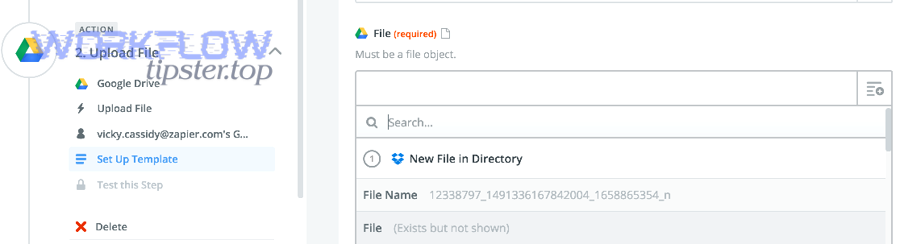
If your mapping shows “(Exists but not shown),” that often indicates a file object is present—so you should map that field instead of a text link. (help.zapier.com)
Why does a link open in a browser but still fail to upload in a Zap?
A link can open in a browser and still fail in Zapier because your browser is doing extra work Zapier can’t do—like using your logged-in session, cookies, or interactive redirects.
Zapier recommends a simple truth test: open the URL in a private/incognito window. If it prompts a direct download, it can work; if it prompts login, renders a page, or errors, it won’t work as a file URL. (help.zapier.com)
Common “looks fine in browser, fails in Zap” patterns:
- Share links that show a preview page (not a download endpoint)
- Links requiring authentication (Drive, Dropbox, OneDrive, portals)
- Expiring signed URLs that work briefly and then 403/404 later
- Redirect chains that a destination app’s uploader refuses
Which Zap steps most commonly produce unusable attachment data?
The most common sources of “unusable attachment data” are steps that output:
- Email/Forms attachments fields that contain multiple items, mixed formats, or preview-only links
- Cloud storage “share link” fields that are view URLs, not download URLs
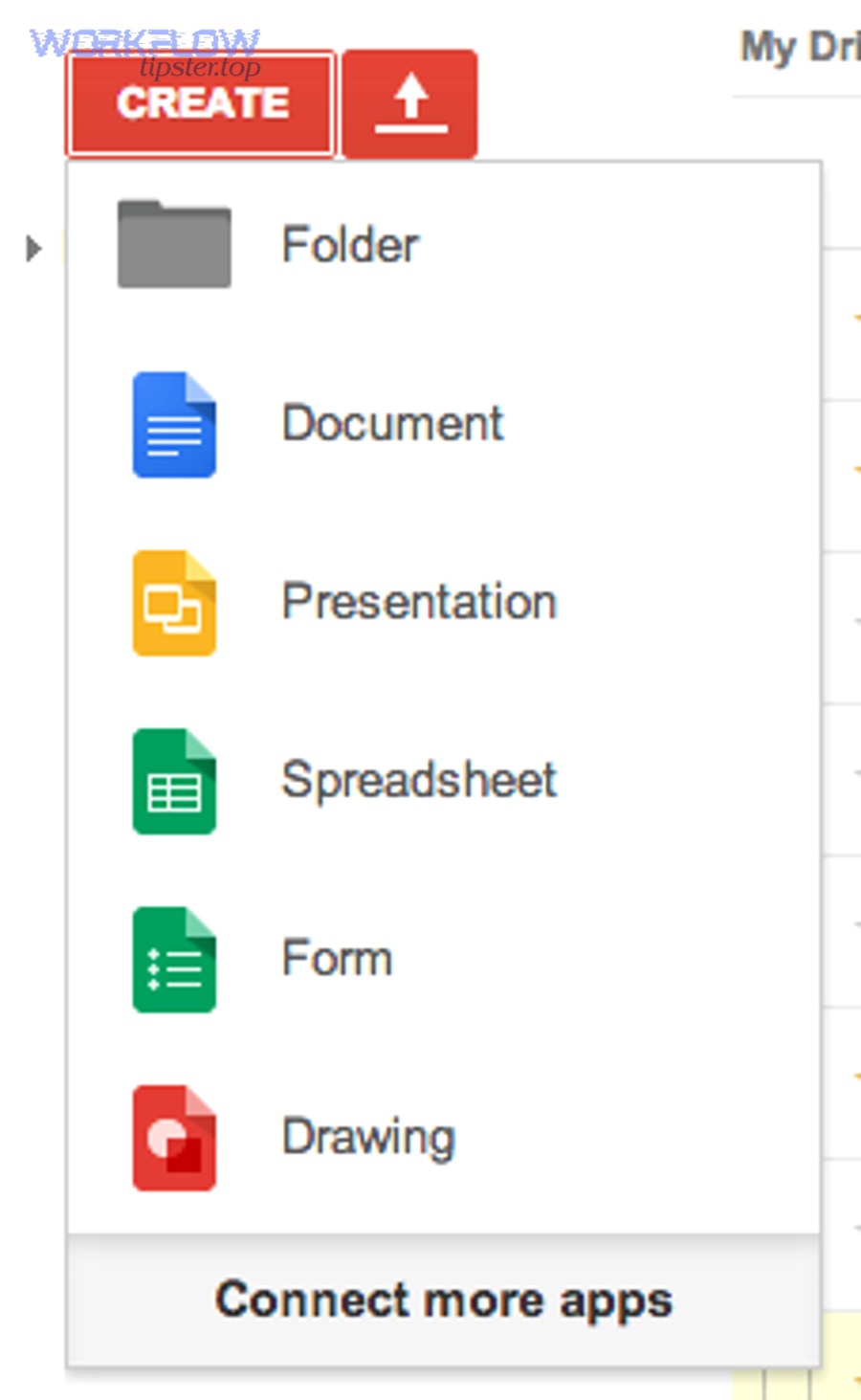
- Document-native items (like Google Docs/Sheets/Slides) that aren’t “real files” in the API sense, so later steps can’t treat them as uploadable files (help.zapier.com)
If your workflow involves Google Drive, Zapier explicitly notes that Google Drive differentiates between “real files” and items like Google Docs editors formats, which can trigger but not behave like real downloadable files. (help.zapier.com)
Is “attachments missing / upload failed” usually fixable without rebuilding the whole Zap?
Yes—“zapier attachments missing upload failed troubleshooting” is usually fixable without rebuilding the whole Zap because (1) the failure is often just a bad file input type, (2) mapping can be corrected at one step, and (3) you can often switch from a preview link to a direct-download URL without changing the Zap’s logic. (help.zapier.com)
Next, the fastest way forward is to isolate where the file stops being a real file: trigger → intermediate step → destination uploader.
Does the error come from the trigger app, the file provider, or the destination app?
Most of the time, the error comes from the file provider format (what the trigger returns) or the destination app’s file field rules (what it accepts).
A quick diagnostic split:
- Trigger-side issue: The trigger never provided a real file object or a valid URL—so every later step is doomed.
- Provider-side issue: The provider gives a link that requires login or isn’t downloadable.
- Destination-side issue: The destination has size/type restrictions, expects a specific encoding, or rejects redirects.
Zapier’s “Send files in Zaps” guide is effectively the rulebook: if the value isn’t a file object or a downloadable public URL, the file field won’t behave. (help.zapier.com)
Can you fix it by changing only the mapped field (not the whole step)?
Yes—this is one of the most common wins.
Typical “one-field fixes” include:
- Mapping File (Exists but not shown) instead of a text link (help.zapier.com)
- Mapping the provider’s download URL field (if it has one) instead of the share URL
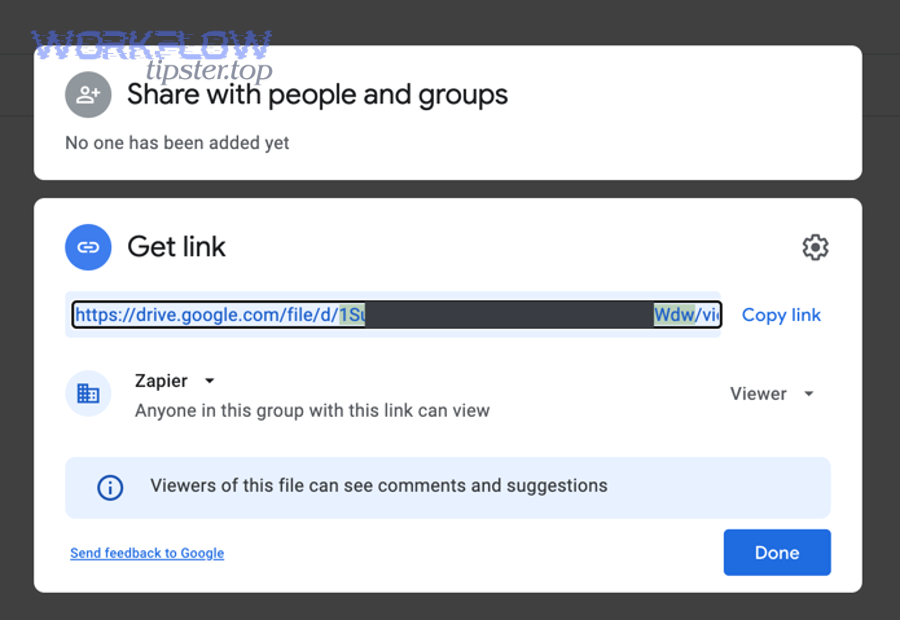
- Converting a Drive share link into the Drive uc?export=download format (when eligible) (help.zapier.com)
- Splitting multiple attachments into separate list items (so you don’t feed a destination one giant comma blob)
When should you stop troubleshooting and swap the app/action?
Stop micro-fixing and swap the step when:
- The file source only produces non-downloadable content (e.g., behind SSO portals you can’t make public).
- The file is consistently above size limits or gets zipped into an unusable format.
- The “right” fix would expose sensitive data publicly, violating your security requirements.
- The Zap needs a stable storage layer first (Files by Zapier / cloud storage upload) before sending to the final destination.
This is where zapier oauth token expired troubleshooting can also overlap: if a connection expired, a previously-valid file fetch may silently fail or return misleading data, so you may need to reconnect the app before any mapping changes actually matter.
What are the most common root causes of Zapier attachment upload failures?
There are 4 main root causes of Zapier attachment upload failures: (1) permissions/login-required links, (2) expiring/signed URLs, (3) file constraints like size/type/conversion, and (4) data formatting issues that make Zapier interpret “file” fields as text. (help.zapier.com)
Then, once you know which category you’re in, your fix becomes a targeted change rather than trial-and-error.
Are permissions and “login-required” links the #1 cause?
In practice, yes—because many apps hand you a share URL that looks accessible, but isn’t actually downloadable without authentication.
Zapier’s incognito test is designed for this exact problem: if the link prompts login, loads in-browser instead of downloading, or errors, Zapier can’t use it as a file URL. (help.zapier.com)
This same pattern also appears in community support responses around attachment fields: the “attachment” value may be a link that is not a direct-download URL, so upload/attach fails until you use a direct-download link. (community.zapier.com)
If you’re doing zapier webhook 403 forbidden troubleshooting in parallel, treat it similarly: 403 often signals “you can’t fetch this file without auth,” even if your browser can.
How do expiring links (signed URLs) cause “missing” attachments?
Expiring links (often signed URLs) create a timing trap:
- The trigger fires and provides a temporary URL.
- Your test succeeds because it runs immediately.
- A real run fails later because the URL is expired by the time Zapier fetches it, or by the time the destination app tries to pull it.
This is why “attachments missing” can be intermittent: it’s not that the attachment never existed—it’s that it expired before it was consumed.
A practical mitigation is to store the file first (upload into Drive/Dropbox/S3/Files by Zapier) and use the stable file object from that step for everything downstream.
This is also where zapier timeouts and slow runs troubleshooting becomes relevant: the longer your Zap run takes (filters, paths, retries, delays), the more likely an expiring link becomes “missing” mid-run.
How do file size limits, MIME types, and conversion steps break uploads?
File constraints break uploads in three common ways:
- Size limits: Some steps time out on large uploads. Zapier notes that files larger than 100 MB may result in a timeout error in file fields. (help.zapier.com)
- MIME/type mismatch: The destination expects a specific content type (PDF/image) but the source delivers HTML, text, or a “view page.”
- Conversion steps: Some triggers create “documents” rather than files (e.g., Google Docs). Those aren’t always directly downloadable as a real file without an export step. (help.zapier.com)
If you suspect MIME/type problems, validate the URL by downloading it yourself and confirming it’s the correct file type—not an HTML preview page.
Can data formatting (JSON, line items, encoding) make Zapier treat the file as “missing”?
Yes—especially when attachments arrive as arrays, line items, or embedded JSON.
This is where zapier data formatting errors troubleshooting often intersects with attachment failures:
- A trigger returns attachments as a list of objects (name, url, id), but you mapped the whole object as text instead of mapping the url field.
- You joined multiple URLs into one string, but the destination needs separate list fields.
- Encoding issues (spaces, special characters) break URLs, turning a valid link into a failed download.
If you see odd characters, truncated URLs, or nested JSON, fix the data shape first (Formatter / Code / storage step) before blaming the destination app.
How do you troubleshoot Zapier attachment upload failures step-by-step?
Use a 5-step method: validate the file input, confirm real file data in Zap History, convert share links to direct-download URLs, re-test safely, and reduce timeouts—and you’ll reliably fix the majority of upload failures without rebuilding the Zap. (help.zapier.com)
Below, each step removes one entire class of failure.
How do you verify the file is downloadable (incognito test) before Zapier uses it?
Test the URL like Zapier suggests:
- Copy the URL you mapped into the file field.
- Open an incognito/private window.
- Paste the URL.
- Confirm it triggers a file download (not a login screen, not a preview page). (help.zapier.com)
If it fails the incognito test, it’s not a usable file URL—your next move is to create a direct-download link or use a file object instead.
How do you confirm Zapier is receiving real file data in Zap History?
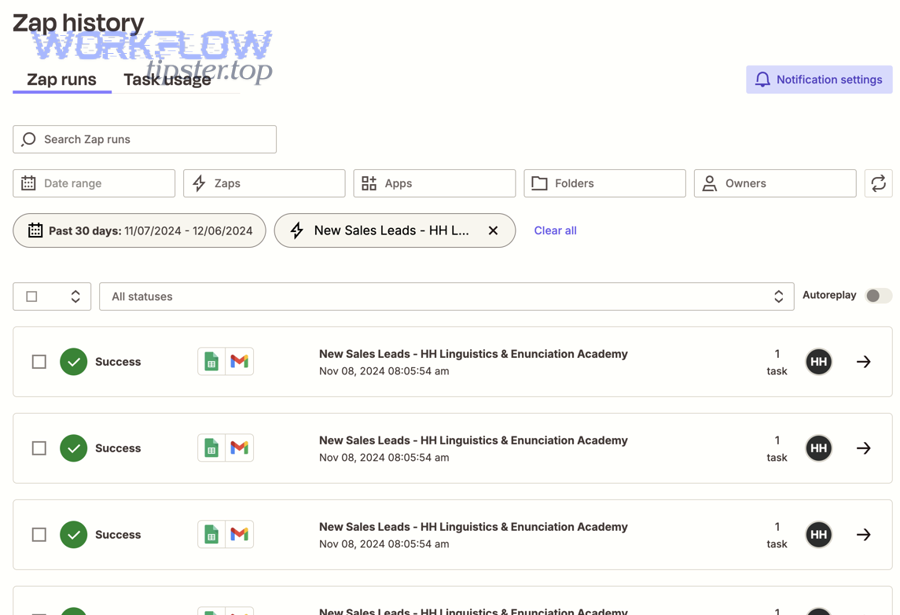
Zap History is your ground truth because it shows what data each step received and sent. Zapier explicitly positions Zap History as a troubleshooting tool. (help.zapier.com)
Use this checklist:
- Find the failed Zap run in Zap runs
- Click into the step that should have produced the file
- Confirm whether the step output contains:
- A File field that shows a real file object / “exists but not shown”
- Or a URL field that you can test in incognito (help.zapier.com)
- Compare the successful vs failed runs: did the URL format change? did the provider return HTML?
One more important detail: Zapier notes it can only guarantee up to 60 days of Zap run data in Zap History, so don’t wait too long to investigate. (help.zapier.com)
How do you generate a direct-download URL for Google Drive, Dropbox, or other providers?
For Google Drive, Zapier provides a specific direct-download format you can build from a file ID:
https://drive.google.com/uc?export=download&id=FILE_IDKey cautions:
- This works for files uploaded to Drive, not Docs/Sheets/Slides created inside Drive. (help.zapier.com)
- The file still needs sharing permissions that allow access (or your incognito test will fail).
For Dropbox and similar providers, you typically need a “direct download” endpoint (not a share page). Community guidance repeatedly emphasizes that a file field expects a file object or a publicly accessible direct download URL—not a browser preview link.
How do you re-test safely (replay, duplicate Zap, sample file) without spamming?
To avoid spamming emails, creating duplicate Drive files, or re-triggering expensive actions:
- Prefer replay on a single failed run when you’ve only changed mapping (so you validate the same input with a better file field).
- Duplicate the Zap and test in a sandbox folder/mailbox if you’re changing steps.
- Use a known small sample file for first-pass tests.
Zapier supports replaying unsuccessful runs from Zap History, which makes controlled retesting easier. (help.zapier.com)
This is also where zapier trigger not firing troubleshooting can confuse the picture: if your trigger isn’t firing consistently, you may think uploads fail—when the Zap never ran with a real file input at all.
How do you prevent timeouts and slow runs when uploading files?
Large files and slow destinations can cause timeouts and partial failures, so reduce the probability of long-running uploads:
- Keep file sizes under the practical limits for the destination (Zapier notes >100 MB may time out in file fields). (help.zapier.com)
- Store the file early, then pass a stable file object downstream.
- Minimize unnecessary steps before the upload (each step adds time and risk).
- Avoid long delays before the upload step if you’re using expiring URLs.
Evidence: According to a study by North Carolina State University from Computer Science, in 2018, researchers analyzing 156 real-world timeout bugs found 33% caused job execution failures and 26% caused significant performance degradation. (dance.csc.ncsu.edu)
That same dynamic applies to automation uploads: the longer the run and the more retries involved, the more likely you’ll see “upload failed” with minimal diagnostic signal.
What is the best fix: direct-download URL, file object, or re-uploaded file?
Direct-download URL wins for speed, file object wins for reliability, and re-uploading is the fallback when you can’t make a stable downloadable source—so the “best fix” depends on what your trigger can produce and what your destination requires. (help.zapier.com)
Next, use the decision rules below to pick the fastest safe fix.
Direct-download URL: when is it the fastest fix?
Use a direct-download URL when:
- Your trigger already provides a URL field, but it’s a preview/share link
- You can convert it into a real download endpoint (Drive uc?export=download, Dropbox direct download, etc.)
- The file is not sensitive, or you can scope access safely
Zapier explicitly supports using a downloadable URL link in file fields and explains how to validate it. (help.zapier.com) Community troubleshooting around Gmail attachments also points to this exact fix: make sure the link is a direct download URL. (community.zapier.com)
File object mapping: when does it outperform URLs?
Map a file object when:
- The trigger provides “File (Exists but not shown)” or similar file object fields
- The provider is behind auth, so you can’t create a public URL
- The workflow needs consistent, non-expiring file transfer
Zapier describes file objects as the actual file data bundle and treats them as a first-class way to send files. (help.zapier.com)
If you can map a file object, you usually eliminate whole classes of failures (login pages, expiring links, redirects).
Re-upload workaround: when do you need to download & re-upload first?
Re-upload is your “make it real” strategy when:
- The source can only give you a view link (no direct download)
- The file is embedded in a system you can’t expose publicly
- The destination rejects the source’s URL patterns
A common pattern is:
- Download the file via an intermediate step (or fetch it with a tool that can authenticate)
- Upload it into Drive/Dropbox/Files by Zapier
- Pass that stable file object to the final destination
This also helps when you’re dealing with expiring URLs: the re-upload creates a stable asset for the rest of your automation.
Formatter/Code/File utilities: when do you need transformation?
Use transformation utilities when:
- Attachments come in as line items or JSON and must be extracted into clean URLs
- You must rename files, convert types, or merge/split multiple files before upload
- The destination expects a specific structure (one file per list field)
Zapier notes that some apps use list fields for multiple files and that comma-separated values may not behave as expected in those list fields. (help.zapier.com)
If your attachment payload is messy, transform it first—otherwise you’ll keep seeing “missing” errors that are really mapping problems.
Here’s a quick decision table showing what each fix is best for:
| Fix type | Best when | Main risk | Fastest validation |
|---|---|---|---|
| File object | Trigger returns a real file object | Not always available | Check “exists but not shown” in history |
| Direct-download URL | You can generate a real download endpoint | Permissions/expiry | Incognito download test |
| Re-upload then pass | Source links can’t be made downloadable | Adds steps/time | Confirm new file object from storage |
How can you prevent future attachment upload failures in Zapier workflows?
Preventing future attachment failures in Zapier workflows means designing for stable file availability, observable runs, secure access patterns, and performance limits—so attachments are present (not missing) when your Zap needs them. (help.zapier.com)
Then, once you bake these practices into the workflow, you’ll spend far less time in reactive fixes and far more time shipping reliable automations—something you can document internally (or on a site like WorkflowTipster.top) as a repeatable ops playbook.
How should you design your workflow for attachments (store-first vs send-first)?
A “store-first” workflow is usually more reliable:
- Store-first: Trigger → store file in Drive/Dropbox/Files → use stored file object in downstream steps
- Send-first: Trigger → immediately attach/upload to destination
Store-first reduces failures from expiring links, permission edge cases, and multi-step delays.
Also, if your source is Google Drive, ensure you’re actually working with real files (uploads) rather than Docs editor items when you need a direct download. (help.zapier.com)
What monitoring and alerting should you set up (errors, retries, logs)?
At minimum:
- Review Zap History regularly for early warning patterns (same step failing repeatedly).
- Set up notifications for held/stopped runs.
- Use replay strategically to validate fixes with identical inputs.
Zap History exists specifically to review runs and troubleshoot, and Zapier provides built-in run views for this purpose. (help.zapier.com)
If you’re doing “zapier troubleshooting” at scale, consider a lightweight weekly check of your top workflows’ failure modes before they become urgent.
What security practices keep files accessible without exposing them?
Security is the tension point for attachment reliability:
- If you use URLs, ensure they are least-privilege and short-lived only if you store-first quickly.
- Prefer file objects when you can’t safely make files public.
- For Drive direct-download links, ensure sharing settings match your policy—and remember some Drive items can’t be made into true direct-download “real files” the same way. (help.zapier.com)
If security constraints prevent public URLs, treat “URL fixes” as off-limits and move straight to file objects or authenticated storage steps.
What performance practices reduce failures (batching, limits, zipping)?
To reduce “upload failed” due to scale and time:
- Keep individual file sizes manageable (Zapier notes >100 MB may time out). (help.zapier.com)
- If you must send multiple files, be aware Zapier may zip them into a single archive when multiple file objects/URLs are provided. (help.zapier.com)
- Limit unnecessary steps before uploading files, especially delays that increase expiration risk.
- When dealing with bursts, batch intelligently—don’t trigger 100 simultaneous uploads to a destination with strict API limits.
Evidence: According to a study by North Carolina State University from Computer Science, in 2018, researchers found 60% of analyzed timeout bugs produced no error message and 12% produced misleading errors. (dance.csc.ncsu.edu)
That’s why prevention matters: the best attachment troubleshooting is the architecture that avoids fragile links and long-running uploads in the first place.