


If you want a repeatable way to move from “deal data in Airtable” to “signed contract stored correctly and logged back to the record,” this workflow is the practical blueprint: capture the right fields once, generate or select the right file, control sharing, send for signature, and sync status back automatically.
Then, you’ll need to choose the implementation method that fits Sales Ops reality—fast to deploy, easy to maintain, and resilient when approvals, routing order, and permissions inevitably get messy.
In addition, you’ll want clear data objects and field mapping rules so you never send the wrong version to the wrong signer, and so your team can measure outcomes with reliable timestamps and envelope IDs.
Introduce a new idea: once those fundamentals are in place, the rest of the article shows you how to build the workflow step-by-step, troubleshoot common failure modes, and then optimize for reliability, compliance, and conversion.
What is an Airtable → DocSend → Google Drive → DocuSign document signing workflow?
An Airtable → DocSend → Google Drive → DocuSign document signing workflow is an end-to-end automation pipeline that turns a structured record into a controlled document link, routes it for legally binding e-signature, and writes back signing outcomes (status, timestamps, final file) to the original record.
To make that definition useful, the workflow needs to be understood as a system, not a list of apps—because Sales Ops succeeds when the “handoff points” (data → file → link → envelope → status) are consistent.

What does each tool do in the workflow (Airtable vs DocSend vs Google Drive vs DocuSign)?
In a mature Sales Ops stack, each tool has a “job to be done,” and the workflow works best when you don’t blur those jobs:
- Airtable = system of record (SoR). It holds deal metadata, signer details, approvals, and the workflow’s state machine (e.g., Draft → Approved → Sent → Signed). Airtable also stores stable identifiers such as a Deal ID and Envelope ID.
- Google Drive = system of file storage. It provides folder governance, ownership structure (especially via shared drives), and a durable location for the source file and the final signed PDF. Google Drive also becomes your team’s “single place to find the latest version.” (developers.google.com)
- DocSend = system of controlled sharing. It adds link-level controls (expiration, access, gating) and, in many setups, engagement signals (views, time spent) that Sales Ops can use to time follow-ups.
- DocuSign = system of signature execution + audit. It manages signer identity, routing, completion, and the audit trail that organizations typically need for contracts.
A simple way to remember the hook chain is: Record → File → Share → Sign → Sync.
Is this workflow different from a “direct Airtable → DocuSign” setup?
Yes—this workflow is different from a direct Airtable → DocuSign setup for at least three reasons: (1) file governance, (2) sharing control, and (3) operational visibility.
However, the trade-off is complexity: adding DocSend and Google Drive introduces extra permissions, versioning, and link mechanics. That’s not a downside if you need controlled sharing and storage hygiene; it’s a downside if you just need “send for signature now.”
A direct Airtable → DocuSign flow can be perfect when:
- You don’t need a separate controlled-share step.
- Your document is generated inside the signing step (template-driven).
- You’re okay storing the final file only where DocuSign outputs it.
This “expanded chain” becomes worth it when Sales Ops needs to coordinate stakeholders and reduce ambiguity—especially when multiple teams need access to the same contract artifact over time.
Do you need Zapier, Make, or an API to automate this workflow end-to-end?
Yes—you typically need an automation platform (like Zapier or Make) or an API-based integration to automate this workflow end-to-end, because the workflow crosses tools with separate authentication, file handling, and event updates.
To keep it practical, here are the most common reasons teams choose an automation layer:
- Connector coverage: Not every step is “native” inside one tool, especially when you need file creation, link sharing, and envelope sending in one chain.
- Reliable orchestration: Sales Ops workflows need branching logic (“if approved, send; if missing signer email, stop and notify”).
- Writeback and monitoring: You need a place to capture Envelope IDs, statuses, failures, and retries in a controlled way.
Then, once you pick your approach, the rest of the build becomes a disciplined mapping exercise: inputs → transforms → outputs.

Which automation approach is best for Sales Ops teams (Zapier vs Make vs custom code)?
Zapier wins in speed to launch, Make is best for workflow control and complex branching, and custom code is optimal for scale, compliance constraints, and deep customization.
Here’s how Sales Ops teams usually decide:
- Zapier: best when your flow is straightforward (trigger → a few actions → writeback), you value maintainability, and you want quick iteration without engineering.
- Make: best when you need multi-step file logic, routers/filters, deduplication, and more precise control over how data moves and retries.
- Custom code (API-first): best when you need strict idempotency, deeper governance, custom UIs, or you’re operating at high volume where per-task pricing becomes painful.
A useful heuristic: if your workflow includes “multiple signers + multiple document variants + strict version control,” Make or code tends to win.
What accounts, permissions, and security settings must you prepare before building?
You must prepare (1) tool access, (2) file ownership rules, and (3) integration authorization so the workflow can run without “permission surprises” after launch.
A minimum preflight checklist looks like this:
- Airtable: base permissions for the automation identity (service user), plus the ability to read/write the fields you’ll sync (status, envelope ID, signed file link).
- Google Drive: a clearly defined folder or shared drive location with stable ownership and predictable sharing rules. Shared drives use team ownership rather than individual ownership, which is usually what Ops wants for continuity. (developers.google.com)
- DocSend: access to the workspace/team and the ability to create or manage links using your standard sharing policy (gating, expiration, domain restrictions, if applicable).
- DocuSign: permission to send envelopes and access templates (if used), and a plan for capturing envelope events (polling vs webhooks).
If you can’t articulate “who owns the Drive folder and what happens when that person leaves,” you’re not ready to scale this workflow.
How do you set up the workflow step-by-step from Airtable record to signed PDF?
Use a “Record → File → Share → Sign → Sync” method in 6 steps to produce a signed PDF with reliable tracking: prepare fields, confirm approvals, create/select the document, store it in Drive, share via DocSend, send with DocuSign, and write back results to Airtable.
Specifically, the most important principle is to gate the send: you only generate/share/send once the Airtable record reaches a validated status, because every downstream step becomes expensive to unwind.
How do you structure Airtable fields so the workflow won’t break later?
You structure Airtable fields by separating identity, signing inputs, workflow state, and system outputs so the workflow can validate requirements before it runs.
A proven Sales Ops field layout:
- Identity fields: Deal ID (unique), Account name, Owner, Region
- Signer inputs: Signer name, signer email, signer role (if multiple), signing order (if sequential)
- Document inputs: Document type, template ID (optional), “needs redline?” flag, approved-by field
- Workflow state: Status (Draft/Approved/Sent/Signed/Declined), last updated, error message (optional)
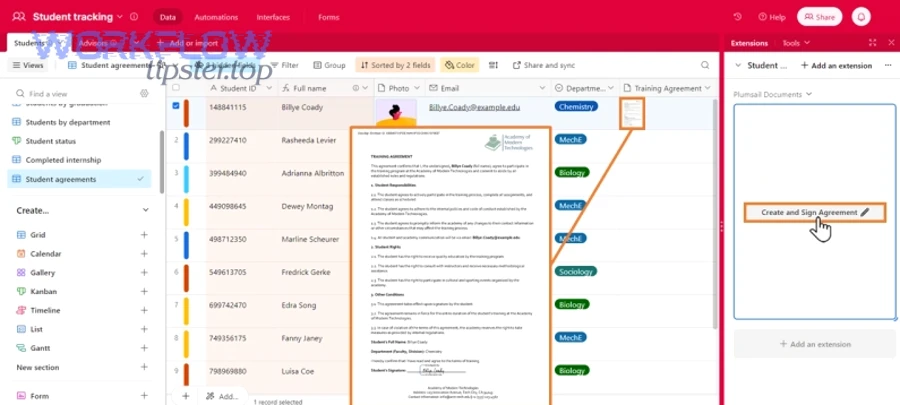
- System outputs: Google Drive file ID/link, DocSend link, DocuSign envelope ID, signed PDF link, signed date/time
The aim is simple: Airtable should tell you what to do and store what happened—without guessing.
How do you create or select the document that will be signed?
You create or select the document by choosing one of three stable paths: template generation, file selection from Drive, or record attachment upload, then locking the “signature-ready” version before you send.
Common Sales Ops patterns:
- Template generation: Use a standardized contract template, merge Airtable fields into a document, export a PDF, and treat that exported PDF as immutable.
- Drive selection: The record points to a specific Drive file ID or folder; the automation selects the latest approved file based on naming rules.
- Attachment upload: Sales attaches the contract PDF to the Airtable record; once approved, the workflow copies it to Drive and proceeds.
The key is version control: if you can edit it after sending, you will eventually sign the wrong version.
How do you store the source file in Google Drive and publish it via DocSend?
You store the file in a controlled Drive folder (ideally shared drive-based), then create a DocSend link that inherits your sharing rules while keeping the file’s “system of storage” stable in Drive.
A practical storage approach for Sales Ops:
- Folder naming: /Contracts/<Year>/<Region>/<Deal ID> – <Account Name>/
- File naming: <Deal ID> – <Account Name> – <Doc Type> – vFinal.pdf
- Ownership: team-owned shared drive where possible, to avoid “orphaned files.”
From there, DocSend becomes the outward-facing sharing layer. If you use the DocSend Google add-on or integration, you can manage sharing directly from Google file contexts in some setups. (kissflow.com)
How do you send the document for signature in DocuSign and map fields correctly?
You send the document by creating a DocuSign envelope with the correct recipients/roles, attaching the correct PDF, placing required tabs/fields (signature/date/name), and capturing the envelope ID immediately for future tracking.
A reliable sending routine:
- Recipients: validate emails (no blanks, no aliases you don’t allow), and confirm signing order if sequential.
- Roles (if templates): map Airtable role fields to DocuSign template roles (e.g., Customer Signer, Internal Approver).
- Tabs/fields: enforce required fields so signers can’t complete incorrectly.
- Email messaging: standardize subject lines and instructions to reduce signer friction.
If you “wing” recipient mapping, you’ll get silent failures like “sent to the wrong person” that aren’t technical errors but are operational disasters.
How do you sync DocuSign status back into Airtable and attach the signed output?
You sync status back by storing the envelope ID in Airtable, then using either polling or webhooks to detect status changes (Sent/Delivered/Completed/Declined), updating the record, and storing the signed PDF link in the same record.
- Polling model: Every X minutes, check envelope status and write back changes. Easy to implement; slower updates.
- Webhook model (DocuSign Connect): Receive event notifications when status changes. Faster, more scalable, and more precise when volumes grow. (developers.docusign.com)
At the end of the flow, attach either:
- a Drive link to the signed PDF stored in the deal folder, and/or
- a DocuSign completed document link if you keep originals there for audit.
What data objects and field mappings are required for reliable automation?
Reliable automation requires a consistent mapping set across 5 core objects: Airtable record, Drive file, DocSend link, DocuSign envelope, and status/audit metadata—because every failure mode is usually a missing ID, a mismatched role, or an invalid field format.
To make that concrete, here is a mapping-oriented checklist you can implement exactly once and reuse for every deal.

Which Airtable fields should you standardize for IDs, signers, dates, and currency?
You should standardize IDs, signer fields, dates, and currency by enforcing one canonical format per type—because automation platforms don’t “understand intent,” they only process strings and IDs.
The table below lists the minimum recommended fields and what each is used for:
| Airtable field | Type / format | Used for | Why it matters |
|---|---|---|---|
| Deal ID | Unique text (immutable) | Folder naming, file naming, idempotency key | Prevents duplicates and wrong-file overwrites |
| Signer Name | Text | DocuSign recipient display | Improves signer trust and clarity |
| Signer Email | Email (validated) | DocuSign recipient routing | Avoids send failures and misroutes |
| Signer Role | Single select | Template role mapping | Keeps templates reusable |
| Signing Order | Number (optional) | Sequential routing | Prevents routing order errors |
| Doc Type | Single select | Template selection | Ensures correct doc variant |
| Amount | Currency (normalized) | Merge fields | Avoids format issues (e.g., commas/decimals) |
| Effective Date | ISO-like date | Date tab/contract fields | Reduces “date mismatch” confusion |
| Envelope ID | Text (system output) | Status sync + retrieval | The key to tracking reliably |
| Signed Date | Date/time | Reporting | Enables cycle-time measurement |
Once this mapping exists, you can reuse it across adjacent examples—like automation workflows that route a contract for signature or route a support case (e.g., “freshdesk ticket to asana task to google chat support triage”) without rebuilding your data foundation each time.
How do you handle multiple signers (sequential vs parallel) and routing order in DocuSign?
Sequential routing is best when approvals depend on order, parallel routing is best when signers can act independently, and hybrid routing fits deals with an internal approver plus external signer.
To implement this safely:
- Sequential routing: store Signing Order in Airtable, set recipients with explicit order values, and verify order logic in test mode.
- Parallel routing: omit order or set the same order value (depending on implementation), and ensure your “completion” definition is clear (all signers complete).
- Hybrid routing: treat internal approvals as separate recipients with conditional steps if your platform supports it.
The most common Sales Ops mistake is treating “multiple signers” as “more of the same,” when it actually changes the workflow’s completion logic (what triggers Drive storage, follow-up, billing, or provisioning).
How can you make this workflow secure, consistent, and scalable?
You can make the workflow secure, consistent, and scalable by enforcing least-privilege permissions, using standard templates and naming rules, gating sends with validation, and building deduplication and monitoring into the workflow from day one.
More importantly, scaling isn’t just “more envelopes”—it’s more edge cases: more document types, more routing variants, and more re-runs. So you need safeguards that assume errors will happen.

What are the safest Google Drive and DocSend permission settings for sales documents?
The safest settings are those that keep ownership stable and sharing intentional:
- Use shared drives for team-owned contract storage so files don’t disappear when an employee leaves. (developers.google.com)
- Restrict who can share externally at the admin or shared-drive policy level where possible, then use DocSend for controlled external viewing.
- Keep a clear rule: “Drive stores the source of truth; DocSend exposes a controlled view.”
In shared drives, permissions are designed around roles and team ownership, which aligns well with Ops governance versus personal ownership models. (support.google.com)
A practical “Ops-safe” approach:
- Drive folder is internal-only; DocSend link is what external parties see.
- DocSend link settings include expiration and (when appropriate) access requirements aligned to your process.
How do you prevent duplicates and wrong-version signing (and recover if it happens)?
You prevent duplicates and wrong-version signing by implementing idempotency, version locks, and send-gating—and you recover by halting downstream actions, invalidating old links, and re-issuing from a known-good “signature-ready” artifact.
Prevention rules that work:
- Idempotency key: Use the Deal ID + Doc Type + Version as the unique “send key.” If that key already has an Envelope ID, do not send again automatically.
- Signature-ready status: Only allow send when Status = Approved and all required fields pass validation.
- Immutable PDF output: Generate or copy a final PDF and treat it as immutable. Do not keep “editable” files as the signing artifact.
- Link invalidation: If the doc changes, revoke or expire previous DocSend links, and create a new link tied to the new version.
Recovery playbook:
- Update Airtable status to “Hold—Version issue.”
- Notify the owner.
- Void or decline the prior envelope if needed (policy-dependent).
- Generate a new vFinal PDF and resend with a clear “supersedes prior version” message.
Should you use DocuSign templates or generate ad-hoc documents for each deal?
DocuSign templates win for consistency and speed, while ad-hoc documents are best for highly customized deals—but the optimal choice depends on how often your document structure changes.
In practice:
- Templates are ideal when:
- You have stable contract structures (MSA, order form, NDA).
- You need consistent tabs/fields and role routing.
- You want easy reporting and fewer mapping mistakes.
- Ad-hoc documents are ideal when:
- Documents are bespoke (custom terms, frequent redlines).
- You’re signing externally provided files.
- Your “tab placement” is not standardized.
Many Sales Ops teams start ad-hoc, then gradually migrate high-volume doc types into templates as the process matures.
What are the most common setup failures and how do you troubleshoot them?
The most common setup failures are DocuSign recipient mistakes, missing required fields, Drive/DocSend permission errors, and automation timeouts—and you troubleshoot them fastest by diagnosing the failure at the exact handoff point (Record → File → Share → Sign → Sync).
To keep troubleshooting systematic, treat each failure as either a data problem (bad inputs), a permission problem (can’t access), or a workflow problem (logic/retries/idempotency).
Why does DocuSign fail to send (invalid recipient, missing required tabs, role mismatch)?
DocuSign fails to send most often because the recipient data is invalid, required fields are missing, or template roles do not match the data you provided.
A practical debug sequence:
- Validate recipient email (not blank, correct domain, no trailing spaces).
- Confirm role mapping (if template-based): Airtable “Signer Role” must match the template’s role name exactly.
- Check required tabs: if a required signature/date field is missing or not assigned to the correct role, DocuSign can block completion or produce errors.
- Test with a single signer: simplify the routing to isolate whether the error comes from multi-signer ordering.
If you’re seeing recurring send failures, add a preflight validation step that blocks send and writes an “Error message” back to Airtable.
Evidence: According to a study by University of California, Los Angeles from the Department of Urology (David Geffen School of Medicine), in 2020, digital signature workflows reduced staff time to prepare documents by about 20% (8.0 vs 10.9 minutes) and showed measurable labor savings—evidence that clean templates and required-field enforcement can reduce operational burden when implemented correctly. (pmc.ncbi.nlm.nih.gov)
Why do DocSend or Google Drive steps fail (permission denied, missing file, broken link access)?
DocSend or Google Drive steps fail most often because the automation identity lacks permission, the file moved/was deleted, or shared-drive policies block external access patterns.
Troubleshoot in this order:
- Confirm file existence: verify the Drive file ID still resolves and the file still lives in the expected folder.
- Confirm ownership & role: if the file is in a shared drive, confirm the automation identity has an appropriate role (Contributor/Content manager/Manager) to access and share within policy constraints. (support.google.com)
- Check external sharing rules: shared drives and admin policies may restrict external sharing; if so, keep Drive internal and use DocSend as the controlled external layer.
- Validate link settings: DocSend gating/expiration can look like a “broken link” if settings are too strict for the recipient.
A Sales Ops-friendly pattern is to keep Drive links as internal references while DocSend is the only link sent externally, which reduces accidental exposure and simplifies troubleshooting.
What should you do when automations hit rate limits, timeouts, or partial failures?
When automations hit rate limits, timeouts, or partial failures, you should implement retry-with-backoff, store a durable checkpoint after every critical step, and design re-runs to be idempotent so they don’t create duplicate envelopes.
A resilient operational strategy:
- Checkpointing: after each stage (Drive file created, DocSend link created, envelope sent), write the output ID back to Airtable.
- Retries: retry transient errors automatically with backoff; stop and alert on persistent errors.
- Idempotency: if an Envelope ID already exists, do not create a new envelope unless a human explicitly triggers a resend workflow.
- Human-in-the-loop: create a “Needs attention” status for exceptions; Sales Ops teams move fast when exceptions are visible and standardized.
This is also where Ops teams often unify patterns across other processes—like “calendly to outlook calendar to microsoft teams to asana scheduling”—because the same retry/checkpoint ideas prevent duplicates and missed handoffs across many automations.
What advanced optimizations can improve conversion, compliance, and reliability after the workflow works?
Advanced optimization improves conversion, compliance, and reliability by using engagement signals to time follow-ups, switching to real-time status sync, enforcing audit-ready retention, and hardening high-volume sending with throttling and idempotency.
In other words, once you can “make it work,” the micro-semantics are about making it predictable and governable at scale.

How can DocSend engagement analytics help Sales Ops prioritize follow-ups before signature?
DocSend engagement analytics can help Sales Ops prioritize follow-ups by identifying who viewed the document, when they viewed it, and how engaged they were—so your team follows up when intent is highest instead of guessing.
A practical Sales Ops “follow-up logic”:
- If the primary signer viewed the doc multiple times within a short window, trigger a timely follow-up (“Happy to answer questions before you sign”).
- If no views occur after sending, trigger a gentle resend or a different channel follow-up.
- If stakeholders beyond the signer view the doc (where tracking is available), route the deal owner a heads-up that the contract is being reviewed internally.
This is one place the expanded workflow is meaningfully better than “send-only”: controlled sharing + engagement can reduce wasted cycles.
Should you use DocuSign Connect webhooks or polling to sync status back to Airtable?
DocuSign Connect webhooks win for real-time updates, polling is best for simple setups with fewer moving parts, and a hybrid approach works when you want webhooks but still need a periodic reconciliation job.
To choose confidently:
- Use polling if you want the simplest operational model and you can tolerate delayed updates.
- Use webhooks (Connect) if you need real-time status, faster downstream automation (provisioning, billing, onboarding), and cleaner scale behavior. DocuSign Connect is designed to send notifications when configured events occur in eSignature workflows. (developers.docusign.com)
Below is one developer-focused explainer you can embed for teams that want to implement Connect correctly:
What audit trail and retention practices matter for regulated or high-stakes agreements?
Audit trail and retention matter most when you need to prove who signed what, when they signed, and that the document was not altered after completion.
A lightweight but strong approach:
- Store the final signed PDF in a controlled Drive location (ideally team-owned) with restricted editing.
- Store the envelope ID and completion timestamp in Airtable.
- Store the DocuSign completion certificate/audit trail link or export (depending on policy).
- Restrict write permissions to the final-signed folder to prevent “post-sign edits.”
If your organization is regulated, align the retention window and access review process to your compliance requirements rather than leaving it to individual deal owners.
Can you run bulk sends and renewals from Airtable without harming deliverability or creating duplicates?
Yes—you can run bulk sends and renewals from Airtable without harming deliverability or creating duplicates if you throttle sending, enforce idempotency per recipient and document version, and segment sends with clear operational controls.
A safe bulk strategy:
- Batching: send in controlled batches (e.g., by region or owner) rather than all at once.
- Throttling: add delays between sends to reduce rate-limit risk and avoid overwhelming signers.
- Idempotency rules: one active envelope per Deal ID + Doc Type + Version unless explicitly superseded.
- Renewal governance: tie renewals to a “Renewal Cycle” field so your workflow can generate the correct version and route to the correct signer.
This disciplined pattern also transfers cleanly to adjacent signing flows, such as “airtable to google slides to google drive to pandadoc document signing,” because the reliability mechanics—batching, idempotency, checkpoints—remain the same even when the document format or signing platform differs.
Evidence: According to a study by University of New South Wales from the School of Psychology, in 2020, replication studies (total N=311) found that digitally signed documents (avatar format) were perceived as less socially present than hand-signed ones, influencing judgments about trust and commitment—one reason signer experience and clear messaging can matter in high-stakes agreements. (researchgate.net)