


An Airtable → Confluence → Box → DocuSign workflow is the fastest way for Ops and Legal teams to turn structured intake data into a draft, route it to the right signers, and archive the signed agreement in a predictable folder—without losing traceability.
More specifically, this article shows how to architect automation workflows so each Airtable record generates (or references) a controlled Confluence draft, produces a “send-ready” file in Box, then triggers a DocuSign envelope that returns the completed signed copy back into the correct Box location.
In addition, you’ll learn how to choose the right integration approach (no-code vs low-code vs API/webhooks), so the workflow stays reliable under real-world conditions like revisions, multiple signers, and access controls.
Introduce a new idea: once you understand the end-to-end flow, you can harden it with governance, auditability, and error-proofing so the workflow behaves like a production system, not a fragile one-off.
What is an “Airtable → Confluence → Box → DocuSign” eSignature workflow?
An Airtable → Confluence → Box → DocuSign eSignature workflow is an end-to-end agreement pipeline that originated from structured intake data, is drafted and reviewed in a knowledge/document layer, is stored in a system of record, and is executed through a legally recognized signature process with a complete audit trail.
To better understand why this matters, think of the workflow as a single “agreement lifecycle” with four specialized roles: Airtable captures the who/what/when, Confluence shapes the narrative and approvals, Box controls storage and access, and DocuSign executes signatures and completion artifacts.
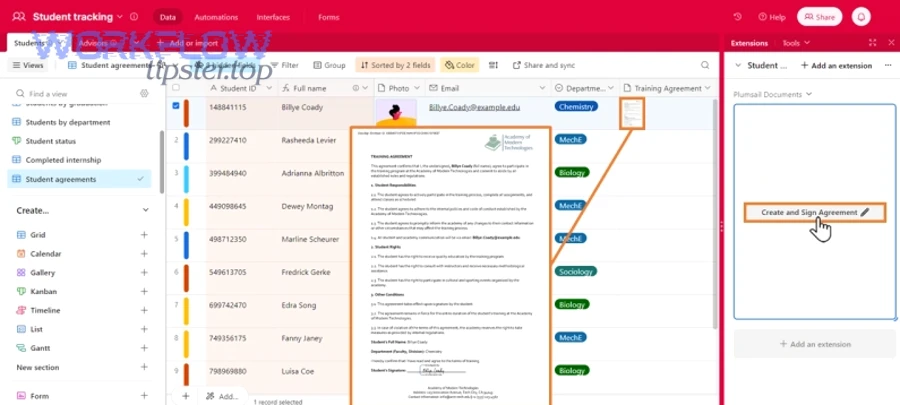
What data starts in Airtable, and what becomes the signed document?
The Airtable record should start as a clean “agreement intake object,” and the signed document should become a stable “agreement artifact” that always points back to the record that created it.
A practical intake schema usually includes:
- Counterparty identity (legal name, address, tax ID if required)
- Agreement type (NDA, MSA, SOW, amendment, offer letter)
- Deal/project identifiers (customer ID, project code, opportunity ID)
- Commercial terms (amount, dates, term length, renewal rules)
- Signer roles (internal approver, external signer, optional CC recipients)
- Draft source (template name, Confluence page template ID, or clause set)
The rule that prevents chaos is simple: the Airtable record is the authoritative metadata, while the document (PDF/DOCX) is the authoritative “final text.” You never want “the real dates” living only inside a PDF filename, and you never want “the real clause text” living only inside a spreadsheet cell.
What does Confluence do in the workflow: drafting, approvals, or both?
Confluence should handle drafting, approvals, or both depending on your team’s maturity—but it must always provide controlled structure.
In practice, Confluence shines when:
- You need repeatable page templates (standard clauses, pre-approved sections)
- You need review and approval before sending to signature
- You want transparent revision history on the draft before it becomes a signable file
For Ops teams, Confluence also acts as “the narrative layer”: it keeps the agreement readable and explainable, instead of turning your process into “fields and PDFs” only.
What should Box store: drafts, final PDFs, signed copies, or all of them?
There are 3 main types of agreement storage in Box: Drafts, Send-Ready Finals, and Executed (Signed) Copies, based on the criterion of legal readiness and audit necessity.
In a clean lifecycle:
- Drafts (optional): living documents while Legal and Ops iterate
- Send-Ready Final (recommended): the frozen file that DocuSign sends
- Executed Copy (required): the signed PDF + completion certificate + envelope ID reference
If you must choose only two, keep Send-Ready Final and Executed. Drafts can stay in Confluence if your versioning and permissions are robust.
Can you automate this workflow end-to-end without custom code?
Yes, you can automate an Airtable → Confluence → Box → DocuSign workflow without custom code because (1) most steps map to standard triggers/actions, (2) the lifecycle can be controlled with status fields and gating, and (3) most signature scenarios can run on templates and predictable file handling.
Next, the key is to define the minimum viable automation first—then add sophistication only where risk or volume demands it.
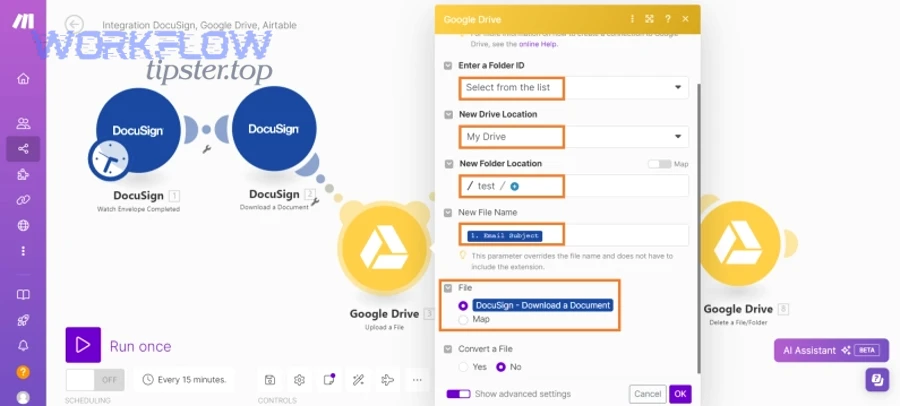
Which triggers and actions are required at each step?
There are 4 main trigger/action groups in this workflow: intake triggers, drafting actions, storage actions, and signature lifecycle actions, based on the criterion of where state changes happen.
A reliable baseline looks like this:
- Airtable trigger: record created or status changes to “Ready for Draft”
- Confluence action: create page from template (or update a page section)
- Box action: create folder, upload/export file, set metadata, set permissions
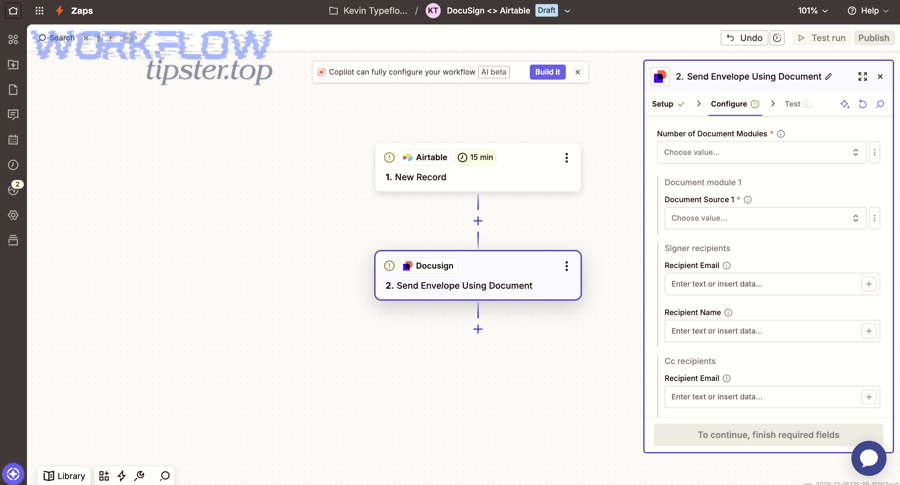
- DocuSign action: create/send envelope from template, attach file, assign recipients
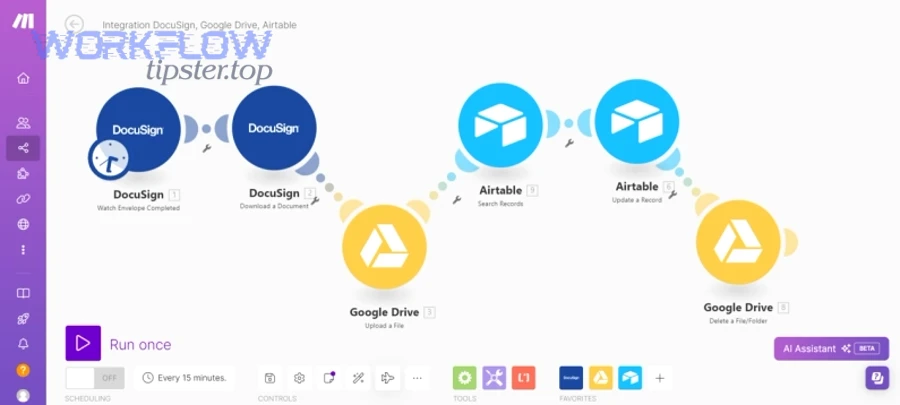
- DocuSign completion trigger: envelope completed → save executed copy to Box → update Airtable status and links
The most important design point is that the trigger should be a controlled state change, not “any update,” because uncontrolled triggers create duplicates.
What are the common no-code patterns to generate a signable document?
There are 3 main patterns to generate a signable document: page-to-PDF export, template merge-to-PDF, and stored file selection, based on the criterion of where the final file is authored.
- Confluence page-to-PDF export: best when Legal reviews in Confluence and you need a consistent page structure.
- Template merge-to-PDF: best when the agreement is highly standardized (NDA-style) and data comes from Airtable fields.
- Stored file selection: best when the agreement is negotiated outside the system, and your workflow’s job is routing and archiving, not drafting.
Choose the simplest pattern that still guarantees document integrity at send time.
When is custom code unavoidable?
No, custom code is not unavoidable for most teams—but it becomes necessary when you require strict idempotency, complex document composition, or advanced webhook-driven filing.
In real Ops/Legal environments, code is usually justified by:
- Complex multi-document envelopes (multiple attachments, dynamic bundles)
- Advanced signer authentication and conditional routing
- High-volume processing where retries, rate limits, and dedupe must be deterministic
- Deep metadata synchronization across all tools (not just “store a link”)
If your workflow has legal or compliance exposure, code may be the “insurance policy” that makes the automation provably correct.
How do you design the workflow architecture to prevent duplicates and missing signatures?
Use a state-machine design with 6 steps to prevent duplicates and missing signatures: define statuses, gate transitions, freeze the send-ready file, generate an envelope once, record cross-system IDs, and verify completion before filing—so each record produces exactly one authoritative executed agreement.
Then, the architecture becomes less about “connecting apps” and more about “controlling outcomes,” which is the real job of automation workflows in Legal Ops.
What statuses should the Airtable record track from draft to “completed”?
There are 8 main statuses you should track in Airtable: Intake, Drafting, Review, Ready to Send, Sent, In Signing, Completed, and Filed, based on the criterion of who owns the next action.
A practical status map:
- Intake (Ops collects required fields)
- Drafting (Confluence page created/updated)
- Review (Legal approves text)
- Ready to Send (final file frozen in Box)
- Sent (envelope created + envelope ID stored)
- In Signing (waiting for recipients)
- Completed (DocuSign completed)
- Filed (executed copy saved, Box link written back)
Add explicit Failure statuses (e.g., “Export Failed,” “Send Failed,” “Filing Failed”) so your team can repair without guessing.
How do you link IDs across tools (record ID, page ID, file ID, envelope ID)?
Link IDs by choosing one canonical “agreement key” (usually the Airtable record ID or a generated agreement ID) and stamping it into every artifact: Confluence page properties, Box file metadata, and DocuSign envelope custom fields.
For example:
- Airtable:
Agreement_ID = AGR-2026-000184 - Confluence: page property
Agreement_ID = AGR-2026-000184 - Box: metadata field
Agreement_ID = AGR-2026-000184 - DocuSign: custom field
Agreement_ID = AGR-2026-000184
This turns your workflow into a traceable chain instead of four disconnected systems.
How do you handle retries safely when an automation re-runs?
Handle retries safely by making every “dangerous action” conditional: don’t create a new page if one exists, don’t upload a new file if a send-ready file is already frozen, and don’t create a new envelope if an envelope ID already exists.
Use a simple dedupe protocol:
- Before creating an envelope, check:
Envelope_ID is empty? - Before uploading final, check:
Final_File_ID is empty? - Before creating a page, check:
Confluence_Page_ID is empty?
This approach is not fancy—but it’s the difference between “automation” and “random duplication.”
How do you build the document: Confluence page vs template-based PDF generation?
Confluence wins in collaborative drafting and approvals, template-based PDF generation is best for standardized agreements and speed, and a hybrid approach is optimal when Ops needs structured data while Legal needs narrative control.
However, the right choice depends on how your team edits agreements: do you negotiate text, or do you mostly fill in variables?
Is Confluence page-to-PDF export better than a dedicated template system?
Confluence export is better for human-readable drafting and review, while template systems are better for repeatability and data-driven accuracy.
Confluence export works best when:
- Legal reviews inline and expects version history
- The agreement includes explanatory sections, not just clauses
- Approvals must be visible and auditable
Template generation works best when:
- Agreements are mostly standardized
- You need consistent formatting across hundreds of documents
- Variables must always map correctly from Airtable fields
If you want fewer errors, minimize the number of “copy/paste moments” in the workflow.
Which approach reduces legal risk and revision errors?
Template-based generation reduces risk through standardization, while Confluence reduces risk through transparent review; the lowest-risk setup is to draft in Confluence, then freeze a send-ready PDF in Box that cannot change after approval.
Version control guidance from University College London emphasizes that clear naming and version information helps ensure the correct version is used and prevents outdated information from being incorporated into current versions. ucl.ac.uk
How do you send for signature in DocuSign and guarantee the right people sign the right version?
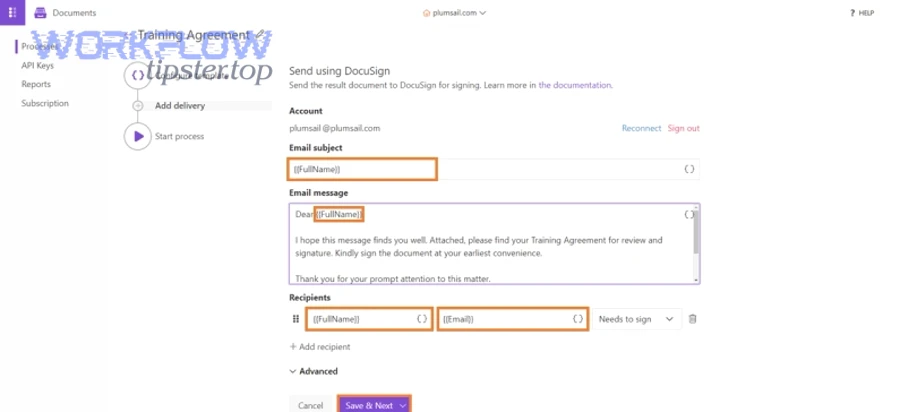
Send for signature by using a gated “Ready to Send” status, attaching the frozen Box file, assigning recipients by role, and storing the envelope ID back to Airtable so the workflow can confirm the exact version and the exact signer path.
Moreover, you can enforce correctness with three controls: role-based templates, routing order, and a “final file checksum mindset” (even if you implement it as a simple file ID + timestamp lock).
What recipient routing options matter most for Ops & Legal?
There are 4 main routing options that matter most: sequential routing, parallel routing, internal-first approvals, and CC/archive recipients, based on the criterion of risk control vs speed.
- Sequential: best for legal-sensitive flows (Legal approves before external signer)
- Parallel: best when multiple signers can sign independently
- Internal-first: best when you must gate external sending until internal sign-off
- CC/archive: best for compliance and record retention without giving edit rights
In practice, Ops loves parallel for speed, while Legal prefers sequential for control—so you decide based on agreement type.
How do you prevent signing the wrong document version?
Prevent wrong-version signing by freezing the final file in Box before sending, setting the Airtable status to “Sent” only after the envelope ID is saved, and blocking any post-send edits by policy.
A simple “version integrity checklist”:
- Final file stored in Box folder
/Agreements/<Counterparty>/<Agreement_ID>/Final/ - File name includes
Agreement_ID+Effective_Date+Version - Airtable record stores
Final_File_IDandEnvelope_ID - Confluence draft is marked “Approved” and no longer used as the send source
When you make “freeze before send” non-negotiable, wrong-version signing becomes rare.
How do you file completed signed documents into Box automatically and keep them discoverable?
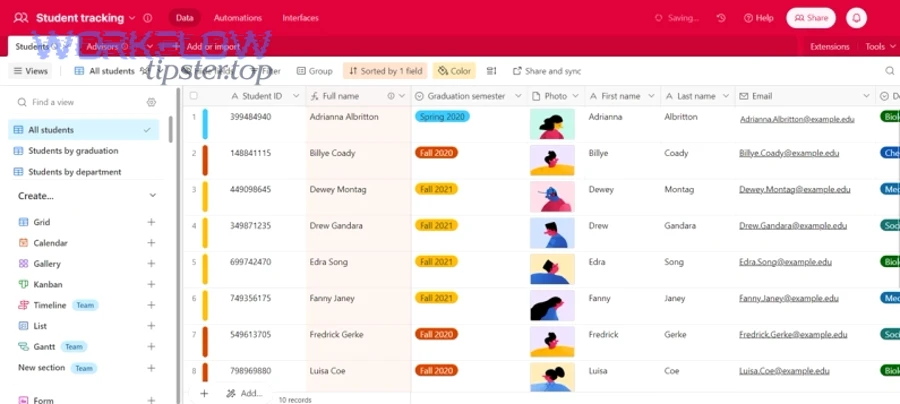
File completed documents by listening for the “Completed” envelope status, saving the executed PDF and completion certificate into a predictable Box folder, writing standardized metadata, and linking the Box file back to Airtable so anyone can find it in one click.
Especially for Ops and Legal teams, discoverability is not optional—because the real work happens weeks later when someone asks, “Where is the executed copy?”
What is the best Box folder structure for signed agreements by customer/project?
There are 3 main folder structures for signed agreements: by counterparty, by project, and by time period, based on the criterion of how your organization searches later.
A common Legal Ops structure:
/Agreements/<Counterparty>/<Agreement_ID>//Draft/(optional)/Final/(send-ready)/Executed/(signed PDF + certificate)/Amendments/(future changes)
A common Ops structure for high-volume deals:
/Customers/<Customer_ID>/Contracts/<Agreement_Type>/Executed/
Pick one, document it, and enforce it via automation—because folder drift is silent failure.
How do you write Box metadata so anyone can search later?
Write metadata by standardizing 8 fields across every executed file: agreement ID, counterparty, agreement type, effective date, term end date, owner, DocuSign envelope ID, source record link.
Good metadata practices:
- Use controlled vocabularies (drop-downs) for agreement type
- Keep dates in ISO format (YYYY-MM-DD) for sorting
- Store both human-readable and system IDs (e.g.,
Counterparty_NameandCustomer_ID) - Keep the Airtable record URL in a “Source_Record” field
This turns Box into a searchable archive rather than “a folder of PDFs.”
Which integration approach is better: Zapier vs n8n vs API/webhooks?
Zapier wins in speed-to-launch, n8n is best for control and branching, and API/webhooks are optimal for compliance-grade reliability and deterministic error handling.
Meanwhile, the real decision is whether your workflow is a “department automation” or a “business-critical agreement system.”
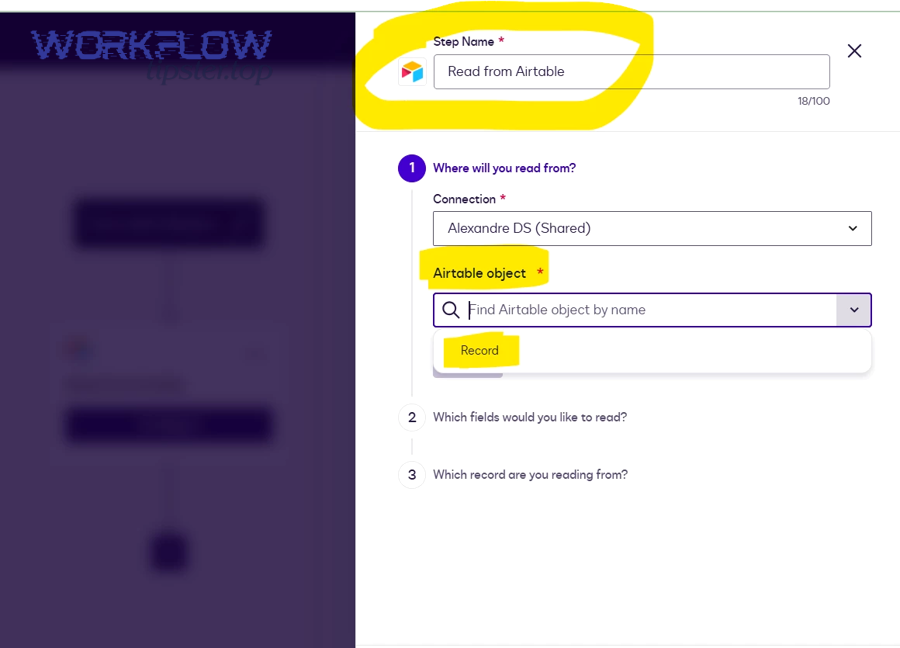
Before the table, here’s what it contains: the table compares Zapier, n8n, and custom API/webhooks across the criteria Ops & Legal teams care about most when automating an agreement lifecycle.
| Approach | Best for | Strength | Tradeoff |
|---|---|---|---|
| Zapier | MVP and quick wins | Fast setup, broad app coverage | Limited deep control for complex retries/dedupe |
| n8n | Operational control | Branching, data transforms, self-host options | More engineering mindset needed to maintain |
| API/Webhooks | High assurance | Deterministic logic, strong observability, custom governance | Higher build cost and longer time-to-ship |
To illustrate how this generalizes beyond Legal Ops, teams often use similar patterns for “github to asana to slack devops alerts,” “freshdesk ticket to linear task to microsoft teams support triage,” and “github to jira to discord devops alerts”—the difference is that agreement workflows usually carry higher audit and version-control risk.
Which approach is simplest for a first working version?
Zapier is simplest for a first working version because it reduces setup time, keeps the workflow readable for non-engineers, and makes it easier to iterate on triggers and notifications.
Start simple by automating:
- Airtable status change → create Confluence page
- Approved status → export/upload final to Box
- Final in Box → send DocuSign envelope
- Completed envelope → save executed copy + update Airtable
Once this works reliably for 20–50 agreements, you’ll know what must be hardened.
Which approach scales best for compliance and audit needs?
API/webhooks scale best for compliance because they support deterministic idempotency, centralized logging, strict permission enforcement, and verified event handling from the signature provider to the system of record.
If your organization requires repeatable audit evidence, “best effort” automation is not enough—you want provable correctness.
What governance and security controls should Ops & Legal implement across all four tools?
There are 6 main governance controls Ops & Legal should implement: role-based access, least privilege, approval gating, audit trail capture, retention rules, external-sharing boundaries, based on the criterion of reducing legal and operational risk across the agreement lifecycle.
In addition, governance becomes much easier when your workflow uses the same agreement ID everywhere, because you can audit by searching one key across systems.
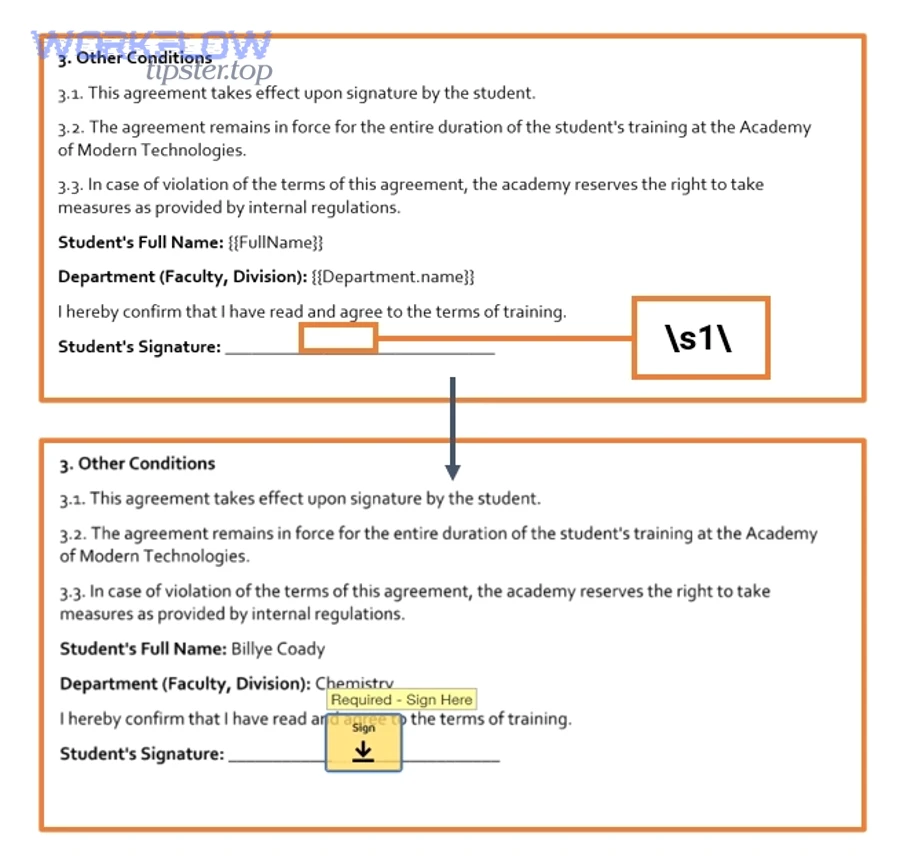
What permissions should each role have in Airtable, Confluence, Box, and DocuSign?
Assign permissions by role, not by individual—and keep the workflow’s service account as constrained as possible.
A simple, effective model:
- Ops coordinator: edit Airtable intake fields; create/update Confluence drafts; upload finals to Box; initiate envelopes if approved
- Legal reviewer: approve in Confluence; optionally approve “Ready to Send” in Airtable; view Box finals and executed copies
- Agreement sender/admin: manage DocuSign templates, recipient rules, and envelope settings
- External signer: sign only; no access to internal storage beyond the envelope experience
The key is to ensure external signers never gain broad Box access unless that is explicitly required by policy.
What audit trail evidence should you keep, and where should it live?
There are 4 main categories of audit evidence you should keep: draft history, approval history, signature evidence, and archival evidence, based on the criterion of proving what happened and when.
A practical evidence map:
- Confluence: drafting edits, reviewer comments, approval notes
- DocuSign: envelope ID, completion certificate, event history
- Box: executed file version history, retention settings, access logs (where available)
- Airtable: status timeline fields + links to the above artifacts
According to a report by the California State University from its Focus on Efficiency program, in 2020, electronic signatures reduced average turnaround time by 73% versus manual process turnaround in six selected cases. calstate.edu
How do you troubleshoot when the workflow breaks (failed runs, missing files, stuck envelopes)?
Troubleshoot this workflow with 5 steps—identify the failing stage, confirm IDs and permissions, validate data mapping, inspect logs/run history, and replay safely from the last good checkpoint—so you restore the agreement lifecycle without creating duplicates or losing auditability.
To begin, treat troubleshooting as a controlled repair process: you fix the state, not just the symptom.
What are the top failure modes at each step, and how do you fix them?
There are 6 main failure modes in this workflow: missing required fields, draft creation failures, export/upload failures, permission denials, envelope send failures, and completion filing failures, based on the criterion of where the lifecycle can break.
Fix patterns that work:
- Missing fields: add a required-field checklist; block status transition until complete
- Confluence page not created: verify template access; ensure the integration user can create pages in the target space
- Export/upload failure: confirm file size limits; confirm the page has rendered content; retry export once, then flag for manual review
- Box permission denied: verify the service account has upload rights to the destination folder; enforce folder creation via automation so permissions are consistent
- Envelope send failed: validate recipient emails and roles; confirm the file is frozen; check if an envelope already exists for that record
- Completion not filed: confirm completion trigger is enabled; ensure the executed folder exists; replay the “file executed copy” step only
The most important mindset: never “re-run the whole thing” unless your dedupe controls are strong, because that’s how duplicates are born.
How do you monitor the workflow so failures don’t go unnoticed?
Monitor the workflow by tracking “stale statuses” in Airtable, logging every run with timestamps, and alerting when an agreement sits too long in Sent/In Signing without progress.
A lightweight monitoring setup:
- A daily view: agreements “Sent” for > 7 days
- A daily view: agreements in “Filing Failed”
- A weekly audit: executed copies missing a Box link
- A run log table: record ID, step name, outcome, error message, retry count
This turns your system from reactive to proactive.
How can you optimize and harden this eSignature workflow for compliance, scale, and edge cases?
Harden the workflow with 4 moves—tighten gates, standardize metadata, enforce version control, and implement deterministic event handling—so the pipeline stays compliant under high volume, multi-signer complexity, and frequent amendments.
Next, you move from macro setup to micro optimization: you’re no longer asking “Can it work?” but “Will it stay correct under stress?”
What is the difference between a manual signing process and an automated signing workflow?
A manual process wins in ad-hoc flexibility, an automated workflow is best for speed and consistency, and a hybrid model is optimal when Legal needs controlled exceptions while Ops needs predictable throughput.
In practice:
- Manual is flexible but error-prone (wrong version, missed signer, lost email thread).
- Automated is fast and consistent but demands disciplined inputs (clean data, clear statuses).
- Hybrid is often best: automation handles the standard path; exceptions trigger a controlled manual review.
If your agreements are frequent and standardized, automation is a force multiplier. If they are rare and highly negotiated, automation still helps with archiving, audit, and traceability.
How do you implement chain-of-custody so signed documents are tamper-evident?
Implement chain-of-custody by storing the executed PDF and completion certificate together, stamping the envelope ID into Box metadata, and preventing post-execution edits through retention and permission controls.
A strong chain-of-custody pattern:
- Executed PDF saved in
/Executed/ - Completion certificate saved alongside it
- Airtable record stores envelope ID + executed file ID
- Box metadata stores agreement ID + envelope ID + completion date
- Folder permissions restrict edits after completion
This makes it easy to prove that the “executed copy” is the executed copy.
How do you synchronize metadata across Airtable, Confluence, Box, and DocuSign without drift?
Synchronize metadata by declaring Airtable as the single source of truth for structured fields, pushing only approved fields downstream, and reconciling by agreement ID rather than by filenames.
A drift-prevention strategy:
- Airtable fields are authoritative (counterparty, dates, amount, owner)
- Confluence contains narrative and approvals (but references the agreement ID)
- Box stores final artifacts and metadata (mirrors key Airtable fields)
- DocuSign stores envelope and signer events (mirrors agreement ID)
If something changes (like an effective date), you update Airtable first, then regenerate/freeze a new final, then send a new envelope—never “edit the executed copy.”
Which edge cases break automation most often (multi-signer, amendments, expirations), and how do you handle them?
There are 4 main edge-case groups: multi-signer routing, amendments and re-sends, declines/voids, and expirations/reminders, based on the criterion of how signature lifecycles deviate from the happy path.
How to handle them cleanly:
- Multi-signer routing: store recipient roles in Airtable; validate routing order before send; avoid manual edits to recipients after send unless your workflow can reconcile changes.
- Amendments/re-sends: create a new version number, freeze a new final file, and create a new envelope that references the new version.
- Declines/voids: push the record into a “Declined” or “Voided” status; notify owner; preserve the evidence but stop filing as “Executed.”
- Expirations/reminders: use automatic reminders, but also alert internal owners when an envelope is nearing expiration so someone can intervene.
As a final micro-semantics rule, remember why version control matters: University of Wisconsin–Madison notes that inconsistent file management can lead to lost work, redundancies, and errors—exactly the risks you’re eliminating by freezing files, stamping IDs, and enforcing lifecycle statuses. researchdata.wisc.edu