


If your Zapier trigger isn’t firing, the fastest fix is to confirm the trigger is meant to fire on the exact event you’re generating, then validate the Zap is ON, connected, and receiving new qualifying data—because most “not firing” reports are actually “not eligible.”
Next, you’ll use Zap History and run status to separate two very different problems: a trigger that never fires versus a trigger that fires but gets filtered, routed away by Paths, or stopped by an action error—so you don’t troubleshoot the wrong layer.
Then, you’ll diagnose the most common root causes (connection/auth changes, wrong trigger event, deduplication rules, polling delays, and filter logic) and apply the right fix for each, especially when testing succeeds but live runs don’t.
Introduce a new idea: once your trigger is firing again, you’ll lock in prevention habits—monitoring, “missed vs duplicate” safeguards, and high-volume strategies—so the same failure doesn’t return the next week.
Is your Zapier trigger actually supposed to fire right now?
Yes—your Zapier trigger is supposed to fire right now only if the Zap is ON, the correct trigger event is selected, and you are producing new qualifying data that matches your trigger settings, which prevents false alarms, avoids chasing “missing runs,” and speeds up troubleshooting.
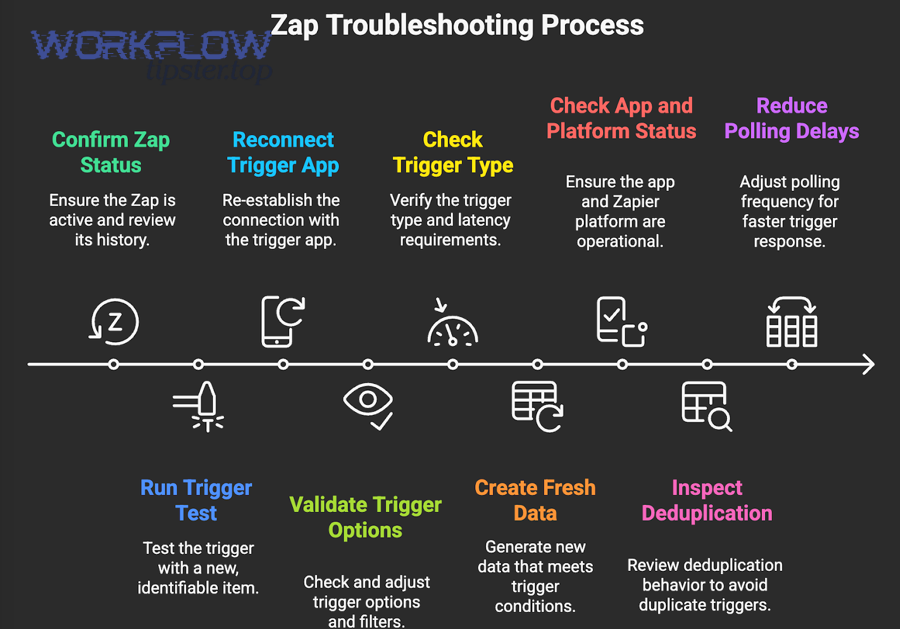
Next, to fix “Zapier trigger not firing” quickly, you need to prove eligibility first—because an ineligible event will look exactly like a broken trigger.
The most common “gotcha” is simple: you generate an event in the source app, but it’s not the event your trigger is watching. The second most common “gotcha” is sneakier: the event is real, but Zapier won’t pick it up because it’s not “new” in the way that trigger defines “new.” The third is operational: the Zap is off, paused, or connected to the wrong account.
To keep your troubleshooting tight, do these baseline checks in order:
- Zap is ON (not just edited and saved).
- Trigger step is the correct app + correct event (e.g., “New Lead” vs “New Contact”).
- Trigger settings point to the right container (list, folder, sheet, pipeline, form, channel).
- You created a truly new record that meets the conditions (not an old record edited).
- The connected account is the one where you’re creating the data (team accounts trip people up).
- If polling is involved, enough time has passed for the next poll (more on this later).
What does “new data only” mean for a Zapier trigger?
“New data only” means a Zapier trigger is a start event that typically fires only when your app produces a fresh trigger item—created after the Zap was turned on (or after the trigger configuration changed), with an ID/value pattern the trigger recognizes as unseen.
Specifically, this is why you can test successfully (Zapier finds recent items), but your real workflow still doesn’t “fire” when you edit older items.
Here’s how “new data only” shows up in real troubleshooting:
- Editing an existing record often won’t trigger a “New X” trigger.
- Bulk imports may create data in ways the trigger doesn’t detect reliably.
- Previously seen IDs can get deduplicated (the record exists, but it won’t re-trigger).
- Trigger configuration changes (like switching a list or sheet) often require fresh sample data that matches the new configuration.
A practical rule: when you’re validating a trigger, always create a brand-new record with unmistakable values (e.g., name it “TRIGGER TEST — Feb 1”) so you’re not guessing which item should have fired.
Which trigger settings most often stop a trigger from firing?
There are 6 common trigger-setting blockers: wrong trigger event, wrong account, wrong source container, missing required fields, overly strict trigger options, and mismatched “new vs updated” expectations—based on how the trigger defines eligible events.
Then, once you know which blocker applies, you can change one setting at a time and retest with fresh data.
Use this fast checklist to spot the usual suspects:
- Wrong event type
Example: You selected “New Contact” but you’re creating “New Lead.” - Wrong connected account
Example: You’re adding rows in a shared sheet under a different Google account than the one connected to the Zap. - Wrong list/folder/sheet/table/pipeline
Example: You’re adding a subscriber to List B but the trigger watches List A. - Trigger options that narrow eligibility
Example: “Only trigger when status = Active,” but your new record defaults to Pending. - Required field mapping not present
Example: The trigger expects a key field, but your app’s record is created without it (often happens with partial forms). - Using “New” when you need “Updated” (or vice versa)
If your workflow depends on edits, “New” triggers may never fire for the behavior you want.
If you’re unsure which one you hit, don’t guess—move to Zap History next and let the evidence tell you whether the trigger fired at all.
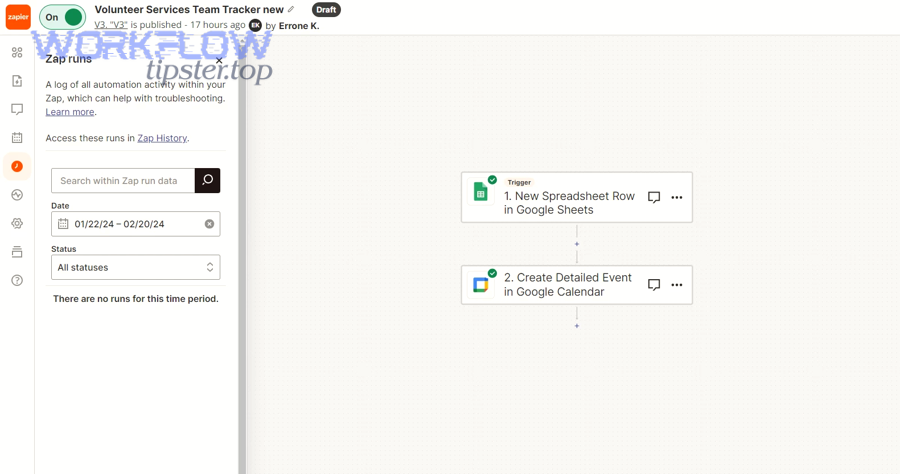
What does “Zapier trigger not firing” look like in Zap History and run status?
“Zapier trigger not firing” looks like either (1) no new Zap History entries at the times you created eligible events, or (2) Zap History entries that show the trigger fired but the run was filtered, stopped, or held—so the fix depends on the run status you see.
To better understand the failure, you’ll use Zap History like a timeline: what happened, when, and why.
Think of Zap History as the difference between silence and blocked motion:
- Silence: no runs, no trigger activity → troubleshoot trigger eligibility, connection, polling/instant mechanics.
- Blocked motion: runs exist but don’t complete → troubleshoot filters, paths, permissions, action errors, missing fields.
A simple workflow that never fails: create a known-good trigger item, note the time, then check Zap History for that exact window.
What’s the difference between “trigger never fired” and “trigger fired but actions didn’t run”?
“Trigger never fired” means there is no run entry for the trigger event time, while “trigger fired but actions didn’t run” means the run exists and the trigger step succeeded, but later logic filtered, routed, paused, or errored—so each case has a different first fix.
However, many people treat both as the same problem, which wastes hours.
Use this comparison table as your decision point :
Table context: The table below compares the most common “not firing” symptoms with what you’ll see in Zap History, what each symptom usually means, and the best next troubleshooting move.
| Symptom | What you see in Zap History | What it usually means | Best next move |
|---|---|---|---|
| No runs at all | Nothing around the event time | Trigger didn’t detect eligible data or isn’t connected | Re-check trigger event + new-data eligibility + trigger type |
| Runs exist, stop early | “Filtered” / “Stopped” / “Held” | Logic prevented completion | Inspect Filters/Paths and the exact field values |
| Runs exist, error on action | Error message on action step | Downstream action failed | Fix permissions, required fields, payload formatting |
| Runs exist, delayed start | Starts later than expected | Polling interval / queue delay | Validate trigger type and timing; manually poll if available |
Once you’ve classified the symptom, you can troubleshoot with confidence instead of trial-and-error.
How do “Zap Off,” “Paused,” and “Errored” states differ for triggers?
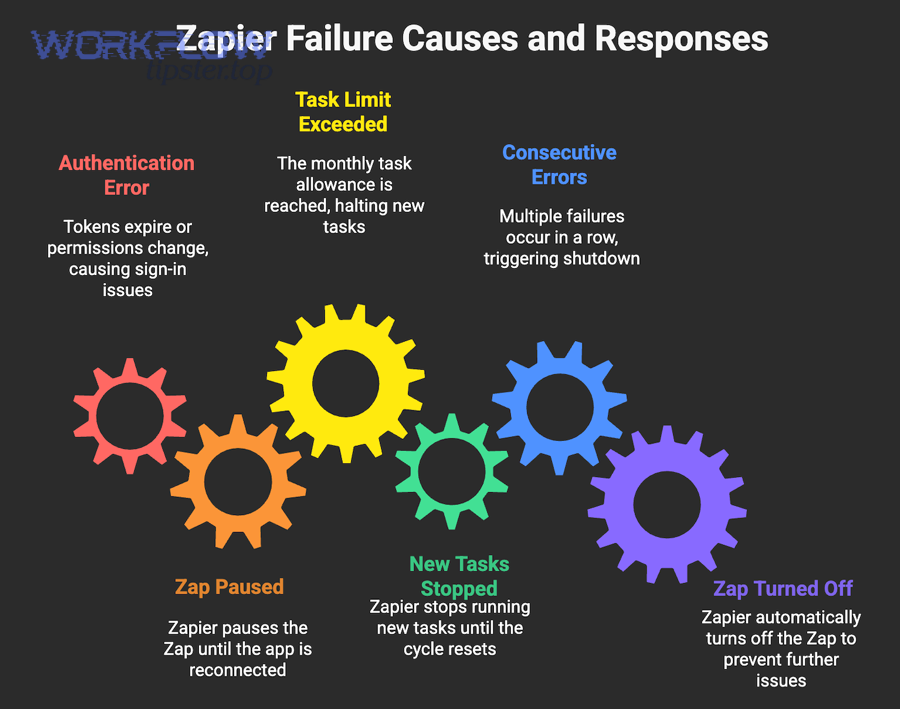
Zap Off stops all triggering, Paused temporarily prevents runs from processing, and Errored indicates runs were attempted but failed—so “Zapier trigger not firing” can be a state problem even when the trigger setup is perfect.
In addition, state issues often appear right after you edit a Zap, change credentials, or hit an app outage.
- Zap Off
- Nothing will trigger.
- Fix: turn it on, then create brand-new qualifying data to validate.
- Paused
- The Zap may not process runs until it’s resumed .
- Fix: resume; then verify whether missed events need reprocessing.
- Errored
- The Zap is trying to run but failing at some step.
- Fix: open the error detail; it often points to permissions, missing fields, or payload issues.
If you’re doing zapier troubleshooting efficiently, you always confirm state first—because it’s a zero-cost fix that prevents deeper misdiagnosis.
What are the most common root causes of a Zap not triggering?
There are 4 main root-cause groups for a Zap not triggering: eligibility/configuration mismatches, connection/permission problems, timing/trigger-type delays, and logic blockers (filters/paths)—based on where the run fails to start or continue.
Moreover, these causes repeat across apps, so you can solve them with a consistent playbook.
To make the diagnosis fast, think in layers:
- Eligibility layer: Is the event the trigger expects, and is it “new”?
- Connection layer: Can Zapier read the event from the right account?
- Timing layer: Does the trigger rely on polling or instant webhooks?
- Logic layer: Do filters/paths stop the run after the trigger?
Which connection and permission issues commonly prevent triggers from firing?
There are 5 common connection/permission issues: expired auth, revoked access, changed credentials, app-side policy changes, and “wrong account” connections—based on whether Zapier can read trigger data from the source app.
Besides, connection issues often appear “suddenly” because they change outside your Zap editor.
- OAuth/token expired or revoked
- The trigger step may fail to fetch recent items or fetches empty results.
- Fix: reconnect the account from the trigger step; refresh fields; retest.
- App admin or security policy changes (workspace-level)
- The Zap was working, then stopped after an admin update.
- Fix: confirm the connected user still has permission to view the object.
- Password rotation / SSO enforcement
- Some apps invalidate sessions after security changes.
- Fix: reconnect using the new login method.
- Wrong account connected
- Especially common with multiple workspaces, clients, or personal vs company accounts.
- Fix: verify the account label and test using an item created in that account.
- Permissions changed on the specific object (sheet, folder, list)
- Zapier can connect but can’t “see” the place where the data is created.
- Fix: grant access to the connected user.
If your trigger test returns nothing or returns the wrong data, connection and permissions are your first suspects.
Which data and deduplication rules commonly stop triggers (even when events happen)?
There are 5 data-rule blockers: old items, repeated IDs, unchanged monitored fields, app-side batching/import quirks, and mismatched “new vs updated” triggers—based on how Zapier decides an event is unique and eligible.
More specifically, these blockers create the frustrating “it happened in the app, but Zapier ignored it” experience.
- You edited an old record instead of creating a new one
- “New X” triggers often won’t respond.
- Fix: use an “Updated” trigger (if supported) or change your workflow to create new items.
- Deduplication sees the item as already processed
- The record’s unique ID is the same as a previous test item.
- Fix: create a truly new record; avoid reusing identical test items.
- The app records an update, but the trigger watches a different field
- Example: You change a note field, but the trigger only detects status changes.
- Fix: select “Any column/any field” monitoring where appropriate (app-dependent).
- Bulk imports or integrations don’t produce normal events
- The app may not expose them in a way the trigger can poll or receive.
- Fix: validate how the app logs the event; consider a different trigger source.
- Your trigger settings filter out your own test data
- Example: you’re creating test rows, but the trigger watches a different tab.
- Fix: retarget the source container.
A helpful mental model: the trigger doesn’t fire because Zapier isn’t “watching your app,” it’s watching a specific API-shaped view of your app’s data stream.
According to Zapier’s help documentation, triggers work by either polling for new items or receiving instant events via webhooks, which explains why “new vs updated” behavior and timing expectations matter.
Which timing and processing factors make triggers feel “not firing”?
There are 4 timing factors that make triggers feel broken: polling intervals, upstream data propagation delays, queue/backlog delays, and time-zone mismatch expectations—based on when the trigger checks for new data versus when you expect it.
Meanwhile, timing confusion is often the simplest explanation when everything else looks correct.
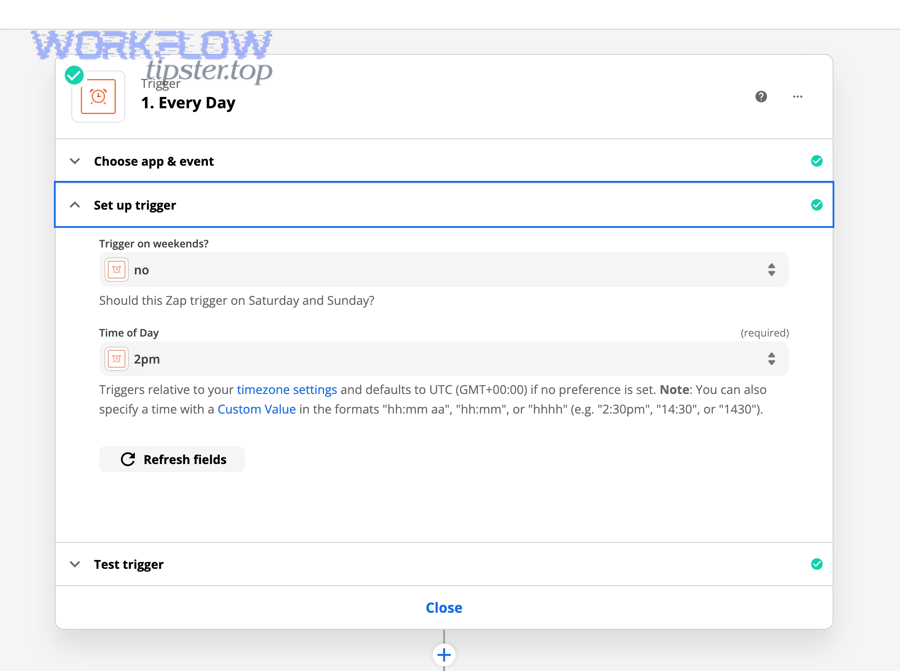
- Polling interval reality
- If your trigger is polling, it will not fire the instant you create data; it fires on the next poll cycle.
- Fix: wait for the next poll window or manually poll (if available), then check history.
- Propagation delay
- Some apps take time to surface new objects via API, especially after creation.
- Fix: wait a few minutes, then try again with a new item.
- Queue/backlog
- If many tasks run, you may see delayed processing even after a poll.
- Fix: simplify Zaps; reduce heavy steps; segment high-volume flows.
- Time zone mismatch
- You create the event “now,” but your expectation of “today” differs from the Zap’s schedule logic.
- Fix: align time zone settings where scheduling is involved.
If “not firing” is really “not instant,” the fix is to adjust expectation—or redesign to an instant trigger where possible.
Which filters, paths, and step conditions block runs after the trigger?
There are 3 main logic blockers: Filters that evaluate to false, Paths that route away from your expected branch, and conditional steps that fail on missing/invalid fields—based on downstream logic that can stop a run even when the trigger fires.
More importantly, these blockers are silent unless you look at the run details.
- Filters
- Your test record doesn’t match the filter condition.
- Fix: temporarily disable the filter, retest, then re-enable with better conditions.
- Paths
- Your record qualifies, but routes to a different branch than you expect.
- Fix: add “debug” actions (like logging) in each path; verify conditions.
- Missing fields downstream
- Trigger fires, but the next step fails because required fields are blank.
- Fix: add data validation steps; ensure fields exist at trigger time.
This is also where zapier missing fields empty payload troubleshooting belongs: if the trigger item is present but key fields are empty, your later steps can’t evaluate conditions reliably.
How do you troubleshoot instant triggers vs polling triggers?
Instant triggers win for speed (they fire as events occur), polling triggers are best for broad compatibility (they check periodically), and your troubleshooting approach changes based on which one your trigger uses—so you must identify the trigger type before you diagnose timing and delivery.
However, once you know the type, the fix path becomes much shorter.
At a high level:
- Polling triggers: Zapier asks the app for new data on a schedule.
- Instant triggers: the app sends Zapier a webhook when the event happens.
That difference determines what “proof” looks like.
What signals prove an instant (webhook) trigger is working vs failing?
An instant trigger is working when the app delivers event payloads consistently and Zap History shows near-real-time runs; it is failing when delivery stops, payloads arrive empty, or the webhook endpoint returns errors—so your proof is timing + payload consistency.
To illustrate, instant triggers usually feel “magical” until a webhook delivery edge case breaks them.
Working signals:
- Zap History entries appear seconds after you create the event.
- Trigger samples show complete payload fields (IDs, timestamps, key attributes).
- Multiple test events produce multiple runs (not just one lucky run).
Failing signals:
- Events happen in the app, but Zap History stays silent.
- Trigger test pulls older items, but live runs don’t show new deliveries.
- Payload appears incomplete or empty for fields you rely on.
This is where zapier webhook 500 server error troubleshooting becomes relevant: a webhook chain can fail if the sending system gets a server error response (or times out) and retries unpredictably, which may cause missed events—or duplicates—depending on how the webhook sender behaves. The fix usually involves making the receiving endpoint reliable, fast, and idempotent (safe to retry).
What quick tests isolate whether the trigger, the data source, or Zapier is the bottleneck?
There are 6 quick isolation tests: create a fresh known-good event, test trigger fetch, simplify the Zap, remove filters/paths, compare accounts/containers, and check timing against polling—based on where the signal disappears.
Then, each test tells you exactly which layer needs attention.
Run these in sequence:
- Create a brand-new, unmistakable test event
- Don’t edit an old record. Create a new one.
- Test the trigger step
- If the trigger can’t find recent items, suspect connection, permissions, or wrong container.
- Duplicate the Zap into a minimal version
- Trigger → one simple action (or logging) only.
- If minimal works, the issue is downstream logic.
- Temporarily disable Filters and simplify Paths
- If runs suddenly appear, your logic was blocking.
- Verify the connected account and the specific source container
- The “right app, wrong account” error is extremely common.
- Measure time-to-run
- If runs appear only on a schedule, you’re on polling and the delay is expected.
If you do only one thing, do this: simplify to prove the trigger works, then add complexity back one step at a time. That’s the fastest way to end ambiguity.
What is the fastest step-by-step checklist to fix a Zapier trigger not firing?
Use this 9-step checklist to fix a Zapier trigger not firing: confirm eligibility, verify state, validate the trigger event, reconnect accounts, refresh fields, generate fresh data, simplify logic, retest with timing awareness, and confirm results in Zap History—so your Zaps start triggering again reliably.
Below, each step removes one major failure mode without introducing new variables.
Before you start, pick one “golden” test event and commit to it: you will create it, note the timestamp, and verify it in Zap History every time.
Which “baseline checks” should you do before changing anything?
There are 6 baseline checks: Zap ON, correct trigger event, correct account, correct source container, brand-new qualifying data, and expected timing—based on eliminating the highest-probability causes first.
To begin, baseline checks prevent you from “fixing” something that wasn’t broken.
- Zap is ON and published.
- Trigger event matches the behavior you’re testing.
- Connected account is the correct workspace/user.
- Source container is correct (sheet/tab/list/folder/pipeline).
- You are creating new data that meets trigger options.
- You wait long enough if polling is involved (or manually poll if available).
If you pass all 6, you’ve earned the right to do deeper changes.
How do you safely reconnect and refresh the trigger setup?
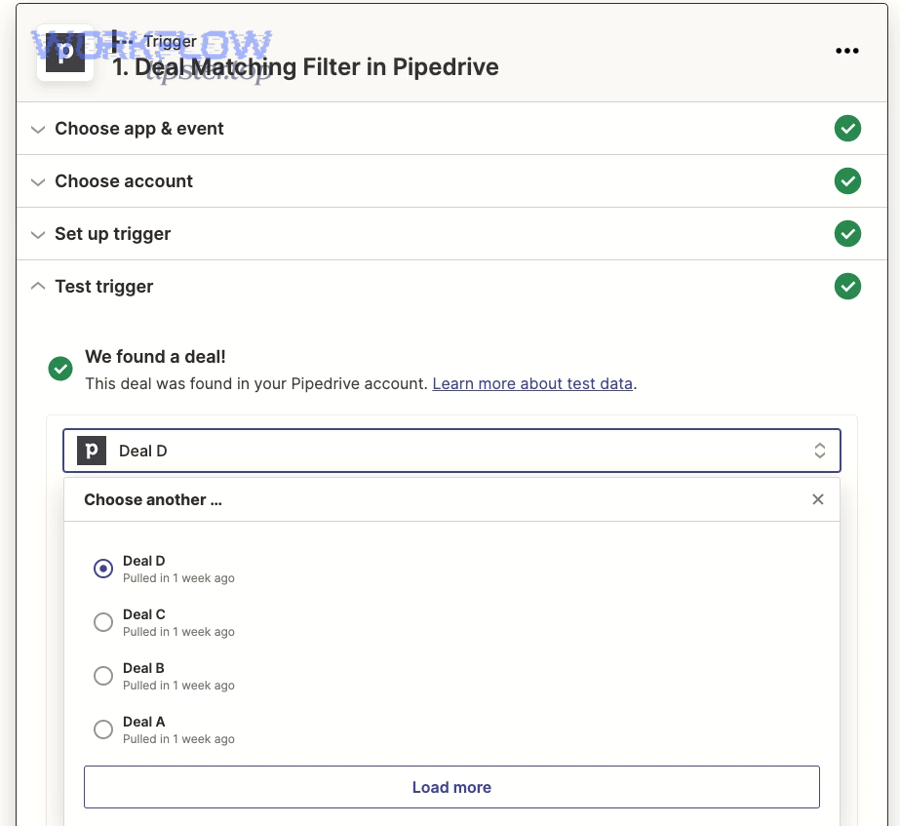
You safely reconnect and refresh the trigger setup by reauthorizing the connected account, reselecting the trigger options, refreshing fields, and retesting with a newly created record—so you eliminate silent credential drift and field-mapping mismatch.
Specifically, this step repairs the common “it used to work” failure caused by changes outside the Zap editor.
- Open the Trigger step and confirm the correct app + event.
- Reconnect account (reauthorize) if there’s any sign of auth trouble.
- Re-select key options
- Example: re-pick the sheet/tab/list to force a clean link.
- Refresh fields (when the editor supports it)
- This helps when app schemas changed.
- Test trigger again and confirm the sample item looks correct.
If you reconnect and still see empty or wrong data, stop and verify permissions on the source object, because schema and access issues can look identical.
How do you generate a known-good trigger event to validate live firing?
You generate a known-good trigger event by creating a brand-new item with unique, searchable values that clearly match your trigger criteria—so you can confirm live firing without ambiguity and avoid deduplication traps.
More specifically, your test event must be “obviously new” and “obviously eligible.”
- Unique text markers you can search later (“TRIGGER TEST — 2026-02-01 — 14:32”).
- All required fields filled (so downstream logic won’t fail).
- Created in the exact watched container (correct list/tab/pipeline).
- Created after the Zap is ON.
Bad test events:
- Editing an old item.
- Importing a batch.
- Reusing the same sample over and over.
- Creating data in a similar-but-not-watched container.
If your trigger still doesn’t fire after a known-good event, you can confidently move to trigger-type diagnostics.
When should you simplify the Zap to identify the blocking step?
Yes—you should simplify the Zap when Zap History shows inconsistent runs, when tests succeed but live firing doesn’t, or when Filters/Paths/actions could be blocking—because a minimal Zap isolates the trigger and proves whether the start signal exists.
Moreover, simplification is the fastest way to turn a vague symptom into a precise cause.
- Duplicate the Zap so you don’t break production.
- Remove Filters and Paths temporarily.
- Keep only the Trigger + one “safe” action (like creating a log record).
- Run your known-good test event.
- If it fires: reintroduce steps one by one until it breaks.
If the minimal Zap doesn’t fire, the problem is almost certainly in the trigger setup, the data stream, or timing—not in your downstream actions.
When should you escalate to support instead of continuing troubleshooting?
Yes—you should escalate to support when you have confirmed the Zap is ON, created fresh qualifying data, verified the correct account/container, and still see no trigger runs (or see repeated unexplained failures), because platform-level or app-level delivery issues require provider-side visibility.
In addition, escalation is appropriate when you can reproduce the issue consistently and you have run evidence.
A useful rule: troubleshoot for clarity, not for infinite time. If you can’t produce clarity after the core checklist, support is the fastest path.
What evidence should you collect before contacting Zapier or the app provider?
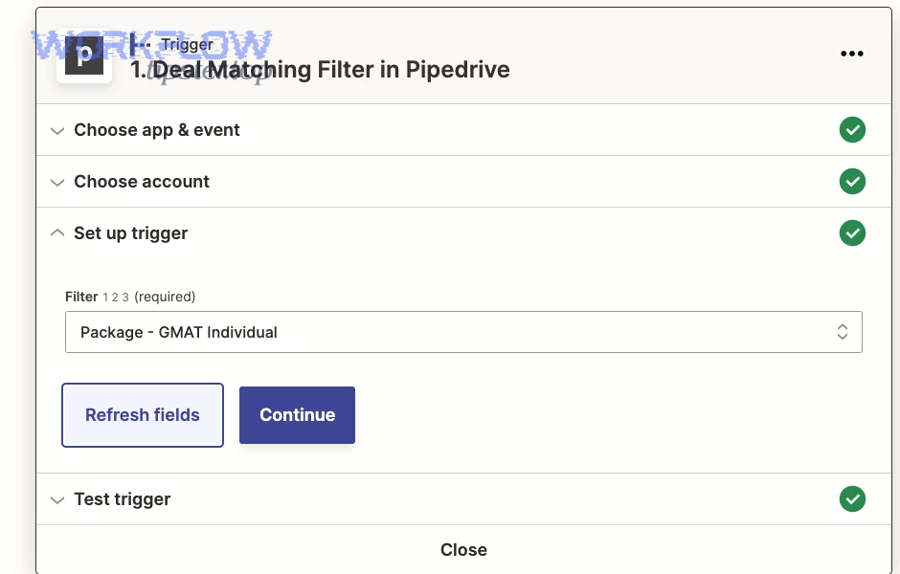
There are 7 evidence items to collect: Zap URL/name, trigger app + event, timestamped test events, sample record IDs, screenshots of trigger settings, Zap History outcomes, and any error text—based on enabling support to reproduce and diagnose quickly.
Besides, good evidence shortens back-and-forth and turns support into a solution.
- Zap name and version (what changed recently).
- Trigger app + exact trigger event.
- Timestamp(s) of your known-good test event(s).
- Record IDs or direct references (row number, lead ID, message ID).
- Trigger settings screenshot (container selection, options).
- Zap History entries (or proof there are none).
- Any error messages, including action step errors if runs exist.
When you present support with “event happened at 14:32, record ID X, no run exists,” you move from speculation to investigation.
What problems can you usually fix yourself vs what typically requires support?
Self-fix wins for configuration, eligibility, permissions, and logic blockers; support is best for platform incidents, app API/webhook delivery bugs, and account-level restrictions—so you escalate when the issue is outside your control or not visible in your tools.
More importantly, the dividing line is observability: can you see and change the cause?
You can usually fix yourself:
- Wrong trigger event or wrong container selection.
- “New data only” misunderstandings and deduplication behaviors.
- Expired connections and permission mismatches.
- Filters/Paths preventing runs.
- Missing required fields and empty payload handling.
Support is often required when:
- The app is not delivering webhook events reliably.
- The app’s API is returning inconsistent data compared to what you see in the UI.
- You suspect a platform-side queue/backlog incident.
- The Zap works in test but never receives live events despite clean configuration.
- There’s a recurring server-side failure pattern (including persistent 5xx behaviors) that you cannot resolve from the Zap editor alone.
If you’re building reliable automations long-term, remember this: many failures originate from configuration complexity—not from “bugs”—and research supports that pattern. According to a study by the University of Illinois at Urbana–Champaign from the Department of Computer Science, in 2011, researchers found that 70.0%–85.5% of examined misconfigurations were caused by mistakes in setting configuration parameters.
How can you prevent future “trigger not firing” issues in Zapier?
You can prevent future “trigger not firing” issues in Zapier by monitoring Zap History routinely, designing for “missed vs duplicate” safety, reducing high-volume stress, and documenting app-specific edge cases—so your Zaps keep triggering again even when apps change.
Next, prevention turns troubleshooting from a crisis response into a stable operating practice.
This is where your mindset shifts: instead of asking “Why didn’t it fire?”, you build a system that answers “What happened?” automatically.
What monitoring habits help you catch trigger failures early?
There are 5 monitoring habits: weekly Zap History review, timestamped test pings, alerting on failures, consistent naming, and lightweight logging—based on making trigger health observable before stakeholders complain.
To better understand your automation health, you need routine visibility—not occasional panic checks.
- Weekly review: scan Zap History for sudden drop-offs or repeating errors.
- Scheduled “health ping”: a small test Zap that confirms a key trigger still fires.
- Alerts: notify yourself on errors or halted runs (where available).
- Naming conventions: include source app, trigger event, and destination in the Zap name.
- Logging actions: store trigger IDs/timestamps in a sheet or database for audit trails.
These habits make troubleshooting faster because you’ll know when the change began.
How do you design triggers to reduce missed events vs duplicate events?
Missed events are minimized by reliable event capture and periodic reconciliation, duplicates are minimized by idempotency and unique keys—so the best design combines both: catch what you missed and safely ignore what repeats.
However, many automations optimize for only one side and pay for it later.
- To reduce missed events:
- Prefer instant triggers when available.
- Use periodic “catch-up” checks if the source app is known to be inconsistent.
- Avoid relying on fragile UI-only actions (like bulk imports) as your trigger source.
- To reduce duplicate events:
- Store and compare unique IDs (idempotency).
- Avoid reprocessing the same record when retries occur.
- Design downstream actions to be safe if repeated (update instead of create when possible).
When you treat retries and duplicates as normal, your automations become resilient instead of brittle.
How should you handle high-volume triggers, delays, and throttling patterns?
Handle high-volume triggers by filtering earlier, batching where possible, reducing heavy steps, splitting workflows by category, and designing for queue delays—so trigger detection remains stable and your Zap throughput doesn’t collapse under bursts.
Moreover, high volume is where “not firing” can actually mean “stuck behind other work.”
- Filter at the trigger or earliest step so you don’t waste processing on non-qualifying events.
- Batch actions (daily digest, scheduled sync) when real-time isn’t required.
- Split Zaps by source category (priority leads vs low-priority leads).
- Use lightweight intermediate storage to decouple trigger capture from heavy processing.
- Simplify payload handling when you see empty or inconsistent fields.
If you regularly face webhook instability or upstream 5xx patterns, keep your receiving systems fast and consistent—especially when investigating zapier webhook 500 server error troubleshooting, because retries can amplify the impact of momentary outages.
Which app-specific edge cases commonly cause “works in test but not live”?
There are 4 common edge-case groups: spreadsheet structure quirks, webhook payload differences, permission/context differences, and field-mapping drift—based on why test records look valid while live events don’t match the same shape.
In short, “works in test” often means “the sample record was different from real production data.”
- Spreadsheet quirks: blank header rows, inconsistent columns, or edits that don’t count as “new.”
- Webhook payload differences: live payloads omit fields that tests show, causing missing values downstream.
- Permission/context differences: the connected account can see test data but not production data (or vice versa).
- Field-mapping drift: the app changed a field name/type; your trigger still fires, but downstream steps can’t read values.
When you treat these as known patterns—not mysteries—you’ll spend less time guessing and more time validating with evidence.