Aland Johnson
Founder & Editor-in-Chief
Company / Organization
Workflow Tipster
Experience / Skills
Workflow automation patterns, integration design, webhook/API troubleshooting, data mapping and normalization, document generation and e-sign flows, operational checklists and playbooks for popular software.
About Aland Johnson
Aland Johnson is an Automation & RevOps Consultant and Technical Writer, and he serves as the Founder & Editor-in-Chief of Workflow Tipster (workflowtipster.top)—a resource for bite-sized workflow tips, tool guidance, and troubleshooting solutions for popular software used by modern teams. From 2008 to 2012, Aland developed his foundation in information systems and workplace productivity tools, focusing on how businesses operationalize data across CRM, project management, customer support, and marketing platforms. During this period, he began documenting repeatable processes, building simple integrations, and learning the practical constraints that shape automation outcomes—such as inconsistent field formats, user permissions, and data quality issues. In 2013, Aland moved into hands-on operational support roles where reliability and speed mattered daily. He supported teams working across cloud-based tools, addressing recurring problems like login failures, permission mismatches, missing required fields, and data sync inconsistencies. Between 2014 and 2016, he expanded into cross-application workflow design, connecting systems through APIs and webhooks and establishing a structured troubleshooting method: reproduce the failure, isolate the failing hop, validate credentials and scopes, inspect payload shape, confirm rate-limit behavior, and implement safe retries with logging. From 2017 to 2019, Aland specialized further in RevOps enablement—helping organizations map business requirements into automation-ready schemas and governance. This phase emphasized durable system design: clear ownership of fields and objects, consistent naming conventions, deduplication strategies, and measurable KPIs. In 2019, he earned the Salesforce Certified Administrator credential, reinforcing his expertise in CRM configuration, permissioning, reporting, and operational controls that keep automations stable as teams and pipelines evolve. In 2020, Aland broadened his marketing operations skill set by completing the HubSpot Marketing Software Certification, deepening his work in lifecycle stages, attribution, segmentation, and automated communications—areas where subtle property mapping and timing rules often cause downstream failures. Between 2021 and 2022, he concentrated on integration resilience at scale: reducing duplicates, adding idempotency safeguards, standardizing payload validation, and creating runbooks for incident response when webhooks fail or third-party APIs degrade. In 2023, Aland earned the Zapier Certified Expert credential and continued refining advanced automation patterns across multi-step workflows, conditional routing, and cross-tool data normalization. That same year, he formalized his editorial approach: every guide must be reproducible, version-aware, and supported by verification steps so readers can confirm success rather than “guess and hope.” Since 2024, Aland has been building Workflow Tipster as a practical knowledge base for operators, founders, and teams who need quick, reliable answers. His content emphasizes clarity and measurability—short, actionable tips when speed matters, and deeper troubleshooting playbooks when reliability is the priority. Aland’s guiding standard remains consistent: state the goal, show the exact steps, surface common failure modes, and include a prevention checklist so the workflow stays healthy after the fix.
Related topics
Latest posts by Aland Johnson

Integrate Dropbox Sign (HelloSign) with Microsoft Teams for Admins: Setup Guide, Triggers & Notifications
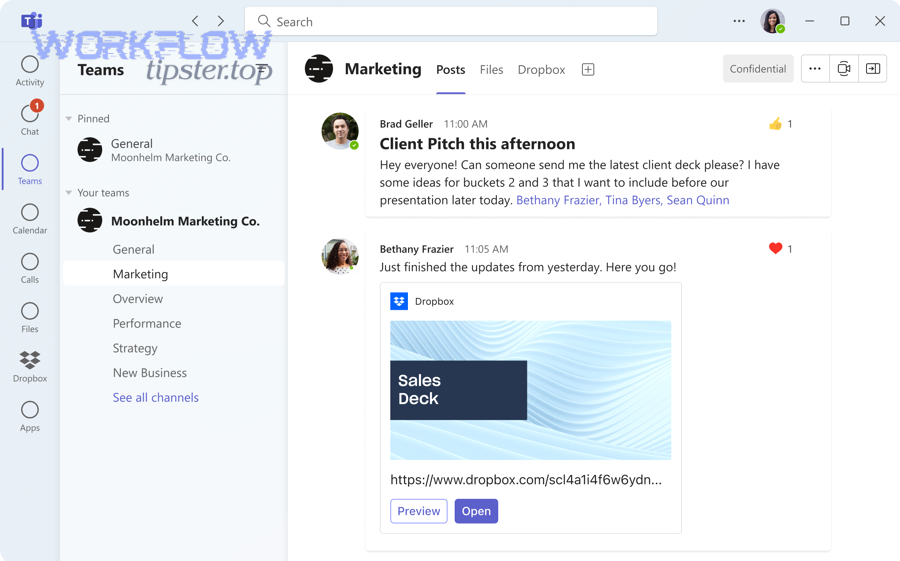
Integrating Dropbox Sign (formerly HelloSign) with Microsoft Teams means you can push signing-status updates into the right channels or chats—so admins and operations teams see progress, unblock bottlenecks, and reduce “chasing” without living inside the eSignature dashboard. Next, you’ll learn what the integration actually includes (and what it doesn’t), how to avoid the common confusion between Dropbox (file storage) and Dropbox Sign (eSignature), and which real-world workflows benefit most from Teams-based notifications.

Aland Johnson January 30, 2026 at 2:37 AM
Connect & Sync Dropbox Sign to Google Drive for Teams: Step-by-Step Integration Guide (HelloSign)
If you want every completed Dropbox Sign (HelloSign) document to automatically land in Google Drive, the Dropbox Sign → Google Drive integration is built for exactly that “sign once, file forever” workflow. Once enabled, completed signature files are returned to a dedicated folder in Drive so your team can keep signed agreements alongside everyday working docs.
Aland Johnson January 30, 2026 at 2:23 AM
Set Up Dropbox Sign (HelloSign) to Dropbox Auto-Save Sync for Teams
To set up Dropbox Sign (HelloSign) to Dropbox auto-save sync for teams, connect your Dropbox and Dropbox Sign accounts and choose where signed files should save—then confirm completed documents automatically return to that Dropbox location so your team can access the final version without manual downloads. ([help.
Aland Johnson January 30, 2026 at 2:11 AM
Set Up Dropbox Sign (HelloSign) to Box Integration for Teams: Sync Signed Files and Automate eSign Workflows
Yes—you can connect Dropbox Sign (formerly HelloSign) to Box to send documents for eSignature from Box and automatically store signed copies back into a dedicated Dropbox Sign folder in Box, so your agreements stay organized where your team already works. ([help.
Aland Johnson January 30, 2026 at 1:58 AM
Connect (Integrate) DocuSign to Slack: Setup & Notification Automation Guide for Teams
To connect DocuSign to Slack, install the DocuSign app in your Slack workspace, authenticate your DocuSign account, and confirm that envelope updates and document tasks can surface as actionable notifications where your team already works. Beyond basic connection, most teams want DocuSign status updates in the right place—DMs for personal tasks and channels for shared visibility—so signatures don’t get buried and approvals don’t stall.
Aland Johnson January 30, 2026 at 1:44 AM
Sync DocuSign to OneDrive for Business Teams: Automated Signed Document Storage vs Manual Uploads
Syncing DocuSign to OneDrive means your completed, signed agreements automatically land in the right OneDrive folder—without anyone downloading PDFs, renaming files, or chasing “final-final-v3” versions. In practice, the goal is simple: every envelope completion produces a reliable, searchable record in OneDrive that your team can trust as the “system of record” for signed documents.
Aland Johnson January 30, 2026 at 1:30 AM
Set Up & Use DocuSign in Microsoft Teams for E-Signature Approvals (Install + Connect + Sign Guide for Teams Users & IT Admins)
You can set up DocuSign to Microsoft Teams by installing the DocuSign Teams app, signing in to your DocuSign account, and then sending, signing, and tracking agreements directly inside Teams—often through the Approvals experience—so you reduce app switching and keep status updates in one place. ( marketplace.
Aland Johnson January 30, 2026 at 1:14 AM
Sync DocuSign to Google Drive for Teams: Setup, Automation Workflows, and Secure File Storage
Yes—you can sync DocuSign to Google Drive so signed agreements land in the right Drive location automatically, without manual downloads or “where did that PDF go?” follow-ups, by using either the official Google Workspace add-on or an automation connector that uploads completed envelopes as files.
Aland Johnson January 30, 2026 at 12:58 AM
Integrate DocuSign to Dropbox to Auto-Save Signed Documents (Connect & Sync Guide for Teams)
Integrating DocuSign to Dropbox to auto-save signed documents means you can automatically capture every completed envelope (the final signed PDF and supporting files) in the right Dropbox folder—without chasing emails, downloading attachments, or relying on someone’s memory. This guide also covers whether DocuSign can connect to Dropbox directly without automation tools, so teams can decide if a native connection is enough for their workflow or if they need a “save on completion” automation.
Aland Johnson January 30, 2026 at 12:44 AM
Connect (Sync) DocuSign to Box for Business Teams: Step-by-Step Integration + Auto-Save Signed Documents
Connecting (syncing) DocuSign to Box means you can send a document stored in Box for eSignature and have the completed, signed output saved back into Box automatically—so your team keeps one clean “single source of truth” for agreements and approvals. Next, you’ll learn the practical workflow business teams actually use—how to start from a Box file, send it through DocuSign, and confirm the signed copy lands in the right folder with predictable naming and version behavior.
Aland Johnson January 30, 2026 at 12:31 AM
Connect ConvertKit (Kit) to Zoho CRM to Sync Subscribers & Leads for Email Marketers (No-Code Integration Guide)
You can connect ConvertKit (Kit) to Zoho CRM with a no-code workflow so every new subscriber or tagged lead automatically becomes a clean Lead or Contact record—without exports, imports, or manual copying that slows down follow-up. Then, you can choose the best integration path for your situation—Zapier for fast templates, Zoho Flow for a Zoho-native stack, or n8n for advanced logic—so your sync matches your team’s budget, volume, and technical comfort.
Aland Johnson January 30, 2026 at 12:17 AMSync ConvertKit to Smartsheet for Creators & Marketing Teams: Step-by-Step Automation Integration Guide (Integrate vs Manual Copying)
If you want to sync ConvertKit to Smartsheet, the fastest “correct” path is to automate a one-way flow where ConvertKit events (new subscriber, tag added, form submitted) create or update rows in Smartsheet—so your list activity becomes trackable ops data without constant exports. Next, you’ll get the most reliable results when you plan the mapping first: decide which ConvertKit fields matter (email, name, tags, form, status, custom fields), then design Smartsheet columns so the data stays searchable and report-ready.
Aland Johnson January 30, 2026 at 12:03 AM
Connect ConvertKit to Slack for Creators & Marketing Teams (Integrate + Sync) — Automated Subscriber Alerts Guide
Yes—you can connect ConvertKit to Slack to automatically post real-time subscriber and campaign alerts by using a workflow automation tool (like Zapier, Make, or n8n) to turn ConvertKit events into Slack messages, routed to the right channel or teammate. Next, the fastest wins usually come from choosing the right automation tool for your workflow complexity : simple “new subscriber” pings need minimal setup, while segmented alerts (tags, sequences, purchases) benefit from branching logic, filters, and message formatting.
Aland Johnson January 29, 2026 at 11:48 PM
Connect (Sync) ConvertKit to Salesforce for Marketers: Step-by-Step CRM Integration Guide
To connect (sync) ConvertKit to Salesforce, you set up an integration workflow that turns ConvertKit subscriber activity—like form signups, tag changes, and purchases—into Salesforce CRM records such as Leads or Contacts, so your marketing and sales teams share one consistent view of each person. You’ll also need to understand what “sync” really means in this context—whether data flows one-way or two-way, which fields are mapped, and how updates behave when the same person changes in both systems—because those rules decide whether your CRM stays clean or becomes confusing.
Aland Johnson January 29, 2026 at 11:34 PM
Connect / Integrate ConvertKit to Pipedrive: CRM Sync Guide for Email Marketers & Sales Teams
You can connect ConvertKit to Pipedrive by mapping subscriber data (email, name, tags, custom fields) into Pipedrive records (Persons, Deals, Activities) so your email marketing automatically feeds your sales pipeline with clean, actionable leads. Next, you’ll need to choose the right integration method—no-code connector, workflow automation tool, or custom API—based on how much control you want over field mapping, two-way sync, and error handling.
Aland Johnson January 29, 2026 at 11:15 PM
Sync Kit (ConvertKit) Subscribers & Purchases to Notion Databases: Step-by-Step Automation Guide for Creators
ConvertKit to Notion syncing is best done as a one-way automation workflow that captures Kit (ConvertKit) subscriber and purchase events and writes them into a structured Notion database, so creators can track leads, customers, and revenue in one operational dashboard. To make that sync reliable, you need a clean Notion database schema, a consistent field-mapping plan (especially email as a unique key), and a simple “test-first” build process that confirms triggers and actions work before you scale.
Aland Johnson January 29, 2026 at 10:57 PM
Connect ConvertKit to Microsoft Teams for Marketing Teams: Webhook & Zapier Automation Integration Guide
STEP 1 — Title analysis: Main keyword (keyword focus): convertkit to microsoft teams . Predicate: Connect .
Aland Johnson January 29, 2026 at 10:38 PM
Integrate & Sync ConvertKit to HubSpot for Marketers: No-Code Setup (Zapier, Make, n8n)
If your email list lives in ConvertKit but your pipeline and reporting live in HubSpot, the fastest win is a no-code ConvertKit-to-HubSpot sync that keeps contacts, tags, and key actions aligned without manual exports. Next, the real decision is not “Can I connect them?
Aland Johnson January 29, 2026 at 10:23 PM
Sync ConvertKit to Google Sheets for Marketers: Automated Subscriber Tracking (ConvertKit ↔ Sheets)
Yes—you can sync ConvertKit to Google Sheets automatically, and the fastest path is a no-code workflow that writes every new subscriber, tag, or purchase event into a structured spreadsheet in near real time. Next, you’ll choose the right connection method based on your budget and control needs—no-code tools for speed, Apps Script for customization, or CSV export for one-off reporting—so the integration matches your exact use case.
Aland Johnson January 29, 2026 at 10:07 PM
Connect & Sync ConvertKit (Kit) to Airtable for Creators: Step-by-Step Automation Integration Guide
STEP 1 — Title & Outline Analysis (required) Main keyword (keyword focus): convertkit to airtable Predicate (main verb/action): connect, sync Relations Lexical used: Synonym (ConvertKit is also referred to as Kit ) Search intent type (from outline): Primarily How-to , supported by Definition , Boolean , Grouping , and Comparison question types Primary intent (from the Title): Set up a reliable ConvertKit (Kit) → Airtable sync using an automation workflow Secondary intent 1: Understand what “connect and sync” actually means (direction, fields, create vs update) Secondary intent 2: Choose and configure the right trigger/action recipes (subscriber, tag, purchase) Secondary intent 3: Prevent failures (duplicates, mapping errors) and troubleshoot issues long-term You can connect and sync ConvertKit (Kit) to Airtable by using a no-code automation workflow that captures subscriber events (and optionally tags or purchases), then creates or updates matching records in Airtable so your audience data stays organized and usable. Next, you’ll want to understand what “sync” really means in practice—what data moves, how field mapping works, and why “create vs update” decisions determine whether your Airtable stays clean or becomes a duplicate-filled mess.
Aland Johnson January 29, 2026 at 9:51 PM
Sync ClickUp to Smartsheet for Project Teams: Two-Way Task-to-Row Integration (No-Code)
Syncing ClickUp to Smartsheet without code is absolutely doable when you treat it as a task-to-row integration : ClickUp stays great for task execution, and Smartsheet becomes the place your team sees structured reporting, rollups, and stakeholder-ready views—without manual copy/paste. Next, you’ll also need to choose the right no-code platform based on how your team works: some tools are perfect for one-way automation (fast setup), while others are built for true two-way sync (conflict rules, loop prevention, and better mapping depth).
Aland Johnson January 29, 2026 at 9:36 PM
Connect ClickUp to Slack to Sync Tasks & Notifications for Teams (Native Integration + Automations)
Yes—if your goal is to connect ClickUp to Slack, you can do it quickly and get immediate value because the ClickUp–Slack integration reduces context switching, speeds up task handoffs, and keeps execution visible in the channels where your team already communicates. Next, you’ll learn what “connecting” actually means in practice—native integration versus automation workflows—so you can pick the simplest approach that still delivers the outcomes you want: the right notifications, the right channels, and fewer missed updates.
Aland Johnson January 29, 2026 at 9:22 PM
Sync ClickUp to Outlook Calendar: How to Connect the Outlook Calendar Integration for Teams (Sync = Integrate)
Syncing ClickUp to Outlook Calendar is possible, but the “right” setup depends on what you want to sync: Outlook events into ClickUp (native Outlook Calendar integration), ClickUp tasks into Outlook Calendar (automation like Zapier/Power Automate), or email-to-task workflows (ClickUp add-in for Outlook). This guide shows the team-safe way to connect and keep it reliable.
Aland Johnson January 29, 2026 at 9:03 PM
Connect & Sync ClickUp to OneDrive for Teams: Setup + File Attachments (Connected Search)
Title & intent analysis: The main keyword focus is clickup to onedrive ; the predicate is Connect & Sync ; and the Relations Lexical used is Synonym (sync/connect as synonyms of “integrate”), plus Meronymy (“File Attachments” and “Connected Search” are parts of the integration experience). You can connect ClickUp to OneDrive by enabling the Microsoft OneDrive integration in your ClickUp workspace, signing in with the correct Microsoft account, and verifying file access by attaching a OneDrive file to a real task—so your team can store files in OneDrive while working from ClickUp.
Aland Johnson January 29, 2026 at 8:48 PM
Integrate ClickUp to Notion for Teams: A Step-by-Step Sync Guide (Integrate vs Sync)
If your goal is to integrate ClickUp to Notion , the most reliable path is to treat ClickUp as the system of record for tasks and Notion as the system of record for knowledge , then connect them with the right “sync” method for your workflow (preview links, search, or automation). Many teams start by asking, “Do we even need a real two-way sync?
Aland Johnson January 29, 2026 at 8:33 PM
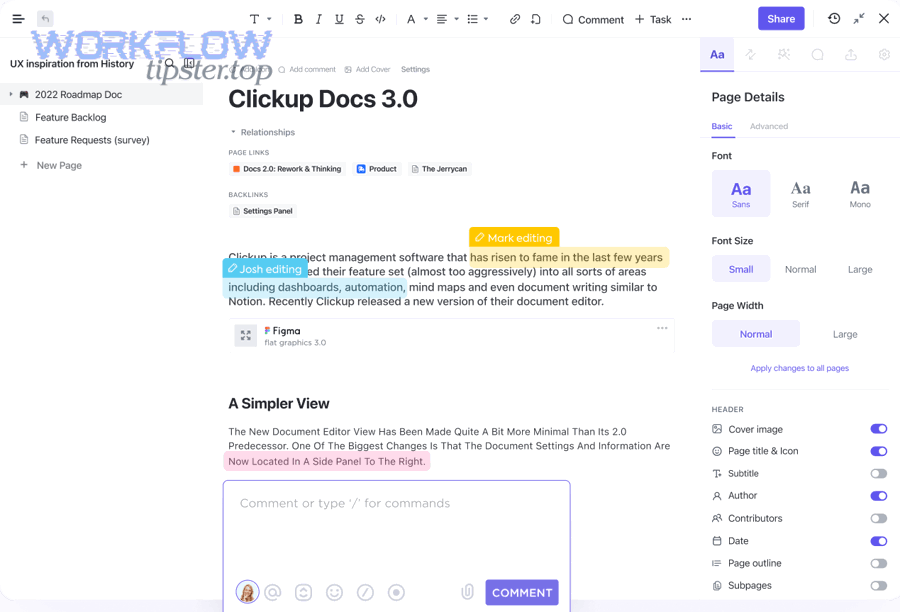
Convert ClickUp Docs to Microsoft Word for Teams: Export, Copy, and Automate DOCX Workflows
If you’re searching for “clickup to microsoft word” , your core job is simple: convert ClickUp Doc content into a Word-friendly file so stakeholders can review, edit, sign off, or store it in a DOCX-centered process. In practice, ClickUp doesn’t export DOCX directly, so the winning approach is to export in a supported format (PDF/HTML/Markdown) and convert, or to generate a Word document via an automation flow.
Aland Johnson January 29, 2026 at 8:19 PM
Connect ClickUp to Microsoft Teams: Set Up the Integration for Workspace Admins (Notifications, Task Creation, Link Previews)
Connecting ClickUp to Microsoft Teams is the most direct way to turn chat conversations into trackable work, because it lets your team create ClickUp tasks from Teams, surface ClickUp activity in the right channels, and see rich link previews without constantly switching apps. ( help.
Aland Johnson January 29, 2026 at 8:05 PM
Sync ClickUp to Microsoft Excel for Project Managers & Analysts: Export Tasks to CSV/Excel Spreadsheets (Two-Way Integration)
Yes—you can sync ClickUp to Microsoft Excel by exporting ClickUp task data into an Excel-friendly file (CSV/XLSX) or by using an integration that keeps Excel updated, so project managers and analysts can report, analyze, and share progress without rebuilding spreadsheets from scratch. Next, you’ll see the practical difference between a one-time export and an automated workflow, including the most reliable ways to keep ClickUp data current in Excel for weekly status reports, KPI tracking, and stakeholder dashboards.
Aland Johnson January 29, 2026 at 5:46 PM
Connect & Automate ClickUp to Google Slides Integration for Project Teams (Sync Tasks to Slides)
Connecting and automating ClickUp to Google Slides is the fastest way to turn live task data into client-ready, meeting-ready presentations without rebuilding decks by hand each week. You set one workflow, map the task fields you care about, and let the automation generate or update your Slides output consistently.
Aland Johnson January 29, 2026 at 3:53 PM
Sync (Integrate) ClickUp Tasks & Custom Fields to Google Sheets for Teams: 2-Way Automation Guide
Title analysis: The main keyword focus is clickup to google sheets because the title promises a practical sync between ClickUp and Google Sheets for team workflows. The main predicate is Sync (Integrate) , which signals action and implementation.
Aland Johnson January 29, 2026 at 3:41 PM
Connect (Integrate) ClickUp to Google Drive for Project Teams: How to Sync Files & Folders + Automate Workflows
You can connect ClickUp to Google Drive by enabling the Google Drive integration in ClickUp and authorizing the right Google account, so your team can attach Drive files to tasks, preview links inside ClickUp, and keep project work and project files connected in one workflow. The goal is not “magic file duplication,” but fewer context switches, clearer ownership, and faster access to the exact file that belongs to the exact task.
Aland Johnson January 29, 2026 at 3:28 PM
Automate (Integrate) ClickUp Tasks to Google Docs Templates for Teams: Step-by-Step Integration Guide
Automating ClickUp to Google Docs templates means you can generate a clean, consistent Google Doc the moment a ClickUp task hits the right moment—so your team stops rewriting briefs, meeting notes, and deliverables from scratch and starts working from a standard template. Next, you’ll learn how to choose the “right trigger” in ClickUp (task created vs status changed), because the trigger controls whether your automation feels reliable—or creates duplicates and noise for the team.
Aland Johnson January 29, 2026 at 3:15 PM
Sync (Integrate) ClickUp to Google Calendar for Teams: Setup Guide + Two-Way Sync Alternatives
Syncing ClickUp to Google Calendar is the fastest way for teams to turn task dates into a reliable, shared schedule—so deadlines, milestones, and planned work show up where people already manage their time. You connect the integration, choose what should sync, and then verify that ClickUp updates create or update matching calendar events.
Aland Johnson January 29, 2026 at 3:03 PM
Connect (Integrate) ClickUp to GitLab for Dev Teams: Sync Tasks, Commits & Issues
The main keyword focus is “ClickUp to GitLab” and the predicate is Connect / Integrate , using a Synonym lexical relation (Connect ≈ Integrate) to match how people search for setup instructions and integration options. This guide primarily answers how to connect ClickUp with GitLab so tasks stay linked to commits, branches, merge requests, and issues—creating clear traceability from planning to code.
Aland Johnson January 29, 2026 at 2:50 PM
Integrate & Automate ClickUp with GitHub for Dev Teams: 2-Way Issue/PR Sync Guide
To integrate ClickUp with GitHub, connect your GitHub repositories to the right ClickUp Spaces, then link Issues, Pull Requests, branches, and commits to ClickUp tasks so your planning and code activity stay traceable in one workflow. Next, you can automate repetitive handoffs—like creating a ClickUp task when a GitHub issue appears, or updating task status when a PR is merged—so the team spends less time copying updates and more time shipping.
Aland Johnson January 29, 2026 at 2:37 PM
Connect & Sync ClickUp to Dropbox: Integration Guide for Teams (Files, Folders & Automations)
ClickUp to Dropbox integration works best when you treat Dropbox as your team’s “source-of-truth file system” and ClickUp as your “source-of-truth work system,” then connect them so every task can reliably point to the right file, folder, and version. Next, you’ll see what “connect,” “sync,” and “integrate” actually mean in day-to-day team work—especially how attachments, shared folders, and permissions determine whether teammates can open the same asset without chasing links.
Aland Johnson January 29, 2026 at 2:23 PM
Connect (Integrate) ClickUp to Calendly for Workflow Automation — Step-by-Step Setup for Teams
Yes—connecting ClickUp to Calendly is one of the fastest ways for teams to turn scheduled meetings into reliable follow-up, because every booking can automatically become a ClickUp task with an owner, due date, and next step instead of a forgotten calendar note. Next, you’ll want to choose the right integration method for your team—native ClickUp Automations if you need a clean “booking → task” flow, or a third-party connector when you need multi-step routing, enrichment, and cross-tool workflows.
Aland Johnson January 29, 2026 at 2:11 PM
Connect (Integrate) ClickUp to Box for Teams: Sync Files & Task Attachments with Workflow Automation
Connecting ClickUp to Box is a practical way to keep your tasks and your files in one working loop: your team plans and executes in ClickUp while Box remains the secure source of truth for storing, sharing, and controlling access to documents. ( help.
Aland Johnson January 29, 2026 at 2:00 PM
Connect ClickUp to Bitbucket: Automated (Not Manual) Integration Setup Guide for Dev Teams
You can connect ClickUp to Bitbucket and automate the “dev work → task visibility” loop by linking repositories to the right ClickUp Space and using predictable linking patterns (like task IDs) so commits, branches, and pull requests attach to tasks without manual copy-paste. ( help.
Aland Johnson January 29, 2026 at 1:49 PM
Sync (Integrate) ClickUp to Airtable for Project Teams: Two-Way Automation Setup Guide
You can sync (integrate) ClickUp to Airtable by mapping tasks to records, choosing a sync direction (one-way or two-way), and using an automation tool or two-way sync platform so your team stops copying the same updates across apps. Then, you should choose the right integration method based on what your project team actually needs: a quick one-way “reporting base,” a true two-way sync for shared ownership, or a lightweight embed that keeps context inside ClickUp without moving data.
Aland Johnson January 29, 2026 at 1:38 PM
Connect (Integrate) Calendly to Zoom to Auto-Create Meeting Links for Hosts & Teams
Connecting Calendly to Zoom lets you automatically generate a fresh Zoom meeting for every booking and place the join link exactly where invitees expect it—so you spend less time copying links and more time actually hosting the meeting. Next, you’ll want to understand what “connected” really means in practice: where the Zoom link appears, which parts of the workflow are automatic, and which parts still depend on how your event types are configured.
Aland Johnson January 29, 2026 at 1:26 PM
Automate (Not Manual) Calendly to Trello Integration for Project Teams: Create Trello Cards from New Bookings
If your team uses Calendly to schedule calls and Trello to manage work, you can automate Calendly to Trello so every new booking creates a Trello card—turning “someone booked time” into a trackable task without copy-paste or missed details. ( zapier.
Aland Johnson January 29, 2026 at 1:16 PM
Integrate (Sync) Calendly to Smartsheet for Workflow Automation: Step-by-Step Setup for Operations Teams
Integrating (syncing) Calendly to Smartsheet for workflow automation means your booked meetings can automatically create, update, and route work in Smartsheet—so your operations team spends less time copying details and more time executing the process behind every appointment. Next, you’ll see what this integration actually does in practice (from creating new rows to updating statuses), and how to define the “trigger → action” logic so every scheduled event reliably becomes the right kind of work item in Smartsheet.
Aland Johnson January 29, 2026 at 1:05 PM
Connect Calendly to Slack for Teams: Integrate Meeting Notifications & /Calendly Link Sharing
Connecting Calendly to Slack means your team can install the Calendly app, link accounts, and then receive meeting updates plus share booking links inside Slack—so scheduling stays visible without bouncing between tools. Next, you’ll want to configure which notifications you receive and where they appear (DMs vs channels) so Slack stays a signal source instead of a distraction.
Aland Johnson January 29, 2026 at 12:55 PM
Connect (Integrate) Calendly to Notion for Teams — Automate Bookings Into a Notion Database
Yes—you can connect Calendly to Notion so every booking automatically becomes a structured record in a Notion database, which eliminates manual copy-paste, keeps team context in one place, and turns your calendar activity into an operational pipeline you can actually manage. Beyond “it works,” most teams also need to choose the right connection method, because embedding a scheduling page and building a booking-to-database automation are two different outcomes with different tools, costs, and maintenance expectations.
Aland Johnson January 29, 2026 at 12:43 PM
Connect (Sync) Calendly to monday.com: Step-by-Step No-Code Integration Guide for Teams
Yes—you can connect Calendly to monday.com without code by using a native Marketplace app or a no-code automation tool, which lets you capture every booked meeting as structured work items, keep boards updated, and reduce copy-paste errors across your team.
Aland Johnson January 29, 2026 at 12:33 PM
Connect (Integrate) Calendly to Microsoft Teams for Teams: Auto-Add Microsoft Teams Meeting Links
Connecting (integrating) Calendly to Microsoft Teams means Calendly will automatically generate a unique Teams meeting link for each booking and place it into the calendar invite and confirmation messages so invitees can join with one click instead of manual setup. You’ll also learn how to validate that the link is actually being created and delivered end-to-end, because “connected” does not always mean “configured correctly” when the event location, organizer permissions, or account selection is off.
Aland Johnson January 29, 2026 at 12:20 PM
Connect Calendly Meetings to Jira Issues for Agile Teams (Calendly–Jira Integration Guide)
Calendly to Jira integration works best when you treat every scheduled meeting as a structured signal that can automatically create or update a Jira issue, so your team captures follow-ups, ownership, and outcomes without manual copy-paste. Next, you’ll see how agile teams should choose the right integration path—marketplace app, no-code automation, or custom build—based on reliability, field mapping depth, and governance needs.
Aland Johnson January 29, 2026 at 12:09 PM
Integrate & Sync Calendly to Google Sheets for Teams (Booking Log Automation Guide)
Yes—your team can integrate Calendly to Google Sheets so every new booking automatically appears as a new row, which reduces manual copy-paste, keeps a shared booking log consistent, and makes reporting easier across sales, support, or operations. ([zapier.
Aland Johnson January 29, 2026 at 11:58 AM