


Yes—you can sync ConvertKit to Google Sheets automatically, and the fastest path is a no-code workflow that writes every new subscriber, tag, or purchase event into a structured spreadsheet in near real time.
Next, you’ll choose the right connection method based on your budget and control needs—no-code tools for speed, Apps Script for customization, or CSV export for one-off reporting—so the integration matches your exact use case.
Then, you’ll set up field mapping and a clean sheet structure (columns, IDs, timestamps, and dedupe logic) so the data stays accurate when your list grows and automations fire more frequently.
Introduce a new idea: once the sync works, you’ll harden it with testing, error handling, and governance so your ConvertKit to Google Sheets pipeline remains reliable and easy to maintain.
Can you integrate ConvertKit to Google Sheets automatically?
Yes, you can integrate ConvertKit to Google Sheets automatically because no-code connectors, webhooks, and scheduled syncs can capture subscriber events, reduce manual copy/paste errors, and keep reporting sheets continuously updated.
To begin, the key is to define what “automatic” means for your workflow—real-time event logging, hourly batch updates, or daily snapshots—because each option changes the tool choice and sheet design.
Reason 1: Automatic sync prevents “reporting drift.” When a subscriber joins via multiple forms, tags change over time, or purchases arrive from different products, manual updates quickly fall behind. An automated write-to-sheet action ensures your spreadsheet becomes a living log, not a stale export.
Reason 2: Automatic sync improves segmentation and follow-up. When your sheet updates immediately, you can trigger downstream actions (like internal alerts, sales outreach, or ad audiences) without waiting for a weekly export. This is especially valuable if you run time-sensitive launches.
Reason 3: Automatic sync supports audit trails and reconciliation. A structured sheet can store event timestamps, subscriber IDs, and source information, making it easier to troubleshoot “why did this person get tagged?” or “why did this purchase not show up?” later.
According to research summarized by Professor Raymond R. Panko at the University of Hawai‘i’s Shidler College of Business, spreadsheet development experiments often show average cell error rates around 1%–5%, which is why automated capture plus validation is safer than frequent manual edits.
What does a ConvertKit to Google Sheets integration mean?
A ConvertKit to Google Sheets integration is a workflow that transfers ConvertKit subscriber, form, tag, or purchase data into a Google Sheet as rows and columns, typically triggered by events or scheduled syncs, so you can analyze and act on your email data in a spreadsheet.
Next, it helps to treat the integration like a small “data product”: you define inputs (events), outputs (rows), and rules (mapping, dedupe, and formatting) so the sheet stays consistent as your list grows.

What usually gets synced?
- Subscriber identity: email, first name, subscriber ID
- Acquisition context: form name, landing page, referrer/UTM (if captured), subscription date
- Lifecycle signals: tags added/removed, sequences started/completed
- Commerce signals: purchases, products, revenue fields (depending on your setup)
What the sheet should look like (minimum viable structure):
- Stable key: subscriber_id (or email if you must)
- Event time: event_timestamp in ISO format
- Event type: subscribed, tag_added, purchase_created
- Source fields: form_name, tag_name, product_name
- Payload fields: values you want to report on (revenue, coupon, etc.)
More importantly, a good integration avoids “overwriting history” unless you explicitly want a current-state table. Many marketers do best with two sheets: (1) an Event Log sheet for append-only events and (2) a Subscriber Snapshot sheet that stores the latest known state per subscriber.
What are the main ways to connect ConvertKit to Google Sheets?
There are three main ways to connect ConvertKit to Google Sheets: (1) no-code Automation Integrations, (2) Google Apps Script with webhooks/APIs, and (3) manual CSV export/import—each chosen based on speed, control, and maintenance effort.
Then, you can decide by comparing real-time needs, data volume, and how much customization you require for mapping and deduplication.
The table below compares the three connection methods so you can pick the best fit for reliability, setup time, and long-term ownership.
| Method | Best for | Pros | Cons |
|---|---|---|---|
| No-code connectors | Fast setup, non-technical teams | Minutes to launch, built-in retries, easy mapping | Recurring cost, limited custom logic |
| Apps Script + webhooks | Custom fields, governance, ownership | Full control, custom validation, flexible routing | More setup, needs monitoring and maintenance |
| CSV export/import | One-off reporting, audits | Simple, no tools required | Not real-time, easy to duplicate/miss updates |
Which no-code tools are best for ConvertKit to Google Sheets?
No-code tools are best when you want a fast ConvertKit to Google Sheets sync with minimal technical work, because they provide prebuilt triggers and actions like “New Subscriber” → “Create Spreadsheet Row” with field mapping and testing.
Specifically, choose no-code if you need speed, simple transformations, and dependable retries—because those features reduce operational burden when you’re running campaigns.
- Good use cases: log new subscribers, log tag changes, track purchases, create a daily “new leads” sheet
- Design tip: always include subscriber_id (or email) plus event_timestamp to prevent duplicates
- Scaling tip: append to an Event Log first, then build dashboards/pivots from that log
When should you use Google Apps Script for ConvertKit to Sheets?
You should use Google Apps Script when you need custom rules—like deduping by subscriber ID, enriching data with lookups, batching writes, or routing different events into different tabs—because Apps Script lets you control how the sheet updates.
For example, you can store raw webhook payloads in one tab, normalize columns in another tab, and create a cleaned “reporting view” that never breaks your formulas.
- Best for: advanced tracking, internal governance, custom transformations, multi-sheet architectures
- Be careful with: quotas, timeouts, and permission scopes; design for batching and retries
- Security note: verify signatures/secret tokens on webhook calls before writing data
When is manual CSV export/import still a good option?
Manual CSV export/import is still a good option when you need a one-time snapshot—like a quarterly audit, a migration check, or a quick “who has this tag?” list—because it’s straightforward and doesn’t require ongoing automation.
However, CSV workflows become fragile the moment you need continuous accuracy, because each new export competes with the last one and may overwrite history or create duplicates.
- Best for: audits, backups, one-off analyses
- Not ideal for: real-time dashboards, operational workflows, daily lead pipelines
How do you set up ConvertKit to Google Sheets with a no-code automation tool?
To set up ConvertKit to Google Sheets with a no-code tool, create a workflow with 4 steps—choose a ConvertKit trigger, connect Google Sheets, map fields to columns, and test with real events—so new subscribers and updates reliably append as rows.
Below, the most important success factor is designing the sheet columns first, because good column design prevents the most common failure: messy, unmappable data.

How do you choose the right ConvertKit trigger for your sheet?
You choose the right ConvertKit trigger by matching the sheet’s purpose to an event: use “New Subscriber” for lead logs, “Tag Added” for segmentation history, and “Purchase Created” for revenue tracking.
Then, keep your workflow scope narrow at first, because one clean pipeline beats five partially working ones.
- Lead log: trigger on new subscriber (optionally filtered by form)
- Segmentation log: trigger on tag added/removed (store tag_name and timestamp)
- Commerce log: trigger on purchase created (store product, amount, currency, coupon)
How do you map ConvertKit fields to Google Sheets columns correctly?
You map ConvertKit fields to Google Sheets columns by assigning each important attribute to a stable column and ensuring required fields always exist, so each new event writes a complete row without breaking downstream formulas.
For example, treat subscriber_id and email as identity fields, treat event_timestamp as your timeline, and treat tags/forms/products as contextual fields.
- Required columns: subscriber_id, email, event_type, event_timestamp
- Helpful columns: form_name, tag_name, sequence_name, product_name, amount
- Data hygiene: avoid “combined fields” like “name + email” in one cell
How do you test the workflow before trusting the data?
You test the workflow by sending a controlled event (subscribe yourself, add a tag, trigger a test purchase if possible) and verifying that the tool writes exactly one row, with correct columns, and with predictable timestamp formatting.
Meanwhile, testing should include failure simulation: rerun the test event if your tool supports it, and confirm it does not create duplicates when the workflow retries.
- Check #1: one event → one row (unless you intentionally split events)
- Check #2: timestamps are consistent (prefer ISO or sheet datetime format)
- Check #3: identity columns never blank (subscriber_id/email always present)
How do you scale no-code sync for daily operations?
You scale no-code sync by separating raw logging from reporting—append every event into an Event Log sheet, then build pivot tables, charts, or Looker Studio dashboards on top—so the integration stays stable even when reports change.
In addition, set a clear retention plan: if your event log grows fast, archive monthly tabs or export older ranges to avoid performance issues.
How do you connect ConvertKit to Google Sheets using Google Apps Script and webhooks?
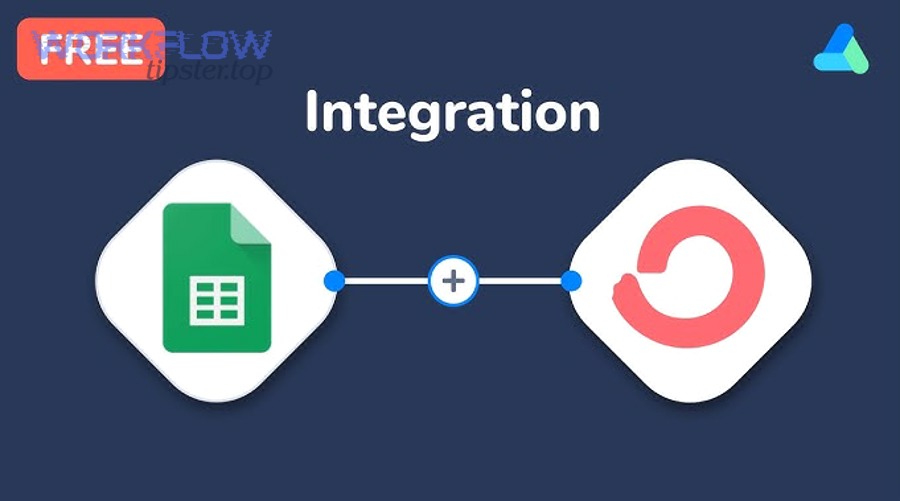
You can connect ConvertKit to Google Sheets using Google Apps Script and webhooks by 4 steps: generate a webhook endpoint (Apps Script Web App), subscribe ConvertKit events to that endpoint, validate and parse payloads, and append normalized rows to your sheet.
To better understand why this works, remember that a webhook is simply an HTTP POST from ConvertKit to your endpoint; Apps Script becomes the receiver, and Sheets becomes the destination.
How do you create an Apps Script Web App endpoint for webhook data?
You create an Apps Script Web App endpoint by writing a doPost handler, deploying the script as a Web App, and selecting the right access settings so ConvertKit can send requests to the published URL.
Next, design the endpoint as “append-only” first, because it’s safer to log raw events and transform later than to risk overwriting rows during early iterations.
- Endpoint behavior: receive JSON → validate → write a row → return 200 OK
- Logging tip: store a raw_payload column for debugging, at least during setup
- Reliability tip: batch writes when possible if events arrive in bursts
How do you validate and secure incoming webhook requests?
You validate webhook requests by verifying a shared secret or signature (if supported), checking required fields exist, and rejecting unexpected payloads before writing to your sheet, so your data stays trustworthy and your endpoint stays protected.
However, even a simple approach—like requiring a secret token in a header or query parameter—dramatically reduces accidental or malicious writes.
- Minimum security: secret token + allowlist expected event types
- Data security: avoid writing sensitive fields you don’t truly need
- Governance: document what the endpoint accepts and what it stores
How do you normalize webhook payloads into clean spreadsheet columns?
You normalize payloads by converting nested JSON into flat columns—subscriber_id, email, event_type, event_timestamp, and context fields—so your sheet supports filters, pivots, and stable formulas without constant edits.
For example, treat arrays (like tags) as either a comma-separated value for snapshots or as multiple events in an event log, depending on whether you need history.
- Event log model: one row per event, ideal for timelines
- Snapshot model: one row per subscriber, ideal for current state
- Hybrid model: event log + snapshot derived from log
How do you handle quotas, retries, and burst traffic?
You handle quotas and burst traffic by adding lightweight retries, reducing per-event sheet operations, and batching writes when possible, so your endpoint stays within execution limits while maintaining data integrity.
Especially when running launches, bursts can happen when a broadcast goes out or a checkout window opens, so resilient design matters.
- Batch strategy: write to a “Queue” sheet then process in timed batches
- Duplicate guard: compute an event_id (or hash) and skip if already stored
- Monitoring: write errors to an “Error Log” tab with timestamps
How do you troubleshoot common ConvertKit to Google Sheets sync problems?
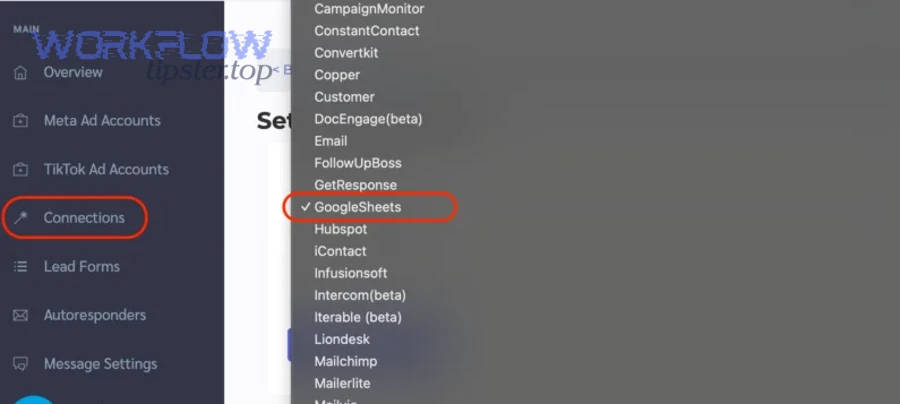
You troubleshoot ConvertKit to Google Sheets sync problems by checking three layers—trigger firing, field mapping, and sheet write permissions—because most failures happen from missing events, mismatched columns, or authentication/quotas.
Then, fix issues in a priority order: confirm the event exists, confirm the workflow ran, and confirm the sheet accepted the write.
Why are rows missing from the sheet?
Rows are missing when the trigger did not fire, a filter blocked the event, or the workflow failed before the “create row” step, so the fix is to replay a known event and compare logs step by step.
Specifically, confirm you used the correct trigger (subscriber vs tag vs purchase), confirm filters match actual values, and confirm the sheet tab/range still exists.
- Check triggers: did the subscriber actually enter through the expected form?
- Check filters: does the tag name match exactly (case and spacing)?
- Check destination: correct spreadsheet, correct tab, correct permissions
Why are duplicate rows appearing?
Duplicate rows appear when a tool retries after a timeout, when multiple triggers represent the same lifecycle moment, or when you re-test without dedupe rules, so you need a stable unique key to detect repeats.
For example, store subscriber_id + event_type + event_timestamp, or store an event_id if your pipeline can generate one consistently.
- Quick fix: add a dedupe step before “create row” (if supported)
- Sheet fix: create a helper column that hashes identity + time
- Process fix: avoid “replay all history” into the same log without marking source
Why do you see permission or authentication errors?
Permission errors happen when the connected Google account loses access, the spreadsheet owner changes, or Apps Script deployment permissions are misconfigured, so reauthorize and confirm the destination sheet is shared correctly.
Meanwhile, the safest operational pattern is to dedicate an integration account (a service-style Google user) that owns the sheet and connectors, reducing disruptions when team members change.
- Confirm ownership: who owns the spreadsheet and the connected integration?
- Reauthorize: refresh Google connection in your no-code tool
- Apps Script: redeploy if you changed scopes or access settings
What do you do when rate limits or quotas break the sync?
When quotas break the sync, reduce write frequency, batch updates, and keep payloads small, because the fastest way back to stability is fewer sheet operations per minute.
In addition, add backoff retries (wait and retry) and an error log tab so you can reprocess failed events instead of losing them.
- Batching: write in chunks instead of per event during bursts
- Queue pattern: store raw events then process on a schedule
- Resilience: always keep an “Error Log” with the raw payload
How does ConvertKit to Google Sheets compare with exporting CSVs manually?
ConvertKit to Google Sheets sync wins in speed and accuracy, while manual CSV export is best for one-time snapshots, and a hybrid approach is optimal for audits—because automation keeps data current but CSVs provide simple backups.
However, the deciding factor is how often you need updated data: daily operations favor automation, while occasional reporting can tolerate exports.
Automation (sync) is better when:
- You need a live lead list for sales or customer success follow-up
- You track tags and segment movement over time
- You want dashboards that update without human work
CSV export is better when:
- You need a one-off “all subscribers with tag X” pull
- You’re doing a quarterly cleanup or migration check
- You want a simple offline archive without building workflows
Hybrid is best when:
- You run an automated Event Log for daily operations
- You export a monthly CSV snapshot as a backup for governance
According to research summarized by Professor Raymond R. Panko at the University of Hawai‘i’s Shidler College of Business, even small per-cell error rates compound in real spreadsheets, which is why repeated manual CSV cleaning and copy/paste editing can introduce avoidable mistakes over time.
Contextual border: Up to this point, you’ve learned how to select a connection method, implement the integration, and keep the sync stable. Next, we’ll expand into advanced governance and semantic extensions that improve long-term reporting, security, and cross-tool workflows.
What advanced tracking and governance can you add after the integration is live?
After your ConvertKit to Google Sheets integration is live, you can add advanced tracking by implementing dedupe keys, separating raw logs from reporting views, and applying privacy controls—so your sheet remains accurate, scalable, and safe as your marketing system grows.
Next, these upgrades deepen micro-level semantics: they don’t change the core “sync ConvertKit to Sheets” outcome, but they significantly improve reliability, analytics, and interoperability with other tools.

How do you build a clean data model with an Event Log and a Snapshot table?
You build a clean model by storing every incoming event in an append-only Event Log, then generating a Subscriber Snapshot that keeps only the latest known state per subscriber, so reporting stays fast while history stays complete.
For example, your snapshot can calculate “current tags” and “last subscription source” from the event log using lookups or scheduled scripts.
- Event Log columns: event_id, subscriber_id, event_type, timestamp, payload fields
- Snapshot columns: subscriber_id, email, status, current_tags, last_seen, last_form
- Reporting benefit: dashboards query the snapshot, not the entire raw log
How do you implement deduplication and reconciliation rules?
You implement deduplication by creating a unique event key (or hash) and rejecting repeats, then reconcile by comparing totals between ConvertKit dashboards and your sheet to spot missing windows.
Meanwhile, reconciliation becomes easy if you store time windows (daily counts) and compare them to your sheet’s daily rows.
- Dedupe key examples: subscriber_id + event_type + timestamp; or subscriber_id + tag_name + timestamp
- Reconciliation habit: weekly check counts for key events (subs, purchases)
- Backfill strategy: run a controlled historical pull into a separate tab, then merge
How do you protect PII and control access in Google Sheets?
You protect PII by limiting what fields you store, restricting sheet access, and using separate tabs for sensitive data, so only the right people can view emails or revenue fields.
More importantly, decide whether you truly need emails in reporting—many teams can report on subscriber_id and only join emails when operationally required.
- Minimize data: store only what you use (avoid storing full addresses or unnecessary fields)
- Access control: share the reporting tab widely, keep raw tab restricted
- Audit approach: track who has access and review quarterly
How do you extend the workflow to other tools without losing clarity?
You extend the workflow by treating Google Sheets as a hub and routing cleaned outputs to other destinations—like convertkit to notion databases for editorial planning or calendly to smartsheet for scheduling operations—so every system stays consistent without duplicating logic everywhere.
In addition, keep one “source of truth” per type of data: Sheets for tabular logs, Notion for knowledge and docs, and Smartsheet for structured operational workflows.
- Practical pattern: ConvertKit events → Sheets Event Log → curated views → downstream destinations
- Clarity rule: never let downstream tools rewrite the raw event log
- Scale rule: document your fields and definitions so reports remain consistent