


ClickUp to Dropbox integration works best when you treat Dropbox as your team’s “source-of-truth file system” and ClickUp as your “source-of-truth work system,” then connect them so every task can reliably point to the right file, folder, and version.
Next, you’ll see what “connect,” “sync,” and “integrate” actually mean in day-to-day team work—especially how attachments, shared folders, and permissions determine whether teammates can open the same asset without chasing links.
Then, you’ll learn the practical workflows teams search for most: folder creation from tasks, task creation from file activity, and approval handoffs—plus how to decide between a native connection and Automation Integrations when your process needs multi-step logic.
Introduce a new idea: once you can connect and automate the basics, you can standardize governance (roles, naming conventions, and access control) so the ClickUp↔Dropbox system stays secure, consistent, and scalable as your team grows.
What does it mean to “connect and sync ClickUp to Dropbox” for team file workflows?
ClickUp↔Dropbox integration is a workflow link between a project management system (ClickUp) and a cloud file system (Dropbox) that lets teams attach, reference, and sometimes automate file-and-folder actions around tasks, statuses, and handoffs.
To better understand what you’re aiming for, it helps to separate three terms that get mixed together:
- Connect means you authorize an account so ClickUp can access Dropbox content you’re allowed to see.
- Integrate means ClickUp can surface Dropbox items inside task context (links, attachments, previews) so teammates don’t hunt for files.
- Sync (in this topic) usually means the workflow stays aligned—the task points to the correct folder/file/version and automation keeps the relationship up to date.
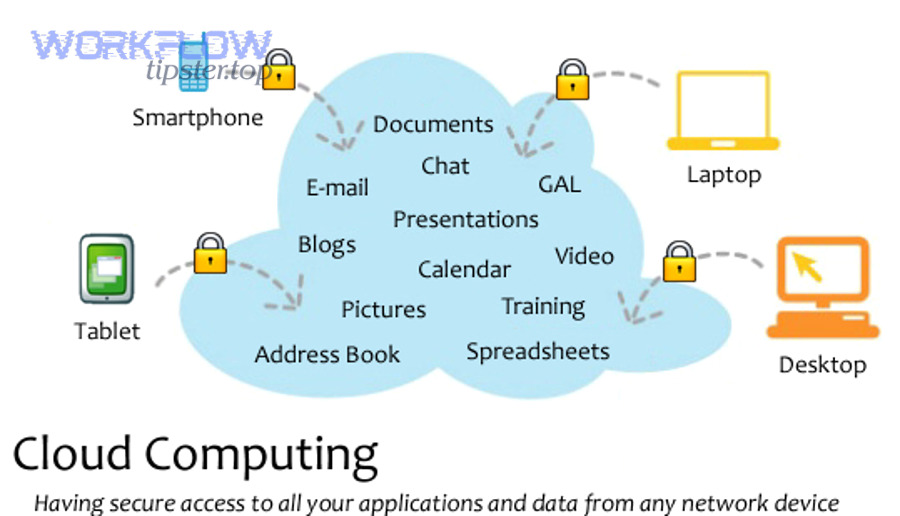
In practice, “sync” for teams rarely means “duplicate files into ClickUp.” It means consistent retrieval: everyone can open the same file, from the same task, with the correct permissions, without broken links.
Why teams want “sync” (even when it’s really “reference”)
Teams typically want ClickUp↔Dropbox for one of these outcomes:
- Single-click access: open Dropbox files from within a task without searching.
- Context preservation: files are always tied to the “why” (task description, acceptance criteria, approvals).
- Handoff clarity: “who owns the next step” is in ClickUp; “where the asset lives” is in Dropbox.
- Version discipline: the task always links to the latest approved artifact (or clearly labels versions).
The “hook chain” that keeps the whole system stable
A stable integration requires you to keep three links unbroken:
- Task → Folder (every project/task knows its Dropbox home)
- Folder → File (the right file lives in the right place)
- File → Permission (the right person can open it without requesting access)
That chain is the foundation for everything you’ll do next.
Can you connect ClickUp to Dropbox using a native integration?
Yes—ClickUp can connect to Dropbox natively for teams because it reduces file-hunting, speeds up attaching assets to tasks, and keeps collaboration consistent through shared permissions and a single “place to look” for files.
Next, the key is understanding what “native” typically covers (and what it doesn’t), because many teams assume “native” equals “full two-way automation,” when it often starts with attachment and browsing.

What native integration is best at
Native ClickUp↔Dropbox usually excels at:
- Attaching Dropbox files to tasks/comments
- Browsing cloud storage from within ClickUp
- Reducing copy/paste links and misplaced file references
- Keeping task discussion anchored to the asset
What native integration is not designed for
Native integration is usually not the best fit when you need:
- Auto-create nested folder trees for every task
- Multi-step automation (if/then logic)
- Cross-app orchestration (e.g., “status changes → create folder → notify channel → update spreadsheet”)
That’s where automation platforms come in later.
What you’ll need (practical reality check)
Before you promise “everyone can use it,” confirm two constraints that frequently matter for teams:
- Plan and availability: ClickUp’s Dropbox integration availability can vary by plan and workspace settings. (See ClickUp’s official help guidance for requirements on the Dropbox integration and cloud storage access rules.)
- Workspace/account boundaries: Teams often run multiple ClickUp Workspaces and multiple Dropbox accounts. Decide whether you want one Dropbox account per user or a consistent organizational account strategy.
Evidence (if any): According to a study by the University of California, Irvine from the Donald Bren School of Information and Computer Sciences, in 2008, interruptions increased stress and workload even when people worked faster—showing why keeping files “one click away” inside task context can reduce disruptive switching overhead.
What permissions and access levels are required for a successful connection?
A successful ClickUp↔Dropbox connection requires authorized access to the same shared folders your team uses, consistent permission levels for collaborators, and a clear policy for who connects accounts to avoid “it works for me” fragmentation.
Then, permission design becomes the difference between a smooth workflow and a constant “Request access” loop.
If a teammate can’t open the file from the task, the integration didn’t fail—the permission chain did. Solve that by aligning these layers:
- Dropbox layer: folder ownership, shared folder membership, shared link settings, external collaborator rules
- ClickUp layer: who can view the task, who can comment, who is a guest vs member, workspace-level permissions
Most teams succeed with one of these patterns:
- Pattern A (Best for small teams): each user connects their own Dropbox; shared folders are managed in Dropbox.
- Pattern B (Best for process-heavy teams): an Ops/Admin approach standardizes where files live and how links are created, plus templates enforce structure.
- Pattern C (Best for external-heavy work): client folders live in Dropbox with strict sharing rules; ClickUp tasks link only to approved shared locations.
Quick checklist before rollout:
- Do all teammates have access to the same project shared folder?
- Are shared links restricted to “anyone with link” or “people with access”? (Choose intentionally.)
- Are external collaborators allowed to access the folder from your Dropbox admin settings?
- Do ClickUp guests have enough permissions to attach and open cloud storage items?
How do Dropbox files appear in ClickUp after connecting?
Dropbox files appear in ClickUp as attached cloud items (or links) within tasks and comments, typically enabling previews or direct open actions so teammates can access the file without leaving the task context.
Next, how you attach matters, because “attachment” can either preserve clarity or create confusion when the team starts duplicating versions.
Attachment vs link (what the team experiences):
- Cloud attachment usually feels integrated: browse Dropbox, select file, attach to task/comment, open in Dropbox.
- Manual link works but relies on human discipline: paste URL, hope permissions are right, hope link doesn’t break when files move.
What changes when a file is renamed or moved:
- Prefer linking to a stable folder as the “home” and attach only final deliverables.
- For work-in-progress assets, link to the folder and reference the file path in the task description.
How do you set up ClickUp↔Dropbox so teams can attach files and keep task context clean?
Use a “folder-first mapping method” in 6 steps—define a Dropbox structure, map it to ClickUp Spaces/Lists, set attach-vs-link rules, build templates, enforce naming, and assign owners—so every task points to the correct location and stays readable.
Below is the setup approach that keeps your ClickUp↔Dropbox integration clean even when dozens of people collaborate.

Step 1: Decide your “source of truth”
- ClickUp = work truth: tasks, owners, deadlines, approvals, status.
- Dropbox = file truth: actual files, version history, shared folders, client delivery.
Step 2: Choose a mapping standard (and write it down)
- Space = Department/Client group
- Folder = Project
- List = Workstream
- Task = Work item
- Dropbox top folder = Department/Client
- Dropbox subfolder = Project
- Dropbox nested folders = Deliverables / Working / References
Step 3: Define “attach vs link” rules
- Attach final deliverables and “review-ready” assets.
- Link to folders for work-in-progress and multi-file sets.
Step 4: Build templates that enforce the hook chain
- A “Dropbox Project Folder” field (link)
- A “Latest Approved File” field (attach/link)
- A checklist for upload + naming + permission validation
Step 5: Establish a naming convention
Consistent naming makes the task-to-file bridge faster to use and easier to audit.
Step 6: Assign ownership
- Folder structure integrity (usually Ops/PMO)
- Permission integrity (usually Admin/IT or Dropbox admin)
- Template integrity (usually ClickUp admin / process owner)
Evidence (if any): According to a study by the University of California, Irvine from the Donald Bren School of Information and Computer Sciences, in 2008, interrupted work increased stress and effort—supporting the practical value of reducing “search and reorient” cycles through consistent task-to-file mapping.
What is the best folder structure in Dropbox for ClickUp Spaces, Folders, and Lists?
There are 4 main types of Dropbox folder structures for ClickUp teams: Space-mapped, Project-mapped, Client-mapped, and Deliverable-mapped—based on whether your primary organizing criterion is team ownership, project ownership, client ownership, or output type.
Next, choose the one that matches how your team retrieves information under deadline pressure.
Type 1: Space-mapped structure (ownership-first)
Best when internal teams run many projects.
- /Marketing/
- /Project-Launch-2026/
- /Brand-Refresh/
Strength: fast for departments. Risk: cross-team projects can duplicate folders.
Type 2: Project-mapped structure (execution-first)
Best when projects are the “center of gravity.”
- /Projects/
- /Project-Alpha/
- /01-Working/
- /02-Review/
- /03-Final/
- /Project-Alpha/
Strength: everything for one project is together. Risk: harder to browse by department.
Type 3: Client-mapped structure (external-first)
Best for agencies and client delivery.
- /Clients/
- /Client-A/
- /2026-Q1-Campaign/
- /2026-Q2-Website/
- /Client-A/
Strength: client access control is simpler. Risk: internal initiatives may feel buried.
Type 4: Deliverable-mapped structure (asset-first)
Best for creative teams with repeatable outputs.
- /Deliverables/
- /Design/
- /Video/
- /Copy/
Strength: fast for specialists. Risk: project context can get lost unless ClickUp tasks link correctly.
No matter which type you pick, define a consistent “Project Home” folder name and put it in ClickUp templates so every task can point to the same anchor.
What file types and asset categories should be attached vs linked?
Attaching wins for single, review-ready deliverables (like PDFs, final docs, approved designs), while linking is best for multi-file working sets (like raw media folders, large asset libraries, and evolving project directories) where stability and permission inheritance matter most.
However, the difference becomes clearer when you define it by “what the task needs to do.”
Attach when the task needs decisive review or approval
- Final proposal PDF
- Signed contract
- Final design export
- Final client-ready deck
This keeps the task readable: reviewers see “the file to review” immediately.
Link when the task needs a workspace, not a file
- Video project with multiple cuts
- Design system assets
- Research references
- Source files that change daily
This prevents the “final_v12_really_final” spiral because the task points to the home folder and the workflow defines what “final” means.
A simple rule your team can remember:
- Attach = decision
- Link = workspace
What are the most useful ClickUp↔Dropbox automations for files, folders, and handoffs?
There are 3 main types of ClickUp↔Dropbox automations teams rely on: folder-creation automations, task-creation automations, and approval-protection automations—based on whether the trigger originates in ClickUp, in Dropbox, or at an approval gate.
Next, you’ll choose the automation style that matches your risk tolerance: the more automatic it is, the more governance you need.
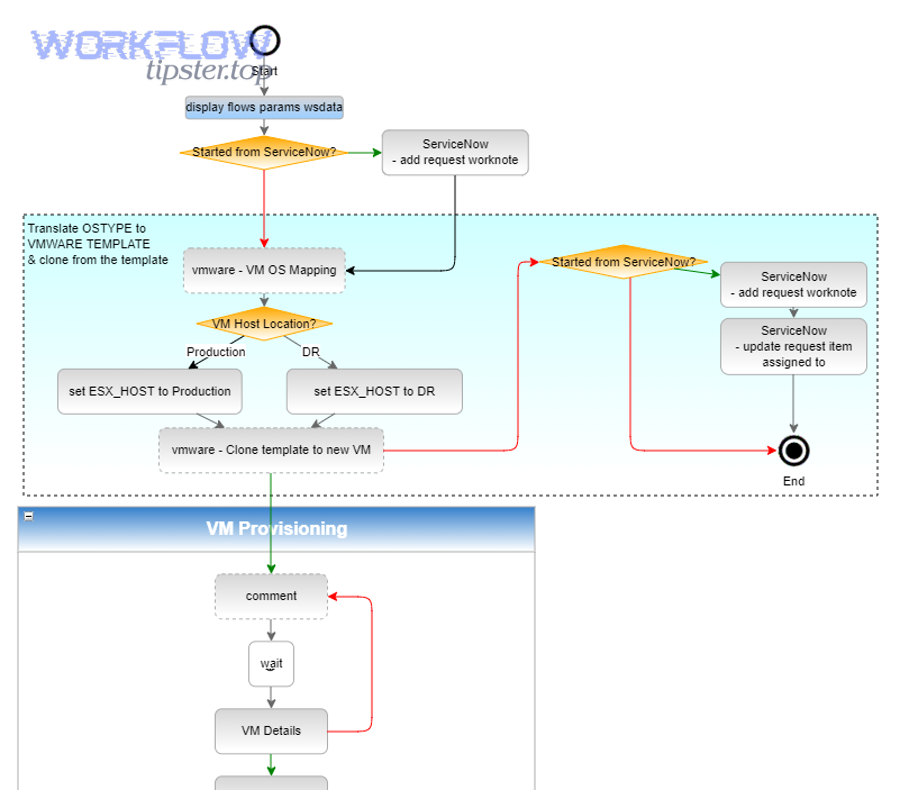
Before you automate, set one non-negotiable principle: automations should enforce your structure, not replace thinking. That’s why teams often start with simple patterns and scale up.
Also, this is where you can naturally expand your ecosystem beyond one connection—teams often pair ClickUp↔Dropbox with Automation Integrations across docs and finance workflows, such as connecting google docs to google drive for asset centralization or routing google docs to xero for invoice-ready documentation, depending on the process maturity.
Which automations create Dropbox folders from ClickUp tasks or projects?
There are 4 main “folder creation” automations: task-to-folder, project-to-folder tree, status-to-subfolder, and template-based folder scaffolding—based on whether you need one folder, a nested structure, a lifecycle structure, or repeatable delivery sets.
Then, pick the simplest version that still prevents manual folder chaos.
Automation 1: New project → create project folder tree
- Action: create /Project Home/ plus subfolders:
- /01-Working/
- /02-Review/
- /03-Final/
- /References/
Automation 2: New task → create task folder (only when needed)
- Trigger: task created with a tag like “Needs Folder”
- Action: create /Project Home/TaskName-ID/
Automation 3: Status change → move or create lifecycle folders
- Trigger: status changes to “In Review”
- Action: create/ensure /02-Review/ and notify reviewer
Automation 4: Template-based scaffolding for clients
- Trigger: client onboarding project created
- Action: create /Client/Project/ folders and apply sharing rules
Which automations create ClickUp tasks from Dropbox file/folder activity?
There are 3 main “task creation” automations: file-arrival triage, file-update review, and folder-ready handoff—based on whether the event means “new work,” “rework,” or “ready for the next stage.”
Next, define what counts as a meaningful Dropbox event, so your team doesn’t get spammed.
Automation 1: New file in “Incoming” → create triage task
- Result: ClickUp task is created with file link and required metadata fields (owner, due date, priority).
Automation 2: Updated file in “Review” → assign reviewer + comment
- Result: ClickUp task updates the reviewer, posts a comment, and sets status to “Needs Review.”
Automation 3: New folder in “Deliverables” → create checklist task
- Result: ClickUp task includes a checklist: QA, approval, packaging, delivery confirmation.
Which automations keep approvals and reviews from getting lost?
There are 3 main approval-protection automations: “single file of record,” “status-gated attachment,” and “reviewer notification locks”—based on whether you need a canonical artifact, a controlled workflow step, or a role-based gate.
Moreover, these automations matter because approvals fail when the “right file” is ambiguous.
Pattern 1: Single file of record
- Rule: every approval task must include exactly one “Latest Approved File.”
- Automation: when status becomes “Approved,” store the linked file in a dedicated field and pin it.
Pattern 2: Status-gated attachment
- Rule: only files inside /02-Review/ can be approved.
- Automation: if someone tries to approve without a review-folder link, revert status and request correct placement.
Pattern 3: Reviewer notification locks
- Rule: approval tasks must assign a reviewer and due date.
- Automation: when status changes to “In Review,” set reviewer, due date, and send notification.
Evidence (if any): According to a study by the University of California, Irvine from the Donald Bren School of Information and Computer Sciences, in 2008, interruptions increased perceived workload and stress—supporting automation patterns that reduce repeated “where is the file?” back-and-forth during reviews.
Should teams use native integration or an automation tool to connect ClickUp and Dropbox?
Native integration wins in simplicity and low maintenance, automation tools are best for multi-step workflows and conditional logic, and a hybrid approach is optimal for teams that need reliable attachments plus scalable folder-and-handoff automations.
However, “best” depends on your process complexity, team size, governance needs, and appetite for maintaining workflows.
The table below contains a comparison of methods by criteria that typically determine success for teams.
| Method | Best for | Strengths | Trade-offs |
|---|---|---|---|
| Native ClickUp↔Dropbox | Attach and open files inside tasks | Simple, low maintenance, fewer moving parts | Limited multi-step automation |
| Automation platform | Create folders/tasks, route events, enforce rules | Powerful logic, scalable workflows, cross-app potential | Needs monitoring, governance, and good design |
| Hybrid | Attach cleanly + automate lifecycle | Balanced reliability and capability | Requires clear ownership and standards |
When is native ClickUp↔Dropbox best for your workflow?
Native ClickUp↔Dropbox is best when your team primarily needs fast file attachment, consistent access inside tasks, and minimal setup overhead—especially for small-to-mid teams who want fewer tools and fewer failure points.
Next, you’ll know native is “enough” when your workflow can succeed with three capabilities:
- Attach files to tasks/comments reliably
- Ensure teammates can open what you attach
- Keep the task readable without complex automation
Common native-first use cases:
- Marketing team attaching final assets to tasks
- Product team linking specs and reference files
- Operations team attaching signed documents to workflows
- Any team that values “one place to look” more than “automatic folder trees”
When are Zapier/Make/n8n/IFTTT-type connectors better than native?
Automation connectors are better than native when you need multi-step processes, conditional logic, standardized folder scaffolding, lifecycle enforcement, or cross-app orchestration that goes beyond attachment and browsing.
Then, the decision becomes less about “integrate or not” and more about “how much process should software enforce.”
Signals you need an automation layer:
- You create the same folder structure repeatedly (and people keep doing it differently)
- You need “status change → folder move → notification” workflows
- You want tasks created from Dropbox events (incoming files, revisions, deliverables)
- You must reduce manual errors by enforcing consistent steps
A practical hybrid pattern that scales:
- Use native integration for daily attaching and opening
- Use automation tools for folder creation, lifecycle gates, and triage
Evidence (if any): According to a study by the University of California, Irvine from the Donald Bren School of Information and Computer Sciences, in 2008, interruptions increased time pressure and frustration—supporting tool choices that reduce context switching by keeping file access and workflow actions anchored to one task context.
Why isn’t ClickUp to Dropbox working, and how do you fix common connection and permission issues?
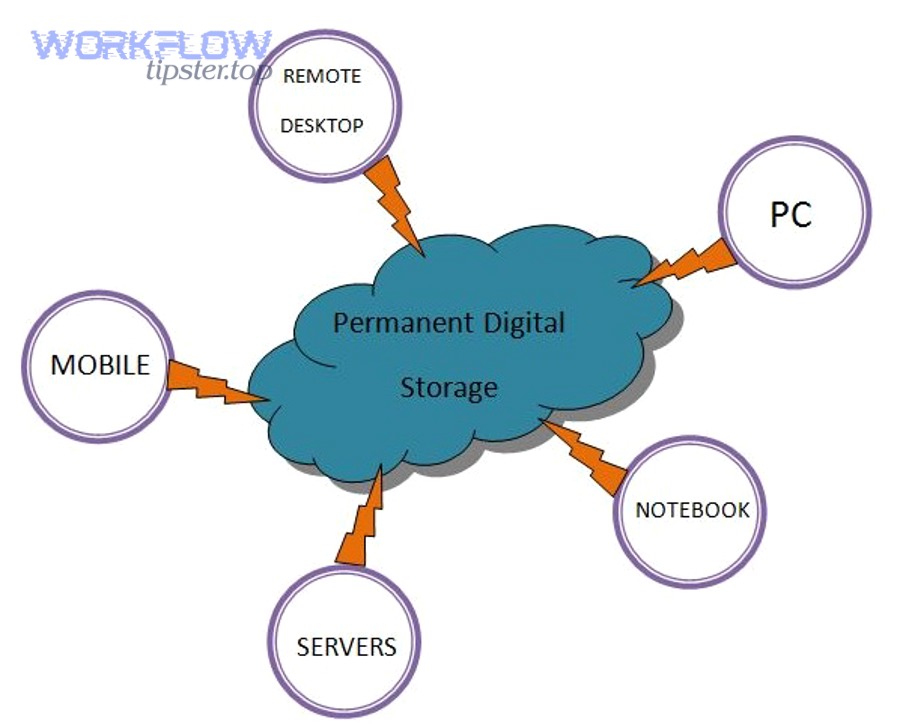
ClickUp↔Dropbox problems usually come from permission mismatch, expired authorization, broken shared links, or file moves—so you fix them by validating the permission chain first, re-checking account authorization second, and auditing folder/file stability third.
To better understand why it “works for one person,” treat troubleshooting as a step-by-step elimination process.
The fastest diagnostic sequence (do this in order):
- Can the user open the file directly in Dropbox? If no, it’s a Dropbox permission issue.
- Is the user signed into the same Dropbox account they connected? If no, it’s an account mismatch issue.
- Does the ClickUp task allow the user to see the attachment/link? If no, it’s a ClickUp permission/visibility issue.
- Was the file moved/renamed or the shared link restricted? If yes, fix link strategy and folder stability.
Typical “it’s broken” symptoms and what they usually mean:
- “Request access” → user lacks Dropbox folder membership or link is restricted
- Preview fails → browser/session issues, permission restrictions, or link type
- Link opens but wrong file → version confusion or duplicate files
- Only some users can attach → role/permission differences in ClickUp
Is the issue caused by Dropbox sharing settings or ClickUp guest/role limits?
Yes—Dropbox sharing settings and ClickUp roles frequently cause ClickUp↔Dropbox access issues because shared links can be restricted, shared folders can exclude certain collaborators, and guest/limited roles may not have the same cloud attachment capabilities as full members.
Next, resolve it by checking the two most common mismatches.
Mismatch 1: The folder is shared, but the user isn’t a member
- Add the user to the shared folder, or change link policy (only if appropriate for security).
Mismatch 2: The task is visible, but attachments aren’t usable
- Confirm ClickUp role permissions for cloud storage usage.
- Ensure the user has comment/interaction rights that allow attachment access.
What should you check when attachments don’t show, previews fail, or links break?
There are 6 main checks: authorization status, account mismatch, link restrictions, file moved/renamed, shared folder membership, and browser/session issues—based on whether the failure is identity, access policy, file stability, or client-side behavior.
Moreover, doing these checks consistently prevents recurring tickets.
- Authorization status: if the connection token expired, reconnect the integration.
- Account mismatch: ensure the connected Dropbox account matches the intended work account.
- Link restrictions: confirm link policy doesn’t block collaborators.
- File moved/renamed: prefer stable “Project Home” links to reduce breakage.
- Shared folder membership: membership is more reliable than ad-hoc sharing.
- Browser/session: try another browser profile or re-authenticate if previews behave inconsistently.
Evidence (if any): According to a study by the University of California, Irvine from the Donald Bren School of Information and Computer Sciences, in 2008, interruptions increased stress and workload—supporting troubleshooting checklists that reduce repeated “trial-and-error” switching between apps.
How do you keep ClickUp↔Dropbox workflows secure and consistent across a whole team?
There are 5 main practices to keep ClickUp↔Dropbox secure and consistent: standard folder mapping, naming conventions, role ownership, permission governance, and lifecycle rules—based on whether you’re controlling structure, discovery, responsibility, access, or change.
Next, you’ll implement them as “team defaults,” not optional suggestions.
Practice 1: Standard folder mapping (one rule)
- Document mapping rules and bake them into templates.
- Standardize Space/List naming conventions and required Dropbox link fields.
Practice 2: Naming conventions (one format)
A naming convention should be simple enough to use under pressure and consistent enough to sort logically.
- Format: YYYY-MM-DD_Project_Deliverable_V#_Owner
- Example: 2026-01-29_Alpha_LandingPageCopy_V3_MQ.docx
Practice 3: Ownership (one accountable role per layer)
- ClickUp templates owner: ensures every new project includes Dropbox fields and rules.
- Dropbox structure owner: ensures folder trees remain consistent.
- Permissions owner: ensures access policies match security needs.
Practice 4: Permission governance (least privilege by default)
- Define who can share externally and who can create shared links.
- Decide whether links expire and how client access is controlled.
Practice 5: Lifecycle rules (status controls behavior)
- Status “In Review” requires a review folder link.
- Status “Approved” requires a single approved file reference.
- Status “Delivered” requires a final delivery link or folder.
What standards prevent broken links and duplicated “final_v12” files?
There are 4 main standards that prevent broken links and version chaos: project-home linking, canonical file fields, controlled review folders, and immutable final deliverables—based on whether you stabilize location, stabilize reference, stabilize process, or stabilize output.
Then, treat these standards like guardrails that reduce human error.
- Project-home linking: link the “Project Home” folder so the task always has a stable anchor.
- Canonical file fields: use one “Latest Approved File” field so everyone knows what counts as final.
- Controlled review folders: keep /Working → /Review → /Final so approvals happen on the right artifact.
- Immutable final deliverables: don’t overwrite finals; publish new versions with clear increments.
What roles should own the integration and folder permissions?
There are 3 main role models for ownership: Admin-owned, Ops/PM-owned, and Team-owned—based on whether you prioritize security control, process consistency, or speed and autonomy.
Moreover, the best model depends on compliance and team size.
- Admin-owned (security-first): IT/Dropbox admin controls permissions and sharing; ClickUp admin controls templates and workspace policies.
- Ops/PM-owned (process-first): PMO/Ops owns structure and lifecycle rules; admin supports security policies.
- Team-owned (speed-first): team leads own folders and templates; minimal centralized governance.
What advanced team and enterprise considerations affect ClickUp↔Dropbox integrations?
There are 4 advanced considerations that affect enterprise-grade ClickUp↔Dropbox setups: identity governance (SSO/managed accounts), compliance and retention, automation reliability at scale (rate limits/monitoring), and safe external sharing—based on whether you’re controlling who connects, how long content lives, how workflows behave under load, or who can access deliverables.
Next, these considerations help you avoid “it worked in a small team” failures when you scale to multiple departments and external partners.
How do SSO or managed accounts change who can connect ClickUp to Dropbox?
SSO and managed accounts change ClickUp↔Dropbox integration by shifting connection authority toward admins, standardizing identity, and restricting unmanaged sharing—so teams must align “who can authorize” with “who owns the workflow.”
Then, plan for these realities:
- Users may not be allowed to connect personal Dropbox accounts.
- Admin approval may be required for third-party integrations.
- Deprovisioning (offboarding) can revoke access and break workflows if ownership isn’t transferred.
Practical mitigation: assign a “service ownership” approach for core shared folders so offboarding doesn’t orphan the file system.
What compliance, retention, and audit requirements should teams plan for?
Teams should plan for retention, auditability, and approval evidence because ClickUp tasks often become the “decision record” while Dropbox becomes the “artifact record,” and compliance requires both to be traceable and consistent.
Moreover, a good policy answers four questions:
- Retention: how long do you keep drafts vs finals?
- Audit trail: how do you prove who approved what and when?
- Access review: how often do you review external sharing?
- Classification: what content requires restricted access?
Practical mitigation: create a delivery checklist task template that logs approvals and links to the final deliverable location, not just a transient shared link.
Can rate limits or API constraints break high-volume automations, and how do you prevent that?
Yes—rate limits and API constraints can break high-volume ClickUp↔Dropbox automations because bursts of events (uploads, revisions, status changes) can exceed throughput, causing delayed runs, failures, or duplicate actions.
Next, prevent it by designing for resilience:
- Batching: group events (e.g., “process uploads every 10 minutes”).
- Idempotency: ensure re-runs don’t create duplicate folders/tasks.
- Retry logic: handle transient failures gracefully.
- Monitoring: track failures and alert owners.
- Scope control: trigger only on meaningful folders (e.g., /Incoming/ not all folders).
What is the safest way to share Dropbox assets in ClickUp with external collaborators?
Sharing via controlled shared folders with least-privilege access is safer than open “anyone with link” sharing, while expiring shared links are best for short-term reviews, and direct invites are optimal for long-term client collaboration when identity is verified.
However, your safest option depends on the collaboration model:
- Short review: expiring link + view-only + watermarking where appropriate.
- Ongoing client work: shared folder with explicit membership and periodic access reviews.
- Highly sensitive work: direct invites + restricted downloads + tighter controls.
Evidence (if any): According to a study by the University of California, Irvine from the Donald Bren School of Information and Computer Sciences, in 2008, interruptions increased frustration and time pressure—supporting enterprise controls that reduce avoidable “search, request access, and reorient” cycles that scale poorly across large teams.