


To connect DocuSign to Slack, install the DocuSign app in your Slack workspace, authenticate your DocuSign account, and confirm that envelope updates and document tasks can surface as actionable notifications where your team already works.
Beyond basic connection, most teams want DocuSign status updates in the right place—DMs for personal tasks and channels for shared visibility—so signatures don’t get buried and approvals don’t stall.
When you outgrow “simple alerts,” automation becomes the lever: you can route specific envelope events to specific channels, add filters to prevent noise, and build multi-step workflows that escalate, summarize, or fan out across tools.
Introduce a new idea: the best DocuSign-to-Slack setup is not just “installed,” it’s governed—meaning it has clear channel structure, sane notification rules, and an approach (native vs automation) that matches your team’s operating model.
What does it mean to connect DocuSign to Slack for teams?
Connecting DocuSign to Slack is an integration that links your DocuSign account to your Slack workspace so envelope events and agreement tasks can be created, tracked, and acted on inside Slack with less context switching.
To better understand why this matters for teams, think of DocuSign as the system of record for agreements and Slack as the shared workspace where decisions happen—so the integration becomes the bridge that turns “signing progress” into “team-visible progress.”
In practical terms, “connect DocuSign to Slack” usually includes four core capabilities:
- Authentication: Slack and DocuSign confirm who you are and which DocuSign account (and permissions) you can use.
- Event-to-notification delivery: DocuSign envelope events (like sent, completed, declined) can generate messages in Slack.
- In-context actions: Slack messages can contain buttons or shortcuts that help you review, remind, or jump directly to the agreement.
- Team routing: Updates can go to DMs when a person must act, or channels when a group needs visibility.
The team advantage is not just speed; it’s predictability. When legal, sales, or HR relies on signing milestones, the biggest risk is silent delay—someone thinks “it’s in email,” someone else thinks “it’s in DocuSign,” and the deal stalls. Slack reduces that ambiguity by putting the “what happened” and “what’s next” where people already coordinate.
There is also a “human factor” reason to do this carefully. If you turn every envelope update into a noisy ping, you will create alert fatigue and people will mute or ignore messages. A classic interruption study by the University of California, Irvine from the Department of Informatics, in 2008, found that people compensated for interruptions by working faster, but reported higher stress, frustration, and time pressure.
So the goal is balanced: you want enough signal to keep agreements moving, and enough restraint to keep Slack usable.
Can you connect DocuSign to Slack using the native Slack app?
Yes—you can connect DocuSign to Slack using the native Slack app because it offers (1) a direct install-and-authenticate path, (2) real-time notifications for key document events, and (3) in-Slack actions that reduce tool switching for teams.
Next, the important question becomes “what does the native app cover well, and what does it deliberately not try to do?”—because that distinction will guide your setup choices from day one.
What permissions and prerequisites do you need before installing DocuSign in Slack?
You need a Slack workspace that allows app installation, a DocuSign account with permission to access the relevant envelopes or templates, and approval to grant the app the required workspace and channel scopes so it can post and perform actions where needed.
More specifically, the prerequisites break down into what Slack needs and what DocuSign needs:
- Slack prerequisites: your workspace policy must allow the DocuSign app (some workspaces require admin approval), and you must be able to install or request the app.
- Channel access: the app must be allowed to post in the channels you expect (especially private channels, which often require explicit access).
- DocuSign prerequisites: your DocuSign login must have access to the agreements you care about—otherwise notifications can be incomplete or actions can fail.
In teams, the most common hidden prerequisite is governance. Even if you personally can install the app, your organization may require an approval step for apps that can view channel content or act inside conversations. If you anticipate that, you can avoid a “half-installed” setup where the app exists but cannot post where it needs to post.
According to a study by the University of California, Irvine from the Department of Informatics, in 2008, interruption-heavy workflows increased perceived stress and time pressure—even when tasks were completed faster—so permissions should be used to reduce unnecessary alerts and keep only the high-value signals flowing.
How do you install and authenticate the DocuSign app in Slack step by step?
The most reliable method is a 6-step install flow—add the DocuSign app, authorize Slack access, sign in to DocuSign, confirm the connected account, choose where notifications appear, and run a real signing test to verify end-to-end delivery.
Then, once the connection is established, you can treat the integration like any other production workflow: verify, document, and standardize it for your team.
Step 1: Open Slack and locate the Apps area (or App Directory), then search for DocuSign and select the official app listing.
Step 2: Click Install (or request approval if your workspace requires it).
Step 3: Review the permission request carefully (what the app can view and do), then approve to continue.
Step 4: Sign in to DocuSign when prompted, and grant DocuSign authorization to connect to Slack.
Step 5: Confirm the correct DocuSign account is connected (especially if you have multiple accounts/environments).
Step 6: Run a test envelope (send to yourself or a colleague) and verify that you receive the expected status update in Slack.
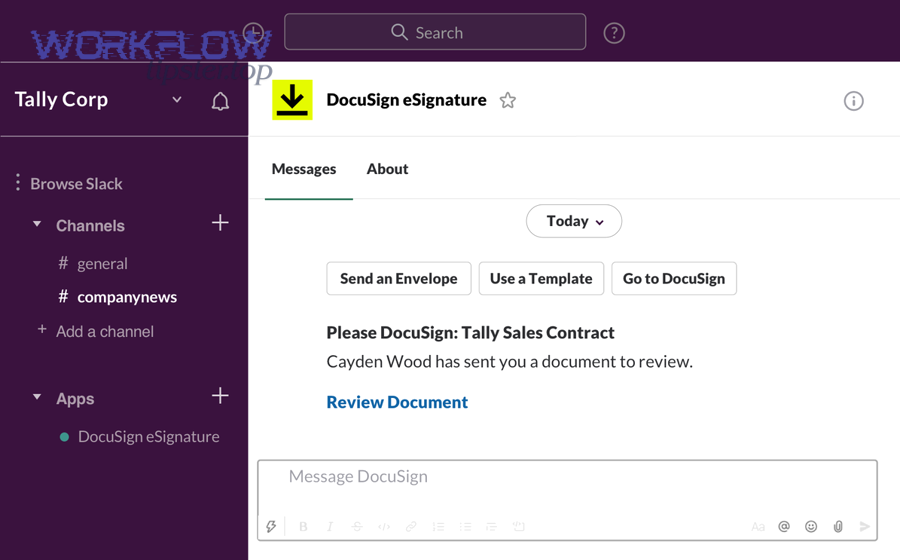
For teams, the “test envelope” is not optional. A connection can look successful while still failing in one of three places: the app cannot post to the intended channel, the DocuSign user lacks access to the envelope details, or notifications are simply not configured to include the event you tested. A 5-minute verification saves hours of confusion later.
According to a study by the University of California, Irvine from the Department of Informatics, in 2008, people worked faster under interruptions but experienced higher stress and time pressure, which is why the install checklist should include an explicit decision on what notifications you will enable (and which you will not).
How do you set up DocuSign notifications in Slack so teams see status updates?
The best setup is a 5-part notification plan: choose the envelope events that matter, decide DM vs channel delivery, standardize channel structure, define escalation rules, and validate the output with real agreement scenarios so your team receives signal instead of noise.
Specifically, notification quality depends less on “turning it on” and more on matching events to the right audience at the right time.
Which DocuSign envelope events can trigger Slack notifications?
There are 5 main categories of DocuSign envelope events teams should notify on: initiation (sent), delivery/visibility (delivered or viewed), completion (signed/completed), exceptions (declined/voided), and time risk (reminders/overdue) based on the agreement lifecycle.
More importantly, each category maps to a different operational question your team is trying to answer:
- Sent: “Did the agreement actually leave our hands?” Useful for deal owners and coordinators.
- Delivered/View: “Has the signer seen it?” Useful when you need to time follow-up.
- Signed/Completed: “Is the agreement done?” Useful for handoff, provisioning, and invoicing.
- Declined/Voided: “Is there a blocker?” Useful for legal/sales leadership escalation.
- Reminder/Overdue: “Are we at risk of delay?” Useful for proactive pipeline management.
Teams should resist the temptation to notify on every micro-state. If you post every intermediate update in a shared channel, people will stop reading. A strong default for shared channels is “completed + exceptions,” while individual DMs handle “you need to act” tasks.
According to a study by the University of California, Irvine from the Department of Informatics, in 2008, interruptions increased stress and time pressure, so teams should select only the event categories that change decisions (completion, exceptions, and overdue risk) rather than events that merely confirm background activity.
Where should notifications go—DMs or channels—and when?
Channels win for shared visibility, DMs are best for personal accountability, and a hybrid approach is optimal when you want both: the channel gets the milestone and the owner gets the action prompt.
However, the “best place” depends on how your team works, so use these decision rules:
- Use DMs when the message means “you must do something now” (review, approve, remind, fix a decline).
- Use channels when the message means “the team should know this happened” (completed agreement, major exception, high-value contract signed).
- Use both when the team needs awareness but one person still owns the next step (e.g., deal owner posts completion in #sales-deals while legal owner gets a DM to archive or tag it).
A simple operational model is “DMs create action, channels create alignment.” If you follow that model consistently, people learn what to do when they see a DocuSign message, and your integration becomes trustworthy.
One subtle but high-impact practice is to route sensitive agreements (HR policies, employment docs, certain legal reviews) to a private channel or DM-only flow. That reduces risk while preserving speed. It also prevents the “too many people saw it” problem that leads to slowdowns and accidental exposure.
According to a study by the University of California, Irvine from the Department of Informatics, in 2008, interruptions can push people to work faster but feel more stressed, so DM vs channel delivery should be treated as a workload design decision, not a cosmetic preference.
How can you structure Slack channels for signing workflows (sales, legal, HR)?
There are 3 proven channel structures for DocuSign signing workflows—by function, by deal/process, or by severity—based on how your organization routes agreements and who needs visibility at each stage.
Below are channel structures teams commonly use, plus when each structure works best:
- By function (stable teams): #sales-contracts, #legal-reviews, #hr-onboarding. Best when responsibilities are consistent and teams are stable.
- By deal or project (pods): #deal-acme-renewal, #project-vendor-onboarding. Best when work is organized around initiatives and cross-functional pods.
- By severity (operational control): #docusign-completed, #docusign-exceptions, #docusign-overdue. Best when you want a clean triage workflow.
A practical approach is to start with “severity channels” because they are universally useful, then add functional channels where teams need richer collaboration. For example, you can post “completed” in #docusign-completed and “declined/voided” in #docusign-exceptions, while also posting specific legal exceptions in #legal-reviews if needed.
To keep the flow consistent, standardize message expectations:
- Completion messages should include who signed, what’s next, and where the final copy lives.
- Exception messages should include the reason (declined/voided), owner, and the resolution path (edit, resend, renegotiate).
- Overdue messages should include a due date, the next reminder time, and an escalation trigger.
According to a study by the University of California, Irvine from the Department of Informatics, in 2008, task environments with interruptions can raise stress, which is why channel structure must reduce “search cost” and make it obvious where to look for completions vs exceptions.
Do you need automation tools to connect DocuSign to Slack for advanced workflows?
No—you don’t need automation tools for basic DocuSign-to-Slack setup, but you do need them when you want (1) multi-step routing, (2) conditional filtering by template or deal type, and (3) cross-app workflows that turn signing events into downstream actions automatically.

Besides, the core question is not “can I automate?” but “what level of control do I need to keep Slack useful while scaling agreement volume?”
What are the most common “DocuSign → Slack” automation recipes teams use?
There are 6 common DocuSign-to-Slack automation recipes: completion alerts, exception escalation, overdue reminders, channel routing by template, daily digests, and stakeholder summaries based on agreement value or process type.
For example, here are recipes that consistently deliver value without flooding Slack:
- Completion to shared channel: When an envelope is completed, post a message to #docusign-completed with deal name and owner.
- Declined to escalation channel: When declined, post to #docusign-exceptions and mention the responsible owner.
- Overdue reminder to DM: If not completed after X days, DM the owner with a reminder and a quick link to resend.
- Template-based routing: Route HR templates to HR channels, legal templates to legal channels, sales templates to sales channels.
- Daily digest: At a set time, post a summary of all envelopes pending signature to reduce constant interruptions.
- Stakeholder summary: For high-value agreements, post a concise update to an executive channel only when completed or blocked.
Once you introduce automation, you gain an important capability: you can separate “information flow” from “attention flow.” Instead of asking everyone to subscribe to everything, you design specific messages for specific audiences.
According to a study by the University of California, Irvine from the Department of Informatics, in 2008, interruptions increased stress and time pressure, so automation recipes should prioritize batching and relevance—like digests and exception-only channels—over constant, granular updates.
How do you map DocuSign triggers to Slack actions without creating spam?
The safest approach is a 4-filter mapping strategy—filter by event type, filter by template or envelope metadata, filter by audience (owner vs team), and filter by frequency (digest vs real-time)—so every Slack message earns attention.
More specifically, build your mapping from the top down:
Filter 1: Event type (what happened)
- Keep: completed, declined, voided, overdue.
- Optional: viewed/delivered (only for high-value deals or time-sensitive cases).
Filter 2: Template or process (what kind of agreement)
- Route HR onboarding templates to HR.
- Route legal redlines or approvals to legal ops.
- Route sales order forms to sales ops.
Filter 3: Audience (who needs to know)
- Owner gets the action DM.
- Channel gets the milestone signal.
Filter 4: Frequency
- Real-time for exceptions and completions.
- Digest for “still waiting” reminders.
This is also where you can connect your broader stack without derailing the article’s focus. Teams that already build Automation Integrations often treat DocuSign events as the “front door” into a workflow: once completed, the same event can trigger a task update, a record change, and a Slack summary.
Even if you run multiple workflows, keep one rule constant: every channel must have a purpose. If a channel receives both “FYI noise” and “action-critical alerts,” people will mute it and you lose the value of Slack as a coordination layer.
According to a study by the University of California, Irvine from the Department of Informatics, in 2008, people worked faster when interrupted but felt more stress, so spam prevention is not cosmetic—it directly protects focus and reduces burnout while keeping agreement work moving.
Which is better: native DocuSign for Slack vs Zapier-style automation?
Native DocuSign for Slack wins in simplicity and in-context actions, automation platforms are best for flexible routing and multi-step workflows, and a hybrid is optimal when you want native usability plus advanced cross-app orchestration for teams.
However, “better” depends on what you value most—speed of setup, control, governance, or extensibility—so the decision should be made with clear criteria.
This table contains a practical comparison of native vs automation approaches so teams can choose based on control, complexity, and scale.
| Criteria | Native DocuSign for Slack | Automation Platform (Zapier-style) | Hybrid Approach |
|---|---|---|---|
| Setup speed | Fast | Medium | Medium |
| In-Slack actions | Strong | Varies (often link-based) | Strong |
| Routing & filtering | Basic to moderate | Advanced (conditions, branching) | Advanced |
| Cross-app workflows | Limited | Strong | Strong |
| Governance | Workspace app controls | Requires workflow governance | Both layers |
| Best fit | Teams wanting quick adoption | Teams needing complex automation | Teams scaling across functions |
If your goal is “install, connect, and start signing faster,” native is the cleanest path. If your goal is “post to the right place, enrich messages, update other tools, then notify,” automation tools shine.
To keep your ecosystem coherent, you can also align related workflows under one operational umbrella: for example, teams that already run gmail to notion for inbox-to-knowledge capture may prefer an automation-first pattern, while teams that rely on in-app actions often prefer native-first with selective automation for edge cases.
According to a study by the University of California, Irvine from the Department of Informatics, in 2008, frequent interruptions increased stress and time pressure, which is why the “best” approach is usually the one that minimizes unnecessary pings through filtering, batching, and role-based routing.
What are the pros and cons of native integration vs automation platforms?
Native integration is best for quick, governed in-Slack usage, while automation platforms excel at customization, multi-step workflows, and cross-tool outcomes—but they require more design discipline to prevent noise.
Meanwhile, a realistic pros/cons view helps teams avoid “tool optimism” and focus on workflow outcomes:
- Native pros: fewer moving parts, better in-Slack experience, easier adoption, simpler governance.
- Native cons: less flexible routing, fewer conditional workflows, limited cross-app chaining.
- Automation pros: advanced conditions, multi-step sequences, enrichment (deal value, owner), digests and schedules, cross-app orchestration.
- Automation cons: more maintenance, more failure points, higher risk of spam if not filtered, requires documentation and ownership.
When teams ignore cons, they typically end up with “notification inflation”: every department creates its own alerts, and Slack becomes a wall of bots. The fix is to treat notification design as part of process design.
According to a study by the University of California, Irvine from the Department of Informatics, in 2008, interruptions raised stress even when productivity appeared faster, so the best design principle is restraint: notify only when the message changes a decision.
What should teams choose if they need multi-step workflows or cross-app routing?
Teams should choose automation (or a hybrid) when they need branching workflows, enrichment, and cross-app routing—because those capabilities let a DocuSign completion event trigger multiple outcomes while still delivering a concise Slack message to the right audience.
In addition, multi-step workflows work best when you design them around “states” rather than “events.” Here is a simple state model:
- State: Awaiting signature → owner-only reminders, digest in a shared channel.
- State: Completed → post a milestone to a shared channel, then trigger handoff actions.
- State: Blocked (declined/voided) → escalate to an exception channel, assign owner, record reason.
From there, you can orchestrate without overwhelming Slack:
- Update downstream systems (project boards, CRM, document repositories) first.
- Then send a single Slack message that summarizes what changed and what to do next.
This is also where a workflow ecosystem makes sense. If your team already runs clickup to airtable to sync tasks into structured databases, you can treat DocuSign completion as the trigger that updates project status and then posts the clean “ready for next step” summary in Slack.
According to a study by the University of California, Irvine from the Department of Informatics, in 2008, interruptions increased stress and time pressure, so multi-step workflows should reduce the number of Slack messages by collapsing multiple downstream actions into one high-value notification.
How do you troubleshoot DocuSign-to-Slack notifications not working?
The fastest fix is a 7-check troubleshooting sequence—verify installation, verify authentication, verify channel permissions, verify event selection, verify envelope access, verify routing rules, and verify test delivery—so you can isolate whether the failure is Slack, DocuSign, or your automation layer.
To begin, treat troubleshooting like a pipeline: if any stage fails, everything downstream looks broken even if the rest is configured correctly.
What are the most common setup mistakes and how do you fix them?
The most common mistakes are wrong workspace/account connection, missing permissions for private channels, notifications configured for the wrong events, insufficient DocuSign envelope access, and duplicated or conflicting routing rules—each with a clear fix when tested systematically.
Specifically, here are the issues teams run into most often:
- Wrong Slack workspace: The app is installed in Workspace A, but your team expects messages in Workspace B. Fix: confirm the install location and reinstall in the correct workspace if needed.
- Private channel blind spot: The bot cannot post into private channels. Fix: invite/authorize the app for the private channel or move notifications to a controlled public channel.
- Wrong DocuSign user/account: You authenticated with a personal DocuSign user that lacks access to team envelopes. Fix: reconnect with the correct DocuSign account and verify permissions.
- Event mismatch: You tested with “viewed,” but only “completed” is enabled. Fix: test using an enabled event (or enable the event you care about).
- Over-notification leading to mutes: Users muted the bot or channel. Fix: reduce message volume and reintroduce notifications with a clear channel purpose.
- Automation filter too strict: Conditions block all real events. Fix: temporarily remove filters, validate event flow, then re-add filters one by one.
If you suspect volume-related issues, remember the human cost: when Slack becomes noisy, people will either mute it or ignore it, which effectively breaks the integration without any technical error.
According to a study by the University of California, Irvine from the Department of Informatics, in 2008, interrupted work increased stress and time pressure, so a “fix” is not complete unless it also improves relevance and reduces noise—not just restores message delivery.
How do you verify the integration is working end-to-end?
You verify end-to-end by running a controlled test envelope, tracking the exact event timeline in DocuSign, confirming the expected Slack destination (DM or channel), and validating that the Slack message contains the correct agreement context and actionable next step.
Then, once you confirm the baseline flow, you can lock in reliability with a simple verification checklist:
- Test envelope: send to a known signer (or yourself) using a predictable template.
- Event timeline: confirm DocuSign shows “sent” then “completed” (or the event you’re testing).
- Slack destination: confirm the message lands in the right place (DM or channel).
- Message integrity: confirm the message references the correct agreement and owner.
- Actionability: confirm the message includes a link or action that takes you to the agreement or next step.
If you use automation, add two extra checks:
- Deduplication: confirm one event creates one Slack message (not duplicates).
- Fallback: confirm failures are visible (logs or an error channel) so you don’t silently miss signing milestones.
According to a study by the University of California, Irvine from the Department of Informatics, in 2008, people worked faster under interruptions but felt more stress, which is why an end-to-end verification should include not only “did it post,” but “did it post the right amount in the right place.”
Contextual border: At this point, your DocuSign-to-Slack setup should be functional and predictable; the final section expands into security, admin governance, and scale scenarios that improve reliability and compliance without changing the core setup steps.
How do security, admin governance, and multi-workspace setups affect DocuSign-to-Slack integrations?
Security and governance shape DocuSign-to-Slack success because permissions determine what the app can see and do, multi-workspace environments complicate routing and ownership, and scale increases the risk of duplicates, rate limits, and alert fatigue without strong rules.
Moreover, the more your organization grows, the more your integration becomes an operational system—not just a convenience feature—so governance is what keeps it sustainable.
What least-privilege permissions and approval workflows should admins enforce?
Admins should enforce least privilege by approving the DocuSign app deliberately, limiting channel posting to designated channels, requiring owners for every workflow, and separating “production” vs “test” usage so teams can experiment without spamming real channels.
More specifically, a strong governance baseline includes:
- App approval policy: who can install apps, who reviews scopes, and how exceptions are handled.
- Channel allow-listing: designate the channels where DocuSign can post (e.g., #docusign-completed, #docusign-exceptions).
- Workflow ownership: every automation has an owner responsible for maintenance and audit readiness.
- Environment separation: keep testing in a sandbox workspace or a dedicated test channel.
This is not bureaucracy for its own sake. Without ownership and controls, workflows multiply, naming becomes inconsistent, and the same event can generate multiple messages across channels—creating confusion and eventually making people ignore all of it.
According to a study by the University of California, Irvine from the Department of Informatics, in 2008, interruptions increased stress and time pressure, so least-privilege governance is also attention governance: it limits who can create pings and where those pings can land.
What changes for Slack Enterprise Grid or multiple workspaces/channels?
Enterprise Grid and multi-workspace setups increase complexity because routing must account for different channel structures, different admin policies, and different audiences—so a centralized strategy (standard channels, standard rules) becomes more important than individual preferences.
However, you can keep it manageable by standardizing the “surface area”:
- Standardize channels: create consistent equivalents across workspaces (e.g., every workspace has #docusign-completed and #docusign-exceptions).
- Standardize naming for deal channels: use the same pattern so automation can route predictably.
- Standardize notification policy: define which events are allowed to post to shared channels across the organization.
Multi-workspace environments also benefit from a single “center of gravity” channel where exceptions are escalated. When a decline happens, it should land somewhere that has known responders—otherwise it becomes “someone else’s problem” and stalls.
According to a study by the University of California, Irvine from the Department of Informatics, in 2008, interrupted work increased stress, so multi-workspace governance should aim to reduce cross-workspace searching and make exception handling obvious, fast, and repeatable.
How can teams prevent duplicate alerts and handle rate limits in automation workflows?
Teams prevent duplicates and rate-limit issues by using idempotency keys (one event → one message), batching low-priority updates into digests, adding retry logic with backoff, and logging failures to a dedicated channel so reliability is visible.
More specifically, apply these tactics in order:
- Deduplicate by unique IDs: store a record of the last processed envelope event so retries don’t double-post.
- Batch “waiting” updates: replace multiple reminders with a scheduled digest message.
- Throttle noisy events: if you must use “viewed/delivered,” throttle them by account or template.
- Fail loudly: send automation errors to a #workflow-errors channel so missing alerts aren’t silent.
These practices protect both reliability and trust. When Slack messages are duplicated, people don’t just get annoyed—they stop believing the integration, and then they return to manual checking. Reliability is therefore a usability feature, not just a technical metric.
According to a study by the University of California, Irvine from the Department of Informatics, in 2008, interruptions raised stress and time pressure, so batching and deduplication are essential to keep Slack informative without becoming disruptive.
How does DocuSign CLM notification behavior differ from eSignature workflows in Slack?
eSignature notifications focus on envelope lifecycle events (send, sign, complete), while DocuSign CLM notifications focus on contract work items (redlines, reviews, approvals, comments), so CLM in Slack is more “collaboration and tasking” than “signature status.”
In addition, the Slack experience differs because the user intent differs:
- eSignature intent: “Get the agreement signed.” Slack messages should emphasize milestones and exceptions.
- CLM intent: “Move the contract forward.” Slack messages should emphasize assignments, review requests, approvals, and comment resolution.
For teams, this distinction matters because CLM workflows can generate far more events than simple signature status updates. That means CLM routing should be tighter—often to specific legal ops channels and owner DMs—while keeping broad channels reserved for major milestones only.
According to a study by the University of California, Irvine from the Department of Informatics, in 2008, interruptions can increase stress even when productivity appears faster, so CLM notifications should be designed around task ownership and batching to avoid turning contract collaboration into constant pinging.