


Connecting (syncing) DocuSign to Box means you can send a document stored in Box for eSignature and have the completed, signed output saved back into Box automatically—so your team keeps one clean “single source of truth” for agreements and approvals.
Next, you’ll learn the practical workflow business teams actually use—how to start from a Box file, send it through DocuSign, and confirm the signed copy lands in the right folder with predictable naming and version behavior.
Then, you’ll see the most common prerequisites and permission rules that make or break the integration, including what Box access is required, what DocuSign roles matter, and how to avoid “access denied” and missing-file problems that waste time.
Introduce a new idea: once the basic sync works, you can optimize governance, compliance, and automation patterns so the DocuSign–Box connection scales across departments without permission drift, storage chaos, or broken routing.
What does it mean to “connect (sync) DocuSign to Box” for business teams?
Connecting (syncing) DocuSign to Box is an integration workflow where Box acts as the document source and destination while DocuSign handles eSignature—so teams can send Box files for signing and automatically store signed outputs back in Box.
To better understand the issue, think of “sync” as a chain of custody: Box → DocuSign → Box, with auditability and permissions enforced at each step.

In real business operations, “connect” usually includes these capabilities:
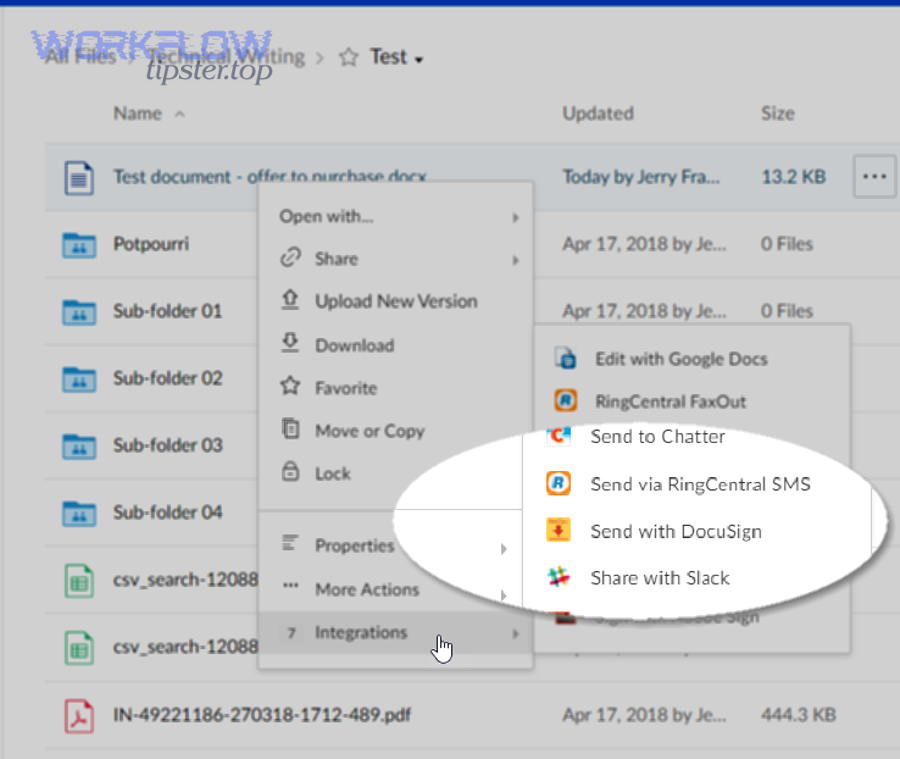
- Start from Box content: choose a file already governed by Box folders, sharing rules, and team permissions. Box’s own overview describes “Box for DocuSign” as letting customers send documents stored in Box for signature, then save them back to Box.
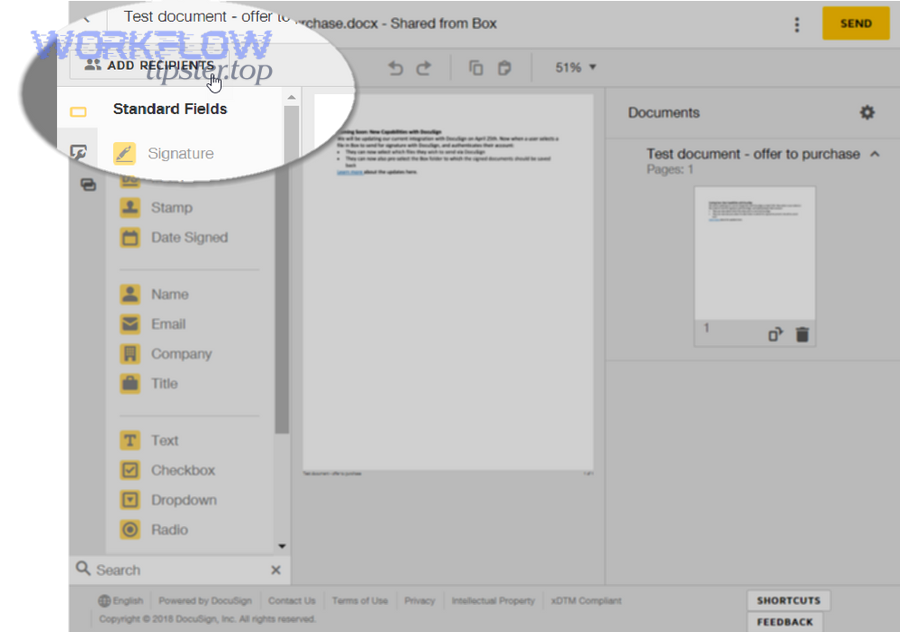
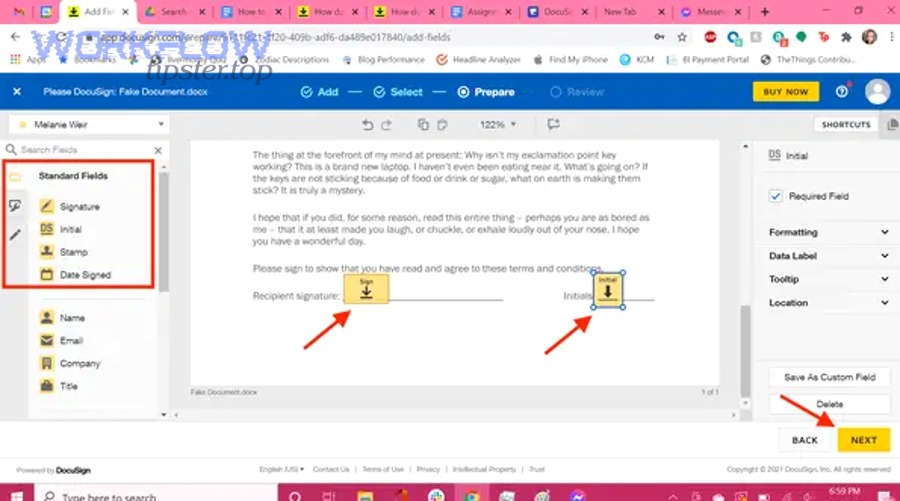
- Prepare and send in DocuSign: place fields, set recipients, enforce signing order, and track envelope status.
- Store signed outputs back in Box: the completed PDF (and supporting artifacts like certificates/audit logs, depending on configuration) is saved to a selected Box folder, keeping retention and access consistent with your content strategy.
Why business teams care is simple: the integration reduces manual downloading/uploading, prevents “final-final-v7.pdf” chaos, and shortens the path from approval to execution—especially in sales ops, HR, procurement, and legal workflows.
A useful mental model is “roles + records”:
- DocuSign is where actions happen (send, sign, complete, prove).
- Box is where records live (store, share, retain, govern).
When your setup is correct, Box becomes the system of record, while DocuSign becomes the system of execution.
Can you connect DocuSign to Box without admin access?
Yes, you can often connect DocuSign to Box without full admin access if your organization allows end-user app authorization, you have the right Box folder permissions, and your DocuSign role allows sending; however, admin involvement is required when apps are restricted, integrations are centrally managed, or Connect/webhook-style automation is configured.
Next, the key is recognizing which “connect” you’re trying to do: a simple user-level connection or an organization-level integration.
In practice, there are two common paths:
- End-user connection (lighter governance)
This usually works when:- Your Box enterprise allows third-party app connections (or specifically allows DocuSign/Box integration).
- You have access to the relevant Box folders (at minimum: view + download + upload into the destination folder).
- Your DocuSign user is allowed to send envelopes.
- Admin-managed connection (strong governance)
Admin involvement is common when:- Box uses strict app whitelisting / “Only approved apps” policies.
- DocuSign admin must configure integration settings, connect objects, or centralized storage behavior.
- Your organization requires standardized folder mapping, naming rules, or metadata controls.
A quick “rule of thumb” is: if you see policies blocking authorization prompts, or if you need the integration to behave consistently across dozens of users, you want the admin-managed path.
What are the prerequisites before you integrate DocuSign with Box?
There are 5 main prerequisite groups for integrating DocuSign with Box: (1) accounts & licensing, (2) permissions, (3) folder design, (4) security policies, and (5) a test workflow, based on the criterion of “can you reliably send, sign, and store back to Box without errors?”
Then, once each group is checked, the actual connection becomes predictable instead of trial-and-error.
This table contains a practical checklist your team can use to confirm readiness before spending time troubleshooting.
| Prerequisite area | What to confirm | Why it matters |
|---|---|---|
| Accounts | Active Box account + DocuSign account | No account alignment = failed auth or missing actions |
| Permissions | Correct Box folder access + DocuSign sending rights | Prevents “access denied” and missing save-backs |
| Folder design | A “Completed/Executed” folder strategy | Prevents scatter across personal folders |
| Security policies | App approvals, external sharing, retention rules | Avoids blocked apps and compliance violations |
| Test plan | One simple envelope test with a known destination | Proves the end-to-end chain works |
Which Box permissions are required to send files for signature and save completed copies?
Box permissions required are folder-level access that supports reading the source file and writing the signed output, typically including view/download for the source and upload/create for the destination, with inheritance and shared-link rules aligned to your company’s policy.
Next, the fastest way to avoid “sync works for me but not for my teammate” is to standardize which folder is used and who has access.
At minimum, teams should ensure:
- Source file access: the sender can open and use the file (view + download as needed).
- Destination folder access: the integration must be able to create/upload the signed document into the target folder.
- Permission inheritance sanity: if your Box structure uses parent-folder inheritance, confirm the “Completed” folder is not an exception that blocks upload.
- Team-based access (recommended): use Box “teams” or group access for shared business processes rather than personal folders.
Practical folder strategy for business teams:
- Create a stable, shared destination like: /Contracts/Executed/ or /HR/Offers/Signed/
- Keep drafts in a separate folder: /Contracts/Drafts/
That separation reduces the risk of someone editing the wrong version and helps governance later.
Which DocuSign roles and settings do you need for sending, templates, and storage?
There are 3 main DocuSign requirement clusters—sender permissions, template availability, and completion copy behavior—based on the criterion of “can the user create and complete envelopes and generate finalized output?”
Next, the key is to map roles to workflow ownership: who sends, who signs, and who audits.
DocuSign-side prerequisites typically include:
- A DocuSign user who can send envelopes (not just sign).
- Template access (if your org standardizes templates): templates help enforce consistent fields, recipient order, and branding.
- Completion copy expectations: confirm whether your workflow needs only the signed PDF or also a certificate of completion / audit trail copy.
If you’re building a “one-click” departmental process, templates are usually the difference between “works sometimes” and “works every time.”
How do you connect DocuSign to Box step-by-step?
The main method is linking accounts via authorization and configuring a Box source + Box destination in 4 steps, producing the outcome that signed documents consistently flow back to the correct Box folder without manual uploading.
Below, the goal is to turn “integration” into a repeatable procedure your whole team can follow.
A practical step-by-step flow (high level):
- Choose the integration entry point — If your team starts in Box, use the Box-side action (often labeled similar to “Sign with DocuSign”).
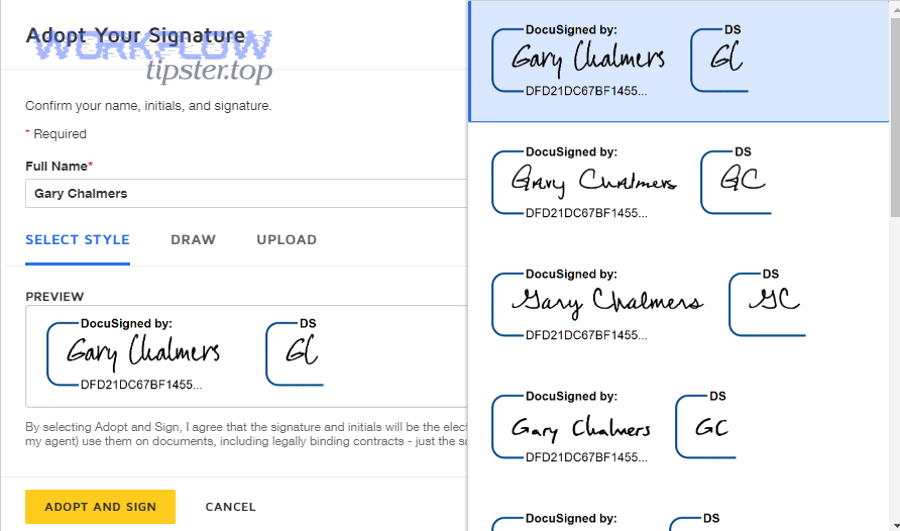
- Authorize the connection (Box ↔ DocuSign).
- Select destination folder behavior (where the completed file goes).
- Run a test envelope (verify the signed output appears in Box).
How do you authenticate and link your Box account to DocuSign (or DocuSign to Box)?
Authentication is an OAuth-style authorization that links your DocuSign user session to your Box account, granting permission to read a selected Box file and write the completed output back to a destination folder.
Then, the immediate check is whether the integration can “see” the Box folders you expect.
What to do in practice:
- Start from the platform you use first (many teams start in Box).
- When prompted, log into DocuSign and approve access.
- Confirm you’re linking the correct Box enterprise account (important if you have multiple Box logins) and the correct DocuSign account (important if you have sandboxes or multiple orgs).
Common pitfalls:
- Approving access while logged into the wrong Box account in another browser tab.
- Using a personal Box login when the team folder belongs to the enterprise account.
- App approvals blocked by Box admin policy.
If authorization fails repeatedly, it’s usually an app governance issue rather than a user mistake.
How do you choose the correct Box folder so signed documents auto-save to the right place?
You choose the correct Box destination by mapping your DocuSign completion output to a stable team-owned Box folder, typically an “Executed/Signed” folder designed for retrieval, retention, and audits.
Next, treat folder choice as a records-management decision, not a convenience click.
A reliable destination folder should be:
- Shared (owned by the department, not a single employee).
- Writable by the sender and the integration path.
- Governed (retention policy, access groups, naming conventions).
Recommended patterns:
- Per department:
/Legal/Executed/
/Sales/MSAs/Executed/
/HR/Offers/Signed/ - Per client/project (if you already structure Box this way):
/Clients/AcmeCo/Contracts/Executed/
If you store signed outputs in the same folder as drafts, teams often lose the “latest executed” record during renewals.
How do you confirm the sync works after setup?
Yes, you confirm the sync works by sending one controlled test envelope, completing it, and verifying the signed output appears in the chosen Box folder, plus checking the envelope status in DocuSign to ensure completion is recorded.
Then, the last step is to validate “searchability” by finding the file in Box the way your team will later retrieve it.
A clean test plan:
- Pick a simple PDF in Box called Integration-Test.pdf.
- Send to one internal signer (yourself or a teammate).
- Complete signing.
- Verify in Box:
- The signed document appears in the expected folder.
- The filename/versioning matches your standards.
- Verify in DocuSign:
- Envelope status is Completed.
- The audit trail/certificate is available if required.
If the envelope completes but Box has nothing, your troubleshooting is now focused: destination folder, permission, or post-completion handling.
How do you send a Box file for eSignature and automatically save the signed output back to Box?
The fastest workflow is Box → “Sign with DocuSign” → prepare envelope → send → complete → auto-save to Box, producing a signed, shareable, governed record without manual download/upload steps.
Next, the key is to standardize who starts the process (sender) and where the final record must land (destination folder).
What is the fastest workflow for business teams (Box → DocuSign → Box)?
There are 3 main workflow variants for teams—ad-hoc send, template-based send, and shared mailbox send—based on the criterion of “how standardized and repeatable the agreement process must be.”
Then, pick the variant that matches your governance maturity.
Variant A: Ad-hoc (fastest to start)
Use when: one-off agreements, early-stage teams
- Select document in Box.
- Launch DocuSign sending flow.
- Add recipients and fields.
- Send, then auto-save completed output back to Box.
Variant B: Template-based (best for consistency)
Use when: HR offers, NDAs, standard MSAs
- Start from a Box template file or a DocuSign template.
- Enforce consistent fields and signing order.
- Store signed outputs in a standardized “Executed” folder.
Variant C: Shared process ownership (best for continuity)
Use when: turnover risk, multi-sender departments
- Department owns destination folder (and sometimes a shared DocuSign sending identity depending on policy).
- One folder strategy; many senders.
- Clear naming + version rules.
Practical tips that prevent mistakes:
- Require senders to choose the destination folder before sending.
- Use a naming convention such as: ClientName – AgreementType – EffectiveDate – Signed.pdf
How do you handle file naming and versions when saving signed documents back to Box?
DocuSign-to-Box naming and versions work best when you treat “signed output” as a controlled record: new file names for executed copies, and versioning only when the signed document is logically the same record being revised.
However, teams should decide the rule upfront, because inconsistent behavior creates duplicate searches and compliance risk.
A simple comparison framework:
- Use “new file” when:
- The signed output is a final executed record.
- You want the executed copy to be immutable and clearly identifiable.
- Different signing events must be separately auditable (e.g., renewal vs original).
- Use “new version” when:
- The signed output replaces a draft in a controlled version history.
- Your process explicitly treats the document as a single evolving record.
- Stakeholders are trained to open “latest version” in Box.
Common best practice for contracts:
- Keep drafts as versions in Drafts/.
- Store executed as a new, clearly named file in Executed/.
This reduces downstream confusion when someone searches Box for “Signed” and gets exactly one canonical match.
What security and permissions issues most commonly break the DocuSign–Box sync?
There are 6 common security and permissions issues that break DocuSign–Box sync: blocked app approvals, insufficient folder permissions, external collaboration restrictions, expired authorization, mis-selected destination folders, and inconsistent group access, based on the criterion of “envelope completes but Box storage fails.”
Next, you’ll diagnose problems by separating “DocuSign can’t complete” from “DocuSign completes but Box can’t store.”
Is “access denied” usually a Box folder permission problem or a DocuSign role problem?
Box is usually the winner for “access denied” when the error occurs at the moment of saving back, while DocuSign is usually the culprit when the sender cannot send envelopes or cannot complete required actions; the optimal diagnosis is to match the failure step to the system that enforces permissions at that step.
Then, use a quick decision tree:
- If you can’t start the send flow → likely DocuSign role / license / sender permission.
- If you can send but the completed file never appears in Box → likely Box destination folder permission, app restrictions, or expired authorization.
- If only some users fail → likely Box group membership or folder inheritance differences.
A fast “two-check” method:
- Try saving to a known writable Box test folder.
- Re-authorize the integration in a clean browser session.
If the test folder works, your issue is almost always the destination folder permissions or inheritance.
How do you fix missing auto-saved signed documents in Box?
You fix missing signed documents in Box by checking completion status in DocuSign, revalidating the destination folder mapping, confirming write permissions, and re-authorizing the integration, then re-running a controlled test envelope.
Next, focus on the most common root cause: “envelope completed, but Box write failed.”
A practical checklist:
- Confirm the DocuSign envelope is Completed
- If it’s not completed, Box won’t receive the final output.
- Verify destination folder exists and is writable
- Confirm you (and the integration path) can upload a file manually into that folder.
- Re-authorize the connection
- Expired tokens are common after password changes or security updates.
- Check app governance policies
- If your org recently tightened Box app approvals, integrations can silently fail until re-approved.
- Validate “where it saved” vs “where you expected”
- Many “missing files” are actually in a different folder due to mis-selection.
When you solve this class of issues once, document the fix as a standard operating procedure so future senders don’t repeat the same mistakes.
Should you use the native DocuSign–Box integration or a workaround?
Native integration wins in simplicity, speed of deployment, and user adoption, while workaround automation is best for conditional routing, metadata enrichment, and complex cross-app orchestration; the optimal choice depends on whether your business process is “send-and-store” or “send-store-enrich-route-notify.”
Next, you’ll choose based on how much control you need after signing completes.
To make the decision concrete, ask one question:
- Do you only need signed files to land in the right Box folder? If yes, native is usually enough.
- Do you need branching logic and downstream actions? If yes, you’ll likely need automation.
This is where teams naturally start talking about Automation Integrations as a broader category: once signing is automated, you’ll often want notifications, CRM updates, project tracking, or content generation workflows to happen automatically too.
When is native “connect & auto-save” the best choice for teams?
Yes, native integration is the best choice when you need (1) a fast Box-to-signature workflow, (2) consistent storage back into governed folders, and (3) low operational overhead, especially for repeatable departmental processes like NDAs, HR forms, and standard approvals.
Then, standardize the folder destination and naming rules so every sender produces the same output.
Native is typically ideal if:
- Your process ends at “signed document is stored”.
- You don’t need conditional routing (e.g., different folders based on deal size).
- Your governance requirements are satisfied by Box folder policies and access groups.
When do teams need automation tools or APIs instead of native integration?
Yes, teams need automation tools or APIs when they require (1) conditional storage routing, (2) metadata tagging and downstream updates, and (3) multi-system orchestration that native integration does not reliably handle at scale.
However, you should only “upgrade” to automation when the business case is clear, because complexity has a cost.
Common triggers for automation:
- Conditional folder routing: route signed contracts to different folders based on region, product line, or legal entity.
- Metadata enrichment: apply tags like “Effective Date,” “Counterparty,” “Renewal Date” for search and governance.
- Cross-app operations: notify Slack/Teams channels, create tasks, update CRMs, or kick off onboarding workflows.
This is also where organizations often connect parallel workflows such as airtable to google docs (generating a contract draft), airtable to convertkit (updating lifecycle communications), or airtable to zoho crm (keeping customer records in sync) while DocuSign and Box manage signature execution and storage. The point isn’t to cram tools together—it’s to design one coherent post-signing pipeline that supports your business outcome.
If your organization has developers, APIs can provide the most control; if not, no-code automation can still deliver conditional logic without building a full integration stack.
How do you optimize governance, compliance, and automation for DocuSign–Box at scale?
Optimizing DocuSign–Box at scale means standardizing folder governance, enforcing least-privilege access, defining retention/audit expectations, and building a fallback workflow, so signed records stay retrievable, compliant, and consistently stored even as adoption expands.
Moreover, the core shift is moving from “it works on my machine” to “it works for the organization.”
How do retention policies, legal holds, and audit trails affect where signed documents should be stored in Box?
Box wins for long-term governance when you store signed outputs in records-oriented folders with retention rules, while DocuSign remains the execution layer; the best approach is to keep the signed record in Box under the correct policy and keep DocuSign artifacts available for audit as needed.
Then, align storage to how auditors and stakeholders actually search for records (by department, counterparty, or agreement type).
A practical governance structure includes:
- A dedicated “Executed” area with clear ownership.
- Access groups tied to job functions.
- Policies that match regulatory requirements (retention duration, legal hold capability, restricted access).
Evidence matters at scale because governance is not hypothetical. According to a case study by the University of Virginia from its Document Imaging team, in 2022, automation with DocuSign saved 10,000 hours—a scale of efficiency that only remains safe when records governance is consistent.
What enterprise rollout checklist prevents permission drift and sync failures across departments?
There are 4 main rollout phases—pilot, standardize, expand, govern—based on the criterion of “can new departments adopt without breaking storage, access, or naming consistency?”
Next, treat rollout as change management, not just “turning on an app.”
A rollout checklist that works:
- Pilot (small, controlled group)
- One department, one folder pattern, one template set.
- Standardize (write the playbook)
- Destination folder rules.
- Naming conventions.
- Who is allowed to send.
- What counts as the “official executed copy.”
- Expand (add departments in waves)
- Train senders.
- Validate permissions with a test envelope per department.
- Govern (monitor and refine)
- Quarterly access review.
- Integration health checks.
- Update templates and standards as policies evolve.
Evidence that process redesign produces real value is easy to find in real institutions: According to a case study by Washington University in St. Louis from its Information Technology organization, in 2022, the university saved $194,005 in the first year after implementing DocuSign eSignature—showing why standardization and governance are worth doing early.
How can you design a “fallback” path when auto-save fails (manual save vs automation)?
Manual save wins for speed of recovery, automation wins for consistency, and the optimal fallback is a documented manual procedure plus a monitoring/notification mechanism so failures are caught quickly and records never “disappear.”
However, the fallback only works if people know exactly what to do when Box doesn’t show the signed output.
A simple fallback design:
- Manual fallback steps (document these):
- Confirm envelope Completed in DocuSign.
- Download completed PDF + certificate (if required).
- Upload to the correct Box Executed folder using the naming standard.
- Add a short note or metadata tag: “Manual upload due to sync issue”.
- Automation fallback (optional):
- Send notification to the process owner if a completed envelope doesn’t appear in Box within X minutes/hours.
- Create a task for follow-up and attach envelope ID.
This approach prevents “silent failure,” which is the real risk in business workflows.
What advanced automation patterns extend DocuSign–Box beyond native sync (conditional routing, metadata, approvals)?
There are 4 advanced automation patterns—conditional routing, metadata stamping, approval chaining, and lifecycle notifications—based on the criterion of “does the business need actions beyond storing the signed file?”
Next, pick one pattern at a time and validate it in a controlled environment before rolling it out broadly.
- Conditional routing
- Route signed outputs to different Box folders based on agreement type (NDA vs MSA), region, deal size tier, or business unit.
- Metadata stamping
- Attach structured fields to the Box file: Effective Date, Counterparty, Renewal Date, Document Type.
- Approval chaining
- Trigger internal approvals after signing: legal review confirmation, finance approval, provisioning or onboarding workflows.
- Lifecycle notifications
- Notify stakeholders when signing completes, renewals approach, or a document is superseded.
The best semantic strategy is to keep the “hook chain” intact: DocuSign executes, Box governs, and automation only adds steps that measurably reduce cycle time or errors—without reintroducing manual work in another place.