


“Google Chat permission denied” usually means your account (or your Chat app) is blocked from doing a specific action—like sending a message, joining a space, or calling the Chat API—because a permission, policy, or identity check failed.
The fastest path to a fix is to identify which layer is denying access: the end-user layer (account/session/device), the Google Workspace admin layer (organization unit policies, external chat rules, space restrictions), or the developer layer (OAuth scopes, app installation, service account access).
This guide maps each common “permission denied” scenario to its most likely root cause and shows what to change—so you can restore Chat quickly without weakening security controls.
Introduce a new idea: below, you’ll learn how to read the denial signal, isolate the responsible layer, apply the right fix checklist, and verify the issue is fully resolved.

What does “Google Chat Permission Denied” mean, and what is it blocking?
“Google Chat permission denied” means an authorization check failed, so Google Chat refuses a requested action to protect a space, message, user, or API resource from an identity that doesn’t have the required access.
To better understand what’s being blocked, start by naming the exact action that failed and the identity that attempted it, because “permission denied” is not one single error—it’s a category of denials with different fixes.
What “permission denied” usually means in Chat vs in the Chat API
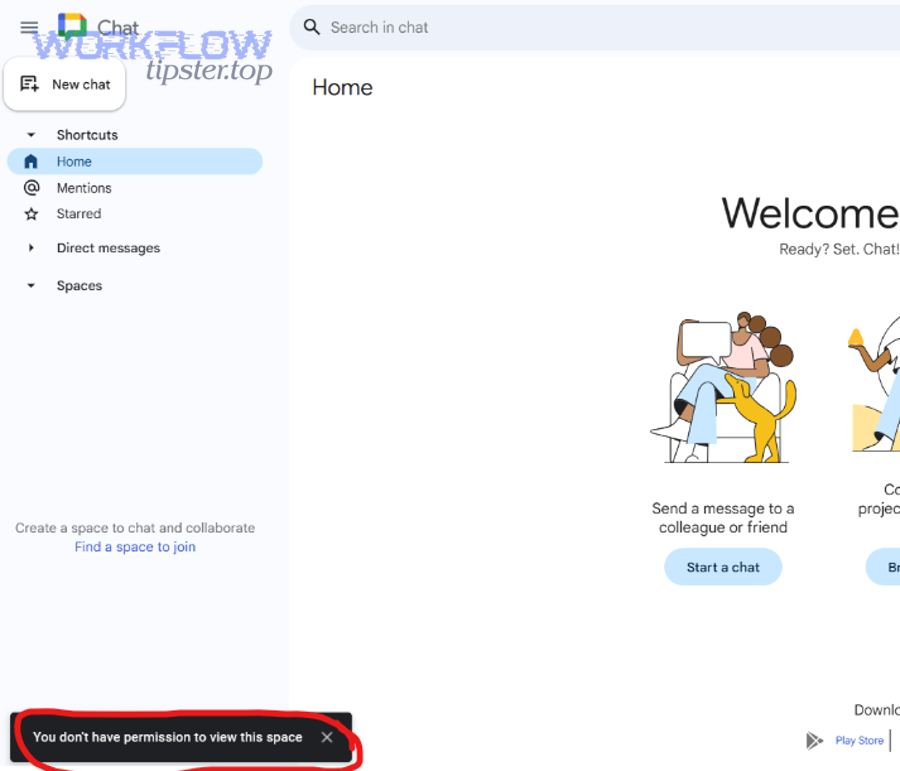
In the Chat user interface, “permission denied” often appears as a banner or toast indicating you can’t message someone, can’t join a conversation, or can’t access a space. In practice, UI denials typically come from Workspace policies (for example, external chat restrictions) or from membership/role constraints (for example, you’re not a member of a restricted space).
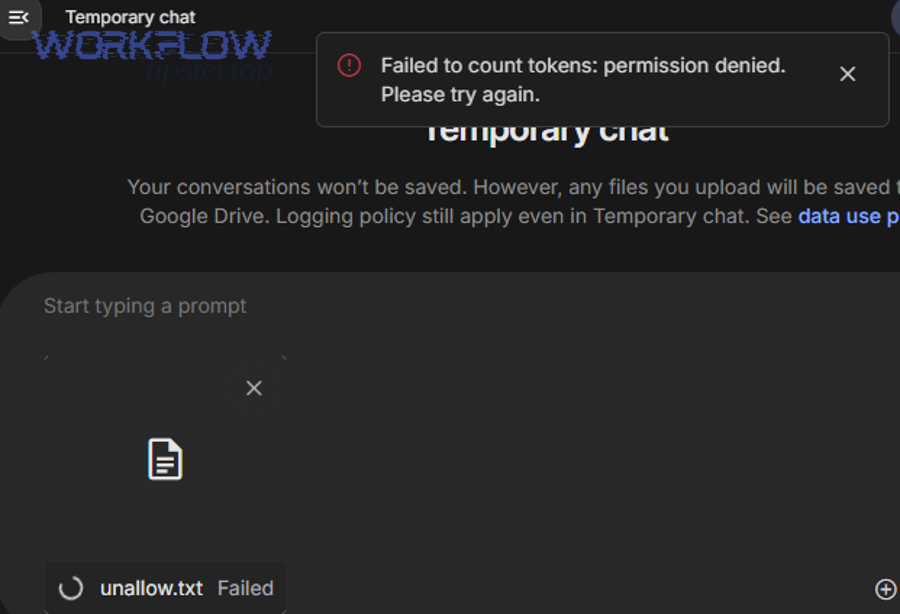
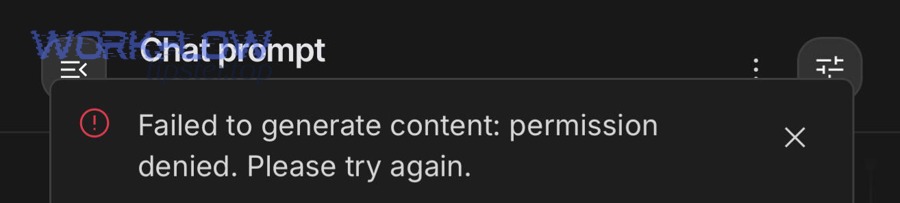
In the Google Chat API, “permission denied” commonly appears as an HTTP 403 with an error reason such as PERMISSION_DENIED. Here, the denial is usually tied to the caller identity and its authorization model: OAuth user token vs service account, missing scopes, missing app installation, or a target resource that the caller cannot access.
If you’re debugging integrations, treat UI denials as “policy/membership first” and API 403 denials as “identity/scopes/installation first.” That mindset saves time because it aligns your next checks with the most likely root cause.
Which actions get blocked most often (sending, joining spaces, bots, files)
The most common blocked actions fall into a few predictable buckets:
- Messaging: sending a direct message, replying in a space, posting as a bot/app, or mentioning users outside your allowed scope.
- Accessing people: initiating chats with external users, or messaging someone whose settings are incompatible with yours.
- Spaces: joining a space, creating spaces, inviting external users, or accessing a space that’s restricted to an organization unit or group.
- Apps/bots: interacting with a Chat app, adding an app to a space, or using an app that isn’t allowed by admin policy.
- API resources: reading space details, listing memberships, creating messages, or subscribing to events when the caller lacks required permissions.
Each blocked action points to a specific “permission surface.” For example, “can’t message an external user” usually points to external chat policy, while “API can’t post in a space” often points to app installation and membership access.
What signals to capture (error banner text, HTTP status, request ID, admin audit)
Before changing settings, capture the denial signals so you can avoid random trial-and-error:
- Exact UI message: screenshot or copy the banner text and note whether it happens in a DM, group DM, or space.
- Who and where: your account email (or user ID), the target user, the space name/ID, and whether the target is internal or external.
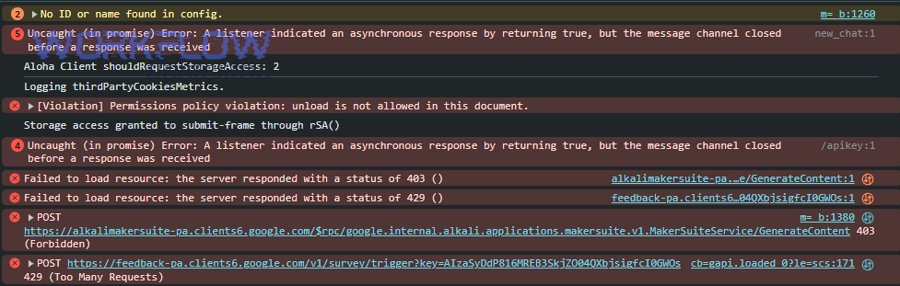
- API evidence: HTTP status code (401 vs 403 vs 429 vs 5xx), error reason, and the method/resource you called.
- Time window: when it started, and whether anything changed (OU move, group change, new admin policy, OAuth consent screen update).
- Admin logs: if you’re an admin, check relevant audit logs for policy blocks or access denials tied to Chat and app access.
According to a study by Towson University from the Department of Computer and Information Sciences and the University of Maryland from the Department of Computer Science, in 2006, workplace users reported wasting an average of 42–43% of their computer time due to frustrating experiences—so capturing the right signals early is a practical productivity strategy, not just “nice documentation.”
Is “Google Chat Permission Denied” a user-side issue or an admin/developer-side restriction?
No—“Google Chat permission denied” is not reliably a user-side issue, because it can be triggered by Workspace policy, space membership rules, or developer authentication, and the correct fix depends on which layer is doing the denying.
Next, you’ll isolate the denial layer in minutes by comparing what works for other accounts, what fails across devices, and what the error looks like (UI banner vs API 403).
This table contains a quick triage map that helps you decide which layer to investigate first based on the symptoms you observe.
| Symptom | Most Likely Layer | Fastest First Check | Typical Fix Direction |
|---|---|---|---|
| Only fails for external users | Admin policy | External chat / trust settings | Allow external DM/space rules or adjust OU/group |
| Fails in one space, works elsewhere | Membership / role | Space membership and restrictions | Add user/app to space, adjust space settings |
| API returns 403 PERMISSION_DENIED | Developer auth | Caller identity + OAuth scopes | Fix scopes, consent, app installation, resource access |
| Works in browser, fails in mobile app | User/session | Sign-in state, device profile | Re-authenticate, update app, remove conflicting accounts |
| Multiple users in same OU fail similarly | Admin policy | OU-level Chat service settings | Enable/adjust Chat for that OU |
How to tell it’s user configuration (account, device, network) in 2 minutes
If the issue is user-side, it typically follows the user’s session or device rather than following the target space or organization policy. You can test this quickly:
- Switch context: try Chat in an incognito/private window with only one Google account signed in.
- Change device: test the same action in a different browser or on mobile.
- Check account confusion: verify you’re using the expected Workspace account, not a personal Google account or a secondary profile.
- Eliminate extensions/VPN: temporarily disable browser extensions and VPN to rule out blocked cookies or broken auth flows.
If the denial disappears when you remove extra accounts or re-authenticate cleanly, you likely had a session identity mismatch rather than a true policy denial.
How to tell it’s Workspace policy (OU, group, external chat) in 2 minutes
If the issue is policy-driven, it typically follows the user’s org configuration and affects multiple users similarly. Fast signals include:
- Peer comparison: ask a colleague in a different OU or group to try the same action with the same target user/space.
- External-only pattern: internal chats work, but external chats fail consistently.
- Space-specific restrictions: you can view a space but can’t post, invite, or add apps—often a role or policy restriction.
If the denial is consistent across devices and persists after a clean sign-in, it’s unlikely to be “a bad browser day” and much more likely to be a Workspace setting.
How to tell it’s developer auth (OAuth scopes, service account) in 2 minutes
If you’re integrating Chat (bots, notifications, automations), developer auth denials have a recognizable signature: the UI might be fine, but your integration fails with API errors like 401/403 and the failure tracks the credential you used.
- Credential swap test: run the same API call using a user OAuth token vs a service account credential (if your architecture supports both).
- Scope test: inspect requested OAuth scopes and confirm they match the operation (posting messages, reading memberships, subscribing to events).
- Installation test: verify the Chat app is installed where you’re trying to use it (DM vs space) and that it has access to the target resource.
If a user token works but a service account fails—or only some spaces fail—you’re typically dealing with an identity/access boundary, not a transient outage.
What are the most common Google Workspace admin causes of Google Chat Permission Denied?
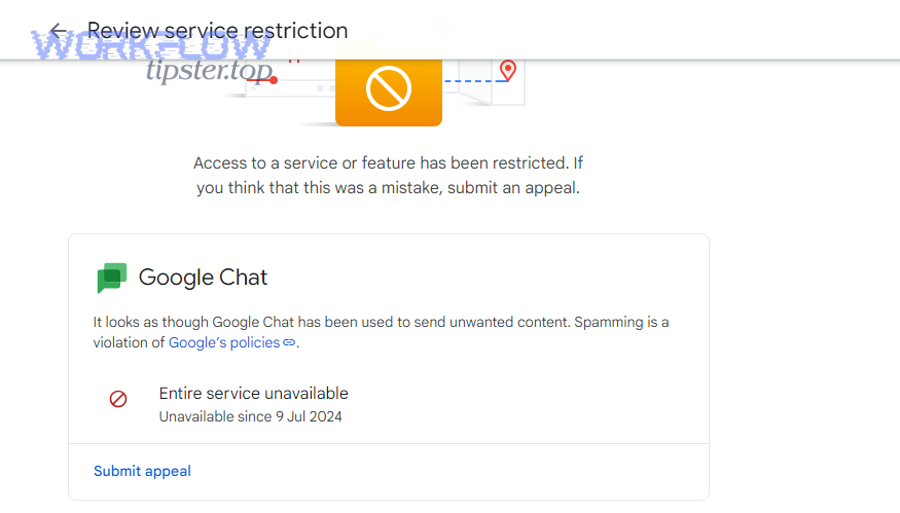
There are 4 main categories of Google Workspace admin causes of Google Chat permission denied: service availability restrictions, external communication restrictions, space/app governance restrictions, and membership/role enforcement—each blocking access for a different policy reason.
More importantly, these causes can “look identical” to end users, so admins should tie the fix to the exact blocked action rather than toggling broad settings that accidentally weaken security.
Is Google Chat turned off or limited for the user’s OU?
If Chat is disabled or limited for a specific organizational unit (OU), users in that OU can experience missing features or outright denials when trying to message or interact with spaces.
- What it looks like: the user can’t start chats, can’t access Chat in Gmail, or sees restricted capabilities compared to peers.
- What to check: whether the Chat service is enabled for that OU and whether any policy override exists at a sub-OU level.
- What to change: enable Chat for the OU or align settings with the intended collaboration model for that group.
A good admin practice is to document “default Chat posture” per OU (for example, internal-only vs external-allowed) so denials are expected outcomes, not surprises.
Are external chats blocked by policy or trust settings?
External messaging is one of the top triggers for “permission denied” because organizations often restrict external communication to reduce data leakage and social engineering risk.
- Common denial pattern: internal DMs work, but messages to external users fail, or you can’t add external users to spaces.
- Policy surfaces: external direct messages, external group chats/spaces, domain allowlists/denylists, and trust rules.
- Fix approach: if business needs require external chat, use an allowlist strategy and apply it to the correct OU/groups rather than enabling external chat globally.
When you align external chat policy with real business workflows (vendors, clients, partners), you reduce both denials and risky “workarounds” like using personal accounts.
Are space creation, bot usage, or history restricted?
Even when Chat is enabled, organizations may restrict advanced capabilities like space creation, Chat apps/bots, and history settings. These restrictions can cause permission denials that appear only in certain actions.
- Space creation restrictions: users can message but can’t create or manage spaces.
- App/bot restrictions: users can chat, but can’t add apps to spaces or can’t interact with bots that aren’t approved.
- History/governance restrictions: users can join a space but can’t post or can’t access content depending on retention and policy design.
If your organization relies on automation, overly strict app/bot restrictions can break operational workflows silently—so governance should include an “approved automation” lane, not just blanket blocks.
Is the user missing membership/role in the space or group?
Sometimes the denial isn’t “admin policy” at all—it’s simply that the user (or the app) isn’t a member of the space, doesn’t have the right role, or is blocked by a space-level restriction.
- What it looks like: the user can access Chat generally but can’t post in one specific space, can’t view threads, or can’t join by link.
- What to confirm: whether the space is restricted, whether membership is required, and whether the user is listed as a member with sufficient privileges.
- Fix approach: add the user to the space (or appropriate group), or adjust space access rules to match the intended audience.
In well-governed environments, space-level restrictions are a feature, not a bug—so the “fix” is often correct membership assignment, not relaxing the restriction.
What are the most common developer causes of Google Chat Permission Denied?
There are 4 main types of developer causes of Google Chat permission denied: wrong caller identity, missing or incorrect OAuth scopes/consent, incorrect Chat app installation/permissions, and target resources that the app cannot access—even if humans can.
Next, you’ll map your integration architecture to the correct authorization model, which is the core of effective google chat troubleshooting when APIs and automations are involved.
Are you using the wrong identity (service account vs user OAuth)?
Many integrations fail because the developer assumes a service account can do “whatever a user can do,” but Chat authorization is often space- and installation-scoped.
- User OAuth token: acts on behalf of a user who has membership and permissions in the target space.
- Service account: acts as a non-human identity that may not have access to user-created spaces unless explicitly allowed, installed, or added where required.
- Common symptom: “works for some spaces/users, fails for others” because the identity doesn’t have uniform access across targets.
If your notification system posts to user-selected spaces, you must ensure the posting identity is valid for every space (or build a fallback flow that asks users to install/add the app properly).
Are OAuth scopes or app verification missing?
Scopes are the contract between your app and Google: if you didn’t request the scope needed for an operation, Google must deny it—even if the user wants it to work.
- Scope mismatch: you can authenticate successfully but cannot create messages, read memberships, or subscribe to events.
- Consent issues: users may not have granted the updated scopes, especially after you changed requested permissions.
- Governed environments: Workspace admins may restrict which scopes and apps are allowed, so an unverified or newly changed app can get blocked.
When you change scopes, treat it as a controlled rollout: update documentation, prompt users/admins to re-consent, and confirm the admin allowlist (if used) includes the updated app configuration.
Are Chat app permissions and installation state correct?
A Chat app must typically be installed and permitted in the place you’re trying to use it. If installation is missing—or apps are disallowed by policy—your API calls and interactive bot actions can be denied.
- DM vs space differences: your app might be installed for direct messages but not added to a specific space, or vice versa.
- Admin control: Chat apps can be restricted to approved apps only, which can block newly deployed bots.
- Practical check: confirm the app appears in the space’s member/app list and that the org allows the app.
If you’re seeing “google chat trigger not firing,” don’t assume it’s a webhook bug first—confirm the app is installed correctly and authorized to receive events for that conversation context.
Is the target resource invalid or not shared with the app?
Even with correct credentials, you can get permission denied if you’re targeting the wrong resource or a resource the identity cannot access.
- Wrong space identifier: a copied ID may be truncated, outdated, or points to a space the app can’t see.
- Not shared with the identity: the app/service account isn’t a member and can’t post there.
- Cross-tenant complications: posting into spaces involving external domains can introduce additional policy gates.
A reliable pattern is to build a “self-check” endpoint in your automation: it validates space visibility, membership, and posting permission before you attempt high-volume messaging.
How do you fix Google Chat Permission Denied step-by-step for the fastest resolution?
The fastest fix method is a 3-lane checklist (end user, Workspace admin, developer/integrations) that changes only the minimum required setting, then re-tests the exact blocked action to confirm the denial is gone.
Below is a structured playbook you can follow without guessing, including what to do when automations like Workflow Tipster are involved and you need reliable message delivery.
Step-by-step checklist for end users
Use this checklist when the problem appears in the Chat UI and you suspect account/session confusion or a space-specific access issue:
- Step 1: Confirm you’re signed into the correct Workspace account (not a personal account or secondary profile).
- Step 2: Retry in an incognito/private browser window with only one account signed in.
- Step 3: Test the same action in another surface (Chat web vs Chat in Gmail vs mobile app) to see if it follows the device.
- Step 4: Identify scope: does it fail only with external users, only in one space, or everywhere?
- Step 5: If it’s one space, ask a space manager to confirm you’re a member and allowed to post/invite.
- Step 6: If it’s external-only, collect the exact error banner and ask your admin whether external chat is allowed for your OU.
If the issue resolves after a clean sign-in, you’ve fixed a session identity mismatch; if it persists consistently, escalate with the captured signals so your admin or developer can fix the correct layer.
Step-by-step checklist for Workspace admins
Use this checklist when multiple users are affected, external messaging is involved, or users report they can’t use certain Chat capabilities:
- Step 1: Confirm Chat service status for the affected OU and whether any policy override exists at sub-OU or group level.
- Step 2: Validate external chat policy: are external DMs allowed, are spaces with external participants allowed, and are any domain rules blocking the target?
- Step 3: Check app governance: are Chat apps allowed, restricted to allowlisted apps, or blocked for the affected OU?
- Step 4: Confirm whether the denial is space-level: verify user membership, posting permissions, and any restricted space rules.
- Step 5: Re-test with an affected user account after making the minimal change; avoid broad enablement changes that exceed business need.
Admin fixes should be reversible and documented. A small OU/group adjustment plus a clear policy explanation often prevents repeat tickets far better than a one-off “enable everything” change.
Step-by-step checklist for developers and automation builders
Use this checklist when your system posts messages, reads space data, or subscribes to events and you see permission denials such as 401/403 in your logs:
- Step 1: Confirm the caller identity (user OAuth vs service account) and ensure it matches your intended access model.
- Step 2: Confirm OAuth scopes for the exact operations you perform; if scopes changed, ensure re-consent and admin allowlisting are complete.
- Step 3: Verify the Chat app is installed in the correct context (DM vs the target space) and permitted by Workspace policy.
- Step 4: Validate the target space/resource: ensure it exists, the ID is correct, and the identity has access (membership/visibility).
- Step 5: Add preflight checks: verify visibility and posting permission before sending high-volume notifications.
- Step 6: If an automation platform like Workflow Tipster is sending Chat notifications, confirm which credential it uses and whether that credential is installed/allowed in every target space.
When the symptom is “google chat trigger not firing,” treat it like an authorization problem until proven otherwise: verify installation, event subscription permissions, and whether your identity can read the conversation context that should produce the event.
After fixing it, how can you confirm the problem is solved and won’t recur?
Yes—after you change a setting, you can confirm Google Chat permission denied is solved and unlikely to recur by running targeted UI and API tests, verifying the correct identity is used, and adding monitoring so future denials are detected with actionable context.
Then, you’ll turn a one-time fix into a stable state by validating the same action across the same boundary that originally failed (external vs internal, space vs DM, bot vs user).
What to test in the UI (DMs, spaces, external users)
Re-test the exact user journey that previously failed, and include at least one “control test” that should always work:
- Control test: message an internal colleague and confirm it works.
- Failed path test: repeat the same action that caused permission denied (same user, same space, same invite flow).
- Boundary test: if external chat was involved, test with the same external domain and one additional external domain (if policy allows).
- Space role test: confirm you can post, reply in threads, and (if needed) invite others—since some denials only show up in management actions.
If one action still fails but others work, you likely fixed the “general” layer but missed a narrower permission surface (space-level rule, external trust rule, or app restriction).
What to test in the API (message create, membership, event delivery)
For API and bot verification, validate the minimum set of calls that represent your workflow:
- Message creation: can the identity post a message in the target space or DM?
- Membership visibility: can the identity confirm membership/space access where required?
- Event path: if you rely on events, confirm your events arrive and that your app can process them without auth errors.
If you previously saw google chat webhook 403 forbidden, verify the callback endpoint receives the event and your logs show successful authorization for the associated processing calls. If you saw google chat webhook 401 unauthorized, verify your token refresh or credential provisioning is stable and not environment-dependent.
What to log and monitor going forward
To prevent repeat incidents, log what you’ll need next time without collecting excessive data:
- Identity metadata: which credential type (user token vs service account) and which account performed the call.
- Target metadata: space ID, whether it’s external, and which operation failed.
- Error taxonomy: distinguish 401, 403, 404, 429, and 5xx because they imply different responses.
- Change correlation: attach a “config version” label so denials can be correlated with policy or release changes.
Monitoring turns permission denials from urgent outages into routine maintenance, because you can detect drift (OU moves, app blocks, scope changes) before it breaks business workflows.
Contextual Border: Up to this point, you’ve fixed the core “permission denied” problem by identifying the denying layer and applying the correct minimal change. Next, we expand into prevention and closely related errors so you can differentiate access denials from authentication, rate limiting, and service outages.
How can you prevent Google Chat Permission Denied and distinguish it from “service unavailable” issues?
To prevent Google Chat permission denied, standardize least-privilege access, align OU policies with real collaboration needs, and build preflight checks for automations; to distinguish it from service unavailable issues, compare 401 vs 403 vs 429 vs 5xx patterns and respond with the correct playbook for each.
In addition, the most practical prevention strategy is to reduce “surprise policy boundaries” by making your access model explicit: who can chat with whom, where apps can post, and how external collaboration is governed.
What prevention looks like (least privilege, OU templates, onboarding)
Prevention is mostly design, not firefighting. Strong prevention patterns include:
- OU templates: define a small number of standard Chat postures (internal-only, partner-collaboration, restricted) and apply them consistently.
- Group-based exceptions: use groups for approved external collaboration instead of enabling external chat for everyone.
- Onboarding checks: when users join a team or move OUs, confirm they retain required Chat access to key spaces.
- App governance lane: create a clear process for approving Chat apps so teams don’t bypass controls with risky alternatives.
For integrations, build “installation-aware” flows that guide users to add the app to a space before expecting messages to post there automatically.
Permission denied vs 401 unauthorized vs 403 forbidden: what changes?
These errors are related but not interchangeable, and each demands a different fix:
- 401 unauthorized: authentication failed (missing/expired/invalid token). Fix token issuance, refresh, or credential wiring. This often appears as google chat webhook 401 unauthorized when your integration can’t authenticate reliably.
- 403 forbidden / permission denied: authentication succeeded, but access is not allowed. Fix scopes, installation, policy, membership, or target resource visibility. This often appears as google chat webhook 403 forbidden when the identity is valid but not permitted for the target action.
- UI “permission denied” banner: usually policy or membership. Fix Workspace rules, external chat settings, or space-level restrictions.
If you treat a 403 like a 401, you’ll waste time rotating keys that are already valid; if you treat a 401 like a 403, you’ll tweak policies while your token is simply expired.
Permission denied vs 429 rate limit vs 5xx outages: what to do differently
Not every failure is an access issue, so your response must match the failure class:
- 429 rate limit: your request volume exceeded limits. Fix batching, backoff, and queueing rather than permissions.
- 5xx service errors: the service is failing. Fix retry strategy and status monitoring rather than changing policies.
- Permission denied: stable, repeatable denial tied to identity/policy. Fix access model rather than retrying aggressively.
A simple heuristic is: if retries never succeed and the denial is consistent across time, it’s likely permission/policy; if retries succeed later, it’s more likely rate limiting or transient service conditions.
A quick decision tree you can reuse
Use this repeatable decision tree whenever someone reports “Google Chat permission denied” so you diagnose quickly and consistently:
- Step 1: Is it UI-only or API-only? UI points to policy/membership; API points to identity/scopes/installation.
- Step 2: Is it external-only? If yes, inspect external chat policy and trust rules first.
- Step 3: Is it space-specific? If yes, verify membership, role, and whether the app is added to that space.
- Step 4: Is the status 401, 403, 429, or 5xx? Match the fix playbook to the code.
- Step 5: After the minimal change, re-test the exact blocked action and log the new result for future prevention.
When you combine this decision tree with the earlier checklists, you get predictable outcomes: fewer escalations, fewer “mystery denials,” and fewer broken automations—especially for systems where message delivery is business-critical.