


If your Airtable Attachments field shows “Upload failed” or your files look “missing,” you can fix it by identifying where the failure happens (browser upload, permissions, integration fetch, or API payload) and then applying the matching remedy for that layer.
Next, if the problem appears inside automations or integrations, the fastest solution is usually to replace “viewer/share” links with a direct, publicly accessible file URL that Airtable can fetch without logging in or following fragile redirects.
Then, if attachments seem to “disappear” later, the issue is often not the file itself but the link behavior you’re using downstream—especially when you treat a temporary download link like a permanent URL.
Introduce a new idea: once you understand whether this is a UI upload, permission gate, URL fetch, API format, or link-expiration problem, you can build a short troubleshooting flow that resolves most cases quickly and prevents repeat failures.
What does “Airtable attachments missing” or “upload failed” actually mean?
“Airtable attachments missing” or “upload failed” is a troubleshooting label for a broken attachment journey—either the file cannot be uploaded into the Attachments field, or it appears but later cannot be fetched, opened, or reused reliably in other tools.
Next, the most important move is to name the failure layer, because Airtable attachment issues are rarely random: a UI upload problem behaves differently from a URL-fetch problem in an automation, and both differ from an API payload validation error.

Specifically, think of the Attachments field as a chain with five links: your device and browser, your Airtable permissions, Airtable’s upload pipeline, the source URL (if an integration is “attaching by URL”), and the destination where you reuse the attachment link. When one link breaks, the symptom can look the same—“missing”—even though the root cause is completely different.
Which “missing attachment” symptoms map to UI, automation, or API failures?
There are 3 main types of “missing attachment” symptoms: UI upload failures, automation/integration fetch failures, and API schema/payload failures, based on where the attachment is created and how it is transported into the Attachments field.
Then, use the symptom-to-layer map below to avoid guessing. This table contains common symptoms and the most likely failing layer, so you can jump to the correct fix instead of trying random steps.
| Symptom you see | Most likely layer | What it usually means |
|---|---|---|
| Upload spinner never finishes in Airtable | UI upload / browser / network | Browser blocks, unstable network, large file, extension conflict |
| Automation step “adds attachment” but field stays empty | Integration fetch | URL not truly public, link is a preview page, or redirects/auth break the fetch |
| API returns “INVALID_ATTACHMENT_OBJECT” | API payload schema | Wrong JSON shape (string instead of object/array), wrong key name, or wrong field type |
| Attachment opens in Airtable, but downstream tool shows broken link later | Link reuse / expiration behavior | You reused a temporary download URL as a permanent link |
| Some records attach, others don’t, in bulk scenarios | Rate limit / concurrency / URL TTL | Too many requests or short-lived signed URLs expiring mid-run |
More specifically, this mapping also helps you connect adjacent symptoms like airtable missing fields empty payload in an integration log: when an integration can’t fetch the file (or can’t parse the output), the Attachments field may remain empty even though the scenario “ran.”
What’s the difference between “can’t upload” vs “uploaded but can’t open/download”?
“Can’t upload” is a creation failure (the file never becomes an attachment), while “uploaded but can’t open/download” is an access or link failure (the attachment exists, but the way you access it later is blocked, expired, or permission-gated).
Moreover, creation failures usually show immediate friction: stuck progress, an error toast, or a field that never populates. Access failures appear delayed: the record still shows an attachment, but clicking it fails, or a link you copied earlier stops working in another tool.
To illustrate, a UI upload failure is often caused by local conditions—browser extensions, corporate security filters, unstable Wi-Fi, or a file edge case (size, format, corruption). In contrast, a “can’t open later” failure often happens when someone shares a link that requires Airtable login, or when a temporary download URL expires after a short window.
According to Airtable documentation, expiring attachment download URLs are designed to expire after a short time and are intended for temporary access rather than permanent public links.
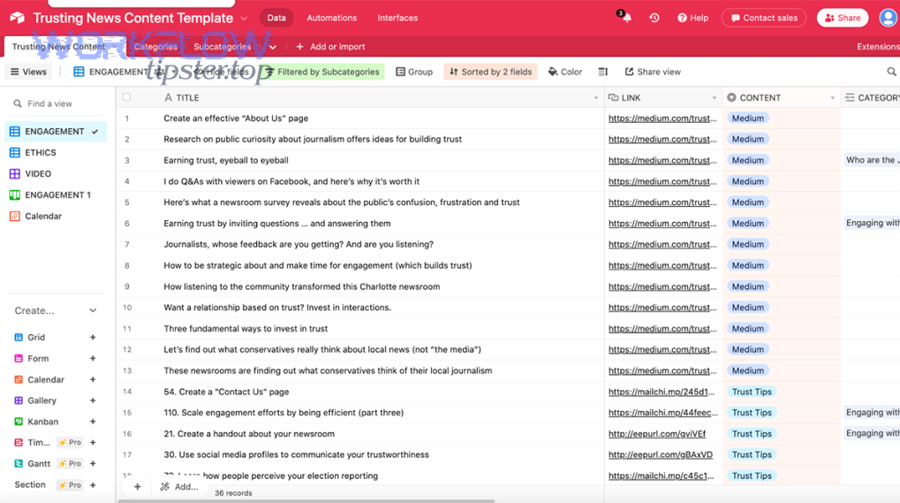
Is the issue happening in the Airtable UI right now?
Yes—if you can reproduce the failure by dragging a file into the Attachments field right now, the issue is happening in the Airtable UI layer, and it’s most often caused by browser constraints, network restrictions, or file-specific edge cases rather than API formatting.
Next, treat this as classic airtable troubleshooting: reproduce, isolate, and confirm the smallest change that makes the upload succeed.
What are the fastest UI checks to confirm it’s not a local browser/device problem?
There are 5 fast checks to confirm the problem is not local: incognito test, extension-off test, browser switch, device switch, and network switch, based on the idea of removing one variable at a time.
Then, run them in this order so you get signal quickly:
- Incognito/private window: Try the same upload. If it works, an extension, cached state, or stored cookie policy is involved.
- Disable extensions: Turn off ad blockers, privacy blockers, download managers, script blockers, and “security” extensions one by one.
- Switch browser: If Chrome fails, try Edge/Firefox. If one browser works, you’ve narrowed it to browser settings or extensions.
- Switch device: Try a different laptop or a phone hotspot test. If another device works, local OS security or endpoint tools may be blocking uploads.
- Switch network: Test on mobile hotspot. If hotspot works and office Wi-Fi fails, a firewall/proxy/SSL inspection policy is likely.
Especially in managed workplaces, uploads can fail because the network intercepts file transfers or blocks certain storage endpoints. That’s why the “hotspot test” is a powerful yes/no separator.
Which file constraints commonly trigger “Upload failed” in the Attachments field?
There are 4 common file-constraint triggers: oversized files, unusual or corrupted files, problematic filenames, and format/preview quirks, based on what most upload pipelines reject first.
In addition, check these practical details before you change anything else:
- File size: Try a small test file (e.g., a 100KB PNG). If small files work but large files fail, the issue is capacity, bandwidth stability, or plan/storage constraints.
- File integrity: Re-save the file (export a new PDF, re-encode an image). Corrupted headers can cause silent failures.
- Filename characters: Avoid very long names and special characters. Rename to something simple like test-upload.pdf.
- Local permissions: If the file is on a network drive with strict permissions, copy it to Desktop first and retry.
To better understand this layer, remember: a UI upload is the most “physical” step—your machine is actually sending bytes. So stability and constraints show up here first.
Is it a permissions problem: base access vs field permissions vs form permissions?
Base access controls whether you can open the base, field/interface permissions control whether you can edit the Attachments field, and form permissions control whether an external user can submit files—so the winner depends on what workflow you are using and where the upload happens.
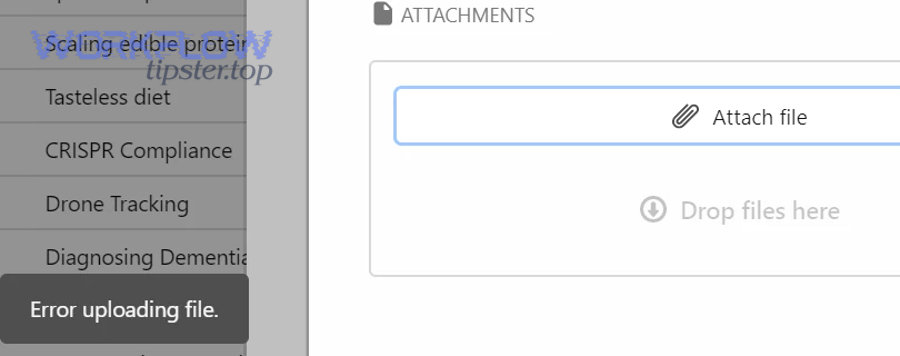
However, permissions issues can masquerade as upload issues because the UI may allow you to click the field but silently block the save, or an interface might look editable but is configured as read-only for your role.
How do Owner/Creator/Editor/Commenter/Read-only roles affect attachment uploads?
Owner/Creator/Editor roles typically win for attachment uploads because they can edit fields, while Commenter/Read-only roles are best for viewing and reviewing but often cannot add or modify attachments reliably.
Meanwhile, the fastest way to confirm a permission problem is not to debate the role definition—it’s to run a controlled test: ask an Editor (or Owner) to upload the same file into the same record and see if it succeeds.
Use this comparison lens:
- If an Editor can upload and you cannot: your role or workspace policy is restricting edits.
- If nobody can upload in the base: it’s likely UI/network/file constraints, not role permissions.
- If you can upload in one base but not another: base-specific settings or enterprise policies may apply.
More importantly, permissions can also affect link sharing: a viewer URL might open for you but fail for a teammate who lacks base access, making the attachment look “missing” to them even though it exists.
Is the Attachments field editable in this view or interface?
Yes—if the field shows as editable (you can click to add and the record saves), it is editable; no—if it’s read-only, locked by an interface configuration, or restricted by permissions, the Attachments field will not reliably accept uploads from your session.
Then, validate editability with three concrete checks:
- Try editing a simple text field in the same record: if that edit cannot be saved, your view/interface is not writable for you.
- Check interface/view settings: some interfaces intentionally show records but block edits by role.
- Try a different view: if Grid view works but an Interface doesn’t, the interface layer is the constraint.
In addition, if you are uploading through a form, the form configuration is its own permission system: the form can accept uploads only if it is configured to allow attachment submission and your users can access the form properly.
What are the most common root causes when attachments fail in automations or integrations?
There are 6 main root causes when attachments fail in automations or integrations: non-public URLs, preview-page URLs, redirects/auth walls, short-lived signed URLs, rate limits/concurrency, and mismatched field mapping—based on how integrations fetch and populate attachment data.
Next, focus on the number-one reality of automation attachments: in most tools, you are not “uploading a file” directly; you are giving Airtable a URL and Airtable fetches the file from that location.
Why does Airtable require a publicly accessible, direct file URL for API/automation attachments?
Airtable requires a publicly accessible, direct file URL because the platform (or your integration) must fetch the file over HTTP without your browser session, meaning it cannot use your logged-in cookies, private drive permissions, or interactive download pages.
Specifically, when you paste a URL into an Attachments field via automation/API, Airtable treats it like a “fetch this file from the internet” instruction. If the URL requires a login, a one-time token, or a JavaScript-based download flow, the fetch fails and the attachment stays empty.
This is why attachment steps can “succeed” in your automation UI yet produce no attachment: the workflow tool might have passed a URL token, but Airtable could not fetch the bytes at that URL.
Which URL types often fail (and what to use instead)?
There are 4 URL types that often fail: preview/share pages, login-protected links, redirect-heavy links, and expiring signed links, based on whether Airtable can retrieve the raw file directly.
Then, swap them with the correct alternatives:
- Preview/share page URLs: These are “HTML pages about your file,” not the file. Use a direct download endpoint or a “raw” link.
- Login-protected links: Links behind Google/Microsoft/Dropbox login usually fail. Use a public share link that does not require authentication, or host the file in a public bucket with controlled TTL.
- Redirect-heavy links: If a URL redirects multiple times, some fetchers fail. Prefer a single-hop direct URL.
- Expiring signed links: If the URL expires in minutes, the fetch may happen too late during a queued automation run. Increase TTL or generate the link immediately before the attachment step.
To illustrate, if your integration log also shows airtable pagination missing records, you may be dealing with an over-broad “run for every record” loop that fetches too many items and then fails mid-stream—so the attachments never get processed for later pages.
Is your source URL protected by login, token, or short-lived signature?
Yes—if the URL fails in a private/incognito window or expires quickly, it is protected; no—if anyone can open it directly and download the raw file without prompts, it is not protected and is more likely to work for Airtable attachments.
Next, use these quick tests to avoid false confidence:
- Incognito open: Paste the URL into an incognito window. If you see a login page, Airtable will likely fail to fetch it.
- Direct download test: If clicking requires an extra “Download” button, you’re probably not using a direct file URL.
- Time test: Wait 15–30 minutes and try again. If the link breaks, it’s a short-lived signature that can fail in queued automations.
More importantly, if you are attaching multiple files in a loop, the delay between “generate link” and “Airtable fetch” gets longer for later items. That’s exactly when expiring URLs and concurrency problems surface.
How do you troubleshoot API payload errors vs URL fetch errors?
API payload errors win as “format problems” (Airtable rejects your request immediately), while URL fetch errors win as “access problems” (Airtable accepts the shape but cannot retrieve the file), so you troubleshoot them with different signals and different test methods.
However, many teams blur these together and waste hours, because both can end in the same symptom: no attachment appears in the field.
What attachment object formats does Airtable accept (and what common mistakes break them)?
There are 3 common “format mistakes” that break Airtable attachment updates: sending a string instead of an object, sending a single object instead of an array, and using the wrong key names, based on the API’s expected JSON structure for attachment cell values.
Then, sanity-check your payload using these rules of thumb:
- The Attachments field value is usually an array: even if you attach one file, you often pass a list with one object.
- Each item is an object with a URL property: you are not uploading bytes; you are describing where to fetch.
- Never pass “just the URL string” as the field value: that is a classic cause of “invalid attachment object” style errors.
To better understand what your automation tool is sending, capture the outgoing request body (most tools have a “request inspector”) and paste it into a JSON viewer. This is also where you may discover airtable missing fields empty payload: the integration may be sending an empty object because your mapping token resolved to blank.
According to a documented community case, “INVALID_ATTACHMENT_OBJECT” appears when the attachment value is not structured as the API expects (for example, when a URL is provided as an invalid shape rather than an attachment object).
What do different error messages imply (schema error vs fetch error vs timeout)?
Schema errors are best diagnosed from immediate 4xx validation responses, fetch errors are best diagnosed from “field stays empty” or “couldn’t fetch” behavior, and timeouts are best diagnosed from intermittent failures under load—so each error message implies a different fix path.
Then, use the message-to-meaning map below. This table contains common error patterns and what they typically mean, helping you choose the correct remedy faster.
| Error pattern | What it usually means | Best next step |
|---|---|---|
| INVALID_ATTACHMENT_OBJECT | Wrong JSON shape for attachment cell value | Fix mapping: ensure array of objects with a URL property |
| Request succeeded, but attachment stays empty | Airtable couldn’t fetch the file from the URL | Replace with a public direct download URL; reduce redirects |
| 429 rate limit | Too many requests per second or plan limits | Throttle, batch, retry with backoff; reduce concurrency |
| Intermittent failures in bulk loops | Concurrency + short TTL URLs + retry gaps | Increase signed URL TTL, serialize uploads, add retries |
In addition, if you see airtable api limit exceeded in your logs, treat it as a throughput design issue: your workflow is faster than the API allows, so you must add pacing and resilience rather than changing attachment formats.
According to Airtable’s Web API documentation, rate limiting responses use HTTP 429 and require waiting before subsequent requests can succeed.
Could attachment URLs be expiring and making files look “missing”?
Yes, attachment URLs can expire and make files look “missing” when you rely on a temporary download link as if it were a permanent public URL—so the attachment still exists in Airtable, but the old link no longer grants access.
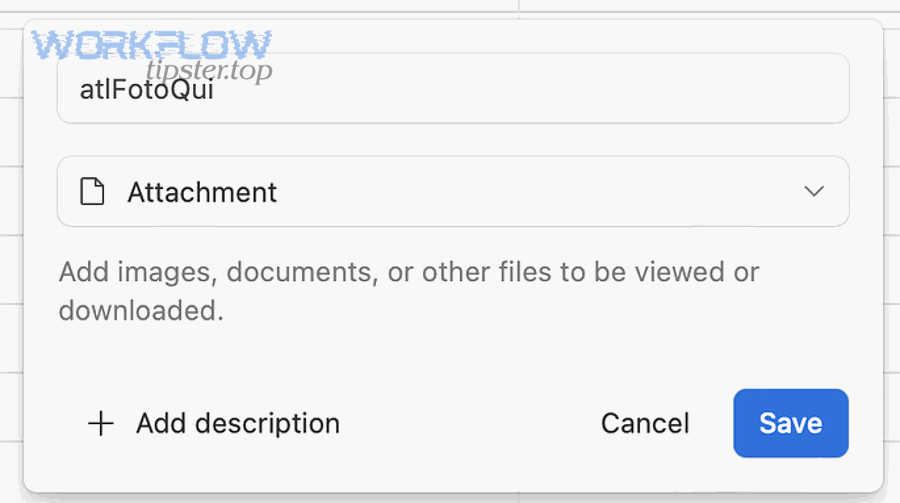
Next, the key is to separate two concepts: the attachment stored in the record versus the specific URL string you copied at a point in time.
What’s the difference between Airtable’s attachment viewer URL and a download URL?
The viewer URL is best for logged-in users with base access, while the expiring download URL is best for temporary public downloads—so the winner depends on whether you need authenticated viewing or short-lived external access.
However, the practical difference is what breaks your workflow: viewer URLs fail for people without access, while expiring download URLs fail after time passes.
Here’s how to choose correctly:
- Use viewer URLs when the audience is internal and already has Airtable access.
- Use expiring download URLs when you must attach a file to an email or pass it to a tool that needs raw bytes—then download and re-upload immediately rather than storing the URL as a long-term link.
To sum up, treat Airtable attachments like secure files inside a system, not like a public CDN. If you need permanent public links, store the files in a dedicated storage provider and store the stable link in a URL field.
According to Airtable documentation, expiring download URLs remain active for at least a short window (noted as at least two hours), and Airtable discourages using attachment URLs as permanent CDN links.
Are you using Airtable attachment URLs as permanent links in other tools?
No—you should not use Airtable attachment download URLs as permanent links, because they are designed to expire; yes—you can use them safely only if you download the file quickly and store it elsewhere or reattach it immediately in the destination tool.
Then, if your workflow currently stores Airtable attachment URLs in other systems, apply one of these safer patterns:
- Download-then-upload pattern: your automation downloads the file immediately and uploads it into the destination (Slack, email, Drive, etc.).
- Store originals externally: keep canonical files in storage (S3/Drive/Dropbox) and store a stable URL in Airtable.
- Use IDs + retrieval logic: store record IDs and fetch fresh URLs on demand when you must access the attachment.
More specifically, this is where many teams confuse “missing” with “expired.” The attachment is not missing from Airtable; your old link is simply no longer valid for downloading.
What step-by-step troubleshooting flow fixes most cases in under 15 minutes?
There are 7 steps that fix most cases in under 15 minutes: reproduce in UI, isolate device/network, validate editability, test a small file, test a public direct URL, validate API shape, and throttle bulk runs—based on narrowing the failing layer with the fewest tests.
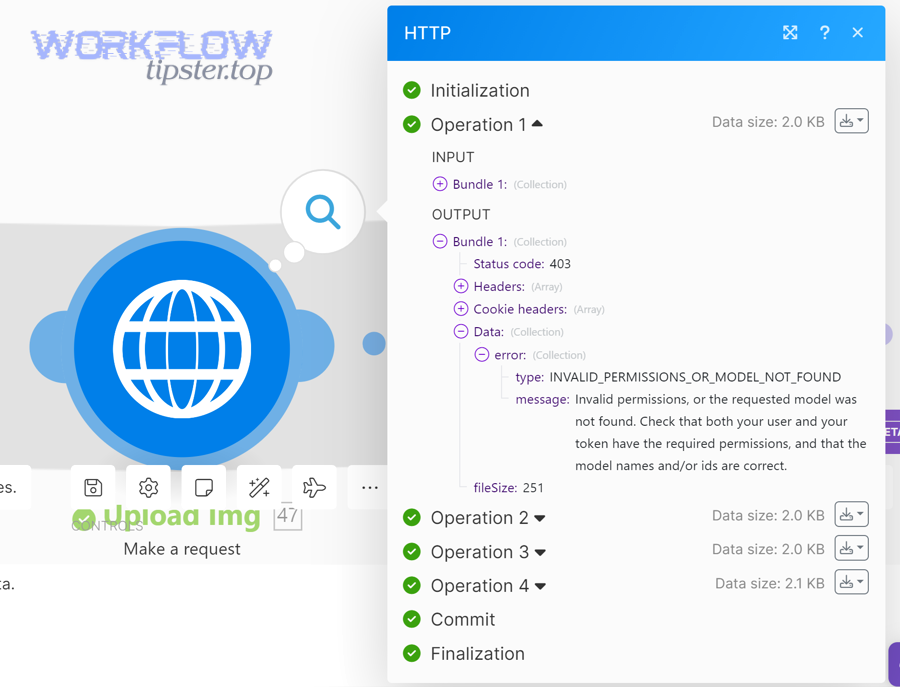
Next, follow this flow in order, because each step eliminates an entire class of causes and keeps your hook chain intact from symptom to fix.
What is the quickest minimal reproduction test to isolate the failing layer?
There are 3 minimal reproduction tests: a UI test upload, a single-record URL attach test, and a single-request API update test, based on separating human upload from programmatic attachment creation.
Then, run them like this:
- UI test upload: Create a new record and upload a tiny file (small PNG). If this fails, the issue is UI/browser/network/file constraints.
- URL attach test: Use a known-public direct file URL (a raw image link that downloads instantly) and attach it via your automation tool. If this fails, it’s URL access/redirect/permissions.
- API update test: Send one API call that updates one record’s attachment with one URL object. If this fails with validation, it’s payload schema.
To better understand what “known-public direct” means, the URL should open and download the file in a private window without any “sign in” prompt and without landing on a preview webpage.
Did the issue start after a change (permissions, storage provider, link format, network policy)?
Yes—most recurring attachment failures start after a change, and the top three reasons are updated permissions, changed link format (preview vs direct), or new network/security policies that block uploads or file fetching.
Then, do a “change audit” with targeted questions:
- Permissions change: Did roles, workspace permissions, or interface settings change this week?
- Storage link change: Did you switch from “direct file link” to a “share page link” from Drive/Dropbox?
- Network change: Did IT roll out a new proxy, SSL inspection, endpoint protection, or firewall rule?
- Automation change: Did you increase concurrency, add a loop, or expand scope—causing 429s or partial runs that look like airtable pagination missing records?
In short, “what changed?” is often the shortest path to “what broke,” especially when uploads worked reliably before.
According to a study by the University of California, Irvine from the Donald Bren School of Information and Computer Sciences, in 2008, people often compensate for interruptions by working faster but experience higher stress and frustration—so eliminating repetitive attachment failures can reduce workflow interruptions in real teams.
Contextual border: At this point you should have identified the failing layer (UI upload, permissions, integration URL fetch, API payload format, expiration behavior, or rate limits). Below, the focus shifts from “fix it once” to “design it so it doesn’t break again” in high-volume automation environments.
How can you prevent Airtable attachment upload failures in high-volume automation workflows?
You can prevent high-volume Airtable attachment failures by designing for stability with four factors—stable file hosting, safe link strategy, throttled throughput, and predictable mapping—so your automations attach files consistently without expired URLs, broken redirects, or rate-limit collapses.
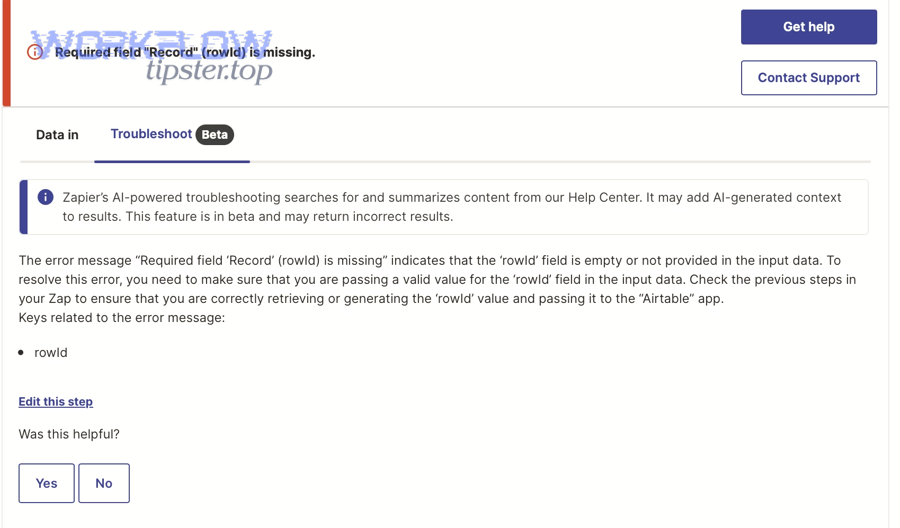
Next, treat prevention as micro-semantics: you’re no longer fixing one record, you’re improving the reliability of the entire attachment pipeline under load.
What’s the best practice: storing files in Airtable attachments vs storing file links externally (stable vs expiring)?
Airtable attachments win for internal storage and collaboration, while external storage links win for stable long-term sharing and predictable downloads—so the optimal approach is to store collaboration files in Airtable but store canonical originals externally when you need permanent access.
However, the biggest prevention lesson is the antonym pair: stable vs expiring. If your workflow depends on “stable,” avoid building it on “expiring.”
Use these decision rules:
- Choose Airtable attachments when the file is primarily used inside Airtable and viewed by users with base access.
- Choose external storage when other systems must access the file repeatedly over time via a consistent URL.
- Choose hybrid when you want convenience in Airtable but still need a stable source: store the canonical file externally, and optionally attach a copy in Airtable for browsing.
More specifically, hybrid designs also protect you from attachment URL changes: even if your downstream job fails once, the canonical file still exists at a stable address.
How do short-lived signed URLs (S3/GCS) cause intermittent “upload failed,” and how do you fix it?
Short-lived signed URLs cause intermittent “upload failed” when the URL expires before Airtable (or your integration) fetches the file, and you fix it by increasing TTL, generating the URL right before the attach step, and reducing queue delays.
Then, apply a reliability pattern that matches your automation reality:
- Generate-as-late-as-possible: create the signed URL immediately before you write the attachment field.
- Increase TTL buffer: set expiration long enough to survive queueing plus retries (think “minutes to hours,” not “seconds”).
- Serialize attachments under load: attach fewer files concurrently so late items don’t get delayed past expiration.
To illustrate, a bulk scenario might process 500 records; if each record takes only a few seconds, the last record could be 20–30 minutes behind the first. A URL that expires in 5 minutes is guaranteed to fail intermittently.
How can corporate proxies/SSL inspection break attachment uploads or URL fetches?
Corporate proxies and SSL inspection can break attachment uploads or fetches by intercepting encrypted traffic, blocking storage domains, rewriting certificates, or timing out large file transfers, and you fix it by confirming with a hotspot test and requesting targeted allowlists from IT.
Next, use a simple diagnostic sequence that produces clear evidence for IT:
- Hotspot success vs office failure: if hotspot works, your browser and file are likely fine; the office network is the constraint.
- Small file works, big file fails: suggests timeout thresholds or content scanning delays.
- Specific domains fail: indicates allowlisting needs (the fetcher can’t reach the file host).
More importantly, this prevention step reduces recurring “mystery failures” that create repeated interruptions, context switching, and rework across teams.
Which “non-direct” links and MIME/content-type issues silently fail in automations?
Non-direct links and MIME/content-type issues silently fail when your “URL” points to an HTML preview page or the server returns an unexpected content type, and you fix it by using raw download endpoints and validating headers with a direct-download test.
Then, prevent silent failures by standardizing how you create attachment URLs:
- Use raw links: prefer endpoints that return the file bytes immediately.
- Avoid preview pages: if the link opens a webpage with a player or a “Download” button, it’s not a raw file URL.
- Validate in private mode: confirm the link works without authentication.
- Normalize redirects: if possible, convert multi-redirect links into a single direct link.
In addition, if your automation scales up and starts failing unpredictably, revisit throughput and paging: excessive looping can trigger rate limits or partial runs that look like airtable pagination missing records, while burst traffic can trigger airtable api limit exceeded. The prevention fix is to slow down, add retries with backoff, and keep mappings explicit so you don’t end up with airtable missing fields empty payload when a token resolves to blank.
According to Airtable’s documentation on rate limits, API throughput constraints can trigger 429 responses, so stable automations should throttle requests and use backoff retries rather than sending bursts that overload the base.