


Airtable tasks get delayed when automation runs pile up faster than your base and integrations can process them, creating a run queue backlog that slows updates, notifications, and downstream workflows. The fastest fix is to confirm where the delay starts (trigger, action step, or external dependency) and then reduce the volume or duration that’s clogging the queue.
To solve this reliably, you need to recognize the “delay patterns” that Airtable surfaces—like runs stuck in progress, runs waiting on a slow script, or actions blocked by data that isn’t ready yet (attachments, lookups, rollups). Once you can name the pattern, you can match it to the right fix instead of “retesting until it works.”
Next, you’ll isolate the main drivers of backlog—trigger storms, long-running actions, heavy base calculations, and rate limits—then apply targeted controls like debouncing, batching, “delay until” scheduling, and safer idempotent updates that don’t double-create records.
Introduce a new idea: the most effective Airtable backlog fix is not a single setting—it’s a queue-aware workflow design that treats automations like a system with throughput and bottlenecks, so the run queue stays stable even when data spikes.
What does “Airtable tasks delayed queue backlog” mean in practice?
“Airtable tasks delayed queue backlog” means automation runs are waiting in line because the system is processing other runs first, so your triggers fire but the actions execute later than expected (minutes, hours, or longer) instead of near real-time.
To better understand why this happens, it helps to picture Airtable automation execution as a queue: triggers add work, actions consume work, and any mismatch creates waiting time.
What is a task run queue, and how does it create backlog?
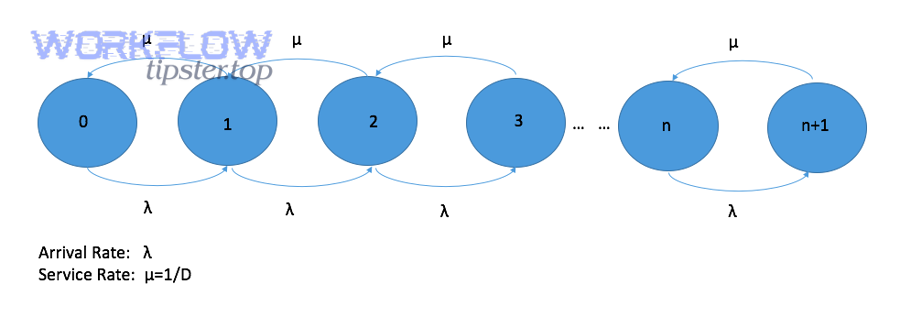
A task run queue is the ordered pipeline where automation runs wait to be processed, and it creates backlog when incoming runs (arrival rate) consistently exceed the system’s ability to complete them (service rate).
More specifically, every automation trigger produces a “run,” and each run must complete its actions—update records, send emails, call webhooks, run scripts, and so on. If your base generates bursts (hundreds of updates in seconds) or your actions are slow (scripts, external APIs), runs accumulate. The key concept is that delay is not random; it is the queue expressing “too much work” or “work that takes too long.”
In practical Airtable terms, backlog shows up as run history entries that start later than the record change that triggered them, actions that execute out of your expected timing window, or runs that remain pending/in progress long enough to break your business SLA.
What are the most common symptoms of delayed Airtable tasks?
The most common symptoms are late notifications, stale field updates, workflows that “catch up” in bursts, and repeated failures caused by time-sensitive dependencies (for example, an email action firing before attachments finish uploading).
Specifically, you’ll usually see one or more of these signals:
- Run history lag: triggers occur now, but runs start much later.
- Inconsistent downstream states: a status field changes, but related fields update much later, confusing users.
- Time-based actions missing their window: reminders or escalations arrive late, making them pointless.
- External calls time out: scripts or webhook actions fail because the endpoint expects a faster response.
- Retry side effects: teams rerun or “fix” by duplicating steps, causing accidental duplicates later.
Once you can describe the symptom precisely, you can trace it back to whether the backlog is caused by volume (too many runs) or duration (runs that take too long).
Is an Airtable automation delay always a problem?
No—an Airtable automation delay is not always a problem, because some delay is expected under heavy load, intentional scheduling, or controlled throttling; it becomes a problem when it breaks your workflow timing, causes inconsistent data states, or triggers retries that create side effects.
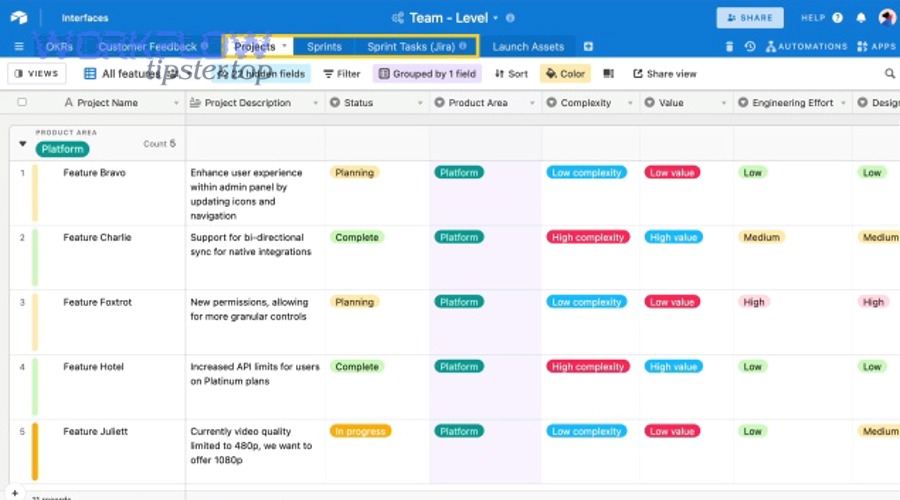
However, the difference between “acceptable delay” and “workflow failure” is your intent: if the delay aligns with your design, it’s normal; if it violates your design, it’s backlog you must address.
When delay is expected (intentional throttling, heavy base load)
Delay is expected when you intentionally schedule actions, when multiple runs compete for shared resources, or when your base is doing heavy calculations that slow everything down.
For example, you may deliberately set a “Delay until” step so a notification fires at business hours, or you may design a batching workflow that processes records every 5 minutes. In these cases, the queue is behaving as designed. Similarly, if a team imports thousands of records and triggers automations, short-term lag can happen while Airtable processes the spike.
A practical way to confirm “expected delay” is to check whether the backlog clears on its own after the spike ends, and whether runs complete successfully without manual intervention.
When delay signals a broken workflow (stuck runs, missing updates)
Delay signals a broken workflow when runs get stuck in progress/pending for unusually long periods, when actions fail repeatedly, or when the automation’s output is no longer consistent with the triggering event.
More specifically, backlog becomes “breakage” when:
- Runs remain pending long enough that later runs depend on earlier ones and everything stalls.
- Actions time out, fail, or return errors that halt the run.
- Human operators “fix” by re-running steps, causing double updates and confusion.
- Real-time requirements exist (like routing a request, updating inventory, or escalating a ticket) and delays break the process.
This is where queue-aware troubleshooting matters—because repeating the same action under backlog often makes the backlog worse.
What are the main causes of an Airtable task queue backlog?
There are 4 main causes of an Airtable task queue backlog—trigger storms, long-running actions/external dependencies, base performance load, and limits/rate limiting—based on whether the bottleneck is created by volume, duration, computation, or quotas.
Next, you’ll map your backlog to one (or more) of these causes so you can choose fixes that reduce arrivals, speed service, or prevent retries from multiplying work.
Trigger storms and high-frequency updates
Trigger storms happen when a single change causes many records to update (or many updates happen in a short window), creating a burst of automation runs that overwhelms processing capacity.
For example:
- A sync/import updates hundreds of records and each update triggers the same automation.
- A formula/rollup-driven workflow changes many rows at once, repeatedly firing “record updated.”
- A status field is toggled back and forth by multiple automations, creating a loop.
The telltale sign is a backlog that grows rapidly right after bulk operations, view reconfigurations, or large edits. In these cases, fixing the backlog means reducing how often triggers fire (debounce), narrowing trigger conditions, or redesigning to batch.
Long-running actions and external dependencies (webhooks, scripts)
Long-running actions create backlog when one run takes too long to complete, because slow scripts, slow webhook endpoints, or slow third-party tools extend run duration and reduce throughput.
Common culprits include:
- Scripting actions: heavy loops over many records, multiple API calls per record, or inefficient lookups.
- Webhooks: endpoints that respond slowly, return intermittent errors, or enforce strict rate limits.
- Attachment-dependent steps: actions that assume attachments/URLs are ready immediately after upload.
When runs slow down, the run queue backlog behaves like a traffic jam: even if triggers keep firing, the system can only “serve” runs as fast as your slowest step permits. This is also where you may see integration errors like airtable webhook 404 not found if the endpoint path changes, or if a tool rotates URLs and old routes persist in older automation configs.
Base performance issues (lookups, rollups, large tables)
Base performance issues cause backlog when automations rely on fields that take time to recalculate—especially lookups, rollups, linked-record chains, and complex formulas across large tables.
For example, an automation might update a record and then immediately read a lookup field that depends on linked records. If Airtable hasn’t finished recalculating the lookup, the action reads stale data. Users often misinterpret this as “automation delay,” but it’s actually “data readiness delay.”
In practice, this shows up as:
- Automations that “work in tests” but fail intermittently at scale.
- Actions that run with blank/old values and then “fix themselves” later.
- Runs that complete, but the base appears inconsistent for minutes afterward.
The fix is usually to reduce dependency on recalculating fields (precompute, store values, simplify formulas) or insert a controlled delay/scheduling mechanism so actions run only when data is ready.
Limits, quotas, and rate limiting
Limits and rate limiting create backlog when your workflow hits quotas or API constraints, forcing runs to slow down, retry, or fail—reducing throughput and leaving more runs queued.
This can show up as:
- airtable api limit exceeded in integration logs when external scripts or tools call the API too aggressively.
- Webhook endpoints refusing requests (429s) or returning errors that halt progress.
- High-volume workflows that spike at specific times (morning imports, scheduled batch jobs) and consistently push the system over a threshold.
When quotas are the driver, the best fix is not “rerun more”—it’s to reduce calls per record, batch requests, and design idempotent updates so retries don’t multiply work.
How do you troubleshoot Airtable tasks delayed in the run queue?
To troubleshoot Airtable tasks delayed in the run queue, use 5 steps—scope the delay in run history, reproduce with one controlled record, identify the failing step and error, validate data dependencies, and verify integrations—so you isolate the bottleneck and apply the smallest fix that restores throughput.
Then, you’ll move from “symptom chasing” to “cause confirmation,” which is the only reliable way to stop a backlog from returning.
Step 1: Confirm scope in Automation Run History
Start by confirming whether the delay is isolated to one automation or widespread across multiple automations, because a single automation bottleneck requires redesign while widespread lag often indicates base load or platform-wide contention.
Specifically, check:
- Are multiple automations delayed at the same time window?
- Do runs show “pending” before they start, or do they start but get stuck “in progress”?
- Is the delay tied to a specific trigger type (record updated vs scheduled vs webhook)?
If only one automation is consistently delayed, assume the bottleneck is inside that automation (trigger volume or slow steps). If many automations are delayed, assume base performance load or a broad spike event (bulk edits/imports) and proceed by narrowing what changed.
Step 2: Reproduce with a controlled test record
Reproduce the delay with a single controlled record so you can separate “queue backlog” from “data readiness” and confirm the exact point where timing diverges.
For example:
- Create one test record with minimal dependencies (few linked records, simple formulas).
- Trigger the automation once and observe timestamps in run history.
- Repeat with a “real” record that includes attachments/lookups/rollups.
If the test record runs instantly but real records lag, your issue is likely dependency-related (lookups, attachments, external calls). If both lag, your issue is likely queue capacity (trigger storm, heavy scripts, or quotas).
Step 3: Check failing steps and error codes
Check failing steps to see whether the run is delayed because it is waiting, or because it is failing and retrying, since failures often look like delays but are actually repeated restarts.
Common patterns include:
- Webhook errors: endpoints returning 404/401/429, including scenarios that resemble airtable webhook 404 not found.
- Script time limits: scripts that occasionally exceed execution constraints during load spikes.
- Update conflicts: multiple automations writing to the same fields in close time windows.
When you identify a failing step, treat the error as the root cause—not the queue. The queue is simply where the symptoms become visible.
Step 4: Inspect data dependencies (lookups/attachments)
Inspect data dependencies to confirm whether the automation is executing “too soon” relative to Airtable’s recalculation or attachment processing, because that mismatch creates apparent delays, missing values, and inconsistent outcomes.
Focus on:
- Lookups and rollups: are you relying on a value that recalculates after the trigger fires?
- Attachments: are you sending or syncing files before the attachment field is fully populated?
- Linked record chains: does a change in Table A cascade into Table B fields used by the automation?
If dependencies are the issue, the fix is usually to redesign the trigger (fire on “ready” flags), add a “Delay until” based on a timestamp field, or shift from immediate actions to scheduled processing (batch).
Step 5: Verify integrations and API responses
Verify integrations and API responses so you can confirm whether the bottleneck is inside Airtable or at the edge—because external tools can slow or fail independently and create a backlog that Airtable cannot resolve for you.
Practical checks:
- Confirm endpoint stability (no changed paths, rotated auth, or expired tokens).
- Reduce calls per run (batch requests instead of many single requests).
- Confirm you are not repeatedly hitting airtable api limit exceeded through scripts or third-party tools.
If your integration cannot guarantee fast and consistent responses, treat it as an unreliable dependency and redesign for resiliency: queue externally, retry safely, and ensure actions are idempotent.
How do you fix and prevent an Airtable queue backlog long-term?
Fixing and preventing an Airtable queue backlog long-term requires 4 levers—reduce trigger volume, shorten action duration, schedule delays safely, and improve base performance—so your automation throughput stays higher than your incoming change rate even during spikes.
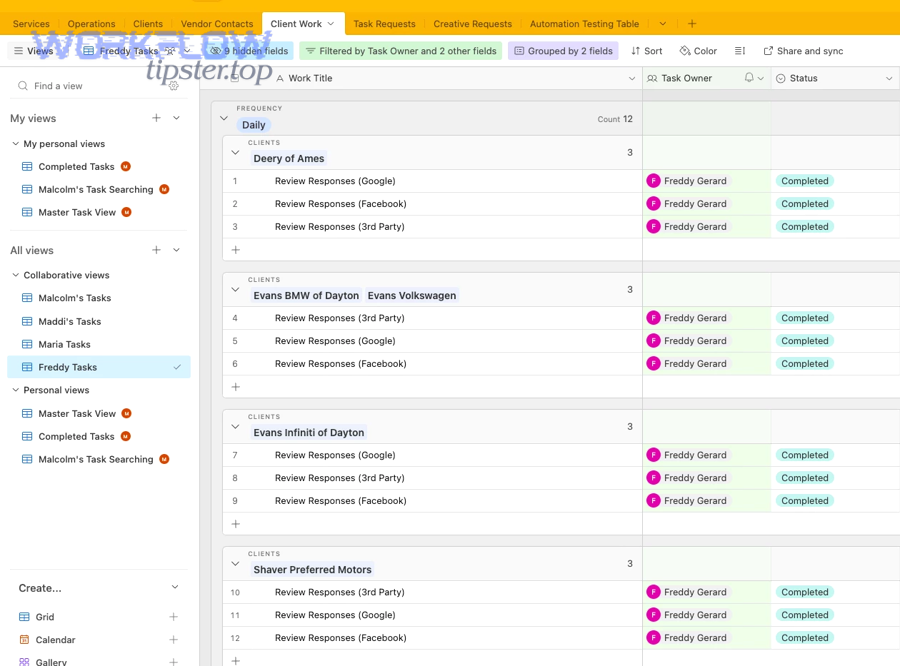
Moreover, the best long-term designs assume that delays will happen occasionally, and they include safeguards that prevent delays from turning into duplicates, loops, or broken states.
Reduce trigger volume (debounce, batching)
Reduce trigger volume by designing “fewer, smarter triggers,” because the easiest backlog to fix is the backlog that never enters the queue.
Practical approaches:
- Debounce triggers: trigger only when a “Ready” checkbox flips from unchecked to checked, not on every update.
- Narrow conditions: ensure your trigger filters exclude records that don’t need processing.
- Batch processing: mark records for processing and run a scheduled automation every X minutes to handle them in groups.
This also reduces accidental re-fires that can lead to airtable duplicate records created when multiple runs attempt the same “create” step under load.
Shorten action duration (optimize scripts, external calls)
Shorten action duration by removing slow loops, minimizing API calls, and keeping each run’s critical path small, because long runs lower throughput and expand the queue backlog.
Effective tactics:
- Move heavy computation out of scripts and into precomputed fields where possible.
- Batch external calls (one request with multiple records) instead of one request per record.
- Use timeouts and clear failure handling so runs don’t hang indefinitely.
Also, ensure scripts and integrations can safely retry without creating side effects. If “create record” is involved, use deterministic keys (unique IDs) and “find-or-create” logic to prevent duplicates under retry pressure.
Add delays and scheduling safely (Delay/Delay until)
Add delays and scheduling safely by using “Delay” or “Delay until” patterns that wait for data readiness and spread load over time, because a controlled delay is better than an uncontrolled queue backlog.
A common robust pattern is:
- When a record changes, write a “Process After” timestamp (now + X minutes).
- Use a view or condition that selects records whose “Process After” is in the past.
- Run actions only when the timestamp condition is true, ensuring attachments and recalculations have settled.
This approach is a core airtable troubleshooting strategy when “runs are fast” but “inputs aren’t ready.” It is also how you avoid sending incomplete notifications or pushing partial data to external systems.
Improve base performance (field design, views, indexing)
Improve base performance by simplifying recalculations and reducing cascading dependencies, because a faster base reduces the time your automations spend waiting on computed fields.
High-impact changes include:
- Reduce deep chains of lookups/rollups across many linked tables.
- Replace overly complex formulas with simpler stored fields updated intentionally.
- Use filtered views for automation inputs so the automation processes only what matters.
When base performance improves, you reduce both “data readiness delay” and the time each automation run spends evaluating conditions—directly lowering backlog growth during spikes.
Should you use Airtable automations or external tools to handle backlog?
Airtable automations win in simplicity and in-base consistency, external tools (like workflow automation platforms) are best for heavy throughput and advanced queue controls, and a hybrid approach is optimal for reliable scaling without losing Airtable context.
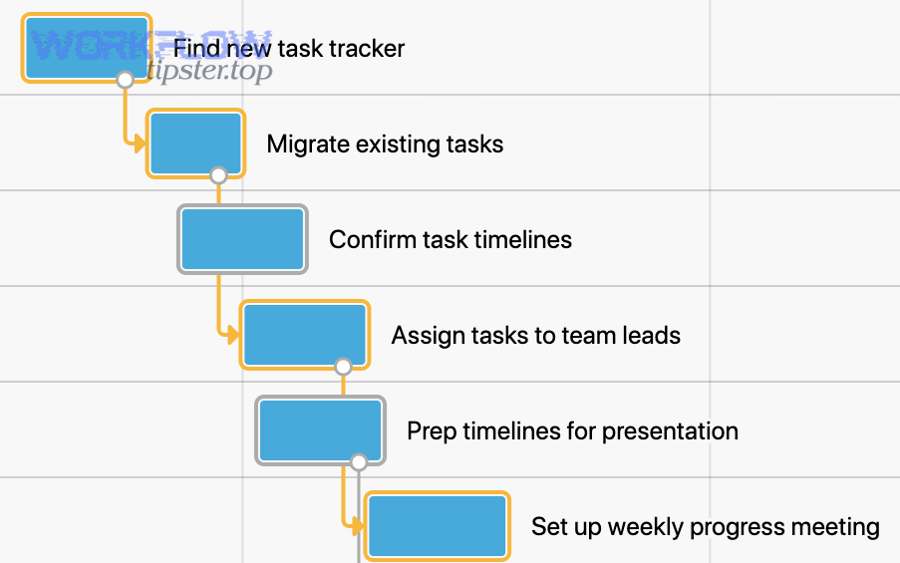
Meanwhile, choosing the right architecture depends on whether your backlog is primarily “Airtable load” or “integration load,” and how strict your timing requirements are.
This table contains a practical comparison to help you decide whether to keep backlog handling inside Airtable or offload it to external queue-aware automation tooling.
| Option | Best for | Strengths | Backlog risks |
|---|---|---|---|
| Airtable Automations | Moderate volume, clear triggers, in-base updates | Fast setup, fewer moving parts, strong base context | Trigger storms, data readiness issues, limited queue controls |
| External Tool (Zapier/Make/n8n) | High volume, complex routing, advanced retries | Queue patterns, retries, branching, better observability | API limits, integration drift, duplicated logic if not centralized |
| Hybrid (Airtable + External Queue) | Scale with governance | Keep Airtable as source-of-truth; offload heavy processing | Requires careful idempotency to avoid duplicates |
Airtable automations vs Zapier/Make/n8n for heavy queues
Airtable automations are the right choice when your workflows are mostly “inside the base” and your volume is predictable, while external tools are better when you need strong retry logic, long delays, sophisticated queuing, or high-throughput processing.
For example, if your automation frequently depends on external APIs, or you need to process thousands of events with controlled concurrency, an external tool can provide queue controls that Airtable doesn’t expose directly. However, moving too much logic out of Airtable can make troubleshooting harder unless you standardize logging and governance.
Webhooks vs direct API calls for reliability
Webhooks are best for event-driven integrations and decoupled systems, while direct API calls are best when you need deterministic reads/writes with explicit error handling; reliability improves when you choose the method that matches your failure modes.
Specifically, webhooks can fail loudly (bad endpoints, auth errors, path changes), and during backlog they can magnify issues if retries aren’t idempotent. Direct API calls can be more controllable, but they are also the fastest route to airtable api limit exceeded if you call too aggressively. The stable design is the one that makes retries safe and keeps call volume bounded.
According to a study by Columbia University from Industrial Engineering and Operations Research, in 2017, Ward Whitt explained that Little’s Law links average queue length to arrival rate and time in system (L = λW), meaning a higher arrival rate or longer processing time will increase backlog unless throughput is improved.
If you want a visual walkthrough of how automation actions and timing work in practice, this video can help you map triggers and actions to your backlog symptoms.
Contextual Border: Up to this point, the article has focused on diagnosing and fixing the core run queue backlog behind “airtable tasks delayed queue backlog.” Next, we expand into closely related Airtable automation errors that commonly appear alongside delays, so you can widen semantic coverage and troubleshoot faster when multiple symptoms overlap.
What related Airtable automation errors often appear alongside delays?
There are 4 common related errors that often appear alongside delays—API limit exceedance, webhook 404 failures, duplicate record creation from retries, and missing-step troubleshooting gaps—based on whether the failure is quota-driven, endpoint-driven, retry-driven, or process-driven.
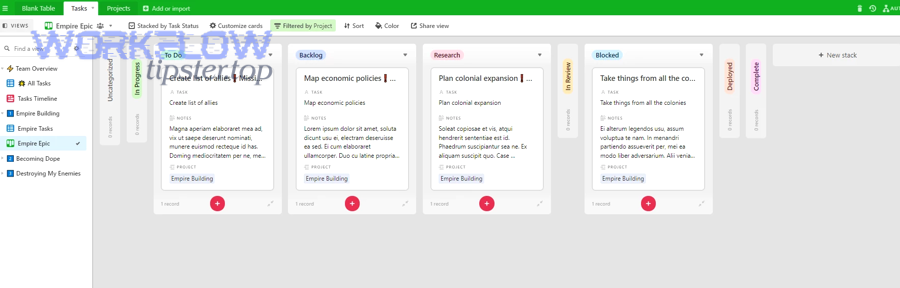
In addition, treating these as “separate problems” is a mistake: they are often different surfaces of the same backlog condition.
How does airtable api limit exceeded relate to delayed runs?
airtable api limit exceeded relates to delayed runs because rate limiting slows down or blocks the external actions your automation depends on, which increases run duration and reduces throughput, expanding the queue backlog.
For example, a script that makes multiple API requests per record can be fine at low volume, but under a trigger storm it multiplies calls until the API enforces limits. Once calls slow down, runs take longer, and the queue grows. The practical fix is to reduce calls per run, batch operations, and cache data so the automation doesn’t fetch the same information repeatedly.
Why does airtable webhook 404 not found happen during backlog?
airtable webhook 404 not found happens during backlog when your automation calls an endpoint that no longer exists (path changed, tool reconfigured), and the backlog amplifies it because many queued runs will hit the same broken URL before anyone notices.
More specifically, a 404 is not a “delay error”—it’s a routing error. But in delayed queues, you may discover it late because the run that contains the failing webhook executes long after the configuration changed. The fix is to stabilize endpoints (versioned URLs), centralize configuration, and validate endpoints with a single canary run before letting volume hit the queue.
How can airtable duplicate records created be a side effect of retries?
airtable duplicate records created can be a side effect of retries because when operators or systems re-run automations under backlog, “create record” actions can execute multiple times for the same logical event if you don’t enforce idempotency.
Common causes include:
- Manual re-runs during a delay window (“it didn’t work, so I ran it again”).
- Multiple triggers firing for the same record state change.
- External tools retrying “create” without checking whether the record already exists.
The prevention strategy is to store a unique event ID, check before creating, and design your automation to update existing records when possible rather than creating new ones repeatedly.
When should you switch to airtable troubleshooting checklist?
You should switch to an airtable troubleshooting checklist when delays are recurring, multi-symptom (errors + lag + duplicates), or involve multiple automations and integrations, because checklists prevent reactive “fixing” that increases backlog and creates side effects.
A strong checklist typically includes: run history scope, recent bulk changes, trigger conditions, dependency fields (lookups/attachments), integration health, rate-limit logs, idempotency checks, and rollback options. When the queue backlog is business-critical, the checklist becomes your operational guardrail—so every fix reduces backlog instead of adding more work to the queue.