


You can fix Airtable data formatting errors by matching field types to the values you store, returning the correct output type from formulas, and normalizing payloads before any record create/update—so your dates, numbers, and currency values stop breaking automations.
Next, you’ll learn how to identify the real cause behind each “formatting” failure—whether it’s a Date vs Date-Time mismatch, a locale-style number string, a formula that returns text instead of a date, or a missing value that triggers an error chain.
Then, you’ll apply step-by-step fixes inside Airtable—field setting adjustments, formula guard rails, and helper fields—so your base becomes predictable for integrations and reporting instead of fragile and error-prone.
Introduce a new idea: once you can fix today’s broken values, you can also prevent tomorrow’s failures by standardizing your automation inputs (ISO dates, numeric typing, safe rounding) and designing a schema that separates “raw” data from “display” formatting.

What are “Airtable data formatting errors,” and why do they break automations?
Airtable data formatting errors are failures that occur when a value’s type (date, number, currency) or shape (string vs numeric) doesn’t match what a field, formula, or integration expects, causing rejected writes, blank outputs, or error codes.
To better understand why this happens, you need one simple mental model: formatting is not the same as storage. Airtable stores values in specific field types (Date, Number, Currency), but it may display them differently (local date formats, currency symbols, separators). Automations and external tools often send values as strings, not typed values, and that mismatch is where breakage begins.
In practice, “formatting errors” usually show up in three places:
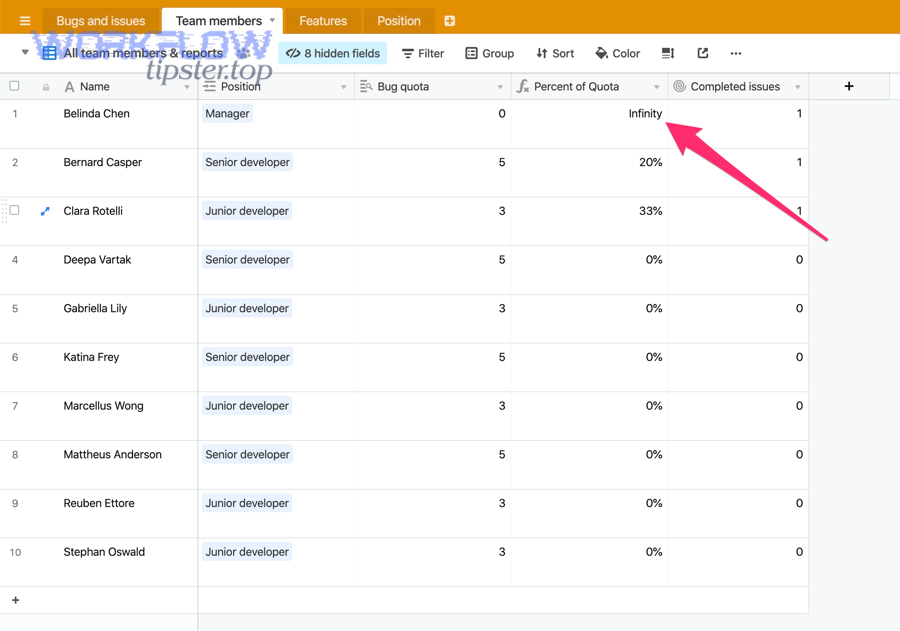
- Inside Airtable: formulas returning text when you need a date/number, circular references, NaN, infinity, or fields that can’t be formatted because the result type is wrong.
- On import: CSV columns that look like dates to humans but parse as text, or numbers that include commas/spaces/symbols that prevent proper coercion.
- In integrations: JSON payloads where dates are ambiguous, currency values arrive as “$1,234.56,” or a tool sends “1.234,56” (EU style) into a Number field.
The reason this breaks automations is straightforward: automations depend on consistent, machine-parseable inputs. If a downstream step expects a Date-Time and receives a formatted string, it cannot reliably schedule, compare, filter, or transform. The automation may “succeed” while writing the wrong value, or it may fail hard with a rejected update.
What are the most common Airtable date formatting errors (and what each one means)?
There are 4 main types of Airtable date formatting errors—field-type mismatch, invalid/ambiguous date strings, formula output type issues, and time zone display shifts—based on where the date breaks (field, parsing, formula, or time zone).
Next, map the problem to the exact layer that’s failing. When you treat every date issue as “a formatting problem,” you waste time. When you classify it correctly, the fix becomes mechanical.
Which date errors come from field-type mismatch (Date vs Date-Time vs Text)?
There are 3 common mismatch patterns: storing date-time strings in a Date-only field, writing date-only values into a Date-Time field without time zone clarity, and sending dates as plain text into a typed Date field.
To illustrate why this matters, Airtable fields are strict about what they can store. A Date field wants a date value, not “pretty text.” A Date-Time field wants a date-time value that can be interpreted consistently across time zones. A Text field stores anything, but you lose sorting, filtering, and reliable comparisons.
- Date-only field + date-time input: You send “2026-01-26T18:30:00Z” but the field is configured for date-only, so the result may truncate time or parse unexpectedly.
- Date-Time field + date-only input: You send “2026-01-26” and the system must assume a time (often midnight). That assumption becomes dangerous when time zones shift.
- Date field + text output from formula: You use a formatting function to display “Jan 26, 2026,” then try to write it into a Date field later; Airtable may treat it as text and reject or mis-parse.
The fastest fix is usually to align the field type with the value you actually need for automation logic: use Date-Time when you must schedule or compare time; use Date-only for calendar-style tracking; avoid Text for anything you plan to compute on later.
What is the correct date format Airtable expects in automations and API writes?
Airtable expects dates as unambiguous, machine-readable values—most reliably ISO-style strings such as YYYY-MM-DD for date-only and YYYY-MM-DDTHH:mm:ssZ (or with an offset) for date-time—so it can parse consistently across tools.
More specifically, a “correct” format is one that avoids locale ambiguity. “01/02/2026” is a trap because it can mean January 2 or February 1. ISO-style dates remove that ambiguity and keep sorting stable.
- Date-only (best for Date fields): 2026-01-26
- Date-Time UTC (best for consistent automation): 2026-01-26T18:30:00Z
- Date-Time with offset (best when local time matters): 2026-01-26T18:30:00-05:00
When you standardize on ISO formats, you stop fighting hidden assumptions in Make/n8n/Zapier modules and you stop chasing “off-by-one-day” surprises caused by implicit time conversions.
According to a study by the University of Massachusetts Medical School from its eScholarship repository in 2018, ISO 8601 provides needed consistency in date formatting and supports correct sorting across systems.
Does “DATETIME_FORMAT” fix dates—or can it create new errors?
No, DATETIME_FORMAT does not “fix” dates for automation; it formats a date-time into text, which often creates new errors because many downstream steps require a true date/number type, not a formatted string, plus it can hide time zone assumptions.
However, the function is still useful when used deliberately. The problem appears when you treat the formatted result as a real date. A formatted result is typically best for display-only fields, labels, or human-facing exports—not for storing into a Date field or comparing chronologically in a strict workflow.
- Good use: show “Jan 26, 2026” in a read-only view or a message body.
- Risky use: write DATETIME_FORMAT output into a Date field, then use it to filter/sort/schedule.
- Dangerous use: mix DATETIME_FORMAT output with locale-dependent patterns that other tools parse differently.
So, if your automation must compute time logic, store a typed date in a Date/Date-Time field and use DATETIME_FORMAT only as a presentation layer.
When should you use SET_TIMEZONE vs DATETIME_PARSE vs DATETIME_FORMAT?
SET_TIMEZONE wins for correct conversion, DATETIME_PARSE is best for turning strings into date-time values, and DATETIME_FORMAT is optimal for displaying a date-time as text—based on whether your goal is conversion, parsing, or presentation.
Meanwhile, most automation failures happen because builders use the “presentation” tool (DATETIME_FORMAT) when they actually need the “conversion” or “parsing” tool.
- Use DATETIME_PARSE when your input is a string (often from an integration) and you need a real date-time value inside Airtable.
- Use SET_TIMEZONE when you already have a real date-time and you must align it to a specific time zone for business logic.
- Use DATETIME_FORMAT when you want a readable string for emails, Slack messages, labels, or display-only fields.
If you’re unsure, ask one question: Do I need this value to behave like time, or to look like time? “Behave like time” means parse/convert; “look like time” means format.
What are the most common Airtable number formatting errors (decimals, separators, NaN)?
There are 3 main types of Airtable number formatting errors—non-numeric strings, locale separators, and invalid math results (NaN/Infinity)—based on whether the issue is input text, regional formatting, or computation failures.

Specifically, numbers fail when a tool or formula produces something that looks numeric to a person but is not numeric to a parser. The fix is to make the value boringly numeric again.
What causes “NaN” or invalid numeric outputs in Airtable formulas?
NaN happens when a formula produces a value that cannot be interpreted as a number, usually because it is operating on blank text, dividing by zero, or coercing a non-numeric string using numeric functions.
To better understand the pattern, treat NaN as a sign that your formula lacks guard rails. Airtable formulas are powerful, but they do not automatically protect you from null/blank inputs or incompatible types.
- Blank input: a field is empty, but your formula assumes it exists.
- Text masquerading as numbers: “1,234” or “$99” gets treated as text.
- Division edge cases: dividing by 0 or by blank yields Infinity/NaN-like behavior.
- Computed-field surprises: lookup/rollup outputs may return text or arrays depending on configuration.
A practical approach is to add IF guards and explicit conversions, so the formula returns a default numeric value (like 0) or a controlled blank instead of throwing errors.
Do thousand separators and locale (1,234.56 vs 1.234,56) cause automation errors?
Yes, thousand separators and locale formatting cause Airtable number errors because (1) integrations often send numbers as strings, (2) separators differ by region, and (3) Airtable expects consistent numeric typing, not ambiguous punctuation.
However, the issue is solvable once you treat all inbound numbers as raw values rather than formatted displays. In automations, you want “1234.56” as a true number—not “1,234.56,” not “1.234,56,” and not “1 234,56.”
- Most important fix: normalize the payload before writing—strip thousands separators and standardize the decimal character.
- Best practice: store numbers in Number fields and format them only at display time (views, dashboards, exports).
- Reliability benefit: your filters, comparisons, and rollups stop behaving inconsistently across collaborators.
What’s the difference between storing a number as Number vs Single line text for automations?
Number wins for calculations and validation, Text is best for unstructured identifiers, and a hybrid approach is optimal for preserving raw input while keeping automation-safe numeric fields—based on whether you need math, flexibility, or both.
On the other hand, many builders default to Text because it “accepts anything,” then discover their workflows cannot compute reliably.
- Number field advantages: sorting, filtering, formulas, rollups, charts, consistent API behavior.
- Text field advantages: accepts messy inbound values without rejection; preserves the original string exactly.
- Hybrid strategy: keep Raw Amount (Text) for auditing, and Amount (Number) for computation after normalization.
This hybrid pattern dramatically reduces automation failures because it separates “what arrived” from “what we trust for logic.”
What are the most common Airtable currency formatting errors (symbols, strings, rounding)?
There are 2 main types of Airtable currency formatting errors—string currency inputs and rounding/precision drift—based on whether the failure comes from symbols/separators or from inconsistent decimal handling across tools.
Next, treat currency as numbers with rules, not numbers with decoration. The decoration (symbol, commas) belongs to display; the value belongs to storage.
Why does sending “$1,234.56” fail while sending 1234.56 works?
“$1,234.56” fails because it is a formatted string that includes a symbol and separators, while 1234.56 works because it is a pure numeric value that Airtable can store and validate as currency.
To illustrate what’s happening, many automation tools build currency as strings (often by concatenation), then send those strings into Airtable. Airtable may reject the write, store partial text, or coerce unpredictably depending on the integration path.
- Safe input: 1234.56 (number)
- Unsafe input: “$1,234.56” (string)
- Extra-unsafe input: “1.234,56 €” (locale + symbol)
A reliable fix is to strip symbols and separators before writing, store the numeric amount, and let Airtable’s Currency field handle display formatting.
Currency field vs Number field + separate Currency code: which is safer for automations?
Currency field wins for simple single-currency bases, Number + Currency code is best for multi-currency workflows, and storing minor units (like cents) is optimal for precision-critical automation—based on complexity and accuracy needs.
Meanwhile, automation builders often discover a hidden requirement: once you operate across regions, the symbol alone is not enough—currency code becomes essential for correct downstream logic.
- Currency field (simple): best when all records share one currency and you mainly need display + totals.
- Number + Currency code (scalable): store amount as a number, store “USD/EUR/GBP” separately, and format at the reporting layer.
- Minor units (robust): store cents as an integer to avoid floating-point drift (e.g., 123456 = $1,234.56).
If your automation includes invoicing, reconciliations, or cross-system syncing, the scalable approach is usually safer than relying on symbols.
How do you diagnose where the formatting error is happening: Airtable, import, or integration?
There are 3 main diagnosis zones—Airtable configuration, import parsing, and integration payload typing—based on where the value first becomes ambiguous, incorrect, or rejected.
Then, use a disciplined, repeatable method: reproduce the issue with a single test record, inspect the field type and formula output, and compare the raw incoming payload to what Airtable expects.
This table contains a fast diagnostic map that helps you identify the layer causing the formatting error and the fastest verification step to confirm it.
| Symptom | Most Likely Layer | Fast Verification | Typical Fix |
|---|---|---|---|
| Date shifts by 1 day | Integration / Time zone | Check if payload includes Z/offset | Send ISO with offset or store UTC |
| Currency rejected | Integration payload | See if amount includes $/commas | Send numeric only; format in Airtable |
| “Result type is not a number/date” | Airtable formula output | Inspect formula return type | Return true numeric/date; avoid text formatting |
| Numbers sort incorrectly | Field type mismatch | Is the field Text? | Convert to Number + normalize input |
Is the problem only “display formatting,” not the underlying stored value?
Yes, sometimes the “problem” is only display formatting because (1) collaborators have different locale settings, (2) views show formatted strings that hide raw values, and (3) formulas can make values look correct while storing text instead of typed data.
However, you should never guess. Verify by checking whether the field is typed (Date/Number/Currency) and whether the value behaves correctly in operations like sorting, filtering, and arithmetic.
- Display-only clue: the value sorts correctly, computes correctly, and exports cleanly—yet looks “wrong” on-screen.
- Real data error clue: the value fails to compute, sorts lexicographically (“100” before “9”), or breaks an integration write.
- Fast test: create a new helper field that references the value and see whether it can be formatted as a number/date.
Once you separate display from storage, you stop “fixing” the wrong thing.
What should you check first in Airtable (fast checklist)?
There are 6 first checks in Airtable—field type, field options, formula return type, computed field behavior, blank handling, and view-level assumptions—based on how Airtable validates and transforms values.
More specifically, run this checklist before touching your automation tool:
- Field type: Is the destination field Date, Date-Time, Number, or Currency?
- Field options: Date format, “include time,” time zone settings, decimal places, currency symbol.
- Formula output: Does the formula return a typed value or a string?
- Lookup/rollup outputs: Are you receiving arrays or text representations?
- Blank handling: Are blanks causing NaN/#ERROR in dependent fields?
- Primary field surprises: Are you relying on a primary field that’s actually a formula?
This is the “airtable troubleshooting” mindset that prevents hours of debugging in the wrong layer.
What should you check in the integration payload (fast checklist)?
There are 7 payload checks—typing, date format, time zone, numeric coercion, currency symbols, whitespace, and batching behavior—based on the most common reasons external tools send values Airtable cannot parse.
Especially when the same base works manually but fails in an automation, the payload is usually the culprit.
- Is the value a number or a string? JSON typing matters.
- Is the date ISO-style? Avoid locale dates like 01/02/2026.
- Does the date include Z/offset? Prevent silent time shifts.
- Does currency include symbols? Strip $, €, commas, and spaces.
- Hidden whitespace: Trim leading/trailing spaces and non-printing characters.
- Batching bursts: Too many requests can cause failures that look like “bad data.”
- Field mapping: Confirm you’re writing to the intended field (not a lookalike helper field).
Once you confirm “what was sent,” you can fix the exact transformation step that produced the bad value.
How do you fix formatting errors inside Airtable (formulas + field settings)?
Fix Airtable formatting errors inside the base by using a 3-step method—align field types, add formula guard rails, and create helper fields for clean outputs—so your values become both human-readable and automation-safe.
Below, you’ll treat Airtable as a data system, not just a spreadsheet: first define what each field should store, then ensure formulas return the correct types, then apply formatting as a final layer.
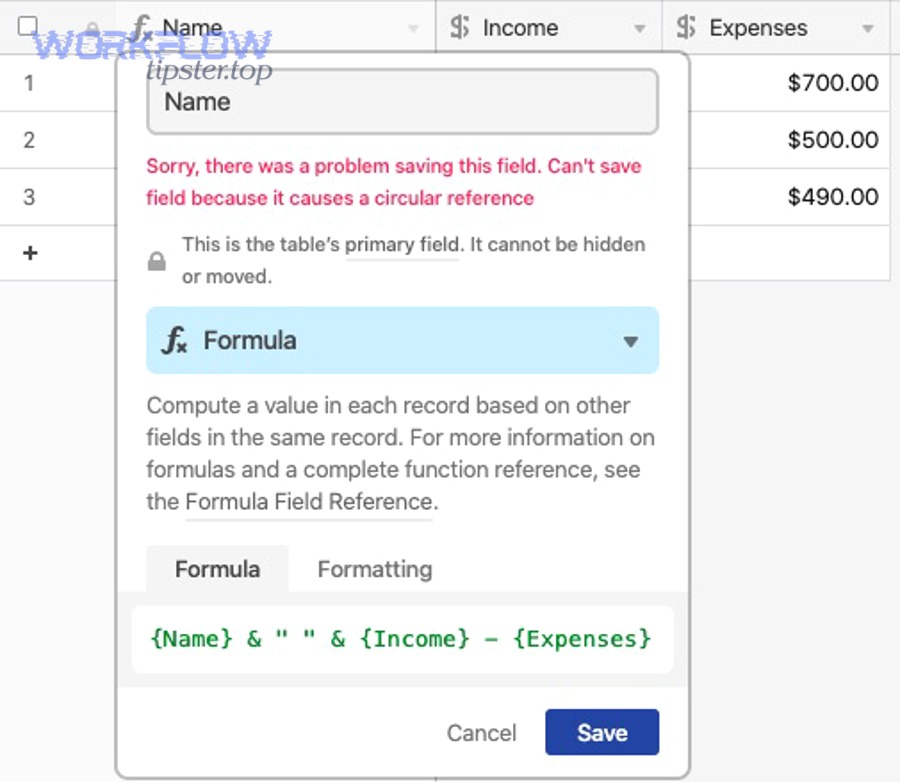
What formula patterns prevent #ERROR and blank-driven failures?
There are 4 guard-rail patterns that prevent #ERROR—presence checks, safe defaults, controlled parsing, and error containment—based on whether the failure comes from missing data, invalid strings, or unsafe math.
For example, if a date might be blank, your formula should say what to do when it is blank. If a numeric string might contain commas, your formula should remove them before converting.
- Presence check: IF({Date Field}, {Date Field}, BLANK()) to prevent operations on empty values.
- Safe default: IF({Amount}, {Amount}, 0) when downstream math requires a number.
- Controlled parsing: convert strings only after normalization (remove symbols/separators first).
- Error containment: design formulas so they return BLANK() or a known fallback instead of propagating errors.
A powerful habit is to keep two outputs: a Typed Output field for automations and a Display Output field for humans.
Should you fix the value at the source field, or in a helper formula field?
Fixing at the source wins for data integrity, fixing in helper fields is best for safe iteration, and a staged approach is optimal for high-risk workflows—based on how many records and integrations depend on the field.
However, automation builders often underestimate how many dependencies a “simple” change can break. A helper field lets you test the new behavior without disrupting existing mappings.
- Fix at source when: the field is clearly wrong (Text storing numbers) and you can migrate carefully.
- Use helper fields when: multiple automations depend on the current format; you need backward compatibility.
- Staged approach: create Clean fields, update automations to use them, then retire old fields.
If you are managing a production base, helper fields are often the fastest path to stability without downtime.
How do you prevent formatting errors in automations (Make/n8n/Zapier-style flows)?
Prevent Airtable formatting errors with a 3-part workflow—normalize values before writes, validate required fields, and control request pacing—so your Make/n8n/Zapier-style automations stop failing due to inconsistent dates, numbers, or currency strings.
Then, treat every integration as a “data contract”: Airtable expects typed inputs; your automation must deliver them consistently, even when upstream systems are messy.
What are the safest normalization rules for dates before sending to Airtable?
There are 5 safest date rules—use ISO format, include time zone for date-time, avoid locale dates, keep date-only truly date-only, and standardize one “truth” zone—based on how parsers interpret ambiguity.
More specifically, these rules prevent the most common automation breakpoints:
- Rule 1: Use YYYY-MM-DD for Date fields.
- Rule 2: Use ISO date-time with Z/offset for Date-Time fields.
- Rule 3: Never send “MM/DD/YYYY” or “DD/MM/YYYY” unless you fully control parsing.
- Rule 4: If you store UTC, store UTC everywhere; convert only for display.
- Rule 5: Decide if “date-only” is a business date (no time) or a timestamp; don’t mix.
These rules turn date handling from guesswork into a predictable pipeline, which is the real goal of automation.
What are the safest normalization rules for numbers and currency before sending to Airtable?
There are 6 safest numeric rules—send typed numbers, remove separators/symbols, standardize decimals, enforce precision, validate empties, and store raw input separately—based on how quickly formatted strings become unparseable.
To begin, stop sending “pretty” values. Send raw values and let Airtable display them nicely.
- Rule 1: Send numbers as numbers (not quoted strings) whenever the tool allows it.
- Rule 2: Strip currency symbols and percent signs before writing.
- Rule 3: Remove thousand separators; keep only digits and one decimal point.
- Rule 4: Decide rounding rules (e.g., 2 decimals for currency) before storing.
- Rule 5: Convert blanks to BLANK() or 0 consistently—don’t mix within the same field.
- Rule 6: Keep “Raw Amount (Text)” for auditing and “Amount (Number)” for logic.
When every number follows the same contract, you stop seeing intermittent failures that only happen “on some records.”
Should you store “formatted strings” (like “Jan 26, 2026” or “$1,234”) in Airtable at all?
No, you generally should not store formatted strings as your main values because (1) they break comparisons and calculations, (2) they fail parsing in integrations, and (3) they lock you into locale-specific display choices that change across users and tools.
However, formatted strings are useful as secondary display fields—for example, a human-readable label, an invoice line description, or a message body for notifications.
- Store typed values: Date/Date-Time/Number/Currency for anything you compute or filter on.
- Store formatted strings: only when the field is intentionally “presentation-only.”
- Best of both: keep a typed field for logic and a formatted field for display.
When you separate “logic fields” from “display fields,” your automations become stable even as your presentation requirements evolve.
What’s the best long-term schema to avoid recurring formatting errors?
A Raw-first schema wins in auditability, a Helper-field schema is best for gradual migration, and a Staging-to-clean schema is optimal for automation reliability—based on whether you prioritize traceability, speed of change, or zero-failure workflows.
More importantly, the best schema is the one that makes “bad inputs” survivable. Your base should not collapse when upstream systems send messy strings or partial values.
Raw data table vs transformed “clean” table: which reduces automation failures?
Raw data tables win for traceability, clean tables are best for workflow execution, and a two-table pipeline is optimal for both reliability and debugging—based on whether your goal is evidence, operations, or end-to-end stability.
To illustrate the two-table pipeline, think of it as a mini ETL system inside Airtable:
- Raw table: store inbound values exactly as received (including messy strings), plus metadata like source system and received timestamp.
- Transform layer: helper fields normalize date/number/currency into typed fields.
- Clean table: only validated, typed values flow here; automations read/write this table.
This design prevents a single malformed date from breaking a mission-critical automation, because raw records can be quarantined while valid records continue flowing.
Contextual Border: Up to this point, you’ve learned how to diagnose, fix, and prevent Airtable date/number/currency formatting errors in real automations. Next, you’ll go beyond the common cases into edge conditions that make “correct-looking” values still fail.
What rare edge cases cause “correct-looking” values to still fail in Airtable automations?
There are 4 rare edge-case categories—ISO variants, daylight saving time shifts, hidden characters, and precision policy mismatches—based on problems that don’t change how a value looks to humans but change how parsers and calculations behave.

Especially in cross-tool workflows, these edge cases appear “random” until you recognize the patterns. Once you do, you can build micro-level safeguards that keep your base reliable at scale.
Which ISO 8601 variants (Z, offsets, milliseconds) commonly break across tools?
There are 4 ISO variants that commonly break—UTC with Z, offset timestamps, fractional seconds, and truncated forms—based on how strictly each tool validates and how it serializes time values.
For example, one tool may emit milliseconds, while another rejects them or rounds them. One may omit seconds, while another assumes seconds. These differences can cause subtle “parse succeeded but value changed” outcomes.
- UTC Z: 2026-01-26T18:30:00Z
- Offset: 2026-01-26T18:30:00-05:00
- Milliseconds: 2026-01-26T18:30:00.123Z
- Truncated: 2026-01-26T18:30Z
A practical stability rule is to pick one canonical format for your workflows (often seconds precision with an explicit Z/offset) and normalize everything into it before writing.
Why do time zones and Daylight Saving Time create off-by-one-day errors?
UTC storage wins for consistency, local-time storage is best for human scheduling, and business-date storage (date-only) is optimal for calendar semantics—based on whether you must preserve absolute time, local intention, or date meaning.
However, off-by-one-day errors happen when you treat a timestamp as a date. A date-time near midnight in one time zone can become the previous/next day in another time zone. Daylight Saving Time amplifies confusion because local clocks jump, which changes the mapping between “local midnight” and UTC.
- Common trap: write a date-time without an offset, then a tool assumes a different zone than Airtable displays.
- Safer approach: store UTC timestamps for event timing, and store a separate Date-only field for “business date.”
- Automation tip: do comparisons in UTC and format for humans at the final notification step.
Can hidden whitespace or non-printing characters cause parsing failures?
Yes, hidden whitespace can cause parsing failures because (1) copied values include invisible characters, (2) CSV exports add non-breaking spaces, and (3) webhook payloads can include unexpected line breaks—so a value looks correct but fails validation.
More specifically, these characters frequently appear when a value passes through multiple systems: spreadsheet exports, email copy/paste, form submissions, or webhook transformations.
- Common offenders: leading/trailing spaces, non-breaking spaces, tab characters, and hidden line breaks.
- Detection method: compare string length, trim aggressively, or temporarily store the raw value in a text field for inspection.
- Prevention: apply trim/sanitize steps in your automation before writing to Airtable.
When you sanitize inputs early, you prevent “mystery records” that break only once every hundred runs.
What’s the safest rounding and precision policy for currency in Airtable integrations?
The safest rounding policy is to store currency as a consistent numeric precision (usually 2 decimals) or as minor units (cents as integers), defined at the system boundary, so every tool calculates and displays the same value without drift.
To better understand why policy matters, consider that different tools round at different moments: some round on input, some round on display, and some keep floating precision internally. When you combine them, totals drift and reconciliations fail.
- Policy A (common): round to 2 decimals before writing; store as Currency or Number.
- Policy B (robust): store cents as integers (e.g., 123456), then format in Airtable for display.
- Policy C (auditable): store raw inbound string + normalized numeric amount + rounding rule used.
Finally, remember that not every “failure” is data. If your workflow pushes requests too fast, you may see errors like airtable webhook 429 rate limit, airtable api limit exceeded, or rejected bursts that look like formatting failures but are actually throughput issues. When that happens, slow down batching, add retries with backoff, and keep your data normalization consistent so you can separate rate errors from true parsing problems.