


Missing fields in an Airtable webhook payload are fixable when you treat the issue as a data-shape problem: the payload is being delivered, but the keys you expect are being omitted, cached, or transformed away before your automation can map them.
Next, you’ll learn what “missing fields” and “empty payload” actually mean in real webhook JSON—so you can stop guessing whether Airtable, your automation tool, or your workflow design is responsible.
Then, you’ll get a practical, repeatable checklist to diagnose and repair the problem fast, plus a clear decision on when to send full fields versus sending only a record ID and fetching the record for consistent data.
Introduce a new idea: once your webhook payload is stable, you can harden the workflow against schema changes, edge cases, and operational issues like airtable timeouts and slow runs—so the fix keeps working as your base evolves.
What does “missing fields” or an “empty payload” mean in an Airtable webhook?
Missing fields or an empty payload means the webhook request arrived, but the JSON body either contains no usable fields object or omits expected keys—often because values are blank, the mapper cached a different sample, or a transform stripped keys.
Next, the fastest way to stop confusion is to define the exact “data-shape” you’re seeing before you change anything else.

What’s the difference between “field is empty” vs “field is missing from the payload”?
A field is empty when the key exists but its value is blank (like “”), null, [], or {}; a field is missing when the key does not exist at all in the JSON.
To illustrate, most automation mappers behave differently depending on whether the key exists:
- Empty (key exists): the destination can often overwrite an existing value (for example, set a CRM field to blank).
- Missing (key absent): the destination often keeps the old value because it never receives an explicit “clear this” signal.
- Null vs empty string: some systems treat null as “unknown” and “” as “intentionally blank,” while others reverse that meaning.
- Falsey values: 0 and false are valid values, but some transformations accidentally drop them when they “remove empty values.”
In Airtable-style workflows, “missing fields” is the more common and more dangerous symptom because your mapping UI might hide the field entirely, making it look like Airtable never sent it—even when the record truly contains data.
What does “Empty Payload = Blank Body” typically look like in raw JSON?
“Empty Payload = Blank Body” commonly shows up in one of these raw patterns:
- {} (literally no content)
- {“recordId”:”recXXXX”} (only an identifier, no fields)
- {“fields”:{}} (fields container exists, but is empty)
- {“data”:{…}} (the fields exist but are nested under a different path than your mapper expects)
These shapes matter because your automation tool can be “successful” at receiving the request while still failing to map anything. That’s why the very first habit in airtable troubleshooting is to inspect the raw incoming request body (not the mapper preview) and write down which of the four patterns you have.
What are the most common causes of missing fields in Airtable webhook payloads?
There are 3 main cause groups of missing fields in an Airtable webhook payload: Airtable-side omissions, automation-tool mapping behavior, and workflow design transformations, based on where the keys disappear.
Then, you can diagnose faster by working from the outside in: raw request → Airtable record reality → mapper schema → transforms.
Which Airtable-side causes commonly remove fields from the payload?
These Airtable-side causes usually result in keys never appearing:
- Blank values are omitted instead of transmitted
Many Airtable API-style outputs drop fields that have no value, which makes “missing” look like “not supported” even when the field exists. - Field renamed or reconfigured
Renaming a field can make downstream mappings look empty because the mapper expects the old name. - Permissions or base access restrictions
A token, automation, or integration may have partial access and return fewer fields than expected. This often surfaces as airtable permission denied in logs or connector errors. - Linked record fields don’t expand the way you expect
Linked records, lookups, and rollups can return IDs or summaries rather than full nested objects, depending on how you fetch data. - Timing: trigger fires before the record is fully updated
In fast sequences (form submit → automation → webhook), the trigger can fire on an intermediate state where fields are still blank.
Which automation-tool causes make fields disappear during mapping?
These causes typically happen after the payload arrives, but before you can map it:
- Schema inference from a single “sample run”
Tools like Make, Zapier, and n8n often learn the structure from one payload. If that sample didn’t include optional fields, the mapper may never show them. - Cached bundles / frozen data model
Rebuilding a scenario or duplicating a Zap can clone a stale schema cache. - Wrong data path selected in the mapper
The payload may be nested under body, data, or payload, but you mapped from a different object that is empty. - Auto-clean steps that remove empty keys
Some “clean JSON” or “remove nulls” steps drop keys you actually needed for overwrite/clear behavior.
Which workflow-design causes create “blank body” symptoms?
Workflow design issues often create the illusion that Airtable “sent nothing”:
- Filters remove records that contain the fields you’re testing
The workflow runs, but only on records where those fields are blank or excluded by conditions. - A transform step rebuilds the JSON incorrectly
A “compose JSON” step may output {} because it references variables that didn’t exist in that run. - The workflow sends only recordId by design
Sometimes you intentionally send only the ID (which is valid), but your next steps assume full fields exist immediately. - Timeouts and partial runs
If a run fails mid-way, you can see partial data or no body forwarded. This is especially common in airtable timeouts and slow runs scenarios.
Is Airtable (or the automation tool) omitting empty/null fields by design?
Yes—missing fields in an Airtable webhook flow are often “by design” because (1) blank values can be omitted from API-style objects, (2) automation mappers infer schemas from non-blank samples, and (3) cleanup/transform steps drop nulls and empty strings.

However, “by design” does not mean “unsolvable,” because you can design your workflow to send stable keys and enforce defaults.
If a field is blank in Airtable, will it appear in the webhook payload?
No, not reliably, and that unpredictability comes from three practical realities:
- Airtable can omit fields with no value
If the platform represents “no value” as “field does not exist in this record object,” you will never see the key. - Your webhook payload may not be the same as a “Get record” response
Some triggers send minimal change info, while “Get a record” fetches the full record state. - Your automation tool may hide fields that were absent in the sample run
Even if Airtable sends the field later, your mapper may not show it until you re-sample or reset the schema.
That means the right question is not “Should it appear?” but “How do I ensure my workflow behaves correctly even when it doesn’t appear?”
Can a webhook run “successfully” while still sending an empty body?
Yes, and it happens for three common reasons:
- HTTP delivery success is not data success
A 200 OK from the receiver means the endpoint accepted the request, not that the JSON contained your expected keys. - The sender posted metadata only
If your step sends only recordId, the body is valid but “empty” from a mapping perspective. - A transform step produced {}
The webhook request can still be delivered perfectly even if the workflow created an empty JSON object.
This is why debugging webhooks always starts with the raw request body, not the “nice view” in the mapper.
Missing fields vs wrong fields: how can you tell what kind of failure you have?
A missing-fields issue is usually a data presence problem, a wrong-fields issue is usually a schema/mapping problem, and a trigger failure is usually an event problem—so each one “wins” in a different diagnostic criterion: payload contents, field identity, and run timing.
Meanwhile, the fastest way to classify your failure is to compare raw JSON, record reality, and mapping UI side by side.
How is “field mapping failed” different from “empty payload”?
“Field mapping failed” is typically a type or schema mismatch, while “empty payload” is typically a lack of keys or values:
- Field mapping failed usually means the key exists, but the tool can’t map it because:
- the field type changed (text → array, single select → object),
- the expected path changed (fields.Name → data.fields.Name),
- the destination rejects the format (string vs number).
- Empty payload usually means:
- the key never arrived,
- fields is {},
- the tool is looking at the wrong node,
- or the workflow intentionally sent only the ID.
A practical test: if you can copy a key name from raw JSON and find it in the mapping UI, it’s likely a mapping failure; if you cannot find the key in raw JSON at all, it’s likely a missing-field problem upstream.
How do “sample data” and “real run data” differ in Make/Zapier/n8n?
Sample data is a single snapshot used to build a schema, while real run data is the live variation across records, and they differ most in three ways:
- Optional fields appear and disappear across records
A single sample cannot represent every record state, so keys that were absent in the sample often won’t show in the UI later. - Empty values get treated differently than populated values
A sample record with all fields filled will make your mapping look perfect, but a real record with blanks can remove keys entirely. - Different runs may traverse different code paths
Filters, routers, conditional steps, and error handlers can create “different payloads” even when you think the workflow is the same.
To fix this, you validate schema against a small test set: one record fully populated, one record half blank, and one record with edge types (attachments, linked records, false/0 values).
What is the fastest step-by-step checklist to fix Airtable missing fields / empty payload?
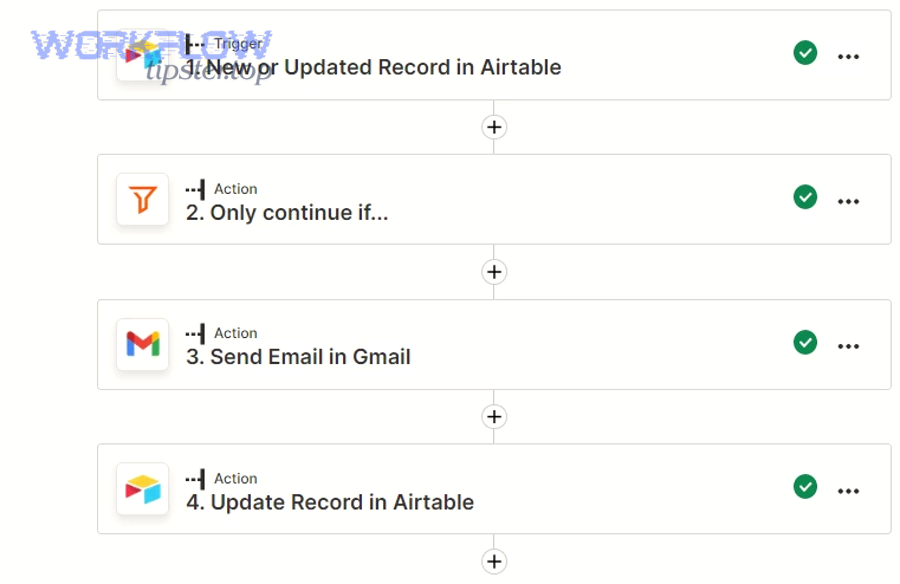
There are 4 steps to fix Airtable missing fields / empty payload: (1) inspect raw webhook JSON, (2) verify the Airtable record state, (3) refresh/lock the automation schema, and (4) normalize values so keys stay stable—resulting in consistent mapping and correct overwrites.
Below, you’ll follow the exact order that reduces guesswork and prevents you from “fixing the wrong layer.”
This table contains a quick symptom-to-cause map so you can choose the shortest path to the root cause.
| Symptom you see | Most likely cause | Fastest confirmation | Most effective fix |
|---|---|---|---|
| {} or no visible JSON body | Compose step output empty, wrong content-type, or wrong node mapped | Check raw request body at the receiver | Rebuild payload from known variables; map correct node |
| {“recordId”:…} only | Workflow intentionally sends ID only | Confirm your send step configuration | Add “Get a record” step after webhook |
| {“fields”:{}} | Trigger fired before fields filled, or record truly blank | Check the Airtable record at run timestamp | Add delay/last-modified guard; re-fetch record |
| Some fields show, optional fields missing | Empty fields omitted; schema inferred from sample | Compare raw JSON across 3 records | Normalize defaults; re-sample schema |
What should you check first in the raw webhook request?
Start by checking four concrete items, in this exact order:
- Do you see any body at all?
If you see {} or nothing, your send step may be generating an empty object. Fixing mapping won’t help until the body contains keys. - What is the content type and encoding?
If the receiver expects JSON but your workflow posts form-encoded data, it can display as “empty” even when data exists. - Where is the data located (path)?
Identify whether fields are at:- fields
- data.fields
- payload.fields
- body.fields
Then map that exact node, not a parent container.
- Does the body contain recordId?
If yes, you have a reliable anchor to fetch the record even when fields are absent.
A strong habit: copy the raw JSON into a note and highlight keys that appear only sometimes. Those “sometimes keys” are exactly what break your mapper.
What should you check inside Airtable before blaming the webhook?
Open Airtable and verify the record state as it existed at the time of the trigger:
- Confirm the fields truly have values
Check if the field is empty, computed, or waiting on another automation. - Check formula and lookup fields
Formula fields can output empty strings, and lookup/rollup fields can lag behind linked record changes. - Review the last modified time and trigger condition
If your trigger is based on “last modified,” it may fire even when only a non-relevant field changed. - Confirm field names and types did not change
A renamed field can look “missing” downstream even if Airtable is fine. - Validate permissions and access scope
If you see airtable permission denied errors, fix permissions first—because partial access can mimic missing fields.
When Airtable is the source of truth, your goal is to confirm a single sentence: “At the moment the webhook fired, this record did/did not have values in the fields I expected.”
What should you change in the automation tool to refresh/lock the schema?
Now fix the “mapper reality,” because many missing-field complaints are schema-cache problems:
- Re-sample using a record that includes optional fields
Choose a record where the field is populated so the key appears in the sample. - Reset cached schema (where supported)
Some tools require you to re-add the module/step or refresh fields explicitly. - Map from the correct JSON node
If your payload is nested, map fields.Name from the right container. - Avoid “auto-clean empty values” until after mapping
If you remove nulls too early, the key never reaches the mapper. - Create a controlled test matrix
Run the scenario with:- one fully populated record,
- one partially blank record,
- one record with 0 and false values.
If your schema becomes stable after re-sampling, you’ve confirmed the problem was not “Airtable didn’t send it,” but “the tool never learned the field exists.”
What transformations prevent empty fields from being dropped downstream?
To keep keys stable and make overwrites reliable, use transformations that convert “missing” into “present but empty”:
- Default/coalesce: if missing, set “”, null, 0, or false intentionally based on destination behavior.
- Explicit object construction: build a fields object that always includes the keys you care about, even if values are blank.
- Type stabilization: ensure arrays are always arrays (empty array is fine), strings are always strings, and booleans are always booleans.
- Falsey-safe checks: avoid logic like “if value then include key,” because it drops 0 and false.
This is the heart of reliable automation: a destination can only clear or overwrite what it receives as an explicit instruction.
According to a study by University of Colorado at Boulder from the Department of Computer Science, in April 2005, researchers reviewed failures across seven open-source distributed systems and found patterns in user-reported failure scenarios—supporting the practice of structured, step-by-step inspection when debugging integration payloads.
What are the best fixes: “Send full fields” vs “Send recordId then fetch record”?
Sending full fields wins for speed, sending recordId then fetching the record wins for consistency, and hybrid designs win for scalability—so the “best fix” depends on which criterion you optimize: minimal steps, stable schema, or reliable overwrites.
More specifically, you choose a fix by deciding whether you want the webhook to be a data carrier or merely an event signal.
When should you send only the recordId and fetch the full record afterward?
RecordId-then-fetch is best when you need maximum reliability:
- You have many optional fields that appear only sometimes.
- You use linked records, lookups, or attachments that are messy in push payloads.
- You need a consistent schema for mapping and for long-term maintenance.
- You want a single “truth fetch” step that always retrieves the latest record state.
This approach treats the webhook as “an alarm bell,” and Airtable as “the database you query for the full facts.”
When is it better to send fields directly in the webhook payload?
Send fields directly when you optimize for speed and simplicity:
- You have few fields and they are usually populated.
- The workflow is low-risk and doesn’t need complex clearing logic.
- You want fewer API calls and less operational overhead.
- Your destination accepts missing fields without keeping stale values.
This approach treats the webhook as “the delivery truck,” where the payload must contain everything needed to act.
Which option is best for clearing values in the destination app?
For clearing values, recordId-then-fetch usually wins because it gives you a full state snapshot, but only if you also apply normalization:
- Problem: if Airtable omits blank fields, your fetch response can still omit keys.
- Solution: after fetching, build a stable object that explicitly sets the destination’s “clear value” representation.
A practical rule:
- If your destination clears fields only when it receives an explicit empty value, you must ensure keys exist—either by explicit object construction or by a destination-side “clear missing fields” strategy.
This is also where “airtable troubleshooting” becomes a discipline: you stop asking “why is it missing?” and start designing “how do I guarantee the destination receives a clear instruction?”
After fixes, how do you verify the problem is truly resolved?
Yes—you can verify the fix is truly resolved when (1) the raw payload shows stable keys across varied records, (2) the mapper consistently exposes the same fields, and (3) the destination correctly overwrites and clears values without manual re-mapping.
Thus, verification is not one test run; it’s a small, deliberate set of tests that proves stability.
Do you see consistent keys across 3–5 test records with different blank fields?
Yes, you should, and you confirm it with three reasons-based checks:
- Consistency check: each run contains the same key set (even if values differ).
- Variation check: blanks do not remove keys; they only change values.
- Path check: the mapped node remains identical across runs (no shifting from fields to data.fields).
A strong test set includes:
- Record A: all fields populated
- Record B: half the fields blank
- Record C: edge values (0, false, empty array)
- Record D: linked record present/absent
- Record E: attachment present/absent
If the keys stay consistent across this set, you’ve solved the root issue—not just masked it for one record.
Do downstream apps receive cleared values when Airtable fields become blank?
Yes, they should, and you confirm it with three outcome checks:
- Overwrite behavior: a populated destination field becomes blank after the Airtable field is cleared.
- No-stale-data behavior: the destination does not keep yesterday’s value when Airtable is empty today.
- Audit behavior: logs show an explicit clear instruction (empty string, null, or empty array) rather than an omitted key.
If clearing doesn’t work, you usually have one of two problems:
- Your keys still go missing when Airtable is blank, or
- Your destination interprets your “blank” representation differently than you assumed.
That’s when you revisit normalization and choose the correct “empty value” convention for the destination.
Contextual Border: At this point, you can reliably stop missing-field/empty-payload issues. Next, we’ll expand into edge cases and long-term hardening so your Airtable → webhook automations stay stable as your base evolves.
How can you harden Airtable webhook payloads against edge cases and future schema changes?
You can harden Airtable webhook payloads by using a 4-part method—stable identifiers, controlled schema changes, edge-type handling, and falsey-safe normalization—so your workflow remains reliable even when fields change, records vary, or operational errors occur.
In addition, hardening turns a one-time fix into a system that resists regression.
What should you do when Airtable field names change but your automation mapping must stay stable?
Treat field changes as a controlled release process:
- Prefer stable identifiers when available
If your tool supports field IDs (or a stable mapping layer), use them instead of names. - Use a “schema contract” checklist before renaming fields
Rename in Airtable → update fetch/mapping step → re-sample schema → run test matrix → deploy. - Add a monitoring record
Keep one “always-populated” test record that includes all optional fields so you can quickly re-sample without hunting. - Document a rollback plan
If a rename breaks production, revert quickly, then fix mapping properly.
This approach prevents the classic trap where renaming a field creates “missing fields” that are really “the mapper is looking for yesterday’s key.”
How do linked records, lookups, and rollups affect what appears in the payload?
Linked records and derived fields change payload predictability because they can vary in structure and freshness:
- Linked records often appear as IDs or arrays rather than expanded objects.
- Lookups and rollups depend on linked record state, which can update after the triggering event.
- Attachments and collaborator fields carry nested structures that some tools flatten incorrectly.
A hardening tactic that works well:
- Use webhook for event notification,
- fetch the record,
- then fetch linked records only if needed,
- and finally build a stable output object for downstream mapping.
This keeps your primary mapping stable while still supporting rich Airtable relationships.
What should you watch for with attachments, long text, and large payload sizes?
Large or complex fields introduce rare-but-real failure modes:
- Payload size issues can cause truncation or rejected requests depending on the receiver limits.
- Attachments can produce arrays of objects, which break destinations expecting strings.
- Long text can amplify runtime and increase the chance of timeouts.
If you see partial payloads or flaky behavior, treat it as an operational constraint:
- switch to recordId-then-fetch,
- only send the fields you truly need,
- and add defensive retries where your platform supports them.
This is also where airtable timeouts and slow runs becomes more than a performance issue—it becomes a data integrity risk when partial processing leads to missing fields downstream.
How do you handle “falsey” values (0/false/empty string) so they aren’t treated as missing?
Falsey-safe normalization is the simplest high-impact hardening move:
- Never use “truthy checks” to decide whether to include a key
Avoid logic like: “if value exists, include field,” because it drops 0 and false. - Use explicit existence checks
Check whether the key exists, not whether the value is truthy. - Standardize empty representations per destination
Some destinations clear on null, others clear on “”, others require an explicit empty array. - Protect permission and access flows
If your logs ever show airtable permission denied, fix access first, because missing fields caused by permissions can look identical to missing fields caused by blanks.
When you combine falsey-safe normalization with controlled schema changes, your webhook payload becomes predictable—even as records vary and the base grows.