


A microsoft teams timezone mismatch happens when Teams shows meeting times, message timestamps, or scheduling details in the wrong time zone, so the same event appears shifted by an offset (often 1–12 hours). The fastest path is to confirm the “source of truth” (device, OS, Outlook/Exchange, or tenant policy) and then align every layer to one consistent zone.
In Microsoft Teams Troubleshooting, this specific issue rarely has one single cause. It is usually a chain: an incorrect OS time zone, an “auto time zone” toggle misbehaving, a mailbox time zone mismatch, or an integration that sends the wrong offset or uses ambiguous date-time formatting.
Beyond meeting times, time zone mismatches can break automations: reminders run early/late, scheduled messages drift, and workflows create calendar items at the wrong local time. That is why you should validate both the user experience (UI) and the backend representation (UTC + offset + time zone ID) before changing settings.
To move from symptoms to root cause without guesswork, follow a layered approach: confirm what you see, identify which layer owns the wrong time zone, fix that layer first, then re-check Teams, Outlook, and any automation that depends on their timestamps. To introduce a new idea, the next section starts with a precise definition and the most common causes.
What is a Microsoft Teams timezone mismatch, and where does it originate?
A Microsoft Teams timezone mismatch is a time display or scheduling offset caused by inconsistent time zone settings between Teams, the operating system, and the mailbox/calendar system. To begin, treat it as a synchronization problem across multiple “time authorities,” not a single UI bug.

More concretely, Teams can be influenced by several layers that each store time differently:
- Device layer: Windows/macOS/iOS/Android time zone, automatic time detection, daylight saving settings, and clock drift.
- Identity layer: tenant policies, regional settings, and user profile settings that may affect localization.
- Mailbox/calendar layer: Outlook/Exchange time zone, calendar event metadata, and how recurring meetings are anchored.
- Integration layer: workflows and APIs that pass timestamps in UTC, local time, or time zone-aware formats.
Specifically, the mismatch often shows up when one layer uses UTC and another uses local time without a correct offset, or when the time zone ID differs (for example, a device set to one city while the mailbox is anchored to another).
Next, you should recognize that Teams is not “one calendar.” Teams meeting scheduling typically relies on the same underlying calendar infrastructure used by Outlook/Exchange, so a “correct in Outlook, wrong in Teams” scenario often points to client localization or cached settings, while “wrong in both” often points to mailbox or device configuration.
Which symptoms reliably confirm the mismatch (meetings, chat timestamps, and reminders)?
Yes—you can confirm a timezone mismatch in Teams by comparing the same event across at least three surfaces (Teams calendar, Outlook calendar, and the meeting invite details), then validating the device time zone. Next, apply these checks in order to isolate the failing layer.
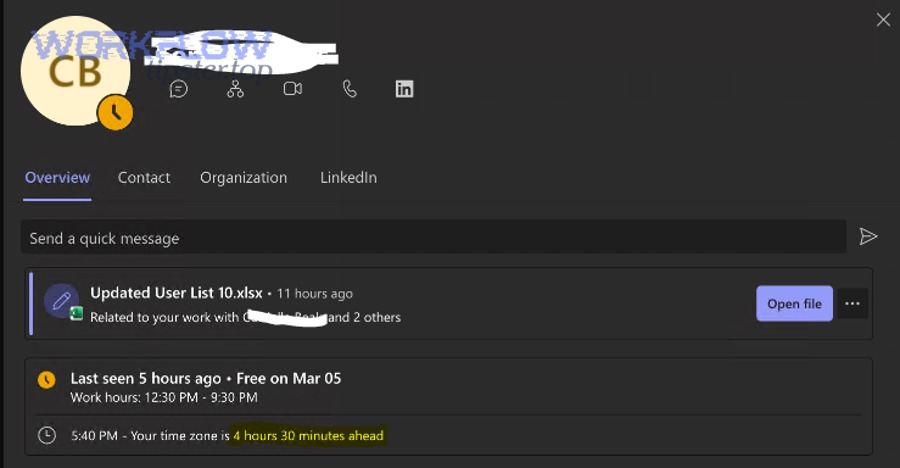
Meeting start time differs between Teams and the invite details
If the Teams calendar tile shows one time but the invite details or the Outlook event shows another, the mismatch is likely in client localization or cached configuration. Next, confirm whether the difference equals a fixed offset (for example, exactly 1 hour suggests daylight saving or a nearby zone).
To illustrate, open the meeting details and look for explicit time zone labels. If the invite shows a time zone abbreviation and Teams displays a different one, you have proof the display layer is interpreting the same underlying event differently.
Chat message timestamps appear “in the future” or “in the past” by a consistent offset
If chat timestamps are consistently shifted, the device time zone or OS localization is usually incorrect. Next, check whether other apps (browser-based email, calendar, or system clock) share the same offset, which indicates the problem sits below Teams.
More specifically, if Teams in the browser shows correct timestamps but the desktop app does not, that points to a desktop client or OS setting issue. Conversely, if both browser and desktop show the same wrong time, the device layer is the primary suspect.
Notifications and scheduled messages fire early/late
If reminders fire at the wrong local time, the integration layer or scheduling engine may be using UTC without correctly converting to local time. Next, examine whether the schedule was created by a workflow, a connector, or a user action from a different time zone.
In practice, this happens when a tool stores “9:00” as a floating time without a zone ID, then replays it as UTC or in the tenant default zone rather than the user’s zone.
Recurring meetings drift after a daylight saving change
If recurring meetings shift by one hour after a DST boundary, the event may be anchored to a different zone than the attendee expects. Next, verify whether the meeting was created in a different region, then check the mailbox time zone that owns the series.
In other words, DST problems are rarely random; they follow a calendar rule that is correct for one time zone but wrong for another.
How do you fix timezone mismatch on Windows and macOS Teams desktop?
The most effective fix is to correct the operating system time zone first, then restart Teams and clear stale session state if needed. Next, verify that Teams, Outlook, and your device clock all agree on zone, offset, and daylight saving behavior.

Windows: align time zone, automatic time, and location-based time zone
On Windows, set the correct time zone, enable automatic time where appropriate, and ensure location services are not forcing the wrong region. Next, restart Teams completely (quit from the system tray) so the client reloads localization settings.
- Step 1: Confirm the displayed time zone in Windows settings matches your actual region.
- Step 2: If “Set time zone automatically” is enabled, toggle it off and on to force a refresh when the zone is stuck.
- Step 3: Confirm the system clock is accurate; if it drifts, verify time sync is enabled.
To be precise, if the machine is on a corporate network or VPN, time zone detection may be influenced by policy or location signals. In that case, a correct manual setting is often more stable than automatic detection.
macOS: validate time zone, location services, and calendar region
On macOS, correct the time zone and ensure location services are allowed to set time zone if you rely on automatic detection. Next, restart Teams and confirm the macOS Calendar app and Outlook (if installed) show the same meeting time.

- Step 1: Set the correct time zone in macOS system settings.
- Step 2: If “Set time zone automatically using current location” is enabled, confirm location permissions are not blocked.
- Step 3: Check region/format settings if date and time parsing appears inconsistent.
More concretely, macOS region settings can influence how date-times are rendered and interpreted (for example, day/month ordering), which can create the appearance of “wrong times” when the real issue is formatting rather than the time zone itself.
Teams client reset: reduce cache-based localization surprises
If OS settings are correct but Teams still shows the wrong time, a client reset can remove stale localization or cached calendar metadata. Next, sign out of Teams, quit the app, and sign in again to reload profile and regional settings.
In day-to-day operations, a disciplined sequence avoids false positives: fix OS time zone, restart, validate in browser, then reset the desktop client only if the mismatch persists.
How do you fix timezone mismatch on iOS and Android Teams mobile?
On mobile, the fix is to ensure the phone’s time zone and automatic time settings are correct, then force-close and reopen Teams to re-read system time. Next, verify that the same meeting appears at the same time in the device calendar and in Teams.

iOS: focus on “Set Automatically” and travel edge cases
On iOS, enable “Set Automatically” for date/time unless you have a specific reason not to, and ensure the correct time zone is being detected. Next, check whether you recently traveled or switched SIMs, which can temporarily confuse time zone detection.
More specifically, if you see a mismatch only when crossing time zones, the phone may be slow to update location-based time, while the calendar service updates immediately. Rebooting the device or toggling automatic time can force a refresh.
Android: confirm network time, time zone, and battery optimization
On Android, ensure automatic date/time and automatic time zone are enabled, and confirm the network-provided time is accurate. Next, review battery optimization settings that might delay background sync, making events appear inconsistent until a refresh.
To illustrate, an Android device can show the correct current clock while Teams still uses cached calendar data until the app regains background permissions or is reopened after a system update.
Mobile validation pattern: three-way comparison
The most reliable mobile validation is a three-way comparison: Teams calendar, device calendar, and the meeting invite details. Next, if one differs, focus on the layer that owns that surface rather than changing everything at once.
- If Teams differs but device calendar matches the invite, reset or reinstall Teams.
- If device calendar differs but invite is correct, fix OS time zone or calendar account settings.
- If invite differs across attendees, investigate the organizer mailbox time zone and recurrence rules.
How do you align Teams with Outlook/Exchange so meeting times match everywhere?
You align Teams and Outlook by ensuring the mailbox time zone and calendar settings are correct, then confirming that meeting series are created with the intended time zone. Next, re-check recurring meetings because they are the most likely to “lock in” a wrong zone.

Start with the organizer mailbox, not the attendee device
If many attendees see the same wrong time, the organizer mailbox settings are often the true source. Next, validate the organizer’s calendar time zone and ensure their device is not creating meetings while set to the wrong region.
More concretely, one organizer scheduling from a laptop configured to the wrong zone can create a meeting series that is “correct” per that wrong zone, and everyone else receives consistent—but incorrect—local conversions.
Fix recurring meeting series by recreating when the time zone is wrong
If a recurring series is anchored to the wrong time zone, editing a single occurrence may not correct the underlying rule. Next, recreate the series after fixing the organizer’s mailbox and device zone to ensure the recurrence pattern is anchored correctly.
To be explicit, this is especially important around DST boundaries, where an incorrect anchor can produce a one-hour shift that persists even after client settings are corrected.
Validate across clients: Teams desktop, Teams web, Outlook web, Outlook desktop
Different clients can reveal different layers of the same problem. Next, compare the same meeting in Teams web and Outlook web, because browsers reduce the influence of desktop app caches and can help you localize the issue.
In operational terms, if Outlook web and Teams web agree but the desktop apps do not, a client-side cache/reset path is justified. If the web clients disagree, focus on mailbox and tenant configuration.
How do you fix timezone mismatch in automations, APIs, and integrations?
You fix automation-related timezone mismatch by standardizing on UTC for storage, using explicit time zone IDs for display and scheduling, and ensuring every workflow step converts time correctly. Next, verify how timestamps are serialized and parsed at every boundary.

Prefer “time zone-aware” timestamps over floating local times
Avoid storing “9:00 AM” without a date, offset, and zone ID. Next, store an ISO 8601 timestamp with explicit offset (for example, including “-05:00”) and keep the intended time zone as a separate field when possible.
Specifically, workflows that trigger on a schedule should calculate “next run” based on an authoritative time zone, not on the server’s locale or a default tenant setting.
Audit conversions at boundaries: trigger, mapping, and action steps
The most common integration failure is correct time at the trigger but incorrect conversion during field mapping or API calls. Next, log the raw timestamp at each step (input, transformed value, final payload) to find where the offset is introduced.
To illustrate, if your workflow reads a calendar event time as UTC but writes a reminder time as local without conversion, the reminder will drift by the exact offset between UTC and local time.
Use explicit time zone configuration in scheduler modules
If your scheduler supports a “time zone” parameter, set it deliberately rather than relying on defaults. Next, document that choice so the behavior remains stable during server migrations, container moves, or regional hosting changes.
In a practical Microsoft Teams Troubleshooting playbook for integrations, the goal is consistency: one canonical time representation (typically UTC), one explicit user-facing zone, and a clear conversion step that is easy to test.
Watch for authentication-driven failures that look like time bugs
Sometimes “wrong time” is a symptom of missing or partial data due to authentication or permissions, not a conversion issue. Next, confirm that the integration has access to the event metadata it needs before blaming time zones.
For example, an integration might silently fail to read attendee or calendar properties because of microsoft teams permission denied, then substitute defaults that appear as incorrect times. Similarly, when a connector stops refreshing, microsoft teams oauth token expired conditions can cause stale cached events to be reused, creating confusing apparent “time shifts” that are actually data freshness problems.
How do you prevent Microsoft Teams time zone mismatch from returning?
You prevent recurrence by enforcing consistent device time settings, standardizing mailbox time zones, and operationalizing verification checks after travel, OS updates, or policy changes. Next, adopt a lightweight monitoring checklist so issues are detected before they impact meetings.

Standardize on automatic time with guardrails
For most users, automatic date/time and automatic time zone reduce error risk, provided location services and corporate policies are compatible. Next, define when manual time zones are permitted (for example, kiosk devices or fixed-location conference rooms).
In other words, automatic time is effective when it is reliable; if your environment frequently blocks location detection, a documented manual standard may be safer.
Document a “known-good” validation after major changes
After OS updates, VPN changes, device re-imaging, or travel, run a quick validation: check system time zone, confirm a known meeting time in Teams and Outlook, and validate a reminder. Next, only escalate to client resets after these basics are confirmed.
This prevents the common operational failure of “reset everything” that masks the true cause and makes future incidents harder to diagnose.
Make time zone explicit in automation design standards
If you build workflows, define a standard: store UTC, display local, always log conversions, and never assume server locale equals user locale. Next, encode these rules into reusable modules so new scenarios inherit correct behavior.
In mature environments, this is part of routine microsoft teams troubleshooting discipline: time is a data type, not a string, and it deserves an explicit schema.
Train support teams to triage by layer
A tier-1 triage checklist should identify whether the issue is device, client, mailbox, or integration related. Next, require evidence (screenshots of time zone settings, side-by-side meeting times, and whether Teams web differs from desktop) before escalating.
Tóm lại, the fastest fixes come from controlling the order of operations: confirm, isolate, correct the owning layer, then verify across surfaces.
At this point, you have covered the core layers that cause a microsoft teams timezone mismatch and established a repeatable diagnostic flow. Next, the following section focuses on rarer edge cases that can still create offsets even when standard settings look correct.
Advanced edge cases that still cause offsets even after “basic fixes”
Advanced time shifts usually come from DST boundaries, virtualized desktops, cross-tenant organizer rules, or mixed client behaviors that hide which layer is authoritative. Next, use these edge-case patterns to reduce trial-and-error when the usual steps do not work.

Daylight saving boundaries and meetings created in different regions
If meetings shift by one hour only around DST transitions, the recurrence may be anchored to a time zone with different DST rules than the attendee expects. Next, identify the organizer region and recreate the series after correcting the organizer mailbox time zone.
Cụ thể hơn, even “neighboring” time zones can have different DST calendars in some years, so the offset can appear temporarily and then disappear, making it seem intermittent when it is actually rule-based.
VDI, profile containers, and “sticky” time zone state
In virtual desktops, the session may inherit a host time zone or apply it inconsistently across profiles. Next, validate time zone at the host, at the VDI session, and inside the user profile, then retest Teams web to separate client cache from session configuration.
To illustrate, if Teams web is correct but the VDI-installed Teams client is wrong, you likely have a session or profile-container localization persistence issue rather than a tenant-wide problem.
Guest users, cross-tenant organizers, and conflicting calendar anchors
Cross-tenant meetings can expose differing defaults: the organizer tenant may anchor the meeting in one zone while the guest tenant renders it differently. Next, rely on the invite details and Outlook web to confirm the authoritative time, then validate the organizer mailbox configuration.
Quan trọng hơn, when investigating cross-tenant issues, treat it as a data contract problem: the event must carry explicit time zone metadata so each tenant can convert reliably.
FAQ: common questions users ask during timezone incidents
Why does Teams web look correct but Teams desktop looks wrong? Typically the browser renders time using the browser/OS locale, while the desktop app may rely on cached localization or a stale profile state. Next, sign out, quit, and relaunch before clearing caches.
Why do only automated reminders run at the wrong time? Automations often store times in UTC and must convert to local for user-facing actions. Next, log the raw timestamp and the converted value at every workflow step to find where the offset is introduced.
When should I escalate beyond standard fixes? Escalate when you have evidence that OS time zone is correct, Outlook web and Teams web disagree, or cross-tenant meetings show inconsistent conversions. Next, collect organizer mailbox details and the exact offset pattern to accelerate resolution.