A Google Sheets webhook 401 Unauthorized almost always means your request reached the endpoint but arrived without acceptable credentials (or with credentials Google can’t validate), so the call is treated as unauthenticated. The fastest fix is to confirm which component is the “resource server” (Apps Script Web App vs. Sheets API) and then attach the correct OAuth token in the correct place.
To resolve it reliably, you need to identify whether your webhook flow is receiving events (Sheets-to-you) or writing to Sheets (you-to-Sheets), then validate the auth expectations of that receiver—especially deployment permissions for Apps Script or OAuth scope/audience for the Sheets API.
You’ll also want to separate “bad credentials” from “insufficient permission,” because 401 and 403 often look similar but require different fixes: 401 = prove identity, while 403 = identity is known but not allowed.
Introduce a new idea: once you fix today’s 401, you should harden the flow so it stays fixed—token refresh, idempotency to avoid duplicates, and monitoring that flags auth drift before it breaks production.

Is a Google Sheets webhook 401 unauthorized always an authentication problem?
No—a Google Sheets webhook 401 unauthorized is usually an authentication problem, but it can also be a credential-delivery or token-validation problem, such as missing headers, wrong audience, or a receiver that demands a different auth mode. The three most common reasons are (1) no OAuth bearer token was sent, (2) a token was sent but it’s expired/invalid for the target, and (3) the receiver is configured to require identity that your caller cannot provide.
To reconnect this to your error, the key is to decide what “authentication” means in your exact setup and then verify it step-by-step, starting with the request headers and the receiver’s access policy.
Does 401 mean your webhook URL is wrong?
No—401 rarely means the URL is wrong; it usually means the URL is reachable and responding, but the server refuses to accept your request without valid credentials. A wrong URL more commonly produces 404 (Not Found) or 400 (Bad Request) depending on routing and validation.
Then, to narrow it down, inspect the response body: if it includes wording like “Login Required,” “Invalid Credentials,” “Missing Authentication,” or “Request is missing required authentication credential,” you are in a credential problem—not a routing problem.
- Wrong URL symptoms: 404, DNS errors, TLS handshake failures, or an HTML “not found” page.
- Auth symptoms: 401 with JSON error payloads, WWW-Authenticate headers, or Google-style error messages.
- Permission symptoms: 403 with “insufficient permissions” or “caller does not have permission.”
Can a valid URL still return 401 because of missing credentials?
Yes—a valid URL can still return 401 if your request does not include the credentials the receiver expects, even if the endpoint is correct and online. This is especially common when a webhook sender only supports “header-based secrets” but your endpoint expects OAuth, or when a proxy/automation layer drops the Authorization header.
Next, treat this like a delivery check: confirm the Authorization header survives every hop (client → proxy → receiver) and is not being rewritten or stripped by security middleware.
- Verify Authorization: Bearer <token> is present on the final request that reaches the server.
- Confirm the token is not being sent in a query string (many systems reject it for security).
- Check whether your receiver expects an API key, a shared secret, or a JWT instead of OAuth.
Is 401 different from 403 for Google Sheets webhooks?
Yes—401 is “who are you?” while 403 is “you’re identified, but you’re not allowed”. The practical difference is what you fix first: 401 pushes you to send valid credentials; 403 pushes you to grant the identity the right permissions (sharing the spreadsheet, adding scopes, or changing IAM/Workspace policies).
To make this actionable, your debug order should be: first make the receiver recognize the caller (eliminate 401), then grant the recognized caller the necessary access (eliminate 403).
What does 401 unauthorized mean in a Google Sheets webhook context?
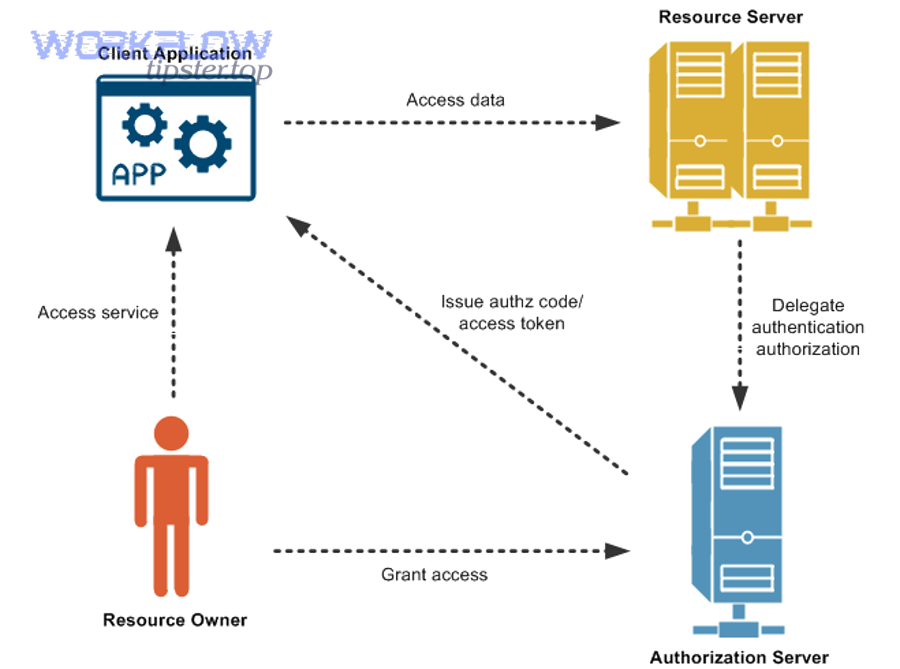
401 unauthorized in a Google Sheets webhook context means the system protecting the target resource (Sheets data, an Apps Script endpoint, or a gateway in front of it) cannot validate your identity based on the credentials supplied. In practice, the server is telling you: “I cannot authenticate this request, so I can’t evaluate permissions at all.”
Specifically, you should interpret 401 as an “authentication handshake failure,” and then validate the authentication mechanism end-to-end.
What is the difference between authentication and authorization for Sheets?
Authentication proves who the caller is (a user, service account, or app identity), while authorization determines what that identity can do (read a spreadsheet, append a row, update a range). For Google Sheets API calls, authentication is typically OAuth 2.0; authorization is enforced through scopes plus resource-level sharing and policies.
Then, to connect it back to 401, remember: if authentication fails, Google can’t even reach the authorization stage—so you’ll see 401 before you ever see a “permission denied” 403.
- Authentication inputs: OAuth access token, JWT assertion, signed identity token, client credentials flow, or Apps Script session context.
- Authorization inputs: OAuth scopes (least privilege), spreadsheet ACL/sharing, Workspace admin policies, and API method-level permissions.
Which headers and tokens does Google expect?
For direct Sheets API calls, Google typically expects an OAuth 2.0 access token delivered in the HTTP header Authorization: Bearer <token>. For Apps Script Web Apps, the expectation changes: many deployments use Google’s built-in account gate (user must be signed in), or you implement your own verification (shared secret or signed JWT) inside doPost.
Next, align your webhook sender with your receiver: if the sender can’t attach an OAuth header, you must either change the receiver to accept a compatible signature/secret or insert a middleware service that can attach OAuth on behalf of the sender.
- Bearer access token: best for Sheets API calls from a backend you control.
- Service account JWT → access token: best for server-to-server jobs and many webhook relays.
- Custom signature/secret: best when the sender supports only shared-secret verification.
What does a typical 401 response look like?
A typical 401 response includes an HTTP status of 401 and often a JSON payload describing missing or invalid credentials. You may also see authentication-related headers (for example, “WWW-Authenticate”) depending on the gateway or framework in front of your endpoint.
To move from symptoms to root cause, log both the status code and the receiver’s error payload, and also log whether the incoming request contained the Authorization header at all.
What are the most common causes of Google Sheets webhook 401 unauthorized?
The most common causes are (1) using the wrong auth method, (2) sending an expired/invalid token, and (3) misconfiguring the receiving endpoint’s access rules. In webhook-style automations, the hidden killer is often an intermediate tool that silently removes auth headers or rotates tokens without updating the caller.
To diagnose efficiently, treat the problem like a chain: sender capability → transport integrity → receiver expectation → token validity.
Are you using an API key instead of OAuth 2.0 for write actions?
Yes—this is one of the fastest paths to 401: an API key is not a user/service identity and often won’t authorize write operations for protected Sheets data. Even when an API key is accepted for some public reads, writes typically require OAuth-based identity and user consent or service account authority.
Next, replace the API key approach with OAuth 2.0 (user-based) or a service account flow (server-based), and confirm the scope matches the write method you’re calling.
Is your OAuth access token expired, missing scopes, or for the wrong audience?
Yes—expired tokens, incorrect scopes, or wrong audience/issuer commonly produce 401. An expired token is straightforward; missing scopes can sometimes surface as 403, but depending on the gateway and validation layer, you may still see 401-like behavior when the token cannot be accepted for the requested resource server.
Then, validate token basics first (expiration time, issuer, audience), and only after that validate scopes and resource access.
- Confirm the token is freshly minted or properly refreshed.
- Confirm the token is intended for Google APIs (correct issuer) and not an ID token mistaken as an access token.
- Confirm the scope includes Sheets access appropriate to the operation (read vs write).
Are you calling an Apps Script Web App without the right deployment access?
Yes—Apps Script Web Apps can return 401 when the deployment requires a signed-in user or restricts who can access the app. If your webhook sender is a server or tool that cannot complete an interactive Google sign-in, the request will fail even if the URL is correct.
Next, decide whether Apps Script should be “publicly callable with your own verification” or “Google-account gated.” If it’s account-gated, most external webhook senders will fail; if it’s publicly callable, you must implement verification yourself.
Is the request being stripped by a proxy or automation tool?
Yes—some proxies, low-code automations, and security gateways remove the Authorization header by default or only allow specific headers. That makes your request arrive “naked,” resulting in 401 even though your client thinks it sent the token.
Then, confirm the final request at the receiver (server logs) rather than trusting the sender UI. This is a core step in google sheets troubleshooting when auth failures look intermittent.
Which authentication method should you use for Google Sheets webhooks?
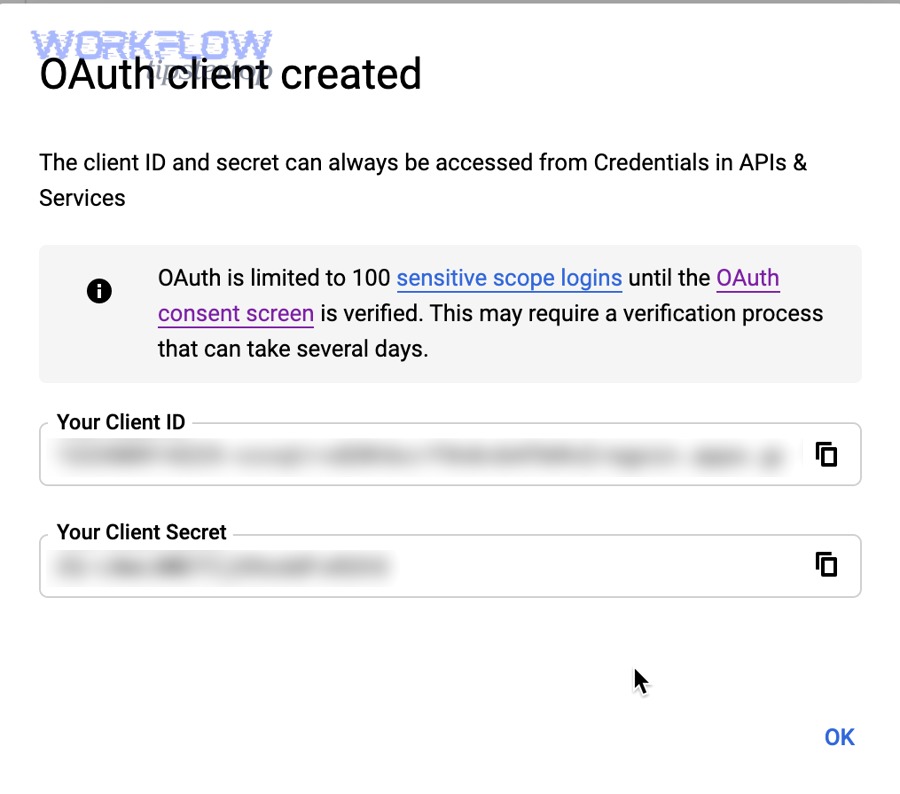
OAuth 2.0 is the default best choice for Google Sheets operations, but the “right” method depends on whether you control the caller and whether you need user-level access or server-level automation. The three most common choices are (1) user OAuth (3-legged) for user-owned sheets, (2) service accounts (2-legged) for server-to-server automation, and (3) Apps Script as a receiver with custom verification when webhook senders can’t do OAuth.
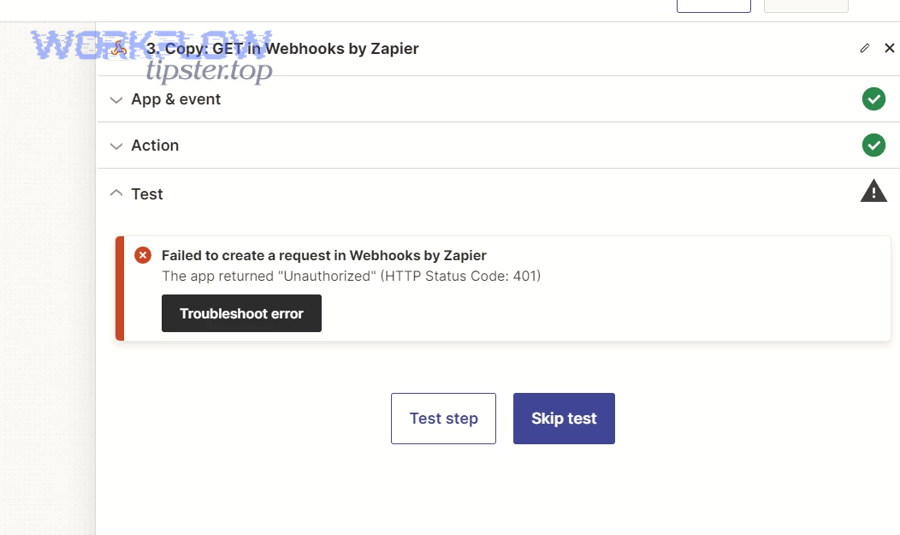
Next, pick the method that matches your system constraints, then design for least privilege and stable operations.
When is OAuth 2.0 (3-legged) the right choice?
Use 3-legged OAuth when your integration acts on behalf of a human user and needs access to that user’s spreadsheets, especially in multi-tenant apps where each customer must grant consent. This is the standard flow for SaaS tools that connect to a user’s Google Drive and Sheets.
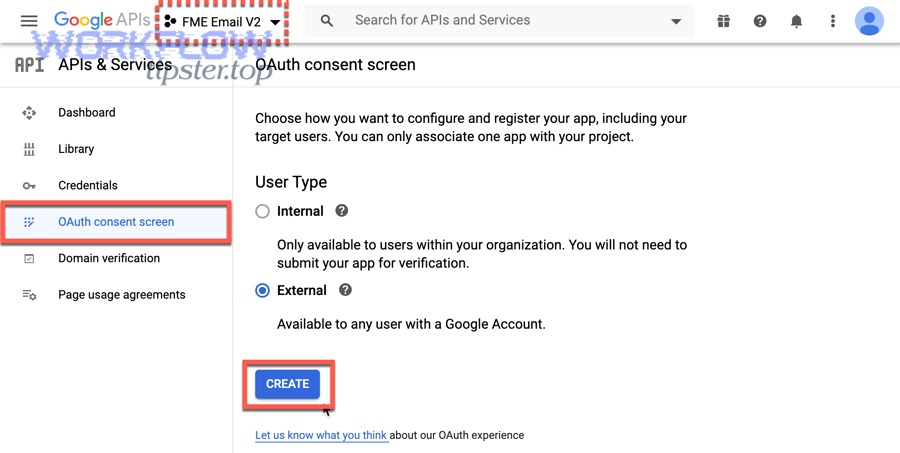
Then, focus on: correct consent screen setup, correct redirect URIs, secure storage of refresh tokens, and requesting the minimal scopes needed.
When should you use a service account (2-legged)?
Use a service account when a backend service needs consistent access without interactive user login, such as scheduled jobs, internal automations, or a webhook relay service that writes to a controlled spreadsheet. The key requirement is that the spreadsheet must be shared with the service account (or be created/owned in a way the service account can access).
Next, treat service accounts like high-privilege robots: lock them down, scope them narrowly, and avoid using them for user-specific data unless your domain model explicitly supports it.
When is Apps Script as the receiver the simplest approach?
Apps Script is simplest when you want a lightweight HTTP endpoint that runs close to Google Workspace and you prefer to do Sheets writes using Apps Script services or the Sheets API from inside the script. It can reduce infrastructure, but you must be deliberate about how external callers authenticate to the script.
Then, choose one of two patterns: (1) make the Web App accessible to anyone and verify a shared secret/signature in doPost, or (2) restrict access to signed-in users (which breaks most third-party webhook senders).
What should you avoid: API key, Basic Auth, or embedding tokens in URLs?
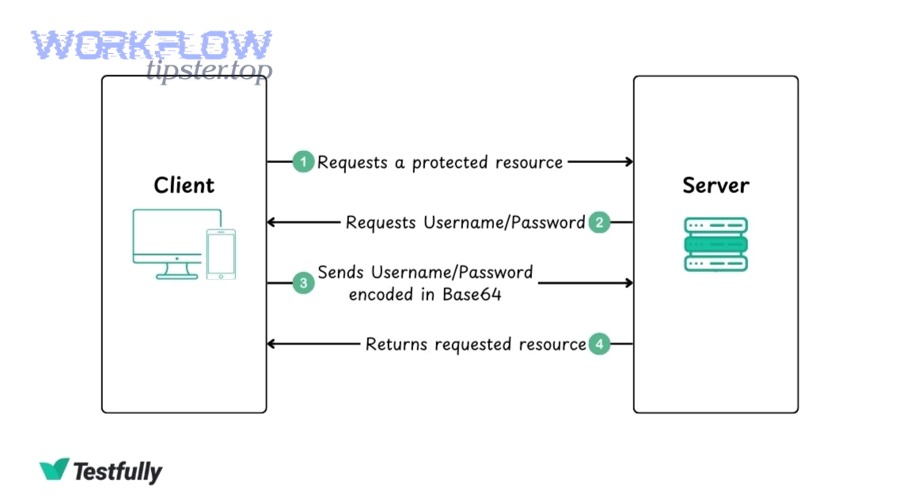
Avoid API keys for write automation, avoid Basic Auth for modern Google integrations, and never embed tokens in URLs. Tokens in URLs leak via logs, referrers, and browser history; Basic Auth encourages static credentials; API keys do not represent a user or delegated identity for protected resources.
Next, standardize on header-based bearer tokens or signed requests, and keep secrets out of anything that can be logged by intermediaries.
How do you fix Google Sheets webhook 401 unauthorized when your receiver is Apps Script Web App?
Fixing 401 for an Apps Script Web App usually requires aligning deployment access with how your webhook sender works, then implementing a verification method the sender can actually supply. The fastest stable approach is: set the Web App to allow access and then verify a secret/signature inside doPost, while using Apps Script to perform Sheets operations with the script’s own privileges or OAuth service.
Then, make debugging concrete: log the request headers you receive, log your verification decision, and return explicit error messages for missing credentials.
How should you configure the deployment: Execute as and Who has access?
You should configure “Execute as” and “Who has access” based on whether the caller can sign in. If your webhook sender is an external system (CI tool, payment gateway, form provider), it cannot complete Google sign-in, so “Only myself” or “Users in domain” frequently leads to auth failures.
Next, choose a configuration that supports automation: allow access to anyone (or anyone with the link) and enforce your own verification logic in code, so the caller doesn’t need to log in.
- Execute as: choose the script owner or a dedicated service account-like owner if appropriate.
- Who has access: prefer “Anyone” for webhook senders, then verify a secret in the payload/headers.
- Least privilege: limit what the script can do and restrict spreadsheet access to only what you need.
How do you pass credentials to Apps Script safely?
Pass credentials as a shared secret header or an HMAC signature, not as a query string token. Many webhook tools support adding a header like X-Webhook-Secret or signing payloads; Apps Script can read headers from the event object and validate them.
Then, rotate secrets periodically and store the current secret in Apps Script Properties, not hard-coded in your script.
- Use Script Properties to store secrets.
- Prefer HMAC signatures over raw shared secrets when supported.
- Reject requests missing the header immediately with a clear 401 response.
How do you validate the incoming request signature or secret?
Validate by comparing a computed signature (or a constant-time secret match) before performing any Sheets writes. This prevents unauthorized callers from triggering actions and keeps your webhook endpoint safely callable from external systems.
Next, incorporate replay protection: include a timestamp and a nonce in the signed payload, and reject requests that are too old or re-used.
| What this table contains | Why it matters for 401 | Practical rule |
|---|---|---|
| Shared secret header | Proves the sender knows a secret | Reject if missing or incorrect |
| HMAC signature | Proves integrity + authenticity | Recompute and compare signatures |
| Timestamp/nonce | Prevents replay attacks | Reject stale or duplicated requests |
How do you log and debug doPost for 401?
Log the minimal, safe diagnostic signals: header presence, verification result, and request IDs, without logging secrets or full tokens. Apps Script logs let you confirm whether the request arrived with the expected headers and why your code returned 401.
Then, add structured outputs: return JSON with an error code like missing_secret or invalid_signature so you can see exactly which condition failed.
According to a study by University of Stuttgart from the Institute of Information Security, in 2016, formal analysis of OAuth 2.0 showed that subtle configuration and flow mistakes can enable attacks even when implementations appear “mostly correct,” reinforcing the need for strict validation and correct endpoint assumptions.
How do you fix Google Sheets webhook 401 unauthorized when you call the Sheets API directly?
Fixing 401 when calling the Sheets API directly is usually about issuing the right OAuth token and attaching it correctly: request the right scopes, obtain a valid access token (user OAuth or service account), send it as a Bearer token header, and refresh it automatically before it expires.
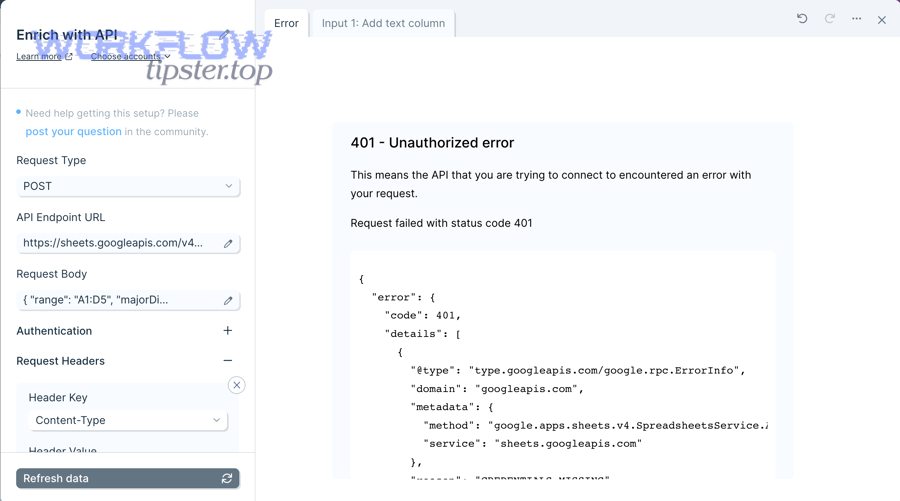
Next, verify the basics in order: token present → token valid → scopes correct → spreadsheet accessible to that identity.
How do you request the correct OAuth scopes for the Sheets API?
Request scopes that match your operation: read-only scopes for reading, and broader scopes for updates/appends. If your webhook writes rows or updates ranges, your token must include a write-capable Sheets scope; otherwise, you’ll get failures that can appear as auth errors depending on how your client handles them.
Then, apply least privilege: request only what you need to reduce consent friction and lower the blast radius if a token leaks.
- Read only: prefer read-only scope when you never write.
- Write/update: request write-capable scope only for endpoints that truly need it.
- Drive access: add Drive scopes only if you must discover files or manage permissions.
How do you attach the Bearer token correctly in the Authorization header?
Attach the access token as an HTTP header exactly as “Authorization: Bearer <access_token>”. Many 401 issues come from formatting mistakes (missing “Bearer”, extra quotes, whitespace, or sending an ID token instead of an access token).
Next, confirm your HTTP client really sent the header (not just configured it), and confirm any intermediary did not drop it.
How do you use service accounts and share the spreadsheet?
Service accounts work only when the spreadsheet is accessible to that service identity. That usually means sharing the spreadsheet with the service account’s email address (or using domain-wide delegation where appropriate and permitted).
Then, double-check you are writing to the correct spreadsheet ID and that the file is not in a restricted shared drive with policies that block service accounts.
- Share the spreadsheet with the service account email.
- Verify access by doing a simple “get spreadsheet” call before any writes.
- Confirm the file is not blocked by Workspace policy constraints.
How do you handle token refresh and retries to avoid 401 loops?
Handle refresh proactively and retry only after renewing credentials. A common production failure mode is a retry loop that keeps resending an expired token, creating repeated 401s without ever attempting refresh.
Next, implement a two-stage policy: (1) on first 401, attempt refresh (or mint a new token), (2) retry once with the new token, and (3) fail fast with alerting if it still returns 401.
According to a study by KU Leuven from the Department of Computer Science, in 2022, large-scale testing of OAuth ecosystem compliance found that real-world deployments frequently deviate from recommended security practices, which helps explain why “it should work” configurations still fail under strict validation.
How can you confirm the fix and prevent future 401 unauthorized errors?
You confirm the fix by proving three things: the receiver sees your credentials, the credentials are valid, and the identity can perform the exact Sheets operation you need. You prevent future 401 errors by adding token lifecycle management, idempotency, and monitoring that catches auth regressions immediately.
Then, translate that into an operational routine: a repeatable checklist, logs with correlation IDs, and alerts tied to error rate spikes.
What is a step-by-step verification checklist?
A good verification checklist moves from transport to identity to permissions so you don’t waste time guessing. This is where disciplined google sheets troubleshooting turns a “mystery 401” into a fast, repeatable diagnosis.
Next, use this checklist every time you change credentials, rotate secrets, or redeploy Apps Script.
- Step 1: Confirm the request reaches the correct endpoint (status is not 404/500).
- Step 2: Confirm the receiver logs show the expected auth header/secret is present.
- Step 3: Confirm the token is unexpired and is an access token (not an ID token).
- Step 4: Confirm scopes match the action (read vs append vs update).
- Step 5: Confirm the spreadsheet is shared with the calling identity (especially service accounts).
- Step 6: Run a minimal test call (e.g., read metadata) before the full write workflow.
How do you monitor failures and set alerts?
Monitor 401 rates, not just absolute counts, because a small absolute number can still mean “every webhook is failing” in low-volume systems. Track error codes by endpoint, and alert on sudden shifts after deploys or credential rotations.
Next, store the raw HTTP status and a normalized “reason code” (missing_auth_header, token_expired, invalid_signature) so you can diagnose without re-running traffic.
How do you reduce the chance of google sheets duplicate records created during retries?
You reduce duplicates by making your Sheets writes idempotent, so retries don’t create extra rows when a transient auth failure resolves. The most common pattern is to include a stable event ID (from the webhook payload) and write with an “upsert” approach: check if the ID already exists before inserting, or write to a deterministic row keyed by that ID.
Then, change your retry logic: only retry after you refresh credentials, and carry the same idempotency key through every attempt so a successful retry doesn’t become a duplicate insert.
- Add an event_id column and enforce uniqueness in logic.
- Use a lookup-before-insert or update-by-key pattern.
- Log “attempt number” and “idempotency key” for each write attempt.
How do you prepare for quota and google sheets webhook 429 rate limit events without breaking auth?
You prepare by separating “auth failures” from “throttling failures” and handling them differently. A 429 should trigger backoff and batching; a 401 should trigger credential refresh and immediate verification. Mixing these two in one generic retry loop often worsens both problems.
Next, implement an adaptive strategy: exponential backoff for 429, token refresh for 401, and a hard cap on retries to prevent runaway traffic and cascading failures.
Contextual border: Up to this point, you’ve addressed the primary intent—fixing and preventing Google Sheets webhook 401 unauthorized errors through correct authentication, deployment alignment, and operational safeguards. Next, we’ll expand into edge cases that can still trigger 401 even when your OAuth setup looks correct on paper.
What uncommon scenarios can cause Google Sheets webhook 401 unauthorized even when OAuth looks correct?
Even with “correct” OAuth, you can still see 401 due to environment and policy edge cases, especially around time validation, project/client mismatches, restricted scopes, and token revocation after suspected compromise. The three most frequent uncommon reasons are (1) clock skew causing token “not yet valid/expired” checks to fail, (2) using credentials from the wrong Google Cloud project/client, and (3) organizational policies that restrict token use or sensitive scopes.
Then, treat these as “system integrity” checks rather than pure auth coding problems.
Can clock skew or invalid system time break token validation?
Yes—clock skew can make a valid token appear expired or not-yet-valid, leading to 401-like failures in strict validation environments. This can happen on servers with drift, containers without proper time sync, or systems behind unusual time sources.
Next, ensure your infrastructure uses reliable time synchronization, and log token timestamps alongside server time so you can confirm drift when it happens.
Can mismatched Google Cloud project / OAuth consent screen cause 401?
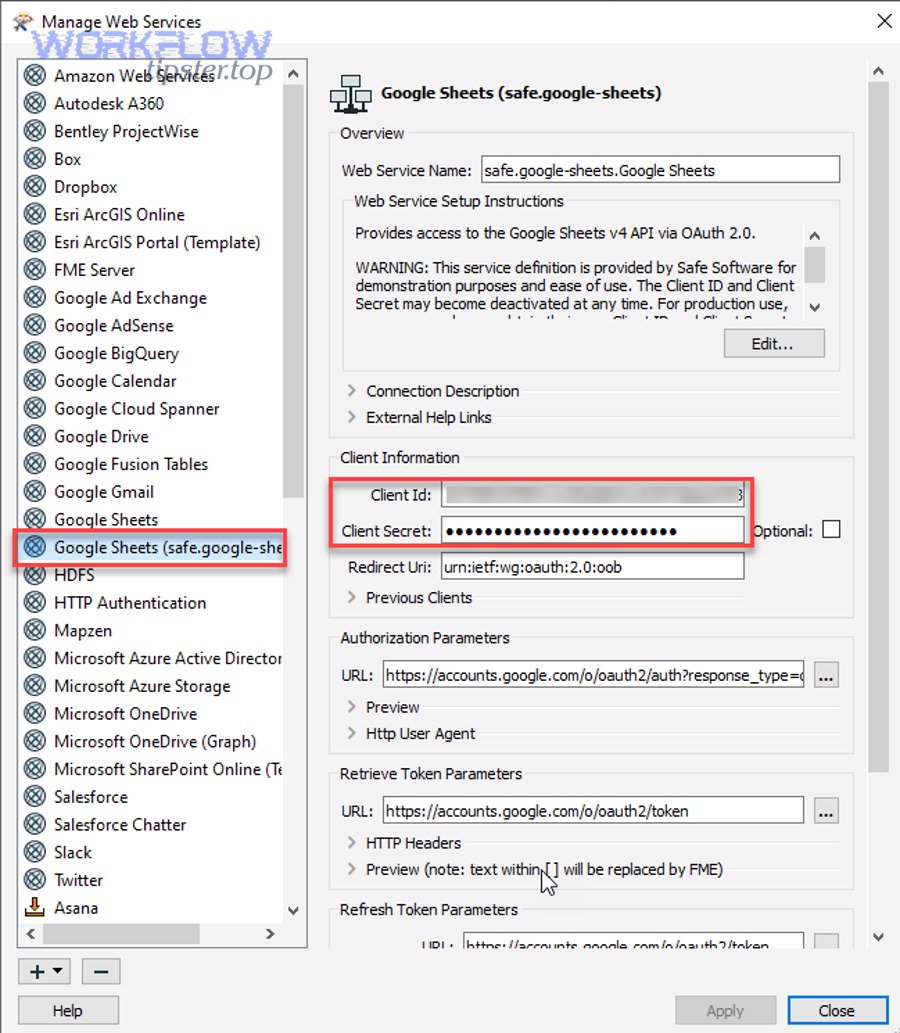
Yes—using a client ID/secret from one Google Cloud project while expecting tokens to work against a configuration in another project can create confusing 401 behavior, especially when redirect URIs, OAuth branding, or enabled APIs don’t match. This often happens after “quick tests” evolve into production without consolidating credentials.
Then, standardize: one project for the integration, consistent OAuth consent settings, and an explicit checklist for enabling the Sheets API and configuring credentials.
Can domain policies or restricted scopes block tokens?
Yes—Workspace admin policies and app access controls can restrict which OAuth apps can access data or which scopes are permitted, producing failures that feel like “invalid auth” from the client’s point of view. Some organizations require app verification or limit external apps entirely.
Next, coordinate with Workspace admins early: confirm whether your app is trusted/allowed, and prefer narrower scopes to reduce policy friction.
Can redirect URI or token leakage attacks lead to revocation and 401?
Yes—if tokens or authorization codes leak, Google may revoke tokens or your system may invalidate them, causing sudden 401 responses even though your code did not change. This is why strict redirect URI validation, secure token storage, and avoiding tokens in URLs matters.
Then, harden the entire chain: validate redirect URIs precisely, use proven OAuth libraries, store refresh tokens securely, and rotate credentials if you suspect leakage.