


A Google Sheets webhook 403 Forbidden almost always means your automation is authenticated incorrectly, authorized with the wrong scopes, or blocked by file/domain permissions—so the fix is to verify who the caller is, what it’s allowed to do, and whether the target Sheet is accessible.
Next, you need to interpret what 403 Forbidden means in Google Sheets integrations, because “forbidden” can point to OAuth scopes, Drive/Sheet sharing, Workspace policy, or the webhook endpoint itself.
Then, you should identify the most common causes and run fast diagnostic checks that separate an OAuth/scopes problem from a spreadsheet sharing or admin-policy problem.
Introduce a new idea: below is a practical, step-by-step troubleshooting flow that starts with meaning and causes, then moves into targeted fixes for Sheets API calls, Apps Script web apps, and Zapier/Make-style automations.
What does “403 Forbidden (Permission Denied)” mean for Google Sheets webhooks?
“403 Forbidden (Permission Denied)” is an authorization failure where Google (or your webhook host) recognizes a request but blocks it because the caller lacks required permissions, scopes, or access to the target resource.
To make this actionable, treat 403 as a “permission boundary” signal: something in the chain (token → scopes → identity → file sharing → domain policy → endpoint access) is not satisfied.

Is a 403 error the same as “PERMISSION_DENIED” in Google Sheets integrations?
No—403 is the HTTP status, while PERMISSION_DENIED is the Google API error reason/category, and they often appear together when Google’s authorization checks fail for Sheets or Drive operations.
However, you should not assume every 403 is OAuth-related. In Google Sheets workflows, 403 can also be triggered by missing file access (sharing), blocked external sharing, shared-drive restrictions, context-aware access, or an Apps Script deployment that refuses the caller.
A simple mental model helps: HTTP 403 says “the server refuses,” while PERMISSION_DENIED explains “the requester is not allowed.” The fix depends on what “not allowed” refers to in your specific integration.
Which part is forbidden: the webhook endpoint or the Sheets resource?
It can be either: sometimes the webhook endpoint rejects the incoming request (your server, Apps Script web app, API gateway), and sometimes Google rejects access to the Sheets/Drive resource when your automation tries to read/write a spreadsheet.
To isolate this quickly, look at where the error is produced:
- If your webhook endpoint returns 403: your endpoint’s auth (API key, signature, allowlist, session/cookie rules) is blocking the caller.
- If Google Sheets/Drive returns 403: your caller identity or OAuth scopes (or file/domain policy) does not permit the Sheets action.
This distinction matters because changing OAuth scopes won’t fix an endpoint-level 403, and changing deployment access won’t fix a token that can’t access the spreadsheet.
What does a “caller does not have permission” message usually imply?
It usually implies the caller identity (user OAuth token or service account) is valid but lacks one of the required permissions: the correct API enabled, the correct OAuth scopes granted, or explicit access to the spreadsheet via sharing/Drive permissions.
In practice, “caller does not have permission” often maps to one of these realities:
- The token belongs to the wrong Google account (common in multi-account browsers and automation platforms).
- The token was minted for a different Cloud project / OAuth client than the one expected by the integration.
- The app has an access token but not the correct Sheets or Drive scope for the operation.
- The sheet is not shared to the service account (or the domain blocks that sharing).
What are the most common causes of Google Sheets webhook 403 errors?
There are four main cause groups of Google Sheets webhook 403 errors: OAuth/auth problems, Workspace admin policy blocks, file sharing/Drive permission issues, and network/endpoint restrictions.
Next, you’ll diagnose faster if you classify the 403 by “where it originates” and “what permission check failed,” instead of trying random fixes.

Which OAuth/authentication problems trigger a 403 for Google Sheets webhooks?
The most frequent OAuth/authentication triggers are expired/revoked tokens, missing/insufficient scopes, wrong OAuth client/project, and service account misuse (not shared to the file, or blocked by domain rules).
Specifically, watch for these patterns:
- Insufficient scopes: you can list the spreadsheet but cannot update values, create sheets, or manage permissions.
- Wrong identity: token belongs to a different Google account than you think (automation platforms make this easy to miss).
- Consent not granted: the user authorized a “light” permission set; your workflow later adds steps requiring stronger scopes.
- Token revoked: the user removed the app’s access in Google Account security settings; everything suddenly returns 403.
Which Google Workspace admin policies can block access and return 403?
Workspace policies can produce 403 by blocking external sharing, restricting shared drive access, enforcing context-aware access, or limiting which OAuth apps can access data.
These blocks commonly show up as “it works for personal Gmail but fails for a company account,” or “it works for some users but not others in the same org.” If you’re in a regulated domain, assume there is an admin boundary until proven otherwise.
Which spreadsheet sharing and Drive permission issues lead to 403?
The classic file-permission 403 happens when the spreadsheet is not shared with the caller identity: the user account or the service account email your automation uses.
Common misconfigurations include:
- The sheet is shared to a human user, but the automation actually uses a different identity.
- The sheet is in a Shared Drive, and your identity lacks the needed shared-drive role (viewer/commenter/editor is not enough if the role is restricted).
- The file owner is in a different domain, and external sharing is blocked.
- You have Drive access but not Sheets edit access (or vice versa) because the workflow spans multiple resources.
Which IP, firewall, or network restrictions can cause a 403 in webhook-style setups?
Endpoint-level restrictions often appear when your webhook is behind a firewall/WAF, API gateway, or allowlist and the calling platform’s IPs are blocked, or when your endpoint requires a signature/header you’re not sending.
In webhook-style setups, this is especially common when you move from development to production and add security layers. The integration still “runs,” but your endpoint refuses it with 403.
This table contains the most useful “signature patterns” that help you map a 403 to the most likely fix path.
| 403 Pattern | Where it fails | Most likely cause | Fastest fix direction |
|---|---|---|---|
| PERMISSION_DENIED + “insufficient authentication scopes” | Google Sheets API | Scopes too narrow | Re-consent with correct scopes; update OAuth client |
| “The caller does not have permission” but token is valid | Sheets/Drive | File not shared to identity | Share sheet to user/service account; check Shared Drive role |
| Works on one account, fails on Workspace account | Workspace boundary | Admin policy | Check app access control, external sharing, context-aware access |
| 403 from your webhook URL before Sheets step runs | Your endpoint | WAF/allowlist/signature missing | Adjust endpoint auth rules; add headers/signature; allowlist IPs |
How do you confirm whether the issue is OAuth/scopes vs spreadsheet sharing?
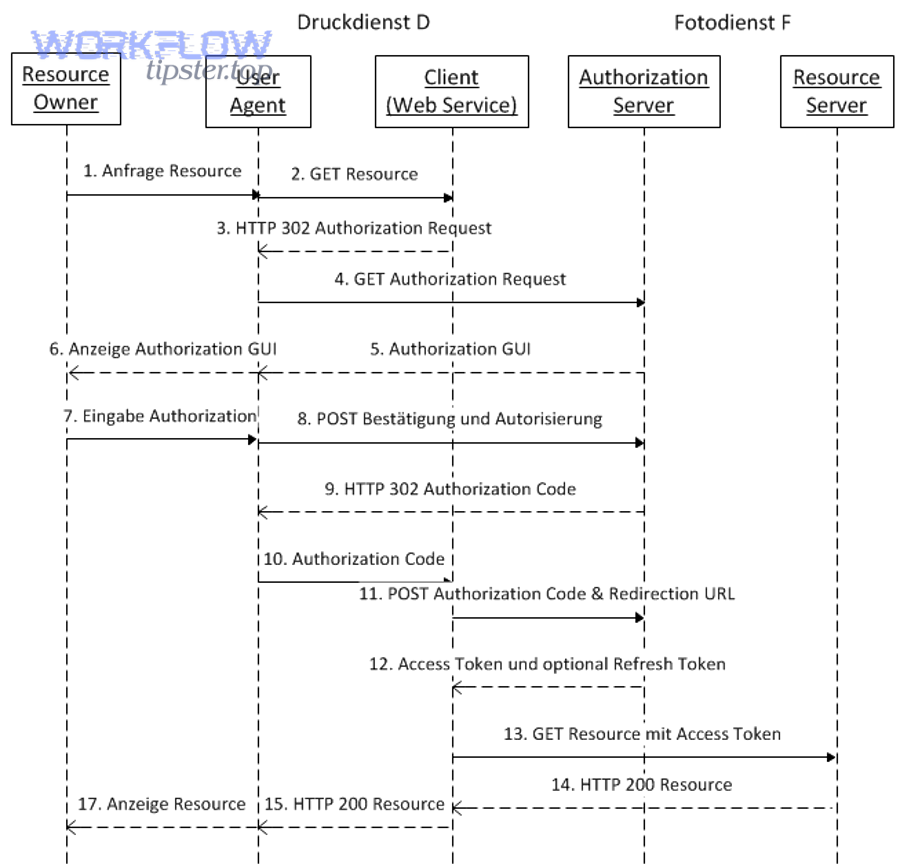
You can confirm whether it’s OAuth/scopes vs spreadsheet sharing by running three quick checks: identify the caller identity, validate granted scopes for the exact operation, and verify the sheet is shared to that identity with the correct Drive/Shared Drive context.
Then, you’ll use the error payload and a minimal reproducible request to isolate the failing layer without guessing.
What are the fastest checks you can do in under 5 minutes?
Here are the fastest checks that reliably separate “scopes” from “sharing” in most cases:
- Check the identity: confirm which Google account (or service account email) is actually used by the integration.
- Check file access: open the Sheet’s share dialog and verify the caller identity is explicitly shared (or has Shared Drive membership/role).
- Check operation scope: identify the exact API action (read values vs write values vs create sheet vs update permissions) and confirm your OAuth scopes cover it.
- Check where the 403 occurs: webhook endpoint logs vs Google API response logs.
If you’re doing google sheets troubleshooting under pressure, these checks give you the highest signal per minute.
How do you read the error payload to distinguish scopes vs sharing vs admin policy?
Scopes issues often say “insufficient authentication scopes” or imply the token is accepted but not authorized for the method; sharing issues usually say “caller does not have permission” without mentioning scopes; admin policy issues often look like permission errors but are consistent across multiple files or users in the same org.
To interpret payloads correctly:
- Scopes: error mentions scopes directly, or the same identity can access the file in UI but API writes fail.
- Sharing/Drive: error persists even when scopes are broad, and resolves immediately when you share the file to the exact identity.
- Admin policy: behavior differs by domain/account type; personal Gmail works but Workspace fails; changes require admin action rather than code changes.
When logs are sparse, compare a “read” request vs a “write” request: read may succeed with minimal scope, while write fails, pointing strongly to scope mismatch rather than file access.
How do you reproduce the 403 with a minimal request (curl/Postman) to isolate the layer?
Reproduce the 403 by making a single, minimal API call with the same token and the same spreadsheet ID, then changing only one variable at a time (scope, identity, file sharing) until the error flips to 200.
To isolate effectively:
- Use one spreadsheet ID and one operation (for example: “read values” vs “update values”).
- Use one access token (the exact one your platform uses), and record its subject identity.
- Test the same request against a known-good Sheet you own and a target Sheet that fails.
If the token can write to your own test sheet but not the target sheet, that is almost always a sharing/drive context issue. If it cannot write anywhere, it’s almost always scopes or OAuth configuration.
How do you fix 403 for Google Sheets API webhooks (OAuth + access)?
You fix a Google Sheets API 403 by applying the correct OAuth scopes, ensuring the caller identity has access to the spreadsheet (including Shared Drive context), rotating credentials safely, and enforcing least privilege so the error does not return later.
Next, follow the fixes in order: scopes first, then file access, then credential hygiene, then guardrails.
How do you fix insufficient OAuth scopes for the Google Sheets API?
Fix insufficient scopes by requesting the exact scopes needed for your operations, forcing re-consent, and verifying the token you use was minted with those scopes.
Practically, do this sequence:
- Map actions to scopes: reading values is often narrower than writing values or modifying spreadsheet structure.
- Update OAuth config: ensure your OAuth client/app requests the scopes you truly need.
- Force re-consent: remove the app’s access and re-authorize so Google issues a token with updated scopes.
- Verify the new token: confirm the token’s scope list includes the required ones before redeploying.
A frequent hidden trap is assuming “Drive scope” covers all Sheets actions; many workflows require explicit Sheets scopes for write operations, even if the file is accessible in Drive.
How do you fix service account access to a Google Sheet (sharing + domain limits)?
Fix service account access by sharing the spreadsheet to the service account email, validating Shared Drive permissions if applicable, and confirming Workspace/domain rules allow that identity to access the file.
Use this checklist:
- Share the file: add the service account email as Viewer/Editor as needed.
- If in Shared Drive: ensure the service account is allowed and has a role that grants the required capability.
- Check domain restrictions: some orgs block external principals or restrict service accounts.
- Confirm ownership context: if the file is owned in another domain, external sharing policy may block it.
If your workflow also touches attachments or imports, make sure related file operations are covered, because google sheets attachments missing upload failed issues can masquerade as “permission denied” when the underlying upload destination is blocked.
How do you rotate credentials safely without breaking production automations?
Rotate credentials safely by running parallel credentials, verifying access against production Sheets, then cutting over with rollback ready.
A safe rotation plan looks like this:
- Stage: create new OAuth client or new service account key; keep the old one active.
- Validate: run read/write tests on the exact spreadsheets used in production.
- Cutover: switch the automation to the new credentials in one controlled deployment.
- Observe: monitor error rates and permissions issues; keep rollback for a defined window.
- Revoke: only after stability, revoke old keys/tokens to reduce blast radius.
This avoids the “it worked yesterday” surprise that happens when an old token is revoked or a key is rotated without verifying file-sharing to the new identity.
How do you prevent 403 regressions with least privilege and monitoring?
Prevent regressions by using least-privilege scopes, restricting spreadsheet sharing to the minimum set of identities, and monitoring 403 spikes as an early warning signal.
In addition:
- Pin identities: avoid workflows that silently switch accounts (common in automation platforms).
- Document required access: record which spreadsheets must be shared to which service account/user.
- Add preflight checks: validate token scope and spreadsheet access at workflow start, before doing heavy work.
- Log payload + reason: store the error reason string so you can distinguish scopes from policy blocks later.
According to a study by the University of British Columbia from the Department of Electrical and Computer Engineering, in 2012, researchers found that token confidentiality and OAuth implementation details are frequently mishandled in practice (for example, they reported only 21% of evaluated relying parties used SSL to protect SSO sessions, and token theft risk was widespread), reinforcing why scope discipline and secure token handling reduce permission and security failures.
How do you fix 403 for Apps Script webhook endpoints connected to Sheets?
You fix Apps Script 403 by correcting deployment permissions (“Execute as” and “Who has access”), redeploying the latest version, handling user authorization properly, and securing the endpoint in a way that doesn’t block legitimate webhook callers.
Then, validate with a clean incognito session or a non-owner account, because Apps Script behavior can appear “fine” for the owner while failing for real users.
How do “Execute as” and “Who has access” settings create 403 errors?
They create 403 errors when your web app runs under an identity that lacks access, or when the deployment access level rejects the caller (for example, set to “Only myself” while your webhook is called externally).
Interpret the two settings like this:
- Execute as defines whose permissions are used when the script touches Sheets/Drive.
- Who has access defines who is allowed to call the web app URL.
If you execute as the owner but restrict access to users in the domain, external webhook calls will fail. If you execute as the user accessing and that user isn’t authorized, you can also see 403 until authorization is granted.
How do you fix 403 caused by unpublished or outdated deployments?
Fix it by redeploying the web app and ensuring the URL you are calling matches the active deployment version.
This failure is common after edits: you update code but keep calling an old deployment URL or an endpoint that no longer matches expected behavior. A good habit is to treat “Deploy” as part of your release process, not an afterthought.
How do you handle users who must authorize the web app (and authorization quotas)?
Handle it by designing a first-run authorization experience, choosing the execution model intentionally, and accounting for authorization limits that can throttle new-user approvals.
Practical tactics:
- Provide an explicit “Authorize” step users can run interactively (so they see the consent screen).
- Avoid surprise permission jumps mid-workflow—request the needed permissions up front.
- Use stable scopes so re-consent isn’t required frequently.
- Plan for quotas if many new users authorize at the same time.
If users report intermittent failures, test with only one signed-in Google account in the browser; multi-account sessions can trigger confusing behavior that looks like a permission error.
How do you secure an Apps Script webhook without accidentally blocking legitimate callers?
Secure it by using a simple shared secret/signature header, validating request structure, and allowing only the minimum access level needed—while keeping your access settings aligned with how the webhook is called.
Be careful with overly strict checks that cause false 403 responses:
- Rejecting requests when a platform changes IP ranges.
- Requiring cookies or interactive sessions (webhooks don’t have them).
- Blocking requests due to missing browser headers that webhook clients never send.
When you add security, log why you rejected the call. Otherwise, your endpoint will look like a generic 403 and you’ll waste time chasing OAuth that isn’t involved.
How do you fix 403 in Zapier/Make-style Google Sheets automations?
You fix 403 in Zapier/Make-style Google Sheets automations by reconnecting the correct Google account, ensuring the connected identity has file access (including Shared Drives), aligning account type/domain rules, and eliminating payload/format issues that can trigger permission-like failures.
Next, treat these platforms as “identity wrappers”: most 403 incidents come from the account connection layer, not your spreadsheet logic.
How do you fix 403 caused by expired or revoked Google connections?
Fix it by reconnecting the Google account, re-authorizing permissions, and confirming the workflow is using the intended connection (not a stale one).
Common causes:
- The user revoked access in Google Account security.
- The platform invalidated a connection after password/security changes.
- The workflow was cloned and silently switched to a different connection.
After reconnecting, rerun a single-step test (read or list files) before running a multi-step scenario, so you confirm the identity boundary is restored.
How do you fix 403 caused by missing file permissions in shared drives or shared sheets?
Fix it by sharing the spreadsheet to the connected Google account, validating Shared Drive membership/role, and confirming the file is not blocked by domain sharing rules.
In automation platforms, it’s easy to assume “I can open the Sheet in my browser, so the automation can too.” That assumption fails when:
- You’re logged into multiple accounts and the platform is connected to the wrong one.
- The file lives in a Shared Drive where your personal account lacks access.
- The file is owned in a Workspace domain with external sharing restrictions.
How do you fix 403 caused by account type mismatches (personal vs Workspace)?
Fix it by using a connection that matches the file’s ownership domain and complies with Workspace policy, then re-authorizing with the correct account.
This is especially common when:
- A personal Gmail is connected but the Sheet is owned by a company Workspace.
- The company Workspace blocks third-party OAuth app access unless approved.
- Context-aware access requires compliant devices or network conditions.
If the issue only affects one org, assume policy. If it affects one file, assume sharing/drive context.
How do you fix 403 caused by payload issues that look like permission problems?
Fix it by validating the field mapping, data types, and request size, because malformed requests can fail before the intended operation—sometimes surfacing confusing errors that resemble permissions issues.
In practice, pay attention to:
- Invalid ranges (sheet name changed, range no longer exists).
- Unexpected data types (numbers vs strings, dates vs text).
- Overlong payloads or special characters that break JSON formatting.
This is where google sheets data formatting errors can cascade into failures that are misread as access problems, especially when the platform collapses multiple failure modes into a single “403/permission” surface message.
Contextual border: at this point, you’ve addressed the primary intent—fixing OAuth/scopes, access, deployment permissions, and automation platform connections—so the next section expands into rarer enterprise and micro-semantic scenarios that can still produce 403 after “all the usual fixes” are done.
What rare or enterprise scenarios can still cause Google Sheets webhook 403 errors after you’ve fixed OAuth and sharing?
Yes—after OAuth and sharing are correct, Google Sheets webhook 403 errors can still happen due to enterprise perimeter controls, domain-wide sharing restrictions, anti-abuse controls, and situations where you need logs/audit trails to escalate rather than guessing.
Next, use these checks when everything “looks right” but 403 persists consistently in a specific organization or environment.
Can VPC Service Controls or context-aware access policies cause Google Sheets 403?
Yes—enterprise perimeter controls and context-aware access can block API calls based on network, device posture, app access level, or data exfiltration rules, returning 403 even when tokens and sharing are correct.
When this is the cause, symptoms usually include:
- The same credentials work outside a controlled network but fail inside it (or vice versa).
- Only certain devices/users can run the automation successfully.
- Failures cluster around specific org units or security policies.
Can Google Drive “sharing outside domain” rules break a Sheets webhook flow?
Yes—if your automation identity is considered “external” relative to the file’s owning domain, external sharing blocks can prevent access and surface as 403, even if you attempted to share the file.
This often happens with service accounts or partner accounts. If you suspect this, test by moving a copy of the sheet into a domain where sharing is permitted, then compare behavior with the same credentials.
Can anti-abuse/rate-limits look like 403 in Google Workspace automations?
Yes—some abuse prevention and authorization throttling can present as 403-like failures, especially around Apps Script web apps or mass authorization events.
If your 403 spikes only during bursts (many new users, many parallel runs), treat it as a capacity/abuse boundary issue and reduce concurrency, add retry with backoff, and monitor authorization flows.
When should you stop troubleshooting and escalate (logs, support, audit)?
You should escalate when 403 persists after confirming identity, scopes, file access, and deployment settings, and when failures correlate with a specific domain policy or security control you cannot change from code.
Escalate efficiently by collecting:
- The exact error payload and timestamp.
- The caller identity (user email or service account) and Cloud project/OAuth client used.
- The spreadsheet ID and whether it’s in a Shared Drive.
- Workspace admin/audit indicators (app access control decisions, sharing policy restrictions).
According to a study by the University of Trier from the Computer Security research community in Computer Science, in 2016, researchers identified four practical attacks that can break OAuth 2.0 security properties and proposed fixes, highlighting that “permission problems” can be rooted in subtle protocol and implementation details—so escalating with precise logs is often faster than trial-and-error when enterprise controls are involved.