


If you’re seeing a “Google Sheets field mapping failed” error, you can usually fix it without rebuilding your entire workflow by isolating the failure point (sheet structure, field discovery, permissions, or data shape) and then applying a small, targeted correction.
Most mapping failures start after a “harmless” sheet change—adding a column, renaming a header, or moving a tab—which causes schema drift and makes the integration’s saved field list go stale.
To resolve the issue fast, you need a “failed vs successful” checklist that compares a working baseline (stable headers, correct tab, current field list) against the failing run so you can see exactly where the mismatch begins.
Introduce a new idea: once you restore a successful mapping, you can harden the sheet and the workflow so future edits don’t trigger another mapping failure, even under high-volume automation loads.
What does “Google Sheets field mapping failed” mean in automations and integratations?
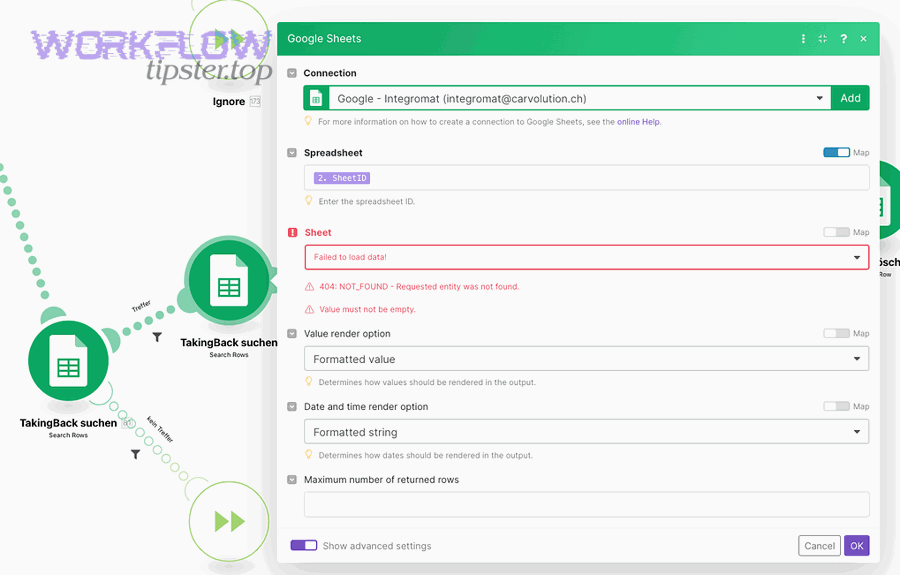
Google Sheets field mapping failed means your automation tool cannot reliably match incoming fields to the correct Google Sheets columns because the sheet’s schema, access, or data format no longer matches what the workflow expects.
To better understand why this happens, start by picturing field mapping as a “contract” between two sides: the source app sends named fields (like email, status, created_at), and the Sheets action writes those values into specific columns identified by headers and/or positions.
In most automation builders, the mapping contract is built during setup when the tool reads your spreadsheet, discovers your header row, and generates a list of writable “fields” that correspond to those headers. If anything about that discovery changes later, the tool may:
- Fail hard (the step errors out) because a required column can’t be found or written to.
- Fail soft (the step runs) but writes data into the wrong columns or leaves blanks because headers or positions don’t match.
“Field mapping failed” is therefore not one single bug. It’s a symptom that your workflow is trying to write using outdated assumptions about one or more of these mapping anchors:
- Headers (names, uniqueness, blank cells, special characters).
- Column positions (inserted/moved columns shift indexes).
- Worksheet/tab selection (writing to the wrong tab).
- Ranges (writing outside allowed ranges or protected areas).
- Permissions (the connected account can’t edit).
- Data shape (arrays/objects, invalid dates, locale formatting, oversized cell values).
The fastest way to fix the error is to treat it like a contract breach: identify which anchor broke, repair it, and then re-sync the tool’s field list so it can map again with a clean baseline.
According to a study by the University of Hawaiʻi at Mānoa from the Shidler College of Business (Information Technology Management), in 1998, researchers found substantial spreadsheet development error rates, with 35% of 152 spreadsheet models created in an experiment being incorrect—showing why validation and inspection matter even for “simple” spreadsheet logic.
Is the failure caused by a schema change in the Sheet (new/renamed/reordered columns)?
Yes—Google Sheets field mapping failed is most often caused by schema changes because column insertions, header edits, and tab changes make the automation’s saved field list point to fields that no longer exist or no longer mean the same thing.
Next, connect the error to the most common real-world trigger: you or a teammate updated the sheet to “make it nicer,” but the integration still expects the old structure, so mapping fails when it tries to locate the target columns.
Did you insert a new column or move columns after mapping?
Yes—if you inserted a column in the middle or moved columns around, many tools will mis-map fields because the workflow can rely on column positions (indexes) behind the scenes even when you see header names in the editor.
Specifically, column insertion can shift the “write target” one or more columns to the right. The workflow still believes “Column D is Status,” but after insertion, “Column D is now Phone,” and “Status moved to Column E.”
Use this quick test to confirm an index-shift problem:
- Choose one known field (e.g., status) and run a single test action with a distinctive value (e.g., “STATUS_TEST_123”).
- Check the destination row: if that value appears in the wrong column, you have a position shift.
- Check your edit history: look for “Insert column” events between the last successful run and the first failure.
Fix options that preserve your workflow:
- Undo the structural change (move columns back to the original layout), then refresh fields in the automation tool.
- Adopt append-only columns (add new columns to the far right), then re-map only the new fields.
- Freeze an “Integration Columns” block (a dedicated set of columns no one reorders) and keep human-friendly reporting columns elsewhere.
Did you rename headers or leave blank/duplicate headers?
Yes—renamed, blank, or duplicated headers can cause mapping to fail because the tool can no longer uniquely identify which column a field should map to.
More specifically, header drift breaks field discovery in two ways:
- Missing fields: the tool hides a column because the header it previously recognized no longer exists.
- Ambiguous fields: two columns share the same header, so the tool maps unpredictably or refuses to map.
Header hygiene rules that prevent this class of failure:
- Use one header row (typically row 1) with unique names for every mapped column.
- Avoid merged cells in the header row because field discovery often reads merged headers poorly.
- Do not leave header cells blank; use a placeholder like unused_1 if needed.
- Keep header names stable once the workflow is live; if you must rename, plan a remap window.
When you suspect header drift, fix headers first, then refresh fields in the integration so it re-learns the updated header list before you test again.
What is the fastest “Failed vs Successful mapping checklist” to pinpoint the break?
There are 4 main checkpoint layers in a failed vs successful mapping checklist—Sheet Structure, Workflow Configuration, Permissions, and Data Shape—and you pinpoint the break by validating them in that order so you don’t “fix” the wrong layer.
Then, use a controlled comparison: define what a successful mapping baseline looks like, compare it to the failing run, and stop at the first mismatch you find.
This table contains a rapid checklist that helps you identify whether your failure is structural, configuration-related, permission-based, or caused by data format.
| Checklist Layer | Successful Mapping Baseline | Failure Signals | Fast Fix |
|---|---|---|---|
| Sheet Structure | Single header row; unique headers; correct tab; stable column order | Missing fields; shifted columns; blank/duplicate headers; wrong tab | Restore headers/order; append-only columns; reselect tab |
| Workflow Configuration | Correct spreadsheet + worksheet selected; fields refreshed; test data loaded | Old field list; “no fields found”; editor shows fewer columns than sheet | Refresh fields; reselect sheet/tab; reload sample/test |
| Permissions | Connected account can edit; no protected range blocks target cells | Edit denied; writes fail silently; only certain columns fail | Reconnect correct account; adjust sharing; remove protection for target range |
| Data Shape | Values match column formats (dates/numbers/text); no arrays/objects | Invalid date errors; JSON blobs; truncated text; locale mismatch | Normalize formats; stringify objects; validate before write |
Which 5 sheet-structure checks confirm a “successful mapping baseline”?
There are 5 core sheet-structure checks for a successful mapping baseline: correct worksheet, stable header row, unique headers, stable column order, and an editable destination range.
Specifically, run these checks before touching your automation tool settings:
- Worksheet/tab is correct: confirm the workflow is supposed to write to this exact tab, not a copy or archived version.
- Header row is consistent: keep headers in row 1 (or your tool’s required header row) and avoid multi-row headers.
- Headers are unique and non-empty: no duplicates, no blanks, no merged header cells.
- Column order is stable: no recent mid-sheet insertions that shift indexes.
- Destination range is writable: no protections or filtered views that block edits where the workflow writes.
Once these five checks are “green,” you’ve established that the sheet itself is structurally capable of accepting a stable mapping.
Which 5 automation-side checks confirm the mapper is using the current fields?
There are 5 automation-side checks that confirm the mapper is current: refresh fields, reselect spreadsheet, reselect worksheet, reload test sample, and re-map critical fields explicitly.
For example, many builders cache column headers at setup time; if you don’t refresh, you’re debugging yesterday’s schema rather than today’s sheet.
- Refresh fields / reload schema in the mapping step.
- Reselect the spreadsheet so the tool re-queries the file metadata.
- Reselect the worksheet/tab so it re-reads the header row for that tab.
- Reload or re-run the test trigger so mapping previews aren’t based on stale samples.
- Re-map one “anchor field” (like ID or Email) to confirm the correct column is targeted.
When these checks are complete, you should see the expected set of columns in the editor, and the mapping UI should match your sheet’s header names.
Which 5 data-shape checks commonly trigger mapping errors?
There are 5 common data-shape checks that trigger mapping errors: invalid dates, numeric formatting conflicts, arrays/objects, null/empty edge cases, and cell size limits.
More specifically, a workflow can fail even with a perfect sheet if the value being written violates what the step expects.
- Dates: ensure the incoming date is a valid timestamp or ISO date and matches the column format.
- Numbers: confirm decimals and thousand separators match your locale expectations.
- Arrays/objects: convert lists and JSON objects into strings or structured text before writing to one cell.
- Nulls: decide whether null means “leave blank” or “overwrite,” and configure accordingly.
- Oversized text: large payloads can truncate or fail depending on integration limits and formula recalculation.
When you treat data shape as part of mapping, you stop “chasing columns” and start fixing the actual write constraint that triggers the failure.
Is the mapping failing because the integration lacks permission to write to the Sheet?
Yes—Google Sheets field mapping can fail due to permissions because the connected account may not have edit access, may have lost authorization, or may be blocked by protected ranges, which prevents the workflow from writing to the mapped columns.
Besides sheet structure, permissions are the next major failure layer because a perfectly mapped field cannot be written if the integration is effectively “read-only.”
Are you using the correct Google account and permission scope?
Yes—using the wrong Google account (or a partially authorized one) is a top cause of write failures because the workflow may authenticate successfully but still lack the correct edit permission or scope for that specific file.
More importantly, permission problems often appear after routine changes: the sheet owner changes sharing settings, the connected user is removed from a shared drive, or your OAuth consent is revoked.
- Verify the connected identity: confirm the integration is logged into the same account that can edit the sheet in the browser.
- Reconnect the integration: re-authorize access to refresh scopes and tokens if the tool supports it.
- Check file location: shared drives and organizational policies can restrict third-party app access.
If your workflow step reports permission errors or fails immediately without writing anything, treat it as an access-layer issue before changing mappings.
Are protected ranges, locked columns, or sheet ownership blocking writes?
Yes—protected ranges and locked columns can block mapping writes because the integration can only write where the connected account is allowed to edit, and a protection rule can selectively deny edits even if the user has general sheet access.
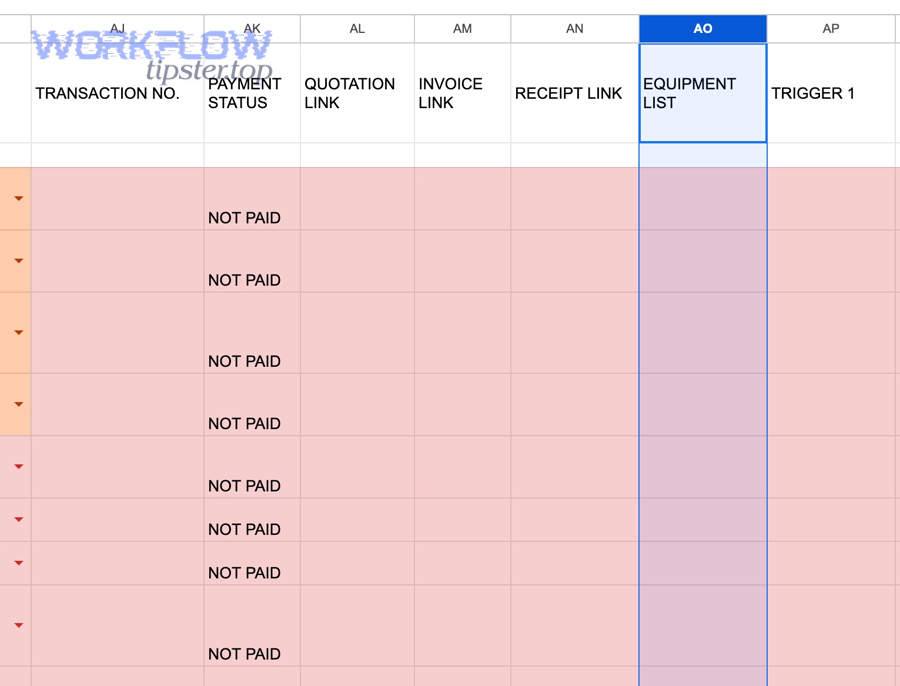
To illustrate, you might be able to edit column A manually, but column F is protected, so any mapped field targeting column F fails or is skipped.
- Check protected ranges on the target columns and rows used by the automation.
- Confirm ownership and editor rights for the connected account, especially if the file was copied from a template.
- Test manual edit using the connected account: if you cannot type into the target cell, the integration cannot write either.
When protection is required for human safety, create a dedicated writable “Integration Output” tab and keep protected reporting tabs separate.
Which field-to-column mismatches cause “mapping failed” vs “wrong data in wrong columns”?
Hard mapping failure usually happens when the tool cannot find or write a target field at all, while wrong-column errors happen when the tool writes successfully but the mapping anchors (headers or positions) point to the wrong destination.
However, these two outcomes often share the same root cause—schema drift—so your job is to recognize which symptom you’re seeing and apply the matching fix.
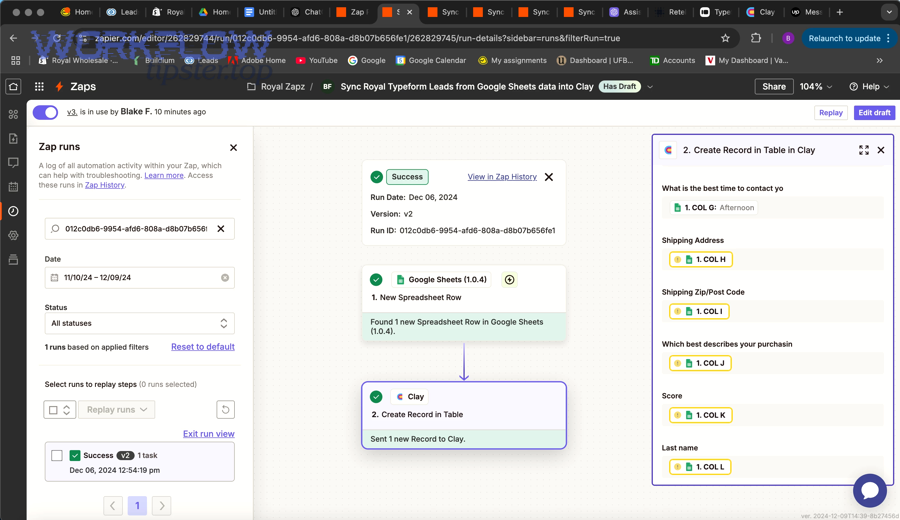
How is “missing fields/empty payload” different from “shifted columns”?
Missing fields or empty payload issues mean the mapper does not even present a column as a selectable field, while shifted columns mean the mapper still shows fields but writes values into the wrong places because column positions changed.
Specifically, you can distinguish them by what you see in the editor:
- Missing fields: the mapping dropdown no longer lists certain columns, or previously mapped fields appear blank/unmapped.
- Shifted columns: fields are available and mapped, but the output row shows values under the wrong headers.
Fast fixes differ:
- For missing fields, fix headers (unique, non-empty), then refresh fields and reselect the worksheet.
- For shifted columns, restore column order or update mappings to match the new schema, then validate with a test row.
This is also where disciplined google sheets troubleshooting pays off: you’re not guessing; you’re using the symptom to identify the layer that broke.
When should you rebuild the step vs just refresh/reselect fields?
You should rebuild the step only when refresh/reselect cannot regenerate the correct field list or when the tool’s cached schema remains corrupted, while you should refresh/reselect when the sheet’s structure is correct but the integration simply hasn’t re-learned it yet.
Meanwhile, use these decision rules to avoid unnecessary rebuilds:
- Refresh/reselect first if the sheet headers are correct and you recently changed the sheet structure.
- Rebuild if the tool continues to show the wrong worksheet, fails to load fields, or keeps mapping to deleted headers after multiple refresh attempts.
- Rebuild if the workflow was cloned across accounts and the new account has different permissions or file ownership constraints.
Rebuilding is a last resort because it can remove subtle configuration choices (like lookup keys or update-vs-append behavior) that you may not remember to recreate perfectly.
What are the most reliable fixes to restore a successful mapping without rebuilding the whole workflow?
The most reliable fix is a 6-step restoration sequence—stabilize headers, restore column order, refresh fields, reselect the worksheet, remap an anchor field, and validate with a controlled test row—because it repairs both the sheet contract and the tool’s cached schema.
In addition, this sequence keeps your workflow logic intact while updating only what changed: the mapping anchors and the integration’s understanding of them.
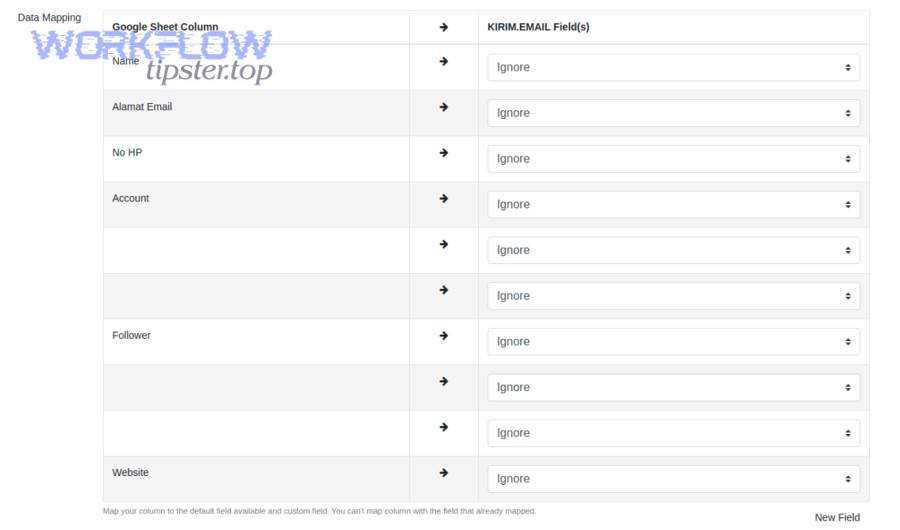
What is the safest order of operations to fix mapping quickly?
The safest order is: fix the sheet first, then refresh the tool’s schema, then test with one controlled record—because changing the tool before the sheet is stable can lock in a bad mapping snapshot.
Below is a practical sequence you can apply across most builders:
- Step 1: Lock the schema temporarily: ask teammates to pause edits to headers and column order.
- Step 2: Fix headers: one header row, unique names, no blanks, no merged header cells.
- Step 3: Restore/confirm column order: undo mid-sheet insertions where possible; append new columns to the far right.
- Step 4: Refresh fields in the mapping step and reselect the spreadsheet + worksheet to force re-discovery.
- Step 5: Remap one anchor field (ID or Email) to confirm the correct target column is selected.
- Step 6: Run one controlled test write and verify values land under the correct headers.
If you follow this order, you usually recover the workflow in minutes because each step eliminates an entire class of failure before you move on.
How can you “stabilize the schema” to prevent future failures?
You can stabilize the schema by treating your sheet like an integration database—using append-only columns, a dedicated integration tab, immutable header names, and a stable ID column—because stable anchors prevent your tool from losing track of mapped destinations.
More specifically, adopt these schema-hardening patterns:
- Append-only columns: never insert columns in the middle; add new columns at the far right.
- Immutable header contract: once the workflow is live, do not rename mapped headers; create new headers instead.
- Integration-only worksheet: write data to a dedicated tab and build dashboards/reports off that tab.
- Stable ID column: store a unique identifier used for updates, deduplication, and audits.
- Versioning: if you must redesign the schema, duplicate the sheet, version it, and migrate the workflow intentionally.
These patterns reduce both hard failures and silent mis-mapping, which is often more dangerous because it corrupts data without immediate errors.
Which platform-specific steps fix field mapping failures in common tools (Zapier, Make, n8n, forms, imports)?
Platform-specific fixes usually work because they force the integration to re-discover your sheet schema, re-load the header row, and rebuild the mapping UI—so the tool stops using cached fields that no longer match your current Google Sheets structure.
Especially when your workflow involves triggers and webhooks, mapping issues can look like connectivity problems, but the true fix is often still schema refresh plus a clean test run.
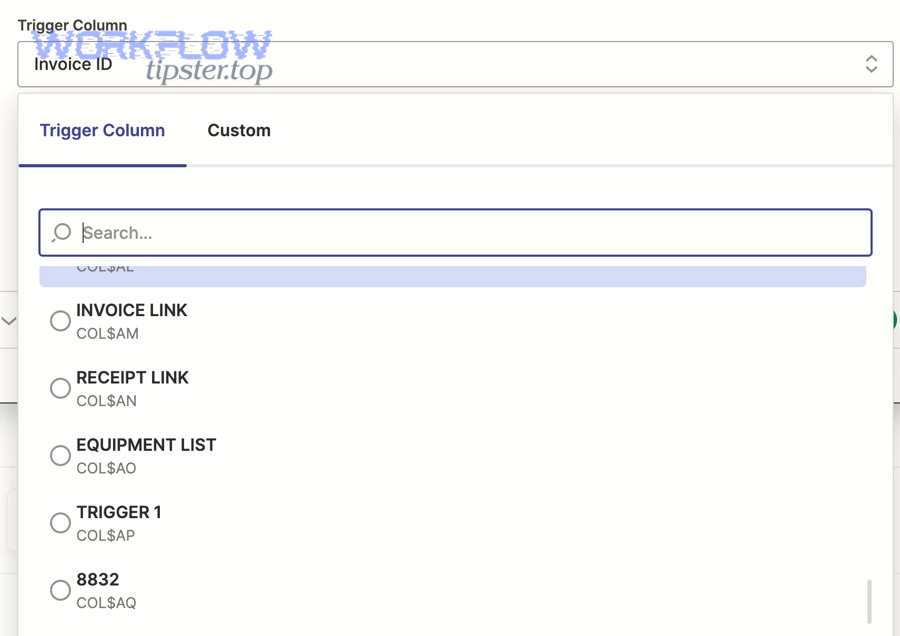
What should you check first in Zapier-style mappers?
In Zapier-style mappers, check field discovery first by reselecting the spreadsheet and worksheet and then using refresh fields, because missing or renamed headers commonly make fields disappear from the editor.
Specifically, do this in order:
- Reselect Spreadsheet and Reselect Worksheet to trigger a fresh schema read.
- Click Refresh fields if available in your step settings.
- Confirm headers are in row 1 and are unique; then re-map any fields that became blank.
- Run the step’s built-in test and confirm the row output matches your expectations.
If your workflow includes webhooks that call services before writing to Sheets, a separate failure like google sheets webhook 404 not found can mask the real problem: you might be testing an outdated endpoint or script URL while also dealing with stale field discovery in the Sheets step. Fix webhook routing first, then refresh your Sheets fields so you validate with a clean end-to-end test.
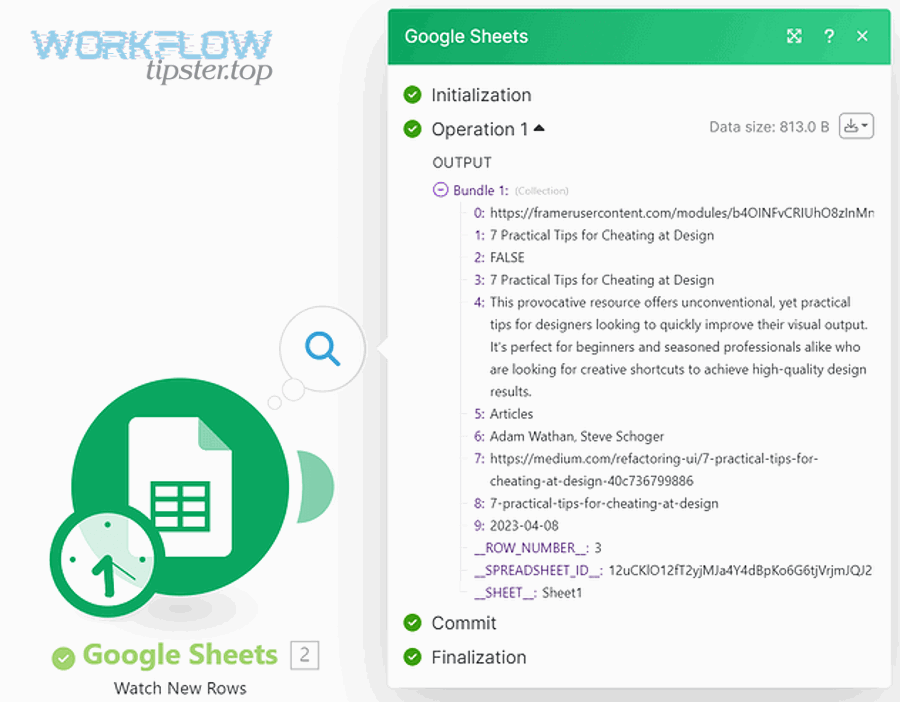
What should you check first in Make/n8n-style mappers?
In Make/n8n-style mappers, check the module’s schema reload and sample data first, because these platforms often pin example outputs that keep the mapper “stuck” on older field shapes.
More specifically, use this approach:
- Reload fields/schema in the Google Sheets module so the platform re-fetches current headers.
- Re-run the trigger or fetch a fresh sample so mapping tokens reflect current data.
- Confirm tab and range are correct; ensure the module is not writing to an archived or copied sheet.
- Test one record with distinctive values and verify column placement.
If you see a request failure such as google sheets webhook 400 bad request in a prior webhook module, treat it as a data-contract issue: the upstream module may be sending malformed JSON, which then produces unexpected nulls or structures that break your Sheets write mapping. Normalize the payload before it reaches Sheets, then validate mapping again.
What should you check for form/import-based mapping (CSV/Anki/add-ons)?
For form/import-based mapping, check the header row and field order first, because imports often rely on exact header matching or preset templates that break when the sheet structure changes.
To illustrate, a CSV import might interpret the first row as data (not headers), or an add-on might expect specific column names that were renamed for readability.
- Ensure headers exist and match the integration’s expected naming.
- Confirm delimiter and encoding (CSV commas, quotes, UTF-8) so fields don’t collapse into one column.
- Check preset templates: if a tool uses a preset note type or schema, align your headers exactly.
- Run a small test import (5–10 rows) and confirm field placement before importing large batches.
When imports are involved, “mapping failed” can mean “the importer cannot find the column,” which is often resolved by restoring exact header names and avoiding multi-row header formatting.
How can you verify the fix and prove the mapping is “successful” before turning the workflow back on?
You can verify a successful mapping by running one controlled test record, confirming each mapped value lands under the correct header, and then monitoring a short sample of live runs to ensure no silent shifts occur after the fix.
Thus, verification is not just “the step ran.” Verification is “the right values landed in the right columns, consistently, under realistic data.”
What test record should you use to validate each mapped field?
Your test record should include distinctive, easy-to-spot values for every field type—text, number, date, and multiline content—because these reveal mis-mapping and formatting issues immediately.
For example, build a test payload like this:
- ID: ID_TEST_0001
- Status: STATUS_TEST_ALPHA
- Amount: 12345.67
- Date: 2026-01-26
- Notes: “LINE1 / LINE2 / LINE3” (with line breaks)
Then validate the sheet in three passes:
- Placement: each value is under the correct header.
- Formatting: the date displays correctly; numbers aren’t converted to text unexpectedly.
- Integrity: no fields are missing, truncated, or shifted to adjacent columns.
According to a study by Dartmouth College from the Tuck School of Business, in 2008, a critical review of spreadsheet error research emphasized that spreadsheet errors are prevalent and that organizations often underestimate the risk—supporting the practice of structured validation rather than assuming “it looks fine.”
Which monitoring signals catch silent mapping drift early?
The best early-warning signals are header-change detection, anomaly checks on required fields, and periodic “canary writes,” because mapping drift often starts silently and only becomes obvious after data quality damage accumulates.
More specifically, implement these lightweight guardrails:
- Header change alert: notify the team if row 1 headers change, duplicates appear, or blanks are introduced.
- Required-field audit: flag rows where critical fields (ID, Email, Status) are blank after a write.
- Column placement check: periodically verify that anchor fields are still in the expected column.
- Canary record: write a scheduled test record (or dry-run mapping check) that confirms mapping integrity.
- Error-rate threshold: alert when write errors increase or retries spike.
At this point, you have fully addressed the primary “field mapping failed” intent: the mapping contract is restored, validated, and monitored. Next, the content shifts from immediate repair to long-term prevention so your mapping stays successful even as your sheet evolves.
How can you prevent Google Sheets mapping failures long-term in high-volume automations?
You can prevent long-term mapping failures by designing a resilient Sheets schema, choosing mapping anchors that don’t drift, and adding guardrails that detect “failed vs successful” conditions early—so your automation remains stable even as volume and complexity increase.
Below, the goal is micro-level reliability: fewer surprises, fewer silent mis-maps, and fewer emergency remaps after someone edits the sheet.
What is a “resilient schema” pattern for Sheets used as an automation database?
A resilient schema pattern is an append-only, contract-driven sheet design with immutable headers, a dedicated integration tab, and stable ID keys—because it prevents column drift from breaking mapping anchors.
More specifically, build your sheet like this:
- Tab 1: Integration_Output (write-only for automations): stable columns, stable headers, minimal formulas.
- Tab 2: Reporting (human-friendly): pivots, charts, helper columns, formatting, filters.
- Tab 3: Dictionary (metadata): definitions for each column, accepted values, ownership rules.
This separation prevents “nice” reporting edits from touching the integration contract, which is the most common cause of mapping breakage.
In addition, if your workflow hits throughput limits, treat batching and throttling as part of prevention. Google’s official Sheets API limits documentation describes quota-based rate limiting and 429 responses when request limits are exceeded, so high-volume automations benefit from batching, exponential backoff, and fewer write operations per run.
Should you use header-name mapping or column-index mapping for reliability?
Header-name mapping wins for schema resilience, while column-index mapping is best only when your column order is guaranteed to never change—so reliable systems prefer header-name anchors plus a stable ID column for updates.
However, some tools behave like hybrid mappers: they show header names but internally bind to positions. That’s why prevention requires both:
- Stable headers to keep discovery consistent.
- Stable column positions by avoiding mid-sheet insertions and reorder operations.
If your team frequently edits the sheet layout, adopt append-only columns and protect the header row so header-name mapping stays trustworthy and column positions remain predictable.
Which rare edge cases break mapping even when the sheet looks correct?
Rare mapping breakers include blank or duplicate headers, protected target ranges, hidden columns that confuse editors, shared drive policy restrictions, locale number formats, and arrays/JSON payloads—because these create ambiguous or invalid writes that the mapper cannot resolve cleanly.
To better understand these micro-failures, watch for these symptoms:
- “Everything is mapped, but one column never fills”: often protected range or invalid data type.
- “Fields appear, disappear, then reappear”: often header edits, blank headers, or unstable discovery due to template copies.
- “Writes fail only at scale”: often quota/rate limiting or too many per-row writes.
- “Numbers look wrong”: locale mismatch for decimals and date parsing.
When these happen, treat the sheet like production infrastructure: define the contract, restrict disruptive edits, and add automated checks.
What guardrails detect “failed vs successful” mapping drift automatically?
Effective guardrails include schema-change alerts, required-field anomaly checks, scheduled canary writes, and controlled retries—because they detect mapping drift before it corrupts real records.
More importantly, guardrails protect you from failures that resemble connectivity issues. For example, a webhook chain failure can present as a “Sheets problem,” but the real issue may be upstream payload validity or routing errors like google sheets webhook 404 not found and google sheets webhook 400 bad request. Guardrails help you isolate whether the sheet mapping is broken or the data pipeline is broken.
- Schema monitor: detect changes to header row, column count, or tab name.
- Field completeness monitor: verify required columns are populated after each write.
- Canary run: periodically run a harmless write/read validation on a dedicated test row.
- Retry strategy: use backoff for transient write failures and limit retries to prevent duplicates.
- Audit trail: store run IDs and timestamps so you can trace when drift started.