


HTTP 400 Bad Request on a Google Sheets webhook almost always means the receiver (Apps Script Web App or the Sheets API layer you’re calling) considers your request invalid—so fixing it comes down to validating the endpoint, method/headers, payload shape, and the sheet/range details end-to-end.
Next, you’ll verify that your webhook URL and deployment settings are correct, because a “looks right” URL can still point to the wrong script version, the wrong access mode, or an endpoint that never reaches your doPost handler.
Then, you’ll harden the request itself: confirm you’re sending the right HTTP method, a compatible Content-Type, and a payload that matches the exact schema your receiver expects—especially the field mapping to sheet columns and the range/tab identifiers.
Introduce a new idea: once the basics are stable, you’ll apply a fast debugging checklist and cover edge cases like redirects, encoding, and tool-specific formatting quirks that can make a request “work sometimes” while still returning 400.
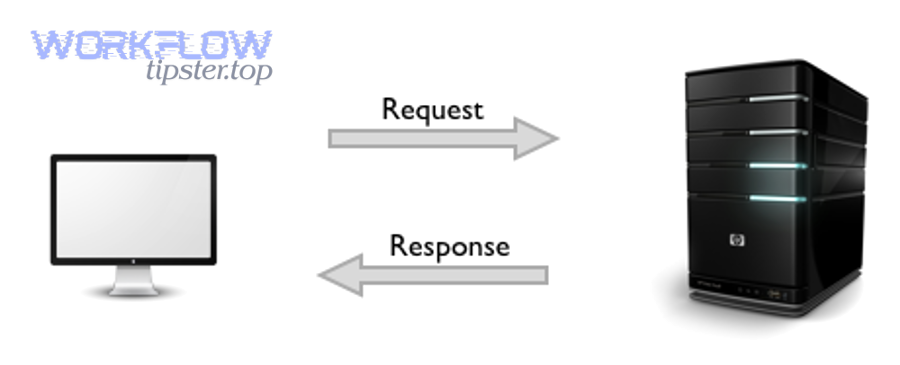
What does “HTTP 400 Bad Request” mean for a Google Sheets webhook?
HTTP 400 Bad Request for a Google Sheets webhook means the endpoint received your request but judged it invalid (malformed syntax, invalid message framing, or deceptive routing), so repeating the same request without changes will usually fail again.

To connect the meaning of 400 to your webhook issue, start by treating it as a contract failure: the sender is not meeting the receiver’s expectations for URL, method, headers, body format, or required parameters.
In practice, “Google Sheets webhook” usually means one of these architectures:
- Apps Script Web App endpoint (you deployed a script as a web app and handle data in doPost(e) or doGet(e)).
- Sheets API call (your code/tool calls Google’s REST endpoints like spreadsheets.values.append with OAuth).
- No-code connector route (Zapier/n8n/Make/others send a webhook to a script or middleware that writes to Sheets).
The keyword “Bad Request” is also your best clue: the receiver believes the request is wrong, not that the service is down. That’s why you should fix 400 differently than “google sheets permission denied” (403) or “google sheets api limit exceeded” (429), even if tools sometimes blur those messages in their UI.
Is a 400 error usually caused by the sender or the Google endpoint?
Yes—most 400 Bad Request errors are caused by the sender because (1) the payload is malformed or mismatched, (2) required fields/range parameters are missing or invalid, and (3) headers/methods don’t match what the endpoint parses.
Specifically, the endpoint typically returns 400 only after it can parse enough of the request to conclude, “I can’t process this as submitted.” That’s why your best first move is to capture the raw request (URL, headers, body) and compare it to a known-good example.
However, a Google endpoint can still “cause” 400 in the sense that it enforces strict rules. For example, Apps Script may not reach your handler if the deployment URL is wrong, and the Sheets API will reject invalid range notation or JSON body shapes. The key is that those strict rules are predictable—so you can design a request that always satisfies them.
Which Google Sheets integration patterns most often produce 400 errors?
There are 3 main types of Google Sheets integration patterns that most often produce 400 errors: (A) Apps Script Web App webhooks, (B) Sheets API write calls, and (C) no-code tool field-mapping webhooks, based on how they format requests and validate schemas.
To better understand where your 400 is coming from, map your setup to one of these:
- (A) Apps Script Web App webhook: errors come from deployment URL mistakes, method mismatch (sending GET to doPost), unexpected content-type, or parsing failures when reading e.postData.
- (B) Sheets API calls: errors come from invalid JSON bodies, missing required request fields, invalid spreadsheetId/range, or unsupported value types for the chosen endpoint.
- (C) No-code “send to Sheets”: errors come from field mapping (empty required fields), tool-side transformations (form-encoding vs JSON), and hidden character/encoding issues.
Is your webhook endpoint URL and deployment configuration correct?
Yes, your webhook will return 400 when the endpoint or deployment is wrong because (1) the URL may not route to the deployed “exec” endpoint, (2) the deployment may point to an older version of your code, and (3) access settings may block proper execution or parsing.
Next, treat the URL and deployment as part of your request contract: even a perfectly formatted JSON body can fail if it never reaches the correct deployed handler.

Use this quick triage:
- Confirm the endpoint type: Apps Script web app URL vs Sheets API endpoint.
- Confirm it is the deployed URL: not the editor URL, not a dev console URL, not a sharing link.
- Confirm access mode: “Anyone” vs “Only myself” vs domain-only access, depending on your architecture.
- Confirm version: the deployment must include the latest code changes you expect to run.
Which URL should you use for Apps Script Web App vs Sheets API calls?
Apps Script wins for “one webhook URL” simplicity, Sheets API is best for direct authorized writes, and mixing them is the most common cause of confusion: a web app needs its deployment exec URL, while the Sheets API needs Google’s REST endpoint plus OAuth.
However, the safest way to avoid 400 is to decide which path you’re on and stick to it:
- Apps Script Web App: your tool sends a request to the web app deployment URL (the one used for production execution). Your script receives the request in doPost(e).
- Sheets API: your tool/code sends a request to the Sheets API endpoint with a bearer token; Google validates the JSON body and parameters before writing.
If you accidentally send a Sheets API-style JSON body to an Apps Script endpoint (or the reverse), you often get 400 because the receiver’s parser and required parameters do not match what you sent.
Do you need to redeploy the Apps Script Web App after changes to stop 400 errors?
Yes, you usually need to redeploy because (1) deployments can lock to a specific version, (2) your webhook URL may execute an older build, and (3) fixes to parsing/validation only take effect after the correct deployment is live.
Then, connect redeployment to what you’re seeing: if your logs show “old behavior” or your webhook still fails after code changes, assume you’re not running the code you just edited. To resolve it:
- Update the deployment to the latest version and confirm the correct deployment is active.
- Retest with the same minimal request to verify the error changed (or disappeared).
- Only after success, reintroduce your full production payload and tool-specific mapping.
What deployment settings can trigger 400 even when the code is correct?
There are 4 common deployment settings that can trigger 400 even when your code is correct: (1) “Execute as” identity, (2) “Who has access,” (3) domain restrictions, and (4) script authorization state, based on who is allowed to run and write.
More specifically:
- Execute as: if the script executes as a user who lacks edit access to the target sheet, the write path may fail in a way your tool surfaces as a generic 400.
- Who has access: if the endpoint requires sign-in but your sender is anonymous, you can receive errors that look like “Bad Request” in certain clients/tools.
- Domain rules: Workspace constraints can block external access; some tools misreport the failure as 400 instead of a more obvious auth error.
- Authorization state: if the script hasn’t been authorized for required services, execution can fail before your own validation runs.
Are you using the correct HTTP method, headers, and Content-Type for the webhook request?
Yes—method, headers, and Content-Type are top drivers of 400 because (1) the endpoint may only parse POST bodies in doPost, (2) the receiver may reject unsupported media types, and (3) mismatched encoding prevents reliable JSON parsing.
Specifically, you should treat your webhook request as a structured envelope: if the envelope is wrong, your data never reaches the logic that writes to Sheets.

Should the webhook be POST or GET for writing to Google Sheets?
POST wins for writing data, GET is best for lightweight checks, and using the wrong method is a frequent 400 trigger: POST carries a body that your receiver can validate and store, while GET often drops bodies or bypasses doPost.
However, you can still use GET strategically:
- Use GET to confirm the endpoint is reachable and returns a predictable “OK” response (health check).
- Use POST for real writes, because it supports clear body formats and higher payload sizes.
If your Apps Script relies on doPost(e), sending GET will not call it. Some clients then interpret the response as a “bad request” because the route you intended was never executed.
What Content-Type should you send for JSON payloads to avoid 400?
For JSON webhooks, Content-Type should be application/json with a compatible charset, because the receiver uses it to decide how to parse the body and how to interpret characters like quotes, Unicode, and escaped sequences.
For example, when your webhook payload is JSON, set:
- Content-Type: application/json
- Body: a valid JSON string (not a form-encoded key-value list unless your script expects that)
If your tool can’t send application/json reliably, you can still succeed by writing your Apps Script parser to handle form-encoded payloads—but your parsing logic must match the chosen format exactly.
Which headers are required vs optional in common setups?
There are 2 main groups of headers for Google Sheets webhook setups: (A) essential headers and (B) situational headers, based on whether you’re calling an Apps Script endpoint or the Sheets API.
To illustrate, this table contains the most common headers and when they matter; it helps you quickly align your sender with the receiver’s expectations.
| Header | Required for Apps Script Web App | Required for Sheets API | Why it can cause 400 |
|---|---|---|---|
| Content-Type | Usually yes | Yes | Receiver can’t parse body correctly; unsupported media type or invalid parsing. |
| Authorization | Depends on access mode | Yes | Some tools surface auth parsing/formatting failures as generic request errors. |
| Accept | No | No | Rarely causes 400, but mismatched expectations can hide useful error payloads. |
| User-Agent | No | No | Almost never causes 400; useful for logging and tool identification. |
In addition, if you’re doing google sheets troubleshooting across multiple tools, keep headers consistent between your “known-good test request” and the real automation request so you can isolate what actually changed.
Is your JSON payload valid and does it match the expected field schema?
Yes—JSON validity and schema alignment determine whether 400 disappears because (1) invalid JSON cannot be parsed, (2) missing or misnamed fields break field mapping, and (3) unexpected data types (array vs string) violate the receiver’s assumptions.

Besides the endpoint envelope, the payload is the next place 400 hides: the receiver might be running, but it cannot safely interpret your content as the structure it expects.
How do you confirm the payload is valid JSON before it reaches Google Sheets?
A JSON payload is valid when it is well-formed, correctly encoded, and matches the receiver’s parse path, because your endpoint must read the body without truncation, without illegal characters, and without double-encoding.
To better understand what “valid” means in webhook reality, validate along three layers:
- Syntax validity: quotes, braces, commas, and escaping are correct.
- Transport integrity: the body arrives unchanged (no hidden transformations by the tool).
- Parsing compatibility: your receiver reads the correct field (for Apps Script: the raw contents vs parsed parameters).
Then run a “capture-and-compare” test:
- Send your payload with a direct client (Postman/cURL) and record the exact raw body.
- Send the same payload via your automation tool and compare the raw body and Content-Type.
- Keep the payload tiny at first (one or two fields), then expand once the receiver writes successfully.
According to a study by Rochester Institute of Technology from the Department of Computer Science, in 2021, many validation errors in JSON schema usage were caused by referencing older schema definitions while using newer features, which highlights how version and structure mismatches commonly break validation pipelines.
Which payload structure mistakes most commonly cause 400 in field mapping to Sheets?
There are 6 common payload mistakes that cause Google Sheets webhook 400 errors during field mapping: (1) missing required keys, (2) wrong key names, (3) wrong data types, (4) unexpected nesting, (5) empty payloads, and (6) invalid characters/encoding.
More specifically, these show up like this:
- Missing required keys: your script expects email, but the tool sends user_email.
- Wrong key names: case sensitivity or whitespace differences break mapping (OrderId vs orderId).
- Wrong data types: sheet expects a string, but you send an array; or you send an object where a scalar is needed.
- Unexpected nesting: tool wraps your payload under data but your script reads top-level keys.
- Empty payload: tool sends an empty object when fields are blank; your script rejects it.
- Encoding problems: reserved characters or Unicode breaks parsing or range notation.
So, if you see a 400 and your logs show “undefined” values, assume the mapping is wrong until proven otherwise.
Is “send raw JSON” different from “send form fields,” and which is safer?
Raw JSON wins for predictable structure, form fields are best for simple key-value submissions, and choosing the wrong format is a major 400 trigger because Apps Script and tools parse these bodies differently and may drop nested objects in form encoding.
However, “safer” depends on your end-to-end control:
- Choose raw JSON when you control the receiver and can validate schema strictly. You get explicit nesting and consistent typing.
- Choose form fields when your tool can’t reliably send JSON or when you only need flat fields. You must write a parser that matches form encoding.
The key is consistency: if your Apps Script expects JSON but your tool sends form fields (or vice versa), you often get a 400 that looks mysterious until you compare the raw requests.
Do authentication, permissions, or spreadsheet access rules cause your 400 error?
Yes—auth and access rules can still lead to “400-like” failures because (1) invalid spreadsheet IDs/ranges look like bad requests, (2) protected ranges can break write assumptions, and (3) some tools surface permission issues as generic request failures instead of clear 403 errors.

Moreover, the fastest way to separate “request format” from “access rules” is to test the same payload against a sheet you fully control (full edit rights, unprotected tab) and see whether 400 disappears.
Do you need OAuth for Apps Script Web Apps, or only for the Sheets API?
Apps Script can work without OAuth in certain deployments, Sheets API requires OAuth for write access, and confusing these two models causes many integrations to fail because a “public” web app request is not the same as an authorized API write request.
On the other hand, OAuth is not “optional” for the Sheets API: without an access token, Google cannot authorize your write call. For Apps Script web apps, access depends on deployment settings:
- Public web app: can accept anonymous requests (depending on “Who has access”).
- Restricted web app: requires sign-in; anonymous senders fail.
If your use case requires writing to a specific spreadsheet, you must still ensure the executing identity has edit permission, or you’ll face failures that tools may label incorrectly.
Which permission problems look like 400 but are actually access-related?
There are 5 access-related problems that often look like 400 in webhook tools: (1) protected ranges, (2) missing edit access, (3) wrong tab name, (4) invalid range notation, and (5) locked-down Workspace sharing rules.
Specifically:
- Protected ranges: your request is fine, but writes are blocked on target cells.
- Missing edit access: the executing identity can view but cannot edit, so writes fail.
- Wrong tab name: range references silently fail if the sheet name is wrong or needs quoting.
- Invalid range notation: A1 notation errors can be treated as “bad request” by the API layer.
- Domain restrictions: cross-domain webhooks can fail under certain policies and show generic errors.
If your tool UI specifically shows google sheets permission denied in other runs, treat that as a separate class of problem from 400 and fix access first—because format fixes won’t help if the writer cannot edit the target sheet.
Is the spreadsheet ID/range format correct for your request?
Yes, your request succeeds only when spreadsheetId and range are correctly formatted because (1) the API validates IDs strictly, (2) A1 notation must match real tabs and cells, and (3) special characters in sheet names require careful handling.
To illustrate, follow these reliability rules:
- Spreadsheet ID: use the actual ID from the URL, not the sheet name.
- Sheet/tab name: match exactly (including spaces and capitalization).
- A1 notation: prefer explicit ranges like Sheet1!A:A or Sheet1!A1:D1 in early debugging.
Then, once you confirm the range is valid, you can make it more dynamic—because dynamic ranges are powerful, but they are also a common place where a single unexpected character triggers a 400.
Which tool-specific scenarios cause Google Sheets webhook 400 errors, and how do you isolate them?
There are 3 major tool-specific scenarios that cause Google Sheets webhook 400 errors—(1) field mapping outputs an unexpected structure, (2) the tool silently changes encoding or Content-Type, and (3) retries/backlog behavior replays a partial payload—based on how automation platforms serialize data.

Especially when you see google sheets tasks delayed queue backlog symptoms (late retries, duplicated submissions, partial fields), you should assume your tool is replaying requests under the hood—and your receiver must validate and respond consistently.
How do Zapier-style “field mapping” mistakes trigger 400?
Field mapping triggers 400 when the mapped output violates the receiver schema, because the tool may send empty values, rename fields, nest the payload under an unexpected key, or flatten arrays/objects in ways your script does not handle.
For example, a mapping screen can show a value as “present,” but the request body may still send null or an empty string. That mismatch typically breaks:
- Required field rules (your script rejects missing keys).
- Type rules (your script expects a string, the tool sends an array).
- Nesting rules (your script reads top-level keys, tool wraps under data).
So the isolation move is simple: export or inspect the “raw request” your tool sends (most tools provide a request inspector), then align your receiver to that exact structure—or change the tool mapping to match the receiver.
How do you test the same request outside the automation tool to confirm the root cause?
You confirm the root cause by sending the same payload in a direct client, in 3 steps, to get a known-good baseline: (1) send minimal JSON, (2) confirm receiver logs and response, and (3) add fields until the 400 returns.
Then, compare the baseline to the tool’s request:
- Compare URL: exact endpoint, including trailing slashes and query parameters.
- Compare method: POST vs GET.
- Compare Content-Type: JSON vs form encoding.
- Compare body: field names, nesting, data types, and encoding.
Once you can reproduce the 400 with a direct client, you can fix it with certainty. If you cannot reproduce the 400 outside the tool, the tool is almost certainly mutating the request (or replaying it during retries), and your fix belongs at the tool configuration layer.
What is the fastest debugging checklist to fix 400 and prevent it from returning?
The fastest way to fix Google Sheets webhook 400 is a 7-step checklist that (1) reproduces the issue, (2) captures the raw request, (3) validates the endpoint/method/headers, (4) validates JSON, (5) validates sheet/range, (6) isolates tool mutations, and (7) adds strict validation for prevention.
Below is the workflow you can follow in minutes rather than hours, because it reduces guesswork and forces a single variable change at a time.
Use this checklist in order:
- Step 1: Confirm endpoint reachability with a simple GET health check (or a minimal POST that returns “OK”).
- Step 2: Confirm method (POST for writes) and ensure you’re hitting the deployed URL, not an editor link.
- Step 3: Confirm headers (especially Content-Type) and remove nonessential headers while debugging.
- Step 4: Send minimal payload (one or two fields) and confirm it writes to a safe test tab.
- Step 5: Validate range/tab rules with a known-good static range before using dynamic ranges.
- Step 6: Compare tool vs baseline by inspecting the raw request each one sends.
- Step 7: Add validation + clear errors so future bad payloads fail loudly with actionable messages.
Should you log the raw request body and headers on the receiver side?
Yes, you should log raw request data because (1) it reveals the true Content-Type and body shape, (2) it shows encoding and hidden characters, and (3) it lets you compare baseline vs tool requests without guessing.
However, log responsibly:
- Redact secrets (tokens, API keys, authorization headers).
- Log selectively (store only what you need: method, path, content-type, and a truncated body sample).
- Attach a request ID so you can match tool retries to specific logs (critical when backlogs or retries exist).
When you do this, your “google sheets troubleshooting” becomes deterministic: you stop guessing which payload arrived and start fixing the exact one that did.
What minimum “known-good” test should you run to confirm the endpoint works?
A minimum known-good test is a tiny POST with 2–3 fixed fields to a safe test sheet, in one request, that returns a clear success response, because it proves your endpoint, deployment, parsing, and write permissions are all correct.
To illustrate, design the test payload like this (conceptually):
- Field 1: a short text like “ping”
- Field 2: a timestamp string you generate on the sender
- Field 3: a static identifier like “baseline-test”
Then confirm three outcomes:
- The receiver returns a 200-level response with a clear body.
- The target sheet shows the row appended exactly once.
- Your logs show the parsed fields exactly as expected.
If this baseline fails, fix the endpoint/method/headers first. If it succeeds, your later failures come from schema/range/tool mutations—not from the core integration.
How do you harden the integration so invalid payloads fail clearly (not mysteriously)?
You harden the integration by enforcing validation in 3 layers: (1) validate required fields and types before writing, (2) return structured error responses with specific messages, and (3) version your schema so senders don’t accidentally break compatibility.
In addition, add operational protections:
- Schema versioning: include a schemaVersion field so the receiver can route parsing rules safely.
- Idempotency keys: prevent duplicates when tools retry during queue backlog situations.
- Explicit error codes: return “missing_field_email” instead of a generic 400 message.
This is also where you separate 400 from “google sheets api limit exceeded”: rate limits and quotas should return a distinct error response and trigger backoff behavior, while 400 should trigger payload correction.
What advanced edge cases can still cause a Google Sheets webhook to return 400, and how do you handle them?
There are 4 advanced edge-case categories that can still cause a Google Sheets webhook to return 400: (1) redirects/URL changes, (2) encoding and special-character failures, (3) multipart vs JSON formatting mismatches, and (4) intermediary infrastructure changes, based on how requests are transformed in transit.

More importantly, these edge cases often look random because they depend on specific payload values, specific tools, or specific network paths—so you handle them by capturing raw requests and minimizing hidden transformations.
Can redirects (301/302) or URL changes make a valid webhook request return 400?
Yes, redirects and URL changes can trigger 400 because (1) some tools don’t follow redirects for POST, (2) some tools change POST to GET when redirecting, and (3) the redirected endpoint may not accept the same method/body format as the original.
Then, fix it by making the destination explicit:
- Use the exact deployed endpoint URL intended for production execution.
- Disable “follow redirect” ambiguity by testing in a direct client and confirming the final URL.
- If your tool can’t handle redirects correctly, route through a stable endpoint you control.
If you ever see “too many redirects” alongside 400, treat it as a routing issue first, not a payload issue.
Which URL encoding and special-character issues break requests and produce 400?
There are 6 special-character and encoding issues that commonly break webhook requests and produce 400: (1) unescaped percent signs, (2) plus signs treated as spaces, (3) ampersands splitting parameters, (4) Unicode normalization changes, (5) double-encoding, and (6) newline/control characters in values.
Specifically, these appear when tools mix query strings and request bodies, or when a value that looks harmless becomes “syntax” at the transport layer. To reduce risk:
- Keep complex data in the body (JSON) rather than in query parameters.
- Encode consistently (UTF-8 end-to-end) and avoid manual string concatenation for URLs.
- Normalize inputs (trim, remove control characters) before sending to the webhook.
If your 400 appears only for certain rows/users, encoding is a prime suspect because the endpoint is “fine” until a specific character arrives.
Is multipart/form-data vs application/json a hidden cause of 400 in webhook tools?
Application/json wins for structured webhooks, multipart/form-data is best for file uploads, and the wrong choice can silently cause 400 because parsers read bodies differently and some tools send multipart boundaries that your receiver never expects.
However, you can still support multiple content types safely if you do it intentionally:
- Detect Content-Type and route to the correct parsing logic.
- Reject unsupported types clearly with a descriptive message.
- Document accepted formats so tool configurations don’t drift over time.
If your tool offers “JSON” vs “Form” toggles, don’t treat it as cosmetic—treat it as a contract decision.
Can proxies/CDNs/WAFs modify headers or bodies and trigger 400 even with correct code?
Yes, intermediaries can trigger 400 because (1) they may rewrite headers, (2) they may compress, truncate, or inspect bodies, and (3) they may block or alter requests that match certain patterns, even when your endpoint code is correct.
To better understand this, look for these signs:
- Your baseline requests succeed from one network but fail from another.
- Failures correlate with payload size or specific keywords/characters.
- Headers arriving at the receiver differ from what the sender claims to send.
Then mitigate:
- Bypass the intermediary for webhook traffic when possible.
- Add allowlists for the sender’s IP/service if your security layer supports it.
- Keep webhook payloads small and predictable; store large blobs elsewhere and send references.
In short, if you’ve validated endpoint, method, headers, payload, and sheet access—and 400 still appears unpredictably—assume something in transit is mutating the request and prove it by comparing raw captures at both ends.