


Syncing Airtable to Google Sheets is the fastest way to turn structured Airtable records into a live spreadsheet that updates automatically, so your team can report, share, and act on the same data without manual copy-paste.
Next, you’ll see the practical ways to connect Airtable and Google Sheets—no-code tools, lightweight scripts, and sync services—so you can choose the approach that fits your workflow, budget, and reliability needs.
Then, we’ll walk through a step-by-step setup checklist that prevents the most common failure points: wrong view selection, broken field mapping, missing unique IDs, and “append-only” automations that create duplicates over time.
Introduce a new idea: once your base sync is stable, you can expand into two-way syncing, advanced field handling, and governance practices that keep automation safe in a shared, team environment.
What does it mean to “sync Airtable to Google Sheets” ?
Syncing Airtable to Google Sheets is an ongoing, automated data connection that keeps rows updated over time, while an export is a one-time snapshot you must redo manually whenever data changes.
Specifically, this distinction matters because most teams don’t just need data “moved”—they need data kept consistent across tools.

A helpful way to think about it is this:
- Export answers: “How do I get Airtable data into Sheets right now?”
- Sync answers: “How do I keep Airtable and Sheets aligned automatically going forward?”
What “sync” typically includes in real workflows
A true Airtable → Google Sheets sync usually contains these parts:
- A source scope: a base, a table, or more commonly a view that filters the exact records you want.
- A mapping: Airtable fields become Sheets columns, and Airtable records become Sheets rows.
- An update rule: new records should append new rows, while updated records should update existing rows.
- A schedule or trigger: run every X minutes, hourly, daily, or near-real-time, depending on the connector.
Why sync is usually the better long-term option
Export looks simple, but it quietly creates costs:
- Someone must remember to rerun it.
- People work from stale spreadsheets.
- Numbers disagree across versions (“Which sheet is the latest?”).
- Manual edits introduce errors and inconsistencies.
That’s why teams often choose sync as a foundation for Automation Integrations—a predictable pipeline that makes downstream reports, approvals, and dashboards dependable.
Evidence: According to a study by the University of Hawaiʻi, Shidler College of Business, in 1998, 35% of student-built spreadsheet models in an experiment were incorrect, even on relatively simple tasks.
Can you automatically connect Airtable to Google Sheets without code?
Yes—Airtable to Google Sheets can be connected without code because no-code automation tools handle authentication, triggers, and field mapping, which reduces setup time, improves repeatability, and adds error visibility through run history.
Then, the real decision becomes which no-code path matches your team’s expectations for reliability and control.

What “without code” actually means in this context
Most no-code connections follow the same pattern:
- Connect Airtable (choose base/table/view and authorize access)
- Connect Google Sheets (choose spreadsheet + sheet and authorize access)
- Set the trigger (new record, updated record, scheduled sync)
- Map fields (Airtable field → Sheets column)
- Test (verify sample rows, formatting, and updates)
- Turn on (enable the automation and monitor runs)
Three practical reasons no-code is popular for teams
- Speed: you can often go from idea to working sync in under an hour.
- Maintainability: non-developers can update mapping when fields change.
- Accountability: run logs show what happened and when something failed.
If your team has ever maintained multiple versions of a spreadsheet for stakeholders, a no-code sync is often the cleanest way to keep one “public view” current while Airtable stays the structured source of truth.
Source note: If you later choose a script-based route, be aware that Apps Script and Google APIs have quotas and limits that can impact high-volume syncs.
What are the best ways to sync Airtable to Google Sheets (and when should you use each)?
There are three main ways to sync Airtable to Google Sheets—no-code automation platforms, script/API-based syncing, and dedicated sync connectors—based on the criteria of setup effort, reliability, and how complex your data mapping needs to be.
To better understand which method fits, evaluate your workflow by how often data changes and who must maintain the integration.

Before choosing, it helps to decide what success looks like:
- Do you need a reporting sheet that updates daily?
- Do you need an operational sheet that updates every few minutes?
- Do you need custom transformations (cleaning values, merging tables, flattening linked records)?
Which option is best for simple reporting dashboards and weekly exports?
For simple reporting dashboards, scheduled one-way syncing is best because it is easy to set up, minimizes conflicts, and keeps stakeholders informed without letting them accidentally change the source data.
Next, you can implement this with a filtered Airtable view that only includes “report-ready” records.
Best-fit characteristics:
- Updates hourly/daily/weekly
- Mostly read-only usage in Sheets
- Minimal transformations
- Clear ownership (Airtable is the source)
Practical examples:
- Leadership dashboard spreadsheets
- Weekly performance rollups
- Monthly invoices exported into a summary sheet
A strong tactic here is creating a dedicated Airtable view like “Export to Sheets (Clean)” that:
- excludes drafts/incomplete records
- ensures key fields are filled
- standardizes select values and date formats
Which option is best for operational workflows that need reliable updates and error handling?
For operational workflows, automation platforms are best because they support event triggers, retries/logs, and structured field mapping, which helps teams diagnose failures quickly and keep data fresh during the workday.
Moreover, operational teams usually need visibility into what ran, what failed, and what changed.
Best-fit characteristics:
- Updates every few minutes or near real-time
- Strong need for error reporting
- More complex mapping (multiple fields, formatting rules)
- Team members must maintain the integration
Operational examples:
- Lead routing lists in Sheets for sales reps
- Daily task intake trackers
- Support ticket summaries
If your team also runs cross-tool workflows (for example, airtable to confluence documentation updates or a related “handoff checklist” automation), keeping integrations standardized inside one automation platform reduces fragmentation.
Source note: Zapier provides troubleshooting guidance around Zap errors and run history, which is valuable when an operational sync breaks unexpectedly.
Which option is best if you need custom logic or complex transformations?
Script/API syncing wins for complex transformations, dedicated connectors win for repeatable standardized syncing, and no-code platforms are optimal for fast team-maintained workflows.
However, the tradeoff is maintenance: scripts offer flexibility but require technical ownership.
Use script/API syncing when you need:
- advanced cleaning (regex, conditional formatting logic, merge logic)
- multi-table joins
- incremental updates based on timestamps
- “upsert” logic tightly tied to your data model
Use dedicated sync connectors when you need:
- standardized “set it and forget it” syncing
- strong field-type handling
- minimal custom business logic
A useful rule: if your workflow resembles “ETL” (extract-transform-load), a script can be justified; if it resembles “keep my report updated,” no-code or a connector is usually better.
How do you set up an Airtable → Google Sheets sync step by step?
Airtable → Google Sheets sync works best with a 7-step checklist—scope the data, choose a unique key, connect accounts, map fields, test with sample records, validate formatting, and enable monitoring—so updates remain stable as your base evolves.
Below, we’ll turn that checklist into repeatable actions you can use in any tool.

Here’s the tool-agnostic setup flow used by most successful teams:
- Choose the Airtable source view
- Define the unique identifier
- Connect Airtable + Google accounts
- Create the sheet and column headers
- Map fields to columns
- Test run
- Enable schedule/trigger + monitoring
If you also maintain related workflows—like sending meeting prep from google docs to asana tasks—treat each integration as a product: document the owner, the data contract (fields), and the failure plan.
Which Airtable view should you sync (all records or a filtered view)?
A filtered view is usually better than “all records” because it reduces noise, improves performance, and prevents accidental syncing of incomplete or internal-only data into a stakeholder-facing spreadsheet.
Then, you can lock the view as the “data contract” your sync depends on.
Use all records only when:
- your table is already “clean”
- stakeholders truly need everything
- you can control permissions and access
Use a filtered view when:
- you need reporting-ready rows only
- you want to exclude drafts/archived items
- you want consistent formatting and fewer null fields
A recommended pattern:
- View A: “Ops – Live” (operational, includes active records)
- View B: “Report – Clean” (only complete records)
- View C: “Errors – Missing Fields” (for QA)
How do you map Airtable fields to Google Sheets columns correctly?
You map Airtable fields to Sheets columns correctly by aligning each column with one stable field name, normalizing formats for dates/numbers, and deciding how to represent complex types like multi-selects, attachments, and linked records.
Specifically, field mapping is where most “it runs but looks wrong” problems start.
Mapping best practices:
- Keep column headers stable (avoid frequent renaming)
- Use explicit formatting columns (e.g., Amount (number), Status (text))
- Decide on separators (multi-select: comma-separated vs pipe-separated)
- Document “special fields” (attachments → URLs, linked records → display names)
If your integration tool allows it, create a mapping table for your team so everyone understands what each column represents.
How do you run a safe test sync before turning automation on?
You run a safe test sync by using a sandbox spreadsheet, syncing a small sample view, verifying updates with a second run, and checking edge cases like blank values, multi-selects, and date formats before enabling the full schedule.
Next, you can promote the sandbox sheet into production once it passes your checklist.
A practical test checklist:
- Sync 5–20 records first
- Confirm rows append correctly for new records
- Confirm existing rows update (not duplicate) for edits
- Verify:
- date format (timezone, locale)
- currency/number parsing
- multi-select delimiter
- link/attachment handling
- Run the sync twice to prove update behavior
Source note: If you choose a script-based option, Google’s published quotas for Google services can affect automation frequency and scale.
Should you use one-way sync or two-way sync between Airtable and Google Sheets?
One-way sync is best for reporting and stability, two-way sync is best only when Sheets must be an editing interface, and a hybrid approach is optimal when Airtable remains the source of truth but Sheets captures limited inputs through controlled columns.
Meanwhile, the risk in two-way sync is conflict: two tools may try to “win” the same field.

Is Airtable a better “source of truth” than Google Sheets for teams?
Airtable is often a better source of truth because it enforces structured field types, supports relational links, and reduces uncontrolled edits, while Google Sheets is better for flexible analysis, ad-hoc views, and quick collaboration.
However, the “best” choice depends on whether you need governance or flexibility.
Airtable excels when you need:
- controlled schemas (select fields, required fields)
- relational data (linked records)
- form-driven input (clean intake)
- permissioned collaboration
Google Sheets excels when you need:
- fast ad-hoc analysis
- stakeholder-friendly sharing
- pivot tables and lightweight modeling
- quick “what-if” work
A reliable workflow is: Airtable stores truth, Sheets displays truth.
What happens when the same data is edited in both Airtable and Sheets?
When the same data is edited in both tools, you can get conflicts, overwritten values, and silent mismatches unless your sync defines ownership rules (which fields are writable in which tool) and how conflicts are resolved.
In addition, you must decide whether to allow Sheets edits at all.
If you must allow Sheets edits, reduce risk with guardrails:
- Choose a small set of “input columns” in Sheets (e.g., Notes, Assigned To)
- Protect other columns from edits
- Use a unique key column that never changes
- Log changes (who changed what and when)
Practical rule: If your team cannot clearly state “which tool owns which fields,” do not attempt two-way sync.
How do you prevent duplicates and ensure updates happen to the correct rows?
You prevent duplicates by using a unique identifier for every Airtable record, configuring the sync to “update existing row when ID matches,” and protecting the ID column from edits—because append-only automations create duplicate rows whenever a record is updated.
Then, you can add validation checks that catch mismatches early.

Duplicates usually happen for one reason: the integration cannot confidently match an Airtable record to an existing Sheets row.
To fix that, you need “upsert” behavior:
- Insert a new row when the ID is new
- Update the matching row when the ID already exists
Which unique identifier should you use (Record ID vs custom ID)?
Record ID wins for stability, custom ID wins for readability, and a combined approach is optimal when you store the Airtable Record ID as the primary key but also include a human-friendly ID for stakeholders.
However, never rely on a “name” field alone.
Use Airtable Record ID when:
- you want the most stable unique key
- you need guaranteed uniqueness
- you need long-term update correctness
Use a custom ID when:
- humans must reference it (e.g., INV-2026-0142)
- you need meaningful IDs across systems
Best practice: Keep both:
- airtable_record_id (protected, never edited)
- business_id (visible and human-friendly)
What are the most common causes of duplicates in Airtable → Sheets sync?
The main causes of duplicates are missing unique IDs, append-only syncing, edited ID columns, view changes that reintroduce records, and “blank key” rows that cannot be matched during updates.
More specifically, these issues compound over time as teams add fields and modify views.
Common duplicate triggers:
- The integration tool is set to “create row” only, not update
- The unique ID column exists but contains blanks for some records
- A teammate edits the ID column in Sheets
- The Airtable view filter changes (records leave and re-enter the view)
- Multiple automations write into the same sheet without coordination
A simple prevention checklist:
- Protect the ID column in Sheets
- Enforce non-empty IDs in Airtable (or compute them)
- Use a dedicated “sync owner” (one automation writes that sheet)
- Add a last_synced_at timestamp column for auditing
Source note: Airtable’s Web API rate limits are documented and can surface as errors when a sync is too frequent or too chatty, so connectors often batch requests to stay within limits.
What problems can occur when syncing Airtable to Google Sheets, and how do you fix them?
There are three common categories of Airtable-to-Sheets sync problems—missing/blank fields, incorrect formatting, and reliability failures—and each can be fixed by tightening mapping rules, normalizing data types, and monitoring runs with clear retry and alert practices.
Let’s explore each failure mode using symptom → cause → fix.
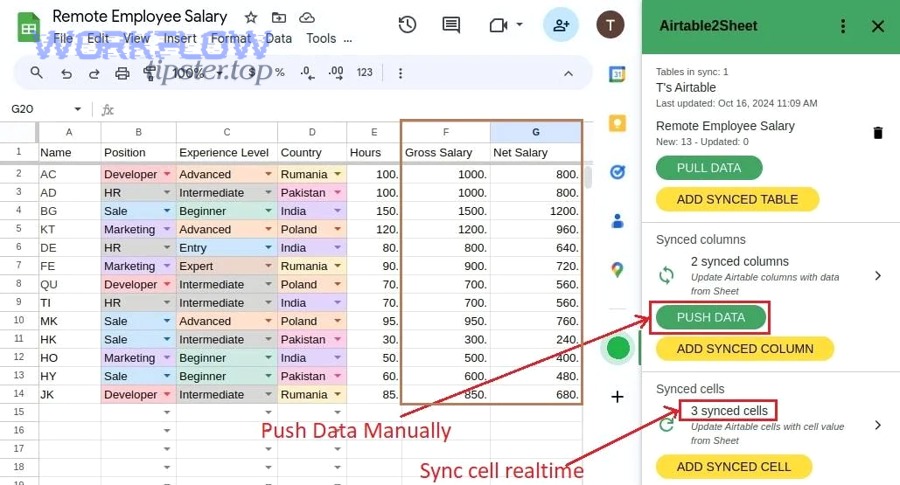
If your workflow depends on up-to-date spreadsheets for decision-making, treat troubleshooting as part of the integration design, not an afterthought.
Why are some Airtable fields missing or blank in Google Sheets?
Fields appear missing or blank because the sync view excludes them, permissions prevent access, the connector can’t translate complex field types, or the mapping points to the wrong field after a rename.
Then, you can fix it by verifying scope, permissions, and field-type handling.
Fast diagnosis:
- Confirm the field is visible in the Airtable view you’re syncing
- Confirm the integration account has permission to read that base/table
- Check whether the field type is complex:
- linked records
- rollups/lookups
- attachments
- formulas returning empty values
- Re-open field mapping and reselect the field (especially after renames)
Practical fixes:
- Create an export-friendly “flattened” field (e.g., formula that joins linked record names)
- Convert attachments to URLs (or a separate sheet)
- Avoid renaming fields after integrations go live, or update mapping immediately
Why do dates, numbers, or multi-select values look “wrong” in Sheets?
Formatting looks wrong because locale/timezone conversions, numeric parsing rules, and delimiter choices can change how Sheets interprets text—especially for dates and multi-select lists.
However, you can fix this by normalizing formats and setting explicit types.
Fixes that work in most cases:
- Convert dates to ISO-like text (YYYY-MM-DD) when consistency matters
- Ensure numeric fields are sent as numbers (not strings)
- Standardize multi-select delimiter (comma vs pipe)
- Add dedicated columns for:
- raw value
- display value
- computed value (if needed)
A common pitfall: A date-time in Airtable becomes a date-only in Sheets (or shifts by timezone).
If your reports are timezone-sensitive, store both:
- created_at_utc
- created_at_local
Why does the automation fail randomly or stop updating?
Automations fail because tokens expire, quotas/rate limits are hit, schemas change, or a connector encounters a transient outage—so the fix is to reduce request volume, add run monitoring, and implement a recovery plan.
Moreover, teams should design for failure: every automation needs a “what happens when it breaks?” answer.
A reliable recovery checklist:
- Review run history to find the first failed run and the error pattern
- Check for schema changes (renamed fields, deleted columns, moved views)
- Reduce sync frequency if you’re hitting rate limits
- Batch updates rather than updating row-by-row
- Create an alert: notify the owner if no successful run occurs in X hours
If you’re using Zapier-like tooling, learn its troubleshooting features and run logs so you can fix problems quickly instead of rebuilding the integration from scratch.
How do you handle advanced Airtable field types and governance requirements when syncing to Google Sheets?
You handle advanced Airtable fields and governance by flattening relational data into report-friendly columns, storing attachments as URLs, batching requests to respect limits, and applying least-privilege access with clear ownership—so the sync stays accurate, compliant, and maintainable at scale.
Next, we’ll expand from “basic sync” into the micro-details that matter for larger teams.

If your Google Sheet is used by many people, governance is not bureaucracy—it’s how you prevent accidental data exposure and silent corruption.
How do you sync linked records, rollups, and lookups without breaking relationships?
You sync linked records, rollups, and lookups by flattening them into text-based representations (names, IDs, joined lists) or by exporting relational tables into separate sheets with keys—because Sheets is not inherently relational like Airtable.
To illustrate, think of this as choosing between “denormalized reporting” and “multi-sheet relational export.”
Two common patterns:
Pattern A: Denormalize for reporting
- In Airtable, create formula fields like:
- Linked Projects (Names)
- Owners (Emails)
- Join multiple values with a stable delimiter
- Sync those formula fields into one column each
Best for:
- dashboards
- stakeholder reports
- quick analysis
Pattern B: Export relational structure
- Sheet 1: Projects (project_id, name, status)
- Sheet 2: Tasks (task_id, project_id, owner, due_date)
- Sheet 3: Task_Project_Map (task_id, project_id) if needed
Best for:
- analytics pipelines
- BI tools downstream
- larger datasets
How should you sync attachments and long text fields (without bloating Sheets)?
You should sync attachments as URLs (or a separate “Attachments” sheet) and long text fields as truncated summaries with optional full-text links, because huge cells make Sheets slow and harder to use for analysis.
In addition, this approach reduces accidental sharing of sensitive files.
Recommended approach:
- Attachment column in main sheet:
- primary_attachment_url
- Separate sheet for full detail:
- record_id, attachment_url, attachment_name, uploaded_at
For long text:
- Main sheet: notes_summary (first 200–500 characters)
- Optional: notes_full only if the audience requires it
- Or link out to the original record for full detail
What limits and quotas should you plan for (API rate limits, Apps Script limits, tool caps)?
You should plan for Airtable API rate limits and Google quotas by batching updates, reducing sync frequency, using incremental updates, and monitoring failure rates—because high-frequency, row-by-row writes are the fastest path to “limit exceeded” errors.
More importantly, limits are predictable if you design for them early.
Practical planning checklist:
- Batch writes to Sheets (write ranges, not single cells repeatedly)
- Incremental sync (only updated records since last run)
- Schedule sensibly (every 5–15 minutes is often enough)
- Monitor (alerts when errors spike)
Evidence: According to documentation from Google Apps Script quotas (Google Developers), published and maintained in 2025, Google services have daily quota limits that can constrain automation behavior at scale.
Evidence: According to Airtable’s official Web API rate limits documentation, the Airtable API is limited to 5 requests per second per base, which can trigger throttling if a sync is too aggressive.
What are the best practices for permissions, PII, and audit trails in shared team workflows?
Best practices include limiting access scopes, separating “internal” vs “external” sheets, protecting key columns, logging sync runs, and assigning a single integration owner—because governance prevents accidental exposure of sensitive data and simplifies incident response.
Especially for shared Google Sheets, permissions discipline is non-negotiable.
A practical governance checklist:
- Use a dedicated integration account (team-owned, not personal)
- Apply least privilege:
- only the needed Airtable base access
- only the needed Google Drive folder access
- Separate outputs:
- Internal Ops Sheet (full detail)
- Stakeholder Sheet (sanitized, minimal PII)
- Protect critical columns:
- record_id
- timestamps
- computed totals
- Add an audit layer:
- last_synced_at
- sync_run_id (if the tool supports it)
- “failed_runs” log sheet (simple but effective)
If you publish your process internally (for example, in airtable to confluence pages), you reduce knowledge loss and make it easier for new teammates to maintain the workflow. If your team follows a playbook brand like WorkflowTipster, keep a standardized “integration checklist” template so every sync is built and reviewed the same way.