


Integrating Airtable with Confluence Cloud means turning Airtable records into consistently formatted Confluence pages (or embedding Airtable views inside pages) so your team can publish, update, and trust documentation without manual copy-paste.
Next, you’ll choose the right integration method—embedding, one-way automation, or ongoing sync—based on what your team actually needs: visibility, documentation publishing, or lifecycle updates across systems.
Then, you’ll set the right prerequisites (permissions, base structure, Confluence spaces/templates) and map Airtable fields into Confluence page titles, body sections, and metadata so the output stays readable at scale.
Introduce a new idea: once the workflow is live, reliability becomes the real differentiator—so we’ll cover idempotent updates, monitoring, and troubleshooting edge cases like embed restrictions and authorization errors.

What does it mean to integrate Airtable with Confluence Cloud for teams?
Integrating Airtable with Confluence Cloud is a no-code documentation workflow that connects Airtable as the structured data source and Confluence as the published knowledge destination, using triggers, mappings, and permissions to keep content consistent and searchable.
To better understand what “integration” really delivers for teams, it helps to separate the connection into what moves (objects), what it becomes (pages), and why it matters (repeatable documentation output).
Which Airtable objects and Confluence content types can be connected?
There are 6 main types of Airtable-to-Confluence connections—bases, tables, views, records, fields, and attachments—mapped to Confluence spaces, pages, blog posts, labels, and embedded views based on how your team consumes knowledge.
Specifically, you should treat Airtable as a system of record and Confluence as a presentation layer. Airtable “objects” are structured (tables/records/fields), while Confluence “content types” are narrative (pages/blog posts) and navigational (spaces/labels).
- Airtable base → Confluence space documentation area (a logical “home” for a domain like Product, Ops, or Support)
- Airtable table → A documentation collection (SOP library, release notes library, onboarding library)
- Airtable view → A publishing queue (e.g., “Ready to Publish”) or an embedded living list inside a Confluence page
- Airtable record → A single Confluence page (one record = one page pattern)
- Airtable fields → Page title, headings, tables, status badges (via labels), and page properties
- Airtable attachments → Linked files or uploaded artifacts attached to the Confluence page when your tool supports it
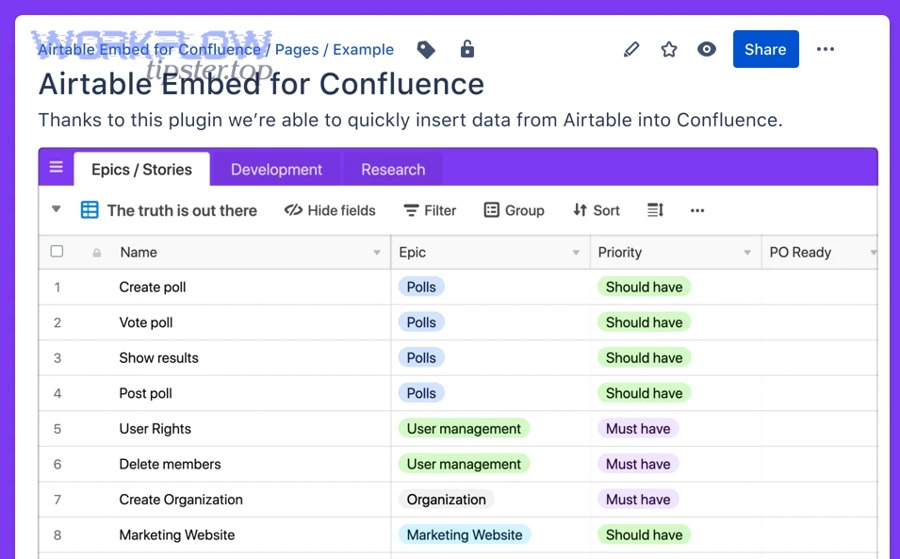
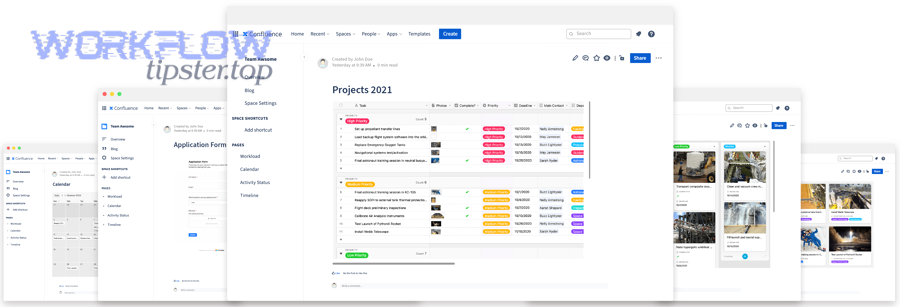
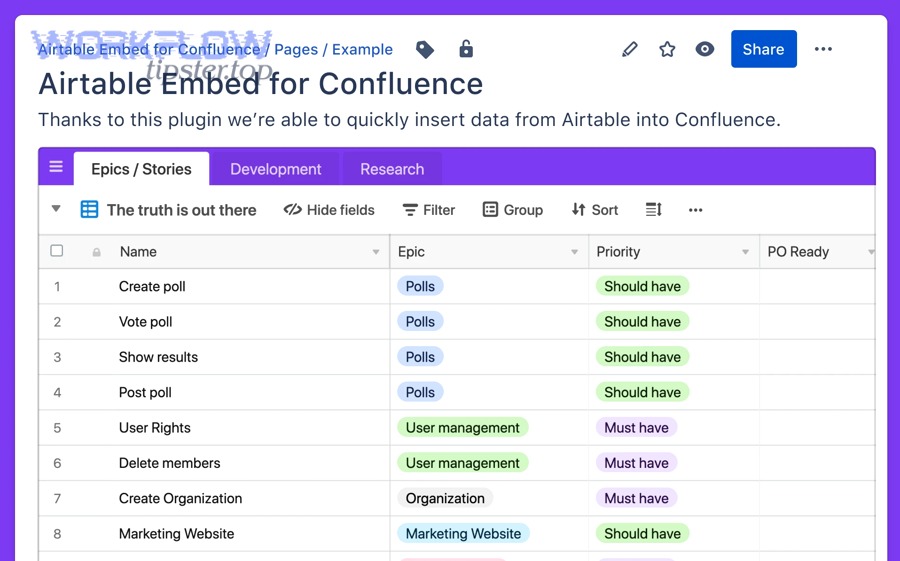
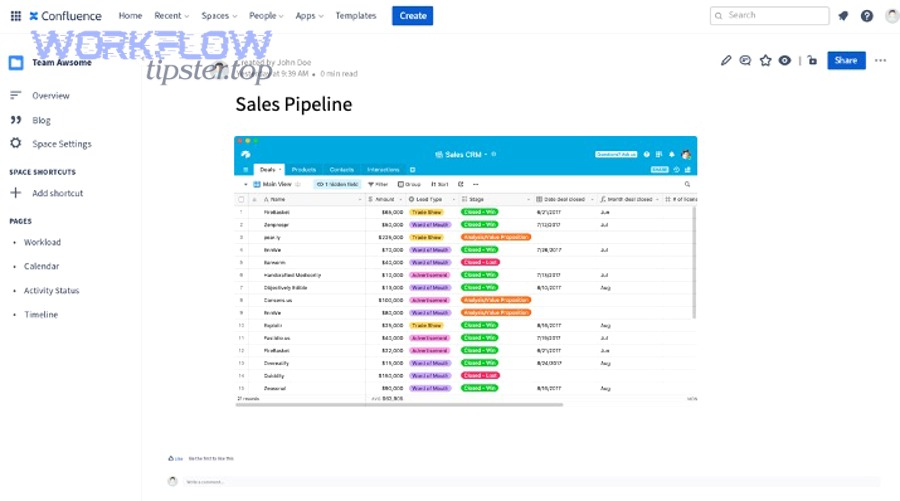
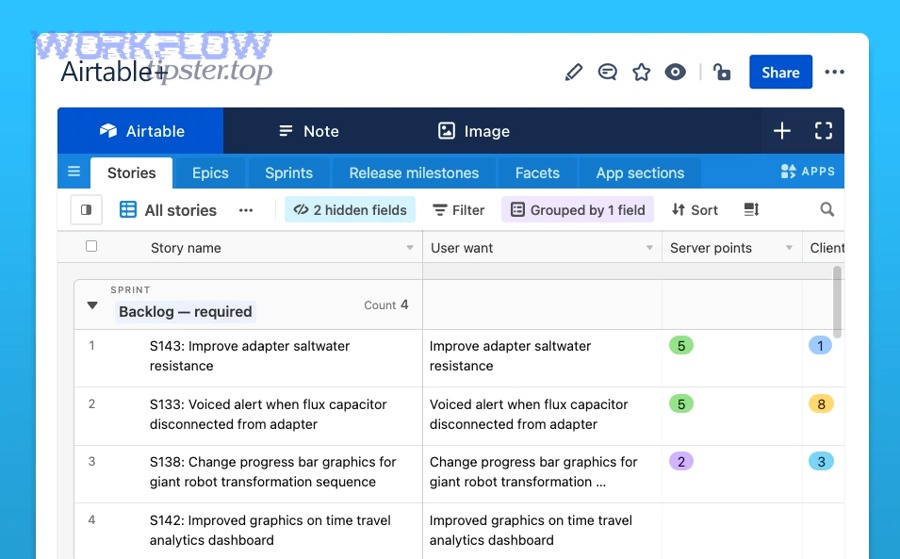
If your primary goal is “show the latest table inside Confluence,” embedding is a direct path. Atlassian Marketplace apps commonly support pasting a shared Airtable link to embed a base, view, or form into a Confluence page.
What are the most common Airtable → Confluence documentation workflows for teams?
There are 5 main Airtable-to-Confluence documentation workflows—publish SOPs, generate project pages, create release notes, build onboarding docs, and maintain knowledge-base articles—based on whether your team needs static documentation, living dashboards, or automated updates.
More specifically, teams succeed when they define a single source of truth (Airtable) and a single reading experience (Confluence). That clarity prevents duplicate docs, conflicting versions, and “tribal knowledge” trapped in spreadsheets.
- SOP publishing: Airtable record becomes a standardized Confluence SOP page with consistent sections (Purpose, Steps, Owner, Last reviewed)
- Project documentation: Airtable project tracking record generates a Confluence project hub page (Goals, Timeline, Risks, Stakeholders)
- Release notes: Airtable release record creates a Confluence blog post or page with a changelog table and rollout notes
- Onboarding: Airtable role-based checklists produce Confluence onboarding pages and link to team policies
- Knowledge base: Support issue patterns in Airtable create “Known Issue” pages in Confluence for searchable resolution
When you want the Confluence page to update automatically as Airtable changes, automation tools commonly offer “create page/blog post in Confluence Cloud for new or updated Airtable records” as a standard template.
Which integration method should you choose for Airtable to Confluence Cloud?
Airtable embedding wins for visibility, no-code automation wins for publishing consistent pages, and ongoing sync is best for lifecycle updates—so the right method depends on whether you need to show data, publish docs, or maintain two systems over time.
However, choosing the method becomes easy when you evaluate three criteria: how often content changes, who owns the truth, and how much governance your team needs.
This table contains the three main integration methods and shows what each method is best for, so you can choose based on intent rather than tooling hype.
| Method | Best for | What changes over time | Typical risk |
|---|---|---|---|
| Embed Airtable in Confluence | Live visibility inside Confluence | Embedded view updates when Airtable updates | Embed restrictions / access mismatch |
| Automate Confluence pages from Airtable | Publishing structured docs at scale | Pages update on triggers/schedules | Duplicates if no upsert key |
| Sync Airtable and Confluence | Lifecycle management across systems | Two systems change; synchronization rules matter | Conflicts and overwrite errors |
Should you embed Airtable in Confluence or automate Confluence pages from Airtable?
Embedding wins when you need a live view inside Confluence, while automation wins when you need a readable Confluence page that stands alone—because automation lets you control structure, templates, ownership, and search-friendly formatting.
To illustrate the difference, embedding is like putting a “window” into Airtable, while automation is like “printing” Airtable into Confluence with a consistent layout your team can read and review.
- Choose embed if you want Confluence to display an Airtable base/view/form and you don’t need Confluence-native formatting for the content.
- Choose automation if you want one record to become one Confluence page with headings, tables, ownership fields, and review cycles that match documentation standards.
- Choose automation if your audience is broader than Airtable users (e.g., leadership, onboarding hires, cross-functional stakeholders).
In practice, many teams use both: embed for operational dashboards and automation for “official documentation” that should be discoverable and readable even when Airtable changes.
Do you need one-way publishing or two-way sync between Airtable and Confluence?
Yes, you should prefer one-way publishing for most teams because it reduces conflicts, preserves Confluence as the reading layer, and keeps Airtable as the source of truth; two-way sync is only worth it when Confluence edits must update Airtable systematically.
Meanwhile, the safest approach is to implement one-way publishing first, validate governance, and then add selective reverse updates only where the business case is unavoidable.
- One-way (recommended): Airtable → Confluence. Airtable remains authoritative; Confluence pages are generated and updated from records.
- Two-way (advanced): Confluence ↔ Airtable. You must define conflict rules (last-write-wins, field-level locks, or human approval).
- Hybrid: Airtable publishes pages, but Confluence edits remain “notes” or “comments” that do not overwrite Airtable fields.
If you can’t clearly define “which system is allowed to overwrite the other,” two-way sync tends to create silent data quality issues that surface months later as broken documentation trust.
Zapier vs n8n vs sync tools: which option fits your team’s scale and control needs?
Zapier is best for fast no-code deployment, n8n is best for technical control and complex branching, and sync-focused tools are best when your priority is predictable bi-directional synchronization and lifecycle updates across many records.
Besides speed, the real differentiator is control: control over transformations, error handling, retries, and idempotent updates.
- Zapier: Ideal when you want to launch quickly and keep maintenance simple.
- n8n: Best when you need flexibility, branching logic, and deeper debugging.
- Sync tools: Useful when you need ongoing synchronization and can clearly define conflict rules.
If your content program includes many “Automation Integrations” across tools, standardizing on one automation platform can reduce long-term operational overhead because your team learns one governance model instead of five.
What do you need before connecting Airtable to Confluence Cloud?
There are 5 prerequisites you need before connecting Airtable to Confluence Cloud: correct permissions, a publish-ready Airtable view, stable record identifiers, a Confluence space and template strategy, and a clear ownership model for updates and approvals.
Next, you’ll turn those prerequisites into a checklist your team can actually follow, because “integration failure” usually comes from missing governance rather than missing technology.
Which permissions and access roles are required in Airtable and Confluence?
There are 3 required permission layers for Airtable-to-Confluence integration: a credential owner (service account or dedicated user), content access (space/page permissions in Confluence), and data access (base/table permissions in Airtable) based on least privilege.
More importantly, permission alignment is the fastest way to prevent broken pages, missing data, or “works for me” failures that only appear for other teammates.
- Integration credential owner: A dedicated account that authenticates to both systems, so workflows don’t break when an employee leaves.
- Confluence space permissions: The account must create and update pages in the target space; if it can create pages but not edit them, updates will silently fail later.
- Airtable base permissions: The account must read records from the publishing view; if it cannot read attachments or linked records, your page output will be incomplete.
To reduce risk, treat the integration account like production infrastructure: store credentials securely, restrict access, and document ownership and rotation procedures.
How should you structure Airtable bases and views to produce clean Confluence pages?
A publish-ready Airtable base is a structured dataset designed for documentation output, usually built around a “Ready to publish” view, consistent field naming, and an explicit record status that controls whether a Confluence page is created or updated.
Specifically, you want Airtable to behave like a content pipeline: draft → review → publish → maintain, because Confluence pages should not be generated from half-finished records.
- Create a publishing view: Filter records that meet minimum requirements (e.g., Status = Ready, Owner is not empty, Title exists).
- Use stable field names: Avoid renaming fields after launch; instead, add new fields and deprecate old ones gradually.
- Add a unique key: Store Airtable record ID or a generated document key (e.g., SOP-0012) so updates are deterministic.
- Define ownership fields: Owner, reviewer, and last reviewed date help you enforce documentation governance after pages exist.
- Separate narrative fields from structured fields: Long text fields become Confluence sections; structured fields become Confluence tables or page properties.
If your team already manages similar flows like “airtable to clickup,” reuse the same content pipeline idea: a status-driven view controls what gets created, updated, or ignored.
What Confluence space, template, and page-hierarchy decisions should you make first?
There are 4 Confluence decisions to make first—space location, page template structure, hierarchy rules, and labeling—because they determine whether your generated pages become a navigable knowledge system or a messy page dump.
Then, once these rules are defined, automation becomes safer because every new page lands in the right place with predictable metadata.
- Space location: Decide where pages live (e.g., Ops Space, Product Space) and avoid mixing unrelated domains.
- Template structure: Define fixed sections (Purpose, Scope, Steps, Owner, Risks) so pages look consistent across authors.
- Hierarchy rules: Decide parent pages (e.g., “SOP Library” → category → specific SOP) so browsing is intuitive.
- Labels/page properties: Use labels for filtering and search, and page properties for consistent metadata extraction.
How do you set up a no-code Airtable → Confluence automation step by step?
The most reliable no-code method is a 6-step workflow—select a publish-ready Airtable trigger, fetch the record, transform fields, create or update a Confluence page, write back the page ID, and log outcomes—so pages stay consistent and updates don’t duplicate.
Below, we’ll implement the steps in a tool-agnostic way so you can apply the same logic whether you use Zapier, n8n, or another platform.
How do you map Airtable fields to Confluence page title, body sections, and metadata?
Airtable-to-Confluence mapping is a structured content transformation where the title becomes a deterministic formula, the body becomes reusable sections, and metadata becomes labels/page properties—so readers can scan, search, and trust what they’re reading.
Specifically, your mapping must prioritize readability over raw data export, because Confluence is a reading environment, not a database UI.
- Title rule: Use a stable pattern like “[Doc Key] – [Record Name]” to prevent collisions and make search predictable.
- Body sections: Convert long-text fields into headings and keep the order consistent.
- Structured table: Convert key-value fields (Owner, Status, Last reviewed, Priority) into a table near the top for quick scanning.
- Labels: Map categories/tags to Confluence labels so users can filter and find related pages.
- Links: Convert Airtable record URLs into a “Source of truth” link so editors can trace back to the record.
How do you create or update Confluence pages when Airtable records change?
Yes, you can create or update Confluence pages from Airtable changes by using a trigger (new/updated record), an action (create page), and an update path (edit the same page) controlled by a stored page ID and a clear “create vs update” rule.
More importantly, you should design your workflow so updates are intentional, because “update on every edit” can flood Confluence with changes that don’t matter to readers.
- Create rule: If “Confluence Page ID” is empty and Status = Ready, create the page and write the new page ID back into Airtable.
- Update rule: If “Confluence Page ID” exists and Status = Published, update the existing page body and metadata using that ID.
- Publish gate: Only create or update when a status moves into a publishable state (Ready/Published), not on every field edit.
- Archive behavior: If Status = Archived, optionally add an “Archived” label or move the page under an Archive parent.
How do you prevent duplicates and ensure idempotent updates?
Idempotent updates mean the workflow can run multiple times and still produce one correct Confluence page per Airtable record, and the 3 most reliable ways to achieve that are storing the Confluence page ID, using a unique record key, and implementing an upsert decision before writing.
Then, once idempotency is in place, you can safely re-run workflows during testing, edits, or migrations without creating page clutter.
- Store the Confluence page ID in Airtable: This becomes your “single pointer” to the existing page.
- Use a stable unique key: Airtable record ID or a generated document key prevents title-based collisions.
- Implement an upsert check: If page ID exists → update; if not → create; never “create” blindly.
- Log every run: Store last run time, status, and error message in Airtable so failures are visible to non-technical owners.
How do you keep Airtable and Confluence pages reliable and maintainable over time?
Keeping Airtable and Confluence reliable over time means operating the integration like a product: define formatting rules, add approvals and change control, and implement monitoring and remediation so automation improves documentation trust instead of creating silent content drift.
More importantly, reliability is what turns a one-time integration into a scalable documentation system your team can depend on quarter after quarter.
How do you handle formatting (tables, rich text, links, attachments) without breaking Confluence pages?
The safest formatting strategy is to standardize 3 output structures—an overview table, consistent section headings, and stable links—because Confluence pages remain readable even when Airtable fields evolve or when different authors contribute varying levels of detail.
Specifically, Confluence readability is about predictability. When readers know where to find the “owner,” “status,” and “steps,” your docs become faster to consume and easier to maintain.
- Overview table: Put structured fields at the top in a table (Owner, Status, Priority, Last reviewed, Source link).
- Section blocks: Keep a fixed order of headings (Purpose → Scope → Steps → Notes → References).
- Link hygiene: Always include the Airtable record link as “Source of truth” and avoid hardcoding links that will change during migrations.
- Attachments: Decide whether attachments are embedded in Confluence, linked to Airtable, or stored in a shared drive; do not mix patterns within the same doc type.
If your team also runs adjacent doc workflows like “basecamp to google slides,” the same principle applies: standardize the output structure first, then automate—because structure is what keeps content coherent across systems.
How do you manage versioning, approvals, and change control for published pages?
There are 4 governance layers that keep automated Confluence pages trustworthy: a draft-to-published status model, explicit owners and reviewers, controlled update triggers, and an audit-friendly review cadence that signals when content is still valid.
In addition, governance turns automation from “content spam” into “content stewardship,” which is what teams actually need when documentation grows.
- Status model: Draft → Review → Published → Archived; the integration only creates/updates pages when the record is in a publishable state.
- Owner field: One accountable owner per record/page, so pages never become abandoned.
- Reviewer cadence: A “Next review date” field triggers reminders or review queues inside Airtable.
- Change control: Limit which fields trigger updates (e.g., “Publish content” button/checkbox) to prevent noisy edits from rewriting pages.
According to a study by the University of Pennsylvania’s Penn Wharton Budget Model in 2025, AI-driven automation is projected to increase productivity and GDP over time, highlighting why organizations keep investing in workflow automation for knowledge work.
How do you monitor failures and maintain the integration as your team scales?
Scalable maintenance requires 3 operating practices—visible run logs, proactive alerting, and periodic content audits—because automation failures usually hide until someone needs the page during a critical moment.
More importantly, monitoring protects trust: once teams stop trusting the docs, they stop using them, and the integration loses its value.
- Run logs in Airtable: Store last run time, last status (success/fail), and last error message per record.
- Alerts: Send an alert when a run fails, when a credential expires, or when a Confluence API permission error appears.
- Audit workflow: Weekly or monthly check for pages missing owners, pages not reviewed, or records with missing page IDs.
- Load management: Batch updates during low-traffic hours if you publish many pages at once.
To sum up, this is the contextual border: if you’ve implemented the method selection, prerequisites, mappings, and reliability practices above, you’ve answered the core “Airtable to Confluence Cloud integration” intent—so the next section focuses on edge cases and troubleshooting when things don’t behave as expected.
How do you troubleshoot Airtable-to-Confluence integration issues and edge cases?
Troubleshooting Airtable-to-Confluence issues is a practical process: identify whether the failure is embed-related, permission-related, performance-related, or conflict-related, then apply targeted fixes that restore access, stabilize updates, and prevent duplicates.
Especially when you scale to more records and more users, edge cases become common, so the goal is not just to fix today’s error but to build guardrails that stop it from recurring.
Why does an Airtable embed show blank content or “refused to connect” in Confluence?
An Airtable embed shows blank content or “refused to connect” mainly for 3 reasons: the Airtable view is not shared publicly/appropriately, Confluence blocks the embed source due to iframe/security restrictions, or the viewer’s permissions don’t match the sharing settings.
Next, you should validate the embed flow end-to-end, because it can appear “shared” from the Airtable owner’s perspective while remaining inaccessible to typical viewers.
- Check Airtable sharing: Confirm the base/view/form is shared in a way that matches your audience (team-only vs public link).
- Check Confluence embed method: Prefer supported embed apps or supported embed blocks; generic iframe methods can be blocked.
- Test with a non-admin user: Open the Confluence page in an incognito browser or with a standard account to validate real access.
- Use “publish pages” when embed is fragile: If embed restrictions persist, generate Confluence pages from Airtable records instead of embedding a live view.
What causes 401/403 authorization errors and how do you fix them?
Authorization errors (401/403) usually come from 3 causes: expired or revoked credentials, insufficient Confluence space permissions for the integration account, or insufficient Airtable base permissions for the publishing view, and you fix them by reauthenticating and aligning least-privilege roles.
Then, once access is restored, you should prevent recurrence by switching from personal credentials to a dedicated integration account and documenting credential rotation.
- Re-authenticate: Reconnect the integration to Airtable and Confluence with the correct account.
- Validate Confluence permissions: Ensure the integration account can create and edit pages in the target space.
- Validate Airtable access: Ensure the integration account can read the exact view used for publishing and any linked records required for page content.
- Credential governance: Store credentials securely and restrict who can edit the workflow.
How do you handle rate limits, large batches, and slow updates?
You handle rate limits and slow updates with 3 tactics—batching, backoff retries, and scheduled publishing windows—because large Airtable views can trigger many page operations that overwhelm API quotas or create timeouts in automation tools.
In addition, performance tuning keeps the integration stable as you grow from dozens of pages to thousands.
- Batch runs: Publish in chunks (e.g., 25–100 records per run) rather than all at once.
- Backoff and retry: Use exponential backoff for transient failures and retries for recoverable errors.
- Schedule windows: Run heavy updates during off-hours to reduce user impact.
- Optimize payload: Avoid generating huge page bodies from unnecessary fields; publish only what readers need.
How do you resolve duplicates, page renames/moves, and content conflicts?
You resolve duplicates and conflicts by anchoring updates to page IDs (not titles), implementing idempotent upsert rules, and defining conflict policies (what overwrites what) because page renames and moves break title-based matching and create accidental duplicates.
More importantly, conflict management is how you protect documentation trust when multiple systems and people touch the same content lifecycle.
- Use Confluence page ID as the source of truth: Store it in Airtable immediately after creation.
- Avoid title-based updates: Titles change; IDs don’t. Use titles only for readability.
- Define overwrite rules: Decide whether Airtable always overwrites the page body, or only overwrites specific sections while preserving human edits elsewhere.
- Reconciliation procedure: If duplicates already exist, pick the canonical page, store its ID in Airtable, label duplicates as “Deprecated,” then archive or merge.
If you follow these rules, Airtable-to-Confluence becomes a durable publishing system rather than a one-time integration experiment—and your team gains the confidence to scale documentation across more processes, more teams, and more automation workflows.