


If you’re moving information from a document into project work, syncing Google Docs to Asana usually means one thing: you want a reliable way to turn writing into execution without losing context, links, or ownership.
Most teams get there by combining two layers: in-Doc context (so people can see the work while they read) and in-Asana structure (so tasks, assignees, and due dates stay actionable). The “smart chip” approach—where a pasted Asana link becomes a rich preview inside a Doc—supports that first layer well. (asana.com)
From there, teams typically add lightweight automation for recurring steps (like attaching new Drive files or creating tasks from standardized docs) so the workflow scales beyond a few power users. (zapier.com)
Introduce a new idea: the fastest path to a clean workflow is to first define what “sync” should and should not do, then choose the integration method that matches your risk tolerance and collaboration style.
Can you automate Google Docs to Asana to reduce manual copy-paste?
Yes—Google Docs to Asana can be automated, and it reduces manual copy-paste by (1) keeping task context attached to the Doc, (2) standardizing how tasks are created and routed, and (3) cutting repeat work like “find the link, paste it, retype the title, notify the team.” Next, let’s explore what “automation” really means here—because different setups give very different outcomes.
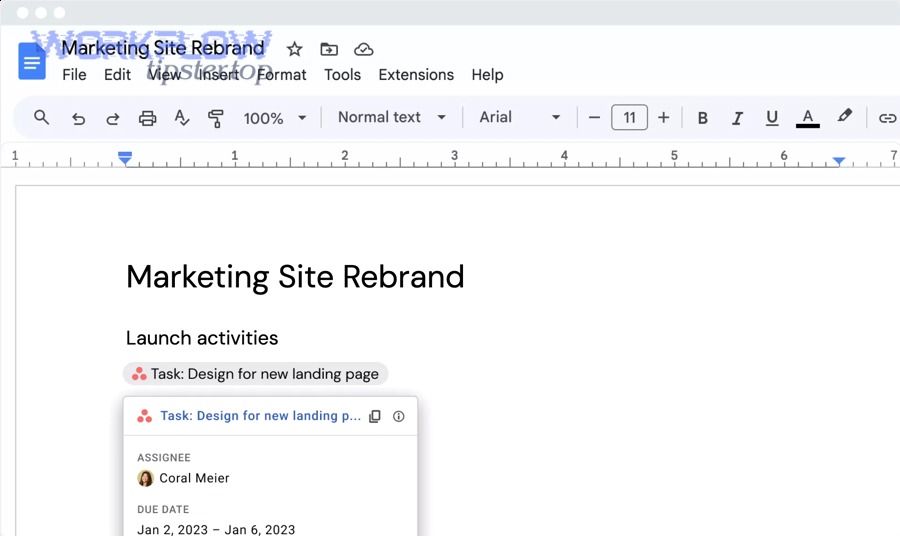
What counts as “automation” between Google Docs and Asana?
Automation can be as simple as turning a pasted Asana URL into a smart chip (so a reader instantly sees task context), or as advanced as creating tasks automatically when a new document appears in a folder or follows a naming pattern. (asana.com)
In practice, “automation” usually falls into three tiers:
- Context automation (lowest risk): Docs display and reference work items clearly (smart chips, links, consistent templates).
- Routing automation (moderate risk): a Doc triggers actions (create a task, attach the Doc, assign an owner).
- State automation (highest risk): updates in one tool change fields in the other (status, due dates, assignments), which can create confusion if rules aren’t strict.
A useful mental model is: automate the handoff (Doc → task) before you automate the state (task ↔ task fields).
When is manual linking still the better choice?
Manual linking is often better when:
- The Doc is exploratory (drafts, research notes, early ideation) and you don’t want task noise yet.
- Work ownership is unclear .
- Your organization has tight admin controls, and add-ons or connectors require approvals.
A simple rule: if a Doc section isn’t ready to be “owned,” don’t automate it into a task—link it manually until it stabilizes.
What are the main risks of over-automating Docs-to-Asana workflows?
Over-automation usually fails in predictable ways:
- Duplicate tasks (multiple triggers, multiple authors, multiple saves).
- Loops (a change triggers another change, triggering more events).
- Loss of judgment (tasks created without a clear owner or success metric).
- Notification overload (people ignore alerts, and real issues get missed).
Evidence matters here: interruptions don’t just “cost time,” they push people into a stress-compensation mode—working faster but under more time pressure. According to a study by the University of California, Irvine from the Department of Informatics, in 2008, Mark and colleagues found interrupted work was completed faster with no quality difference, but at the cost of higher stress, frustration, time pressure, and effort. (ics.uci.edu)
What does “sync Google Docs to Asana” actually mean?
“Sync Google Docs to Asana” means keeping document context and project execution connected so a Doc can reference tasks (and sometimes create or attach them) while Asana remains the system of record for ownership, deadlines, and workflow state. To better understand the promise—and the limits—let’s break down what can actually move between tools.
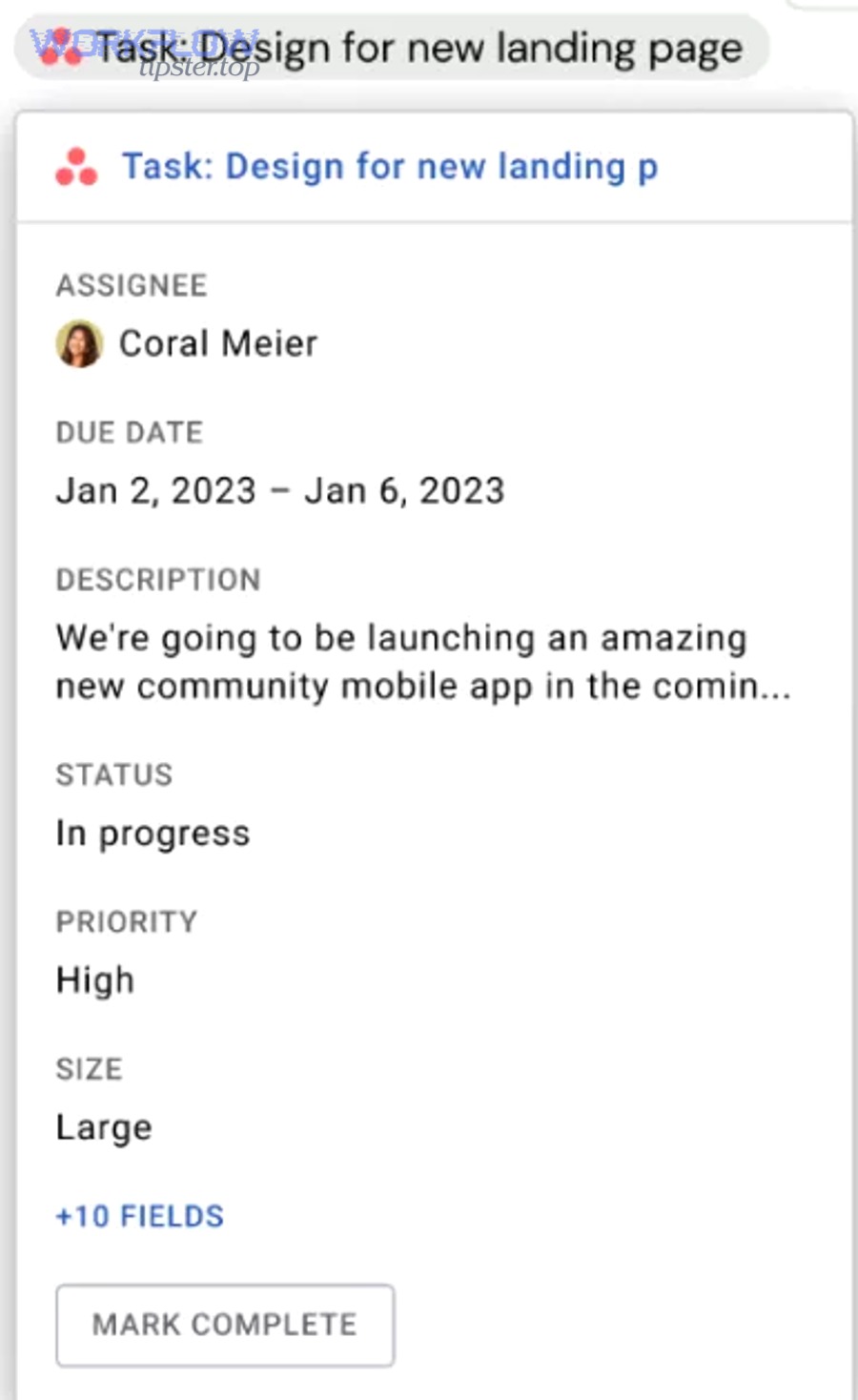
What data can be shared between Google Docs and Asana?
Depending on your setup, the “shared” data typically includes:
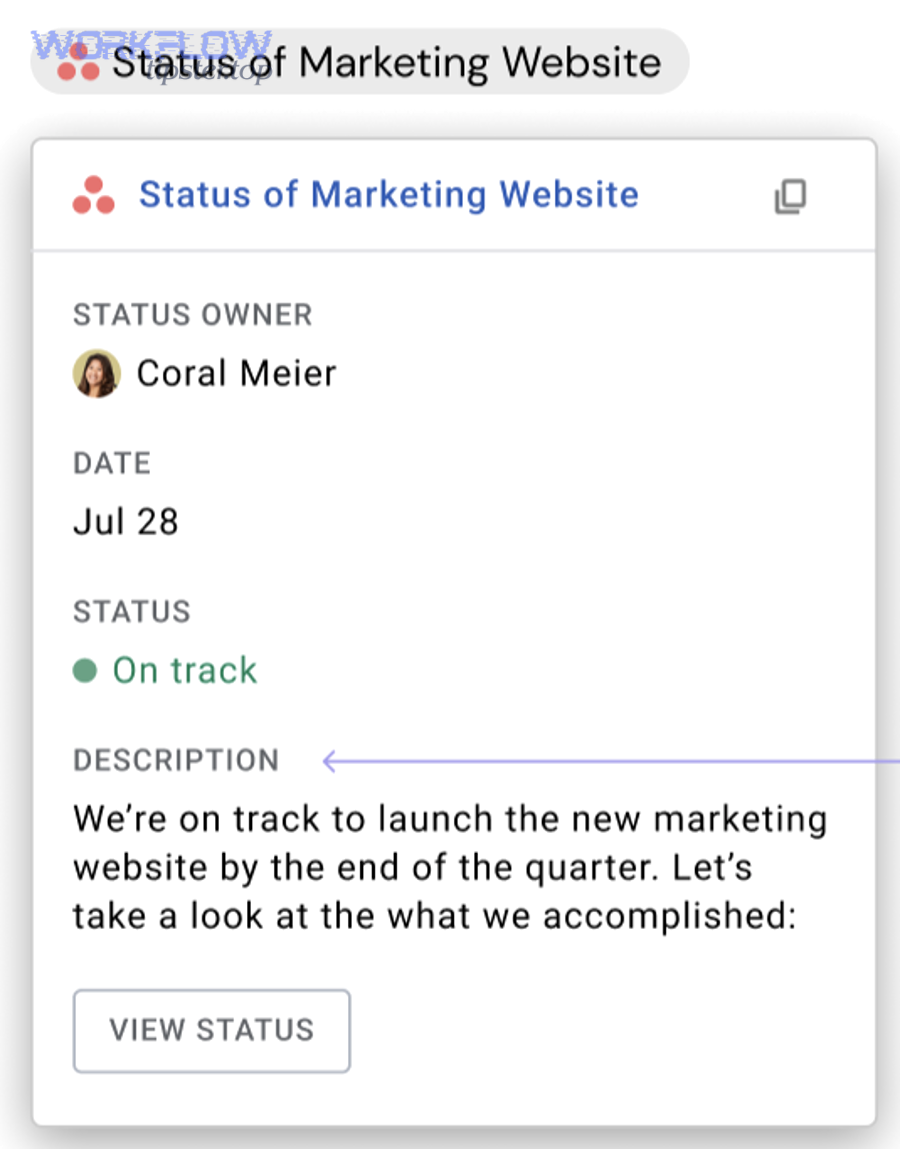
- References to work items: tasks, projects, status updates, goals (as smart chips or links). (asana.com)
- Attachments: linking or attaching a Doc/Drive file to a task so the task holds the source context.
- Metadata visibility: task title, owner, due date, and other fields visible inside the Doc when using smart chips (viewer-dependent).
The biggest win is context at the point of reading: stakeholders don’t have to jump apps just to confirm “who owns this” or “what’s the deadline.”
What data cannot be synced (and why)?
Common “non-sync” areas include:
- Full Doc content into task descriptions (usually too large, too dynamic, and creates version drift).
- Precise formatting / section structure (Docs are narrative; Asana is operational).
- True two-way field sync by default (many setups are intentionally one-way to avoid conflict).
If your team expects “real two-way sync,” set expectations early: most integrations are designed for reference + handoff, not “mirror everything.”
How do permissions affect what you can sync?
Permissions are the hidden engine of every “why doesn’t this work?” question:
- If someone can’t access the task/project in Asana, they may see limited context (or no preview) in the Doc.
- If the Doc is shared widely but tasks are restricted, smart chips may not display full details for all readers.
- Admin policies may restrict third-party add-ons, which blocks install or use in some environments. (workspace.google.com)
Operationally, treat permissions like a design requirement: your workflow is only as strong as the weakest access boundary.
What are the best ways to integrate Google Docs with Asana?
There are 4 main ways to integrate Google Docs with Asana—smart chips, file attachments, third-party automation, and lightweight manual conventions—based on how much context vs. control your team needs. Specifically, choosing the right method depends on whether you’re optimizing for readability (Docs) or enforceable execution (Asana).
How do Google smart chips for Asana work in Docs?
Smart chips let you @-mention or convert an Asana link into a rich preview directly in a Doc, so the document becomes more interactive for collaborators and reviewers. (asana.com)
In real workflow terms, smart chips are best for:
- Status reviews (leaders scanning a Doc can see task ownership fast)
- Specs and requirements (each decision ties to an accountable task)
- Meeting notes (action items remain anchored to actual work)
If your Docs are a “source of truth” for narrative, smart chips prevent the classic drift where the Doc says one thing and the project board says another.
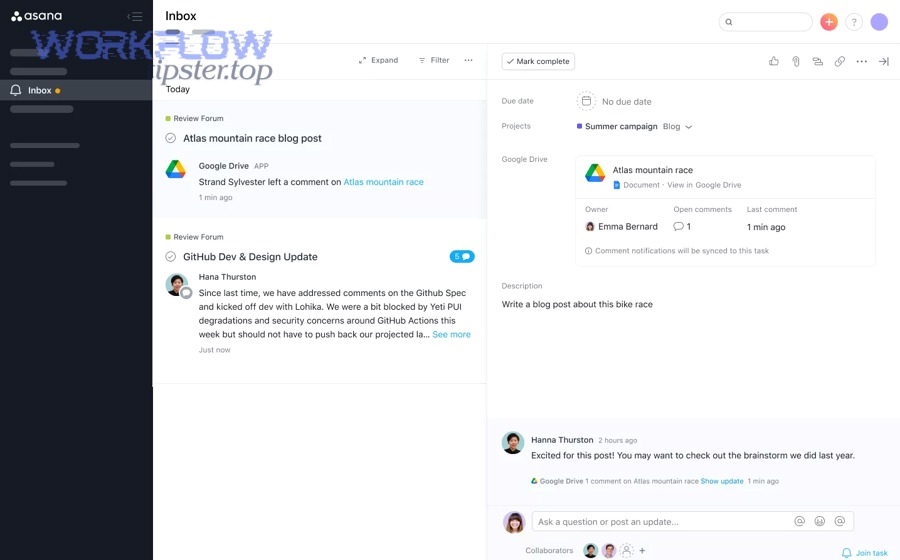
How do you attach Google Drive files to Asana tasks?
Attaching files is the execution-first approach: the task becomes the anchor, and the Doc becomes supporting context.
This method works best when:
- The task is the real “unit of work” (and the Doc is just evidence/spec).
- You want the doc attached to a specific deliverable or review step.
- You want fewer references inside long narrative documents.
Asana’s Google integrations commonly emphasize attaching Drive content so teams can keep files tied to tasks and reduce hunting through folders. (asana.com)
How do third-party automation tools connect Docs/Drive and Asana?
Third-party automation tools often connect via Drive events (new file, updated file, moved file) and then perform actions in Asana (create task, attach file, set assignee). A common example is automatically attaching new Drive files in a folder to a project’s tasks. (zapier.com)
This approach is strongest when you can define:
- A stable folder structure (the trigger surface)
- A clear mapping rule (folder → project, template → assignee)
- Guardrails against duplicates (idempotency)
What manual methods still matter for lightweight teams?
Even with automation, two manual conventions still do heavy lifting:
- A Doc template that reserves a section for “Work Items” (so references are consistent).
- A naming rule that binds Docs and tasks (e.g.,
[Project] – [Deliverable] – [Date]).
Manual conventions are low-tech, but they prevent high-tech chaos.
What’s the difference between linking, embedding, and syncing Google Docs with Asana?
Linking, embedding, and syncing are not the same: linking is a pointer, embedding is a view or attachment surface, and syncing is an expectation of ongoing alignment—each is useful, but for different workflow outcomes. However, choosing the wrong one is the fastest way to create confusion, so let’s compare them clearly.
Before the details, here’s a quick reference table showing what each method does in practice:
| Method | What it is | Best for | Common failure mode |
|---|---|---|---|
| Linking | A plain URL | Lightweight references | No context; people don’t click |
| Smart chip | A rich link preview | Reviews + accountability in Docs | Permissions limit what people see |
| Attaching | The file lives with the task | Execution + traceability in Asana | Doc becomes “out of sight” for reviewers |
| “Syncing” | Ongoing alignment expectation | Repeatable operations | Conflicts, duplicates, alert fatigue |
Linking vs smart chips: what changes for the reader?
A link is passive; a smart chip is informative at a glance.
- With a link, the reader must switch context to know what it is.
- With a smart chip, the reader can often see the task identity and key fields immediately, which reduces friction in reviews. (asana.com)
That’s why smart chips are a strong choice for stakeholder-facing Docs: they reduce “what is this?” questions.
Embedding vs attaching: where does the file actually live?
This is the core distinction:
- Embedding (or rich previewing) in a Doc keeps the document as the reading surface.
- Attaching in Asana keeps the task as the execution surface.
If your team’s work happens inside Asana, attach. If your team’s decisions happen inside Docs, smart chips keep accountability visible where decisions are read.
One-way vs two-way sync: what should you expect?
Most practical setups are one-way (Doc → task references or task creation). Two-way sync is harder because:
- both tools can be edited at any time
- “which one wins?” becomes unclear
- repeated triggers create duplicates
A safe default is: Docs create/mention; Asana decides/executes.
Asana tasks vs projects vs status updates: what’s best to reference from Docs?
For most Docs:
- Reference tasks for actionable items (ownership, due date, done state).
- Reference projects for roadmap or scope documents.
- Reference status updates for executive summaries.
If you reference too high (projects only), you lose accountability. If you reference too low (every micro-task), your Doc becomes noisy.
How do you set up Google Docs to Asana integration step by step?
The cleanest setup is: install the Asana add-on, authenticate, convert links into smart chips, then standardize how your team attaches and references Docs—in 5 steps that keep outcomes predictable. Then, once the base is stable, you can layer Automation Integrations on top without breaking your workflow.
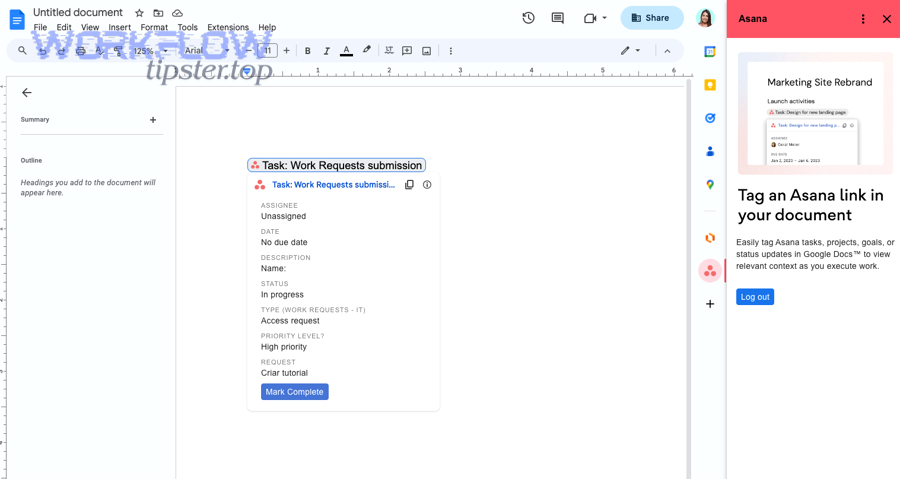
Step 1: Install the Asana add-on from Google Workspace Marketplace
Start by installing the add-on from the marketplace and confirming it’s available in your environment (especially if an admin controls add-ons). Asana’s integration setup flow commonly begins with installing the add-on and enabling it inside the Doc environment. (asana.com)
Practical tip: if you’re in a managed workspace, do this with an admin present so allowlisting doesn’t stall the rollout.
Step 2: Sign in and grant permissions safely
When you log in, permissions decide what you can preview and act on:
- Use the least-privileged account that still supports your workflow.
- Confirm you’re connecting to the right workspace/org in Asana.
- Document what access is required (so onboarding is consistent).
If users authenticate inconsistently, preview behavior becomes inconsistent—which feels like “bugs” but is usually just access mismatch.
Step 3: Turn an Asana link into a smart chip
A fast core move is: paste an Asana task URL into the Doc and convert it into a smart chip so it displays structured context. Asana’s Google Docs integration describes converting a pasted URL into a smart chip (e.g., by pasting the URL and using an in-Doc conversion action). (asana.com)
Best practice: do this in a dedicated “Work Items” section so references remain scannable.
Step 4: Attach the right Doc or Drive file to the right task
Decide which direction your “source of truth” should flow:
- If the Doc explains the task, attach the Doc to the task.
- If the task references the Doc, use smart chips/links inside the Doc.
Teams often do both for important deliverables: chip in the Doc + attachment in the task so neither side loses the trail.
Step 5: Standardize usage with templates and naming rules
This is where most teams win or lose.
Standardize:
- Doc titles (so search works)
- “Action Items” formatting (so conversion to tasks is consistent)
- A task naming convention that references the Doc or section ID
Once templates exist, onboarding becomes mechanical—and the workflow stops depending on one person’s habits.
What are the most useful Google Docs → Asana automation recipes?
There are 4 high-impact Google Docs → Asana automation recipes—task creation, attachment routing, comment-to-task capture, and change notifications—based on which repeat actions waste the most time for your team. Moreover, these recipes work best when you design them to be “boring”: consistent triggers, predictable outputs, and minimal exceptions.
Recipe 1: Create an Asana task when a Doc is created in a folder
This recipe is ideal for teams who create Docs from templates.
Basic logic:
- Trigger: new Doc appears in a “Requests” or “Specs” folder
- Action: create an Asana task in the correct project/section
- Fields: set owner, due date rule, and include the Doc link
If you already separate “draft” vs “ready” folders, use the “ready” folder as the trigger to reduce false positives.
Recipe 2: Add a Doc link to an existing task when a doc title changes
This sounds small, but it prevents link drift:
- Trigger: Doc renamed to include a task ID / project tag
- Action: find matching task and update/attach the Doc link
This is especially useful when documents start generic (“Untitled”) and later become real deliverables.
Recipe 3: Convert Doc comments/action items into tasks
If your Docs are full of review comments, you can treat comments as task candidates:
- Trigger: a comment contains a marker (e.g., “ACTION:”)
- Action: create a task with the comment text + Doc section reference
- Routing: assign to the section owner or the reviewer’s chosen assignee
Guardrail: require a clear owner field; otherwise you just create more noise.
Recipe 4: Notify in chat/email when key Asana fields change
This recipe is about stakeholder communication:
- Trigger: task status or due date changes
- Action: notify stakeholders with a short summary + Doc link
Use it sparingly. If every change triggers a ping, people stop trusting alerts.
Evidence angle: tools that reduce unnecessary context switching can protect attention and reduce stress spillover. The key is to automate repeatable mechanics while keeping human judgment (priority, tradeoffs, acceptance) inside the team’s process.
How do you troubleshoot Google Docs to Asana sync issues?
You troubleshoot Google Docs to Asana sync issues by (1) validating authorization, (2) checking workspace/project targeting, and (3) verifying permissions and automation rules—because most failures come from identity and access boundaries, not “broken” integrations. Especially, a consistent troubleshooting checklist prevents teams from re-learning the same lesson every week.
Issue: smart chip doesn’t render or won’t authorize
Common causes:
- The add-on isn’t installed or is blocked by admin policy. (workspace.google.com)
- The user is signed into the wrong account (multiple Google identities).
- The Asana session is expired or revoked.
Fix checklist:
- Confirm the add-on is installed and enabled.
- Sign out of other Google accounts temporarily and retry.
- Re-authenticate and confirm the correct Asana workspace.
Issue: wrong workspace/project shows up
This often happens when:
- Users belong to multiple Asana organizations.
- The last-used workspace becomes the default.
Fix:
- Standardize which workspace is used for which Docs (by folder, template, or team).
- Add a line in your Doc template: “This deliverable maps to Workspace X / Project Y.”
Issue: permissions block previews or attachments
Symptoms:
- Some readers see a chip; others see a plain link.
- Attachments fail for certain users.
Fix:
- Confirm the Doc sharing model matches task visibility.
- If the Doc is public-internal but tasks are restricted, accept that previews will vary—or create a “public project” layer for shared references.
Issue: duplicates, loops, or missing updates
This is where automation rules bite.
Fix rules:
- Ensure each trigger has a unique identifier (Doc ID, folder ID).
- Add deduplication logic (e.g., “only create if task doesn’t already exist for Doc ID”).
- Avoid “update triggers” that fire on every minor edit unless necessary.
Issue: audit and security concerns in shared documents
If your Docs contain sensitive information:
- Avoid exposing private task details via chips in broadly shared Docs.
- Use role-based templates (public summary vs internal execution doc).
- Work with admins to define what integrations are allowed and logged.
A scalable workflow doesn’t just “work”—it’s also defensible when a security or compliance question shows up.
What advanced considerations make Google Docs to Asana workflows scalable for teams?
Scalable Google Docs to Asana workflows rely on governance, operational ownership, and attention design—not just features—because what works for 3 people breaks at 30 unless you control permissions, standards, and notification load. In short, the goal is to keep your system consistent even when individual behavior varies.
Governance: admin controls, allowlisting, and data retention
In managed environments:
- Decide which add-ons are approved (and why).
- Document what data can appear in shared Docs (previews, fields, attachments).
- Align retention policies: if a Doc is retained longer than tasks, you need an archival plan that preserves context without leaking sensitive info.
This is where many teams realize “sync” is as much policy as it is technology. (workspace.google.com)
Operational design: ownership, SLAs, and change management
If a workflow matters, assign ownership:
- Who maintains templates?
- Who updates rules when projects change?
- Who audits automations for duplicates or drift?
Without ownership, automations decay quietly until they fail loudly.
Performance: avoiding notification overload and attention residue
Automation can protect time—or destroy it—depending on alert design.
Practical guardrails:
- Aggregate notifications (daily digest beats per-change alerts)
- Trigger only on meaningful state changes (e.g., status transitions)
- Keep Docs clean: chips for key tasks only, not everything
This aligns with what interruption research suggests: people can compensate for disruptions, but often by working faster under higher stress and time pressure—so reducing unnecessary disruption is a real performance lever. (ics.uci.edu)
Cross-workflow consistency: Gmail-to-Asana and other integrations
Teams scale faster when integrations share a common pattern.
For example, if you already use gmail to asana to convert email into tasks, match the same naming, routing, and ownership rules in your Doc-to-task workflows. (workspace.google.com)
And if you’re managing a broader ecosystem—like calendly to airtable for intake or box to microsoft word for document pipelines—treat them as one connected operating system: consistent identifiers, consistent ownership, and a clear rule for where “truth” lives.
That’s how “sync” stops being a one-off feature and becomes a durable team capability.