


To automate Airtable to Google Slides, you set a clear trigger in Airtable, duplicate a Google Slides template, replace placeholders with Airtable fields, and save the final deck link back to Airtable so your team can generate consistent presentations without manual copy-paste.
Next, you’ll choose the right no-code route—typically Zapier or Make—based on how complex your workflow is, how many decks you generate, and how much control you need over formatting, branching, and error handling.
Then, you’ll make the automation reliable by designing your Airtable base for “presentation-ready” data and by mapping fields to placeholders in a way that preserves slide layout, text wrapping, and image sizing.
Introduce a new idea: after you build the core workflow, you can scale it with approvals, deduplication rules, and advanced options like Apps Script when standard no-code steps are not enough.
Definition: What does “Airtable to Google Slides automation” mean in a template-based workflow?
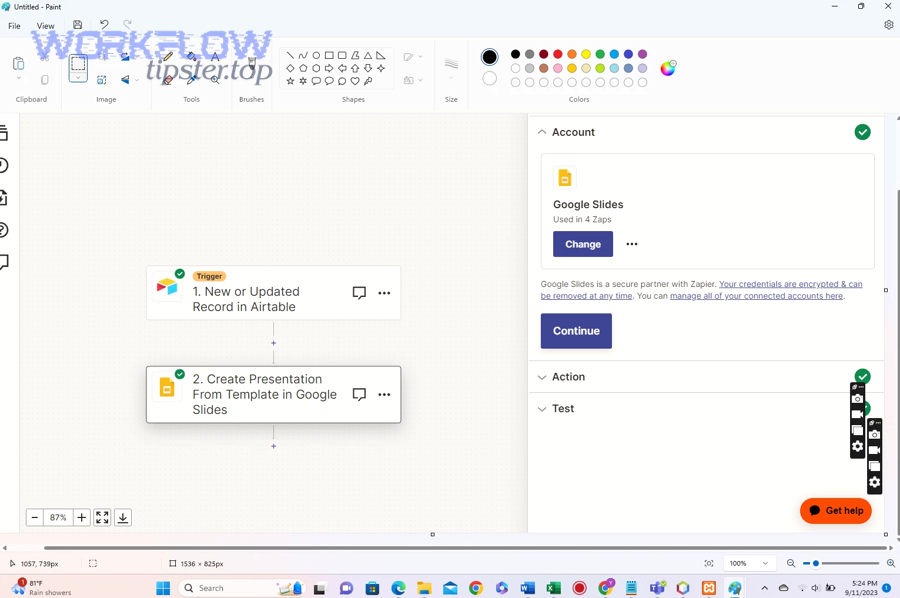
Airtable to Google Slides automation is a no-code workflow that takes structured Airtable records, merges them into a Google Slides template using placeholders, and outputs a ready-to-share slide deck with consistent formatting and repeatable results.
To better understand why teams adopt this approach, it helps to separate the “data layer” (Airtable records) from the “presentation layer” (Slides templates) and then define the bridge between them: placeholder mapping.
In a template-based workflow, the Slides deck is not designed from scratch each time. Instead, you:
- Design once: build a Slides template with standardized slide layouts and placeholders.
- Fill many times: replace placeholders with Airtable values whenever a record meets your trigger conditions.
- Track outputs: write the generated deck URL back to Airtable so the result is easy to find, share, and audit.
This “Integration = Automation” relationship is practical, not theoretical. If the system creates the deck for you, the integration is doing work automatically, which is exactly what most teams mean when they say “automation.”
Definition: What is a Google Slides template and what are placeholders in this context?
A Google Slides template is a pre-built presentation file with fixed layouts, while placeholders are clearly identifiable text or image targets (like {{ClientName}} or a logo box) that your automation replaces with Airtable data at runtime.
Specifically, placeholders give your workflow a stable contract: the automation knows what to replace, and the slide designer knows what the final deck should look like.
In real team operations, placeholders typically fall into these groups:
- Single-value placeholders: client name, project title, due date, owner, status.
- Multi-line placeholders: a summary paragraph, scope bullets, meeting notes, risks.
- Visual placeholders: logo, product image, headshot, screenshot, QR code.
The strongest template uses predictable placeholder naming and consistent spacing. For example, using {{ProjectName}} everywhere avoids mapping confusion and reduces the chance of missed replacements.
Definition: What Airtable data structure works best for slide generation (base/table/view/fields)?
An Airtable structure works best for slide generation when it keeps one “deck record” as the source of truth, uses clean field types for text and media, and provides a filtered view that represents exactly which records should produce slide decks.
More specifically, you want Airtable to behave like a controlled input form for a presentation engine, not like a messy workspace where fields are inconsistent across records.
A practical “presentation-ready” Airtable design includes:
- One main table: “Deck Requests” or “Client Presentations.”
- Stable fields: Name, Company, Date, Key Points, Offer, Next Step.
- Control fields: Status (Draft → QA → Approved → Generated), Generated Deck URL, Generated At, Generated By.
- Media fields: Attachments for logo/screenshots, plus optional “Image URL” fields when needed.
- A view for automation: “Ready to Generate” filtered to Status = Approved and Deck URL is empty.
This structure prevents accidental runs and makes it obvious which records are eligible for slide generation.
Boolean: Can you generate Google Slides decks from Airtable without coding?
Yes, you can generate Google Slides decks from Airtable without coding because no-code automation tools provide Airtable triggers, allow you to duplicate a Slides template, and support placeholder replacement workflows that standardize decks while saving time and reducing manual errors.
However, the “no-code” promise still depends on disciplined setup, so the next step is choosing an option that matches your team’s complexity and scale.

Most teams succeed without code for three reasons:
- Reason 1 (speed): Templates + placeholders let you ship a working workflow quickly.
- Reason 2 (consistency): A single template enforces brand layout, fonts, and structure.
- Reason 3 (traceability): Writing the deck URL back into Airtable makes outputs easy to track, reuse, and audit.
When you connect these reasons, the operational value is clear: the workflow turns Airtable records into repeatable presentations, not one-off documents.
Grouping: What are the most common no-code options to connect Airtable to Google Slides?
There are four main types of no-code options to connect Airtable to Google Slides: (1) automation platforms like Zapier, (2) scenario builders like Make, (3) low-code workflow tools like n8n, and (4) lightweight scripts like Apps Script when you need custom logic.
Next, you can pick the option by matching the tool category to your workflow complexity, budget, and required control.
Option 1: Zapier-style automation
- Best when you want quick setup and straightforward steps.
- Strong for “when record approved → create deck → share link.”
Option 2: Make-style scenario building
- Best when you need branching, loops, and more granular control.
- Strong for multi-step workflows and transformations.
Option 3: n8n-style workflows
- Best when you want self-hosting, advanced routing, or developer-friendly controls.
- Strong for teams comfortable managing workflows as “systems.”
Option 4: Apps Script (light code, high control)
- Best when your slide generation needs precise layout or repeated sections.
- Strong for enterprise environments with strict permission models.
Comparison: Zapier vs Make for Airtable → Google Slides—what’s the practical difference for teams?
Zapier wins in speed-to-launch, Make is best for complex branching and data shaping, and Apps Script becomes optimal when you need fine-grained control over Slides editing and repeatable logic that standard no-code steps cannot express cleanly.
Meanwhile, the real comparison is not “which tool is better,” but “which tool reduces friction for your team’s actual workflow.”
This table contains a practical comparison of Zapier and Make for Airtable-to–Google Slides automation so a no-code team can pick the right starting point.
| Criterion | Zapier | Make |
|---|---|---|
| Setup speed | Fast, guided, beginner-friendly | Moderate, more configuration |
| Workflow complexity | Best for linear flows | Best for branching, routing, multi-step logic |
| Data transformation | Simple formatting and mapping | Stronger transformation and modular handling |
| Scaling patterns | Good for many small automations | Good for fewer, more complex scenarios |
On the other hand, a “no-code team” often cares most about stability and ownership: who can maintain the workflow when the original builder is busy or leaves the project.
Grouping: What is the step-by-step workflow to create a slide deck from a single Airtable record?
A reliable Airtable to Google Slides workflow follows 7 steps—define an approval trigger, fetch the record, duplicate a template, replace placeholders, handle images, set sharing, and write the deck URL back to Airtable—so one record reliably produces one consistent deck.
Then, once you understand the steps, you can implement them in any automation tool while keeping the same logic and terminology.
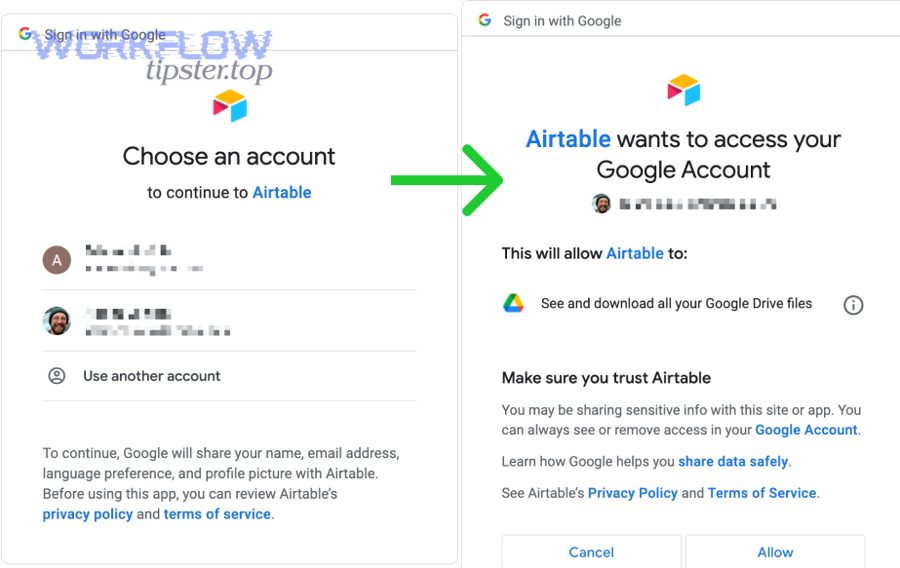
Here is the step-by-step workflow that most no-code teams use as a “golden path”:
- Prepare the Airtable record: ensure required fields are filled and status is ready.
- Trigger on control logic: start when Status changes to Approved.
- Fetch all needed fields: load text values, selects, dates, and attachments.
- Duplicate the Slides template: create a new deck in a target Drive folder.
- Replace placeholders: map Airtable fields to {{Placeholders}} on the correct slides.
- Insert images safely: add logo/screenshots into designated visual placeholders.
- Write back outputs: save the Slides URL (and optionally PDF export URL) into Airtable.
This workflow becomes dramatically easier to maintain when you standardize the naming of placeholders and the naming of Airtable fields.
Grouping: What trigger should you use (new record, updated record, status change, scheduled)?
There are four main trigger types you can use: new record, updated record, status change, and scheduled runs; for most teams, a status change trigger is the safest because it prevents accidental deck creation and supports an explicit approval checkpoint.
Specifically, the trigger defines your quality control, so choosing it is not a technical detail—it is a process decision.
- New record: fast, but risky if records are incomplete at creation time.
- Updated record: flexible, but can create duplicates if many edits happen.
- Status change (recommended): clear governance; “Approved” becomes your green light.
- Scheduled: useful for batch decks (daily/weekly reports) and predictable output times.
A practical pattern is “Draft → QA → Approved” where only “Approved” triggers deck generation.
Grouping: What are the essential actions after the trigger to produce the deck reliably?
There are five essential actions after the trigger: validate required fields, duplicate the template, replace placeholders deterministically, insert images with controlled sizing, and store output links back in Airtable so the workflow is traceable and repeatable.
More importantly, each action should be designed to reduce ambiguity, because ambiguity is what breaks automation at scale.
Use this operational checklist to keep the workflow reliable:
- Validation: block the run if key fields are missing (e.g., Project Name, Owner, Date).
- Deterministic naming: name the new deck using a predictable pattern like “Client – Project – Date.”
- Placeholder replacement: replace all placeholders in one controlled pass to avoid partial merges.
- Folder + permissions: move the deck into a shared folder and apply team access rules.
- Write-back fields: store deck URL, generated timestamp, and automation run ID.
When teams skip validation and naming conventions, the workflow still runs, but the outputs become harder to trust and harder to search.
Boolean: Should you write the generated Google Slides URL back into Airtable?
Yes, you should write the generated Google Slides URL back into Airtable because it prevents duplicate creation, improves collaboration by making the deck easy to find, and enables auditability with timestamps and ownership—three requirements that matter once multiple people rely on the workflow.
Besides, writing back the URL also turns Airtable into a single dashboard for both inputs and outputs, which is exactly what a no-code team needs.
To make the write-back robust, store more than just the URL:
- Deck URL: the canonical link to the Slides presentation.
- Generated At: timestamp for auditing and freshness checks.
- Generated By: automation name or service account, not a person.
- Run Status: success/failed + error message field for debugging.
This simple design decision reduces confusion later when the team asks, “Which deck is the latest version?”
Definition: How do you map Airtable fields to Google Slides placeholders without breaking formatting?
Mapping Airtable fields to Google Slides placeholders means converting each field into a clean, predictable string or image input and replacing the matching placeholder tokens in the template while controlling line breaks, date formats, and fallback values so slide layout stays readable.
To illustrate why formatting breaks, remember that Slides is a layout tool: it cares about text overflow, font sizing, and object boundaries, so your mapping rules must respect those constraints.

Use these mapping principles to preserve formatting:
- Normalize text: trim whitespace, remove double spaces, and standardize punctuation.
- Control length: set maximum character guidance for each placeholder (e.g., Summary ≤ 280 chars).
- Format dates: decide on one style (e.g., Jan 27, 2026) and apply it consistently.
- Use fallbacks: if a field is empty, replace with “—” or “TBD” so the slide doesn’t show raw placeholders.
- Preserve bullets: if the placeholder expects bullets, store bullets as separate lines in Airtable.
When mapping becomes consistent, the slides become predictable—and predictability is what makes automation trustworthy.
Grouping: Which Airtable field types map cleanly to Slides text placeholders (and which need cleanup)?
There are two main groups of Airtable fields for Slides mapping: clean-mapping fields like single line text, single select, numbers, and dates, and cleanup-needed fields like long text, rich notes, and multi-select values that must be joined, formatted, or truncated.
Specifically, field type is a practical constraint because it determines how predictable the output will be.
- Maps cleanly: Single line text (names), Single select (status), Date (milestones), Number (KPIs), Checkbox (Yes/No flags).
- Needs cleanup: Long text (summaries), Multi-select (tags), Linked records (lists), Attachments (images), Formulas (ensure they output stable strings).
A useful trick is to create “presentation fields” as formula fields that output exactly what Slides should display (including separators like “ • ”), so the automation maps a final value rather than raw components.
Comparison: Should you format data in Airtable or in the automation step?
Formatting in Airtable wins for consistency and team ownership, formatting in the automation wins for last-mile presentation control, and a hybrid approach is optimal when Airtable handles stable formatting while the automation handles context-specific rules like truncation and fallbacks.
However, the safest default for no-code teams is to keep most formatting in Airtable so non-technical teammates can update logic without editing the automation.
This table contains a simple decision guide for where to format your data to reduce maintenance risk.
| Need | Format in Airtable | Format in Automation |
|---|---|---|
| Consistent date style across decks | Great (formula fields) | Good (formatter steps) |
| Prevent text overflow with truncation | Okay (LEN checks) | Great (dynamic truncation rules) |
| Complex conditional layout logic | Limited | Better (branching/routers) |
When you keep your formatting strategy consistent, your placeholder mapping becomes stable, and stable mapping is what protects slide layout over time.
Grouping: How do you handle images, attachments, and logos from Airtable in Google Slides?
There are three main ways to handle images from Airtable in Google Slides: use attachment URLs that are accessible to your automation, insert images into dedicated visual placeholders, and standardize image dimensions so logos and screenshots appear consistent across decks.
Next, treat images as controlled assets rather than “random uploads,” because uncontrolled assets are the fastest way to create ugly slides automatically.
Start with a reliable image handling model:
- Logo: one square/transparent PNG, consistent placement on title slide and footer.
- Screenshot: fixed width, consistent aspect ratio guidance (e.g., 16:9 or 4:3).
- Headshot: consistent crop area (centered face), consistent circle or rounded rectangle mask.
Then, build your Slides template so each image has a clear destination: a box with the correct size and alignment.
Boolean: Can Airtable attachment images be inserted into Slides automatically?
Yes, Airtable attachment images can be inserted into Slides automatically because attachments provide file URLs, no-code tools can fetch those URLs, and Slides workflows can place images into a template slot—provided permissions and sizing rules are handled consistently.
Moreover, the real constraint is not “can it be done,” but “can it be done reliably every time,” which depends on stable access and standardized image formats.
Use these reliability rules:
- Access: ensure the automation can access the image URL (avoid private links that expire unexpectedly).
- Format: prefer PNG for logos and JPG/PNG for screenshots; keep file sizes reasonable.
- Fallback: if an image is missing, insert a default brand logo or leave the placeholder empty without breaking layout.
When you treat image insertion as a first-class step, your decks feel “designed,” not “generated.”
Grouping: What’s the safest pattern for image consistency (aspect ratio, cropping, placement)?
There are four safest patterns for image consistency: enforce a standard aspect ratio, use a fixed-size placeholder box, crop instead of stretch, and validate image presence before generation so the deck never ships with broken visuals.
Specifically, image quality is a process outcome, so you must define constraints before you automate.
- Aspect ratio rules: decide one ratio for screenshots and one for headshots.
- Fixed placeholder sizes: design a logo box (e.g., 120×120) and screenshot frame (e.g., 640×360) in the template.
- Crop-first placement: crop to fill the box instead of stretching, which distorts brand assets.
- Pre-run validation: block generation if the required image is missing, or route to QA.
When the template controls visual boundaries, your automation only needs to “insert,” not “design,” which keeps the system stable.
Comparison: What workflow pattern should you choose—deck-per-record or report deck from multiple records?
Deck-per-record wins for personalized deliverables and simple tracking, one report deck from multiple records is best for recurring rollups and dashboards, and a hybrid pattern is optimal when you need both client-specific decks and weekly executive summaries from the same Airtable base.
However, the correct choice depends on narrative structure: are you telling one story per record, or summarizing many records into one story?
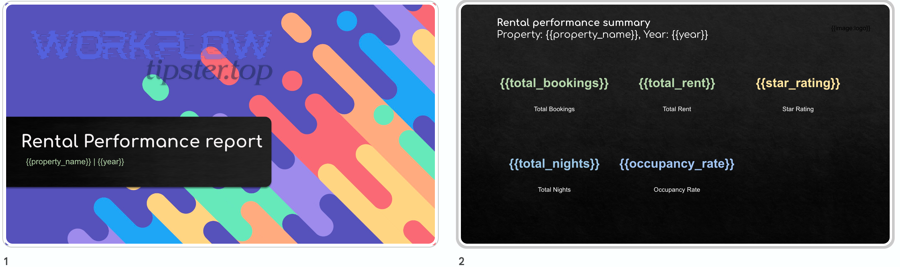
Think of the patterns like this:
- Deck-per-record: one input record → one output presentation.
- Multi-record report deck: many records → one output presentation.
- Hybrid: one record can generate a deck, and multiple records can generate a report deck using a different template.
The best no-code teams choose a pattern that simplifies operations first, then optimize for sophistication later.
Comparison: When is “one deck per record” the best choice?
One deck per record is best for proposals, client updates, project briefs, and case studies because each deck needs a clean narrative, a single owner, and a stable version history tied directly to one Airtable record.
To illustrate the operational advantage, deck-per-record also makes approvals easy: you approve one record, and you generate one deck, which keeps accountability clear.
- Sales proposals: each opportunity becomes a deck with tailored messaging.
- Client onboarding: each client record outputs a standardized onboarding deck.
- Project kickoffs: each project record outputs a kickoff deck with timeline and roles.
When you need clean ownership and easy traceability, deck-per-record reduces coordination overhead.
Comparison: When is “one deck from many records” the best choice?
One deck from many records is best for weekly status reports, KPI rollups, operational summaries, and leadership dashboards because you want one consolidated narrative that updates on schedule and pulls multiple records into a single standardized format.
Meanwhile, this pattern rewards strong Airtable hygiene: if fields are inconsistent, the report deck becomes inconsistent automatically.
- Weekly program updates: each initiative record contributes one slide.
- Support metrics: each category record contributes KPIs to a “support health” deck.
- Marketing performance: each channel record contributes charts or summary blocks.
This pattern becomes powerful when the “group-by” logic is stable and the report template is designed for repetition.
Grouping: What data model changes are needed for multi-record slide generation?
There are five key data model changes needed for multi-record generation: a grouping key, a sort key, a slide-per-item rule, stable summary fields, and pagination logic for when lists exceed a slide’s capacity.
More specifically, a report deck is a data product, so you must define how records become slides before you automate the build.
- Grouping key: Week, Team, Region, Client segment, or Program.
- Sort key: Priority, score, due date, or rank to control slide order.
- Slide rule: “1 record = 1 slide” or “N records = 1 slide section.”
- Summary fields: short title, 2–4 bullet highlights, one metric, one risk.
- Pagination plan: how to handle overflow (split into additional slides or truncate lists).
When these keys are defined, the automation becomes a predictable transformer from Airtable lists to Slides structure.
Grouping: How do you test, troubleshoot, and maintain Airtable → Google Slides automation at scale?
There are six core practices to test and maintain Airtable → Google Slides automation at scale: build test records, validate inputs, log every run, handle retries, prevent duplicates, and control permissions—so the workflow stays reliable as volume and collaborators increase.
Next, treat maintenance as part of the design, because unattended automations drift as templates change and teams evolve.
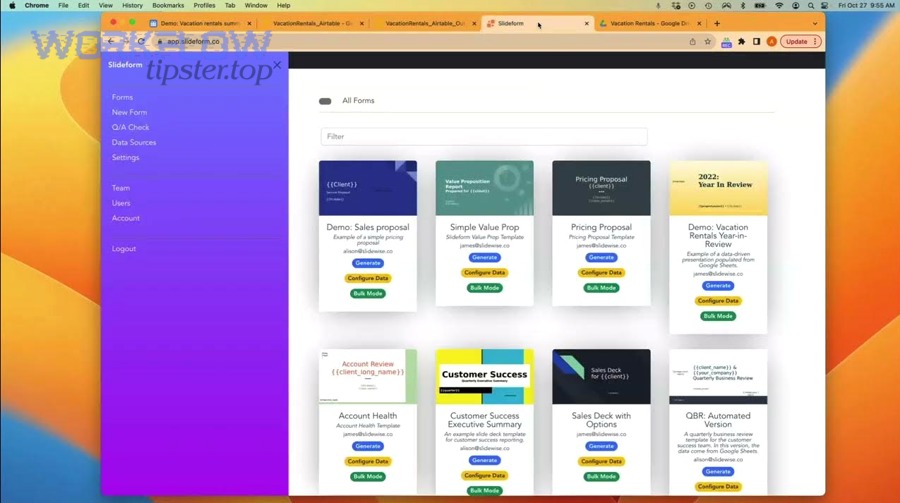
Use a simple operating model:
- Before launch: test with edge-case records (long text, missing images, unusual characters).
- After launch: monitor run logs and error rates weekly.
- After template edits: run a “template verification test” to ensure placeholders still match.
When you introduce these habits early, your workflow stays stable even when the template design changes.
Grouping: What are the most common failure points and how do you fix them?
There are five most common failure points: permissions, missing placeholders, empty or malformed fields, duplicate triggers, and rate limits; you fix them by standardizing access, verifying placeholder inventories, validating inputs, adding deduplication rules, and using retry-friendly steps.
Specifically, most failures are predictable, which means they are preventable with the right controls.
- Permission errors: keep the template in a shared Drive folder and ensure the automation identity has access.
- Missing placeholders: maintain a “placeholder list” in Airtable or documentation; verify after template edits.
- Empty fields: apply fallbacks (“—”, “TBD”) or block generation until required fields are filled.
- Duplicate runs: trigger on status change and check if Deck URL already exists before creating again.
- Rate limits/timeouts: batch runs, add delays, and keep image files lightweight.
When your troubleshooting is standardized, the team can resolve issues without turning the workflow into a “black box.”
Boolean: Should you add an approval or QA step before creating the final deck?
Yes, you should add an approval or QA step because it prevents low-quality outputs, protects your brand consistency, and reduces rework by catching missing fields or wrong images before deck generation—three benefits that become critical once multiple stakeholders consume the decks.
Moreover, an approval step creates a clean boundary between “data entry” and “publish,” which helps teams avoid accidental deck generation during editing.
A simple QA pipeline looks like this:
- Draft: record is being filled out and edited.
- QA: reviewer checks completeness and formatting (including images).
- Approved: automation is allowed to generate the deck.
- Generated: deck URL is stored; record is locked or changes are tracked.
This governance model is also a natural fit for broader Automation Integrations where one approval step can trigger multiple downstream actions across tools.
Comparison: What advanced alternatives and edge-case solutions exist beyond standard no-code automation?
Zapier and Make are ideal for most no-code teams, Apps Script is best for complex Slides logic and repeatable loops, and Airtable-native outputs become optimal when you don’t truly need Slides—so the “best” solution depends on control requirements, governance constraints, and the cost of maintaining complexity.
In addition, advanced alternatives matter when you face edge cases like strict Google Workspace permissions, repeated sections, or precise layout constraints that require deeper control.
At this stage, you are expanding from macro semantics (the core workflow) into micro semantics (constraints, exceptions, and specialized environments), which is where many teams either harden their system—or simplify it.
Comparison: When should you use Google Apps Script instead of Zapier/Make for Slides generation?
Apps Script wins when you need precise control over Slides elements and looping logic, Zapier is best for straightforward event-to-deck automation, and Make is optimal when you need complex branching and transformations without committing to full custom code.
However, Apps Script becomes the right choice when “template replacement” is not enough and you need consistent behavior across many slides with complex rules.
Use Apps Script when you need capabilities like:
- Repeat sections: loop through line items and generate multiple slides dynamically.
- Layout rules: adjust font size, reposition objects, or handle text overflow programmatically.
- Custom validations: enforce strict requirements before generating outputs.
- Batch generation: create dozens or hundreds of decks on a schedule with controlled pacing.
This is also where integrations can connect broader workflows, such as using data from intake forms as upstream sources before Airtable creates the deck.
Grouping: What Google Workspace permission models can block automation ?
There are four main Google Workspace permission models that can block automation: restricted shared drives, templates owned by individuals, limited external sharing policies, and service account constraints; you plan around them by centralizing template ownership, using shared folders, and granting the automation identity stable access.
Specifically, permission stability is the foundation of reliable deck generation, because the automation cannot duplicate or edit a template it cannot access.
- Shared drive restrictions: place templates where the automation identity has explicit access.
- Personal ownership risk: ensure templates are owned by a team account, not a single employee.
- External sharing limits: decide who can view decks and store outputs in compliant folders.
- Service identity constraints: standardize “who runs the automation” so permissions don’t change unexpectedly.
When permission planning is done early, the workflow stays resilient even during organizational changes.
Definition: What does “idempotency” mean in slide automation and how does it prevent duplicate decks?
Idempotency in slide automation is the property that running the workflow multiple times produces one intended result—not multiple duplicate decks—by checking for an existing output (like a saved deck URL) and reusing or updating it instead of recreating it.
More importantly, idempotency protects your team from accidental duplicates caused by repeated edits, retries, or overlapping triggers.
Implement a simple idempotency rule set:
- Unique key: define a “Deck Key” such as Record ID + Template Version.
- Existence check: if Deck URL exists, stop or update instead of create.
- Versioning: store Template Version so you know when regeneration is needed.
- Locking: after generation, restrict edits or require a new approval step to regenerate.
This approach keeps output clean and makes automation safe even when workflows are rerun.
Comparison: If you don’t need Google Slides, what Airtable-native or simpler output options work better?
Google Slides is best for collaborative presentations and speaking decks, Airtable-native outputs are better for quick, standardized documents, and simple exports become optimal when stakeholders only need a PDF or a link—so you should choose the simplest output that still meets the communication goal.
On the other hand, “simpler” often means “more maintainable,” which is valuable when your team manages many automations.
Consider these alternatives when Slides is not essential:
- Airtable Page Designer: generate a clean one-pager or report-style PDF directly from records.
- Shared Airtable views: give stakeholders a live dashboard instead of a static deck.
- PDF-first workflows: generate a PDF and distribute it through your standard channels.
If you do keep Slides, you can still connect upstream sources in your automation ecosystem—for example, routing form submissions into Airtable before deck generation, including related workflows like google forms to asana for task creation or google forms to freshdesk for support intake, as part of a broader set of Automation Integrations.