Aland Johnson
Founder & Editor-in-Chief
Company / Organization
Workflow Tipster
Experience / Skills
Workflow automation patterns, integration design, webhook/API troubleshooting, data mapping and normalization, document generation and e-sign flows, operational checklists and playbooks for popular software.
About Aland Johnson
Aland Johnson is an Automation & RevOps Consultant and Technical Writer, and he serves as the Founder & Editor-in-Chief of Workflow Tipster (workflowtipster.top)—a resource for bite-sized workflow tips, tool guidance, and troubleshooting solutions for popular software used by modern teams. From 2008 to 2012, Aland developed his foundation in information systems and workplace productivity tools, focusing on how businesses operationalize data across CRM, project management, customer support, and marketing platforms. During this period, he began documenting repeatable processes, building simple integrations, and learning the practical constraints that shape automation outcomes—such as inconsistent field formats, user permissions, and data quality issues. In 2013, Aland moved into hands-on operational support roles where reliability and speed mattered daily. He supported teams working across cloud-based tools, addressing recurring problems like login failures, permission mismatches, missing required fields, and data sync inconsistencies. Between 2014 and 2016, he expanded into cross-application workflow design, connecting systems through APIs and webhooks and establishing a structured troubleshooting method: reproduce the failure, isolate the failing hop, validate credentials and scopes, inspect payload shape, confirm rate-limit behavior, and implement safe retries with logging. From 2017 to 2019, Aland specialized further in RevOps enablement—helping organizations map business requirements into automation-ready schemas and governance. This phase emphasized durable system design: clear ownership of fields and objects, consistent naming conventions, deduplication strategies, and measurable KPIs. In 2019, he earned the Salesforce Certified Administrator credential, reinforcing his expertise in CRM configuration, permissioning, reporting, and operational controls that keep automations stable as teams and pipelines evolve. In 2020, Aland broadened his marketing operations skill set by completing the HubSpot Marketing Software Certification, deepening his work in lifecycle stages, attribution, segmentation, and automated communications—areas where subtle property mapping and timing rules often cause downstream failures. Between 2021 and 2022, he concentrated on integration resilience at scale: reducing duplicates, adding idempotency safeguards, standardizing payload validation, and creating runbooks for incident response when webhooks fail or third-party APIs degrade. In 2023, Aland earned the Zapier Certified Expert credential and continued refining advanced automation patterns across multi-step workflows, conditional routing, and cross-tool data normalization. That same year, he formalized his editorial approach: every guide must be reproducible, version-aware, and supported by verification steps so readers can confirm success rather than “guess and hope.” Since 2024, Aland has been building Workflow Tipster as a practical knowledge base for operators, founders, and teams who need quick, reliable answers. His content emphasizes clarity and measurability—short, actionable tips when speed matters, and deeper troubleshooting playbooks when reliability is the priority. Aland’s guiding standard remains consistent: state the goal, show the exact steps, surface common failure modes, and include a prevention checklist so the workflow stays healthy after the fix.
Related topics
Latest posts by Aland Johnson


Google Docs to ServiceNow Automation: Integrate Documents Into ITSM Workflows Without Manual Copy-Paste
If you’re moving text from tickets into documents, chasing approvals in email threads, or rebuilding the same report every week, integrating Google Docs with ServiceNow is a practical way to turn ITSM events into living documents automatically. You’ll typically connect ServiceNow triggers (incident updates, change approvals, request fulfillment, HR cases) to document actions (create a Google Doc, populate a template, add links, notify stakeholders) so every “record change” produces a consistent, trackable output.
Aland Johnson February 1, 2026 at 12:45 AM
Automate (Not Manual) Incident Docs: Connect Google Docs to Sentry for DevOps Teams
If your team uses Sentry to detect errors and performance regressions, then you should automate incident documentation by connecting Google Docs to Sentry so every incident starts with accurate context, links, and timestamps—without waiting for someone to write it from scratch. Next, you’ll see what “Google Docs → Sentry” automation actually means in practice, including what belongs in an incident document and which Sentry fields are worth capturing first so the doc stays useful (not noisy).
Aland Johnson February 1, 2026 at 12:18 AM
Automate Google Docs to SendGrid Emails for Marketers: Dynamic Templates, No-Code vs API Workflows
If your goal is “google docs to sendgrid,” the core idea is simple: you turn content (or structured data you manage alongside a Doc) into emails that SendGrid can send automatically—either through a no-code connector or an API-driven workflow. Most people then want two things next: (1) a reliable way to extract the right parts of a Google Doc (title, sections, links, variables), and (2) a SendGrid template strategy that won’t break formatting, personalization, or unsubscribe compliance when you send at scale.
Aland Johnson February 1, 2026 at 12:05 AM
Automate (Not Manual): Connect Google Docs to Salesforce for Sales Ops Teams (Sync, Templates, Record Updates)
Connecting Google Docs to Salesforce means you stop treating documents as “loose files” and start treating them as structured outputs of your CRM—created from record data, linked back to the right account/opportunity, and updated through repeatable automation instead of copy-paste. Next, you’ll see the practical workflows this unlocks for Sales Ops: generating proposals and meeting summaries from templates, keeping record fields in sync with what’s in the doc, and making every document discoverable from the Salesforce record without hunting through drives.
Aland Johnson January 31, 2026 at 11:54 PM
Automate Google Docs to QuickBooks Integration for Small Businesses: Manual vs Automated Workflows
If you want fewer copy-paste mistakes, faster bookkeeping cycles, and cleaner audit trails, automating a Google Docs to QuickBooks workflow is worth it —because it turns “documents → accounting entries” into a repeatable pipeline instead of a fragile manual routine. Many teams start with a simpler question: what does “Google Docs to QuickBooks” even mean in practice?
Aland Johnson January 31, 2026 at 11:42 PM
Automate Google Docs to Pipedrive for Sales Teams: Create, Link, and Govern Docs (Docs vs PDFs)
If your team lives in Google Docs but manages deals in Pipedrive, the fastest way to reduce admin work is to automate how documents are created, linked, and updated inside the deal record—so every proposal, discovery note, or contract draft stays connected to the opportunity. In this guide, you’ll learn what “Google Docs to Pipedrive automation” really means in day-to-day sales operations, and how it differs from simply attaching files by email.
Aland Johnson January 31, 2026 at 11:29 PM
Connect & Automate Google Docs to PayPal for Small Businesses: No-Code Integration (Not Manual)
If you want Google Docs and PayPal to “talk to each other,” the most practical path is a no-code automation : a PayPal event (like a completed payment) triggers a workflow that creates or updates a Google Doc —so you stop doing receipts, confirmations, and follow-ups manually. The next step is understanding what an integration can realistically automate : which PayPal events reliably trigger actions, which data fields you can map into a document, and which “Docs-to-payment” ideas need guardrails so you don’t accidentally send the wrong invoice or request.
Aland Johnson January 31, 2026 at 11:17 PM
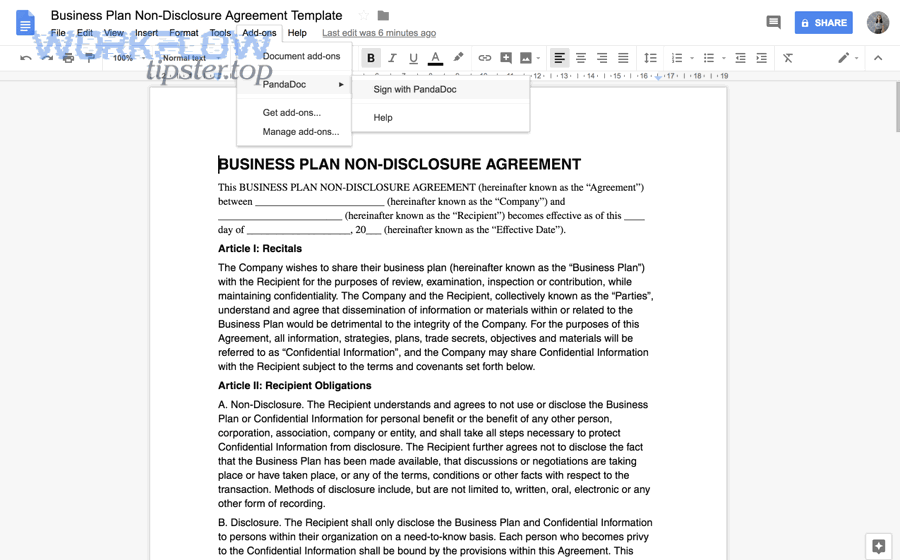
Connect & Automate Google Docs to PandaDoc for Sales Teams (Manual → Automated eSignature Workflow)
Connecting Google Docs to PandaDoc is the fastest way to turn a collaborative draft into a trackable eSignature workflow—so your sales team can prepare a proposal in Google Docs, send it via PandaDoc, and close the loop with clear signing status and proof of completion. Next, the same setup becomes more valuable when you standardize how deals move from “draft” to “ready to sign,” because it reduces back-and-forth, limits version confusion, and keeps every stakeholder aligned on who signs what and when.
Aland Johnson January 31, 2026 at 11:06 PM
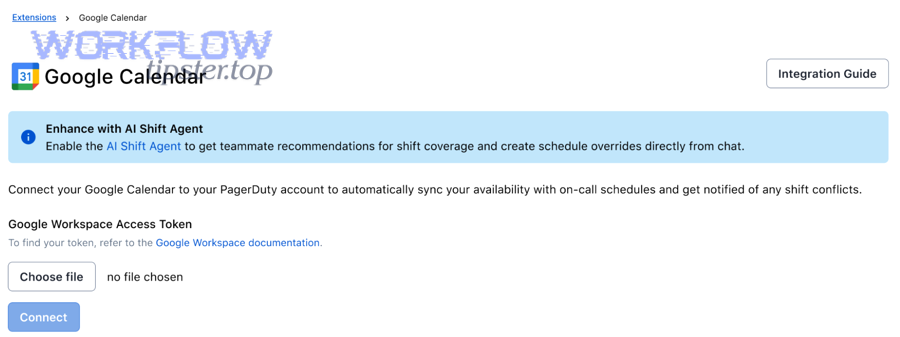
Automate Incident Alerts: Connect Google Docs to PagerDuty for On-Call Teams (No-Code, Not Manual)
STEP 1 — Title & outline analysis (for intent alignment) Main keyword focus: google docs to pagerduty Predicate (main action): automate / connect Relations Lexical used: Antonym (“No-Code, Not Manual”) Search intent types present in the outline: Definition, Boolean, Grouping, How-to, Comparison (plus advanced patterns as micro-semantic expansion) If you want to connect Google Docs to PagerDuty, the fastest path is a no-code automation that turns a clear Docs signal (like a status change, approval comment, or structured update) into a PagerDuty event or incident with the right context attached—without relying on manual copying, messaging, or paging. ( zapier.
Aland Johnson January 31, 2026 at 10:54 PM
Automate (Not Manual) Meeting Notes & Tasks: Sync Google Docs to Outlook Calendar (No-Code Guide for Teams)
If you want Google Docs meeting content to reliably become Outlook Calendar time blocks, the fastest path is a no-code automation workflow that maps structured notes (agenda, decisions, action items) into events—so your team stops losing tasks to manual copy-paste. Next, you also need to choose the right approach for your environment—an automation platform, a task-extraction workflow, or a calendar “bridge”—because each option changes setup effort, permissions, and how much your team can standardize.
Aland Johnson January 31, 2026 at 10:40 PM
Send Google Docs to Outlook: Attach Files vs Share Links for Busy Teams
If you want to send a Google Docs document through Outlook, the most reliable approach is to share a Drive link with the right permissions , because everyone sees the latest version and you avoid “which copy is correct?” confusion.
Aland Johnson January 31, 2026 at 10:29 PM
Migrate Google Docs to OneDrive for Teams: Transfer vs Sync Methods + Format Conversion (Step-by-Step)
Migrating Google Docs to OneDrive for a team means you move your organization’s working documents out of Google Drive in a way that preserves collaboration, keeps files usable in Microsoft formats, and prevents the “where did that file go?” chaos during cutover.
Aland Johnson January 31, 2026 at 10:17 PM
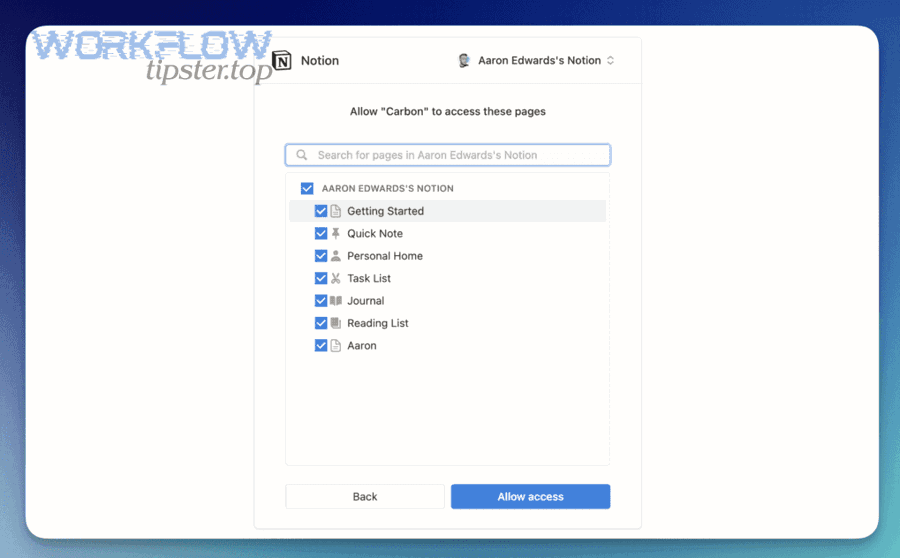
Import (Transfer) Google Docs to Notion for Teams: Step-by-Step Import, Permissions, and Formatting Tips
Moving a document from Google Docs into Notion is straightforward when you treat it like a two-part job : (1) import the content cleanly, and (2) re-apply the right permissions so the page is truly team-ready. Notion supports importing a Google Doc in multiple native ways (paste a Doc link and choose “Import from Google Drive,” use the /Google Docs command, or go through Settings → Import), which makes the transfer fast even for non-technical teams.
Aland Johnson January 31, 2026 at 10:07 PM
Automate Google Docs to monday.com Workflows: Setup Guide for Teams (Manual vs No-Code Options)
STEP 1 — Title & outline analysis (quick): - Main keyword (focus): google docs to monday - Predicate (main action): Automate - Relations Lexical used: Antonym → manual vs automated (also implies “DIY vs no-code”) - Outline intent type mix: Definition + Boolean + Grouping + Comparison + How-to (setup steps) If you’re trying to connect Google Docs and monday.com, the goal is usually the same: turn scattered document work into a predictable workflow that creates the right doc at the right time—and keeps it attached to the right task.
Aland Johnson January 31, 2026 at 9:54 PM
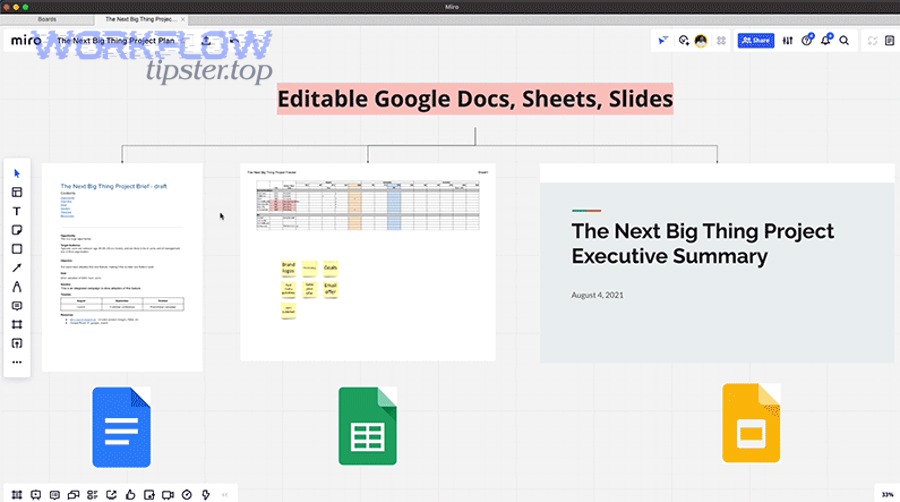
Import Google Docs to Miro Boards for Teams (Not Copy-Paste): Drive Embed & Sync Guide
If you want to import Google Docs into Miro without copy-paste, the most reliable path is to connect your Google Drive, then add the Doc to a board as a linked/embedded file so everyone opens the same source of truth inside your workflow. Next, many teams also need the “setup” layer: who must install the integration, which permissions matter, and how to prevent teammates from hitting “Request access” loops when the board is shared.
Aland Johnson January 31, 2026 at 9:43 PM
Export Google Docs to Microsoft Word (.DOCX): Fast Conversion Steps for Teams (Preserve vs. Fix Formatting)
If you need a Microsoft Word file from Google Docs, the fastest reliable method is to export your document as a .DOCX from Google Docs and open it in Word—this gives you a shareable, editable Word version in minutes.
Aland Johnson January 31, 2026 at 9:31 PM
Connect & Share Google Docs in Microsoft Teams (Without Switching Apps): A Setup Guide for Remote Teams
When people search “google docs to microsoft teams,” they usually want one outcome: share a Doc in Teams so teammates can open it, collaborate, and move work forward without losing momentum . The simplest path is a Teams-first sharing habit—post the Doc link (or attach it from cloud storage where available), confirm permissions, and keep the conversation anchored in the channel.
Aland Johnson January 31, 2026 at 9:18 PM
Migrate (Move) Google Docs to Microsoft SharePoint: Step-by-Step Guide for IT Admins
Migrating Google Docs to Microsoft SharePoint means converting your organization’s “live” Google-native files into Microsoft 365-friendly files, then placing them into the right SharePoint sites and libraries so teams can collaborate with consistent permissions and governance. Next, you’ll need a clear prep plan before you touch any tool: identity mapping, information architecture, and cleanup decisions determine whether users find what they need on day one—or drown in duplicates and broken sharing.
Aland Johnson January 31, 2026 at 9:06 PM
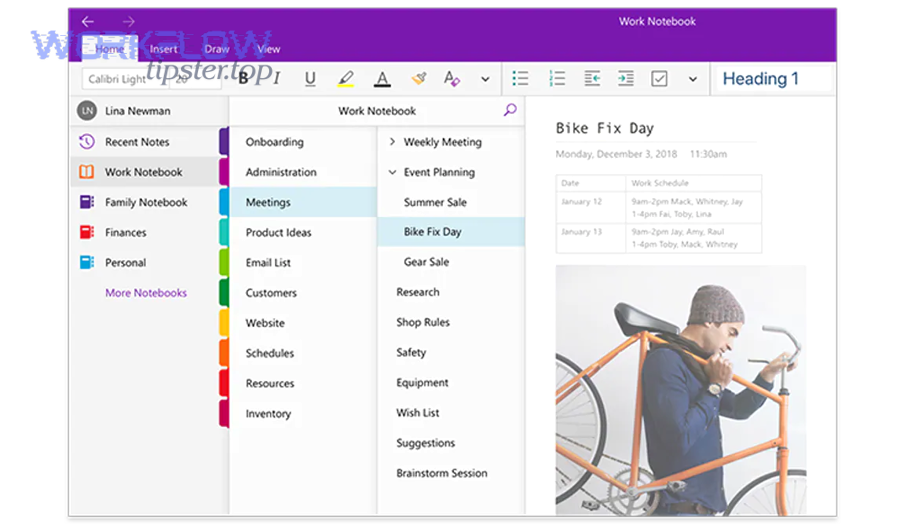
Automate Google Docs to OneNote Export Without Copy-Paste: Sync Notes Fast for Teams
You can automate a Google Docs-to-OneNote export workflow without manual copy-paste by using an automation pipeline (trigger → transform → create OneNote page), which reduces duplicated effort, keeps naming consistent, and makes team knowledge easier to find later. Then, once you’ve confirmed automation is feasible, the next decision is which workflow style fits your reality: no-code automation, a PDF/print import, or a link-first knowledge hub approach—because each one optimizes a different “win” (speed, fidelity, or maintainability).
Aland Johnson January 31, 2026 at 8:54 PM
Convert (Export) Google Docs to Microsoft Excel for Business Users: Table-to-XLSX Workflow
If your real goal is to move structured data (especially tables) from Google Docs into a working Excel (.xlsx) spreadsheet , the most reliable workflow is to extract the table cleanly, preserve rows/columns, and validate the result in Excel —not to “convert the whole document” as if Docs were a spreadsheet.
Aland Johnson January 31, 2026 at 8:41 PM
Connect & Sync Google Docs to Mailchimp for Marketers: Automate Email Lists (No-Code Guide)
Connecting Google Docs to Mailchimp is absolutely possible without coding, and it’s one of the fastest ways for marketers to turn “drafted content + messy contact notes” into repeatable email campaigns and cleaner audience management. To make that connection useful (not just “connected”), this guide also breaks down what “connect” versus “sync” really means in day-to-day marketing work—so you can avoid one-off automations that fail the moment your team changes a template or renames a field.
Aland Johnson January 31, 2026 at 8:29 PM
Embed Loom Videos in Google Docs with Smart Chips — Share Updates Faster for Teams (Insert vs. Screenshot)
Sharing a Loom video inside Google Docs is link-first: you paste a Loom link, then Docs can display it as a Smart chip (a rich preview) so teammates understand the update faster without hunting for context. ( workspace.
Aland Johnson January 31, 2026 at 8:16 PM
Automate Google Docs to Linear for Product Teams: A No-Code Workflow That Turns Specs Into Issues (Manual → Automated)
Automating Google Docs to Linear means you can turn the content you already write in Docs—requirements, decisions, action items—into clean, trackable Linear issues automatically, so product teams ship faster with fewer handoffs and less copy-paste. Next, if you’re wondering whether you can do this without engineering help, the practical answer is yes: most teams can build a reliable no-code workflow using an automation platform that connects Google Docs triggers to Linear actions.
Aland Johnson January 31, 2026 at 8:04 PM
Automate and Sync Google Docs to Klaviyo for Email Marketers: A No-Code Workflow Guide
If your team drafts briefs, product notes, or campaign copy in Google Docs and then rebuilds the same information inside Klaviyo, you can automate the handoff so a document becomes structured marketing input. The goal is simple: reduce manual retyping, keep naming consistent, and move from “copy/paste” to a repeatable workflow.
Aland Johnson January 31, 2026 at 7:52 PM
Automate Jotform Submissions into Google Docs for Teams: No-Code Templates (Manual → Automated)
Automating Jotform submissions into Google Docs means every new form response can instantly generate a ready-to-share document—so your team stops copying and pasting fields, reduces formatting mistakes, and delivers consistent outputs at scale. To better understand what this automation really produces, you’ll see the common “outputs” teams create (templated docs, PDFs, and hybrid workflows) and why the output choice changes how you design your template and mapping.
Aland Johnson January 31, 2026 at 7:41 PM
Automate Google Docs to Jira Integration: Sync Docs With Issues for Agile Teams (No Manual Copy-Paste)
If you want less “where’s the latest doc?” and more “the doc is always attached to the work,” the simplest answer is to automate the creation + linking loop: when a Jira issue is created or reaches a key status, a Google Doc is created from a template, named with the issue key, filed in the right folder, and linked back to the issue.
Aland Johnson January 31, 2026 at 7:29 PM
Automate & Consider: Connect Google Docs to Intercom with No-Code Triggers, Actions, and Templates (for Support & Customer Success Teams)
Connecting Google Docs to Intercom is the fastest way to turn living documentation—playbooks, incident notes, release briefs, and customer-ready copy—into structured context your Support and Customer Success team can actually use during conversations. The core outcome is simple: a no-code workflow captures a Docs event, maps the right fields, and updates the right place inside Intercom.
Aland Johnson January 31, 2026 at 7:18 PM
Automate Google Docs to HubSpot Integration for Marketers: Sync CRM Data, Generate Templates, and Replace Manual Copy-Paste
If you want to replace manual copy-paste between Google Docs and HubSpot, the fastest path is to design one clear “trigger → mapping → document action → HubSpot write-back” workflow that creates or updates a document automatically and stores the result back on the right HubSpot record. To support that primary goal, you also need a reliable way to sync CRM data into a Google Docs template so every document stays accurate—names, deal amounts, dates, lifecycle stages, and the context your team normally retypes.
Aland Johnson January 31, 2026 at 7:04 PM
Automate Google Docs to Help Scout: Create Tickets and Share Docs for Support Teams (No Copy-Paste)
If you want faster, cleaner support operations, the simplest win is to automate how your team moves information between Google Docs and Help Scout—so agents stop copying summaries, troubleshooting notes, or approvals into tickets by hand. The core intent is straightforward: trigger Help Scout actions (create/update a conversation, add notes, tag, assign, notify) from Docs activity—or generate Docs from ticket activity.
Aland Johnson January 31, 2026 at 6:40 PM
Automate Time Tracking: Connect Google Docs to Harvest for Teams and Freelancers (Manual vs Automated)
If your work lives in Google Docs, you can connect Google Docs to Harvest—most commonly by using an automation layer that turns document activity (or doc-related workflows) into consistent time-tracking habits that actually get billed. Beyond “can it connect,” the real goal is to reduce missed time and standardize how work becomes entries —especially when multiple people edit the same document and the line between “writing,” “reviewing,” and “client feedback” gets blurry.
Aland Johnson January 31, 2026 at 6:28 PM
Convert Google Docs to Google Slides: Turn a Doc Into Slides Faster (Manual + Add-On Methods)
Turning a text-first Google Doc into a presentation-ready Google Slides deck is fastest when you treat “conversion” as a content-to-structure workflow: you extract the right ideas, map them to slide titles and layouts, and then apply consistent visual hierarchy. The quickest path depends on your constraints.
Aland Johnson January 31, 2026 at 6:17 PM
Convert (Export) Google Docs to Google Sheets: How to Move Tables & Data for Teams (Manual vs Automated)
Converting Google Docs to Google Sheets is the fastest way to turn a document-based table into a real spreadsheet dataset, so your team can sort, filter, validate, and analyze information in rows and columns without retyping. Next, you’ll see why the “best” method depends on whether you need a one-time move or an ongoing workflow—because manual conversion is usually quickest today, while automation is usually safest tomorrow.
Aland Johnson January 31, 2026 at 6:07 PM
Start, Join & Present: Connect Google Docs to Google Meet for Google Workspace Teams (Video Call Workflow)
If you want a smoother meeting workflow, you can connect Google Docs to Google Meet by joining a call from the Doc itself and presenting the Doc without losing your place—so your team can talk, edit, and decide in one working context. ( support.
Aland Johnson January 31, 2026 at 5:59 PM
Convert Google Docs to Google Forms Without Copy-Paste: Step-by-Step Guide for Teachers & Teams
Turning a structured questionnaire in a Doc into a working Form is possible—and the fastest path is to convert the “question structure” , not the document’s layout. When you focus on consistent numbering, option formatting, and section breaks, you can generate a Form in minutes instead of rebuilding it line by line.
Aland Johnson January 31, 2026 at 5:48 PM
Move & Organize Google Docs in Google Drive Folders (Save, Share, Transfer) — for Individuals & Teams
Google Docs already lives inside Google Drive, so “moving Google Docs to Google Drive” really means placing Docs files into the right Drive folders (or shared drives) so they’re easy to find, share, and manage without breaking access . Next, once you understand what “move,” “copy,” and “shortcut” actually do, you can reorganize your Drive with confidence—especially when you’re collaborating and permissions matter more than folder aesthetics.
Aland Johnson January 31, 2026 at 5:37 PM
Sync Google Docs to Google Contacts: Automate Contact Capture for Google Workspace Teams (No-Code + Apps Script)
Syncing Google Docs to Google Contacts is a practical way to turn contact details written in a shared document into real, searchable contacts—automatically—so your team stops retyping names, emails, and phone numbers across tools and devices. Instead of treating a Doc as “just text,” you treat it as a structured intake source that can create or update contacts consistently.
Aland Johnson January 31, 2026 at 5:27 PM
Automate Google Docs to Google Chat: Send Doc Updates to Chat Spaces for Teams (No-Code or Webhook)
If you want your team to stop missing document changes, the fastest solution is to automate Google Docs updates into Google Chat spaces so every new doc, key edit, or review request becomes an actionable chat message with a link and context. Next, you’ll also want a clear way to decide which path fits your team best —a no-code automation for speed and simplicity, or a webhook approach for more control, customization, and scaling.
Aland Johnson January 31, 2026 at 5:15 PM
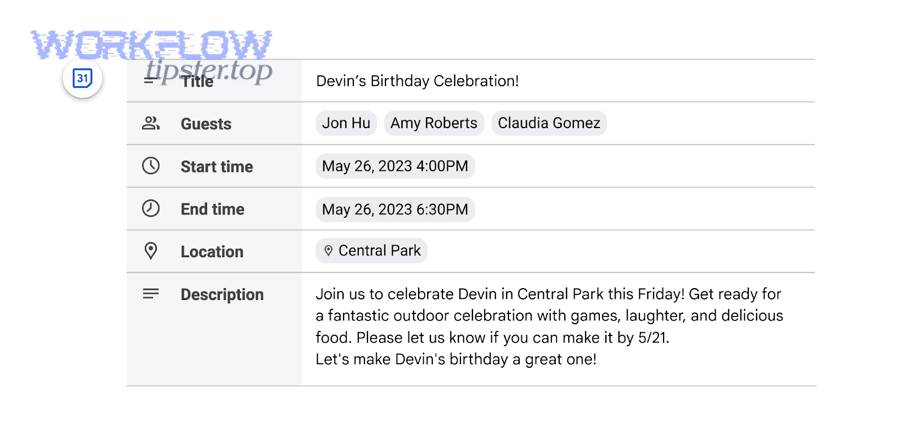
Link Google Docs to Google Calendar Events for Teams: Meeting Notes vs Attachments
Linking Google Docs to Google Calendar events is the fastest way to make every meeting invite “self-contained”: the agenda, pre-read, notes, and action items live where people already look—inside the event. Most teams start with simple linking (attach a Doc, paste a Doc link, or use Meeting notes) and then level up to cleaner workflows like Calendar event drafts when multiple stakeholders need to collaborate before sending the invite.
Aland Johnson January 31, 2026 at 5:04 PM
Send (or Automate) Google Docs to Gmail: Email as Link vs Attachment for Teams (Manual vs No-Code)
Sending Google Docs to Gmail is easiest when you treat the document as a living file in Drive and email the right delivery method—either a shareable link for collaboration or an exported attachment for a fixed snapshot—so your team gets the outcome you intended, fast. Next, if your real goal is consistency (and fewer “Did you see the doc?
Aland Johnson January 31, 2026 at 4:53 PM
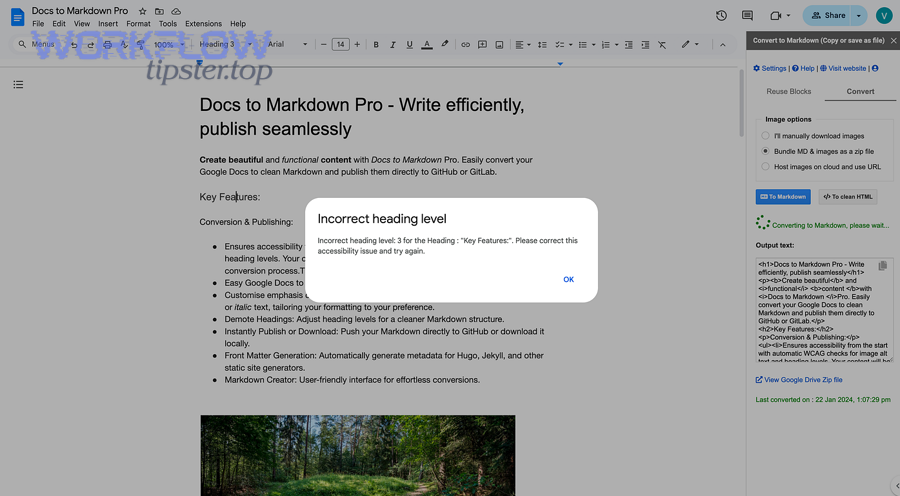
Export Google Docs to GitLab: Publish Docs as Markdown (or HTML) with a Stable, Reviewable Workflow
Exporting Google Docs to GitLab is the most practical way to turn living documents into versioned content: you convert a Doc into Markdown/HTML, commit it to a repository, and use GitLab’s merge requests to review, approve, and publish changes with a clear audit trail. Next, the key decision is whether you should automate that pipeline or keep it manual: automation saves time, reduces copy-paste errors, and standardizes formatting—but it also introduces setup, maintenance, and “edge-case” debugging you must plan for.
Aland Johnson January 31, 2026 at 4:44 PM
Export Google Docs to GitHub: A Step-by-Step Docs-as-Code Workflow (Automated vs Manual)
Moving Google Docs into GitHub is absolutely doable—and the “best” approach depends on what you value most: preserving formatting, enabling review with pull requests, or making publishing fully automated. If your biggest fear is losing formatting, the key is to stop treating the Doc as a “final layout” and start treating it as structured content (headings, lists, tables, images) that can survive export and version control.
Aland Johnson January 31, 2026 at 4:34 PM
Automate Google Docs to Freshdesk Integration for Support Teams — Replace Manual Ticket Updates
Manual ticket updates usually happen for one reason: the information your team needs lives in a document, while the work your team must track lives in Freshdesk. This guide shows how to automate the bridge between Google Docs and Freshdesk so tickets update consistently, fast, and with less human copy-paste.
Aland Johnson January 31, 2026 at 4:23 PM
Automate Invoicing: Connect Google Docs to FreshBooks for Freelancers & Small Teams (Manual vs Automated)
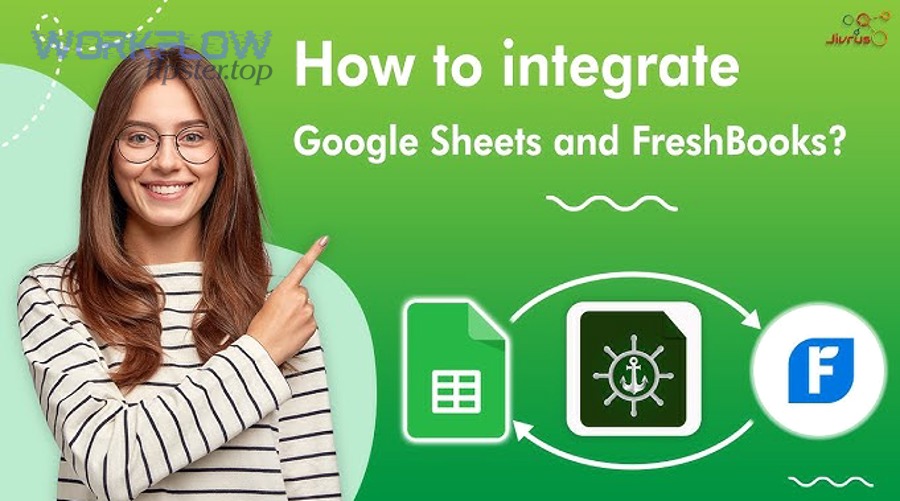
If your invoices start life in Google Docs and end up in FreshBooks, you can automate the handoff so the same information doesn’t get typed twice. The fastest win is usually a structured Google Docs invoice template plus a repeatable “create invoice” flow in FreshBooks, with clear rules for taxes, clients, and invoice numbers.
Aland Johnson January 31, 2026 at 1:04 PM
Convert Google Docs to Figma: Import as Editable Frames & Text Layers for Designers
If you need to move copy from a Google Doc into a Figma file without flattening everything into a screenshot , you can—by choosing an import method that produces editable frames and text layers , then applying a short cleanup routine that restores structure and styles. ( docs.
Aland Johnson January 31, 2026 at 12:53 PMSave & Sync Google Docs to Evernote Notes for Teams — Import vs Automate (Docs-to-Notes Guide)
If you want your team to stop losing decisions inside scattered Google Docs, the fastest win is a clear Docs-to-Notes workflow: import a Doc when you need a stable snapshot , or link/attach via Google Drive when you need collaboration to stay in Docs while the context lives in Evernote . Next, you’ll choose between manual import (best for “final” docs) and automation (best for repeated capture), so your team doesn’t debate the process every time—your workflow decides for you.
Aland Johnson January 31, 2026 at 12:43 PM
Connect & Send Google Docs for eSignature with Dropbox Sign Add-On (Electronic Signature) for Google Workspace Users
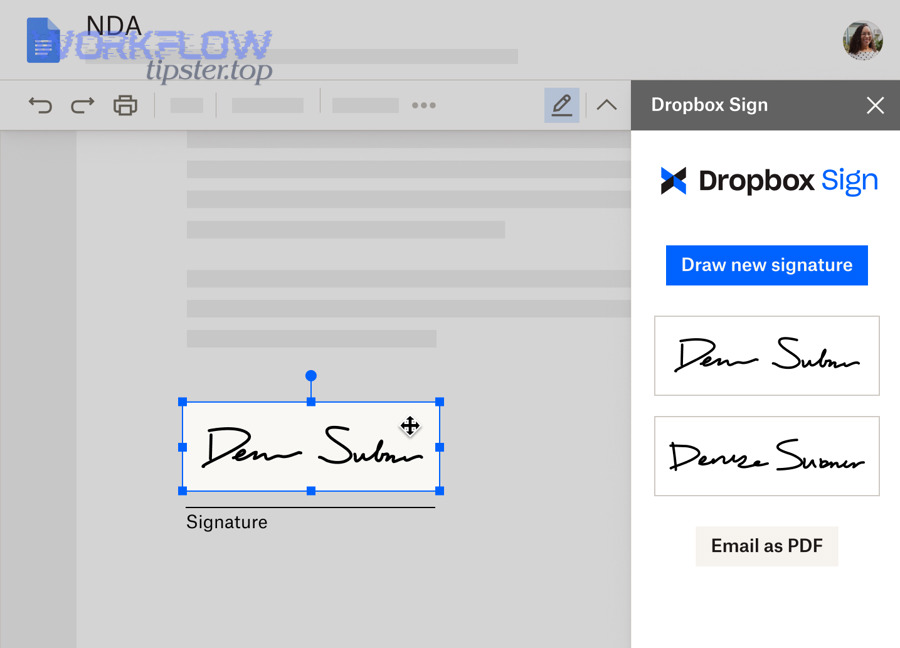
Connecting Google Docs to the Dropbox Sign add-on is the fastest way to send a Google Doc for eSignature without exporting to PDF , because you can prepare fields, invite signers, and track status from a single document workflow. Next, most people also want to know what the add-on actually does inside Google Docs and how “eSignature” relates to “electronic signature,” because those terms appear interchangeably in product pages and search results.
Aland Johnson January 31, 2026 at 12:33 PM
Export & Sync Google Docs to Dropbox: Step-by-Step Transfer for Teams (Upload vs Shortcut)
Moving a document from Google Docs into Dropbox works best when you choose the right method first— export/upload for a true copy or shortcut/link for a live cloud file —then follow a clean, repeatable transfer checklist that keeps your team aligned. ( help.
Aland Johnson January 31, 2026 at 12:25 PM
Connect Google Docs to Doodle: Automate Poll Summaries and Scheduling Workflows (No-Code vs Manual)
Connecting Google Docs to Doodle is mostly about turning scheduling signals (poll options, votes, final times) into written outputs (agendas, decision logs, invite notes, and summaries) without rewriting the same details again and again. Done well, it reduces manual copy-paste, speeds up decisions, and keeps one “source of truth” your team can reference in a shared Doc.
Aland Johnson January 31, 2026 at 12:15 PM
Automate eSignatures: How to Connect Google Docs to DocuSign for Teams (Manual vs Automated Workflows)
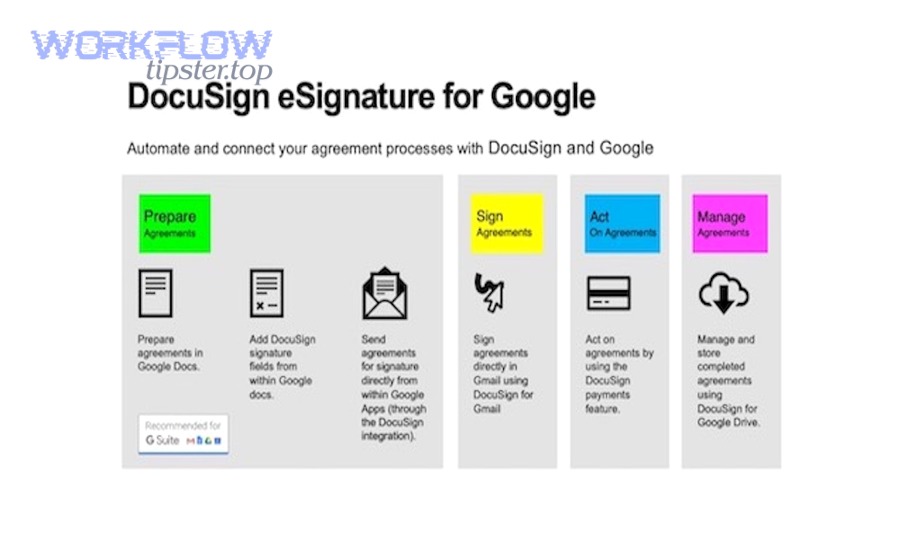
If your team writes agreements in Google Docs and still chases signatures by email, the Google Docs to DocuSign integration can turn that manual loop into a trackable, repeatable signing workflow. In practice, you create or finalize the document in Google Docs, send it to DocuSign for eSignature, and monitor every step until the signed copy lands back in Google Drive.
Aland Johnson January 31, 2026 at 12:05 PM