


Connecting Google Docs to Salesforce means you stop treating documents as “loose files” and start treating them as structured outputs of your CRM—created from record data, linked back to the right account/opportunity, and updated through repeatable automation instead of copy-paste.
Next, you’ll see the practical workflows this unlocks for Sales Ops: generating proposals and meeting summaries from templates, keeping record fields in sync with what’s in the doc, and making every document discoverable from the Salesforce record without hunting through drives.
Then, you’ll learn how to choose the right integration approach (basic linking vs no-code automation vs document generation) and how to implement the core mechanics—authentication, field mapping, record association, and governance—so the workflow stays reliable as your team grows.
Introduce a new idea: once the foundation is clear, we’ll move from “it works” to “it scales,” so your Google Docs-to-Salesforce process stays fast, controlled, and truly not manual.
What does it mean to “connect Google Docs to Salesforce” for automation (not manual work)?
Connecting Google Docs to Salesforce for automation means you use CRM record data to create and manage Docs through standardized triggers, templates, and record-linked updates—so documents become part of the system of record, not side work.
To better understand what “not manual” changes in daily operations, focus on the outcomes: fewer context switches, fewer naming mistakes, and fewer lost files—because the record itself becomes the anchor for the document lifecycle.
What workflows become automated when Google Docs is connected to Salesforce?
There are 6 main workflow groups that become automated when Google Docs is connected to Salesforce: document creation, document linking, document updating, approval handoffs, notifications, and reporting, based on where the document sits in your revenue process.
Specifically, here’s what each group looks like in Sales Ops terms:
- Document creation (templates → first draft)
- Auto-create a proposal doc when an Opportunity reaches a stage (e.g., “Proposal/Price Quote”).
- Auto-create a meeting recap doc when a meeting is logged, using a consistent structure.
- Document linking (Doc ↔ record association)
- Store the canonical doc link in a Salesforce field (e.g., “Proposal Doc URL”).
- Ensure anyone opening the Opportunity can access the latest doc instantly.
- Document updating (record changes → doc refresh)
- When key fields change (pricing, scope, close date), update or regenerate the doc.
- Maintain version discipline: either update a “living doc” or generate a new version with clear naming.
- Approval handoffs (draft → review → final)
- Route a doc for review when the rep marks “Ready for Manager Review.”
- Change status fields in Salesforce so pipeline visibility stays accurate.
- Notifications (sales team coordination)
- Alert the account team when the doc is ready.
- Notify operations when a contract or order form is generated.
- Reporting (docs as measurable outputs)
- Track time-to-proposal, proposal-to-signature velocity, and doc completion rates using Salesforce fields tied to doc status.
The macro point is simple: automation turns documents into repeatable, measurable outputs—not ad hoc “files someone made.”
What data typically moves between Docs and Salesforce records—and in which direction?
There are 3 main data-flow types between Google Docs and Salesforce: Salesforce → Doc merge data, Doc → Salesforce metadata, and status signals, based on what the business needs to trust as the source of truth.
More specifically:
- Salesforce → Google Docs (merge fields)
- Account name, billing details, contacts, product lines, pricing, terms, scope, dates, and owner info.
- This is where templates shine: you avoid retyping and reduce inconsistencies.
- Google Docs → Salesforce (document metadata and link)
- The doc URL, doc owner, doc type, doc status, and version number.
- This keeps Salesforce searchable and prevents “where’s the latest doc?” chaos.
- Status signals (process control)
- “Draft created,” “Sent for review,” “Approved,” “Sent to customer,” “Signed.”
- These signals matter because they allow Salesforce reporting to reflect reality, not guesswork.
When you get the direction right—CRM data fills the doc, and doc metadata returns to the CRM—you preserve a single narrative across sales execution.
Do you need an integration tool to connect Google Docs to Salesforce?
Yes—you usually need an integration tool to connect Google Docs to Salesforce in a “not manual” way, because (1) automation requires reliable triggers and actions, (2) field mapping needs consistent logic, and (3) governance depends on controlled permissions and record-linked storage.
Next, the deciding factor is your real goal: if you only need basic association, you may use lighter setup; if you want end-to-end automation, you’ll need a purpose-built workflow layer.
Can a native Salesforce + Google setup cover basic “link a doc to a record” needs?
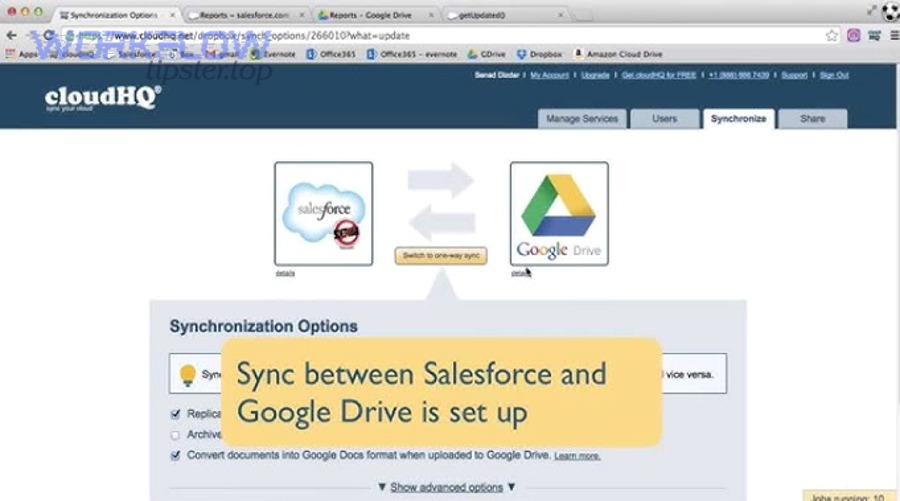
Yes—a native Salesforce + Google setup can cover basic “link a doc to a record” needs, because (1) Salesforce can store a canonical document URL on the record, (2) users can contribute/associate documents within Salesforce experiences, and (3) teams can standardize a simple naming rule without complex automations.
Then, keep your expectation aligned with the capability: “basic” usually means association and discoverability, not deep automation. In practice, you’ll typically do the following:
- Create a Salesforce field for “Doc URL” (or a related list / content reference approach your org prefers).
- Add guidance for how the link should be created and stored (one canonical link per record).
- Enforce a naming convention that includes record identifiers (Opportunity name + close date + version).
This approach works when your team’s biggest pain is finding the doc, not creating and updating the doc automatically.
Can no-code automation platforms handle end-to-end workflows without custom code?
Yes—no-code automation platforms can handle many end-to-end workflows without custom code, because (1) they offer standardized triggers from Salesforce and Google Drive/Docs events, (2) they support mapping between fields and template inputs, and (3) they can write results back to Salesforce automatically.
However, “end-to-end” still has boundaries. No-code is ideal when:
- Your workflow is mostly linear (trigger → create doc → store link → notify).
- You can define clear rules for record matching (use record IDs, not fuzzy names).
- Your compliance needs are satisfied by controlled permissions and audit logs.
No-code becomes less ideal when:
- You need complex approval logic across multiple roles and exceptions.
- You need heavy-volume processing with strict guarantees (idempotency, retries, rate-limit strategy).
- You require custom UI inside Salesforce for doc lifecycle management.
If Sales Ops needs speed and reliability without engineering dependency, no-code is often the right operational middle ground.
What are the main ways to integrate Google Docs with Salesforce?
There are 3 main ways to integrate Google Docs with Salesforce: linking, automation, and document generation, based on whether your goal is discoverability, process execution, or templated output at scale.
Next, we’ll break each approach into what it does best and where it tends to fail, so you can map the method to your exact “not manual” requirement.
Which “linking” approaches keep Google Docs tied to the right Salesforce record?
There are 4 main linking approaches that keep Google Docs tied to the right Salesforce record: canonical URL fields, structured naming conventions, folder-per-record rules, and controlled ownership, based on how teams actually retrieve and trust documents.
More specifically:
- Canonical URL stored on the record
- Add a dedicated field (or structured object) for “Proposal Doc,” “Meeting Summary Doc,” etc.
- Train the team: the record field is the single source of truth for the latest version.
- Naming conventions that reduce ambiguity
- Use a predictable format like:
OpportunityName – Account – YYYY-MM-DD – v#. - Include the Salesforce record ID in metadata or a hidden line in the doc for unique identification.
- Use a predictable format like:
- Folder structure that mirrors CRM structure
- Use Shared Drives / team drives with consistent top-level buckets (Sales Docs / Customer Docs).
- Create subfolders by Account or Opportunity when needed, but avoid deep nesting that hides files.
- Ownership discipline
- Ensure docs are owned by a team identity (shared drive) rather than an individual rep’s personal drive.
- Define what happens when reps move territories or leave (ownership transfer policy).
Linking is the lightest “integration,” but it’s also the easiest to break without governance.
Which “automation” approaches create and update Docs from Salesforce events?
There are 5 main automation approaches that create and update Docs from Salesforce events: record-triggered doc creation, stage-based doc generation, field-change updates, scheduled refresh workflows, and doc-driven record updates, based on how the process is triggered and what outcome is controlled.
To illustrate:
- Record-triggered creation
- When an Opportunity is created (or reaches a stage), create a proposal doc from a template.
- Stage-based generation
- When the Opportunity moves to “Proposal,” generate the proposal doc.
- When it moves to “Negotiation,” generate a redline-ready version.
- Field-change updates
- When amount, products, or terms change, regenerate or update the doc and increment version.
- Scheduled refresh workflows
- Nightly or weekly refresh of “living docs” for active accounts (useful for account plans and QBR templates).
- Doc-driven record updates (carefully controlled)
- When a doc is finalized, update Salesforce fields like “Proposal Sent Date,” “Doc Approved,” or “Version.”
Automation succeeds when your triggers are stable and your record association logic is unambiguous.
Which approach is best for Sales Ops: linking vs automation vs document generation?
Linking wins in speed and simplicity, automation is best for operational consistency, and document generation is optimal for high-volume, template-driven output, based on whether your priority is quick adoption, repeatable execution, or scalable standardization.
Next, use the comparison below to choose the method that matches your team’s maturity, volume, and governance needs.
Here is a quick table showing what each approach is best at, so you can pick a default strategy and avoid mixing methods randomly:
| Approach | Best for | Setup effort | Ongoing maintenance | Typical failure mode |
|---|---|---|---|---|
| Linking | Findability and record association | Low | Low–Medium | Inconsistent naming + lost ownership |
| Automation | Repeatable workflows and fewer manual steps | Medium | Medium | Broken mappings, duplicates, permission drift |
| Document generation | High-volume standardized outputs | Medium–High | Medium–High | Template sprawl, complex exceptions |
How do linking, automation, and document generation compare by setup time, cost, and maintenance?
Linking wins in setup time, automation is best for balanced cost-to-control, and document generation is optimal when scale justifies the maintenance, based on the operational reality of Sales Ops ownership.
However, the hidden cost is almost always maintenance rather than initial setup:
- Linking
- Setup is fast: add fields, define naming, train the team.
- Maintenance appears later: ownership transfers, broken links, inconsistent storage locations.
- Automation
- Setup is moderate: map triggers/actions, define templates, test edge cases.
- Maintenance is predictable: token refresh, field changes, occasional flow improvements.
- Document generation
- Setup requires more rigor: template governance, versioning strategy, legal-approved language control.
- Maintenance is worth it only when volume is high and the output must be consistent.
The best Sales Ops teams treat this as a lifecycle decision: start with linking to create discipline, then move into automation and generation where it reduces measurable friction.
How do these approaches compare for data quality and reporting inside Salesforce?
Automation wins for data quality, document generation is best for standardized compliance-ready outputs, and linking is the weakest for reporting, because Salesforce reporting relies on structured fields—not scattered doc content.
Meanwhile, here’s what changes in practice:
- Linking
- Salesforce knows a doc exists, but it doesn’t reliably know the doc’s status.
- Reporting is shallow unless you manually update fields.
- Automation
- You can automatically set fields like “Doc Created Date,” “Doc Approved,” and “Proposal Sent.”
- Dashboards become meaningful because the workflow updates the CRM as work happens.
- Document generation
- You can enforce required inputs and ensure outputs follow legal/commercial standards.
- Data quality improves because the generation step forces clean source fields.
If your leadership cares about forecasting accuracy and pipeline instrumentation, automation-driven field updates are usually the fastest route to measurable improvement.
How do you set up a reliable Google Docs ↔ Salesforce workflow step by step?
A reliable Google Docs ↔ Salesforce workflow is built in 7 steps—use case, method, permissions, trigger design, field mapping, record association, and monitoring—so your team consistently generates the right doc, links it to the right record, and updates status automatically.
Then, treat this setup like a product launch: define success metrics (time saved, fewer errors, adoption rate) and roll out with guardrails, not just instructions.
How do you map Salesforce fields into a Google Docs template without breaking formatting?
Salesforce field mapping into a Google Docs template works best when the template is a structured “document system” with stable placeholders, controlled formatting rules, and fallback defaults, so your generated doc stays readable even when fields are empty.
Specifically, follow a template-first mapping method:
- Design the template around sections, not just fields
- Use consistent headings: Summary, Scope, Timeline, Commercials, Next Steps.
- Keep layout stable so small data changes don’t destroy formatting.
- Create placeholder rules
- Use clear placeholders for each field (e.g.,
{{Account.Name}},{{Opportunity.Amount}}). - Decide formatting rules for currency, dates, and lists (e.g., line items).
- Use clear placeholders for each field (e.g.,
- Handle blanks and edge cases
- Use defaults like “TBD” for optional fields.
- For lists (products, stakeholders), define what happens if the list is empty.
- Protect the parts that must never change
- Legal language sections should be locked down through template governance.
- Put “editable zones” where reps can add context without altering compliance text.
The key is to treat formatting as part of the data model: the template is not decoration—it is the output contract.
How do you ensure every generated Doc is attached/linked to the correct record every time?
You ensure every generated Doc is linked to the correct record by using (1) a unique record identifier strategy, (2) a single canonical link field in Salesforce, and (3) an anti-duplicate rule that prevents multiple “latest” docs from existing without intent.
More specifically:
- Use record IDs, not names, for true uniqueness
- Names change; IDs don’t.
- Store the record ID inside the doc (metadata or a hidden footer line) so you can always trace it back.
- Write back one canonical URL
- When the doc is created, your workflow writes the doc URL into a Salesforce field.
- Your UI and training should point everyone to that field as “the link.”
- Prevent duplicates by design
- If a doc already exists, update it or create a versioned copy with a clear suffix (v2, v3).
- Use idempotent logic: “If doc exists for this record and stage, do not create again.”
This is where “not manual” becomes real: the workflow makes the record-to-doc association deterministic, so humans don’t have to remember the rules under pressure.
Is it safe to connect Google Docs to Salesforce for teams and customer data?
Yes—it is safe to connect Google Docs to Salesforce for teams and customer data, because (1) modern integrations rely on controlled authorization, (2) permissions can be aligned through least-privilege governance, and (3) disciplined doc ownership and sharing rules reduce accidental exposure far more than ad hoc manual sharing.
Next, safety comes down to clarity: people must know where the doc lives, who owns it, and what “sharing” is allowed—because most incidents come from unclear process, not bad technology.
How do Google sharing permissions and Salesforce record access interact?
Google sharing permissions control who can open the document, while Salesforce record access controls who can see the record context—and the workflow is only truly safe when both layers agree on the intended audience.
However, these permission models are different by nature:
- Salesforce access is role/record-based
- A user might see the Opportunity but should not necessarily open a sensitive doc.
- Google access is link/file-based
- A user might receive a link and open a doc even if they can’t access Salesforce—if sharing is too permissive.
To keep them aligned:
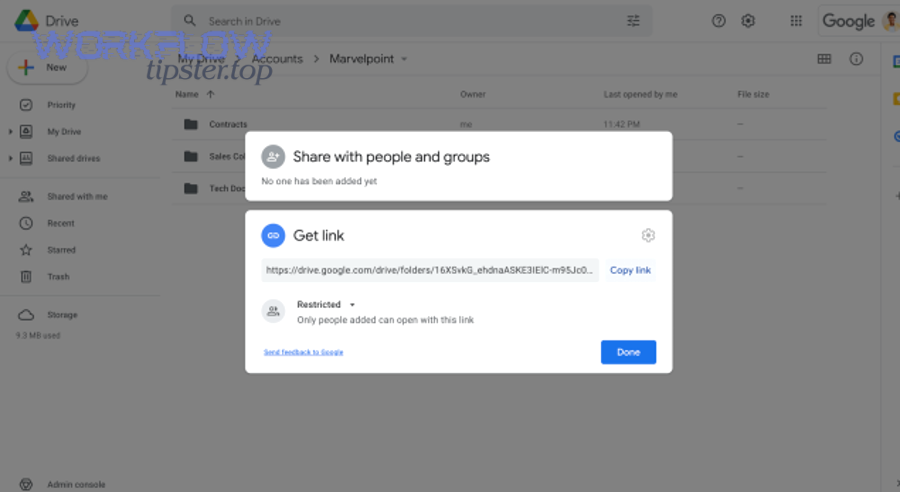
- Prefer Shared Drives for team-owned docs rather than personal drives.
- Restrict sharing to the right group(s) and avoid “anyone with the link.”
- Store doc links in Salesforce fields that are visible only to users who should access them.
Alignment is the safety mechanism: a doc link should never become a side door around CRM permissions.
What governance rules prevent ‘manual chaos’ when teams share Docs from Salesforce?
There are 6 governance rules that prevent “manual chaos” when teams share Docs from Salesforce: ownership, naming, lifecycle status, sharing policy, storage architecture, and review cadence, based on what typically breaks when workflows scale.
More specifically:
- Ownership rule
- Docs are owned by a team drive, not by individuals.
- Naming rule
- Every doc includes record context + date + version.
- Lifecycle rule
- Draft, In Review, Final, Sent—stored in a Salesforce status field.
- Sharing rule
- Sharing uses groups; public links are prohibited.
- Storage rule
- A standard folder architecture exists for all teams.
- Review rule
- Quarterly audits: remove stale access, validate template versions, confirm link accuracy.
This governance is what makes automation sustainable—otherwise your workflow becomes a faster way to create disorder.
What usually breaks—and how do you troubleshoot Google Docs to Salesforce automations?
There are 5 main failure categories in Google Docs to Salesforce automations: authentication, permissions, mapping, record association, and scale limits, based on what causes workflows to misfire or produce wrong outputs.
Then, troubleshooting becomes a disciplined sequence: identify the category first, fix the root cause second, and only then re-run the workflow.
Why do automations fail even when the connection is “active”?
Automations can fail even when the connection is “active” because credentials may still be valid while permissions, tokens, APIs, or environment settings have changed—so the workflow can authenticate but cannot complete the intended action.
Specifically, the most common causes are:
- Token and authorization drift
- A connected account changed password/security policy.
- Admin policies now require re-authorization or block third-party access.
- Permission changes
- The automation user loses access to a Salesforce object/field.
- The automation user loses access to the destination drive/folder.
- API and rate-limit behaviors
- The workflow hits request limits during peak activity.
- Retries are not configured, so a temporary error becomes a permanent failure.
- Template moved or renamed
- The doc template ID changes when someone replaces it incorrectly.
- The automation keeps pointing to a resource that no longer exists.
A strong fix pattern is to assign a stable “automation owner account” with controlled privileges and to keep templates in a protected location with change management.
Why does the document have the wrong data (or missing fields) after merging?
Documents show wrong or missing data after merging because the workflow is usually referencing the wrong record context, mapping fields inconsistently, or mishandling empty/format-sensitive values—so the template fills, but it fills incorrectly.
More specifically, look for these failure points:
- Wrong object context
- The workflow uses Contact fields but the trigger is an Opportunity without a contact relationship mapped correctly.
- Field formatting mismatch
- Currency/date formats differ between systems, causing messy output or blanks.
- Lookup and related list complexity
- Line items, stakeholders, and products are not single fields; they require structured logic.
- Null and conditional logic
- Empty values create broken sentences or missing sections unless you define defaults and conditions.
If your business relies on these docs externally, treat merge accuracy like a quality gate: test with edge-case records (missing phone, multiple products, unusual currencies) before rollout.
According to a study by the University of California, Irvine from the Department of Informatics, in 2008, researchers reported that interruptions impose measurable reorientation costs that can slow task completion—one reason Sales Ops teams benefit when automation reduces repeated “copy, paste, fix” cycles.
What advanced patterns make Google Docs-to-Salesforce automation scalable (beyond basic sync)?
Advanced scalability comes from adding controlled patterns—template governance, lifecycle state, auditability, and volume-safe execution—so your workflow stays stable when multiple teams, regions, and deal types use it simultaneously.
Next, these patterns are where “Automation Integrations” stop being convenience and start becoming operational infrastructure: they define how your org produces customer-facing documents as a system, not a habit.
How can you standardize templates with conditional sections and dynamic tables for different deal types?
You can standardize templates with conditional sections and dynamic tables by building a single “master structure” and controlling variability through defined inputs—so one template supports multiple deal types without spawning dozens of inconsistent versions.
Specifically:
- Define a controlled set of deal types
- Example: New Business, Expansion, Renewal, Enterprise Security Review.
- Each type enables/disables sections: onboarding steps, security appendix, product table.
- Use dynamic tables for line items
- Your workflow should treat product lines as a structured list, not pasted text.
- This prevents “pricing table drift” and makes updates repeatable.
- Reduce template sprawl
- Prefer one template with rules over ten templates that nobody governs.
- Store templates in a protected location and require change approval.
This pattern is the difference between “we generate docs” and “we operate a document system.”
How do you design an approval-ready document workflow (draft → review → final) with an audit trail?
You design an approval-ready workflow by pairing document states in Salesforce with controlled editing rights in Google Docs, so the process clearly shows who created, reviewed, approved, and finalized each document.
More specifically:
- Create explicit states
- Draft → In Review → Approved → Final → Sent.
- Write states to Salesforce
- Each transition updates a Salesforce field and timestamps the change.
- Control editing rights by state
- Draft: rep can edit.
- In Review: manager/legal can comment; rep edits.
- Final: editing locked; only approved version is shareable externally.
- Track versions
- Final docs get version numbers and are stored in the canonical Salesforce link field.
With this design, your audit trail exists even if someone forwards the doc—because Salesforce keeps the lifecycle record.
What governance conventions reduce duplication across teams (naming, ownership, versioning, folder architecture)?
Duplication drops when you standardize governance conventions—especially naming, ownership, versioning, and folder architecture—because the system prevents parallel “latest versions” from forming in different places.
Specifically, adopt conventions like:
- Naming
[Account] – [Opportunity] – [DocType] – [YYYY-MM-DD] – v#
- Ownership
- Shared Drive ownership; no personal-drive “final finals.”
- Versioning
- One canonical field for “Latest Doc URL” plus an optional related list for history.
- Folder architecture
- A small number of predictable buckets (by region, segment, or doc type), not deep trees.
These conventions create a single retrieval path that works under pressure, which is exactly when manual behavior fails.
When should a Sales Ops team move from no-code to custom/API integration for Docs + Salesforce?
No-code wins in speed, custom/API is best for reliability at scale, and hybrid (no-code + controlled templates + governance) is optimal for most Sales Ops teams, based on volume, complexity, and compliance requirements.
However, move to custom/API when:
- You process high volume where polling delays and retries become business risks.
- You need strict idempotency guarantees (never duplicate docs).
- You need complex branching logic across many objects and approval roles.
- You require deeper audit trails, custom UI, or specialized security controls.
Stay with no-code longer when:
- Your workflows are stable and mostly linear.
- Your team values iteration speed and operational ownership.
- You can use structured intermediate layers for data (for example, workflows that stage inputs in “gmail to google sheets” before syncing to Salesforce, or content pipelines like “google docs to webflow” for publishing—without building custom software).
In the end, “not manual” isn’t about choosing the fanciest tool—it’s about choosing the method your team can govern, maintain, and trust.