You can automate a Google Docs-to-OneNote export workflow without manual copy-paste by using an automation pipeline (trigger → transform → create OneNote page), which reduces duplicated effort, keeps naming consistent, and makes team knowledge easier to find later.
Then, once you’ve confirmed automation is feasible, the next decision is which workflow style fits your reality: no-code automation, a PDF/print import, or a link-first knowledge hub approach—because each one optimizes a different “win” (speed, fidelity, or maintainability).
In addition, teams usually care about two “hidden” requirements that don’t show up in the title: avoiding duplicates and keeping the OneNote structure clean (section/page conventions, page titles, metadata blocks, and who owns the connection).
Introduce a new idea: if you treat this as a content supply chain—not a one-time copy job—you’ll build a repeatable system that scales from one document to hundreds without breaking your notebook organization.
Is it possible to export Google Docs to OneNote without copy-paste?
Yes—exporting Google Docs to OneNote without copy-paste is possible because (1) no-code automation can create OneNote pages from new Docs, (2) print/PDF routes can move the content as a file or printout, and (3) link-first pages can capture the “source of truth” without duplicating text.
More importantly, the reason this works in real teams is that you’re not forcing OneNote to become Google Docs—you’re choosing how the content should land: as a page, an attachment, a printout, or a structured summary with a link.
Yes—what are the most reliable “no-code” automation paths for teams?
There are 3 reliable no-code paths for teams—“create page,” “append page,” and “metadata + link”—based on how often your docs change and how strict you want your OneNote structure to be.
1) Create a OneNote page for every new Doc (folder-based trigger).
This is the simplest “hands-off” pattern:
- Trigger: A new document is created (often inside a specific folder).
- Action: Create a OneNote page in a defined section (e.g., “Project X / Specs”).
- Mapping: Page title = Doc title; page body = Doc link + short summary + owner/date.
Why teams like it: it’s consistent, easy to audit, and doesn’t create “mystery pages” because every page maps to a doc.
2) Append to an existing OneNote page when a Doc changes (change-log pattern).
This is useful when a document evolves over time:
- Trigger: “Document updated” (or a scheduled check).
- Action: Append a structured update block to the same OneNote page.
- Mapping: Append = timestamp + summary of what changed + link to the Doc version.
Why teams like it: OneNote becomes the timeline while Google Docs stays the editor.
3) Create “Index pages” that collect links (hub pattern).
This is the highest-signal option for teams that hate duplicates:
- Trigger: New Doc in a folder.
- Action: Append a new line item to an Index page (or create a page per week).
- Mapping: OneNote page contains a list of Doc titles → links + tags (owner/status).
This keeps OneNote tidy and searchable while still capturing the workflow.
If you want proof that no-code workflows exist at the product level, Zapier documents triggers like “New Document” and actions that connect the two apps. (zapier.com)
No—what do people mean when they expect a direct “sync,” and what are the limitations?
“Direct sync” usually means bidirectional, content-level synchronization (edit in one place → instantly reflected in the other), and that expectation is where frustration comes from.
Here are the practical limitations you should assume up front:
- OneNote pages aren’t Google Docs documents. Even when you import content, the editable structure may not match (tables, headings, comments, suggestions).
- Some workflows import as images/printouts. When you “print to OneNote,” the content can land as an image rather than editable text, which is great for archiving/annotation but not for rewriting.
- True bidirectional sync is rare in no-code setups. Most team-friendly systems are source-of-truth + references, not mirrored copies.
A helpful mental model: automation for this use-case is typically “capture and organize,” not “replicate perfectly.”
What does “Google Docs to OneNote automation” mean in practice?
Google Docs to OneNote automation is a no-code workflow pipeline that detects a doc event (new/updated/scheduled), transforms what you want to keep (text/summary/PDF/link), and writes it into a repeatable OneNote structure (notebook → section → page) with consistent naming.
To better understand why teams succeed with this, focus on the “mapping contract”: every doc event must produce a predictable OneNote result that a teammate can recognize at a glance.
What are the key building blocks of an automation workflow (trigger, action, mapping)?
An automation workflow has three building blocks—trigger, action, and mapping—and you should define each in plain language before touching any tool.
1) Trigger (what starts the flow).
Common triggers include:
- New document created in a folder
- Document moved into a “Ready” folder (strong signal)
- Scheduled scan (daily/weekly) for new files
2) Action (what OneNote should do).
The action must be unambiguous:
- Create a page in a specific section
- Append content to an existing page
- Add an attachment / add a link / add a metadata block
3) Mapping .
Mapping is where most teams either scale—or collapse into mess. Your mapping should specify:
- Page title format (e.g., “[Project] – [Doc Title] – [YYYY-MM-DD]”)
- Section routing rules (by folder, project tag, or owner)
- What goes into the page body (summary, link, key bullets, status)
When mapping is explicit, onboarding new teammates becomes a template exercise rather than tribal knowledge.
What content formats can OneNote receive (text, attachment, printout), and how do they change readability?
Text wins for search and quick editing, attachments win for fidelity, and printouts win for archiving/annotation—so the right format depends on whether you want OneNote to be an editor, a library, or a knowledge dashboard.
Here’s the practical comparison teams actually care about:
- Paste/insert text:
- Best for: searchable notes, re-usable bullets, meeting prep
- Tradeoff: formatting may degrade (tables, complex layout)
- Attach a file (Doc or exported PDF):
- Best for: preserving the original asset with minimal risk
- Tradeoff: teammates must open the attachment to read deeply
- Printout/PDF-to-OneNote:
- Best for: “freeze this version,” markup, compliance snapshots
- Tradeoff: often lands as images; editable text may require extra steps
Microsoft describes the print-to-OneNote behavior clearly: content sent via “Send to OneNote” is added “as an image on a new OneNote page,” with an option to copy text afterward. (support.microsoft.com)
Which method should you choose for your team: automation, PDF/print import, or linking?
Automation wins in repeatability, PDF/print import is best for layout fidelity, and linking is optimal for reducing duplication—so the best method depends on whether your primary constraint is speed, accuracy of formatting, or long-term maintainability.
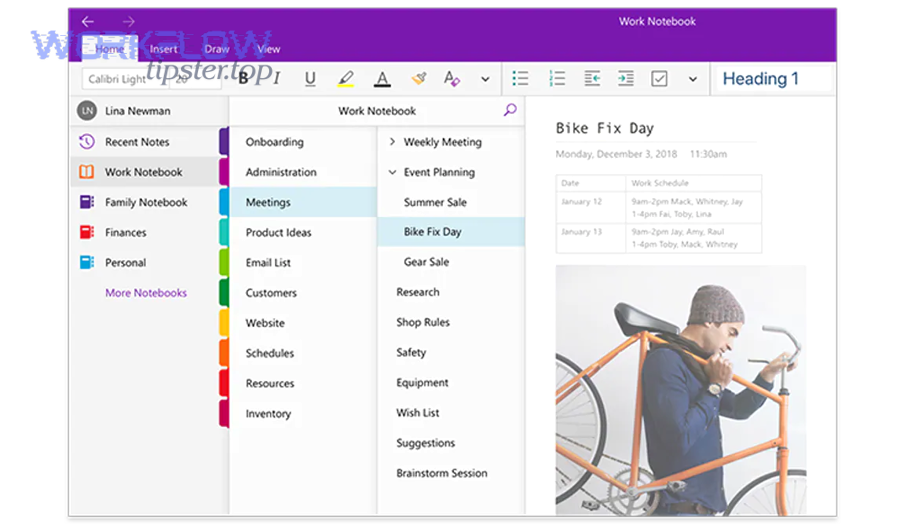
Specifically, you should choose using five criteria that create clarity fast: volume, change frequency, fidelity, searchability, and governance.
Which option is best if you care most about preserving layout and tables?
PDF/print import is best for preserving layout and tables, while automation that copies text is best for search and editability.
Use PDF/print when:
- Docs contain complex tables, side-by-side layouts, or “must look the same” formatting
- The content is being reviewed/annotated (not rewritten)
- You want a “version snapshot” for approval or audit
Then, build a hybrid page:
- 3–7 bullet summary at the top (so the page is scannable)
- A link to the live Doc (so updates stay in one place)
- The PDF/printout attachment (so the look is preserved)
This hybrid is often the sweet spot for teams because it prevents OneNote from becoming a dumping ground of unreadable pages.
Which option is best if you want OneNote to stay a live knowledge hub (not a duplicate file store)?
Link-first OneNote pages are best when you want OneNote as a live hub, because they keep Google Docs as the “source of truth” while OneNote provides context, navigation, and team alignment.
A high-performing link-first page includes:
- A clear title (“Decision Doc – Vendor X – 2026-01-31”)
- A “Why it matters” paragraph (context)
- A short “What changed” section (if it’s evolving)
- The live link to the Doc
- Tags/metadata (owner, status, project)
This makes OneNote the operational brain and Google Docs the editing engine—which is exactly what reduces copy-paste fatigue long-term.
How do you set up a no-code workflow to export Google Docs into OneNote?
A no-code export workflow is best set up as a 6-step method—define scope, choose trigger, design destination structure, map fields, test with real documents, and add reliability controls—so the outcome is consistent across teammates and resilient to failures.
Next, the key is to build the “smallest stable workflow” first (one folder → one section) and only then expand to multiple projects.
How do you design the mapping from a Doc to a OneNote page (title, section, body, link, attachment)?
A strong mapping design uses one stable naming rule, one routing rule, and one page template so every page looks familiar even when created automatically.
1) Page title rule (predictable and sortable).
Pick one:
- [Project] – [Doc Title]
- [Doc Type] – [Topic] – [YYYY-MM-DD]
- [Client] – [Deliverable] – v1
2) Section routing rule (where pages go).
Pick one:
- Folder-based routing (Drive folder = OneNote section)
- Project tag routing (Doc metadata = section)
- Owner routing (each person has a section; later consolidated)
3) Page body template (fast scanning).
A good default template:
- Doc link: (always near the top)
- Summary (3–5 bullets): what a teammate needs in 30 seconds
- Key decisions / open questions: so the page drives action
- Metadata: owner, last updated, status
If you need the doc preserved visually, add: “Attachment/printout: [PDF]” as the final line.
Also, this is a natural place to reference related destinations your team may already use—like google docs to onedrive or google docs to microsoft sharepoint—because the same mapping mindset applies: define routing rules and keep naming consistent, so content stays findable across systems.
How do you prevent duplicates and keep the workflow consistent across multiple teammates?
A workflow prevents duplicates through one owner model and one deduping strategy, and it stays consistent through templates and shared rules.
Owner model options (pick one):
- Per-user connections: each teammate connects their own accounts
- Pros: least friction for personal notebooks
- Cons: inconsistent structure, hard to audit, lots of “missing pages”
- Shared workflow owner (recommended for teams): a service account owns the automation
- Pros: one standard, centralized logging, predictable permission behavior
- Cons: requires governance (who manages access)
Deduping strategies (pick one):
- Unique ID in the page: include doc URL (or doc ID) in the OneNote page body; if it exists, append instead of create.
- Folder checkpointing: only trigger off a “Ready” folder; moving a doc becomes the “single event” that creates a page.
- Index-page approach: never create hundreds of pages; append links to an index page organized by date/project.
In addition, consistency improves massively when you treat this as part of your broader Automation Integrations standard—one naming scheme, one metadata block, one routing policy—rather than “every team invents their own structure.”
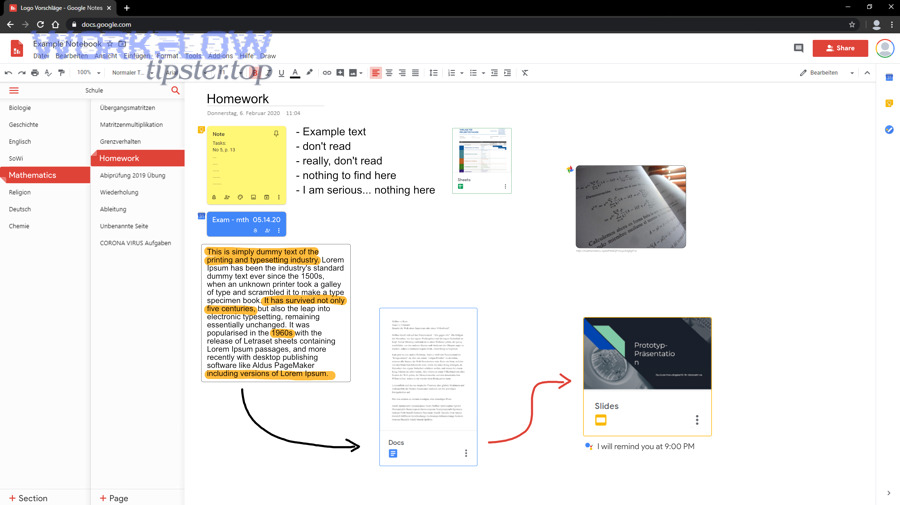
What are the best workflow patterns to automate Google Docs → OneNote?
There are 5 best workflow patterns to automate Google Docs → OneNote—Create-Per-Doc, Append-Change-Log, Index-Hub, Snapshot-Archive, and Review-Queue—based on how frequently your docs change and how your team consumes information.
Then, once you choose a pattern, your job is to keep the notebook architecture stable so search and browsing remain effortless.
What are the most common triggers teams use (new doc, updated doc, scheduled export)?
There are 3 common trigger types—new, updated, and scheduled—based on the signal quality you want.
1) New Doc trigger (high signal, low noise).
Use when you want “every new artifact becomes a OneNote page.”
2) Updated Doc trigger (medium signal, higher noise).
Use when:
- The doc represents a living plan (roadmap, spec, weekly status)
- You want an activity trail in OneNote
- You’re willing to control noise via filters (e.g., only when moved to “Review”)
3) Scheduled export (predictable and controllable).
Use when:
- You want weekly digests or daily rollups
- You need an “at a glance” summary page per time period
- You want predictable runs (reduces surprise)
If you’re using a no-code platform, it’s common to see “New Document” triggers and OneNote actions presented explicitly as building blocks. (zapier.com)
What are the most useful destination patterns in OneNote (one section per project, one page per doc, daily log pages)?
There are 4 useful OneNote destination patterns—Project Sections, Doc Pages, Daily Logs, and Index Pages—based on how you browse information.
1) One section per project (recommended default).
- Best for: cross-functional teams and long-running initiatives
- Why it works: keeps browsing intuitive (“Project → docs → notes”)
2) One page per doc (classic export).
- Best for: archiving and structured handoffs
- Risk: can create page sprawl if not paired with naming conventions
3) Daily/weekly log pages (activity-based).
- Best for: operational teams, standups, status notes
- Works well with scheduled exports or append workflows
4) Index pages (anti-sprawl).
- Best for: teams that hate clutter
- OneNote stays “thin” while links stay centralized and searchable
A simple rule: if you often ask “Where is the latest version?”, prefer Index + link-first. If you often ask “What did we decide and when?”, prefer Append change-log.
How do you troubleshoot failures and protect access in a team setup?
There are 4 common failure categories—permissions, connection/auth, trigger mismatch, and throttling/noise—so troubleshooting should start by identifying the category first, then applying the fix instead of randomly re-running the workflow.
More specifically, the most expensive failures are the silent ones: pages created in the wrong section, duplicates created across sections, or workflows that stop running because an authorization token expired.
Why does the workflow fail (permissions, expired connections, rate limits, missing folders), and how do you fix it?
There are 5 frequent causes of failure—permissions, expired auth, wrong trigger scope, file moves, and rate limits—based on where the pipeline breaks.
1) Permissions mismatch (source or destination).
- Symptom: workflow can’t “see” the folder or can’t write to the notebook
- Fix: confirm the connected account has access to the Drive folder and the target OneNote notebook/section
2) Expired authorization.
- Symptom: workflow worked last week, then silently stopped
- Fix: re-auth the connection; establish an owner model (service account) so ownership doesn’t change
3) Wrong trigger scope.
- Symptom: nothing fires, or everything fires
- Fix: trigger only on a specific folder or a “Ready” folder to improve signal quality
4) File moves and naming inconsistencies.
- Symptom: pages appear in odd sections or with inconsistent titles
- Fix: enforce naming rules and routing rules (document them in a team SOP)
5) Throttling/noise (too many events).
- Symptom: delayed runs or duplicate pages
- Fix: switch to scheduled exports or index pages; reduce event frequency
This is also why “copy-paste workflows” become so costly: every interruption forces a human to regain context and re-check details. According to a study by University of California, Irvine from the Department of Informatics, in 2008, interrupted work led participants to compensate by working faster, but with increased stress and frustration. (ics.uci.edu)
What are the safest permission models for teams sharing notebooks and Docs?
A shared automation owner model is usually safest for teams because it centralizes governance, keeps access predictable, and makes audit/recovery easier than scattered per-user connections.
Compare the two models:
Per-user connections (decentralized).
- Best for: personal notebooks, individual workflows
- Risks: inconsistent structure; pages disappear when people leave the team; troubleshooting requires each person
Service account / shared owner (centralized).
- Best for: shared project notebooks, standardized workflows
- Safer because: you can apply least-privilege access, rotate credentials deliberately, and maintain continuity
Governance checklist (simple and effective):
- Define who owns the workflow
- Define which folder(s) are in scope
- Define where pages are written
- Define naming rules and deduping rules
- Define what happens when someone leaves the team
Contextual border: You now have a complete, scalable answer to the primary goal—automating Google Docs to OneNote export without copy-paste. Next, we go deeper into micro-semantics: formatting fidelity, bulk migration, and the “automate vs manual” edge cases teams hit in real operations.
How do you preserve formatting and handle bulk migrations when moving Google Docs into OneNote?
You preserve formatting and handle bulk migrations best by using a 4-part approach—choose the right import mode (text vs attach vs printout), batch in controlled chunks, dedupe with stable IDs, and standardize page structure so the notebook stays readable and searchable at scale.
Next, the key is to avoid the “everything becomes a page” trap—because bulk migrations can flood OneNote unless you apply index pages, naming conventions, and checkpoints.
What is the difference between attaching a Doc, importing a PDF printout, and pasting text into OneNote?
Attaching a Doc preserves the original file, importing a PDF printout preserves layout, and pasting text maximizes search/editing—so each method wins a different criterion.
Below is the practical matrix teams use when deciding:
- Pasting text
- Wins: searchable content, quick editing, lightweight pages
- Loses: complex formatting, long documents (can become messy)
- Attaching the file
- Wins: fidelity and certainty (“this is the original”)
- Loses: reading flow (teammates must open the attachment)
- PDF/printout import
- Wins: layout fidelity, markup and review
- Loses: editability; can become image-based content
If you choose printouts, remember Microsoft’s behavior: print-to-OneNote adds content as an image on a new page, and you may need to copy text out afterward for editable notes. (support.microsoft.com)
How can you migrate many Docs at once without creating duplicate OneNote pages?
You can migrate many Docs without duplicates by using 3 controls—batching, stable identifiers, and checkpoints—so every Doc maps to exactly one OneNote destination.
1) Batch in chunks (not all at once).
- Migrate by folder or by project
- Keep a migration checklist page in OneNote
- Validate 10–20 items, then proceed
2) Use stable identifiers.
Even if titles change, the Doc link (or doc ID) stays stable. Put the link in a consistent location on the page (top metadata block), and treat it as the page’s identity.
3) Add checkpoints.
A “Ready for OneNote” folder prevents accidental duplicates because the trigger becomes a deliberate move, not every edit.
If you want a macro-level reason automation helps here, Stanford HAI summarizes research showing automation often removes routine tasks while shifting value to higher-level work—meaning the point is to stop spending human attention on repetitive transfer steps. (hai.stanford.edu)
How do you keep OneNote pages clean and searchable after automation (titles, tags, metadata blocks)?
There are 4 ways to keep pages clean—standard titles, metadata blocks, consistent link placement, and index pages—based on how humans actually search and scan notebooks.
1) Standard titles (humans browse titles before they search).
- Put the project first, then the artifact type, then the doc title.
2) Metadata block at the top (fast scanning).
- Include: Owner, Status, Last updated, Source link, Tags.
3) Link placement is consistent (always in the same spot).
- If every page starts with “Source: [Doc Link],” teammates learn the pattern instantly.
4) Index pages to reduce sprawl.
- Weekly or project index pages keep navigation simple and prevent the notebook from turning into a graveyard.
When should you choose “manual import” over automation—and why can that be the smarter option?
Manual import wins when risk and fidelity matter more than speed—especially for one-time, formatting-critical, or compliance-sensitive documents—so “automate everything” is not always the smartest strategy.
However, automation is still valuable even here if you use it to create a shell page (title + metadata + link) and let the human decide how to attach/print the final artifact.
Choose manual when:
- You only have a handful of Docs (automation setup cost isn’t worth it)
- The document must retain exact layout (legal, finance, formal reports)
- You need a deliberate review step before it enters the notebook
- Your org restricts third-party connectors, so print/PDF is the approved path
And if your team already routes different streams into OneNote—like ticket notes from freshdesk to microsoft teams and meeting artifacts into shared notebooks—manual import can be the “controlled gate” that keeps your OneNote knowledge base coherent instead of chaotic.