



Manual ticket updates usually happen for one reason: the information your team needs lives in a document, while the work your team must track lives in Freshdesk. This guide shows how to automate the bridge between Google Docs and Freshdesk so tickets update consistently, fast, and with less human copy-paste.
To make that automation work, you first need a clear definition of what “Google Docs to Freshdesk integration” actually means in day-to-day support operations—especially what counts as a trigger, what counts as an action, and what the “source of truth” should be.
Then comes the practical decision: whether you can achieve your workflows without coding. Most support teams can, as long as they pick the right connector style and plan their field mapping and permissions from the start. (support.freshdesk.com)
Introduce a new idea: the real payoff isn’t a single automation—it’s a set of reusable workflows that reduce noise, prevent mistakes, and scale with your queue without sacrificing security, compliance, or reporting quality.
What does “Google Docs to Freshdesk integration” mean for a support team workflow?
Google Docs to Freshdesk integration is a workflow-automation pattern that connects document events (creation, edits, comments, approvals) to helpdesk actions (creating or updating tickets, notes, assignments, and status) so support operations move forward without manual copying.
To better understand why this matters, it helps to separate where knowledge is written (Docs) from where work is tracked (Freshdesk), then connect them with clear triggers and actions.


What are the most common triggers from Google Docs/Drive used in Freshdesk automations?
The most common triggers are Drive-based events—like “new document created,” “file moved into a folder,” or “file updated”—because Google Docs files live inside Google Drive and most automation tools rely on Drive signals to detect change reliably.
More specifically, support teams tend to use triggers that indicate readiness, not just activity. A document being edited is often noisy; a document being moved into a “Ready to Send” folder (or getting a specific label/keyword) is a clean operational signal. Practical triggers your team can standardize include:
- New doc created from a template (e.g., a case summary template)
- Doc moved into a “Ready” folder (approval implied by the move)
- Doc updated after a status change (e.g., postmortem finalized)
- Comment added or mention created (for internal review workflows)
- Link-sharing changed (useful for controlled sharing or audits)
The key is to pick triggers that map to a business moment: escalation, approval, customer update, or closure. If your trigger fires too often, your Freshdesk updates become spam; if it fires too late, your team still copy-pastes manually.
What are the most common Freshdesk actions teams automate from a document event?
The most common Freshdesk actions are ticket updates that reduce coordination overhead: creating a ticket when a new issue brief is finalized, adding internal notes from a document summary, assigning ownership, and standardizing ticket fields for reporting.
In practice, these actions cluster into four “support outcomes”:
- Create or enrich a ticket
- Create ticket with subject + description from a doc section
- Add doc link to a ticket custom field (“Case Doc URL”)
- Route and prioritize
- Assign group/agent based on doc type or folder
- Set priority, status, tags, and category for reporting
- Communicate consistently
- Add an internal note (what happened, what’s next)
- Draft a public reply based on a templated response
- Close the loop
- Update resolution notes from a finalized doc
- Move ticket status to “Resolved/Closed” once approved
This is why integration pages and automation platforms describe workflows as a pairing of a trigger and a corresponding action—that structure is the skeleton of almost every practical Docs ↔ Freshdesk workflow. (support.freshdesk.com)
Can you automate Google Docs to Freshdesk without coding?
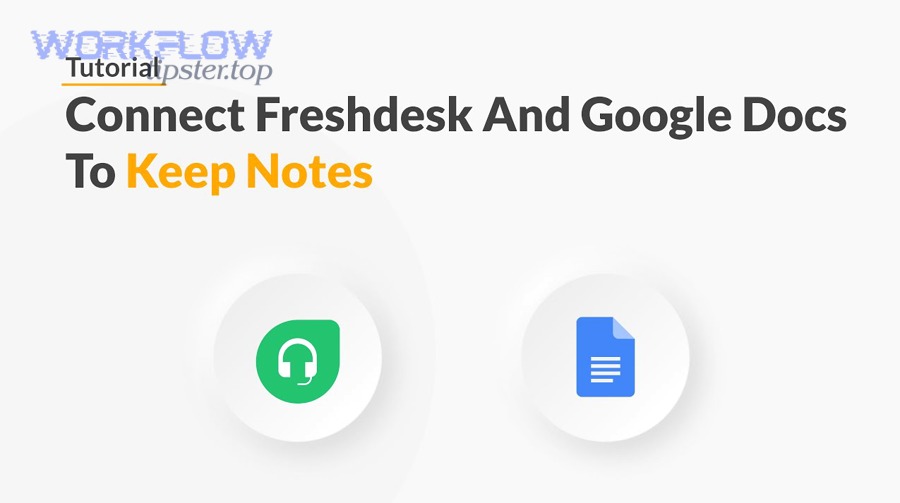
Yes—Google Docs to Freshdesk automation can be done without coding because (1) most connectors provide prebuilt triggers/actions, (2) authentication is guided through UI steps, and (3) field mapping can be configured with dropdowns and templates instead of scripts. (support.freshdesk.com)
Next, the real question becomes which “no-code” style fits your team’s reality: a quick template, a flexible builder, or an enterprise automation platform with governance.
Which “no-code vs low-code” tools can connect Google Docs/Drive with Freshdesk?
There are 3 main types of tools that connect Google Docs/Drive with Freshdesk: (A) template-first no-code tools, (B) workflow-builder low-code tools, and (C) enterprise iPaaS tools—based on how much customization and governance you need.
More specifically:
- A) Template-first no-code tools (fastest start)
- Best when you want “if X happens, do Y” with minimal branching
- Great for early wins like “new doc in folder → create ticket”
- B) Workflow-builder low-code tools (most flexible)
- Best for conditions, multi-step routing, and error handling
- Useful when you need approvals, branching, deduplication, and retries
- C) Enterprise iPaaS (best governance at scale)
- Best for audits, access controls, environment separation, and monitoring
- Useful for regulated teams or multi-brand support desks
A simple way to decide: if your team talks about “templates,” start in A; if your team talks about “workflows,” you probably need B; if your team talks about “compliance,” you’re likely in C.
When should you choose a no-code template tool vs a low-code workflow builder?
A no-code template tool wins in speed-to-launch, a low-code workflow builder is best for branching and reliability, and an enterprise platform is optimal for governance and scale across multiple teams or brands.
However, what matters in support is not just “can it run,” but “can it run correctly for months.” Use this comparison as a decision shortcut:
- Choose a template-first tool when
- You have one clear trigger and one clear action
- You can tolerate occasional manual fixes
- You need a quick win (pilot) more than deep customization
- Choose a workflow builder when
- You need routing logic (if/then), approvals, or deduplication
- You want retries, logs, and step-by-step debugging
- You’re building a set of reusable SOP automations (not just one)
- Choose enterprise automation when
- You need audit trails, role-based access, and lifecycle management
- You’ll have multiple owners editing workflows over time
- You need consistent governance across business units
To keep semantic continuity: the more your goal shifts from “automation” to “operational reliability,” the more you should shift from simple templates to controlled workflow systems.
What are the best automation workflows to replace manual ticket updates?
There are 6 best workflow patterns to replace manual ticket updates: (1) doc-to-ticket creation, (2) doc-to-ticket enrichment, (3) approval-to-status change, (4) escalation brief routing, (5) postmortem-to-closure, and (6) reporting-to-doc generation—based on where the “source of truth” starts.
Next, we’ll split them into two groups: workflows where Docs is the source of truth, and workflows where Freshdesk is the system of record.
Which workflows use Google Docs as the “source of truth” for support documentation?
Docs-as-source workflows treat the document as the canonical narrative, then push structured signals into Freshdesk so the ticket reflects the most current decision without repeated rewriting.
Specifically, these are the highest-impact patterns:
- Incident brief finalized → create or update ticket
- Trigger: doc moved into “Ready/Incidents” folder
- Action: create ticket (or update existing) with summary + severity
- Escalation brief completed → assign group + raise priority
- Trigger: keyword like “ESCALATE” or approval step completed
- Action: assign escalation group, set priority, tag “escalation”
- Customer update drafted → add internal note + draft response
- Trigger: doc status changes to “Approved”
- Action: post internal note, attach/share doc link, prep reply draft
- Postmortem finalized → close the ticket with resolution notes
- Trigger: doc moved to “Postmortems/Final”
- Action: update resolution field, change status to resolved
Why it works: the work your team does in Docs (analysis, writing, approval) becomes a structured output that updates the ticket automatically—so the ticket is never waiting on someone to “copy the final version.”
Which workflows use Freshdesk as the “system of record” while Docs acts as the output?
Freshdesk-as-record workflows treat the ticket as the canonical state machine (status, SLA, owner), while Docs becomes a generated artifact used for communication, review, or reporting.
Here are the strongest patterns:
- New ticket created → generate a case summary doc
- Doc template auto-filled: requester, issue type, logs, next steps
- Ticket escalated → generate an escalation memo
- Doc includes: impact, timeline, mitigation, owner, dependencies
- Ticket resolved → generate closure report
- Doc includes: resolution, prevention steps, follow-up checklist
- Weekly SLA reporting → generate a recap doc
- Doc includes: volumes, breaches, top tags, improvements
This is where “Automation Integrations” becomes more than a buzzword: you’re not just connecting apps—you’re generating consistent artifacts that scale your support operations and make audits and reviews easier.
How do you set up a Google Docs to Freshdesk automation step by step?
To set up Google Docs to Freshdesk automation, follow 7 steps—pick one trigger, define one ticket action, map the fields, add conditions, test in a safe environment, monitor runs, and iterate—so your team replaces manual ticket updates with reliable workflow execution.
Then, once the first workflow works, you can clone it and expand it into a small “workflow library” for your support team.
What information should you map between a Google Doc and a Freshdesk ticket?
You should map a minimum viable set of fields that prevents confusion: ticket identifier, document link, summary text, owner, priority, status, tags, and key timestamps.
More specifically, map like an operator—not like a perfectionist. The goal is to update the ticket enough that a teammate can act without opening the doc every time.
Recommended mapping blueprint (Docs → Freshdesk):
- Ticket ID: store it in the doc header (or a dedicated “Ticket ID” line)
- Doc URL: store it in a ticket custom field (“Case Doc URL”)
- Issue summary: first paragraph or “Summary” section becomes internal note
- Priority + impact: “Severity” section maps to priority
- Owner + group: “Owner” line maps to assignee or group
- Tags: “Type” or “Category” becomes tags for reporting
- Status gates: “Draft/Approved/Final” maps to ticket status changes only when safe
A practical trick: add a short “structured header” in your doc template (Ticket ID, Owner, Severity, Status). That single section turns messy text into predictable automation data.
What conditions and filters prevent noisy or accidental ticket updates?
The best filters are those that encode intent: run only in specific folders, run only on docs created from a template, and run only when a “Ready” signal exists—because support automation should trigger on decisions, not on editing activity.
More specifically, use these guardrails:
- Folder-based scope
- Only trigger when a file is in
/Support/Ready/(not/Drafts/)
- Only trigger when a file is in
- Template-based scope
- Only trigger if doc contains a specific template marker like
[CASE_SUMMARY_V1]
- Only trigger if doc contains a specific template marker like
- Status-based scope
- Only run when the doc includes “Status: Approved”
- Ticket-based safety
- Do not update if ticket status is already “Closed”
- Deduplication
- Only create a ticket if the doc header has no Ticket ID yet
These filters are the difference between “automation that helps” and “automation that spams.”
How do you test and validate the automation before rolling it out to the whole team?
You validate the automation by testing with real templates on sample tickets, checking edge cases (missing fields, permission errors, duplicates), and confirming success criteria (correct ticket updates, correct routing, clean logs) before enabling it for production volume.
Next, treat testing as a checklist—because support workflows fail in predictable ways:
Test plan (quick but effective):
- Create a doc from your template in the correct Drive folder
- Trigger the workflow and confirm it runs once
- Verify Freshdesk updates:
- Fields updated correctly
- Internal note formatting readable
- Assignee/group correct
- Tags consistent
- Run failure tests:
- Remove a required field (should fail gracefully or use defaults)
- Change permissions (should alert you)
- Duplicate the doc (should not duplicate the ticket)
- Confirm monitoring:
- Error notifications reach the workflow owner
- Run logs show which step failed
If your connector uses a Freshdesk API key during setup, document who owns that credential and where it is stored, because credential ownership is part of operational reliability.
What’s the difference between linking a Doc, attaching a file, and syncing data into Freshdesk?
Linking wins in speed and version control, attaching is best for fixed snapshots, and syncing is optimal for reporting-grade accuracy—so the right choice depends on whether you need collaboration, permanence, or analytics.
However, most support teams use a combination: link for living documents, attach for signed-off artifacts, sync for metrics and routing.
Before the details, here’s a quick comparison table showing what each method is best for (and where it can bite you).
| Method | Best for | Main advantage | Main risk |
|---|---|---|---|
| Link a Doc | Living collaboration | Always up to date | Permission/access failures |
| Attach a file | Immutable snapshots | Preserved “as sent” | Version drift, duplicates |
| Sync fields/data | Reporting + routing | Accurate metrics | Mapping complexity, data drift |
When is a Google Drive link better than attaching a document to the ticket?
A Google Drive link is better when the document is collaborative and evolving, because it preserves version history, avoids duplicate attachments, and keeps the ticket lightweight while still giving the agent direct access to the latest truth.
More specifically, linking wins in these scenarios:
- Incident timelines that update minute-by-minute
- Escalation briefs that multiple stakeholders review
- Troubleshooting playbooks that should always be current
- Large artifacts that exceed upload limits
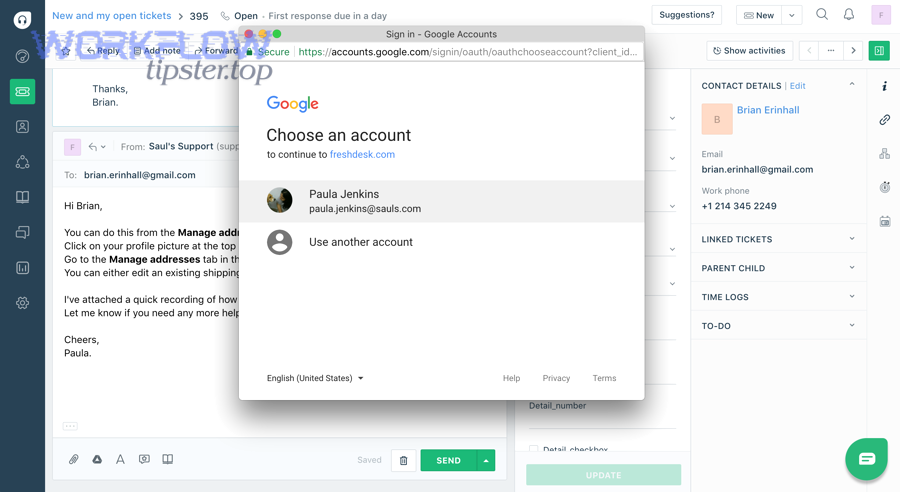
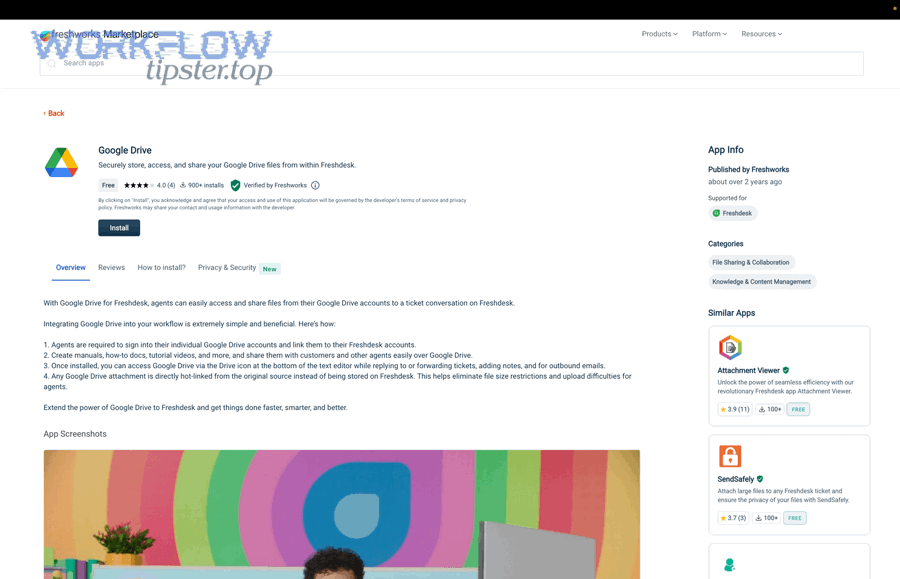
Freshdesk’s Drive-style sharing approach is designed for this: linked files can be shared inside the ticket conversation without storing the attachment directly in the helpdesk, which helps avoid file-size friction and duplication. (support.freshdesk.com)
When does field-level sync beat document-based workflows?
Field-level sync beats document workflows when you need Freshdesk reporting, routing rules, and SLA tracking to be accurate—because analytics and automation rules depend on structured fields, not on paragraphs buried in a doc.
Specifically, syncing is worth it when:
- You run weekly/monthly reporting by category, tag, priority, or group
- Your escalation process is rule-based (“if severity=high, route to X”)
- You audit SLA breaches and need clean timestamps and statuses
- You want consistent dashboards across multiple agents and teams
A pragmatic hybrid approach is common: sync the fields that drive operations (priority, category, owner, status) and link the document for narrative context. That’s how you keep both clarity and reporting accuracy without turning your workflow into a fragile data project.
Is Google Drive required for a “Google Docs to Freshdesk” integration?
Yes—Google Drive is effectively required in most real implementations because Google Docs files are stored in Drive and many automation tools trigger on Drive events (folders, file changes, permissions) to reliably detect and route documents.
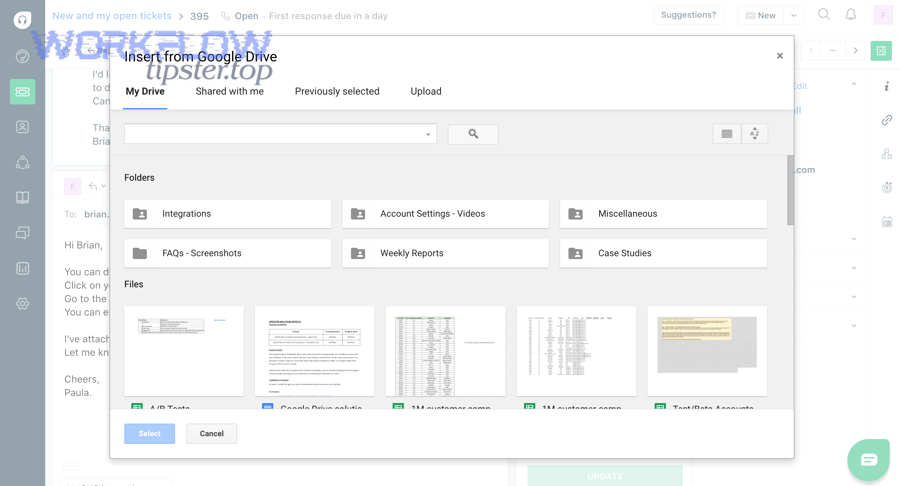
Next, instead of thinking “Docs integration,” think “Drive structure that contains Docs,” because folder strategy is what makes automations predictable.
How should you organize Drive folders and naming conventions for support automations?
You should organize Drive around workflow states (Draft → Ready → Final → Archive) and include the ticket ID in the doc name once it exists—because folder location and naming patterns are the easiest, lowest-maintenance signals for automation rules.
A practical folder model:
/Support/Templates/(locked templates only)/Support/Drafts/(work-in-progress docs)/Support/Ready/(approved docs that can trigger ticket updates)/Support/Final/(finalized artifacts)/Support/Archive/(closed, read-only storage)
Naming convention example:
FD-123456 | Escalation Brief | CustomerName | YYYY-MM-DDFD-123456 | Postmortem | Incident-Title | Final
This structure makes your trigger logic simple: “when file enters Ready, update Freshdesk.” It also makes human behavior consistent because the folder names match the team’s mental model.
What breaks when permissions are misconfigured—and how do you prevent it?
Permissions break automations in three ways: the workflow can’t read the doc, agents can’t open the linked file, or sensitive content becomes shareable beyond policy—and each failure can be prevented with least-privilege access and controlled sharing defaults.
More specifically, watch for these common failures:
- Workflow account lacks access to a Shared Drive folder
- Fix: grant the automation account the minimum required role at the folder level
- Agent opens a ticket link but gets “Request Access”
- Fix: place operational docs in team-owned drives/folders with inherited access
- Docs accidentally shared externally
- Fix: restrict external sharing, use “viewer” defaults, separate customer-facing docs
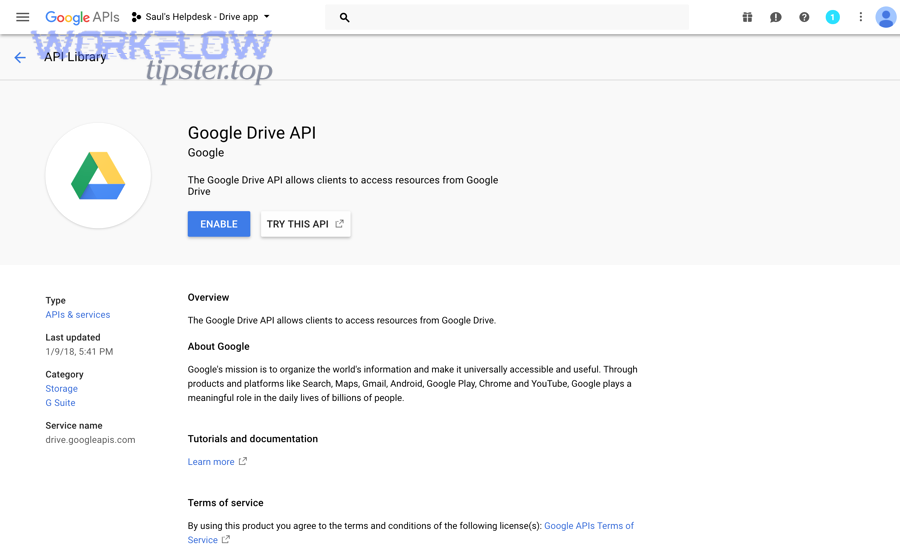
If you use a marketplace-style Drive integration inside Freshdesk, it typically assumes agent-level access so agents can share Drive files directly within ticket conversations—so Drive governance and helpdesk governance must align. (freshworks.com)
What are the common issues and how do you troubleshoot Google Docs ↔ Freshdesk automations?
The most common issues are duplicates, missing fields, permission errors, formatting problems, and rate limits—and you troubleshoot them fastest by checking (1) trigger correctness, (2) credential access, (3) mapping logic, then (4) idempotency and retries.
In addition, troubleshooting gets easier when you treat each workflow run like a pipeline with visible checkpoints: trigger → transform → action.
What are the most common errors (duplicates, missing fields, formatting, rate limits) and quick fixes?
The fastest fixes come from designing “safe defaults” and “dedup rules” into your workflow before it ever reaches production volume.
Here’s a practical error-to-fix map:
1) Duplicate tickets
- Cause: trigger fires multiple times (doc edited repeatedly)
- Fix:
- Use a dedup key (Doc ID or Ticket ID)
- Only create ticket if “Ticket ID is empty”
- Trigger only on folder move (“Ready”), not on “edit”
2) Missing fields (bad mapping)
- Cause: doc template changed, or a required line is blank
- Fix:
- Use template markers and required header fields
- Add fallback defaults (e.g., default priority=Medium)
- Stop the workflow and alert owner when missing critical data
3) Permission denied
- Cause: automation account can’t access the doc/folder
- Fix:
- Use a dedicated automation account with scoped access
- Keep operational docs in team-owned drives/folders
4) Formatting looks broken in Freshdesk notes
- Cause: HTML vs plain text conversion issues
- Fix:
- Convert docs to plain-text summary blocks for ticket notes
- Use “Summary / Steps / Next action” formatting consistently
5) Rate limits / delayed triggers
- Cause: high volume or polling intervals
- Fix:
- Batch updates (one update on “Ready” rather than many on edits)
- Add retries with backoff
- Reduce trigger frequency by using folder states
If your workflow tool is designed around triggers and actions (as many are), keep those definitions documented alongside the workflow so anyone can debug without guessing what the automation “was supposed to do.” (support.freshdesk.com)
What logging and monitoring should you enable to keep automations reliable?
You should enable run logs, step-level error visibility, and notifications for failures, because the biggest operational risk in support automation is “silent failure” that sends your team back to manual updates without anyone noticing.
More specifically, set up monitoring like an on-call practice:
- Workflow owner
- One person accountable for “automation health”
- Run logs
- See inputs, outputs, and failure points per step
- Failure notifications
- Email/Slack alerts for failed runs and repeated failures
- Monthly review
- Check top failure causes, update templates, refine filters
- Change control
- Track workflow version changes so you can rollback quickly
A useful benchmark for “why this is worth it”: large-scale workplace studies of AI/automation assistance in customer-service settings show measurable productivity gains (issues resolved per hour) when repetitive guidance and steps are automated or augmented, especially for less experienced agents. (nber.org)
How do you make Google Docs ↔ Freshdesk automations secure, compliant, and scalable?
Secure, compliant, scalable automation is achieved by combining least-privilege access, clear source-of-truth rules, governance features (logs, approvals, versioning), and edge-case design—so workflows stay reliable as volume, teams, and risk increase.
Moreover, this is where you move from “a working automation” to “an operational system” that your support organization can trust.
What permission and access-control practices prevent sensitive ticket data from leaking into Docs?
The best practices are: separate internal vs customer-shareable folders, restrict external sharing by default, grant the automation account only the folders it needs, and use templates that intentionally exclude sensitive fields—because most leaks come from over-broad sharing and accidental copy/paste.
Concrete practices that work well:
- Two-lane storage
/Support/Internal/(PII-safe, internal-only)/Support/External/(sanitized, shareable if needed)
- Least-privilege automation
- The workflow account should not have broad Drive access
- Template design
- Put sensitive fields (API keys, private logs) in a separate internal section
- Sharing defaults
- Disable “anyone with link” in sensitive drives/folders
If you’re using a workflow platform that highlights secure credential storage and access controls, treat those features as non-negotiable once multiple people maintain the workflow. (n8n.io)
What’s the difference between one-way automation and bi-directional “writeback,” and when is writeback worth it?
One-way automation is simpler and safer, bi-directional writeback is more powerful but riskier, and writeback is worth it only when you have conflict rules—because two systems updating each other can create loops, overwrites, or mismatched “truth.”
Practical comparison:
- One-way (recommended default)
- Docs → Freshdesk: doc approval triggers a ticket update
- Freshdesk → Docs: ticket creation generates a case doc
- Low risk, easier debugging
- Bi-directional writeback (advanced)
- Updates can originate in either system
- Requires:
- A “source-of-truth” decision per field
- Timestamp or version checks
- Loop prevention (don’t re-trigger on your own updates)
- Human approval gates for sensitive actions (like closing a ticket)
Writeback becomes valuable when the doc is part of a controlled process (approvals, sign-off, audit) and the ticket must reflect the doc status immediately for routing and compliance.
What governance features should you look for in an automation tool (logs, approvals, versioning, environments)?
You should look for four governance features: (1) role-based access, (2) workflow version history, (3) environment separation (test vs production), and (4) run logs with replays—because support workflows become business-critical once they touch SLAs and escalations.
Here’s why each feature matters:
- RBAC (role-based access control)
- Prevents “anyone can edit production”
- Versioning
- Enables rollback when a template changes
- Environments
- Lets you test changes without breaking the queue
- Observability
- Shows exactly what happened in each run
If your team already manages multiple cross-tool workflows (for example, “clickup to slack” for engineering handoffs or “google forms to microsoft teams” for intake routing), you’ll recognize the pattern: governance is what keeps multi-app automation from becoming fragile as it spreads.
How do you design for edge cases like high-volume incidents, multi-brand helpdesks, or regulated industries?
You design for edge cases by adding batching, rate-limit awareness, brand-specific templates, and policy-based routing—because edge cases aren’t rare in support; they’re simply the moments when your workflows are tested the hardest.
Practical edge-case patterns:
- High-volume incident
- Batch updates: one ticket update per workflow stage (Draft → Ready → Final)
- Add “incident mode” switch: prioritize essential updates only
- Multi-brand helpdesk
- Separate Drive folders per brand + separate templates per brand
- Route to brand-specific Freshdesk groups and tags
- Regulated environment
- Sanitize docs before linking externally
- Enforce retention policies: archive docs and tickets with clear owners
- Require approvals before actions like closing tickets or changing severity
If you also run document-centered workflows outside support—like “google docs to outlook” for sending standardized updates—apply the same principle: separate “drafting” from “sending,” and automate only at the “approved” boundary where intent is clear.
Evidence (selected, where applicable): According to a 2023 workplace study by researchers affiliated with Stanford University’s digital economy research programs, generative AI assistance in customer support increased issues resolved per hour by about 14% on average, with especially large gains for newer and lower-skill agents. (nber.org)