


If you’re seeing “Notion field mapping failed”, you can fix it by aligning your automation’s input data with your Notion database property schema, then reloading the schema in your tool so the mapper targets the correct property keys and types and the workflow runs successfully.
Most mapping failures come from a small set of root causes—schema drift (the database changed after you built the scenario), data-type mismatches (text sent to a select, arrays sent to a title, invalid date strings), or permission gaps (the integration can’t compute or access related pages).
You’ll also want a repeatable way to isolate the failing field using logs and minimal test payloads, especially when the run fails with vague messages like “property not found” or “validation error.”
Introduce a new idea: once you understand why mapping fails, you can prevent future failures by validating inputs, avoiding read-only properties, and handling edge cases like webhook spikes and malformed payloads before they ever reach Notion.
What does “Notion field mapping failed” mean in Zapier, Make, or n8n?
Notion field mapping failed is a validation-and-schema error category where your automation tool cannot correctly match source data to a Notion database property (field) because the schema, the value type/shape, or the permissions don’t satisfy Notion’s requirements.
To reconnect this to your workflow pain, this failure usually appears right when a run tries to create or update a database item, and the tool rejects the payload before anything is written.

What are the most common symptoms of a Notion mapping failure?
A mapping failure shows up in a few repeatable symptoms. You’ll recognize them because they either block the run outright or “hide” the real issue behind missing fields:
- Fields don’t appear in the mapper (the tool doesn’t show your latest Notion properties).
- Title/Name property refuses variables (you can type static text but mapped data fails).
- Validation-style errors such as “should be a string,” “invalid value,” or “property not found.”
- Partial updates where some properties write but others fail (often structured properties like Relation/People/Select).
- Schema disappears (especially after credential changes or database duplication).
To make the next step easier, treat each symptom as a clue: missing fields points to schema caching; type errors point to data-shape mismatches; “not found” often points to wrong property keys or read-only properties.
Is “field mapping failed” usually a data-type mismatch or a permissions problem?
Data-type mismatch wins in frequency, permissions wins in stealth, and schema drift wins in frustration.
However, all three can look identical if you only read the last error line.
- Data-type mismatch usually throws immediate validation: a Date expects an ISO timestamp but you send “tomorrow,” or a Select expects one of the allowed options but you send a new label.
- Permissions problems are sneaky: you can “see” the database but Notion can’t compute a formula/rollup that depends on a related page your integration can’t access.
- Schema drift happens when you renamed properties, changed their type, or duplicated the database after building the automation.
The fastest diagnosis is to ask: “Did I change the Notion database since setup?” (schema drift), “Does the value shape match the property type?” (data mismatch), and “Is the database shared with the integration and its related pages?” (permissions).
Is your Notion database schema synced correctly with your automation tool?
Yes—your schema must be synced, because “Notion field mapping failed” commonly happens when the tool is using a cached or outdated field list, when the database changed after setup, or when the integration no longer has a valid connection to fetch the schema.
Then, to move from guesswork to fixes, you should treat schema refresh as step zero before you debug values.
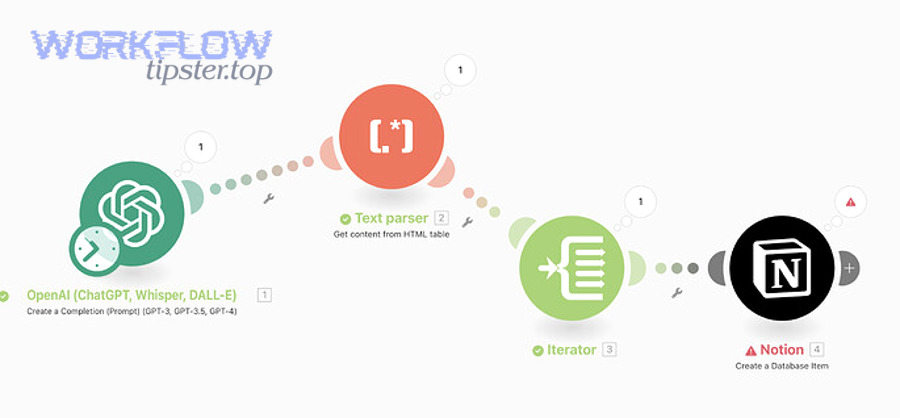
Did you change the database properties (rename/type change) after setting up the automation?
Yes—if you changed properties after setup, that change alone can trigger “Notion field mapping failed” because the automation still targets the old property name/type, the old internal key, or an outdated cached schema.
Next, you should connect this back to your last successful run: mapping failures often begin immediately after you rename “Status” to “Stage,” convert Rich text into Select, or duplicate a database template.
Use this quick “schema drift” checklist:
- Did you rename a column? (The mapper may still store the old name.)
- Did you change the property type? (Rich text → Select is a classic break.)
- Did you duplicate a database and point the automation to the new copy? (Property IDs and available fields may differ.)
- Did you add a read-only property like Formula/Rollup and expect to write into it?
A simple fix is often: reselect the database (so the tool refetches the schema), then remap each field intentionally instead of trusting the old mapping.
How do you refresh/reload Notion fields in Zapier vs Make vs n8n?
Zapier wins at guided retesting, Make is strong at module refresh but can cache oddities, and n8n is the most flexible—if you explicitly handle missing/empty values and reload node parameters when schema changes.
However, the shared principle is the same: force the tool to fetch the database schema again, then rebuild mapping against the new schema.
Here’s the practical approach by tool category (without relying on UI pixel-perfect steps):
- Zapier-style refresh flow
- Re-open the Notion action step and look for a fields refresh / re-test pattern.
- Re-run the test so Zapier refetches database fields.
- If fields still look wrong, reconnect the Notion account and ensure the database is shared with the integration.
- Make-style refresh flow
- In the Notion module, reselect the Database parameter so Make refetches the property list.
- Re-map fields after refresh (don’t assume existing tokens still match).
- If the title field refuses variables, treat it as a schema + value-shape issue, not just “a UI bug.”
- n8n-style refresh flow
- Re-open the Notion node and reload parameters by reselecting the database/page type.
- If the schema seems “lost,” re-check credentials and reselect the resource.
- Add defensive mapping so missing upstream values don’t send null/empty payloads.
This is the first hook in your troubleshooting chain: refresh schema first, then debug values—because debugging values against the wrong schema wastes hours.
Which Notion property types cause mapping failures most often?
There are 3 main types of Notion properties that cause mapping failures most often: (1) required properties like Title, (2) structured properties like Select/Relation/People/Files, and (3) computed/read-only properties like Formula and Rollup, based on how strict their value shape and permissions requirements are.
Next, let’s connect this to the “field mapping failed” message: Notion’s schema is typed, so a “close enough” value often fails hard.
To make this concrete, the table below summarizes common property types and the value shape your automation should send (conceptually), so you can spot mismatches quickly:
| Notion property type | What it expects conceptually | Common failure pattern |
|---|---|---|
| Title | A text value (required for database items) | Sending an object/array, or leaving it blank |
| Rich text | A text value | Sending arrays or raw JSON blobs |
| Number | Numeric value | “12.3” with commas/letters; empty string |
| Select | One allowed option | Sending a label not in options |
| Multi-select | List of allowed options | Sending a single string instead of a list |
| Date | ISO-like date/datetime | Sending “today” / locale-specific formats |
| People | User identifiers | Sending names/emails without proper mapping |
| Relation | Related page identifiers | Sending titles instead of IDs |
| Files | URLs or file objects | Sending plain text that isn’t a file reference |
| Formula / Rollup | Read-only output | Trying to write into it at all |
How do you map the Notion Title property correctly?
The Notion Title property is the required primary property for database items, and it should receive a clean text value from your source field—because Notion uses it as the item’s name and rejects invalid shapes or missing values.
Then, to avoid a silent failure, you should treat Title mapping as the first validation gate in every scenario.
- Always map a single text-like source value into Title (e.g., “Customer Name,” “Ticket Subject,” “Order ID + name”).
- If the source field can be missing, apply a fallback (e.g., “Untitled – {timestamp}”).
- Avoid sending raw objects like
{name: "X"}or arrays like["X"]unless your tool explicitly transforms them into a text field.
If Title fails while other properties work, it often means the value is not a plain string at runtime—so check the actual run data, not the sample preview.
How do Relation, People, and Files properties fail differently from text fields?
Text fields fail on formatting, but Relation/People/Files fail on identity and structure: Relation needs page identity, People needs user identity, and Files needs a file reference—so “human-readable” names alone are often insufficient.
However, you can stabilize them by using a two-step approach: look up the ID first, then write the property using that ID.
- Relation property
- Common failure: you send a related item’s title instead of its page ID.
- Stable strategy: search for the related page by title, capture its ID, then map the ID into Relation.
- People property
- Common failure: you send an email or display name that Notion can’t resolve in your workspace.
- Stable strategy: ensure the integration has access to the workspace users; map the correct identifier format supported by the tool.
- Files property
- Common failure: you send a filename or random URL that Notion won’t accept as a file object.
- Stable strategy: use publicly accessible URLs when appropriate, or tool-supported upload steps.
This is where Notion Troubleshooting becomes real: you’re not just “mapping a field,” you’re mapping a data structure that must resolve to a real Notion object.
How do you fix data-type and formatting errors that trigger mapping failures?
Use a pre-write normalization method with 4 steps—(1) inspect the real run payload, (2) coerce values into the correct types, (3) remove or default empty/undefined fields, and (4) re-test with a minimal payload—so the Notion write succeeds consistently.

Next, let’s hook the problem back to the error message: most “mapping failed” errors disappear the moment your payload becomes type-safe and predictable.
A practical way to do this is to create a “Notion-ready payload” layer (a Set/Formatter step) that outputs:
- Guaranteed strings for text fields
- Numbers parsed from currency/strings
- Dates standardized into ISO format
- Select values constrained to known options
- Arrays shaped correctly for multi-select and relations
Are you sending undefined, null, or empty values that Notion rejects?
Yes—sending undefined, null, or empty values can cause Notion field mapping failed because Notion validation expects a valid property object/value shape, and some tools forward empties directly instead of omitting the field.
Then, to stop the failure, you should either (a) omit the property when missing, or (b) provide a safe default.
Use these three defensive patterns:
- Omit when missing
If your tool supports conditional mapping, only include the property if the source value exists. - Default to safe values
- Text:
""(empty string) or “Untitled” - Number:
0or omit - Select: a known fallback option like “Unknown”
- Date: omit if unknown (often better than guessing)
- Text:
- Normalize upstream
Create a “cleaned” payload node/step that guarantees noundefinedleaves your workflow.
When this is the root cause, you’ll often see failures right after a new branch of logic was added—like a conditional path that sometimes doesn’t produce the expected field.
What are the correct formats for Date, Number, Select, and Multi-select mappings?
There are 4 common formatting targets—Date (ISO date/datetime), Number (parsable numeric), Select (one existing option), and Multi-select (a list of existing options), based on whether Notion validates by type, by parsing, or by allowed values.
Next, connect that back to your run: your mapper preview might look “correct,” but the runtime values often include spaces, commas, or unexpected arrays.
- Date
- Use ISO-like values (e.g.,
2026-02-01or2026-02-01T14:30:00Z). - Avoid locale formats like
02/01/2026because they can be interpreted differently. - If your source is a timestamp, convert it explicitly before mapping.
- Use ISO-like values (e.g.,
- Number
- Strip currency symbols and commas:
$1,234.50→1234.5. - Convert empty strings to
null(omit) rather than “0” unless your logic requires it.
- Strip currency symbols and commas:
- Select
- Only send values that already exist as options in your Notion Select property.
- If you need dynamic values, pre-create the option set or map unknown values to a fallback.
- Multi-select
- Send an array/list of option names.
- If your tool only provides comma-separated text, split it into a list before writing.
If you repeatedly hit formatting errors, create a small “payload contract” section in your workflow so every run produces the same shapes.
Is the Notion integration connection configured with the right permissions?
Yes—permissions must be correct, because “Notion field mapping failed” can be triggered when the integration cannot access the database, cannot see a related page needed to compute fields, or loses authorization and silently fails schema retrieval.

Then, to prevent chasing the wrong issue, verify sharing and access before you tweak mapping logic.
Here’s what “right permissions” practically means:
- The database is shared with the integration connection (not just shared with you).
- The integration can access related pages if your database includes Relation + computed fields that depend on those relations.
- The connection is still valid (not revoked, not expired, not pointing to a different workspace).
A good mental model: schema retrieval is a read permission problem; writing is both a permission and validation problem.
Can the integration see the database but still fail to write specific properties?
Yes—it can see the database but still fail to write specific properties because some properties are computed (Formula/Rollup), some rely on relations the integration can’t access, and some require structured identifiers rather than display values.
Next, hook this to what you observe: you’ll see the database appear in the dropdown, but specific fields fail during create/update.
- Formula / Rollup: You can read the value, but you cannot write into it directly.
- Relation-dependent computed properties: If the integration can’t access the related page, computed fields may break with object-not-found style errors.
- People field: The integration can access the database, but can’t resolve the person identity you’re sending.
- Select field: The integration can see the property but rejects a value not present in the option list.
When this happens, isolate by turning off the failing property mappings temporarily: if the page creates successfully without those properties, you’ve found the target.
What’s the difference between “not authorized/not shared” errors and mapping errors?
Mapping errors are value/schema failures, “not authorized/not shared” errors are access failures, and “object not found” can be either—depending on whether it refers to the database itself or a related page needed for computation.
However, you can distinguish them with one simple test: can the integration fetch the schema and list properties reliably?
- Not authorized/not shared
- Symptoms: database doesn’t appear, schema fetch fails, access errors appear even before mapping.
- Fix: share database with integration, re-auth to correct workspace.
- Mapping failed
- Symptoms: database appears, mapping UI loads, but run fails on specific properties.
- Fix: value shape/type normalization, schema refresh, correct property keys, remove read-only mappings.
This distinction matters because it prevents “fixing the payload” when the real issue is “the integration can’t see the resource.”
How do you troubleshoot Notion field mapping failures step-by-step (fast checklist)?
Use a 5-step troubleshooting method—refresh schema, verify required Title, test a minimal payload, add properties back one by one, and normalize values at the source—so you identify the exact failing field and restore successful runs quickly.

Then, to keep the hook chain tight, each step should reduce uncertainty: if a step doesn’t change anything, you move to the next step with a clearer diagnosis.
Here’s the fast checklist you can reuse every time:
- Refresh schema (force field list reload).
- Confirm required fields (Title is mapped and never empty).
- Minimal payload test (Title only; then Title + one simple text field).
- Add structured fields gradually (Select, Date, Multi-select, then Relation/People/Files).
- Normalize and guard (remove undefined/null; enforce formats).
This method works because it treats mapping as a contract: schema + value shape + permission must all agree.
What is the fastest 5-step fix path for most users?
The fastest fix path is: (1) refresh fields, (2) re-map Title, (3) remove undefined/empty values, (4) constrain Select/Multi-select to valid options, and (5) re-test with incremental fields—because these steps cover the most common schema, typing, and validation failures.
Next, connect this to real-world operations: this is how you fix the problem without rewriting your entire automation.
- Step 1: Refresh fields
Reselect the database or trigger a refresh so your mapper reflects the latest schema. - Step 2: Re-map Title
Map a reliable text field, and add a fallback value if the source can be missing. - Step 3: Eliminate empties
Ensure you never sendundefined/null/empty objects into Notion properties. Omit properties when missing. - Step 4: Stabilize constrained fields
Select/Multi-select must match existing options; Date must be standardized; Number must be parsable. - Step 5: Rebuild structured properties last
Add Relation/People/Files after simple fields succeed, and ensure you map IDs or proper objects, not display text.
If you’re debugging under time pressure, stop after each step and re-run; the first step that changes the error message is usually the breakthrough.
How do you confirm the exact failing field using run logs and test payloads?
You confirm the failing field by testing a minimal payload and then adding one property at a time until the run fails, because this isolates the single property whose schema/type/value shape breaks Notion validation.
Then, to keep the process efficient, you should base decisions on runtime logs—not the sample mapping preview.
- Start with Title only
If this fails, the problem is either Title mapping value shape or permissions/schema. - Add one simple property (Rich text or Number)
If it fails now, you’ve identified the field causing the break. - Repeat with constrained fields
Add Select, then Date, then Multi-select, verifying formats as you go. - Add structured identity fields last
Relation/People/Files are the usual “final boss” because they require IDs or structured references. - Read the error message literally
If it says “Property not found,” verify you aren’t mapping a read-only property or an outdated property name.
This process also helps you separate mapping failures from adjacent issues that look similar in automation logs—like notion invalid json payload errors when a webhook delivers malformed data.
Contextual Border: You’ve now fixed the core “Notion field mapping failed” problem using schema refresh, correct property typing, and a step-by-step isolation method. Next, you’ll expand into micro-level prevention patterns and edge cases that reduce repeat failures in complex workflows.
How can you prevent Notion mapping failures in complex workflows?
Preventing Notion mapping failures requires a “validate-before-write” approach with 3 habits—input validation, read-only avoidance, and resilience against bursty webhooks—because most repeat failures come from unpredictable payloads, computed fields, or transient API constraints.

Then, to connect this to operational reliability, prevention means your workflows keep running even when the data is messy or the traffic spikes.
Here are prevention strategies that scale:
- Create a Notion-ready payload contract
- Define “required fields” (Title always present).
- Define allowed values (Select options, Multi-select list).
- Define formats (ISO dates, clean numbers).
- Define omission rules (omit missing properties instead of sending empties).
- Avoid writing into read-only properties
- Don’t map Formula or Rollup as an input.
- Instead, write raw source values into editable fields and let Notion compute.
- Add guards for webhook-driven inputs
- Webhooks can spike, reorder, or send partial payloads.
- A payload validation step prevents downstream failures.
- Add retry logic and backoff awareness
- If you burst requests, you can hit a notion webhook 429 rate limit pattern where the platform rejects requests temporarily.
- Retry with backoff, and ensure your workflow is idempotent (retries don’t create duplicates).
- Treat permissions as part of the schema
- If computed fields depend on related pages, share those pages (or the relevant databases) with the integration.
If your workflows involve public endpoints, keep an eye on access control too: a misconfigured endpoint can surface adjacent errors like notion webhook 403 forbidden, which isn’t a mapping error—but can look like a “Notion problem” in logs because the pipeline stops upstream.
What should you do when mapping fails on Formula or Rollup properties?
When mapping fails on Formula or Rollup, use this playbook:
- Stop mapping into Formula/Rollup because they are computed outputs.
- Map the input components instead (the fields the formula uses).
- Compute in Notion by letting the formula/rollup evaluate after the page is created/updated.
- Verify permissions for relations if rollups depend on related pages your integration can’t access.
This prevents a common “property not found / cannot update” loop where the workflow keeps sending fields Notion will never accept as writable inputs.
How do you handle rich text compatibility and “incompatible text formats” issues?
To handle rich text safely:
- Prefer plain text as your normalized output whenever possible.
- Strip or transform complex markup before writing.
- Keep payload shapes consistent: always output a string for text properties, not a nested JSON object.
Rich text problems often appear when you pass through HTML, markdown, or structured content from upstream apps. A “Text cleanup” step (replace special characters, collapse whitespace, remove invalid JSON fragments) protects you from both mapping failures and notion invalid json payload incidents caused by malformed strings.
Why do date/timezone edge cases cause “random” mapping failures—and how do you standardize dates?
Date/time errors feel random because:
- Upstream systems may emit local time strings without timezone.
- Some values flip day boundaries around midnight depending on conversion.
- Human-readable dates like “next Friday” require parsing that tools do differently.
Standardize dates by:
- Converting all times to ISO 8601 explicitly.
- Choosing one timezone reference for the workflow (often UTC).
- Omitting dates when unknown instead of guessing.
This makes your Notion Date property deterministic, which reduces intermittent validation failures that only show up for certain users or times.
When is the problem not mapping at all, but rate limits or transient Notion API errors?
Yes—sometimes it’s not mapping at all, because rate limits, bursty webhook traffic, or transient API failures can surface as run failures that resemble mapping problems, especially under high volume or repeated retries.
Then, to keep diagnosis accurate, you should check whether failures cluster around spikes and whether they resolve without changing mapping.
- Errors surge when webhook traffic spikes → often notion webhook 429 rate limit patterns.
- Errors appear only intermittently with identical payloads → likely transient failures.
- Errors mention forbidden/access suddenly across many runs → could indicate notion webhook 403 forbidden upstream rather than a Notion property issue.
In those cases, the fix is operational: add throttling, retry with backoff, and ensure your workflow can safely retry without creating duplicates.
According to a study by the University of Arkansas for Medical Sciences from the Department of Biomedical Informatics, in 2023, a systematic review found that error rates in processed data can vary widely and reported ranges from 2 to 2,784 errors per 10,000 fields depending on processing method—highlighting why validation and consistent data handling materially reduce downstream failures.