


If you’re seeing “Notion invalid JSON payload” (or 400 invalid_json / “Error parsing JSON body.”), the fix is almost always the same: send a truly valid JSON body in the exact shape Notion expects, with the correct headers and serialization. Once you verify the raw request leaving your tool or code, you can turn “invalid” into “valid” quickly. (developers.notion.com)
You’ll also want a fast way to pinpoint why the payload became invalid—whether it’s a syntax error, a wrong body type, a double-encoded JSON string, or an automation field mapping that injected unexpected characters or objects.
Next, you’ll learn how to troubleshoot the error systematically with a minimal reproducible payload, validation steps, and a clean “rebuild until it breaks” workflow—so you can locate the failing field in minutes, not hours.
Introduce a new idea: after you fix the core issue, you’ll be able to prevent repeats by adding preflight validation gates, structured logging, and environment-specific guardrails so your Notion requests stay valid even as your workflows evolve.
What does “Notion invalid JSON payload” (400 invalid_json) mean?
“Notion invalid JSON payload” (400 invalid_json) means Notion could not decode your request body as JSON, so it rejects the call before it can process your data. (developers.notion.com) More importantly, this error is about the request you sent, not your database content: the server is telling you, “I can’t parse what you gave me.”
To keep the fix consistent, think of the request as three linked parts:
- Body (JSON text): must be valid JSON syntax and valid JSON encoding (UTF-8 is the safe default).
- Headers: must correctly describe the body you’re sending (especially
Content-Type: application/json). - Shape: must match Notion’s expected structure for that endpoint (top-level keys, nesting, and types).
If any of those parts is wrong, you can trigger the same “invalid JSON” symptom—even when you believe you’re sending JSON.
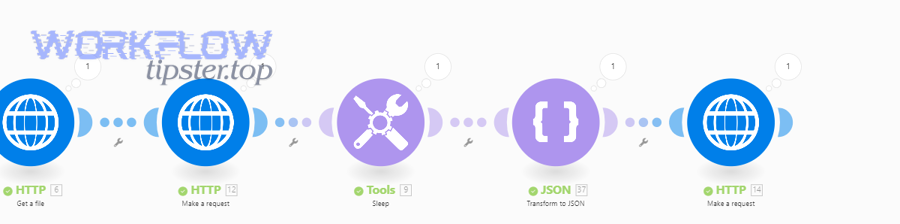
What are the most common Notion error messages that map to invalid_json?
The most common Notion messages that map to invalid_json are “Error parsing JSON body.”, “invalid_json”, and tool-wrapped “Bad Request” errors that still contain the same Notion code. (developers.notion.com) So, if your automation tool shows a generic “400 bad request,” always check the underlying response body for the Notion error object (status, code, message).
In practice, you’ll see variations because different clients repackage the same server response:
- Notion API response: typically shows
"code": "invalid_json"and a parsing-focused message. (developers.notion.com) - Automation wrappers: may display only the message string (for example, “Error parsing JSON body.”) and hide the rest unless you open logs.
- HTTP clients: sometimes throw parsing exceptions before you see Notion’s response, especially if your client expects JSON back but receives an HTML error page.
The safe move is always the same: inspect the raw request body you sent and verify it is valid JSON text, not “some object that looks like JSON in a UI.”
When is it not actually JSON syntax (but still triggers invalid_json)?
It’s not always “bad JSON syntax”—invalid_json can happen when you send the wrong body type, the wrong Content-Type, or a double-encoded payload that turns JSON into a quoted string. (developers.notion.com) That’s why many people get stuck: they run a JSON validator, it says “valid,” and Notion still complains—because the validator checked the intended JSON, not what was actually transmitted.
Here are common “not syntax” causes that still break decoding:
- Wrong body mode: You send form-data or URL-encoded fields while claiming it’s JSON.
- Missing or incorrect header: The body is JSON, but
Content-Typeis missing or set to something else. - Double serialization: Your tool serializes your already-stringified JSON again, creating a JSON string instead of a JSON object.
- Invisible characters: Copy/paste can introduce smart quotes or non-standard whitespace that breaks strict parsers.
- Templating collisions: Your workflow expression language injects braces, quotes, or line breaks that produce malformed output only at runtime.
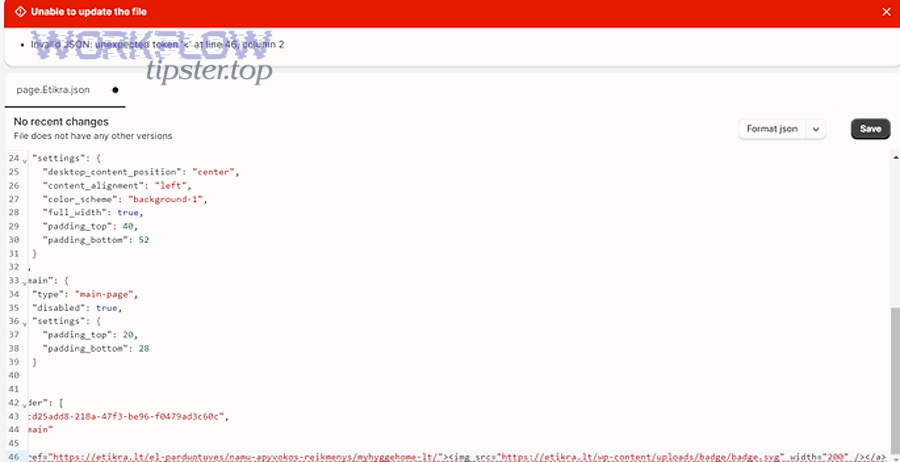
What are the root causes of invalid JSON payloads in Notion requests?
There are 3 main types of Notion invalid JSON payload root causes: JSON formatting errors, automation mapping/serialization errors, and Notion-specific request shape mistakes that corrupt the body you send. To fix the issue reliably, you want to classify your failure into one bucket first—then apply the right repair.
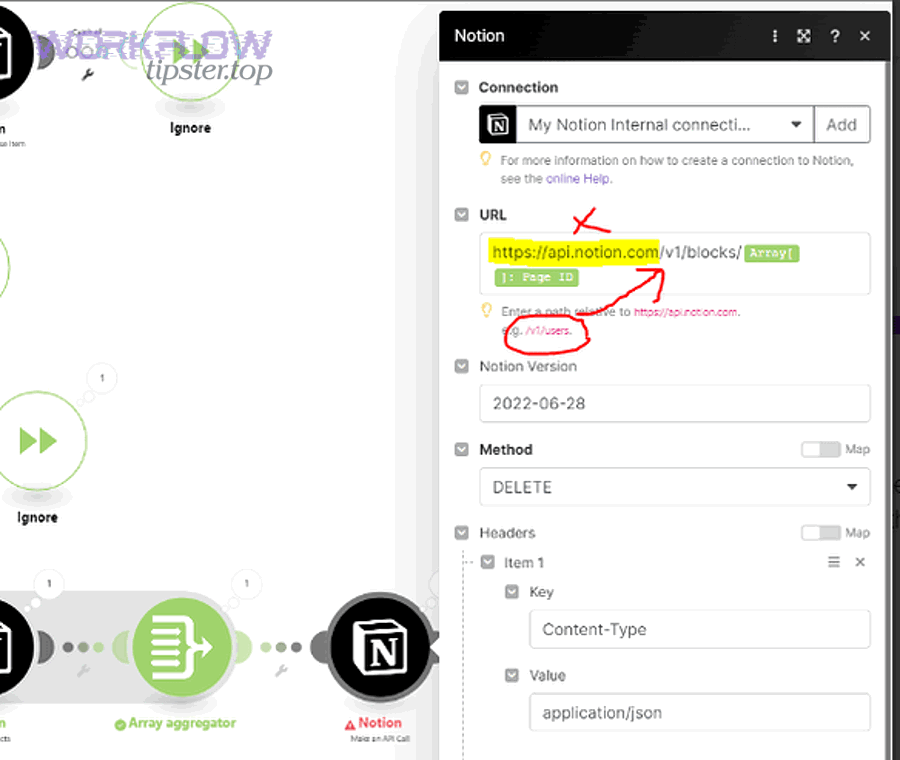
A practical way to classify causes is by where the corruption is introduced:
- Before serialization (bad data structure in code or workflow mapping)
- During serialization (double-encoding, wrong body mode, escaping issues)
- After serialization (proxy/middleware rewriting, incorrect headers)
What JSON formatting mistakes break Notion requests immediately?
The most common formatting mistakes are missing quotes, trailing commas, unescaped quotes inside strings, and mis-nested braces/brackets—any of which produces JSON text that cannot be parsed. This bucket is “pure JSON correctness,” and it’s the easiest to eliminate with a validator—if you validate the exact text being sent.
Typical examples:
- Trailing comma:
{"a": 1,} - Unescaped quote:
{"title": "Bob "The Builder""} - Commented JSON:
{"a": 1 // comment} - Wrong boolean types:
"true"(string) vstruewhen your code expects a boolean in a later step - Mixed quotes: smart quotes “ ” instead of standard quotes
"
A fast prevention technique is to generate JSON only via a serializer (e.g., JSON.stringify() or Python’s json.dumps) and never hand-type complex bodies.
What “automation mapping” mistakes create malformed JSON?
Automation mapping often breaks JSON when expressions inject non-JSON values (like undefined, objects rendered as text, or stray braces), producing a body that looks fine in the editor but becomes invalid at runtime. This is why “it works in a sample run” is not enough—your production data may include edge cases your test didn’t cover.
Common automation failures include:
- Injecting objects into string slots: the tool prints
[object Object]or a language-specific representation. - Null/undefined leakage: the tool inserts blank tokens that break syntax rather than inserting
null. - Incorrect escaping: values containing quotes or line breaks are concatenated into JSON without escaping.
- Wrong body mode: sending “Form URL Encoded” while building a JSON-looking body.
- JSON mode assumptions: some tools expect you to provide a JSON object, others expect a string; mixing the two creates invalid output. (This mismatch is a frequent theme in automation troubleshooting guidance.) (docs.n8n.io)
If you do Notion Troubleshooting inside tools like n8n, treat the workflow editor as a templating engine, not a guarantee of valid JSON. The only truth is the raw request body in the execution log.
What Notion-specific payload shape mistakes look like JSON errors?
Some Notion requests fail because the body is shaped incorrectly for the endpoint, and depending on the client, it can still surface as a generic parse/decode failure that looks like invalid JSON. (developers.notion.com) Even when the JSON is syntactically valid, the shape can force you into repeated trial-and-error if you don’t verify endpoint expectations.
Notion-specific shape pitfalls include:
- Using the wrong top-level key (
propertiesvsfiltervschildren) for the endpoint you’re calling - Wrapping objects in arrays (or arrays in objects) incorrectly
- Sending a property value in the wrong type container (e.g., passing a string where Notion expects a rich_text array object)
- Confusing “update page” payload shape with “create page” payload shape
When you suspect shape issues, the fastest move is to send a minimal known-good payload for that endpoint and then expand gradually—because it eliminates both syntax and shape ambiguity at once.
Is your request actually sending JSON to Notion?
Yes—your request is actually sending JSON only if the raw HTTP body is valid JSON text and the headers correctly declare it; otherwise, even a “JSON-looking” editor view can still send non-JSON. This yes/no check matters because it prevents you from debugging imaginary JSON while your tool is quietly sending form data.
So, don’t guess. Confirm by looking at:
- The exact request body bytes (or the plain text representation) in logs
- The
Content-Typeheader - Whether your client is sending
data=(raw) vsjson=(structured) or an equivalent setting

Does your HTTP client set Content-Type: application/json and send raw JSON (not form-data)?
Yes, you’re sending JSON correctly only when Content-Type: application/json is present and the request body is a JSON object/array—not form fields, multipart, or plain text. To connect this to the problem: Notion can only parse what you actually send, and the header/body mismatch is a classic cause of decoding failure.
Here’s a quick verification checklist:
Content-Typeequalsapplication/json(or includes it with a charset)- Body is raw JSON (starts with
{or[after whitespace) - No form fields are being transmitted instead of a JSON payload
- Your tool is not auto-transforming the body (some HTTP nodes do)
If your tool offers a “raw body preview,” copy that exact text and validate it. If the tool doesn’t, use a request bin or capture tool—but always validate the transmitted content.
Are you double-encoding JSON (JSON inside a string) or stringifying twice?
Yes, double-encoding happens when JSON is placed inside quotes as a string (often after calling JSON.stringify() twice), so Notion receives a string instead of an object and fails decoding or processing. This error is subtle because your payload may still be “valid JSON,” but it’s the wrong type at the top level.
Symptoms that strongly suggest double-encoding:
- The body begins with a quote:
"{"properties": ... }" - You see backslashes everywhere:
{\"properties\": ... } - Your tool has both a “JSON mode” toggle and an expression that already stringifies values
In automations, the fix is usually: either let the tool handle JSON serialization or send a raw string body yourself—but not both.
How do you troubleshoot and pinpoint the exact JSON problem fast?
The fastest method is a 5-step funnel: capture the raw request, validate the JSON text, reduce to a minimal payload, rebuild incrementally, and compare with a known-good example for the same endpoint. Because invalid_json blocks execution early, you want a workflow that finds the first breaking character or the first breaking field.
A reliable Notion Troubleshooting funnel looks like this:
- Capture: get the exact raw body from logs
- Validate: run a JSON validator on that exact text
- Reduce: strip to a minimal payload that still hits the endpoint
- Rebuild: add one field at a time until it breaks
- Confirm: run the same request in a controlled client (e.g., Postman) to remove automation interference
You can also check common tool-side issues; for example, n8n documents that invalid JSON output errors occur when JSON mode is enabled but the provided output isn’t a valid JSON object. (docs.n8n.io)

What is the fastest “minimal payload” method to isolate the failure?
The fastest isolation method is to start with the smallest valid payload for the exact Notion endpoint, confirm it succeeds, then add one property or block per test until a single addition reproduces the invalid JSON payload error. This transition matters: once you have a baseline success, every failure points to the most recent change.
A practical minimal-payload approach:
- Query Database: start with only the required path parameters (database ID) and an empty body or the smallest supported body for that endpoint in your tool.
- Create Page: start with the minimum required
parentand a single title property. - Update Page: update one safe property (e.g., checkbox) first.
Then rebuild:
- Add one property at a time
- Then add one nested object at a time (rich text arrays, date objects, files)
- Then add automation mappings last (expressions, merges, transforms)
This incremental method is especially important if you’re also debugging “notion pagination missing records,” because pagination introduces additional fields (like cursors) that can be malformed by templating or variable substitution. (stackoverflow.com)
How do you validate and normalize JSON before sending it?
You validate and normalize JSON by checking syntax (validator), ensuring correct encoding (UTF-8), removing non-standard quotes/whitespace, and confirming that your tool outputs a real JSON object rather than a stringified blob. So, after validation, you still need to confirm your serialization pathway is correct.
A strong pre-send normalization routine includes:
- Syntax validation: confirms braces/quotes/commas are correct.
- Escape sanitation: ensures string values with quotes/newlines are escaped.
- Type normalization: booleans are real booleans, numbers are numbers.
- Null policy: explicitly decide whether to omit fields or send
null(don’t let tools insert ambiguous blanks).
If you’re using an automation tool, copy the final evaluated body (post-expression) and validate that exact output—not the template.
Should you debug in your automation tool or in a dedicated API client first?
Your automation tool wins for catching mapping/runtime data issues, while a dedicated API client is best for controlled request testing—so the optimal approach is usually: reproduce in the tool, then confirm in an API client with the exact captured request. However, if logs are limited or the tool masks the raw body, switching earlier to a client like Postman can save time.
A clean comparison:
- Automation tool first when:
- Your error only happens with real workflow data
- You suspect mapping, merging, or expression evaluation issues
- You need to see which upstream field introduced breaking characters
- API client first when:
- You need reliable raw request visibility and repeatability
- You suspect headers/body-mode issues
- You want to test “known-good” payloads quickly
If you choose Postman, its Notion API workflow tutorials can help you verify requests step-by-step, especially when you want to isolate “payload vs automation” causes. (youtube.com)
How do you fix invalid JSON payloads in common environments (code vs automations)?
Fixing Notion invalid JSON payloads requires the same core rules—correct serialization, correct headers, correct endpoint shape—but the most common failure differs by environment: code fails at serialization parameters, and automations fail at mapping/runtime templating. So, your fix should match the environment’s “usual failure mode.”
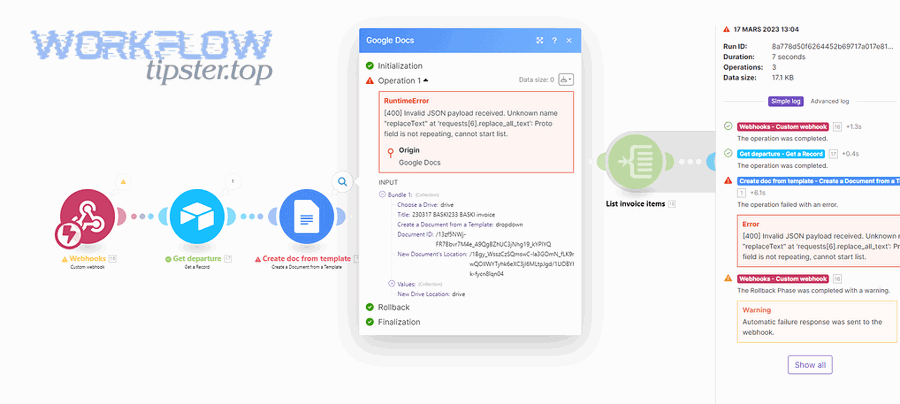
To keep it practical, use a two-layer approach:
- Layer 1 (universal): confirm
Content-Type, confirm raw JSON body, confirm no double-encoding. - Layer 2 (environment-specific): fix the way your environment constructs that body.
Fixing invalid_json in JavaScript/Node vs Python requests—what changes?
Node usually fails when you send an object without correct serialization (or stringify twice), while Python often fails when you use the wrong parameter (data= vs json=) or manually build JSON strings that aren’t encoded/escaped consistently. So, the key difference is how the client library handles serialization for you.
High-impact fixes:
- In Node:
- Ensure you use
JSON.stringify(payload)exactly once when sending raw bodies. - Ensure your HTTP library sets the correct headers (or you set them explicitly).
- Avoid concatenating JSON strings by hand; build objects then serialize.
- Ensure you use
- In Python:
- Prefer
json=payloadoverdata=payloadwhen using popular HTTP libraries, becausejson=typically handles serialization andContent-Typeautomatically. - If you must use
data=, usejson.dumps(payload)and setContent-Type: application/json.
- Prefer
Also ensure your Notion-Version header is correct if your client requires it; mismatches can complicate debugging by producing additional errors after you fix decoding.
Fixing invalid_json in n8n/Make/Zapier—what changes?
Automation platforms most often break Notion JSON when expression mapping injects runtime values that aren’t escaped or when the HTTP module is set to a body mode that doesn’t match the payload you built. So, focus on “what the tool actually sends,” not “what the editor preview shows.”
Common fixes that work across platforms:
- Set body mode correctly
- If the tool has “JSON” mode, pass a JSON object (not a pre-stringified JSON string).
- If the tool has “raw” mode, send a string and set
Content-Typeexplicitly.
- Remove double-encoding
- Don’t stringify inside a tool that already serializes for you.
- Don’t wrap JSON templates inside quotes.
- Sanitize mapped values
- Escape quotes/newlines in user input fields before merging into JSON.
- Prevent undefined values by defaulting to empty strings or null (consistent policy).
Real-world threads in automation communities frequently show this pattern: the payload appears correct in the editor, but the runtime evaluation changes it (especially for complex properties like files or arrays). (community.n8n.io) If your error appears as a notion webhook 400 bad request, treat it the same way: open the run logs, extract the exact request body, and validate it as transmitted.
What are “known-good” payload patterns for key Notion endpoints?
The most reliable “known-good” patterns are those that use the correct top-level keys and keep property values in Notion’s expected nested structures (objects/arrays), so you can start minimal and expand safely. Instead of copying huge payloads, anchor on these conceptual templates:
- Create Page
- Top-level:
parent,properties - Properties: title as an array of rich_text objects
- Top-level:
- Update Page
- Top-level:
propertiesonly (typically)
- Top-level:
- Query Database
- Top-level: optional
filter, optionalsorts, optional pagination fields
- Top-level: optional
- Append Block Children
- Top-level:
childrenas an array of block objects
- Top-level:
Once your minimal payload works, add complexity in the same nesting style (arrays of objects, not strings pretending to be objects). That’s also how you prevent pagination logic from causing “notion pagination missing records”—because you’ll keep cursor fields correctly typed and inserted only when present. (stackoverflow.com)
What prevention checklist keeps Notion requests valid long-term?
A long-term prevention checklist keeps Notion requests valid by enforcing preflight validation, controlling serialization in one place, and logging the exact outgoing payload (sanitized) so future failures are diagnosable. This transition matters because a one-time fix doesn’t protect you from new fields, new automation mappings, or new data edge cases.
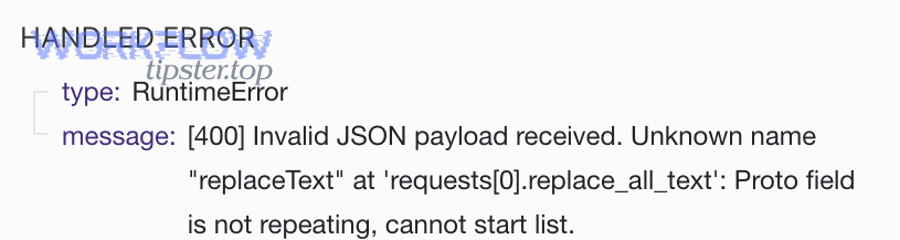
Below is a practical checklist you can apply whether you’re coding or using automations.
What validation gates should you add before execution?
You should add 3 validation gates: JSON syntax validation, schema/shape validation for the endpoint, and runtime value sanitization—because each gate catches a different class of “invalid JSON payload” failures. So, don’t rely on a single validator if your payload is assembled dynamically.
Recommended gates:
- Gate 1: Syntax
- Validate the final output is parseable JSON (the exact text being sent).
- Gate 2: Shape
- Check required top-level keys exist for the endpoint.
- Check field types (array vs object vs string) before sending.
- Gate 3: Sanitization
- Escape user-provided strings that may contain quotes/newlines.
- Reject or default undefined values that could break templating.
This aligns with broader API usability findings: a controlled study with 26 experienced software engineers found that developers face productivity problems with correct data types, data formats, required HTTP headers, and request body when documentation lacks usage examples. (homepages.ecs.vuw.ac.nz)
According to a study by University of Calgary (Dept. of Computer Science) in 2017, a controlled study with 26 experienced software engineers found developers struggle with correct data types, data formats, required HTTP headers, and request body when usage examples are missing—conditions that directly increase malformed requests and debugging time. (homepages.ecs.vuw.ac.nz)
What logging and observability should you keep for future incidents?
You should log the endpoint, method, sanitized headers, and a sanitized version of the final JSON body (plus Notion’s response object) so you can reproduce and fix future invalid JSON payload incidents quickly. More specifically, logging closes the gap between “what you think you sent” and “what you actually sent.”
A strong logging set includes:
- Timestamp + workflow/run ID
- Endpoint path + HTTP method
- Notion response:
status,code,message - Sanitized request body (redact tokens, secrets, personal data)
- Mapping diagnostics (which fields were null/undefined, which arrays were empty)
In automations, store a “debug snapshot” when a run fails so you can compare it to a successful run and see exactly which mapped value changed.
What edge cases and related Notion troubleshooting scenarios can mimic “invalid JSON payload”?
Several edge cases can mimic “invalid JSON payload,” including shape-level validation failures, request URL mistakes, and tool-level mapping issues that present as parse errors—so you need quick comparisons to avoid fixing the wrong problem. (developers.notion.com) This section expands micro-level semantics: once you can produce valid JSON reliably, you’ll want to distinguish between “invalid,” “valid but wrong,” and “valid but unauthorized.”
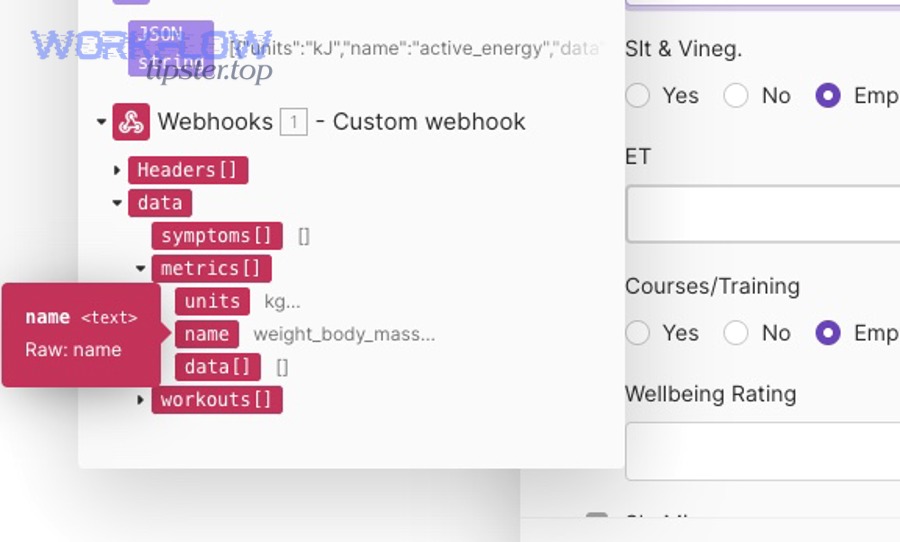
How is invalid_json different from “validation_error” and “invalid_request_url” in Notion?
invalid_json means Notion can’t decode the body, a validation error means Notion decoded it but the structure/content is wrong, and invalid_request_url means the endpoint URL itself is invalid—so each error points to a different fix path. (developers.notion.com) So, the quickest heuristic is: decode vs validate vs route.
Use this decision rule:
- If the error says “Error parsing JSON body.” → decode/serialization problem. (developers.notion.com)
- If the error complains about missing/unknown properties → shape validation problem.
- If the error says the request URL is invalid → endpoint/path issue. (developers.notion.com)
This matters because people often keep “fixing JSON” when the JSON is already valid, but the endpoint or schema is wrong.
What “Notion data formatting errors” commonly lead to broken payload construction?
Notion data formatting errors commonly come from dates, rich text arrays, select names, relation IDs, and file objects—because those fields are nested and easy for automation tools to mis-assemble into malformed JSON. So, when you see failures only for certain records, suspect a data formatting edge case first.
Common traps:
- Dates: timezone offsets or invalid ISO strings; some tools inject localized date formats.
- Rich text: you must send an array of objects; tools may flatten it into a string.
- Select/multi-select: names must match existing options (or be created via correct method); mapping errors can create empty objects.
- Relations: passing a single ID instead of an array of relation objects.
- Files: passing a “file URL” string instead of a files array object.
These issues also intersect with “notion pagination missing records”: if you build a query body dynamically (filters + pagination cursor), an occasional malformed cursor field can make you think records are missing when the request is actually failing or being rejected upstream. (stackoverflow.com)
What does “notion field mapping failed” look like, and how do you prevent it?
“Notion field mapping failed” usually looks like a workflow where the mapped output is syntactically valid in the editor but becomes invalid JSON at runtime because one field resolves to an unexpected type or an unescaped string. (docs.n8n.io) So, prevention is mostly about controlling types before the JSON is assembled.
Prevention methods that work well:
- Add a type-check step (or transform node) that enforces string/number/boolean expectations.
- Use defaults for missing values (empty string or
null) consistently. - For text fields, sanitize input by escaping quotes and normalizing line breaks.
- Keep “complex properties” (files, rich_text, multi_select) assembled in a dedicated step, not inline in a template.
This keeps your JSON assembly deterministic and prevents the “it worked yesterday” kind of mapping failures.
Can “notion oauth token expired” cause errors that look like payload problems?
No—an expired OAuth token usually produces an authentication error (commonly 401/403), not an invalid_json parsing error, but some tools may display a generic failure that misleads you into suspecting the payload. So, if your payload validates and the raw body is clearly correct, check auth next—especially if the failure started suddenly without payload changes.
A simple rule: if Notion returns invalid_json, fix the body; if it returns an auth error, refresh the token and confirm the Authorization header is correct before revisiting payload construction.