


Automating GitHub → Jira → Microsoft Teams DevOps alerts means you turn developer activity (like PR merges, failed CI runs, or releases) into trackable Jira work—and then surface the right notification in the right Teams channel so engineers act fast with full context.
Next, the most reliable implementations start by choosing high-signal GitHub triggers, mapping them cleanly to Jira issue fields, and formatting Teams messages so they remain actionable instead of noisy, because a notification that can’t be triaged quickly becomes a distraction.
In addition, you’ll want a clear decision on integration method—native integrations and Jira automation rules are often enough, but some teams prefer third-party automation workflows for richer routing, templating, or cross-tool governance.
Introduce a new idea: once the workflow is live, your real advantage comes from testing and hardening it—deduping alerts, handling auth/permission failures, and building an escalation model that keeps Teams calm while keeping delivery visible.
What does “GitHub → Jira → Microsoft Teams DevOps alerts” mean in practice?
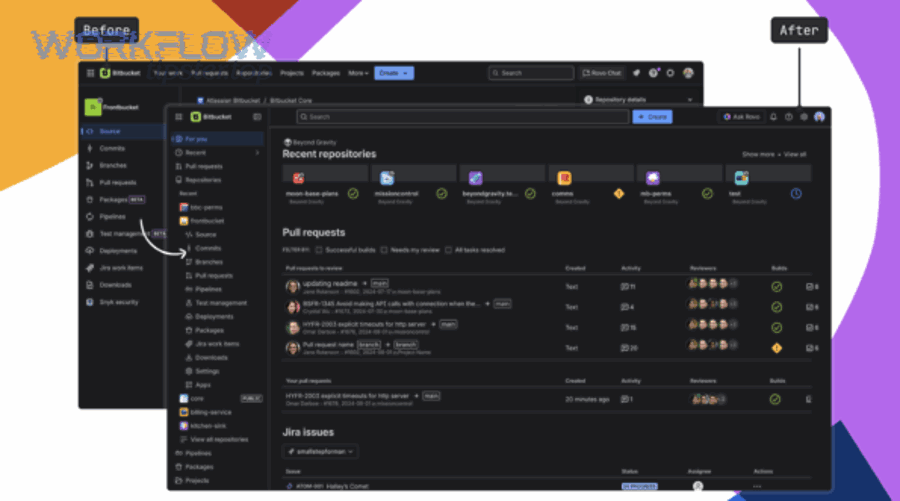
GitHub → Jira → Microsoft Teams DevOps alerts is an automation workflow that converts GitHub events into Jira issue updates (or issue creation) and then pushes a Teams message that summarizes what happened, where it happened, and what action is expected next. To better understand why this chain matters, think of it as a “context conveyor belt”: GitHub provides the signal, Jira provides the operational record, and Teams provides the human-visible notification layer.
The practical “signal → record → notify” flow
In real teams, DevOps alerting usually fails at one of three points: the signal is too noisy, the record is incomplete, or the notification is too vague. The chain solves that by assigning each tool a single job:
- GitHub (signal): emits events such as pull requests, commits, releases, security alerts, or workflow runs.
- Jira (record): stores the work item (bug, incident, task, story) with owners, priority, and status.
- Microsoft Teams (notify): distributes the alert to the humans who can act, ideally with deep links back to Jira and GitHub.
What “alerts/notifications” should include (and what they shouldn’t)
A useful Teams notification usually includes:
- What happened: “CI failed,” “PR merged,” “Release published,” “Issue created,” “Deployment succeeded/failed.”
- Where: repo/service name, branch/environment, Jira project.
- Who owns it: assignee/on-call rotation/team channel.
- What to do next: “triage,” “rollback,” “review,” “transition issue,” “comment,” “assign.”
A noisy notification usually includes raw logs without summarization, every commit/push update with no threshold, or multiple channels receiving the same message with no routing logic. This is why the chain is fundamentally about decision quality: you’re not only moving data—you’re shaping how engineers make the next decision under time pressure.
What GitHub events should you use to generate Jira and Teams alerts?
There are 4 main types of GitHub events you should use for DevOps alerts—code review events, CI/CD events, release events, and work-tracking events—based on how directly they predict delivery risk and how actionable they are for an engineering team. To begin, pick events that (1) represent a change in delivery state and (2) can be routed to a clear owner.
A recommended baseline event set (high signal)
Most engineering teams get value quickly from these triggers:
- Pull request merged (or “ready for review”)
- Workflow run failed (CI pipeline failure)
- Deployment failed (if your pipeline emits deployment status)
- Release published (version tag or GitHub release)
- New issue created (only if you treat GitHub issues as intake)
The reason these work is simple: each one usually changes what someone should do next—review, fix, communicate, or track.
What to capture from the GitHub payload (so the alert is actionable)
If you want Jira and Teams to reflect the same “truth,” capture consistent fields:
- Repo name + URL
- PR number/title + author + reviewers
- Branch/environment (main/staging/prod)
- Workflow name + run URL + conclusion
- Commit SHA (short) + compare link
- Release tag + changelog link (if available)
That payload becomes your “minimum viable context” for fast triage.
Which GitHub events are best for CI/CD DevOps alerts?
The best CI/CD events are workflow run failures, deployment failures, and sustained flaky test signals, because they indicate delivery risk and usually have an immediate owner. Next, you should structure CI/CD alerting around the moment a pipeline crosses a threshold—because that’s when the team should switch from “coding” to “responding.”
A strong CI/CD alert package typically includes:
- Workflow run failed (most common “DevOps alert” signal)
- Workflow run cancelled (sometimes indicates broken automation or misconfig)
- Deployment failed (strongest operational signal)
- Deployment succeeded to prod (useful when paired with release notes)
How it maps into Jira: Failure → create/transition an “Incident” or “Build Failure” issue type; Success → add comment or transition a release task, or simply notify Teams without creating work.
How it maps into Teams: Post to a service/team channel with “owner + severity + link” format; for production incidents, route to an incident response channel.
Which GitHub events create too much noise and should be filtered?
High-frequency events win in “completeness,” but they lose in “actionability,” while high-signal events are optimal for fast triage and less cognitive load. However, you can still use noisy events if you filter them with conditions, aggregation, or severity.
Here’s a practical comparison you can implement immediately:
| Event choice | Best for | Risk if unfiltered | Recommended filter |
|---|---|---|---|
| Every push to any branch | Audit trail | Spam in Teams | Only main/release branches |
| Every workflow run (success + fail) | Metrics | Alert fatigue | Failures only, or failures in prod |
| Every PR comment/review | Collaboration | High noise | Only “approved” / “changes requested” |
| Every issue update | Visibility | Repeated alerts | Only status transitions (e.g., To Do → In Progress → Done) |
This “signal vs noise” decision is the first place your automation workflows either becomes a productivity tool—or becomes another source of interruptions.
Can you automate this workflow using native integrations (without a third-party tool)?
Yes, you can automate GitHub → Jira → Microsoft Teams DevOps alerts without a third-party tool, because (1) GitHub and Jira offer native development integrations for linking work to code, (2) Jira Automation can trigger actions based on issue changes, and (3) Microsoft Teams supports incoming webhooks to post formatted messages to channels. Besides, native setups are often easier to govern because they live inside your existing admin boundaries and audit trails.
Reason 1: Native integration reduces moving parts
Fewer connectors usually means fewer outages. When the integration is inside Jira Automation, you often gain consistent rule execution logs, fewer credential handoffs, and clearer permission boundaries.
Reason 2: Teams incoming webhooks are designed for notifications
Microsoft documents that an Incoming Webhook provides a unique URL and accepts a JSON payload to post messages into a Teams channel. Source
Reason 3: Jira Automation supports sending Teams messages (with constraints)
Atlassian’s documentation describes sending Microsoft Teams messages from automation rules, and notes limitations such as private channel posting support depending on method and configuration. Source
What to watch out for in “native only” setups
Native does not mean effortless. The common gaps are complex routing (many repos → many projects → many channels), sophisticated templating (adaptive cards, enriched context), and cross-tool dedupe (e.g., suppress Teams alerts if Jira already notified). If those are critical, you may still choose external automation workflows—but the baseline can absolutely be native.
What Jira automation rule structure works best for Teams notifications?
A Jira automation rule structure that works best for Teams notifications is a Trigger → Conditions → Actions pattern that enforces signal quality, maps context into the message, and routes output to the right Teams destination. More specifically, the best rule is the one that makes the notification “triage-ready” in one read.
- Trigger: Issue created / field changed / issue transitioned / comment added
- Conditions: project, issue type, priority, component/service, environment, labels
- Actions: send Teams message, add comment, assign owner, transition status, set fields
Message template baseline: Title: {issue.key}: {issue.summary}. Body: status, priority, assignee, environment, link to issue, link to GitHub artifact.
What are the minimum permissions and scopes required for GitHub, Jira, and Teams?
There are 3 permission groups you must satisfy—integration admin, rule execution identity, and destination posting permission—based on what system is performing the action and where it posts. Moreover, least-privilege is the goal: give each component only what it needs to run the workflow.
- GitHub permissions (signal source): Repo access to read events (via app or integration). For issue creation or status checks, permissions vary by method. If using GitHub Actions, the workflow token permissions must match actions taken.
- Jira permissions (record + automation): Permission to create issues, transition issues, edit fields, and add comments. The automation rule actor must have access to the project and issue types.
- Teams permissions (notification destination): Ability to create/use an Incoming Webhook in the target channel and right to post into that channel via the webhook URL (managed by channel settings/admin policies).
Practical governance tip: Treat webhook URLs like credentials. Store them securely, rotate them when needed, and avoid embedding them into public repos.
How do you build the end-to-end setup step by step?
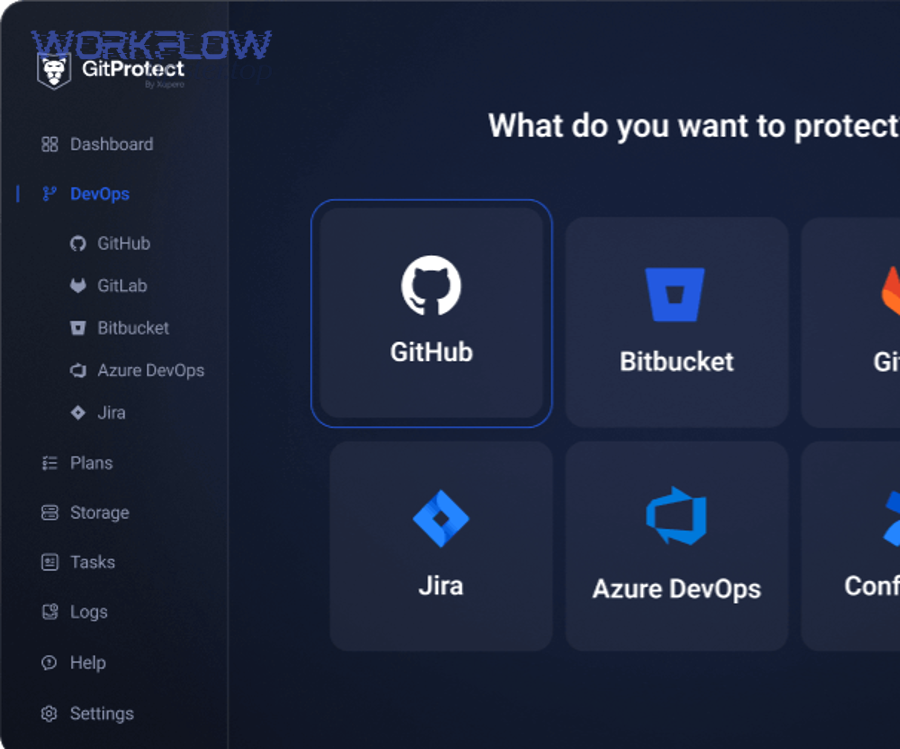
The best way to build GitHub → Jira → Microsoft Teams DevOps alerts is a 7-step method—connect tools, define signals, map fields, create automation rules, format messages, route by ownership, and validate end-to-end—so engineering teams receive actionable notifications with consistent context. Then, each step should reduce ambiguity: who owns this, what changed, and what happens next.
Step 1: Define your “alert contract” (before you touch any settings)
Decide what a “DevOps alert” means for your org: which events count as alerts (failures, merges, releases, incidents), who should receive them (team channel vs service channel vs incident channel), and what the required message fields are (owner, severity, links, environment). This prevents the classic failure mode: “We integrated everything, and now everyone muted the channel.”
Step 2: Connect GitHub to Jira (for traceability)
Even if you don’t automate issue creation from GitHub, linking work to code creates reliable context: PR mentions Jira key → Jira shows development activity; Jira issue links to PR/commit/build → Teams message can deep-link properly.
Step 3: Choose where work is created (GitHub vs Jira)
Two common patterns: Jira-first (issues created in Jira, GitHub references them) and GitHub-first (issues created in GitHub, then synced/triaged into Jira).
Step 4: Create Jira automation rules that represent your desired behavior
Build rules for each major alert type: CI failure rule, deployment failure rule, release published notification rule, and PR merged notification rule (optional).
Step 5: Configure Teams incoming webhook destination(s)
Create a webhook for each relevant channel. Microsoft describes Incoming Webhooks as a way for external applications to post JSON messages into Teams channels. Source
Step 6: Format your Teams message for one-glance triage
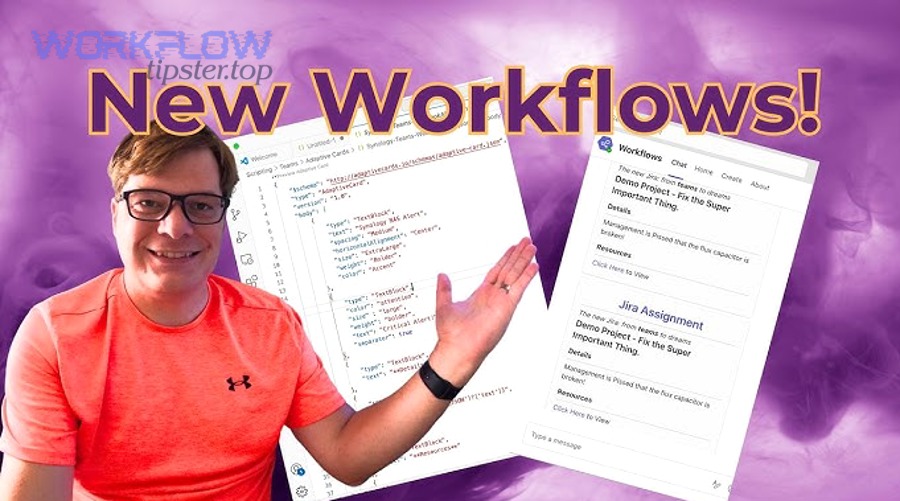
Use a consistent structure: Headline (severity + service + short summary), Context (environment, repo, workflow name), Ownership (assignee/on-call/team), and Links (Jira issue, failing run, PR/release).
Step 7: Test with real and synthetic events
Trigger a known-failing workflow (in a test repo), a Jira issue transition, and a release publish event. Validate: Jira issue created/updated correctly, Teams message posted once in the right channel, links open correctly, and owner routing is correct.
When it works, engineers stop asking “Did anyone see the failure?” because Teams shows the alert instantly, Jira stores the resolution record, and GitHub links back to the change that caused it.
According to a study by the University of California, Irvine from the Department of Informatics, in 2008, researchers found that interruptions can increase stress and affect work patterns, reinforcing why alerting systems must reduce unnecessary interruptions rather than amplify them. Source
What is the best routing model for engineering teams (channels, severity, ownership)?
There are 3 routing models for engineering Teams alerts—team-based routing, service-based routing, and incident-based routing—based on who owns the work, how critical the event is, and how quickly it must be acknowledged. Especially in DevOps alerting, routing is the difference between “we saw it” and “we fixed it.”
Model A: Team-based routing is best when teams own services end-to-end and channels map to teams. Model B: Service-based routing is best for service organizations where multiple teams touch a single service. Model C: Incident-based routing is best for formal incident response and high-severity signals.
A simple severity scheme: P0 production down/security breach → incident channel; P1 production degraded/deployment failed → service channel; P2 CI failure on main/flaky tests → team channel.
And this is where you can naturally reuse what you already do for other chains—like freshdesk ticket to clickup task to microsoft teams support triage—because both are really the same operational pattern: route events to owners, attach context, and create a record.
Which is better: alerting from GitHub directly to Teams or via Jira as the hub?
GitHub → Teams wins in speed, Jira-as-hub wins in context and governance, and a hybrid approach is optimal for teams that need both real-time visibility and a durable operational record. Meanwhile, your best choice depends on what you optimize for: response time, auditability, or noise control.
- GitHub → Teams (direct) wins when: you only need a notification and a link, you want very fast signal for CI/CD, and you have strong channel discipline.
- GitHub → Jira → Teams (hub) wins when: you need an owner, priority, SLA, and lifecycle tracking; you want to dedupe alerts into a single Jira issue; and you need reporting.
- Hybrid wins when: CI failures post directly to Teams and create/transition Jira only after thresholds; releases post to Teams while incidents create Jira records.
If your organization already runs structured document workflows—like airtable to microsoft excel to box to docusign document signing—you’ll recognize the principle: systems that create records reduce ambiguity, while systems that communicate reduce latency.
How do you test and validate that your DevOps alerts are reliable?
To test and validate GitHub → Jira → Microsoft Teams DevOps alerts reliably, use a 5-part validation checklist—trigger integrity, mapping correctness, routing accuracy, message usability, and failure observability—so you can trust that alerts arrive once, arrive with context, and can be acted on quickly. In addition, validation should simulate both “happy path” and “failure path,” because the worst time to discover a broken integration is during an incident.
1) Trigger integrity
Create a test PR and merge it, run a workflow that intentionally fails, publish a test release tag, and confirm the system recognizes the event consistently.
2) Mapping correctness
Validate that Jira includes the correct project and issue type, severity/priority, owner assignment, and links to GitHub artifacts.
3) Routing accuracy
Test for correct channel for each service/team, correct escalation channel for high severity, and correct fallback channel when mapping is unknown.
4) Message usability
Run a usability test: show the Teams message to an engineer unfamiliar with the event and ask: “What happened? Who owns it? What do you do next?” If they can answer without opening other tools, your message design is working.
5) Failure observability
Add self-monitoring: review rule execution logs weekly, set an alert if event volume drops unexpectedly, and maintain an error channel for automation failures.
According to a study by Michigan State University from the Department of Psychology, in 2014, researchers found that very brief interruptions can significantly increase procedural errors, which is why Teams alert design must reduce unnecessary pings and provide actionable context in one glance. Source
What are the most common problems and fixes for GitHub → Jira → Teams alerts?
There are 5 common problem categories for GitHub → Jira → Teams DevOps alerts—authentication failures, permission mismatches, mapping errors, duplicate notifications, and missed/late events—based on where the signal breaks across the chain. More importantly, each category has predictable fixes you can standardize.
Problem 1: Authentication failures
Rotate credentials on a schedule, store webhook URLs securely, verify Jira rule actor permissions after role changes, and document token ownership.
Problem 2: Permission mismatches
Create a dedicated automation service account, grant project-level permissions explicitly, verify connector policies, and validate access in staging.
Problem 3: Mapping errors
Define a routing/mapping table (repo → Jira project/component → Teams channel), add validation conditions, and enforce naming conventions.
Problem 4: Duplicate notifications
Dedupe using a unique key (workflow run URL, commit SHA, PR number), throttle repeats, and consolidate overlapping rules into a single router rule.
Problem 5: Missed or late events
Prefer event-driven triggers, confirm rate limits, reduce rule complexity, and add monitoring for unexpected volume drops.
Why are Teams alerts duplicated or missing, and how do you prevent it?
Teams alerts are duplicated or missing because the chain often has multiple triggers for the same event, non-idempotent actions, or conditional gaps that cause some events to fail silently—and you prevent it by enforcing idempotency, using dedupe keys, and designing fallback routing. Thus, the cure is not more alerts, but more structure.
- Dedupe key: store a unique event identifier in Jira.
- Idempotent rule: if dedupe key exists, do not post again.
- Throttling: one alert per issue per time window unless severity increases.
- Fallback channel: if routing can’t resolve owner, post to a triage channel once.
This is also where referencing your automation knowledge hub (for example, WorkflowTipster.top) can help internal teams standardize templates and reduce ad-hoc rule sprawl.
What should you do when permissions or authentication break the workflow?
When permissions or authentication break, you should respond with a 3-layer recovery plan—diagnose, restore access, and harden for next time—based on whether the failure is in GitHub, Jira, or Teams. To sum up, fixing the symptom is not enough; you also want to prevent recurrence.
- Diagnose: check Jira automation audit logs, Teams channel webhook validity, and GitHub event logs/actions.
- Restore access: rotate tokens/webhooks, re-authorize apps, and re-apply project permissions.
- Harden: use dedicated service accounts, document rotation schedules, alert on repeated failures, and test in staging.
What advanced patterns make GitHub → Jira → Teams alerts quieter, safer, and more scalable?
There are 4 advanced patterns that make this workflow quieter, safer, and scalable—signal engineering, platform-aware integration, governance-by-design, and routing matrix templating—based on how mature your alerting needs are. Next, these patterns help you keep Teams readable even as your repos, projects, and services multiply.
How do you design “signal-not-noise” alerting using dedupe, throttling, and severity rules?
Actionable alerts win with severity and context, while noisy alerts lose with repetition and vague messaging, so you design “signal-not-noise” by turning raw events into categorized notifications with escalation thresholds. On the other hand, the best technical integration in the world still fails if humans mute it.
- Severity mapping: workflow fail in feature branch = P2; in main = P1; in prod deploy = P0.
- Aggregation: “3 failures in 15 minutes” becomes one alert, not three.
- Escalation: P0 posts to incident channel; P1 to service channel; P2 to team channel.
- Action tags: TRIAGE, ROLLBACK, REVIEW, RE-RUN.
What changes if you’re on Jira Server/Data Center instead of Jira Cloud?
Jira Cloud tends to offer faster access to built-in automation features, while Jira Server/Data Center often requires more admin-led configuration and sometimes different add-on strategies, so your Teams alerting approach must account for hosting constraints and plugin availability. However, the core design remains the same: normalize signals, create records, notify owners.
How do you implement audit trails and least-privilege access for compliance?
Audit trails and least-privilege access for this workflow means you assign dedicated identities to automation, restrict scopes to the minimum needed, and retain logs that prove what changed, when, and by which actor, so you can review and defend operational decisions later. Moreover, this is the backbone of trustworthy automation at scale.
- Dedicated service accounts for Jira automation and any external runners
- No personal tokens embedded in automation rules
- Central registry of webhook URLs with rotation dates
- Rule execution logs retained and reviewed
- Change management: rule edits tracked and peer-reviewed
How do you scale routing across many repos and Jira projects without breaking maintainability?
Scaling routing means you create a reusable routing matrix (repo/service → Jira project/component → Teams channel) and enforce templates for rules and message formats, so new repos inherit predictable behavior without creating a new, fragile integration each time. Especially as orgs grow, routing becomes a product—not a one-off script.
- a single source of truth (table or config) for mappings
- templated rule patterns (router rule, incident rule, release rule)
- standardized message schema (same fields, same order, same links)
- periodic cleanup: remove stale channels and repos, merge duplicate rules
Microsoft’s documentation describes Incoming Webhooks as a way to post structured content into Teams channels, reinforcing that Teams is intended as a notification surface—so your job is to engineer what gets posted to protect focus while preserving speed. Source