


If you want faster, cleaner support triage, the most reliable pattern is to convert each qualifying Freshdesk ticket into a ClickUp task and immediately alert the right Microsoft Teams channel so an agent can acknowledge, assign, and act without losing context.
Next, you also need to decide what should trigger the workflow and what fields must be mapped so the ClickUp task contains enough information to route work correctly—without copying unnecessary noise or sensitive data.
Then, you should choose an implementation approach: a native integration when you want straightforward syncing, or a no-code automation platform when you need custom routing logic, deduplication, and richer Teams notifications.
Introduce a new idea: a triage system only works if it stays trustworthy over time, so you must prevent duplicates and build a repeatable testing + monitoring routine that catches mapping errors, permission issues, and notification overload before your team stops listening.
What does “Freshdesk ticket → ClickUp task → Microsoft Teams triage” automation mean in a support workflow?
Freshdesk ticket → ClickUp task → Microsoft Teams triage automation is a support operations workflow that turns ticket events into structured work (tasks) and broadcasts the right signal (alerts) to the right responders so triage becomes consistent, fast, and measurable.
To better understand why this matters, the key is that “triage” is essentially ticket routing : you classify urgency, decide ownership, and push the work into the system where it will actually get done.
In practice, this automation creates a single operational path:
- Freshdesk remains the customer-facing record and SLA anchor (ticket lifecycle, requester history, channel source).
- ClickUp becomes the execution engine (task ownership, checklists, due dates, dependencies, internal collaboration).
- Microsoft Teams becomes the coordination layer (alerts, assignment handoffs, escalation prompts, and fast decisions).
That separation prevents a common failure mode: agents bouncing between tools, forgetting where they left off, and treating “notification volume” as a proxy for urgency. Research on interruptions has repeatedly shown that refocusing after disruptions carries meaningful time costs; one widely cited paper by University of California, Irvine’s Informatics Department (Gloria Mark) reported significant overhead around interrupted work and resumption behavior (2008). (ics.uci.edu)
What events should trigger the workflow: ticket created, updated, or status changed?
There are 3 main trigger types for this workflow—ticket created, ticket updated, and ticket status/priority changed—and the right choice depends on how you define “triage” in your team (speed-first vs accuracy-first).
Specifically, each trigger has a predictable tradeoff between immediacy and noise:
- Ticket created (speed-first triage)
- Best when: you want near real-time acknowledgement and quick assignment.
- Typical use: new tickets in high-priority groups (e.g., outages, VIP customers).
- Risk: over-creation if many tickets are informational or duplicates.
- Ticket updated (signal-driven triage)
- Best when: you only want to act after meaningful signals (e.g., customer replies, escalation tags, agent notes).
- Typical use: “customer replied” → update ClickUp task + notify Teams to re-engage.
- Risk: too many updates if you mirror every minor field change.
- Status/priority changed (governed triage)
- Best when: your process demands deliberate classification before execution.
- Typical use: “Open → Pending” or “Medium → High” → create or escalate task.
- Risk: triage delays if classification is slow.
If your organization already uses Teams-centric ticket operations, note that Freshdesk’s Microsoft Teams app describes capabilities like creating, viewing, updating tickets, and receiving alerts for assignments and priority changes—signals that map directly to these trigger patterns. (support.freshdesk.com)
What information must be mapped from a Freshdesk ticket into a ClickUp task to support triage decisions?
A triage-ready ClickUp task needs a minimal, decision-grade packet of ticket context, not a full ticket dump.
More specifically, the goal is to preserve routing accuracy while reducing cognitive load and sensitive-data exposure.
Minimum viable mapping (recommended for most teams):
- Ticket ID + deep link back to Freshdesk (traceability)
- Subject (short summary for scanning)
- Requester name / company (who is impacted)
- Priority / urgency (triage rank)
- Category / tags (routing rules)
- Short description (what happened + what they want)
- Created time (aging awareness)
Strong operational mapping (adds reliability):
- Assigned group / agent (ownership)
- SLA due time or “breach risk” flag (time sensitivity)
- Channel (email/chat/portal—helps diagnose tone and expectations)
- Product / environment (triage to specialists)
- Attachments policy (link, not file, unless required)
A useful rule: copy identifiers and summaries; link to details. This keeps ClickUp tasks actionable and Teams alerts readable, while Freshdesk remains the system of record for the full ticket thread.
How do you set up automated ticket routing from Freshdesk to ClickUp and send Microsoft Teams alerts step-by-step?
A practical setup follows 6 steps—connect, define triggers, apply routing rules, map fields, format Teams alerts, and validate with test tickets—so each Freshdesk ticket becomes one correct ClickUp task and one useful Microsoft Teams alert.
Next, you should treat setup like a pipeline: each stage has a “definition of done” that prevents downstream breakage.

Step-by-step setup (framework that works across most tools)
Step 1: Decide your “triage surface area”
- Which ticket groups/brands are in scope?
- Which priority levels should create tasks immediately?
Step 2: Choose a creation strategy
- Create-once: create the task only when the ticket meets conditions.
- Create-or-update: create if missing; update if already linked.
Step 3: Connect accounts with least privilege
- Freshdesk access should cover reading ticket fields and writing a link back.
- ClickUp access should cover creating tasks in the chosen space/list.
- Teams access should post to designated channels and (optionally) mention roles.
Step 4: Build routing rules before mapping
- It is easier to map fields once you know what the “destination list/status/assignee” will be.
Step 5: Map essential fields + write back the task link
- Store a canonical ticket identifier in the ClickUp task (custom field or description).
- Store the ClickUp task URL in the Freshdesk ticket (private note or custom field).
Step 6: Test + adjust message formatting
- Validate that the Teams alert makes a triage decision easy .
If your approach uses ClickUp’s Freshdesk sync-style integration, ClickUp’s help documentation states that once set up, a new Freshdesk space can contain tasks for synced tickets and that you can pause/resume sync from the App Center—useful for controlled rollouts. (help.clickup.com)
How do you design routing rules (priority, category, keywords, groups) so the right tickets become the right tasks?
There are 4 main routing rule groups—severity, category, customer tier, and ownership—and you should apply them in that order so the highest-risk tickets never get buried under lower-impact requests.
For example, severity-based routing prevents a “simple bug report” from competing with “production down” merely because both arrived at the same time.
A reliable routing hierarchy
- Severity / Impact (P0–P3 or High/Med/Low)
- Define objective criteria: number of users affected, revenue impact, workaround availability.
- Category / Product area
- Use tags or custom fields to route to specialists.
- Customer tier / SLA class
- VIP/Enterprise/Trial often needs different response targets.
- Ownership model
- Round-robin assignment, group-based assignment, or “triage captain” model.
Keyword rules: use them as hints, not hard truth
Keywords (e.g., “urgent,” “down,” “refund”) help classify quickly, but they also produce false positives. A better pattern is: keyword match + additional condition (customer tier, channel, or repeated complaint signal) before escalating.
Practical output of routing rules
- Destination ClickUp list
- Initial task status (e.g., “Needs Triage,” “Investigating,” “Waiting on Customer”)
- Assignee (triage lead or the relevant on-call engineer)
- Due date / SLA mirror (align task urgency with ticket SLA)
How do you format Microsoft Teams alerts so they help triage instead of creating noise?
Microsoft Teams alerts help triage when they compress the decision into one screen—and they fail when they spam channels with low-signal updates.
However, you can prevent alert fatigue by standardizing both when you alert and what the alert contains.
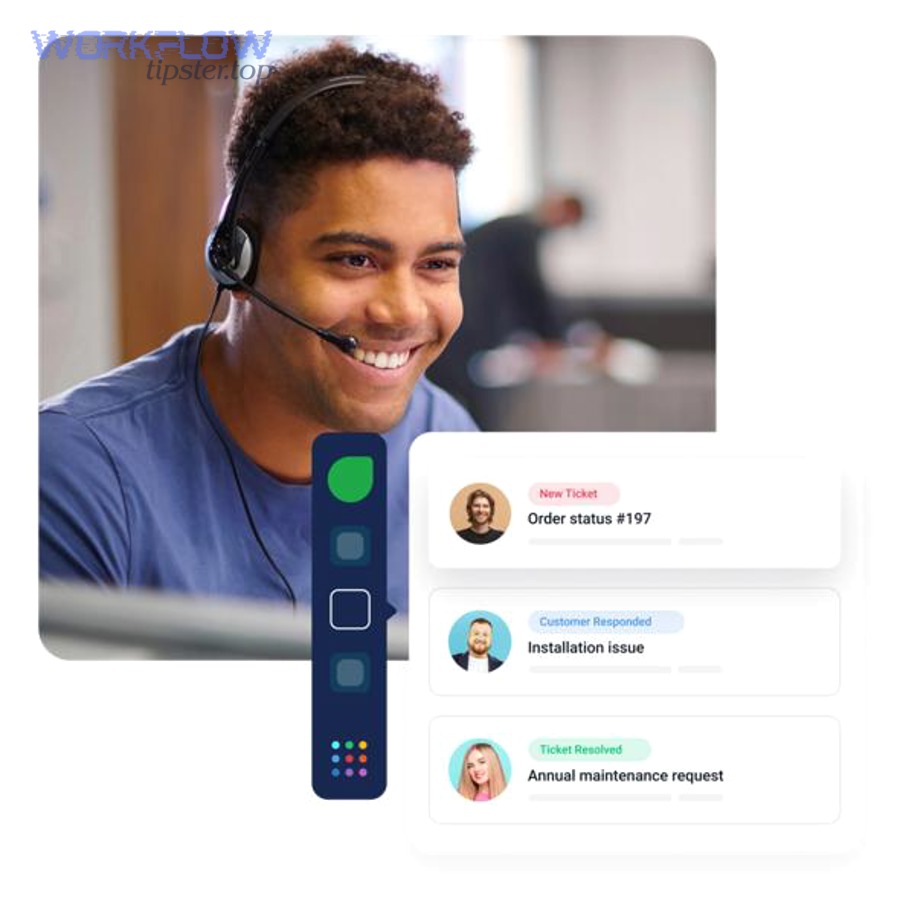
A high-signal Teams alert template
- Ticket summary: short subject line + category
- Urgency: priority + SLA timer (“due in 2h”)
- Owner: group/assignee (or “Unassigned—needs triage”)
- Action: “Assign owner” / “Acknowledge” / “Escalate to on-call”
- Links: Freshdesk ticket + ClickUp task
Channel strategy (reduce noise)
- Post to queue-specific channels (Billing, Bugs, Incidents) instead of one mega-channel.
- Use mentions sparingly:
- mention a role (e.g., @Support-Oncall) only for true escalation,
- avoid mentioning individuals for routine tickets.
Update strategy (don’t alert on every change)
- Alert on:
- new ticket in high-impact categories,
- customer reply for high-priority tickets,
- SLA breach risk,
- escalation tag added.
- Avoid alerting on:
- internal note edits,
- minor field normalization,
- automated status housekeeping.
This is also consistent with what Freshdesk’s Teams app emphasizes: alerts for ticket assignments and updates like priority changes and customer replies—these are high-signal events when triage is the goal. (support.freshdesk.com)
Should you use a native connector or an automation platform (Zapier/Make/Integrately) for this workflow?
A native connector usually wins on simplicity and standardized syncing, while an automation platform is best when you need custom routing logic, conditional Teams alerts, and robust deduplication—so the right choice depends on whether you optimize for speed of setup or depth of control.
Meanwhile, many teams start with “native sync” and later layer in targeted automation workflows when exceptions and edge cases emerge.
What are the pros and cons of native Freshdesk/ClickUp integrations vs no-code automation tools?
Native integration: best for consistent sync and low maintenance
- Pros
- Faster to enable and standardize across the team
- Often includes default mapping and update propagation
- Easier governance for non-technical admins
- Cons
- Limited branching logic (if/else) for complex routing
- Harder to create “one alert per meaningful event” rules
- May not support specialized idempotency patterns
ClickUp’s Freshdesk Sync documentation describes a “Freshdesk space” with tasks for synced tickets and pause/resume controls—signals that the native route is designed for standardization and operational manageability. (help.clickup.com)
Automation platforms: best for logic, customization, and orchestration
- Pros
- Rich conditional rules (priority + tag + SLA + customer tier)
- Flexible Teams notifications (different channels, formats, mention logic)
- Better support for dedupe and “create-or-update” designs
- Cons
- Requires careful setup to avoid duplicates and partial failures
- Costs scale with volume and complexity
- Needs monitoring discipline (failed runs, rate limits, retries)
A helpful mental model: native integrations are “system connectors,” while automation platforms are “logic engines.”
Which approach fits common support team scenarios: small team, scaling team, or regulated org?
There are 3 common scenario fits, and each implies a different “best default”:
- Small team (speed matters most)
- Choose: native integration first
- Why: you need working routing and visibility with minimal configuration
- Add later: targeted automations for high-priority tickets only
- Scaling team (noise control becomes critical)
- Choose: automation platform or hybrid
- Why: you’ll need conditional routing rules and Teams alert governance
- Build: queue-specific channels, dedupe, write-back links
- Regulated or security-sensitive org (least privilege + audit)
- Choose: governed approach (often hybrid)
- Why: you must control what data moves into Teams and how it’s stored
- Build: redaction rules, restricted channel policies, access reviews
If you’re also running other cross-tool automations, it’s normal to centralize orchestration so workflows are consistent. For example, a scheduling team might run “automation workflows” such as “calendly to calendly to google meet to monday scheduling,” while engineering might run “github to trello to microsoft teams devops alerts,” and support may run ticket-to-task triage—these patterns all benefit from a single playbook for triggers, routing rules, and alert hygiene.
How do you prevent duplicates and ensure each ticket creates exactly one correct ClickUp task?
Yes—you can prevent duplicates in Freshdesk-to-ClickUp triage by using (1) a single source-of-truth identifier, (2) a create-or-update rule, and (3) a write-back link, which together stop retry storms, rule overlap, and human rework from creating multiple tasks per ticket.
Moreover, deduplication is the trust layer: if agents see duplicates, they stop believing the workflow and they start ignoring Teams alerts.

What deduplication rules work best: ticket ID mapping, external IDs, or content-based matching?
Ticket ID mapping wins in reliability, external IDs win in automation portability, and content-based matching is only optimal for limited, low-risk cases where IDs aren’t available.
1) Ticket ID mapping (most reliable)
- Store Freshdesk Ticket ID in the ClickUp task (custom field preferred).
- Before creating, search ClickUp for that Ticket ID.
- If found, update the existing task rather than creating a new one.
Why it works: Ticket IDs are stable and unique, so your workflow becomes deterministic.
2) External IDs (best for replay-safe automation)
- Create a composite key like:
freshdesk:{ticket_id}or{brand}:{ticket_id}. - Use it as the idempotency key across runs and retries.
Why it works: It remains consistent even when you change lists, spaces, or routing logic.
3) Content-based matching (use sparingly)
- Match by subject + requester + time window.
- Only use when you cannot access stable IDs (rare in modern tools).
Why it fails: Similar subjects and repeated issues create false matches; it breaks in high-volume queues.
A practical “anti-duplicate checklist”
- Avoid multiple workflows with overlapping triggers for the same ticket group.
- Prefer a single “router” workflow that branches internally.
- Ensure retries are update-safe (idempotent).
How do you write back the ClickUp task link to the Freshdesk ticket for traceability?
You write back traceability by adding the ClickUp task URL (and task ID) into the Freshdesk ticket as a private note or dedicated custom field, so any agent can jump to execution context in one click.
Specifically, write-back linking creates a closed loop: the ticket references the task, and the task references the ticket, which eliminates “Where are we on this?” confusion.
Recommended write-back pattern
- Freshdesk ticket custom field:
ClickUp Task URL - Optional:
ClickUp Task ID(for machine lookup) - Optional: add a private note: “Created ClickUp task: <link>”
Operational benefits
- Faster handoffs between agents and specialists
- Easier auditing of what happened
- Lower risk that work proceeds without ticket visibility
This is also where alert quality improves: your Teams message can include both links so the recipient chooses the right context immediately.
How do you test, monitor, and troubleshoot the Freshdesk–ClickUp–Teams triage workflow?
You validate and maintain this workflow by using (1) a test ticket suite, (2) monitoring for failed runs and mapping drift, and (3) a weekly alert hygiene review, which together keep routing accurate and Teams notifications trusted.
In addition, the best triage systems treat errors as expected events: you design for them, measure them, and shorten the time-to-fix.

What are the most common failure points (auth, permissions, field mapping, rate limits) and how do you fix them?
There are 4 common failure categories, and each has a predictable symptom → cause → fix pattern.
1) Authentication failures
- Symptoms: tasks stop creating, Teams posts fail, “unauthorized” errors
- Likely causes: expired tokens, rotated API keys, revoked app permissions
- Fixes: renew credentials, reauthorize apps, enforce key rotation playbook
2) Permission and scope issues
- Symptoms: tasks create in the wrong list, cannot write back to ticket, cannot post to channel
- Likely causes: user role limitations, channel posting restrictions, missing admin grants
- Fixes: use service accounts, least-privilege roles that still allow required actions, verify Teams channel permissions
3) Field mapping drift
- Symptoms: missing assignees, wrong priority, blank custom fields, messy descriptions
- Likely causes: renamed fields, changed enumerations, new categories not mapped
- Fixes: centralize mapping definitions, use defaults/fallbacks, version your routing rules
4) Rate limits and throughput bottlenecks
- Symptoms: delayed creations, bursts of failures during peak volume
- Likely causes: API rate limits, polling intervals, sudden ticket spikes
- Fixes: batch where possible, add retry with backoff, reduce “update spam” by filtering low-signal events
When Teams alerts are part of the loop, it’s also useful to align alerting to known high-signal ticket events. Freshdesk’s Teams app highlights alerts for ticket assignments, priority changes, and customer replies—these are good candidates for “alert-worthy” monitoring too. (support.freshdesk.com)
What operational metrics prove your triage automation is working (speed, accuracy, workload balance)?
There are 6 metrics that reliably prove effectiveness, because they measure outcomes rather than activity.
- Time to acknowledge (TTA)
- From ticket created → first human acknowledgement in Teams or task assignment.
- Time to assign (TTAssign)
- From ticket created → owner assigned in ClickUp.
- Time to first meaningful action
- From ticket created → first internal step completed (e.g., checklist item, investigation started).
- Routing accuracy rate
- % of tickets that land in the correct ClickUp list/assignee without manual rerouting.
- Alert-to-action ratio
- How many Teams alerts lead to a triage action (assignment, escalation, comment, status move).
- Duplicate task rate
- ClickUp tasks created per ticket (ideal baseline: ~1.00 for in-scope tickets).
A simple reporting table helps teams review these weekly. Below is a compact example of what to track and why:
| Metric | What it tells you | Healthy trend |
|---|---|---|
| TTA | How fast the team notices new work | Down |
| TTAssign | How fast ownership is established | Down |
| Routing accuracy | Whether rules match reality | Up |
| Alert-to-action | Whether alerts are meaningful | Up |
| Duplicate rate | Whether your workflow is trusted | Down |
Evidence matters because it explains why a better workflow improves throughput. According to a study by University of California, Irvine (Department of Informatics) in 2008, interruption dynamics in knowledge work are associated with measurable overhead and stress impacts, reinforcing the value of reducing unnecessary switching and noise through well-designed triage pipelines. (ics.uci.edu)
What advanced triage patterns can you add to this workflow for scale and edge cases?
Advanced patterns improve scale by adding SLA-aware escalation, multi-queue routing, idempotency (replay safety), and data minimization, which makes the triage workflow resilient in high volume and high compliance contexts.
Next, you should treat these as optional modules: add them only when your baseline routing is stable and your alert-to-action ratio is healthy.

How do SLA-based escalations and de-escalations work in Teams alerts and ClickUp task updates?
Escalation wins for breach prevention, de-escalation is best for noise reduction, and a balanced system uses both so Teams alerts stay meaningful as ticket urgency changes.
However, the key is to define escalation and de-escalation as opposites with explicit triggers—not as subjective judgement.
Escalation triggers (increase urgency)
- SLA due within X minutes/hours
- Ticket priority raised by agent or automation
- Repeat customer replies without resolution
- “Incident” tag added / outage keywords detected with confirmation rule
De-escalation triggers (reduce urgency)
- Workaround confirmed
- Customer acknowledges delay and accepts timeline
- Ticket moved to “Waiting on Customer”
- Duplicate or related tickets merged into a parent
Implementation guidance
- Escalation: update ClickUp task priority/status + post an “Escalated” Teams message with mention
- De-escalation: update task status + post a quieter Teams thread reply (no mention), or avoid posting entirely
This reduces the “always urgent” trap that makes Teams channels unreadable.
How do you support multiple brands/queues with separate Teams channels and ClickUp spaces?
You support multiple queues by using brand/category as the first routing dimension and mapping each dimension to (1) a Teams channel, (2) a ClickUp space/list, and (3) a message template, so each queue develops its own signal-to-noise norms.
Specifically, multi-queue design avoids the most common scaling failure: a single support channel where everything looks equally urgent.
A scalable routing map
- Brand A → Teams:
#support-brand-a→ ClickUp:Brand A / Triagelist - Brand B → Teams:
#support-brand-b→ ClickUp:Brand B / Triagelist - Incidents (all brands) → Teams:
#incidents→ ClickUp:Incidentslist
Governance tip
- Use consistent naming conventions across tools (same queue names, same severity definitions).
- Assign a “queue owner” who reviews routing accuracy weekly.
How do you implement idempotency so retries never create duplicate tasks?
Idempotency means the same ticket event can run multiple times and still produce the same single task outcome, and you implement it by storing a stable idempotency key and using create-or-update logic rather than create-only logic.
To illustrate, the workflow should treat “create task” as “ensure task exists.”
Idempotency pattern (simple and strong)
- Key:
freshdesk:{ticket_id}(or{brand}:{ticket_id}) - Step 1: search ClickUp for key
- Step 2: if exists → update; else → create
- Step 3: write back task link to ticket
Why this matters
- Automation tools retry on transient errors.
- Ticket updates can fire multiple times.
- Humans re-run workflows during troubleshooting.
Idempotency makes those realities safe.
What data should you avoid sending to Teams (PII) and how do you redact safely?
Yes—you should avoid sending PII and sensitive customer content to Teams channels by default, and you can do that safely by using (1) data minimization, (2) link-only detail sharing, and (3) redaction rules.
Besides reducing risk, this also improves triage speed because alerts become shorter and decision-focused.
Data to keep out of Teams by default
- Full email threads
- Payment details, invoices, IDs
- Personal addresses, phone numbers
- Security logs containing tokens or credentials
Safe patterns
- Put only: ticket ID, short summary, urgency, category, and links
- Redact known formats (emails, phone patterns) if your tooling supports it
- Use private Teams channels for sensitive queues if required
A simple principle keeps teams aligned: Teams is for routing decisions; Freshdesk is for customer detail; ClickUp is for execution detail.