


If your goal is “google drive to google docs,” the practical answer is this: you’re either opening a file stored in Drive with Google Docs or converting it into a native Google Docs document so it’s easier to edit, collaborate on, and version-control.
Next, you’ll want to know which file types can be converted cleanly—because a DOCX usually converts smoothly, while PDFs and images rely on OCR and may lose complex layout, tables, or columns. (support.google.com)
Then, you’ll need a reliable workflow: manual conversion for one-off files, and an automatic conversion setting when your team uploads lots of Office documents into Drive and wants them converted by default. (support.google.com)
Introduce a new idea: once you treat “Drive → Docs” as a workflow (not a one-time click), you can standardize permissions, naming, folder rules, and automation so everyone edits the right file in the right format.
What does “Google Drive to Google Docs” mean?
“Google Drive to Google Docs” means taking a file that lives in Drive storage and using Google Docs to open or convert it into an editable document, often by creating a new Google Docs-format file that supports real-time collaboration and native editing features.
To connect the idea: the reason this phrase causes confusion is that Drive is storage, while Docs is an editor—so the “move” is usually a conversion or open-with action, not a literal transfer to a different place.
In practice, “Drive → Docs” can mean one of these:
- Open with Google Docs (view/edit as text): common for PDFs, images, and some text-based files.
- Convert to Google Docs format: creates a native Google Doc (often from DOCX/RTF/TXT).
- Keep original format but edit in a compatible editor: sometimes you open a Word file and edit it while it stays .DOCX—useful when you must preserve file format for external clients.
Can you convert any file in Google Drive into a Google Doc?
No—you cannot reliably convert any file in Google Drive into a clean Google Doc, because conversion success depends on file type, layout complexity, and whether the file is text-based or image-based (OCR).
To bridge the point: if you try to convert everything the same way, you’ll run into predictable failures—so the smarter approach is to decide by file category.
Here are 3 practical reasons conversion isn’t universal:
- Not all files are document-text formats (e.g., videos, audio, executables).
- Some documents are primarily visual layouts (complex PDFs, designs, multi-column brochures) where text extraction is imperfect.
- OCR-based conversions have format limits—bold/italics may survive, but tables/columns often don’t. (support.google.com)
What does typically convert well:
- DOCX / RTF / TXT (best results)
- Simple PDFs (text-heavy, minimal layout)
- Clean scans/images (only when the image is sharp, well-lit, and text is large enough)
What often converts poorly:
- PDFs with columns, tables, footnotes/endnotes
- Images with low contrast, skew, shadows, handwriting
- “Designed” documents (marketing layouts, heavy typography)
How do you convert a file in Google Drive to Google Docs manually?
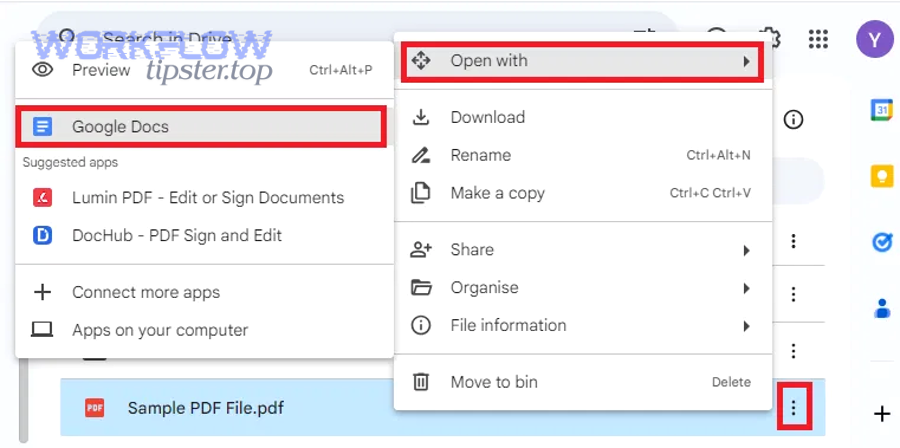
You can convert manually by using Open with → Google Docs (for PDFs/images) or by opening a compatible document and saving it as a Google Doc, depending on the file type.
To keep the workflow clear: manual conversion is best when you need control—because it lets you choose when to convert, what to keep, and how to name the new Doc.
Convert Word/Office documents (DOCX) in Drive
If your starting point is a Word file stored in Drive, your manual conversion goals are usually: (1) preserve content, (2) preserve headings, (3) preserve collaboration features.
A simple manual path:
- Upload the DOCX to Drive.
- Open it in a Google editor.
- If it remains in DOCX mode, create a Google Doc copy (so it becomes native and consistent).
Practical checks that tell you whether you’re still in DOCX mode:
- You see a file indicator like “.DOCX” next to the filename (common in many interfaces).
- Some advanced Docs features behave differently (certain add-ons, formatting behaviors, or import quirks).
Recommended manual rule:
- If you need long-term collaboration, comments, and version history inside Google’s ecosystem, create/convert to a native Google Doc (don’t stay in DOCX mode indefinitely).
Convert PDFs and images using OCR (“Open with Google Docs”)
For PDFs and photos, Google Drive can convert an image-based file to text by opening it with Google Docs, but formatting may not transfer cleanly. (support.google.com)
Here’s the reliable manual workflow (OCR-driven):
- Upload the PDF or image file to Drive.
- Right-click the file.
- Click Open with → Google Docs. (support.google.com)
- Review the output: extracted text appears, while the original visual content may be placed above or alongside the text.
OCR preparation tips (these matter a lot):
- Keep file size small when possible (Drive OCR guidance mentions a 2 MB threshold). (support.google.com)
- Use sharp images with even lighting and clear contrast. (support.google.com)
- Make sure the document is right-side up (rotate first). (support.google.com)
What you should expect to retain vs. lose:
- Likely retained: bold, italics, font size/type, line breaks (support.google.com)
- Often not detected: tables, columns, footnotes, endnotes (support.google.com)
Convert TXT (or simple text files) into a clean Google Doc
Plain text is where conversion is easiest—because the content is already text, not layout.
Best practice:
- Convert first, then apply formatting in Docs (Headings, lists, styles).
- If you’re migrating notes or documentation, create a “style pass” checklist:
- Apply H1/H2/H3 headings
- Normalize bullet styles
- Add links/bookmarks
- Insert tables only after the text is stable
How can you set Google Drive to automatically convert uploads to Google Docs format?
You can enable automatic conversion by turning on the Drive setting “Convert uploads to Google Docs editor format” in Drive settings on a computer. (support.google.com)
To make the setting actionable: this is the best option for teams who repeatedly upload DOCX files and want every upload to arrive in a collaborative Google Docs format without manual steps.
The official steps are straightforward:
- On a computer, go to Drive settings (Drive web settings page). (support.google.com)
- Next to “Convert uploads to Google Docs editor format,” check the box. (support.google.com)
When automatic conversion is a smart default:
- Your org standardizes on Google Docs format internally
- You want consistent collaboration features (comments, suggestions, version history)
- Most uploads are Word documents that don’t require strict DOCX fidelity
When automatic conversion can backfire:
- You frequently must deliver or preserve exact Office formatting
- Your workflow depends on keeping DOCX files as the “source of truth”
- You upload mixed file types and don’t want silent format changes
If you’re in a mixed environment, a strong compromise is:
- Keep auto-convert off
- Convert only when a document becomes “active collaboration work”
- Preserve originals in an “_Originals” subfolder for auditability
Google Docs vs storing files in Drive: what’s the difference after conversion?
After conversion, the key difference is that you now have a native Google Doc (a Docs-format file) rather than a non-native file that merely lives in Drive—this affects editing behavior, collaboration, and how reliably the document maintains structure in Google’s editor.
To clarify the common misconception: Drive will store both kinds of files, but Docs will behave differently depending on whether the file is truly a Google Doc or just a Word/PDF being opened.
What typically improves after converting to a native Google Doc:
- More consistent editing experience inside Docs
- Cleaner collaboration flows (comments, suggestions)
- Better integration with other Workspace tools (templates, add-ons, linking)
What you should watch after converting:
- You may now have two files: the original upload and the converted Doc (depending on method).
- Links and shares can drift if teammates keep using the old file.
- Naming conventions become critical (so nobody edits the wrong “version”).
A practical team rule:
- Add a suffix/prefix standard, for example:
- Project Proposal (DOCX – Original)
- Project Proposal (Google Doc – Working Copy)
If your organization uses Google Workspace heavily, a native Doc is often the “collaboration-first” format, while the original Office file is the “exchange” format (for clients, legal, or legacy systems).
What common issues happen when converting Drive files to Google Docs and how do you fix them?
The most common conversion issues are formatting loss, layout shifts, OCR errors, and permission confusion, and each one has a predictable fix if you diagnose it early.
To keep your edits safe: always decide whether you’re fixing the converted Doc or you should revert and choose a different conversion method (especially for complex PDFs).
Issue 1: Formatting loss (especially in PDFs)
Symptoms:
- Headings collapse into body text
- Spacing becomes inconsistent
- Lists become plain lines
Fix strategy:
- Treat conversion as “text extraction,” then rebuild formatting using Docs styles:
- Re-apply Heading 1/2/3
- Rebuild lists with Docs bullets/numbering
- Recreate tables natively (instead of hoping OCR guessed them)
Also remember: Google Drive explicitly notes that some formatting is likely retained, but tables/columns are not likely to be detected in OCR conversions. (support.google.com)
Issue 2: Tables/columns don’t survive OCR
Symptoms:
- Columns merge into a single stream
- Tables become jagged text blocks
Fix strategy:
- If structure matters, consider:
- Extracting text, then rebuilding tables manually
- Converting PDF → Word first (when you have that option), then Word → Google Docs
- If the document is “table-first” (invoices, multi-column forms), don’t expect a perfect one-click conversion; plan for reconstruction.
Issue 3: OCR errors (wrong characters, missing words)
Symptoms:
- “O” becomes “0”
- “l” becomes “1”
- Diacritics or special characters degrade
Fix strategy:
- Improve the source image quality:
- higher contrast
- straighten/rotate
- increase resolution
- Re-run conversion if needed, and validate with search (Ctrl+F) for known keywords.
Evidence (why OCR quality matters and is improving): According to a study by University of Innsbruck from the Department of Computer Science, in 2024, transformer-based approaches in scanned-document understanding have been shown to improve accuracy by up to 25% compared to traditional methods, and report average improvements of 10–15% in key extraction tasks. (link.springer.com)
Issue 4: Permission confusion (people can’t edit, or edit the wrong file)
Symptoms:
- Teammates request access even though they had access “yesterday”
- Someone edits the original upload while others edit the converted Doc
Fix strategy:
- Share the converted Doc link explicitly in the place people work (task card, Slack thread, project doc).
- Lock down “Originals” folder permissions to view-only.
- Use a single “Working” folder where only native Docs live.
How can you optimize (or automate) a Drive-to-Docs workflow for teams?
You can optimize a Drive-to-Docs workflow by standardizing foldering, naming, conversion rules, and automation triggers so the team always knows which file is the editable source of truth.
To make the workflow stick, treat it like a lightweight operations system—not a bunch of one-off tips.
Build a simple folder system that prevents duplicate “truth”
A practical, low-friction structure:
/Project Name/01_Originals(uploads; view-only)/Project Name/02_Working Docs(native Google Docs only)/Project Name/03_Exports(PDF/DOCX outputs)
This reduces the classic “two files, two realities” problem.
Use naming conventions that encode status
Examples:
Client Contract - WORKING (Google Doc)Client Contract - SIGNED (PDF)Client Contract - ORIGINAL (Scan)
When a teammate searches Drive, the naming tells them what to open.
Add Automation Integrations without overcomplicating
If your team uses Automation Integrations, the strongest use case is: automate the boring routing, not the core editing.
Examples of safe automation:
- When a file is uploaded to
/01_Originals, notify a channel and assign an owner. - When a Doc moves to
/03_Exports, trigger a review checklist.
This is also where cross-tool workflows come in—someone might connect project work like calendly to trello scheduling, or coordinate assets via basecamp to airtable pipelines, while still keeping the document editing truth inside Docs.
If you publish or document these workflows publicly, a simple internal hub page (even something like WorkflowTipster.top) can help onboard teammates quickly—just make sure it links to the Working Docs folder and clarifies when to convert vs. when to preserve originals.
Decide your conversion policy (team-level)
Pick one of these and document it:
- Convert-by-default (enable the Drive setting) for Docs-first organizations. (support.google.com)
- Convert-on-demand for mixed-format orgs (clients require DOCX fidelity).
- Hybrid: convert DOCX automatically, but handle PDFs/images manually with OCR expectations. (support.google.com)
Once your policy is clear, “google drive to google docs” stops being a question—and becomes a repeatable, scalable content workflow.