


If you want every customer request captured the moment it’s submitted, the simplest path is to automate a Google Forms → Help Scout intake workflow so each new form response becomes a trackable conversation your team can triage and answer quickly. (zapier.com)
If you also need to decide how to build that workflow, this guide will help you choose between no-code connectors, workflow builders, and more advanced options based on routing complexity, security requirements, and volume. (zapier.com)
If your goal is consistent, agent-friendly tickets (not messy copies of form answers), you’ll learn how to map fields cleanly into the right mailbox, tags, and structure so every conversation is actionable the first time an agent opens it. (zapier.com)
Introduce a new idea: once the workflow works end-to-end, you can shift from “it creates tickets” to “it creates good tickets”—reliable, secure, deduplicated, and scalable.
What does it mean to “connect Google Forms to Help Scout” for support intake?
Connecting Google Forms to Help Scout is a support-intake workflow where a new form submission automatically creates a Help Scout conversation with the requester’s details, issue context, and routing metadata so your team can respond without manual copy-paste.
To keep the “sync—not-manual” promise, the key is not just creating a conversation, but creating one that lands in the right place, with the right structure, and with enough context to be handled fast.

What should a good support-intake conversation contain from a form response?
A good support-intake conversation should contain the requester identity, a clear subject, a readable issue body, and structured context that helps your team triage in seconds instead of minutes.
Specifically, think of every ticket as two layers:
- Layer 1 (human-readable): what an agent sees at a glance
- Requester email (and name if collected)
- A subject line that summarizes the issue
- A clean message body that includes the customer’s words and important fields (order ID, product, urgency)
- Layer 2 (machine-sortable): what the inbox uses to route and filter
- Mailbox destination (or a default mailbox if unsure)
- Tags (e.g., “billing”, “bug”, “feature-request”)
- Optional custom fields (account plan, region, product module)
- Priority signals derived from the form (e.g., “Production down”)
Then, add one practical “intake summary” block at the top of the message body so agents don’t hunt through long answers. A consistent template prevents the classic problem where every form response becomes a wall of text that slows down response times.
What are the most common use cases for this automation in customer support teams?
There are 4 main types of Google Forms → Help Scout support intake automations—Contact Requests, Bug Reports, Feature Requests, and Internal Requests—based on the triage goal .
Then, align each type to a default mailbox and tag strategy:
- Contact Requests (general questions)
- Criterion: unclear category, broad inquiries
- Best practice: default mailbox + “general” tag + optional product selection tag
- Bug Reports (technical issues)
- Criterion: reproducible problem, screenshots/steps, impact level
- Best practice: “bugs” mailbox (or tag) + severity field + structured reproduction steps
- Feature Requests (product feedback)
- Criterion: “I wish it could…” or “Please add…”
- Best practice: “feature-requests” mailbox/tag + product area + importance score
- Internal Requests (IT/ops intake)
- Criterion: employee-facing workflows, internal service desk pattern
- Best practice: separate mailbox + restricted visibility + higher requirement for standard fields
This classification matters because it prevents a single inbox from becoming a dumping ground and keeps automation aligned to ownership.
Can you automate Google Forms submissions into Help Scout conversations without coding?
Yes—you can automate Google Forms submissions into Help Scout conversations without coding because no-code connectors can (1) detect new form responses, (2) create Help Scout conversations automatically, and (3) pass mapped fields like requester email, subject, and message into a consistent ticket format. (zapier.com)
However, “no code” only works smoothly when you design the intake form and mapping rules intentionally, rather than treating the form as a free-text email replacement.
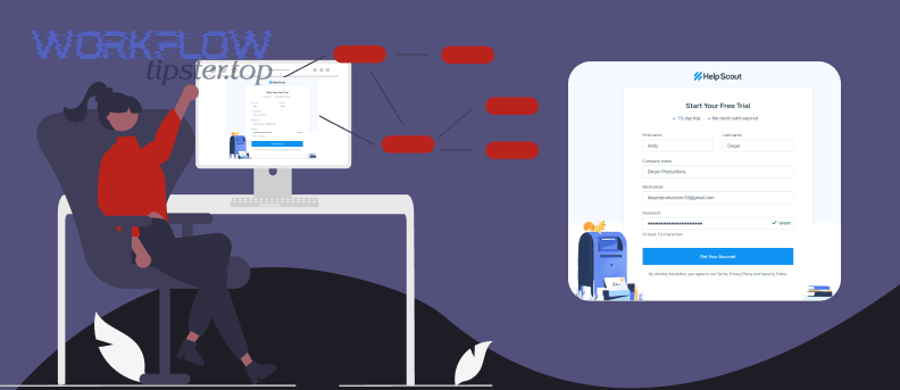
Which no-code paths can you use to connect Google Forms to Help Scout?
There are 3 main types of no-code paths to connect Google Forms to Help Scout—template connectors, workflow builders, and webhook-style bridges—based on the level of control you need.
- Template connectors (fastest to launch)
- Best for: simple “new form response → create conversation”
- Strength: quick setup, common triggers/actions
- Example platform: Zapier (often offers ready-made recipes) (zapier.com)
- Workflow builders (more logic, more steps)
- Best for: conditional routing, enrichment, multi-step actions
- Strength: branches, data formatting, multi-tool chains
- Examples: Make, n8n
- Webhook-style bridges (advanced intake patterns)
- Best for: custom payloads, strict control of data shape
- Strength: lets you standardize a single “ticket creation” payload across many form sources
- Tradeoff: higher setup complexity and governance overhead
If you want a fast win, start with a template connector, but still design your form questions so they map cleanly into fields your team actually uses.
When is a no-code setup not enough for support intake?
No—a basic no-code setup is not enough when your support intake requires (1) complex conditional routing across multiple mailboxes, (2) strict compliance/PII controls, or (3) high-volume reliability features like deduplication and rate-limit handling.
In practice, you’ll feel “no-code strain” when:
- You need branching logic that depends on multiple answers (product + region + customer tier).
- You must prevent duplicate tickets when users resubmit or edit responses.
- You require consistent formatting across many different forms and teams.
- You need auditability (who changed what rule, when, and why).
- You see spikes (campaigns, outages) where ticket creation must be throttled and retried safely.
At that point, you don’t necessarily need to code immediately—but you do need a more structured workflow builder approach and a clearer data model.
How do you set up the core workflow step-by-step (Form response → Help Scout conversation)?
The core method is a 7-step setup—connect accounts, choose a trigger, choose a “create conversation” action, map fields, define routing metadata, test scenarios, and monitor failures—so every form submission reliably becomes a Help Scout conversation your agents can work immediately. (zapier.com)
To begin, treat this as a support system design exercise, not a one-click automation: your form is the intake interface, and your Help Scout mailbox is the queue.

Here is the step-by-step flow most teams can follow tool-agnostically:
- Decide the destination mailbox (start simple: one mailbox, then branch later)
- Define the minimum ticket schema (requester email, subject, body, category)
- Connect your automation tool to Google Forms (authorize access)
- Connect your automation tool to Help Scout (authorize mailbox access)
- Set trigger = new form response
- Set action = create Help Scout conversation (zapier.com)
- Map and format fields (so the message is readable + sortable)
- Run structured tests (happy path + edge cases)
- Turn on monitoring (alerts for failed runs / missing required fields)
To make the workflow easier to maintain, keep a short “mapping spec” document: which form question powers which ticket field and tag.
How do you map Google Forms questions to the right Help Scout fields?
You map Google Forms questions to Help Scout fields by turning raw answers into (1) a clear subject line, (2) a structured ticket body, and (3) consistent routing metadata so the conversation is both readable and filterable.
Next, use a predictable formatting template in the Help Scout message body. For example:
- Subject pattern: [Issue Type] – [Product/Area] – [Short summary]
- Body pattern: a short intake summary, then the full customer answer
Before you implement, it helps to visualize the mapping in a small reference table. The table below shows a typical support-intake mapping structure and what each field is “for.”
| Google Forms Question | Help Scout Destination | Why it matters in support intake |
|---|---|---|
| Email address | Requester email | Enables replies + identity resolution |
| Full name | Requester name | Reduces back-and-forth and builds trust |
| Issue type (dropdown) | Tag (e.g., billing/bug) | Routes and filters quickly |
| Product area | Tag or custom field | Improves triage ownership |
| What happened? (long text) | Conversation body | Core problem statement |
| Urgency | Priority tag or custom field | Supports SLAs and escalation |
Then, apply two quality rules:
- Rule 1: Put structured context at the top. Agents should not scroll to find category, urgency, or order ID.
- Rule 2: Keep the customer’s original words intact. Automation should preserve meaning, not rewrite or compress it beyond recognition.
If you later add conditional routing, keep your mapping stable; change routing rules, not the meaning of fields.
How do you test and validate the automation before going live?
You test and validate by running 5 scenario-based submissions—a normal request, a bug report, a missing-email edge case, a “high urgency” case, and a multi-line detailed message—then confirming that each scenario creates the right Help Scout conversation with correct routing, formatting, and agent usability.
Then, validate in this order :
- Trigger fired: did a new form response get detected?
- Conversation created: does a ticket exist in Help Scout?
- Requester correctness: is the requester email correct and reply-ready?
- Formatting correctness: is the subject readable and the body structured?
- Routing correctness: mailbox, tags, assignment rules work as intended
Finally, run a “realistic agent test”: ask an agent to handle a test ticket from start to finish. If the agent needs to open the form or ask follow-up questions for basic context, the intake schema is incomplete and will slow down your actual response times.
Which fields, tags, and routing rules should support teams use for faster triage?
There are 3 core routing layers support teams should use—mailbox destination, tags for classification, and optional custom fields for precision—based on how quickly an agent needs to recognize ownership, priority, and next action.
Then, align the intake design to what agents actually do: scan the list, open the conversation, decide ownership, respond or escalate.

What are the essential tags or categories you should capture from the form?
There are 6 essential tags/categories you should capture—Issue Type, Product Area, Urgency, Customer Tier, Region, and Source—based on the criterion “does this change triage decisions?”
Here’s a practical tagging approach:
- Issue Type: billing / bug / account / how-to / feedback
- Product Area: onboarding / integrations / reporting / permissions
- Urgency: urgent / standard / low (derived from an urgency question)
- Customer Tier: trial / basic / pro / enterprise (if applicable)
- Region/Timezone: helps with scheduling and localized issues
- Source: “google-form-intake” so you can analyze channel performance
Keep the form simple by using dropdowns for categories instead of open text. Dropdowns increase data cleanliness, which makes automation more reliable and triage faster.
Also, build one “catch-all” value like Other for every classification question. Automation breaks when a form answer can’t map to a tag, so your taxonomy must include a safe fallback.
Should you route by mailbox, by tag, or by assignment—and how do you choose?
Mailbox wins for ownership clarity, tags are best for flexible classification, and assignment is optimal for small teams with stable coverage.
Next, choose using these criteria:
- Choose mailbox routing when different teams own different categories (Billing vs Technical vs Partnerships).
- Choose tag-based routing when ownership changes often or triage needs are flexible (rotations, shared ownership).
- Choose direct assignment when your team is small and you have clear “first responder” rules.
A simple decision heuristic:
- If the question is “Who owns this?” → use mailbox.
- If the question is “What is this?” → use tags.
- If the question is “Who should answer right now?” → use assignment.
If you want to go one level deeper, treat mailbox routing as the “macro queue” and tags as the “micro filters.” That division keeps the system understandable as your team grows.
What is the best way to handle confirmations and follow-ups: email replies vs auto-replies vs internal notes?
Email replies win for personalized resolution, auto-replies are best for instant expectation-setting, and internal notes are optimal for agent context and consistency.
Then, combine them carefully: your automation should not create a confusing “double response” where a customer gets an auto-reply and then an agent reply that repeats it.

Should the form send a confirmation message, or should Help Scout handle it?
A form confirmation is best for instant reassurance, while Help Scout is better for case-specific follow-up and continuity—so the most effective pattern is a short form confirmation plus a structured Help Scout workflow for real responses.
Next, use this split:
- Google Forms confirmation message:
- Purpose: “We got it” + response window + what to include next time
- Keep it short: no troubleshooting, no promises you can’t keep
- Help Scout follow-up:
- Purpose: real response, clarifying questions, resolution steps
- Keeps conversation history in one place, including agent notes and tags
This is also where you can naturally connect broader Automation Integrations across your support operations: a consistent intake confirmation pattern reduces anxiety for users while giving your team space to triage properly.
If your audience includes business users who already submit requests through email, you can mention alternative pathways like Microsoft Outlook (e.g., “google forms to outlook” as another intake channel) or Microsoft Teams (e.g., “google forms to microsoft teams” notifications) as complementary, not competing, workflows.
How do you add internal context so agents don’t re-triage every request manually?
You add internal context by injecting one standardized intake summary plus agent-facing notes that define the first action, ownership, and risk signals so agents spend time solving, not reformatting.
Next, use a repeatable internal-note template that can be created automatically:
- Intake Summary (agent view):
- Category: [Issue Type]
- Impact: [Urgency]
- Customer context: [Tier/Account]
- Next step: [Troubleshooting checklist link or internal playbook]
- Escalation triggers:
- “Payment failed” + enterprise = escalate
- “Data loss” keywords = priority
This is also where cross-tool workflows can support your agents: if you run documentation in Notion and your support system is elsewhere (e.g., “freshdesk to notion” knowledge workflows), you can keep your internal playbooks aligned with the tags your intake form produces.
Why do automations fail—and how do you troubleshoot missing tickets, duplicates, or wrong routing?
Automations fail mainly because (1) authentication expires or permissions change, (2) required fields aren’t mapped consistently, or (3) routing logic creates edge cases—so troubleshooting should start with trigger history, then field mapping, then routing rules.
Next, diagnose failures in the same order your system executes them: trigger → create conversation → apply tags/routing → notify/assign.

What should you check first if no conversations are created?
There are 6 first checks you should run—Connection, Trigger Runs, Permissions, Required Fields, Mailbox Target, and Error Logs—based on the criterion “what breaks most often.”
- Connection: Are Google and Help Scout accounts still authorized?
- Trigger runs: Do you see the automation detecting new form responses?
- Permissions: Does the connected Help Scout account have mailbox access?
- Required fields: Is requester email present and mapped correctly?
- Mailbox target: Is the conversation being created in the expected mailbox?
- Error logs: What does the run history say (timeout, missing field, auth)?
A common hidden failure is an intake form that allows submissions without an email address. If your workflow expects an email for “requester,” ticket creation may fail silently or create unusable conversations. Prevent this with form validation and a required email field.
How do you prevent duplicates and bad data from polluting your support queue?
You prevent duplicates and bad data by using (1) unique identifiers, (2) form constraints, and (3) routing-safe fallbacks so one customer action doesn’t create multiple tickets and one messy answer doesn’t break your classification.
Next, apply these practical controls:
- Unique identifier strategy:
- Include a “Submission ID” (timestamp + short random code) at the top of every conversation body.
- If your tooling supports it, store that ID so reruns don’t create duplicates.
- Form constraints:
- Use dropdowns for issue type and product area.
- Require email.
- Add character guidance (“Include your order ID if billing-related”).
- Routing-safe defaults:
- If category is unknown → default mailbox + “needs-triage” tag.
- If urgency is missing → default to standard.
Finally, treat deduplication as both a technical and a human problem: the better your form prompts and classification options, the less often customers resubmit because they feel unheard.
How can you make the Google Forms → Help Scout workflow scalable, secure, and “sync—not-manual” in edge cases?
You make the workflow scalable and secure by adding (1) conditional routing for complexity, (2) PII minimization for safety, and (3) monitoring and load-handling for reliability—so the system stays “sync—not-manual” even under spikes, policy changes, and messy real-world inputs.
Then, treat response speed as a customer-experience lever: faster and more predictable handling tends to improve satisfaction, especially when customers perceive that you respond sooner than expected. According to a study by BI Norwegian Business School from the Department of Marketing, in 2023, researchers reported evidence across three studies that customers are very satisfied when waiting shorter than expected, while slightly longer-than-expected waits tend to reduce satisfaction only modestly until delays become much longer. (bi.no)

How do you route submissions to different mailboxes using conditional logic (department, product, region)?
You route submissions with conditional logic by branching on one primary ownership variable first (department or product), then refining with secondary variables (region, tier), and finally falling back to a default mailbox to prevent “lost” tickets.
Next, design routing like a decision tree:
- First branch: Ownership
- Billing → Billing mailbox
- Technical → Support mailbox
- Partnerships → Partnerships mailbox
- Second branch: Product line / module
- “API” module → Technical / API queue
- “Onboarding” module → Support / Onboarding queue
- Third branch: Region or timezone
- Route to region mailbox only if staffing actually differs by region
- Fallback branch: Needs triage
- If anything is missing → default mailbox + “needs-triage” tag
The key is governance: keep routing rules few, explainable, and stable. When routing becomes too granular, the workflow becomes fragile and your team returns to manual triage—exactly what you’re trying to eliminate.
What are best practices for PII minimization and secure handling of customer data from forms?
There are 5 best practices—collect least data, avoid sensitive fields, limit access, control retention, and standardize redaction—based on the criterion “reduce risk without breaking support intake.”
Next, translate that into concrete form and workflow decisions:
- Collect least data: Only ask for what’s required to solve the issue.
- Avoid sensitive fields: Don’t request passwords, full payment details, or government IDs.
- Limit access: Keep internal-request mailboxes separate; restrict mailbox permissions.
- Control retention: If you must collect identifiers, prefer partials (last 4 digits) and store the rest in secure systems.
- Standardize redaction: If a customer enters sensitive info anyway, instruct agents how to remove it consistently.
This is where tool choice matters: advanced workflow builders may help enforce stricter policies, while simpler connectors rely more on process discipline and training. If you publish your workflow standards publicly (for example, on WorkflowTipster.top), make sure they describe data handling principles without revealing internal security details.
How do you monitor failures and handle high-volume spikes without losing tickets?
You handle spikes by adding run monitoring, error alerts, retries, and graceful degradation so failures are visible and recoverable instead of silent.
Then, define what “failure” means:
- A form submission occurred, but no conversation exists.
- A conversation exists, but routing metadata is missing.
- A conversation exists in the wrong mailbox.
Next, implement these practical safeguards:
- Monitoring: daily check of automation run logs + weekly audit sample
- Alerts: notify a shared channel when ticket creation fails (so one person doesn’t carry the burden)
- Retries: rerun failed jobs with a unique submission ID to avoid duplicates
- Graceful degradation: if branching fails, fall back to a default mailbox rather than dropping the ticket
If you want notifications beyond Help Scout, you can add a second action that posts to a team channel (e.g., a “new intake received” message), but keep it informational so it doesn’t become noise.
When should you move from no-code to custom/API or self-hosted automation—and what changes?
No-code wins for speed, custom/API wins for governance and flexibility, and self-hosted automation is optimal for teams that need full control over security, uptime, and data handling.
Next, use a clear upgrade threshold:
- Stay no-code when routing is simple, volume is manageable, and compliance needs are standard.
- Move to custom/API when you need strict data shaping, deep integration with internal systems, or auditable change management.
- Move to self-hosted when you require full control over data residency, security posture, and workflow reliability at scale.
If you’re building a broader automation stack, it helps to see each workflow as one node in a larger system—so “Google Forms → Help Scout” can sit alongside other Automation Integrations without becoming a one-off patchwork.