


Syncing Google Forms responses to a Notion database is a practical way to turn raw submissions into structured, searchable team data—automatically—so your team can triage requests, track status, and move work forward without manual copy-paste.
Next, the best setup depends on your constraints: some teams want the fastest “plug-and-play” connection, while others need more control over mapping, routing, and multi-step logic—so the method you choose matters as much as the steps you follow.
Then, once you pick a method, you still need to build the workflow correctly: design the Notion database schema, map each form question to the right property type, test edge cases, and document ownership so the automation doesn’t break when the form evolves.
Introduce a new idea: after the core workflow is running, you can tighten reliability for team operations by adding deduplication rules, monitoring, and data-quality safeguards—so you keep an “inbox you can trust,” even at higher submission volume.
What does it mean to sync Google Forms responses to a Notion database for teams?
Syncing Google Forms responses to a Notion database is a one-way automation that converts each new form submission into a new database item in Notion, preserving answers as properties so a team can sort, assign, and track work in a shared system.
To better understand why this matters, it helps to separate the “form experience” (collecting inputs) from the “team system” (processing, triaging, and reporting on those inputs).
When teams say “sync,” they usually mean:
- Trigger: a new Google Forms response is submitted.
- Action: a new Notion database item is created.
- Mapping: each form question becomes a Notion property (text, select, date, etc.).
- Team workflow: the database becomes an intake queue with views like New, In Progress, Done, Needs Follow-Up.
This distinction is important because Google Forms is optimized for collection, not for ongoing operations. Notion databases, on the other hand, are built for structured tracking: views, filters, statuses, owners, and linked workflows. So the integration is less about “moving data” and more about turning responses into trackable work.
What data from Google Forms can be sent to Notion, and how is it structured?
Google Forms submissions can be sent to Notion as a structured set of fields—each answer becomes a value you store in a Notion database property, often along with metadata like submission timestamp and respondent identity (if collected).
More specifically, think of the response as a record with two layers:
- Core answers (the content)
- Short answer → Notion text property
- Long answer → Notion text property
- Multiple choice → Notion select property
- Checkboxes → Notion multi-select property
- Date/time → Notion date property
- Operational metadata (the context)
- Submission timestamp
- Source form name/campaign (if you capture it)
- Team routing tag (e.g., “Sales,” “Support,” “HR”)
- Status defaults (“New”) and owner defaults (“Unassigned”)
A team-friendly structure usually includes:
- Title property (required in many Notion database workflows): use a meaningful label like “Request from {Name}” or “Lead: {Company}”
- Status property: New → Triaging → In Progress → Done
- Owner property: a People field for accountability
- Tags / Category property: consistent classification for filtering
- Notes property: a long text field for internal comments
Do you need Google Sheets to connect Google Forms to Notion?
No, you do not always need Google Sheets to connect Google Forms to Notion, because many no-code tools can trigger directly from a new form response—but Sheets can still be useful as a staging layer, a log, or a transformation step depending on your method.
However, you may still want Sheets when you need:
- Data normalization (cleaning text, splitting full names, formatting phone numbers)
- Derived fields (e.g., scoring leads, calculating priority)
- Auditing (keeping a raw record of every submission)
- Fallback (if a tool misses a run, you can replay from the sheet)
In team operations, Sheets often becomes your “receipt”—a simple ledger—while Notion is the collaborative workspace.
Which no-code method is best for integrating Google Forms with Notion: Zapier, Make, or an add-on?
Zapier wins in speed and simplicity, Make is best for flexible multi-step logic, and an add-on is optimal for the most direct “store responses in Notion” use case—so the best method depends on whether your team prioritizes setup time, control, or simplicity.
To better understand the tradeoffs, compare them across criteria your team will feel every week: setup time, maintainability, routing logic, and reliability.
Before the table, here’s what it contains: a practical comparison of Zapier vs Make vs a Form-to-Notion-style add-on, based on what teams typically need for intake workflows.
| Method | Best for | Strength | Tradeoff |
|---|---|---|---|
| Zapier | Teams that want a fast, guided setup | Very quick to build and maintain | Less flexible for complex branching without higher plans |
| Make | Teams that want advanced logic and transformations | Powerful routing, parsing, and multi-step scenarios | More setup complexity, requires careful testing |
| Add-on | Teams that only need “responses → Notion table” | Direct and focused workflow | Narrower feature set, fewer advanced controls |
In practice, many organizations start with Zapier (fast launch) and later shift to Make when the workflow needs branching, transformation, or higher volume controls.
How does Zapier compare to Make for Google Forms → Notion workflows?
Zapier wins in ease-of-use and guided configuration, while Make is better for complex routing and data transformation—so Zapier is ideal for straightforward intake, and Make is ideal for workflows that must “think.”
However, the real difference shows up in day-to-day operations:
- Zapier (simple, stable)
- Clear trigger/action model
- Faster onboarding for non-technical teammates
- Easier to hand off to a new owner
- Strong fit for “New response → Create database item”
- Zapier explicitly supports this pattern as a standard integration flow. (zapier.com)
- Make (flexible, modular)
- Better for multi-step chains: enrich → route → create → notify
- Stronger parsing options (split, regex-like transformations, conditional routers)
- More natural for “one form → multiple Notion databases” scenarios
- Requires careful testing and documentation for team continuity
If your team is building multiple Automation Integrations across departments, Make can become a “workflows platform,” while Zapier stays a dependable “quick automation layer.”
When should you use a Form-to-Notion add-on instead of an automation platform?
You should use a Form-to-Notion add-on when your only goal is to store responses in Notion (and optionally embed the form), because it minimizes setup and reduces decisions—especially for teams that don’t want to manage a broader automation tool.
On the other hand, an add-on is less ideal when you need:
- multi-step logic (enrichment, scoring, or branching),
- routing to multiple destinations,
- advanced deduplication,
- or team-grade monitoring.
A good rule: if your workflow is basically “collect → store → view,” an add-on is enough. If it becomes “collect → transform → route → track → alert,” you want Zapier or Make.
How do you set up a Google Forms to Notion automation step-by-step?
You set up a Google Forms to Notion automation using a universal 6-step method—design the Notion database, prepare the form fields, connect the apps, map properties, test edge cases, and deploy with team ownership—so every new submission becomes a reliable Notion database item.
Then, the most important idea is that your automation is only as clean as your database schema and mapping discipline, so you should start in Notion—not in the automation tool.
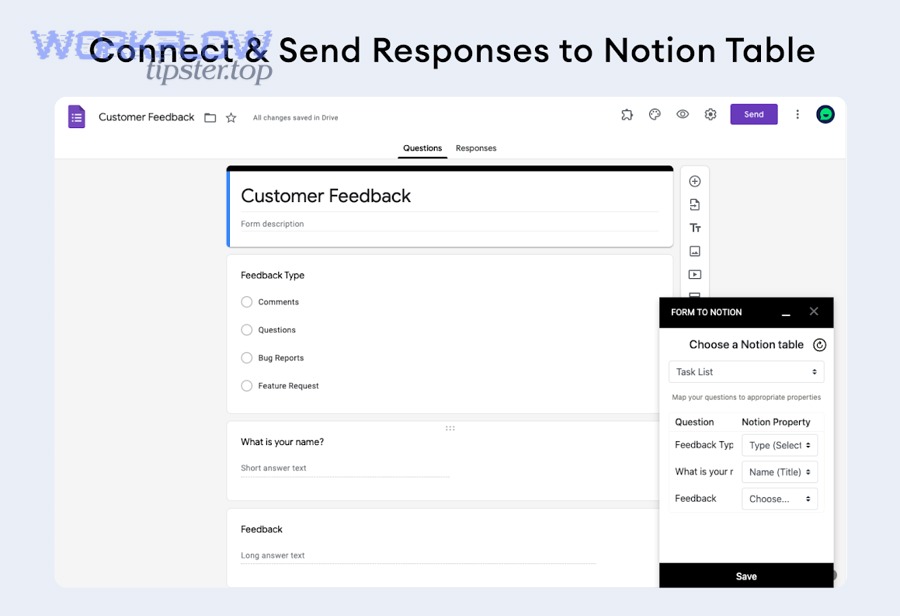
Here is the step-by-step method teams can follow regardless of tool:
- Create a dedicated Notion database (an intake “home”)
- Design properties (Title, status, tags, owner, source fields)
- Finalize the Google Form (questions, required fields, validation)
- Connect the automation tool (authenticate Google + Notion)
- Map each field carefully (question → correct Notion property type)
- Test and deploy (real submission tests + monitoring plan)
You can also embed one tutorial video to see a full flow end-to-end:
How do you prepare the Notion database properties for clean form-response mapping?
You prepare the Notion database by creating a small set of standardized properties—Title, Status, Owner, Category/Tags, Timestamp, and raw response fields—so the automation can map consistently and your team can triage submissions in views.
Specifically, a team-ready database should include:
- Title (required): “Request – {Name} – {Date}” or “Lead – {Company}”
- Status (select): New / Triaging / In Progress / Done
- Owner (people): assigned teammate (optional default: unassigned)
- Category (select): Sales / Support / Ops / HR (or your routing taxonomy)
- Tags (multi-select): product line, issue type, priority labels
- Submitted at (date): the submission timestamp
- Email / Phone (text): if you collect them
- Details (text): long-form message/notes
Then build views that match your operating rhythm:
- Inbox view: Status = New
- My queue: Owner = me AND Status ≠ Done
- SLA/priority view: filter by “Urgent” tags or deadlines
- Weekly report view: grouped by category or owner
This database design is what makes the integration useful for a team rather than just “data storage.”
How do you map Google Forms questions to Notion properties without breaking the workflow?
You map Google Forms questions to Notion properties by matching each question type to the correct Notion property type, keeping naming consistent, and avoiding schema changes after launch—so the automation stays stable and your data stays filterable.
For example:
- Multiple choice → Select (Notion)
- Checkboxes (multiple answers) → Multi-select
- Date question → Date
- Email question → Text (or dedicated Email field if you standardize)
- “Department” → Select (so routing stays consistent)
Key cautions that prevent breakage:
- Don’t rename properties casually once the workflow is live (rename = remap work).
- Keep required fields consistent (if Notion “Title” is required, ensure it always gets a value).
- Avoid free-text categories when you need reporting (use select/multi-select).
- Maintain a mapping sheet (question → property → type → notes) so teammates can update safely.
This is also where you can naturally think about adjacent workflows—for example, if you later sync tasks from google forms to monday, you’ll want the same discipline: stable property types, consistent category taxonomy, and documented mappings.
What are the most common issues when syncing Google Forms to Notion, and how do you fix them?
There are five common issues when syncing Google Forms to Notion—connection permissions, missing required fields, wrong property types, duplicate entries, and silent failures—and you fix them by validating access, enforcing schema rules, adding deduplication logic, and monitoring runs.
Next, treat troubleshooting like a checklist: diagnose the “where” (Google trigger vs Notion action) before changing anything.
Here are the issues and the practical fixes:
- Automation runs, but nothing appears in Notion
- Usually a permission scope or wrong database selection
- Notion item created, but properties are blank
- Mapping mismatch or property type mismatch
- Errors after form edits
- The question IDs changed or the tool cached old fields
- Duplicates
- Replays, retries, or multiple triggers for the same response
- Team ownership problems
- The original owner account was removed or lost access
Why isn’t my automation creating new Notion database items?
Your automation is not creating new Notion database items because either the connection lacks permission, the workflow points to the wrong database, or Notion’s required fields (especially the Title) are not being populated—so the action fails or never completes.
To illustrate, check the failure points in this order:
- Authentication: is the connected Notion account allowed to edit the target database?
- Database selection: did you pick the correct database (not a view or a different workspace)?
- Required fields: does your action set a Title value every time?
- Test submission: did you submit a new response after publishing changes?
Then retest with a minimal mapping: Title + one field. Once it works, add fields one by one, so you can identify which mapping breaks.
How do you prevent duplicate Notion entries from repeated submissions or replays?
There are 3 main types of duplicate-prevention patterns: (1) unique key matching, (2) “find or create” logic, and (3) logging-and-replay control—based on whether your tool can search Notion before creating an item.
More specifically, use these practical strategies:
- Unique key strategy (simple)
- Create a Notion property like Response ID or Submission Key
- Store a unique value (timestamp+email, or a tool-provided response ID)
- Before creating a new item, search Notion for that key (if your tool supports it)
- Find-or-create strategy (best)
- Step A: Search database for existing key
- Step B: If found → update item
- Step C: If not found → create item
- Logging and replay control (team-grade)
- Write each processed submission key into a log table (Notion or Sheets)
- Only process keys that are not already logged
- If you must replay, replay from the log, not from raw form history
This matters because automation tools sometimes retry actions after timeouts, and those retries can create duplicates unless you design around uniqueness.
Is this integration reliable enough for a team intake workflow?
Yes, syncing Google Forms responses to a Notion database is reliable enough for a team intake workflow because it reduces manual entry errors, creates consistent structured records, and supports repeatable triage—if you add monitoring, change control, and stable mappings.
However, reliability is not only “does it run,” but also “does the team trust the inbox,” so you need to plan for schema changes and visibility into failures.
A key operational reason teams automate is to reduce transcription mistakes. According to a study by University of South Florida College of Medicine from the Department of Surgery, in 2008, single data entry in their case study produced 36 errors per 10,000 fields (versus much higher error rates for an OCR-based approach), highlighting how measurement and controlled processes improve data capture quality. (pmc.ncbi.nlm.nih.gov)
What team practices keep a Google Forms → Notion workflow stable over time?
There are 4 main team practices that keep a Google Forms → Notion workflow stable: clear ownership, controlled changes, routine health checks, and a documented mapping system—based on how teams prevent silent failures and accidental schema breakage.
Specifically, implement:
- Named workflow owner (with backup)
- One primary admin + one backup admin
- Shared documentation: where the automation lives, what it does, how to test
- Change control
- If someone edits the form or database schema, they must run a test submission
- Maintain a “schema checklist” (Title property, select values, required fields)
- Monitoring
- Weekly check: last run timestamp, recent submissions, error log
- Alerts (if available): notify a channel/email when a run fails
- Operational views in Notion
- A visible “Inbox – New submissions” view
- A “Missing fields” view to catch mapping problems early
This is also where teams often standardize across multiple workflows—like linking airtable to google calendar for scheduling operations—because once you establish ownership and monitoring patterns, additional integrations become safer to roll out.
How can you optimize Google Forms → Notion for data quality, security, and scale?
You can optimize Google Forms → Notion for data quality, security, and scale by adding automation safeguards—manual-vs-automated decision rules, advanced property mapping, PII controls, and monitoring/recovery patterns—so your Notion database stays clean, compliant, and dependable under load.
Next, the optimization mindset is micro-semantic: the goal is not “can we sync,” but “can we trust the synced data for triage, reporting, and governance.”
What’s the difference between manual copying and automated syncing for team workflows?
Automated syncing wins in consistency, speed, and accountability, while manual copying is only best for very low volume or one-off workflows—so teams should automate when intake becomes repetitive and errors become costly.
However, the deeper difference is operational:
- Manual copying
- Inconsistent formatting and missing fields
- Hard to audit who did what
- Slows down triage when submissions spike
- Automated syncing
- Standardized records every time
- Visible workflow history in the automation tool
- Faster time-to-triage because the “inbox” is always current
In practice, the “manual vs automated” antonym pair is exactly what makes teams adopt automation: they want a reliable intake pipeline that doesn’t depend on someone remembering to copy data.
How do you map complex Notion properties like People, Relation, and Multi-select from form data?
There are 3 main ways to map complex Notion properties—(1) controlled vocabularies, (2) lookup-based matching, and (3) staged transformations—based on whether the form collects structured identifiers or messy human input.
More specifically:
- People property (assignment)
- Best approach: use a routing rule (Category → Owner) rather than asking the form-filler to type a person
- If the form includes an owner email, map it through a lookup list (email → Notion user)
- Relation property (linking to another database)
- Use a “search then relate” pattern:
- Search “Companies” database by Company Name
- If found, relate the new submission to the existing company item
- If not found, create the related record first, then relate
- Use a “search then relate” pattern:
- Multi-select normalization
- Avoid free-form tags
- Convert checkbox answers into standardized multi-select values
- Maintain a stable list of allowed tags so reporting stays clean
A practical tip: when complex mapping becomes unavoidable, use a staging step (often Sheets) where you normalize text before sending it into Notion.
How do you handle sensitive data (PII) and permissions when multiple teammates access the Notion database?
You handle sensitive data and permissions by minimizing what you collect, segmenting sensitive fields, and enforcing least-privilege access—so the team can collaborate without exposing personal information unnecessarily.
Specifically, apply these safeguards:
- Data minimization
- Only ask for what you truly need (email/phone only if required)
- Avoid collecting sensitive identifiers unless your process requires them
- Segmentation
- Store sensitive fields in a restricted database
- Store operational fields (status, category, request summary) in the main team database
- Link them via relation if needed, so access can be controlled
- Permissions
- Ensure the automation account has appropriate access without being over-privileged
- Restrict editing rights where possible (some teams allow comments but not edits)
This approach helps teams keep Notion collaborative while still respecting confidentiality.
What monitoring and recovery setup prevents missed submissions in high-volume forms?
There are 4 main monitoring and recovery components—logging, alerting, replay control, and archiving—based on how teams detect failures, restore missed records, and keep performance stable.
More importantly, build a “trust loop”:
- Logging
- Write every processed submission key into a log (Notion or Sheets)
- Include processed timestamp and run ID if available
- Alerting
- Notify a channel/email when a workflow run fails
- Track consecutive failures as a “red flag” condition
- Replay control
- If a run fails, replay only the missing keys (not the whole dataset)
- Use your log as the source of truth for what was processed
- Archiving
- If the intake database becomes huge, archive old records to a separate database
- Keep operational views fast by filtering to recent months
When teams design these safeguards, their intake pipeline remains reliable even as submission volume grows—turning Google Forms into a scalable front door and Notion into a structured operational hub.